Generate with Seedream 5.0 Pro, 5.0 Pro Layers
more
 Seedream 5.0 Pro
- Seedream 5.0 Pro layers
Choose a plan


Trusted by 800,000+ creators, marketers and businesses
Starter
For individuals exploring AI tools and Templates
$11.00/month, Billed annually
- ≈ 1 Million Templates
- ≈ 725 AI Templates
- ≈ 130 Nano Banana Pro Design & Images
- ~ 70 Visual Documents
- ~ 36 Fast Videos (1080)
- ~ Monthly Roll Over
Plus
Most PopularFor everyday AI creators and Marketers
$25.00/month, Billed annually
- ≈ 1 Million Templates
- ≈ 1650 AI Templates
- ≈ 366 Nano Banana Pro Design & Images
- ~ 150 Visual Documents
- ~ 82 Fast Videos (1080)
- ~ Monthly Roll Over
Max
For Professionals and Businesses
$66.00/month, Billed annually
- ≈ 1 Million Templates
- ≈ 4,125 AI Templates
- ≈ 750 Nano Banana Pro Design & Image
- ~ 390 Visual Documents
- ~ 206 Fast Videos (1080)
- ~ Monthly Roll Over
Related Models
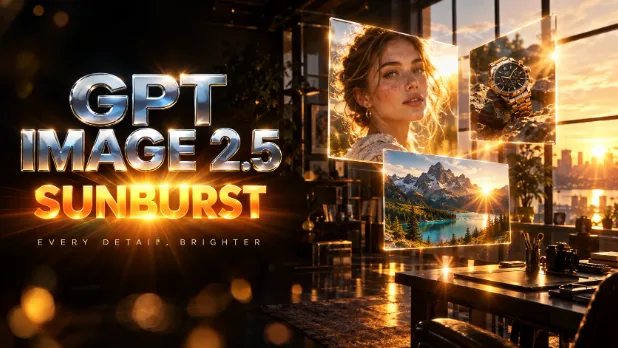 AI GPT ImageUse the GPT Image generator with GPT Image 2.5 Sunburst, High, Medium and Low to turn prompts into detailed images with clear text. Try free generations today.
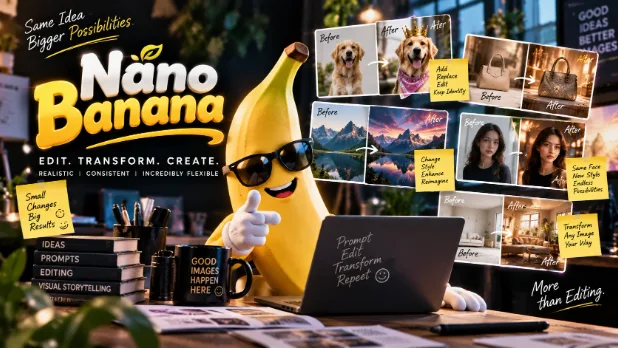 AI Nano BananaCreate and edit images with Google Nano Banana 2.1, Nano Banana 2 and Nano Banana Pro. Keep subjects consistent, blend reference photos and go up to 4K.
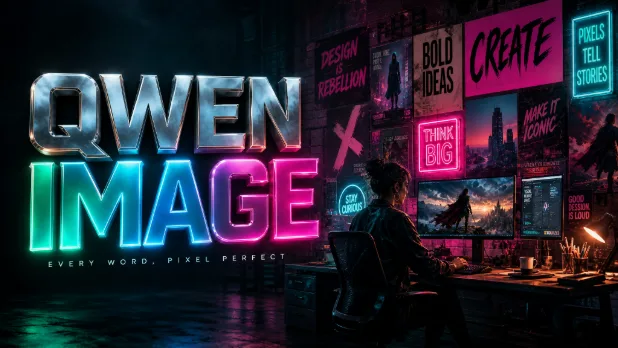 AI Alibaba Qwen ImageUse Alibaba Qwen Image to create AI images with clear, readable text and edit photos with a prompt. Design posters, ads and social graphics. Try it free now.
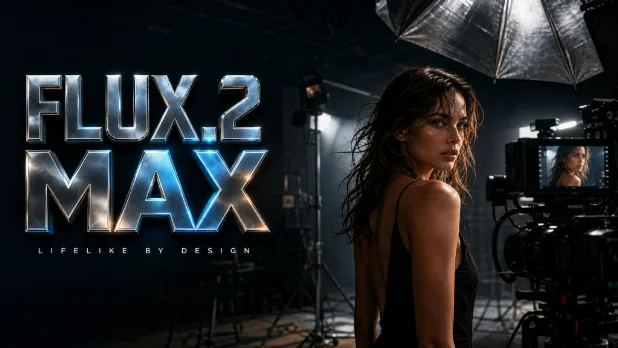 AI FluxUse the Flux AI image generator with FLUX.2 max and FLUX.2 klein 4B to create photorealistic, professional images. Start free in seconds.
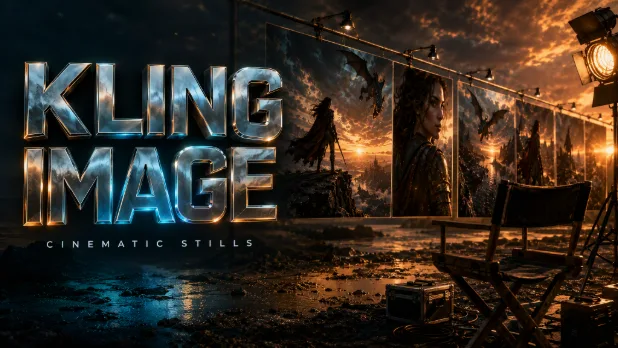 AI KlingUse the Kling AI image generator with Kling 3.0 Image to create cinematic, high-quality pictures from a prompt in 1K or 2K. Try free generations now.
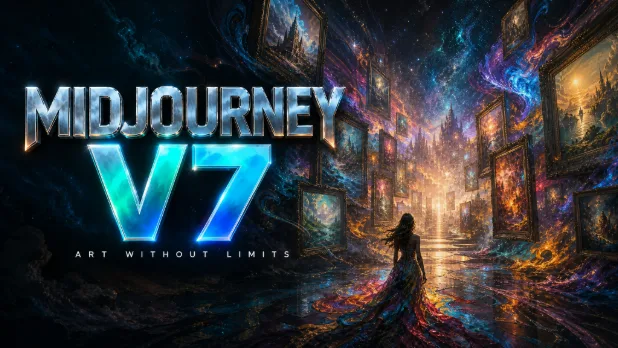 AI MidjourneyUse Midjourney AI with Midjourney v7 right in your browser, no Discord needed. Create artistic, stylized images and concept art, then edit them. Try it free.
ByteDance Seedream Image Generation and Layer Editing
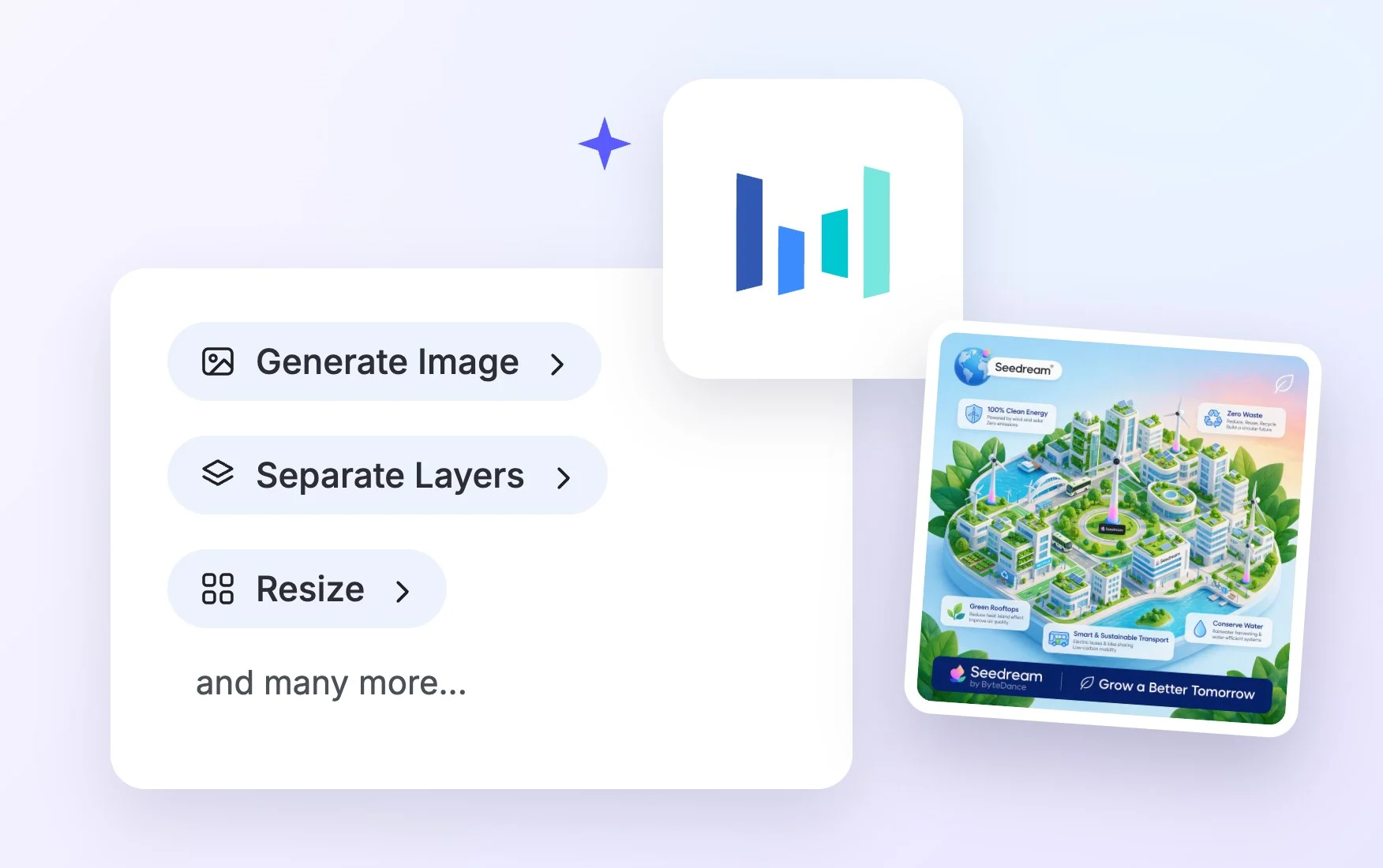
Seedream on Template.net gives you two ByteDance models in one picker. Seedream 5.0 Pro creates new images from your prompt and reference images, and Seedream 5.0 Pro layers takes an image you upload and separates it into editable layers, so you can move, restyle or replace parts of it. Set the aspect ratio, press Generate, and your result opens in a new workspace tab, ready to edit, brand and download.
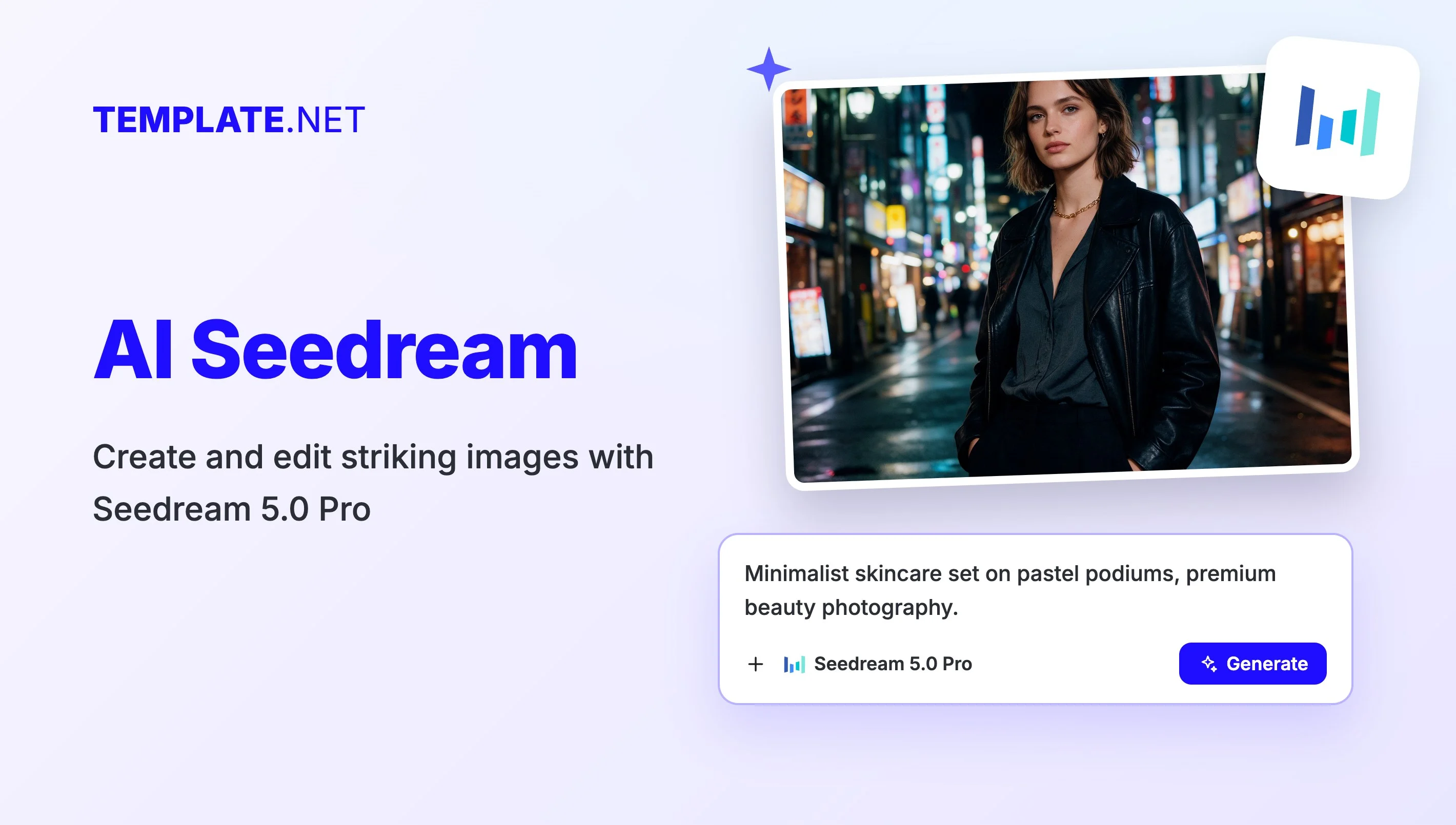
Advanced Seedream Features for Flexible Visuals
Everything you need to generate, separate and edit AI images in one place.

Split Images into Editable Layers
Upload an image and Seedream 5.0 Pro layers separates it into individual layers, such as subject, background and objects, so you can change one part without redrawing the rest.

Text to Image with Seedream 5.0 Pro
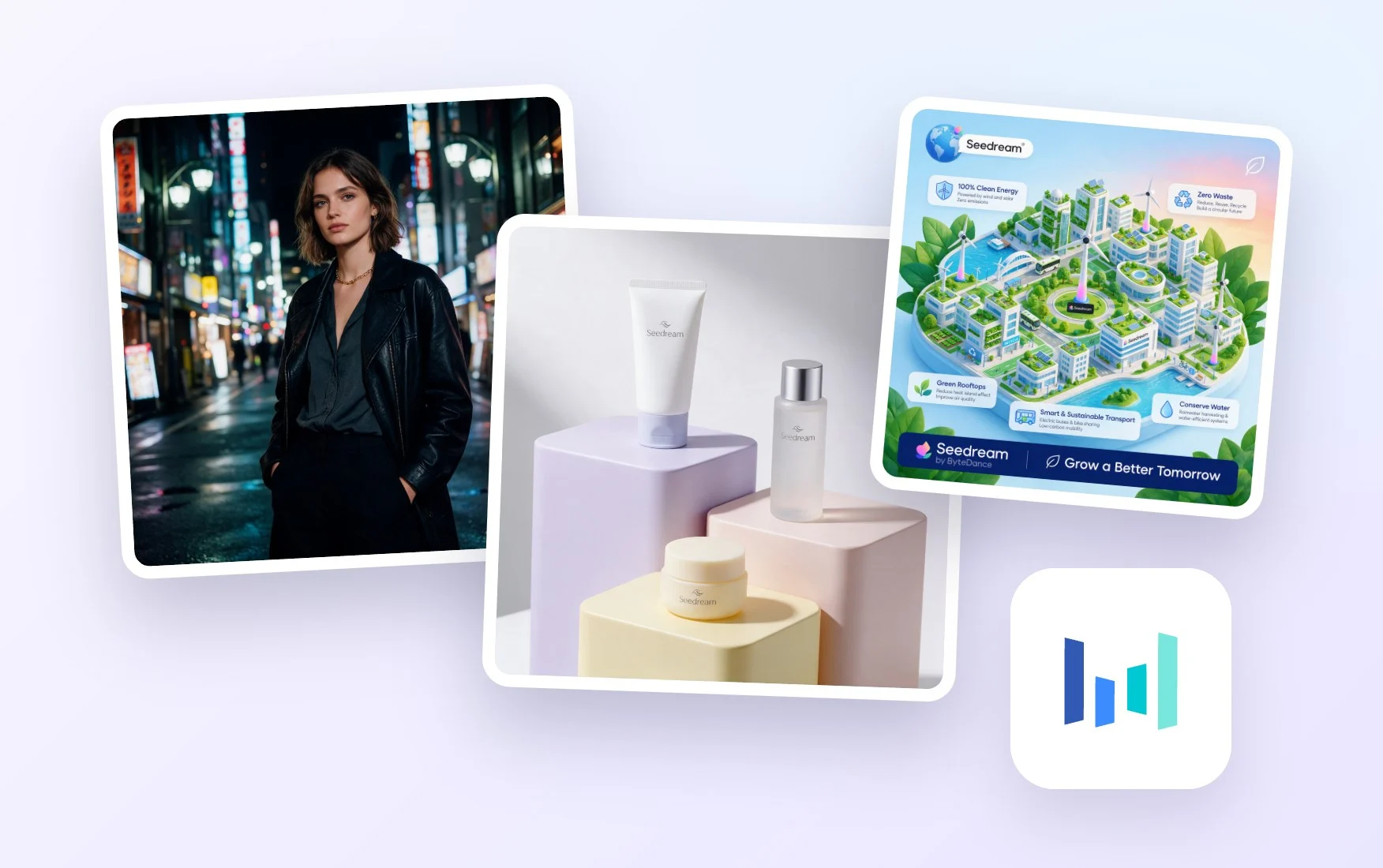
Describe a scene, product or illustration in plain language and ByteDance Seedream 5.0 Pro turns it into a polished image, from photorealistic shots to stylized artwork.

Guide Results with Reference Images
Use the Upload Images card to add a product photo, a style sample or a sketch, so Seedream keeps the subject, colors and look you want in the final image.

Reuse Assets You Already Have
Turn a flat poster, photo or old graphic into layers you can rework, instead of starting over. It is a quick way to refresh existing designs for new campaigns.

Any Aspect Ratio You Need
Choose square, portrait or landscape before you generate, so your Seedream image fits a social post, a story, a website banner or a printed flyer from the start.

Edit, Brand and Download
Open your image in the design editor to add text, remove the background, upscale or resize, apply your brand kit, then download it as PNG or PDF or share it.
How to Use Seedream AI
Generating or layering an image with ByteDance Seedream takes just three steps.
- STEP 1
Add Your Prompt or Image
For layers, upload an image with the Upload Images card, since Seedream 5.0 Pro layers needs one to work. For a new image, type a prompt and add optional reference images.
- STEP 2
Pick a Model and Generate
Seedream 5.0 Pro is preselected, or switch to Seedream 5.0 Pro layers to split an uploaded image into layers. Set the aspect ratio, press Generate, and your result opens in a new workspace tab.
- STEP 3
Edit, Brand, and Download
Open the result in the design editor to adjust layers, add text, remove the background, upscale or resize, and apply your brand kit, then download it as PNG or PDF or share it.
Do More with ByteDance Seedream
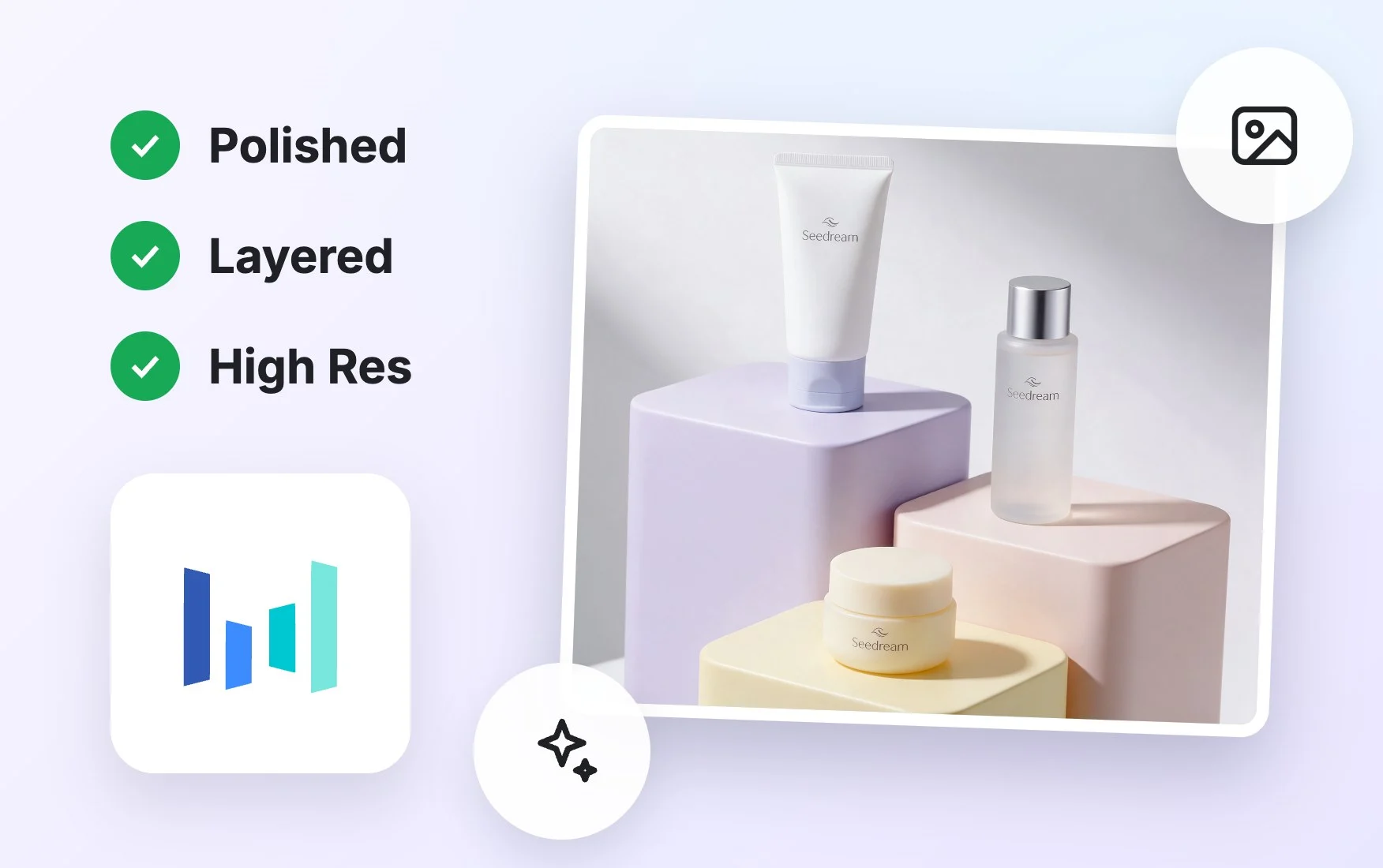
Generate More Intelligent Visuals
Seedream reads the structure of an image, recognizing subjects, backgrounds and objects, which makes layer separation and prompt-based generation feel precise and predictable.
Customize Images for Any Creative Need
Swap a background, recolor a product, move a subject or replace an object on its own layer, then reuse the same image for ads, social posts and presentations.
Improve Creative Productivity Across Workflows
Skip manual masking and cutouts. Seedream separates images into layers for you, so designers and marketers can spend their time on ideas instead of repetitive editing.
Collaborate & Share Creative Assets Easily
Every result is saved in your workspace, where you can refine it in the editor, apply your brand kit and share it with your team or download it as PNG or PDF.
Seedream AI FAQ
What is Seedream?
Seedream is a family of image models from ByteDance. On Template.net you can use Seedream 5.0 Pro to generate new images from text prompts and references, and Seedream 5.0 Pro layers to split an uploaded image into editable layers.
Is Seedream free to use?
You can try it free. Guests get a few free generations without signing up, and a free account lets you keep creating. Paid plans add more credits and access to premium models across the image model picker.
How do I use ByteDance Seedream?
Type a prompt and keep Seedream 5.0 Pro selected for a new image, or upload an image and switch to Seedream 5.0 Pro layers. Set the aspect ratio and press Generate. Your result opens in a new workspace tab, ready to edit and download.
Can I use Seedream images commercially?
You can use images you generate in your own projects, such as marketing graphics, social posts and presentations. For commercial use, check the terms of your plan so you know exactly what is covered for your business.
Can I upload my own images?
Yes. With Seedream 5.0 Pro, you can upload reference images to guide the subject, product or style of the new image. Seedream 5.0 Pro layers needs an uploaded image to separate into layers.
What image sizes and aspect ratios can I create?
You can pick a square, portrait or landscape aspect ratio before generating. Afterward, the design editor lets you upscale or resize the image to fit social media, websites, print materials or presentation slides.
Which Seedream model should I choose?
Choose Seedream 5.0 Pro to create a new image from a prompt. Choose Seedream 5.0 Pro layers when you already have an image and want to edit its parts separately. You can also compare with Google Nano Banana 2.1 or FLUX.2 max.
What does Seedream 5.0 Pro layers do?
It takes an image you upload and separates it into individual editable layers, such as the main subject, background and other elements. You can then move, recolor or replace each part in the design editor without affecting the rest.
