Generate with FLUX.2 max, FLUX.2 klein 4B
more
 FLUX.2 klein 4B
- FLUX.2 max
Choose a plan


Trusted by 800,000+ creators, marketers and businesses
Starter
For individuals exploring AI tools and Templates
$11.00/month, Billed annually
- ≈ 1 Million Templates
- ≈ 725 AI Templates
- ≈ 130 Nano Banana Pro Design & Images
- ~ 70 Visual Documents
- ~ 36 Fast Videos (1080)
- ~ Monthly Roll Over
Plus
Most PopularFor everyday AI creators and Marketers
$25.00/month, Billed annually
- ≈ 1 Million Templates
- ≈ 1650 AI Templates
- ≈ 366 Nano Banana Pro Design & Images
- ~ 150 Visual Documents
- ~ 82 Fast Videos (1080)
- ~ Monthly Roll Over
Max
For Professionals and Businesses
$66.00/month, Billed annually
- ≈ 1 Million Templates
- ≈ 4,125 AI Templates
- ≈ 750 Nano Banana Pro Design & Image
- ~ 390 Visual Documents
- ~ 206 Fast Videos (1080)
- ~ Monthly Roll Over
Related Models
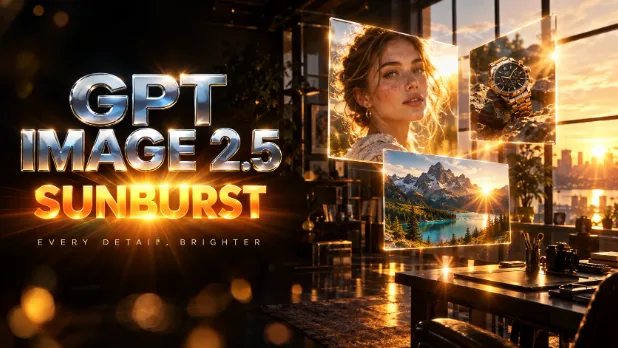 AI GPT ImageUse the GPT Image generator with GPT Image 2.5 Sunburst, High, Medium and Low to turn prompts into detailed images with clear text. Try free generations today.
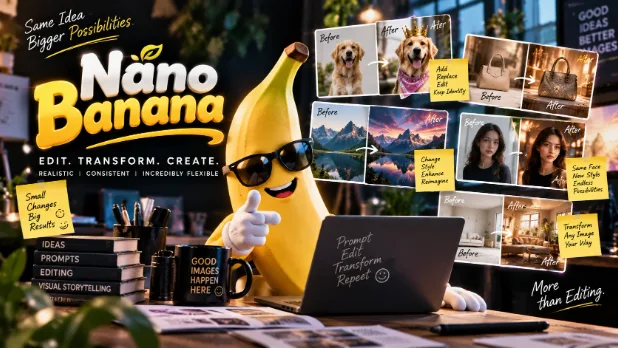 AI Nano BananaCreate and edit images with Google Nano Banana 2.1, Nano Banana 2 and Nano Banana Pro. Keep subjects consistent, blend reference photos and go up to 4K.
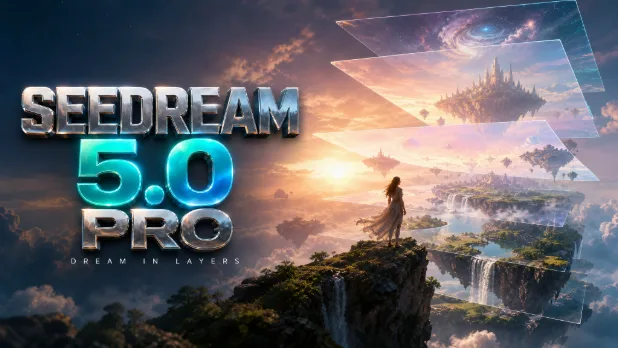 AI ByteDance SeedreamCreate AI images with ByteDance Seedream and split any uploaded image into editable layers with Seedream 5.0 Pro. Generate, edit and download. Try it free.
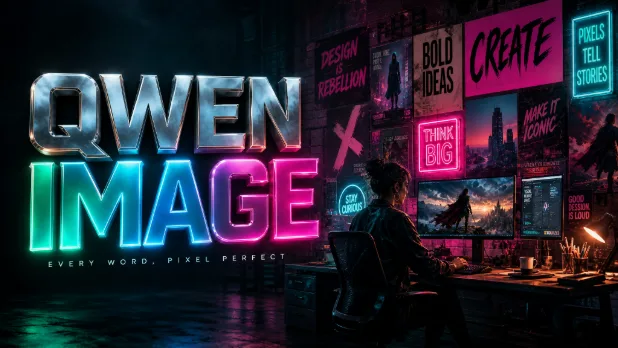 AI Alibaba Qwen ImageUse Alibaba Qwen Image to create AI images with clear, readable text and edit photos with a prompt. Design posters, ads and social graphics. Try it free now.
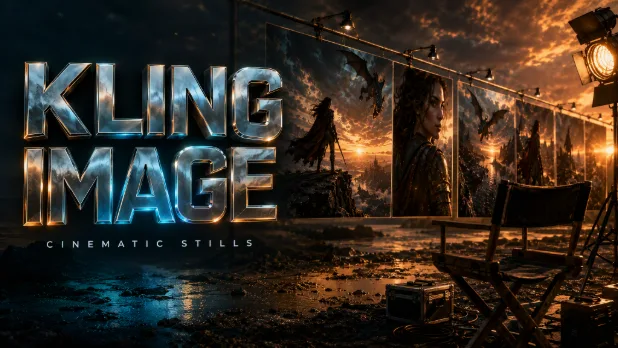 AI KlingUse the Kling AI image generator with Kling 3.0 Image to create cinematic, high-quality pictures from a prompt in 1K or 2K. Try free generations now.
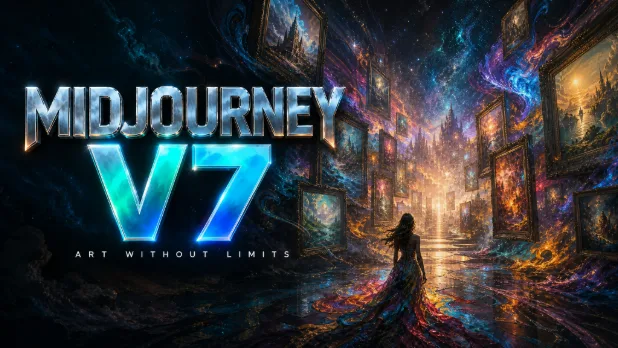 AI MidjourneyUse Midjourney AI with Midjourney v7 right in your browser, no Discord needed. Create artistic, stylized images and concept art, then edit them. Try it free.
The FLUX Image Generator for Professional Results
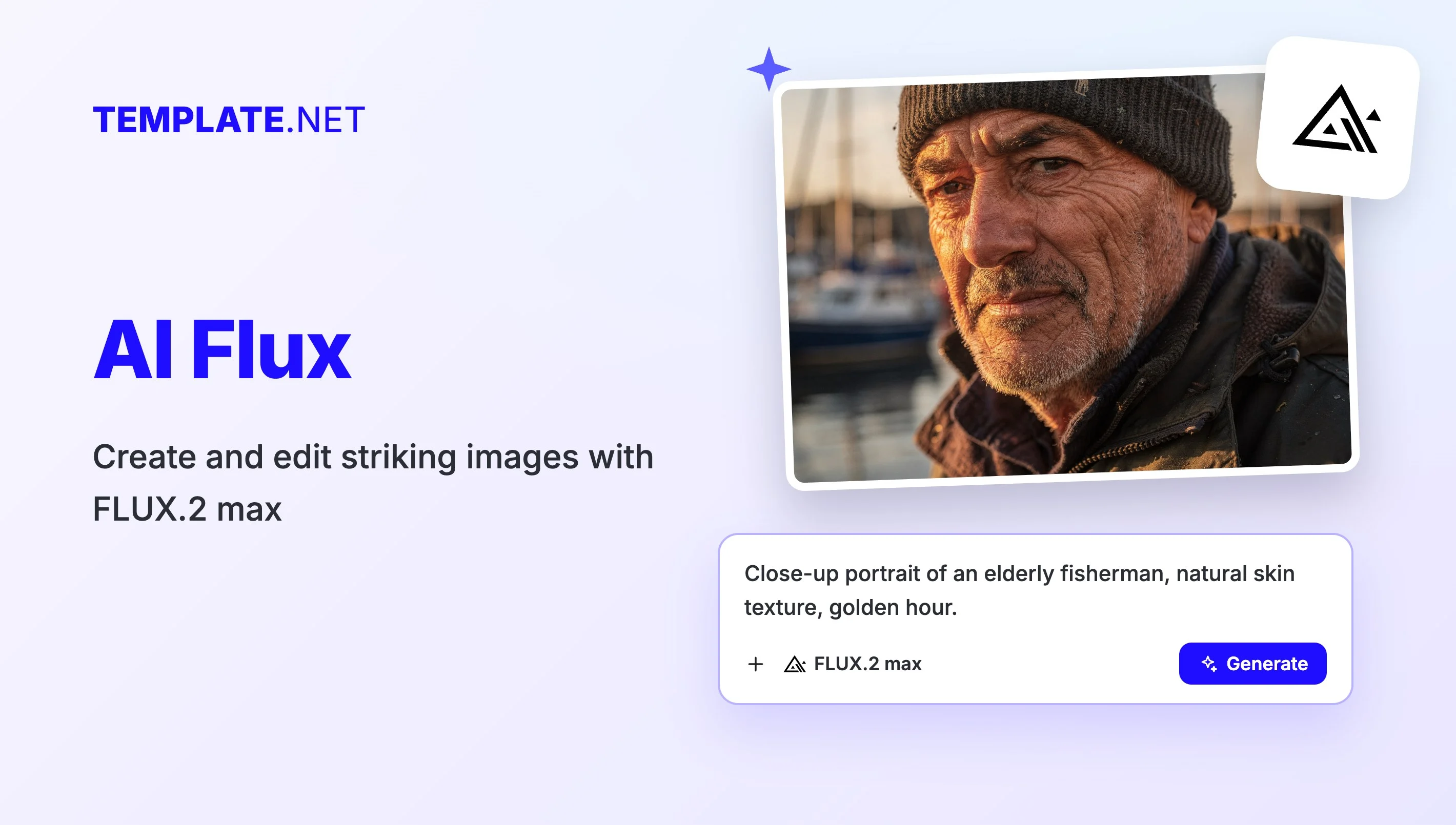
Flux AI on Template.net puts two FLUX.2 models in one picker: FLUX.2 max for photo-realistic scenes with natural lighting, and FLUX.2 klein 4B for fast, high-quality drafts. FLUX models are known for realistic lighting, natural textures and close prompt following. Write a prompt, upload reference images, choose an aspect ratio and press Generate. Your image opens in a new workspace tab, ready to edit and download.
Advanced Flux AI Features for Lifelike Images
Everything you need to generate, refine and use FLUX images in one place.

Photorealistic Detail
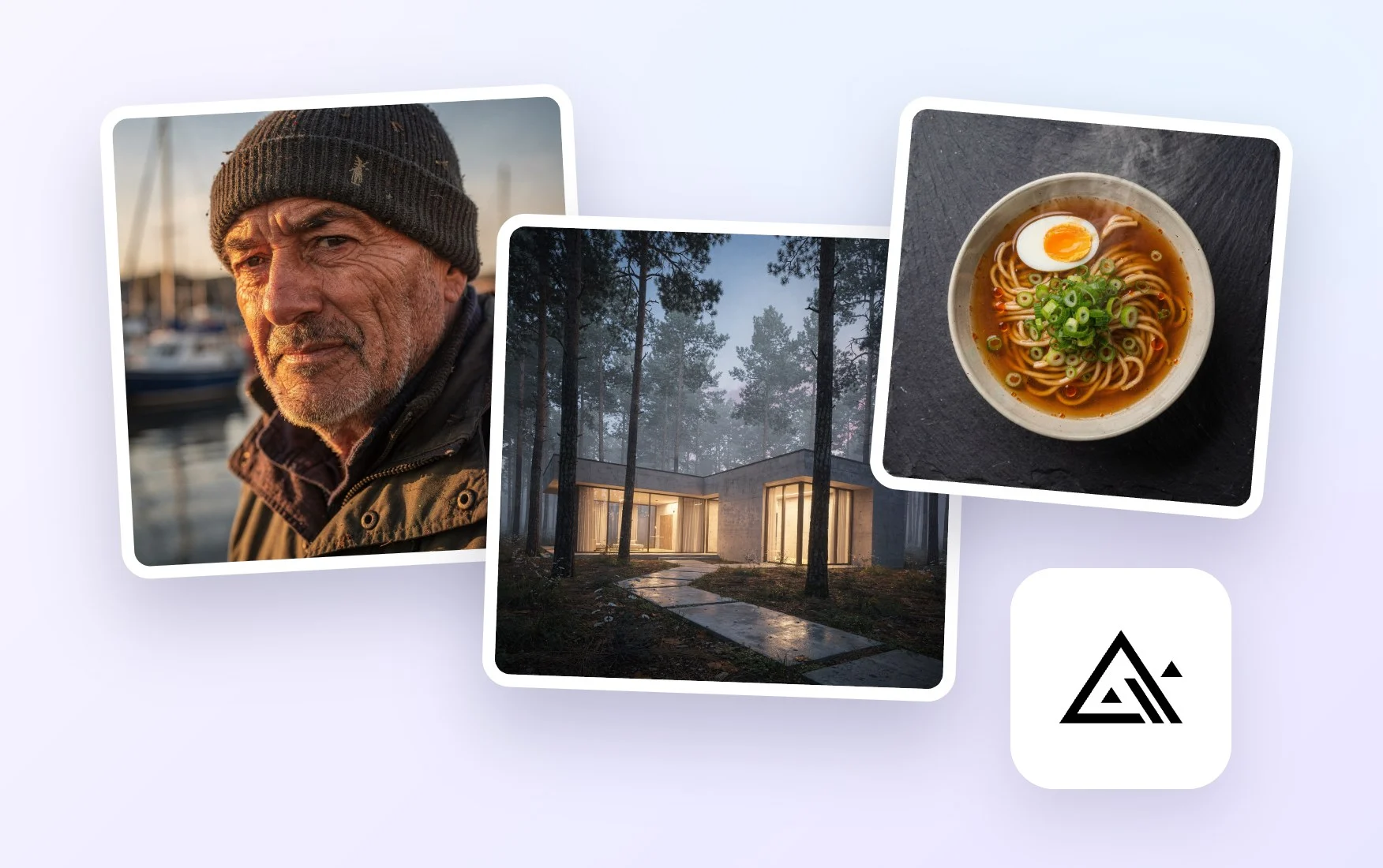
FLUX models produce natural skin, believable materials and realistic lighting, which makes them a strong choice for product photography, lifestyle scenes and portraits.

Two FLUX.2 Models in One Picker
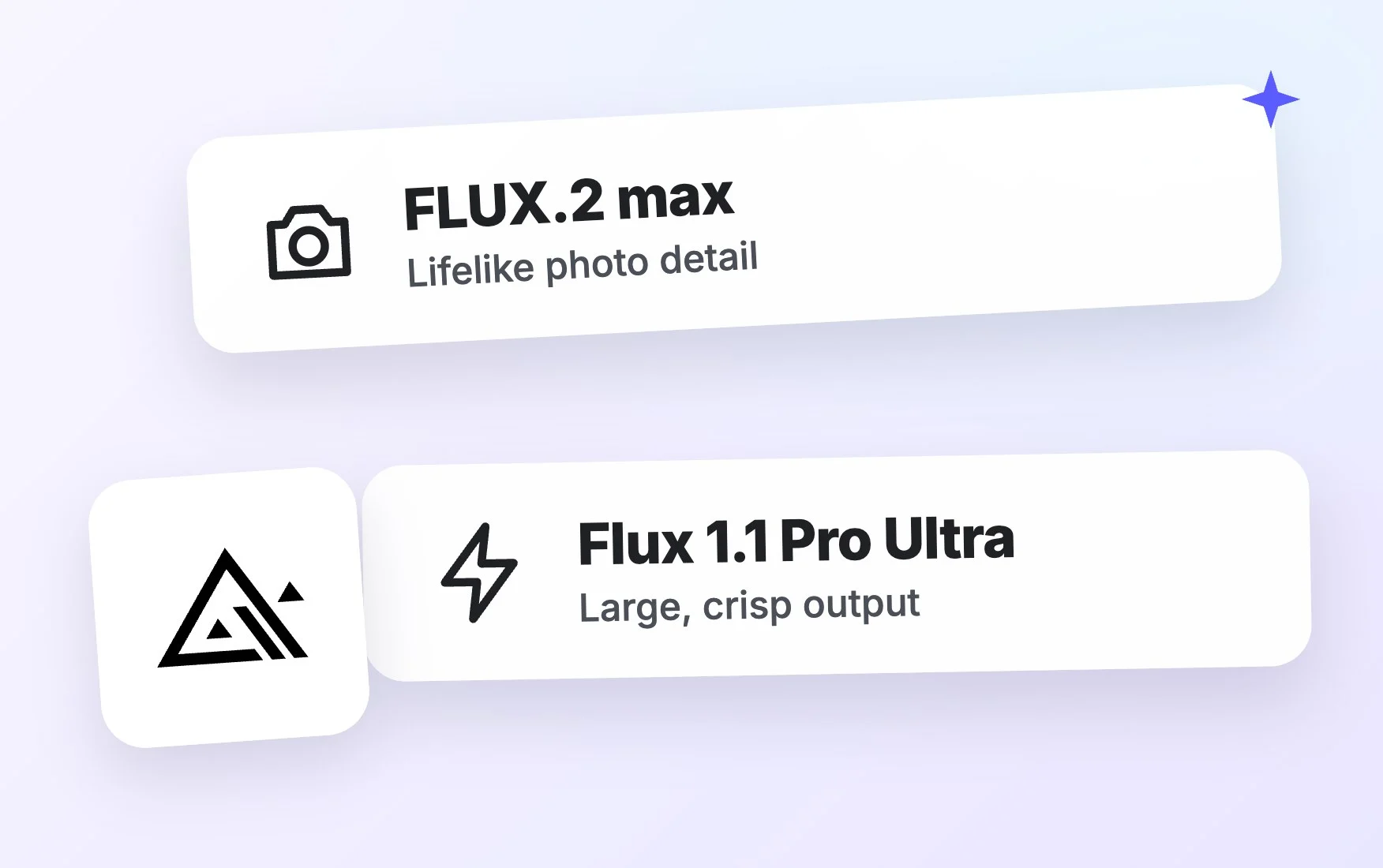
Choose FLUX.2 max for top quality at 2K, or FLUX.2 klein 4B when you want fast, high-quality images for quick iterations.

Close Prompt Following
Describe camera angle, lens, lighting, composition and color palette in detail. FLUX pays attention to specifics, so the image matches the brief you wrote.

Guide Results with Reference Images
Use the Upload Images card to add a product shot, a mood board image or a style sample, so FLUX keeps the subject, colors and look you have in mind.

Any Aspect Ratio You Need
Pick square, portrait or landscape before generating, so your FLUX image fits a social post, a website hero, a print ad or a presentation slide from the start.

Edit, Brand and Download
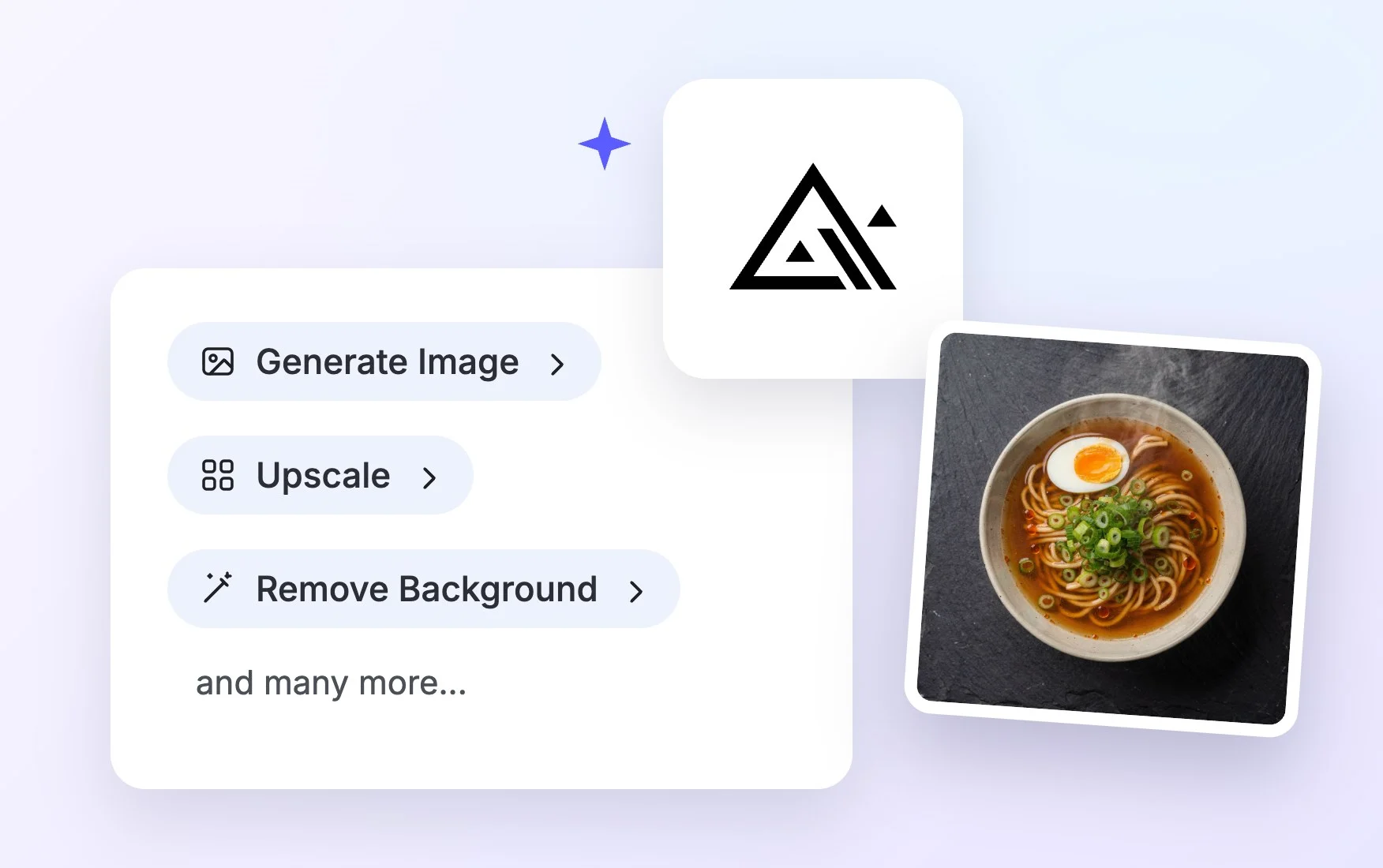
Open your image in the design editor to add text, remove the background, upscale or resize, apply your brand kit, then download it as PNG or PDF or share it.
How to Use the Flux AI Image Generator
Creating a professional image with FLUX takes just three steps.
- STEP 1
Describe Your Shot
Type a prompt describing the subject, setting, lighting and style, as if briefing a photographer. Add reference images with the Upload Images card to guide the subject, product or style.
- STEP 2
Pick a Model and Generate
FLUX.2 max is preselected, or switch to FLUX.2 klein 4B in the picker. Set the aspect ratio, press Generate, and your image opens in a new workspace tab.
- STEP 3
Edit, Brand, and Download
Open the image in the design editor to add text, remove the background, upscale or resize, and apply your brand kit, then download it as PNG or PDF or share it.
Create Professional Images with FLUX.2
Generate Professional AI Images
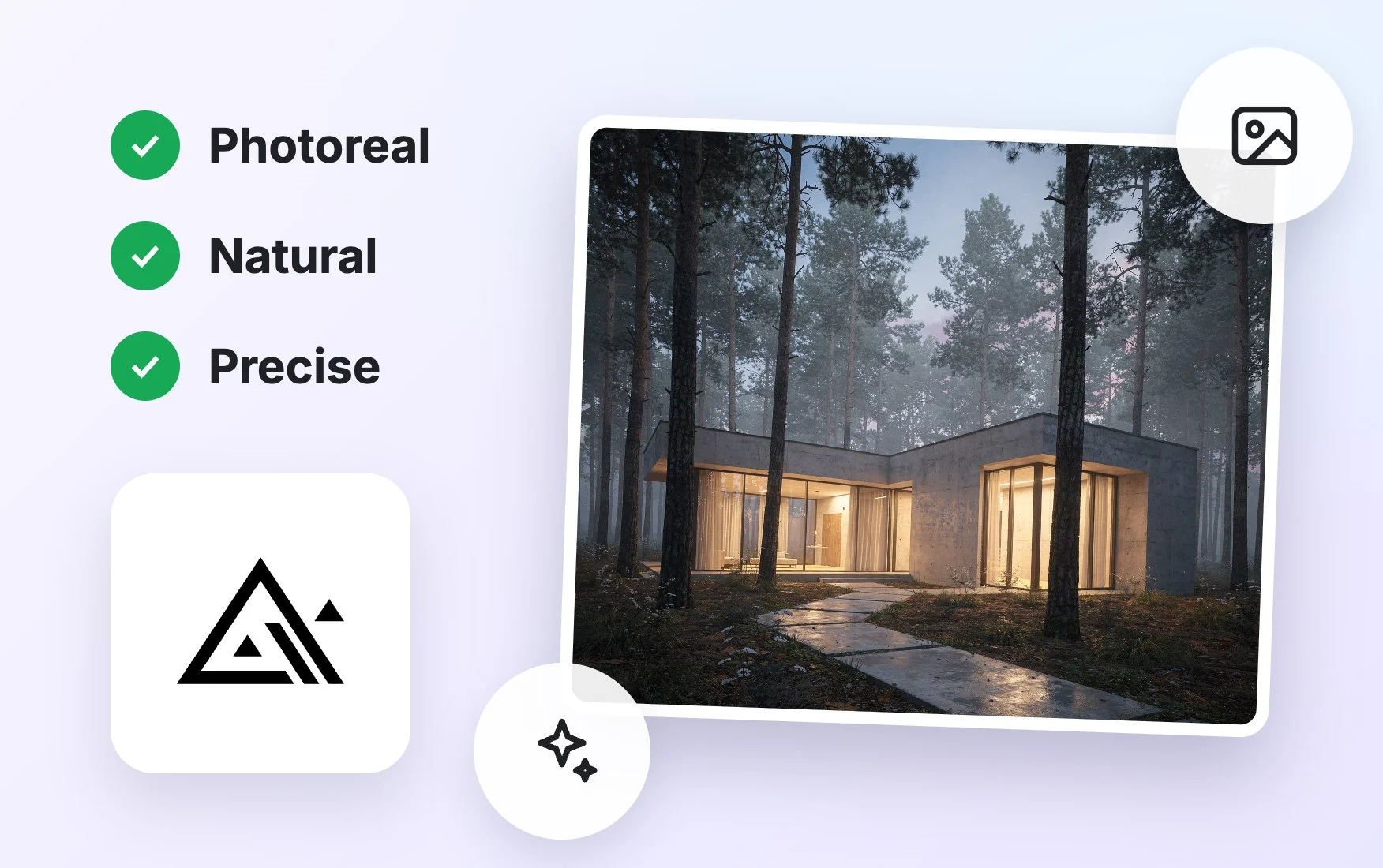
Create studio-quality product shots, lifestyle scenes and editorial visuals without a photo shoot, with the realistic lighting and detail FLUX is known for.
Customize Visual Styles with Precision
Control mood, color grading, camera angle and composition through your prompt, then fine-tune the result with reference images until it matches your brand perfectly.
Accelerate Creative Workflows
Go from brief to finished visual in minutes. Generate options with FLUX.2 klein 4B, then switch to FLUX.2 max for the final version that goes to print or online.
Create and Share with Confidence
Every image is saved in your workspace, where you can polish it in the editor, apply your brand kit and share it with your team or download it as PNG or PDF.
Flux AI Image Generator FAQ
What is Flux AI?
Flux AI refers to the FLUX family of image generation models from Black Forest Labs. On Template.net you can use FLUX.2 max and FLUX.2 klein 4B to create realistic, professional images from text prompts and references.
Is the Flux AI image generator free?
You can try it free. Guests get a few free generations without signing up, and a free account lets you continue. Paid plans add more credits and access to premium models such as FLUX.2 max.
How do I use FLUX to create an image?
Type a detailed prompt, optionally upload reference images, keep FLUX.2 max selected or choose another FLUX model, set the aspect ratio and press Generate. The image opens in a new workspace tab where you can edit and download it.
Can I use Flux AI images commercially?
You can use images you generate in your own projects, such as product pages, ads, social posts and presentations. For commercial use, check the terms of your plan so you know exactly what is covered for your business.
Can I upload my own images?
Yes. Use the Upload Images card to add product photos, mood board images or style samples. FLUX uses them as references to guide the subject, product or style of the image you generate.
What image sizes and aspect ratios can I create?
Choose a square, portrait or landscape aspect ratio before you generate. FLUX.2 max renders at 2K, and the design editor lets you upscale or resize any result.
Which FLUX model should I choose?
Choose FLUX.2 max for the best quality and FLUX.2 klein 4B for fast drafts. For other looks, compare with GPT Image 2.5 Sunburst, Nano Banana 2.1 or Seedream 5.0 Pro.
Is FLUX good for product photos?
Yes. FLUX is known for realistic lighting, materials and textures, which suits product shots and lifestyle scenes. Upload a photo of your product as a reference, describe the setting, then remove the background or add text in the editor.
