


![How to Add a Signature in Microsoft Forms [Templates + Examples] 2026](https://images.template.net/wp-content/uploads/2022/07/How-to-Add-a-Signature-in-Microsoft-Forms-Templates-Examples-2023-788x443.jpg)
How to Add a Signature in Microsoft Forms [Templates + Examples] 2026
Signatures found in documents establish who you are as an individual or as an organization. Aside from the fact that…
Dec 22, 2025


Sep 02, 2025
Access Microsoft Visio on your PC or mobile device to graphically arrange complicated concepts. Begin your Visio projects with hundreds of templates, such as flowcharts, timetables, and floor layouts, to save you time and effort.
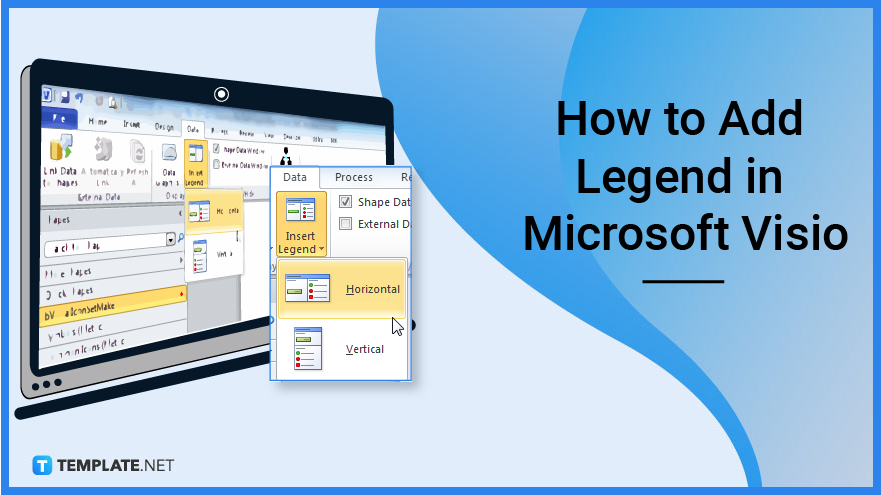
You may have a preference to remove text labels from data graphics in your diagram or to employ data graphics that are not meant to contain labels. Adding a legend to your diagram to illustrate the meanings of certain symbols will help to portray them better.
You will first need to open your Microsoft Visio account by logging in with your details. Either as desktop software or accessing it through the web are options for you as long as you can edit it. Proceed to open the file you would want to add a legend to or an example you want to use to follow along with the guide.
After opening the file you would want, you can then add a legend. Click the arrow next to “Insert Legend” on the “Data” tab’s “Display Data group.”
You do have the option to select which direction the legend would run to depending on whether you want the legend to run horizontally or vertically, click “Horizontal” or “Vertical.” The legend displays the data bars, icons, and color values that are currently in use on the page. You can pick and eliminate unnecessary information. Other options to edit the legend include changing the wording or adding new shapes.
Legends are not automatically updated when you modify something in the diagram, you must enter a new legend to reflect the changes. To do so, transfer the customized legend to an empty space, then when you insert a new legend, you can select which version you want to keep. Delete the legend you don’t intend to use and move the updated legend to where you want to place it on the diagram.
You have the option of whether to add a vertical or horizontal legend.
Select “Task Panes” in the Show group on the “View” tab, and then click “Shape Data” as this toggles the appearance of the Shape Data task pane.
A subprocess flowchart may be defined as the depiction of an activity that consists of a succession of tiny sections; that is, this activity can be represented by a process flowchart since it is inserted into a Process flow chart.
A legend is an element that you may add to your diagram to offer information about the colors, line thicknesses, and styles, specifically the colors and other styles that have a specific meaning.
A caption, title, or brief explanation attached to an article, artwork, cartoon, or billboard is referred to as a legend while a key is a set of symbols that explain how they are used in a map, table, etc.

Signatures found in documents establish who you are as an individual or as an organization. Aside from the fact that…
![How To Make/Create a Newsletter in Microsoft Outlook [Templates + Examples] 2026](https://images.template.net/wp-content/uploads/2022/07/How-to-Start-a-Newsletter-with-Microsoft-Outlook-788x443.jpg)
Newsletters enable companies and organizations to communicate relevant and helpful information to their client, prospects, and subscribers. By giving you…
![How To Make/Create a Booklet in Microsoft Publisher [Templates + Examples] 2026](https://images.template.net/wp-content/uploads/2022/08/How-To-Make_Create-a-Booklet-in-Microsoft-Publisher-788x443.png)
Booklet templates are pre-designed layouts that make it easy to create a professional-looking booklet. They typically include placeholders for text…
![How To Make/Create a Booklet in Microsoft PowerPoint [Templates + Examples] 2026](https://images.template.net/wp-content/uploads/2022/07/How-To-Make-Create-a-Booklet-in-Microsoft-PowerPoint-788x443.jpg)
Booklets can be created in Microsoft PowerPoint, which offers a design feature that allows users to display them in PPT…
![How to Automatically Fill PDF Forms Using Microsoft Excel [Templates + Examples] 2026](https://images.template.net/wp-content/uploads/2022/07/How-to-Automatically-Fill-PDF-Forms-Using-Microsoft-Excel-788x444.png)
Automatically fill PDF forms using Microsoft Excel so you won’t have to save multiple PDF forms in an Excel spreadsheet…
![How to Make/Create a Floor Plan on Microsoft Excel [Templates + Examples] 2026](https://images.template.net/wp-content/uploads/2022/07/How-to-Make-a-Floor-Plan-on-Microsoft-Excel-788x443.jpg)
Floor plans either make or break projects related to engineering and architecture. That being said, every apartment room, bedroom, living…
![How to Make/Create a Grid in Microsoft Word [Templates + Examples] 2026](https://images.template.net/wp-content/uploads/2022/07/How-to-Make_Create-a-Grid-in-Microsoft-Word-788x444.jpg)
Grids consist of a network of lines that work as graphic cues while formatting your document in Microsoft Office. If…
![How to Add More Highlight Colors to Microsoft Word [Templates + Examples] 2026](https://images.template.net/wp-content/uploads/2022/07/How-to-Add-More-Highlight-Colors-to-Microsoft-Word-Templates-Examples-2023-788x443.jpg)
Add more highlight colors to Microsoft Word so you won’t have to settle with the default shading color in marking…
![How to Make/Create a Border in Microsoft Publisher [Templates + Examples] 2026](https://images.template.net/wp-content/uploads/2022/08/How-to-MakeCreate-a-Border-in-Microsoft-Publisher-788x444.png)
Borders are graphic design elements that make a document more pleasing and stylish to look at. This can be used…