


![How to Add a Signature in Microsoft Forms [Templates + Examples] 2026](https://images.template.net/wp-content/uploads/2022/07/How-to-Add-a-Signature-in-Microsoft-Forms-Templates-Examples-2023-788x443.jpg)
How to Add a Signature in Microsoft Forms [Templates + Examples] 2026
Signatures found in documents establish who you are as an individual or as an organization. Aside from the fact that…
Dec 22, 2025


Sep 02, 2025
Microsoft Whiteboard has many features that allow its users to efficiently use this Microsoft Office product. One of these features is called sticky notes, which allows the user to write down words on colored boxes.
Sticky notes allow the users to arrange and organize the notes they made in Microsoft Whiteboard during a Microsoft Teams meeting. Users of Microsoft Whiteboard can utilize these notes as they can hold a large number of texts.
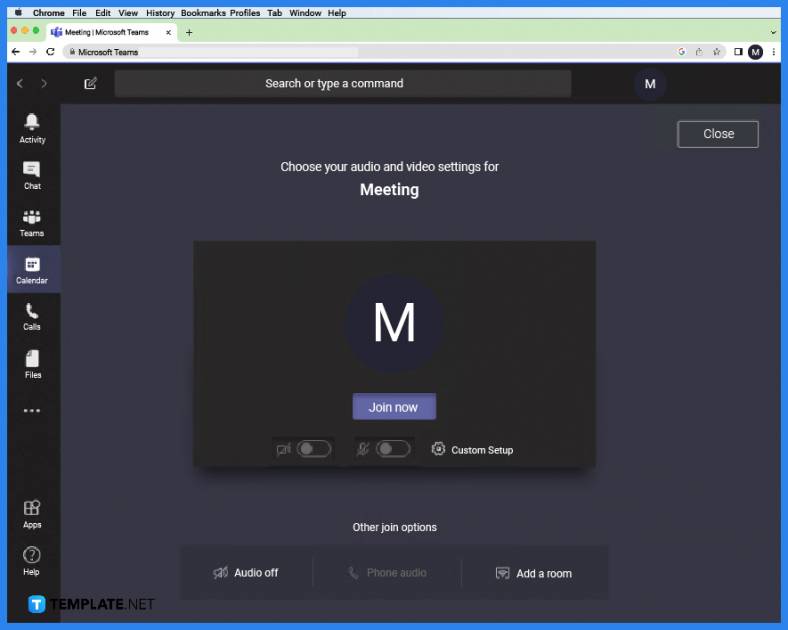
Start by joining or creating a Microsoft Teams meeting through the calendar function of Microsoft Teams. This can be done by selecting a team, opening the calendar on the team’s general channel, choosing a specific date, and finally starting or joining a meeting on that day.
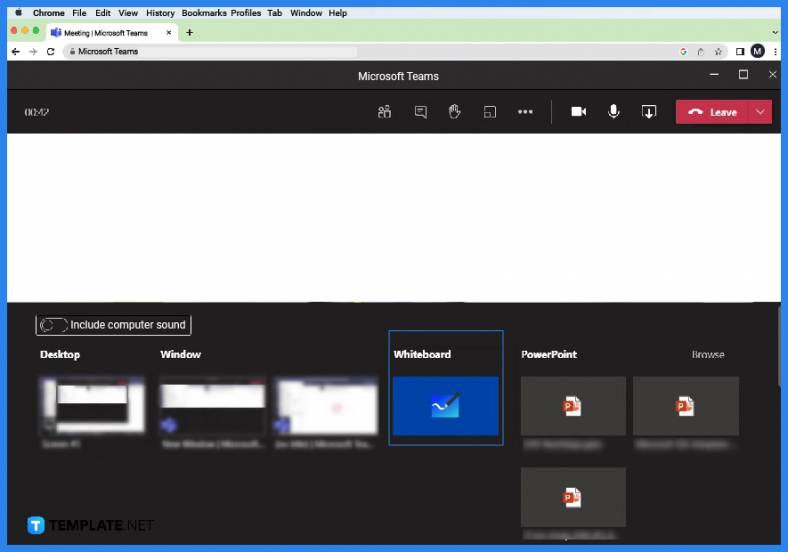
When the user is in a team meeting, they will need to open the whiteboard inside the meeting. This can be done by pressing the “Add Whiteboard” button on the ribbon of the meeting. After the user has clicked this button, the whiteboard will now appear on the team meeting.
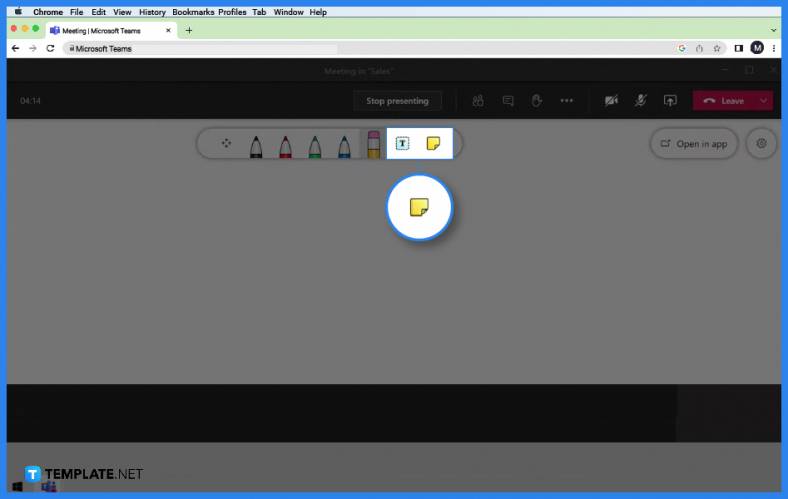
Users within the meeting can edit, draw, and create different objects and lines on the whiteboard. To create a sticky note, the user must click the Sticky Note button on the far right corner of the ribbon.
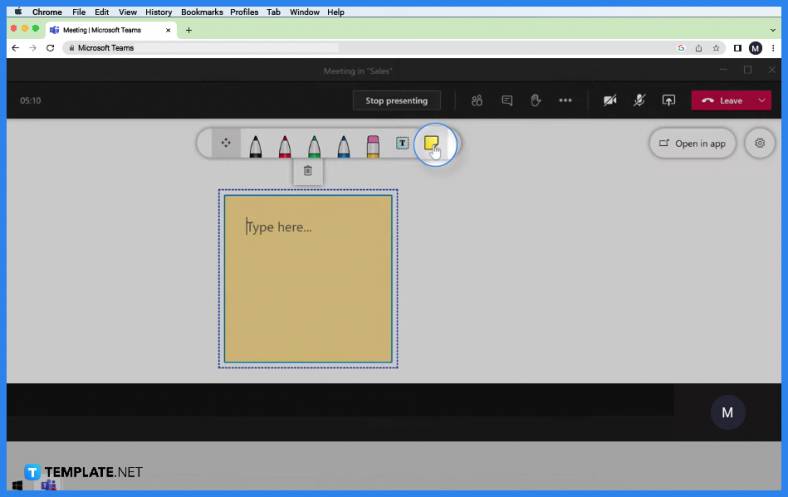
A dropdown will appear when the user clicks the Sticky Note button. On this dropdown, the user will be prompted to select the sticky note format as it comes in either as a single sticky note or a note grid of any color.
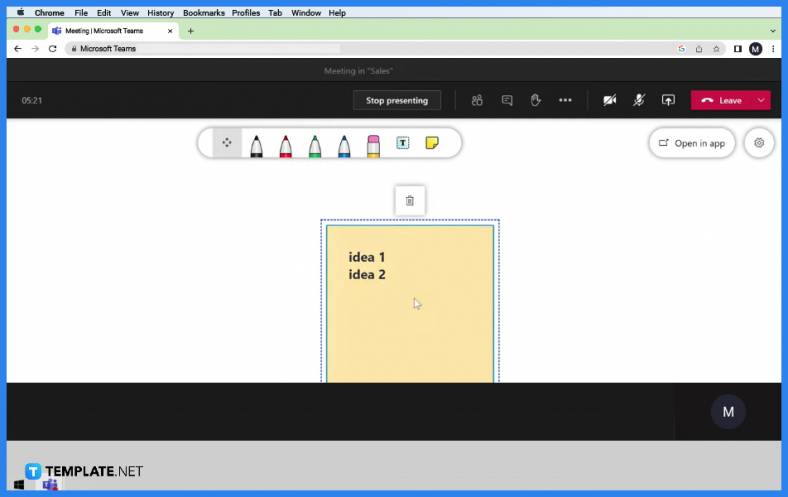
When the user has selected the format they wish to use, they can now create the sticky note on the body of the whiteboard. To create a sticky note, the user must left-click and drag on any space within the whiteboard. After the user has finished making the sticky note, they may now type anything within the note.

Sticky notes are a good way to keep track of specific points that come up during the meeting and help organize one’s notes on the whiteboard.
The user can change the angles and positions of the sticky notes by selecting the sticky note, hovering the pointer over one of the resizing circles, left-clicking the circle when it becomes a rotate symbol, and dragging your cursor to the preferred angle.
You can change the color by clicking the sticky note and selecting the “Background Color Picker” button on the toolbar.
Yes, you can delete sticky notes by left-clicking the sticky note you want to delete and selecting the “Delete” button on the toolbar.
You cannot directly change the font format inside the sticky note; instead, you will need to reduce or increase the size of the sticky note as that will proportionally change the font size.

Signatures found in documents establish who you are as an individual or as an organization. Aside from the fact that…
![How To Make/Create a Newsletter in Microsoft Outlook [Templates + Examples] 2026](https://images.template.net/wp-content/uploads/2022/07/How-to-Start-a-Newsletter-with-Microsoft-Outlook-788x443.jpg)
Newsletters enable companies and organizations to communicate relevant and helpful information to their client, prospects, and subscribers. By giving you…
![How To Make/Create a Booklet in Microsoft Publisher [Templates + Examples] 2026](https://images.template.net/wp-content/uploads/2022/08/How-To-Make_Create-a-Booklet-in-Microsoft-Publisher-788x443.png)
Booklet templates are pre-designed layouts that make it easy to create a professional-looking booklet. They typically include placeholders for text…
![How To Make/Create a Booklet in Microsoft PowerPoint [Templates + Examples] 2026](https://images.template.net/wp-content/uploads/2022/07/How-To-Make-Create-a-Booklet-in-Microsoft-PowerPoint-788x443.jpg)
Booklets can be created in Microsoft PowerPoint, which offers a design feature that allows users to display them in PPT…
![How to Automatically Fill PDF Forms Using Microsoft Excel [Templates + Examples] 2026](https://images.template.net/wp-content/uploads/2022/07/How-to-Automatically-Fill-PDF-Forms-Using-Microsoft-Excel-788x444.png)
Automatically fill PDF forms using Microsoft Excel so you won’t have to save multiple PDF forms in an Excel spreadsheet…
![How to Make/Create a Floor Plan on Microsoft Excel [Templates + Examples] 2026](https://images.template.net/wp-content/uploads/2022/07/How-to-Make-a-Floor-Plan-on-Microsoft-Excel-788x443.jpg)
Floor plans either make or break projects related to engineering and architecture. That being said, every apartment room, bedroom, living…
![How to Make/Create a Grid in Microsoft Word [Templates + Examples] 2026](https://images.template.net/wp-content/uploads/2022/07/How-to-Make_Create-a-Grid-in-Microsoft-Word-788x444.jpg)
Grids consist of a network of lines that work as graphic cues while formatting your document in Microsoft Office. If…
![How to Add More Highlight Colors to Microsoft Word [Templates + Examples] 2026](https://images.template.net/wp-content/uploads/2022/07/How-to-Add-More-Highlight-Colors-to-Microsoft-Word-Templates-Examples-2023-788x443.jpg)
Add more highlight colors to Microsoft Word so you won’t have to settle with the default shading color in marking…
![How to Make/Create a Border in Microsoft Publisher [Templates + Examples] 2026](https://images.template.net/wp-content/uploads/2022/08/How-to-MakeCreate-a-Border-in-Microsoft-Publisher-788x444.png)
Borders are graphic design elements that make a document more pleasing and stylish to look at. This can be used…