


![How to Add a Signature in Microsoft Forms [Templates + Examples] 2026](https://images.template.net/wp-content/uploads/2022/07/How-to-Add-a-Signature-in-Microsoft-Forms-Templates-Examples-2023-788x443.jpg)
How to Add a Signature in Microsoft Forms [Templates + Examples] 2026
Signatures found in documents establish who you are as an individual or as an organization. Aside from the fact that…
Dec 22, 2025


Sep 02, 2025
Microsoft Forms offers users the convenience not only of creating surveys, quizzes, and polls with ease but also of collecting and exporting the data they received from respondents. Much more with its feature of allowing the users to replicate pre-made templates or completed forms.
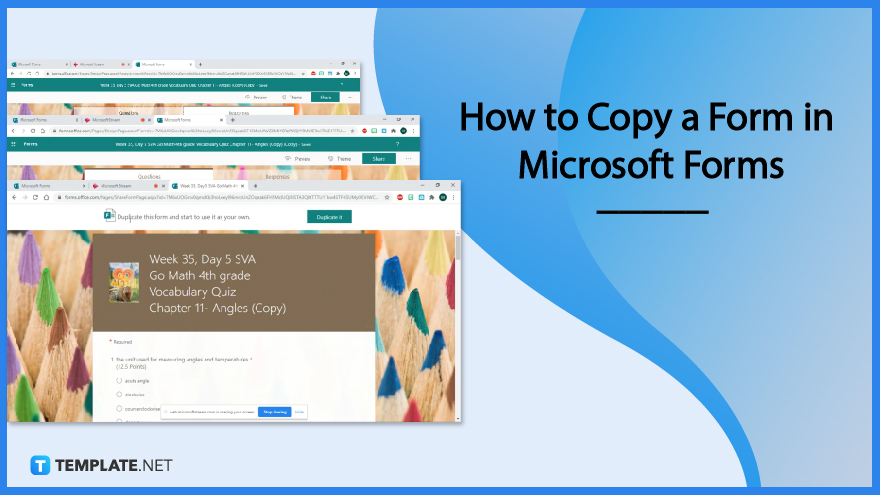
The accessibility of Microsoft Forms allows users to be friendly in reproducing already completed or finished questionnaires, polls, or ratings which establishments can utilize to save time on manually copying each question. Be guided on how to copy a form in Microsoft Forms as this will provide you convenience when working on certain projects.
Sign in to Microsoft Forms using your Microsoft 365 work or school account or your Microsoft personal account. Alternatively, log in to Office.com, then look for the Microsoft 365 icons on the left and pick Forms.
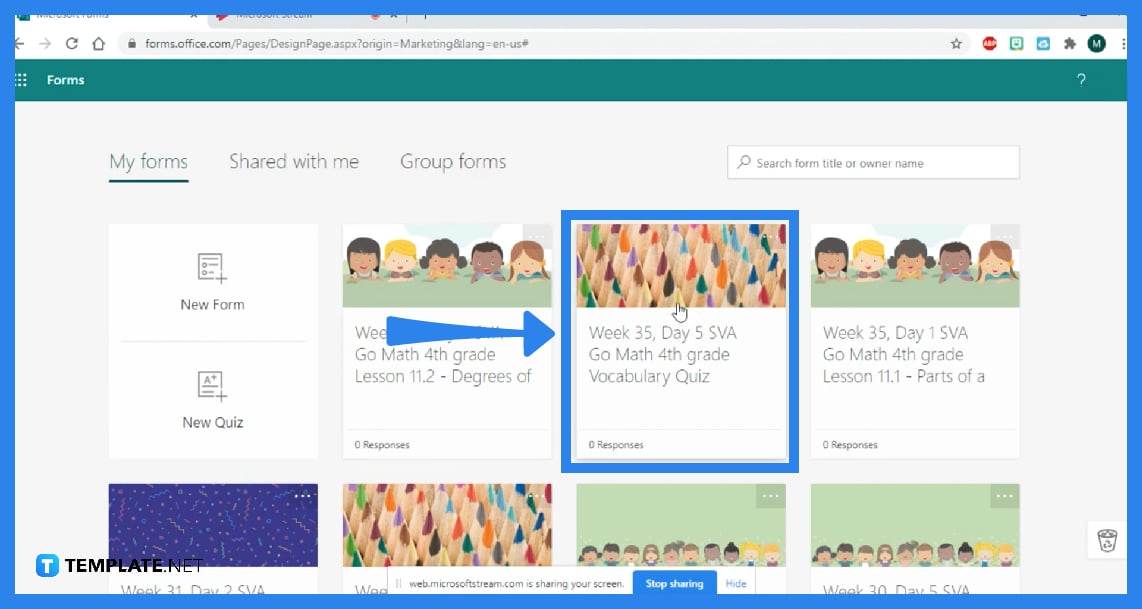
Scroll to the bottom of the page and click ‘All My Forms’ where you can view the forms you have completed from previous work. Select the ‘More choices’ button in the upper right corner of the form’s tile, and then pick ‘Copy’.
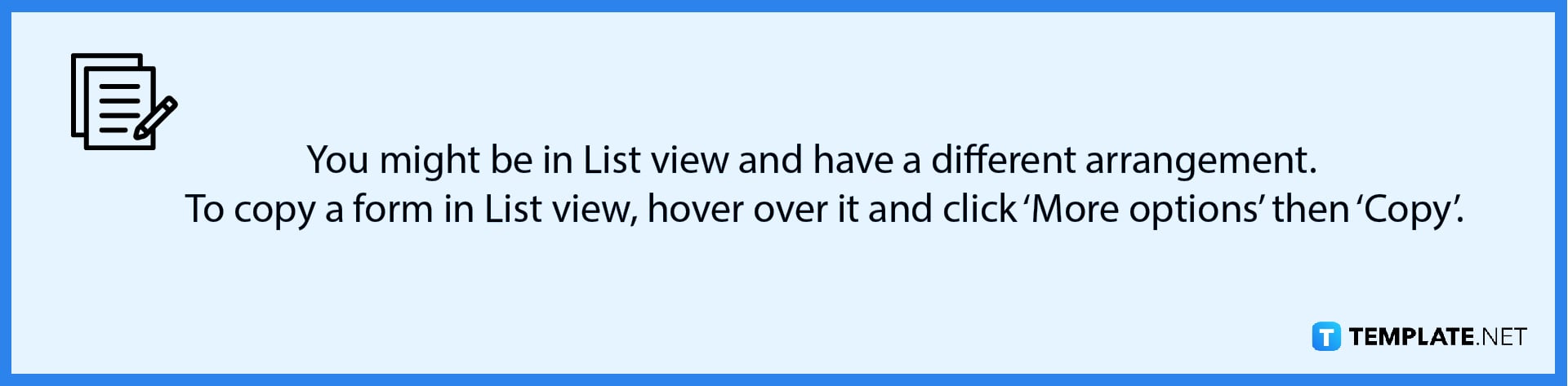
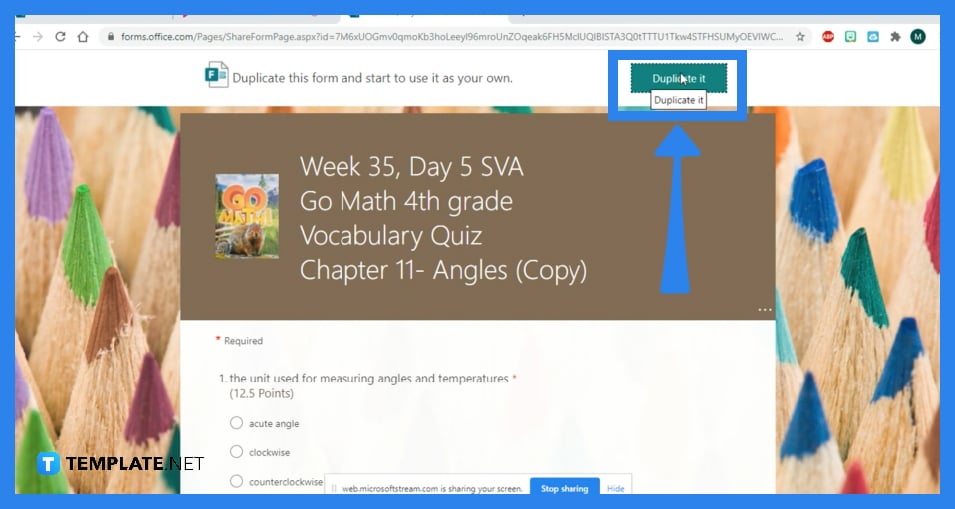
A duplicate form will appear at the top of your list under ‘All My Forms’. It will be titled the same thing as your initial form but you have the freedom to edit it into a different title.
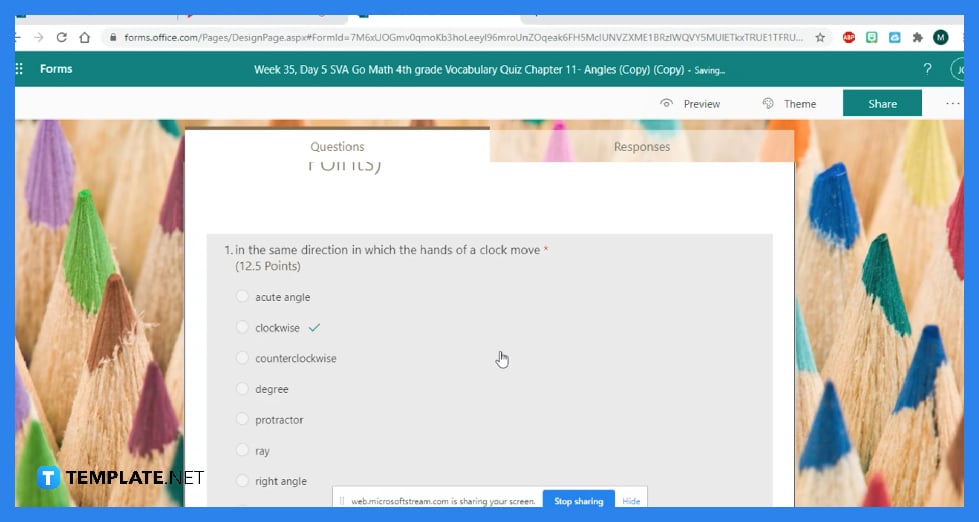
So you can distinguish your copied form from the original one, you should immediately change the contents of the new one. You can start with editing the title and changing the description. Even changing the image will help you to identify which of the two would contain recent updates.
As you navigate through your forms and opened the specific one you want to copy questions from, the next thing you must do is check the box to the left of each question; click on ‘Copy to’ and select the form that you want to copy the questions to.
Go to the three dots on a form while you are on the forms homepage; when you click the three dots, you are presented with two options: copy and delete which allows you to reuse a pre-made form you have completed.
To rename a form, open it and choose the title to modify it; this also changes the form name.
Click ‘More Options’ in the top right corner of the tile of the form you own and want to transfer to another group, and then select ‘Move’.
Only the questions, structure, and layout of a form are transferred when you replicate it, and no current responses are brought over to the new form.

Signatures found in documents establish who you are as an individual or as an organization. Aside from the fact that…
![How To Make/Create a Newsletter in Microsoft Outlook [Templates + Examples] 2026](https://images.template.net/wp-content/uploads/2022/07/How-to-Start-a-Newsletter-with-Microsoft-Outlook-788x443.jpg)
Newsletters enable companies and organizations to communicate relevant and helpful information to their client, prospects, and subscribers. By giving you…
![How To Make/Create a Booklet in Microsoft Publisher [Templates + Examples] 2026](https://images.template.net/wp-content/uploads/2022/08/How-To-Make_Create-a-Booklet-in-Microsoft-Publisher-788x443.png)
Booklet templates are pre-designed layouts that make it easy to create a professional-looking booklet. They typically include placeholders for text…
![How To Make/Create a Booklet in Microsoft PowerPoint [Templates + Examples] 2026](https://images.template.net/wp-content/uploads/2022/07/How-To-Make-Create-a-Booklet-in-Microsoft-PowerPoint-788x443.jpg)
Booklets can be created in Microsoft PowerPoint, which offers a design feature that allows users to display them in PPT…
![How to Automatically Fill PDF Forms Using Microsoft Excel [Templates + Examples] 2026](https://images.template.net/wp-content/uploads/2022/07/How-to-Automatically-Fill-PDF-Forms-Using-Microsoft-Excel-788x444.png)
Automatically fill PDF forms using Microsoft Excel so you won’t have to save multiple PDF forms in an Excel spreadsheet…
![How to Make/Create a Floor Plan on Microsoft Excel [Templates + Examples] 2026](https://images.template.net/wp-content/uploads/2022/07/How-to-Make-a-Floor-Plan-on-Microsoft-Excel-788x443.jpg)
Floor plans either make or break projects related to engineering and architecture. That being said, every apartment room, bedroom, living…
![How to Make/Create a Grid in Microsoft Word [Templates + Examples] 2026](https://images.template.net/wp-content/uploads/2022/07/How-to-Make_Create-a-Grid-in-Microsoft-Word-788x444.jpg)
Grids consist of a network of lines that work as graphic cues while formatting your document in Microsoft Office. If…
![How to Add More Highlight Colors to Microsoft Word [Templates + Examples] 2026](https://images.template.net/wp-content/uploads/2022/07/How-to-Add-More-Highlight-Colors-to-Microsoft-Word-Templates-Examples-2023-788x443.jpg)
Add more highlight colors to Microsoft Word so you won’t have to settle with the default shading color in marking…
![How to Make/Create a Border in Microsoft Publisher [Templates + Examples] 2026](https://images.template.net/wp-content/uploads/2022/08/How-to-MakeCreate-a-Border-in-Microsoft-Publisher-788x444.png)
Borders are graphic design elements that make a document more pleasing and stylish to look at. This can be used…