


![How to Add a Signature in Microsoft Forms [Templates + Examples] 2026](https://images.template.net/wp-content/uploads/2022/07/How-to-Add-a-Signature-in-Microsoft-Forms-Templates-Examples-2023-788x443.jpg)
How to Add a Signature in Microsoft Forms [Templates + Examples] 2026
Signatures found in documents establish who you are as an individual or as an organization. Aside from the fact that…
Dec 22, 2025


Sep 02, 2025
Microsoft Publisher has a user-friendly design feature that allows you to create your own logo for academic or business purposes. Learn how to make a unique and compelling logo to market your business or brand with these few easy steps.
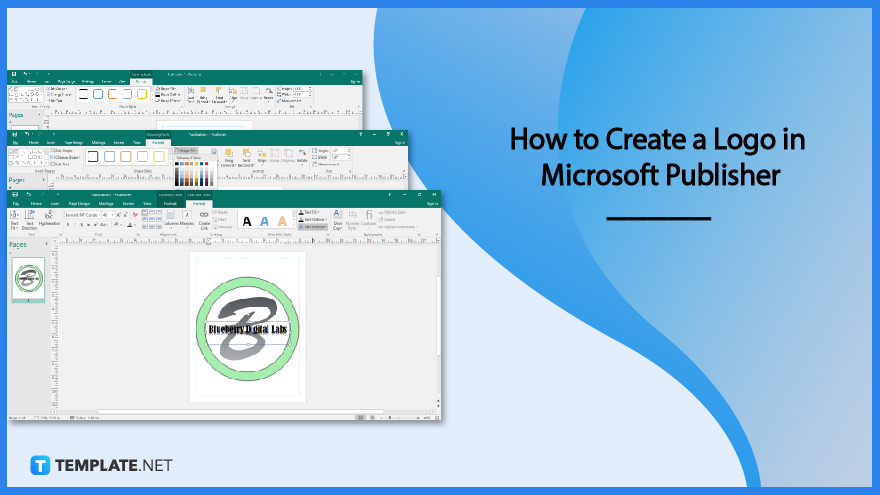
A logo makes it simpler for clients to recognize, identify, and prefer your business over rivals. Microsoft Publisher allows you to make your own logos since it is a customer-friendly application and can accommodate your design requirements.

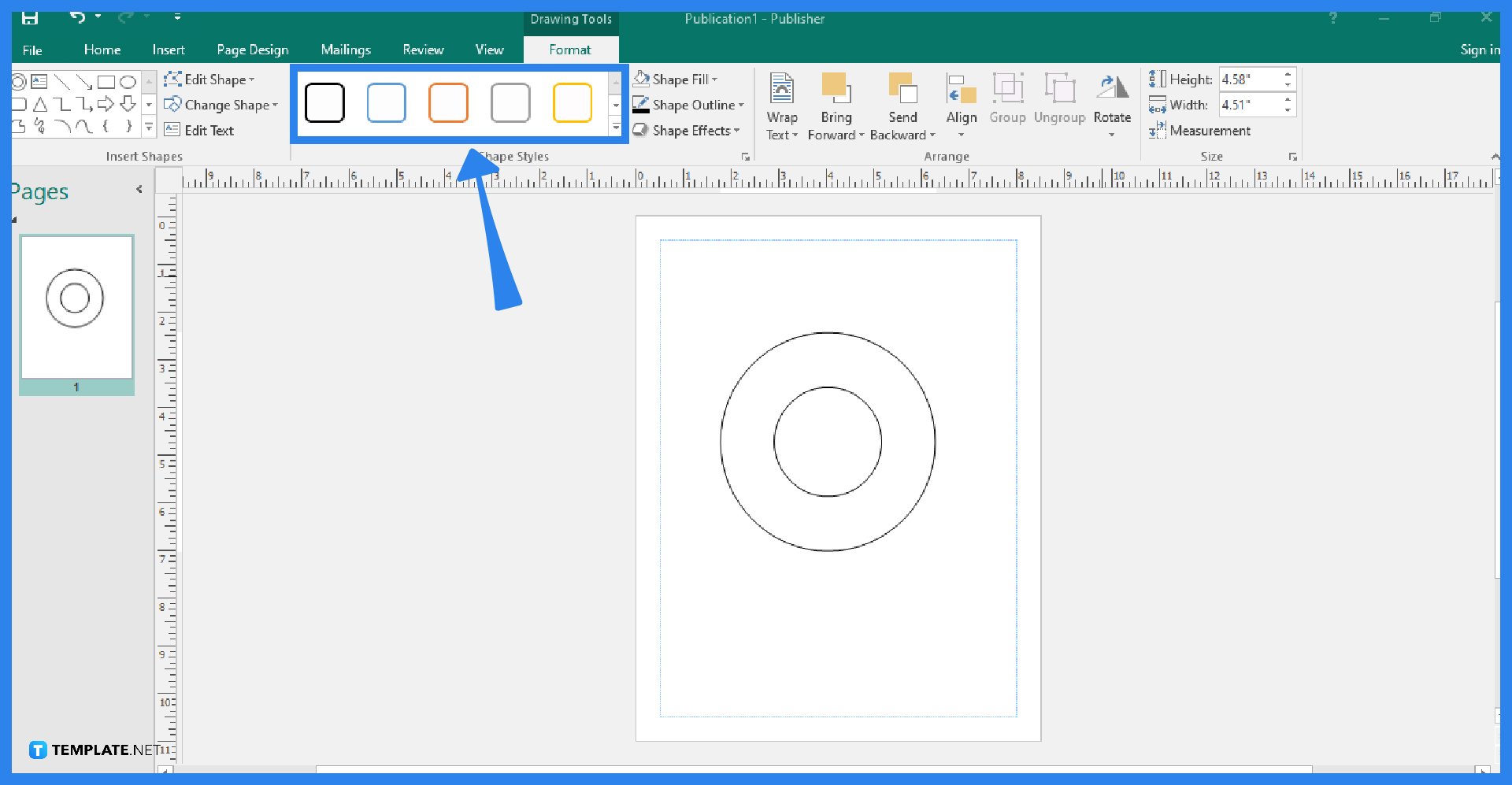
Start your Microsoft Publisher application and open a new blank publication to work on. Go to the Home tab and select a shape for your logo. You can choose from a variety of basic shapes, like a circle or a square, for example.
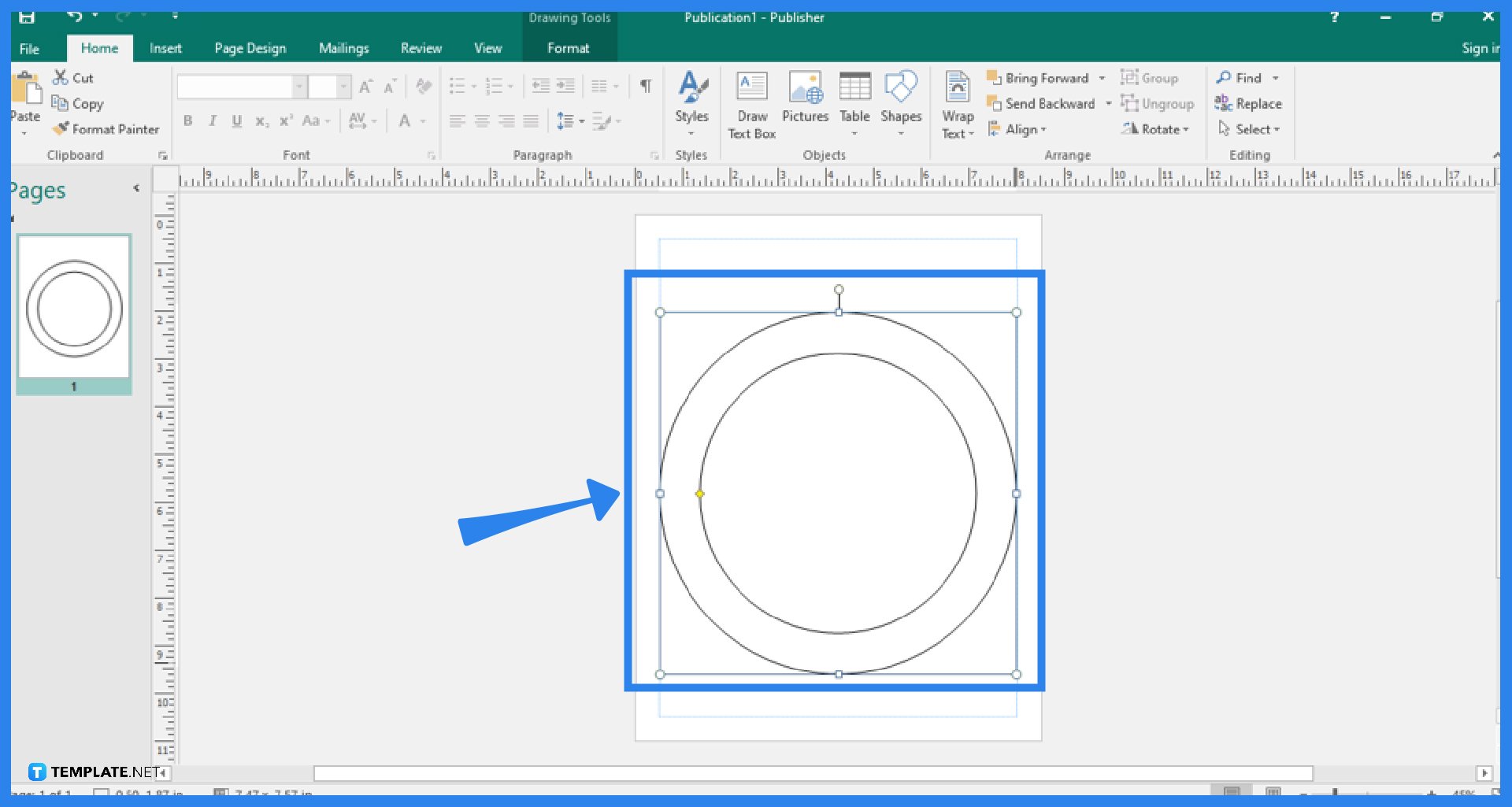
To improve the final product’s resolution quality, you can adjust the size of the shape to make it larger. To change the shape’s size, click and drag on the publication’s corner or edge. The shape must extend all the way to the application window’s borders.
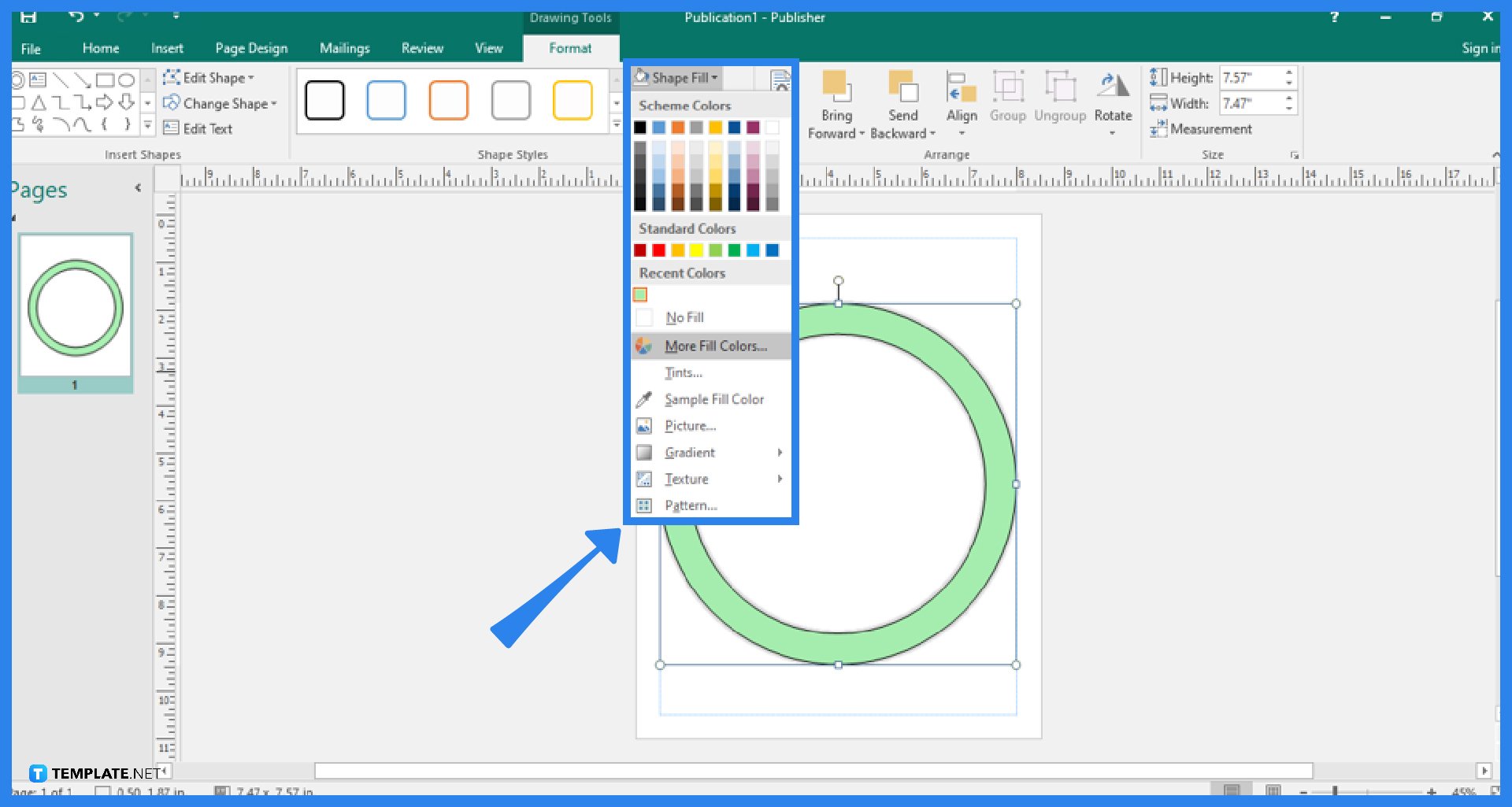
Click on the shape and, on its Format tab, click Shape Fill. Choose the desired color that suits your taste for your logo. You can choose from more color options by clicking More Fill Colors. Pick a color that will stand out against the logo’s font color. The sliders in the color palette and the RGB values can be adjusted to produce any shade or hue imaginable under the Custom Colors option. Additionally, the fill transparency can also be adjusted.
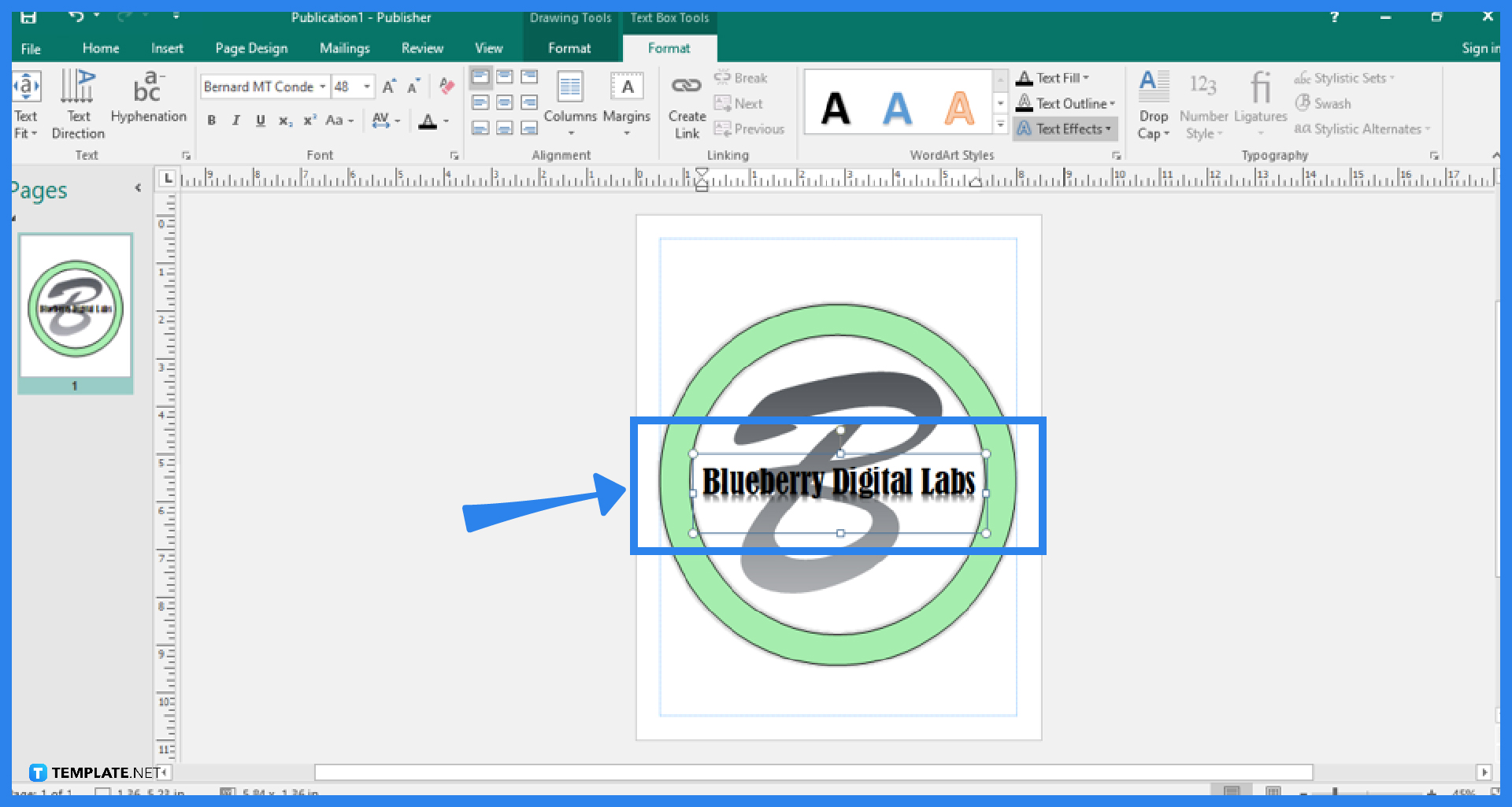
To add text to your logo, you can either right-click on the shape, select the Add Text option, and type in the text, or you can select Draw Text Box, and type in the text for your logo. Remember that when using a textbox, you have to “Group” all the objects in the logo, including the shape. You can change the font size, style, and color the way you want.
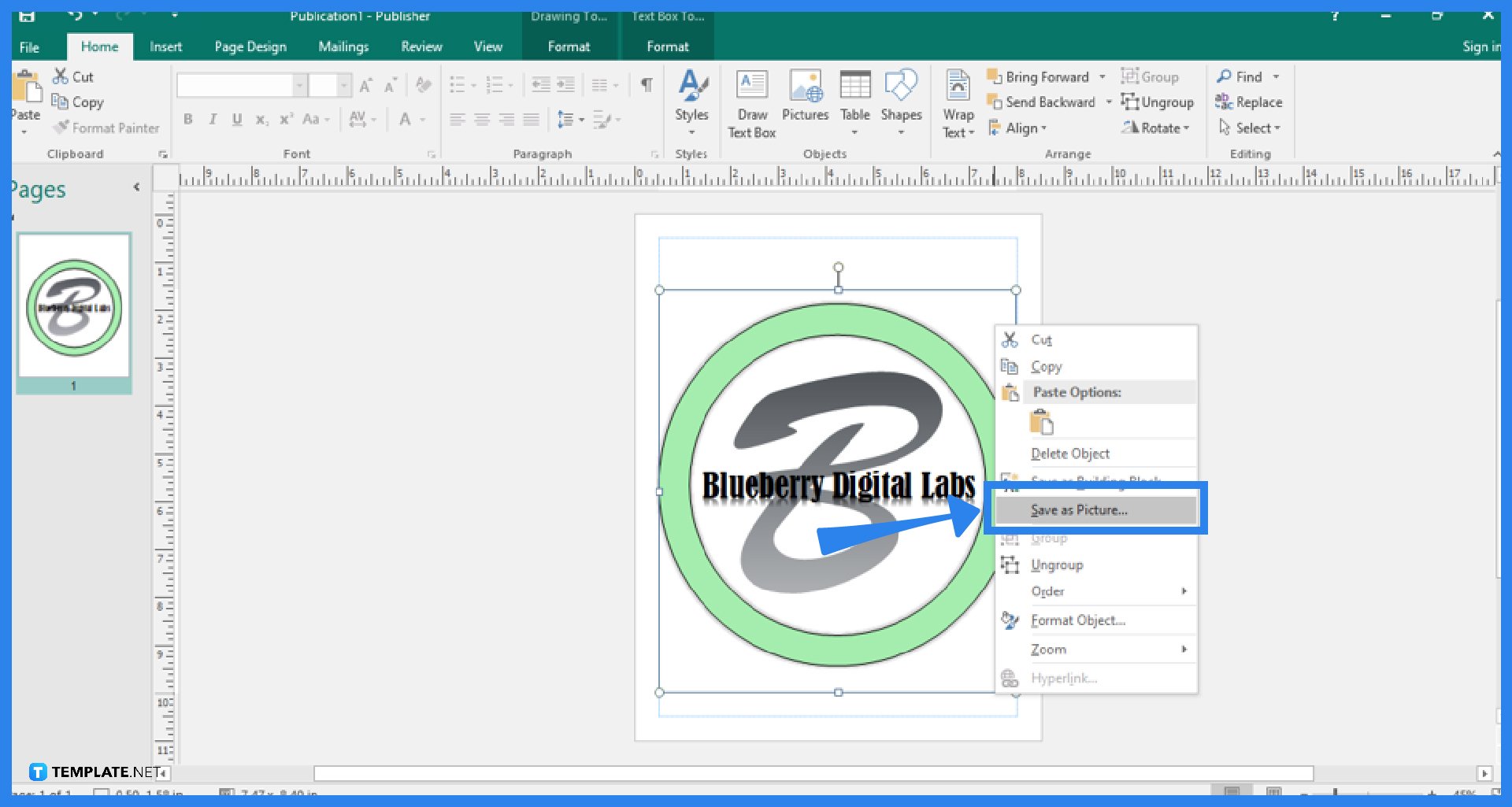
To save the output, right-click on the logo and choose the Save as Picture option from the menu that appears. Then, in the Save as Type, click the arrow-down and select the Device Independent Bitmap option from the dropdown menu. After that, go to the Resolution, click the Change button, choose the 300dpi option from the Change Resolution menu, and click OK. Then, click Save. Your computer now has a copy of the Publisher’s logo in digital form.
If you want your logo to be of high quality, then you must save it at a resolution of 300 dpi.
It is possible to use a lot of colors, but an effective logo should be simple and readable, so it is recommended to avoid using more than 1 or 2 colors for your logo.
To group the objects in your logo, hold the Ctrl key, click on all the present objects in your logo, and select the Group option under the Arrange group of the Home tab.

Signatures found in documents establish who you are as an individual or as an organization. Aside from the fact that…
![How To Make/Create a Newsletter in Microsoft Outlook [Templates + Examples] 2026](https://images.template.net/wp-content/uploads/2022/07/How-to-Start-a-Newsletter-with-Microsoft-Outlook-788x443.jpg)
Newsletters enable companies and organizations to communicate relevant and helpful information to their client, prospects, and subscribers. By giving you…
![How To Make/Create a Booklet in Microsoft Publisher [Templates + Examples] 2026](https://images.template.net/wp-content/uploads/2022/08/How-To-Make_Create-a-Booklet-in-Microsoft-Publisher-788x443.png)
Booklet templates are pre-designed layouts that make it easy to create a professional-looking booklet. They typically include placeholders for text…
![How To Make/Create a Booklet in Microsoft PowerPoint [Templates + Examples] 2026](https://images.template.net/wp-content/uploads/2022/07/How-To-Make-Create-a-Booklet-in-Microsoft-PowerPoint-788x443.jpg)
Booklets can be created in Microsoft PowerPoint, which offers a design feature that allows users to display them in PPT…
![How to Automatically Fill PDF Forms Using Microsoft Excel [Templates + Examples] 2026](https://images.template.net/wp-content/uploads/2022/07/How-to-Automatically-Fill-PDF-Forms-Using-Microsoft-Excel-788x444.png)
Automatically fill PDF forms using Microsoft Excel so you won’t have to save multiple PDF forms in an Excel spreadsheet…
![How to Make/Create a Floor Plan on Microsoft Excel [Templates + Examples] 2026](https://images.template.net/wp-content/uploads/2022/07/How-to-Make-a-Floor-Plan-on-Microsoft-Excel-788x443.jpg)
Floor plans either make or break projects related to engineering and architecture. That being said, every apartment room, bedroom, living…
![How to Make/Create a Grid in Microsoft Word [Templates + Examples] 2026](https://images.template.net/wp-content/uploads/2022/07/How-to-Make_Create-a-Grid-in-Microsoft-Word-788x444.jpg)
Grids consist of a network of lines that work as graphic cues while formatting your document in Microsoft Office. If…
![How to Add More Highlight Colors to Microsoft Word [Templates + Examples] 2026](https://images.template.net/wp-content/uploads/2022/07/How-to-Add-More-Highlight-Colors-to-Microsoft-Word-Templates-Examples-2023-788x443.jpg)
Add more highlight colors to Microsoft Word so you won’t have to settle with the default shading color in marking…
![How to Make/Create a Border in Microsoft Publisher [Templates + Examples] 2026](https://images.template.net/wp-content/uploads/2022/08/How-to-MakeCreate-a-Border-in-Microsoft-Publisher-788x444.png)
Borders are graphic design elements that make a document more pleasing and stylish to look at. This can be used…