


![How to Add a Signature in Microsoft Forms [Templates + Examples] 2026](https://images.template.net/wp-content/uploads/2022/07/How-to-Add-a-Signature-in-Microsoft-Forms-Templates-Examples-2023-788x443.jpg)
How to Add a Signature in Microsoft Forms [Templates + Examples] 2026
Signatures found in documents establish who you are as an individual or as an organization. Aside from the fact that…
Dec 22, 2025


Sep 02, 2025
Microsoft Sway is an all-rounder knowing that it can also edit blogs, social media posts, and any other presentable internet content you need with the use of very simple tools made to look sophisticated for viewers. With this, writing a newsletter is even made easier by using this application.
Make sure that you have your newsletter content ready before signing in Microsoft Sway. Aside from making your content eye-catching and worth reading, you need to go onto the next level when it comes to presenting a visually-appealing newsletter.
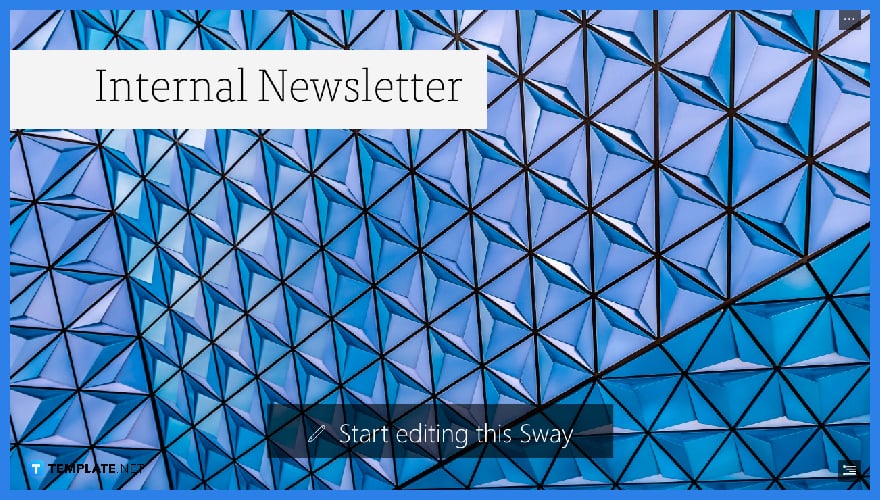
If you already have a pattern right on your own PC, you can simply start from a newsletter template by clicking “Internal Newsletter”.
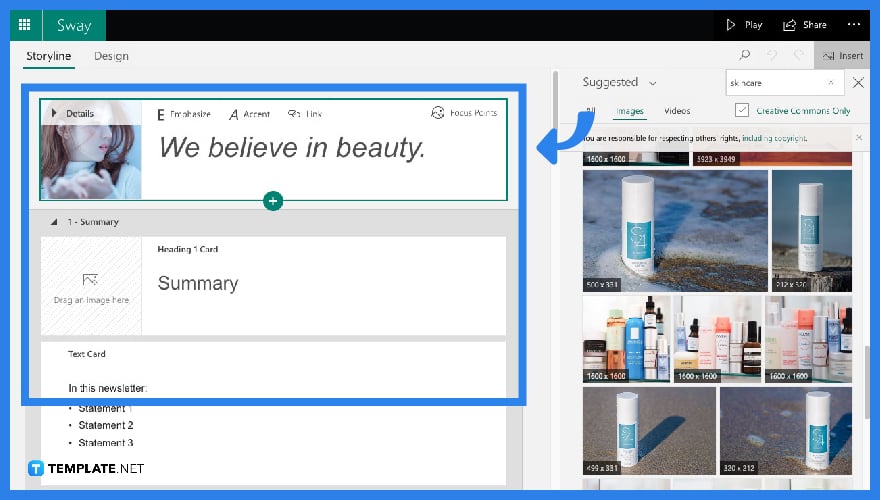
Just like any other newsletter, give an attractive title and a great background image to inspire you in making even more content for your readers. Add a brief yet concise summary of your newsletter. Each bullet from your summary will serve as your headline.
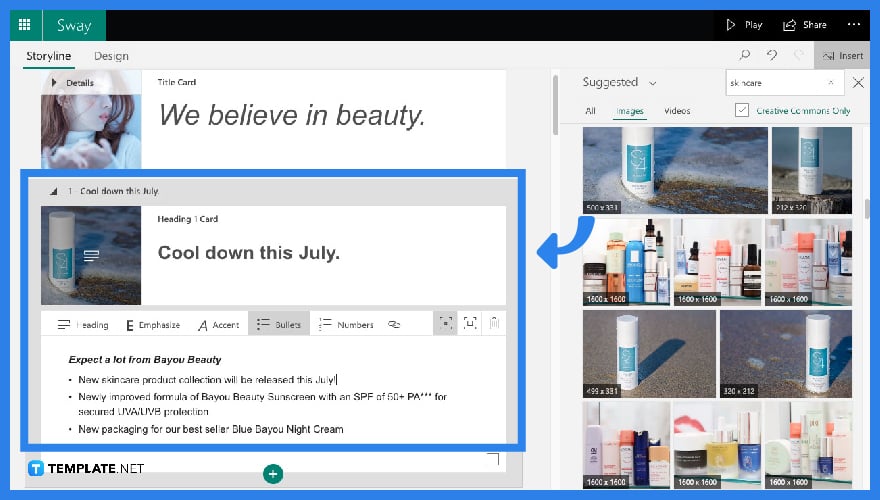
Each box on your screen indicates your headline. Be more creative and specific about what you’re offering to your customers and place this text underneath the headline. Continue making more headlines and add more descriptions for each.
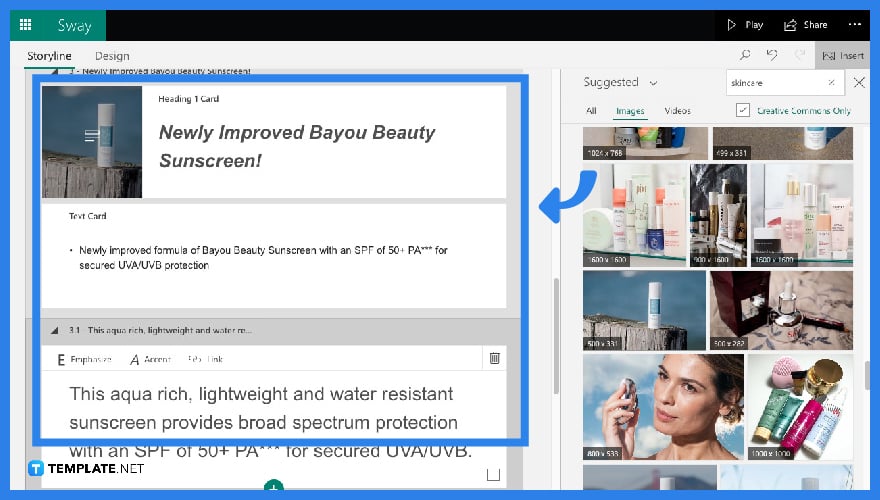
Sentences are not enough for readers and with this, adding more images beside your descriptions will entice them more. Quotations also work well in newsletters, especially testimonies from previous customers, in order to gain trust and connection between a business owner and a consumer.
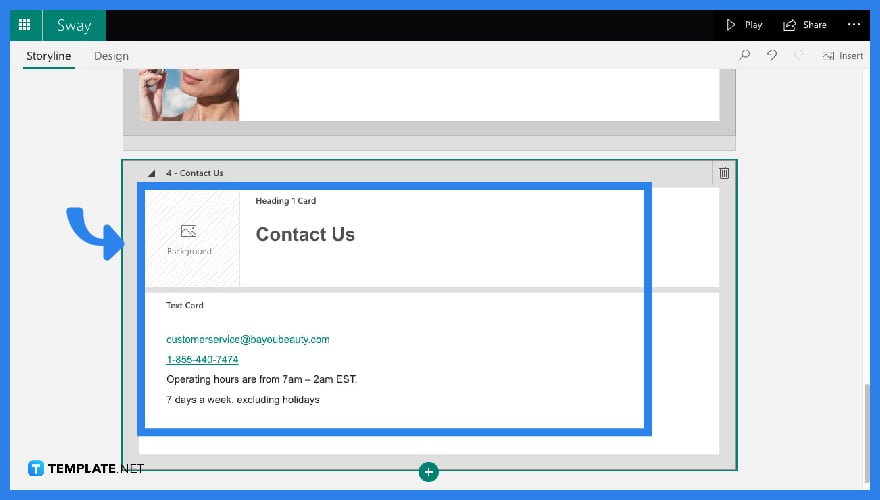
Before sharing, don’t forget to put your contact details. For this part, you can add this in your last headline.
Microsoft Sway is interactive, given that you can share your presentation to users via copied link. This way, invited users can easily either view or edit your presentation anytime and anywhere online.
Yes. This application is used especially by non-graphic professionals who want to create outstanding newsletters without breaking the bank. It’s free and easy to use since it comes with a lot of tools that do the job for you with a simple click or two.
You can either use other applications like Google Workspace, Renderforest, Keynote, Prezi, and Quip if you want to explore a lot more tools when it comes to making and designing newsletters.
Yes. You can upload an image by clicking the “Suggested” icon and clicking “My Device” from the drop-down menu for you to get a pop-up of your file. From there you can choose which image you want to upload to your Sway presentation.
Yes. You can use Microsoft Sway free by going to their official website. Remember to stay online for you to save your output.

Signatures found in documents establish who you are as an individual or as an organization. Aside from the fact that…
![How To Make/Create a Newsletter in Microsoft Outlook [Templates + Examples] 2026](https://images.template.net/wp-content/uploads/2022/07/How-to-Start-a-Newsletter-with-Microsoft-Outlook-788x443.jpg)
Newsletters enable companies and organizations to communicate relevant and helpful information to their client, prospects, and subscribers. By giving you…
![How To Make/Create a Booklet in Microsoft Publisher [Templates + Examples] 2026](https://images.template.net/wp-content/uploads/2022/08/How-To-Make_Create-a-Booklet-in-Microsoft-Publisher-788x443.png)
Booklet templates are pre-designed layouts that make it easy to create a professional-looking booklet. They typically include placeholders for text…
![How To Make/Create a Booklet in Microsoft PowerPoint [Templates + Examples] 2026](https://images.template.net/wp-content/uploads/2022/07/How-To-Make-Create-a-Booklet-in-Microsoft-PowerPoint-788x443.jpg)
Booklets can be created in Microsoft PowerPoint, which offers a design feature that allows users to display them in PPT…
![How to Automatically Fill PDF Forms Using Microsoft Excel [Templates + Examples] 2026](https://images.template.net/wp-content/uploads/2022/07/How-to-Automatically-Fill-PDF-Forms-Using-Microsoft-Excel-788x444.png)
Automatically fill PDF forms using Microsoft Excel so you won’t have to save multiple PDF forms in an Excel spreadsheet…
![How to Make/Create a Floor Plan on Microsoft Excel [Templates + Examples] 2026](https://images.template.net/wp-content/uploads/2022/07/How-to-Make-a-Floor-Plan-on-Microsoft-Excel-788x443.jpg)
Floor plans either make or break projects related to engineering and architecture. That being said, every apartment room, bedroom, living…
![How to Make/Create a Grid in Microsoft Word [Templates + Examples] 2026](https://images.template.net/wp-content/uploads/2022/07/How-to-Make_Create-a-Grid-in-Microsoft-Word-788x444.jpg)
Grids consist of a network of lines that work as graphic cues while formatting your document in Microsoft Office. If…
![How to Add More Highlight Colors to Microsoft Word [Templates + Examples] 2026](https://images.template.net/wp-content/uploads/2022/07/How-to-Add-More-Highlight-Colors-to-Microsoft-Word-Templates-Examples-2023-788x443.jpg)
Add more highlight colors to Microsoft Word so you won’t have to settle with the default shading color in marking…
![How to Make/Create a Border in Microsoft Publisher [Templates + Examples] 2026](https://images.template.net/wp-content/uploads/2022/08/How-to-MakeCreate-a-Border-in-Microsoft-Publisher-788x444.png)
Borders are graphic design elements that make a document more pleasing and stylish to look at. This can be used…