


![How to Add a Signature in Microsoft Forms [Templates + Examples] 2026](https://images.template.net/wp-content/uploads/2022/07/How-to-Add-a-Signature-in-Microsoft-Forms-Templates-Examples-2023-788x443.jpg)
How to Add a Signature in Microsoft Forms [Templates + Examples] 2026
Signatures found in documents establish who you are as an individual or as an organization. Aside from the fact that…
Dec 22, 2025


Sep 02, 2025
Microsoft OneNote is heavily interwoven with Microsoft OneDrive as the software mainly relies on OneDrive’s cloud storage feature. This means Microsoft OneNote by default will have its interactions with Microsoft OneDrive enabled, as a neat quality-of-life feature designed by the Microsoft Office team.
When the user first opens Microsoft OneNote, the default sync setting will be set automatically when a change is made to a notebook, section, or page. This will update the notebook with the latest version and will upload online the user’s tethered Microsoft One Drive and the local native hard drive where OneNote was installed at.
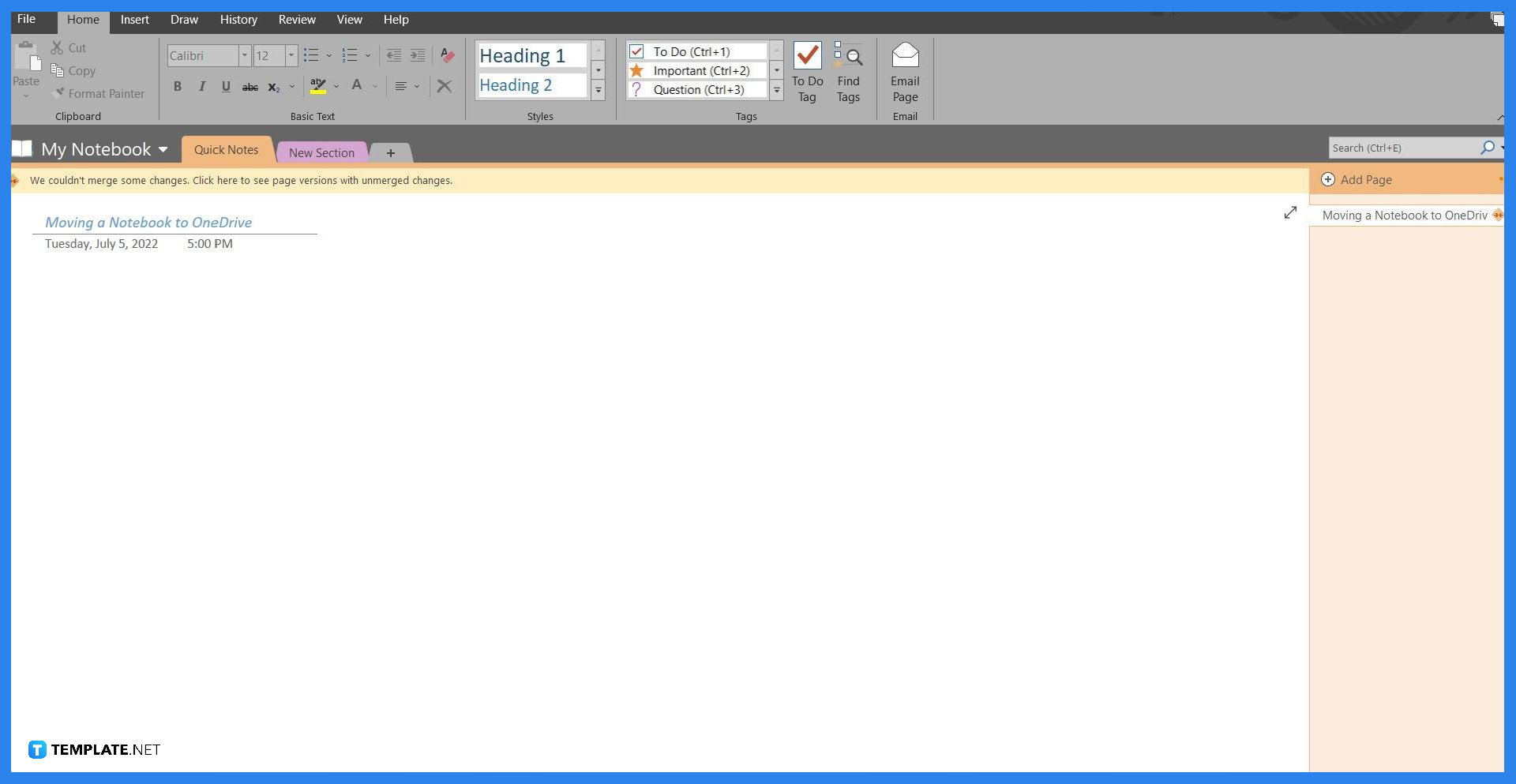
Note that the web version of Microsoft OneNote does not have this feature; if the user wants to use this feature they must first download Microsoft OneNote on their PC and tether their account to the program to sync all the data. To enable or disable the auto-sync feature of Microsoft OneNote the user will have to launch the desktop version of Microsoft OneNote.
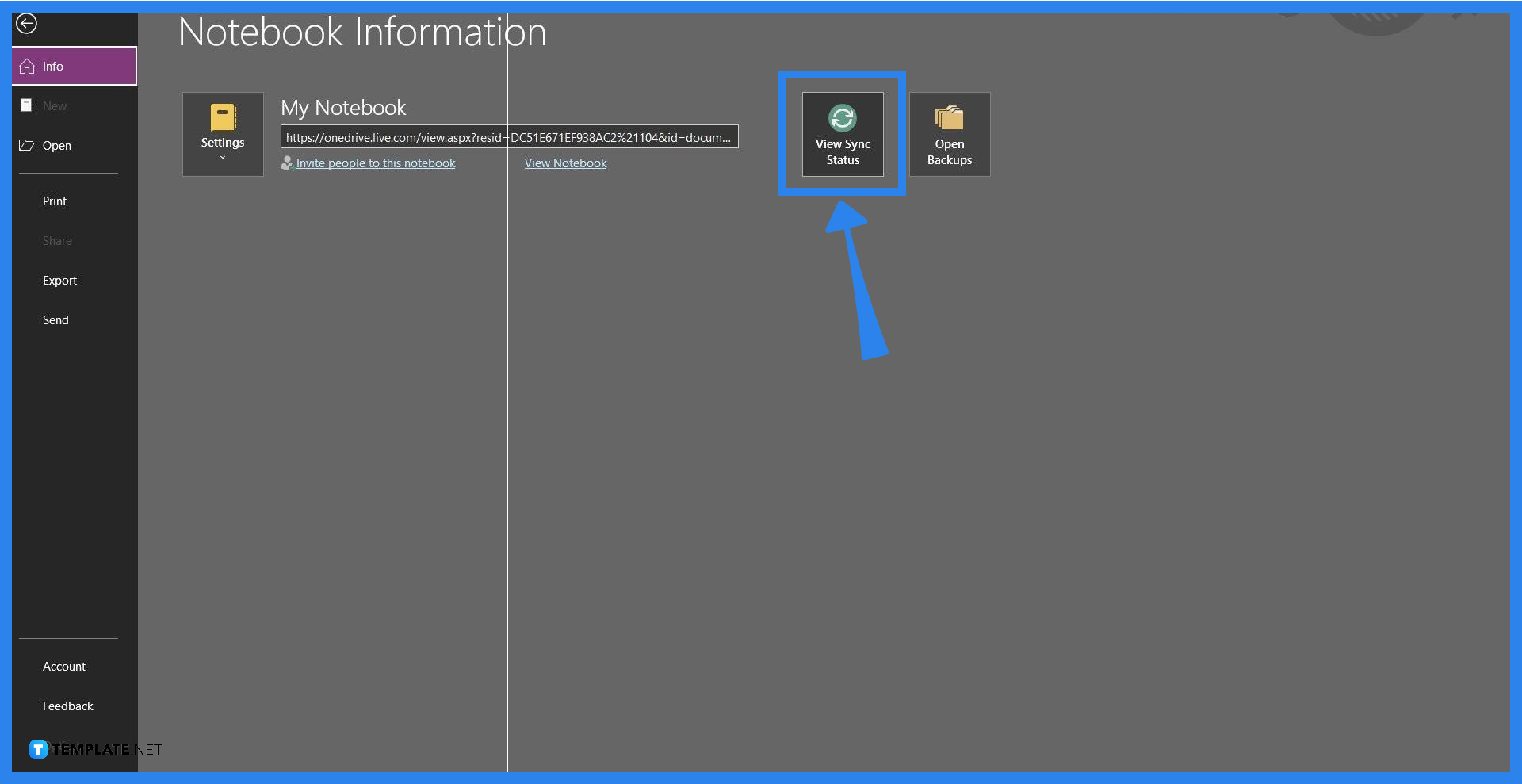
The user should press the View Sync Status button located in the File back view of Microsoft OneNote. To access the File back view, the user will left-click the file button on the upper-left corner of the program or window.
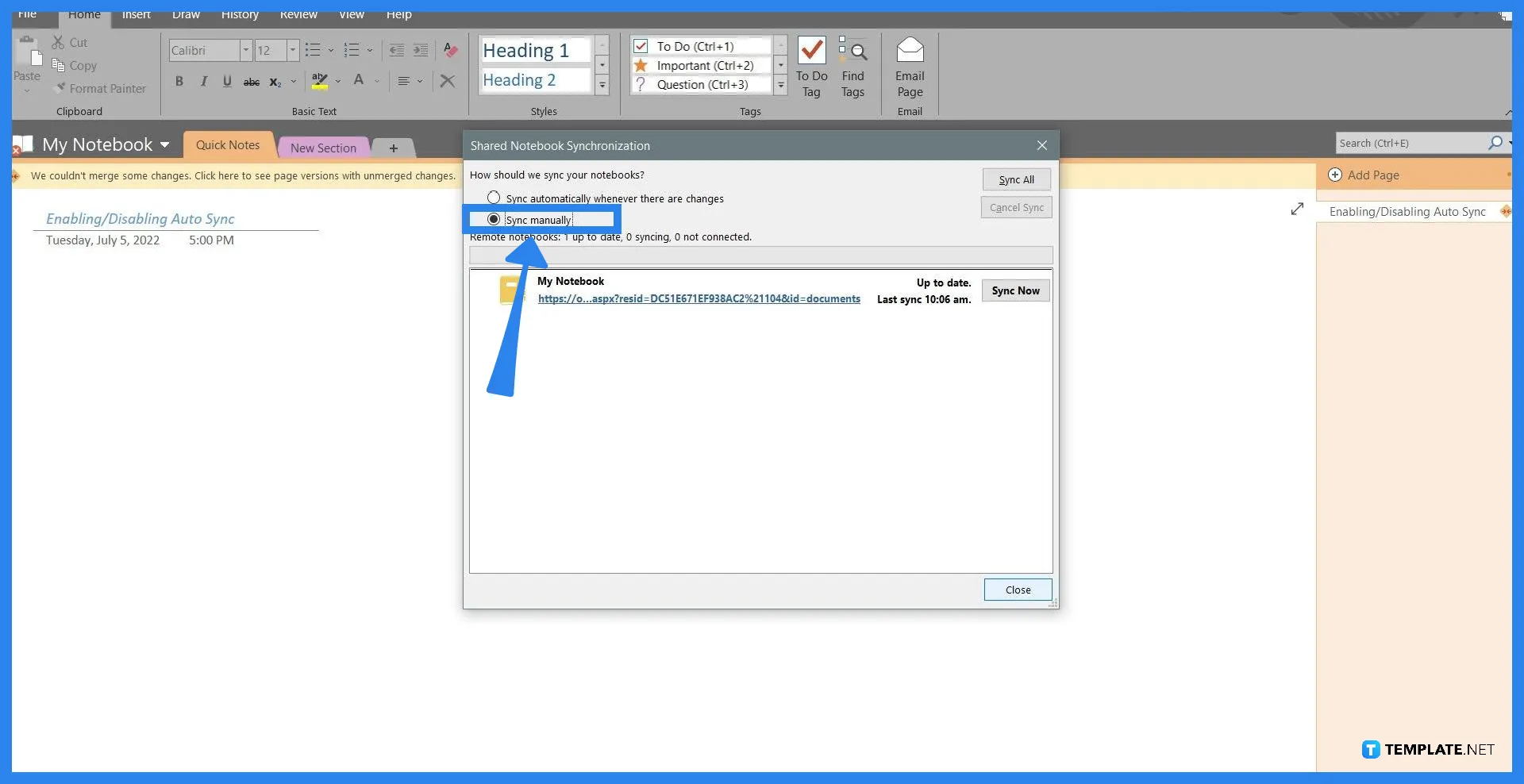
A separate window will appear when the user will click the “View Sync Status” button. This button will allow the user to manually sync any of their notebooks, both online and offline. To enable the auto sync feature the user will have to tick the “Sync automatically whenever there are changes” option in the window and press “Close”.
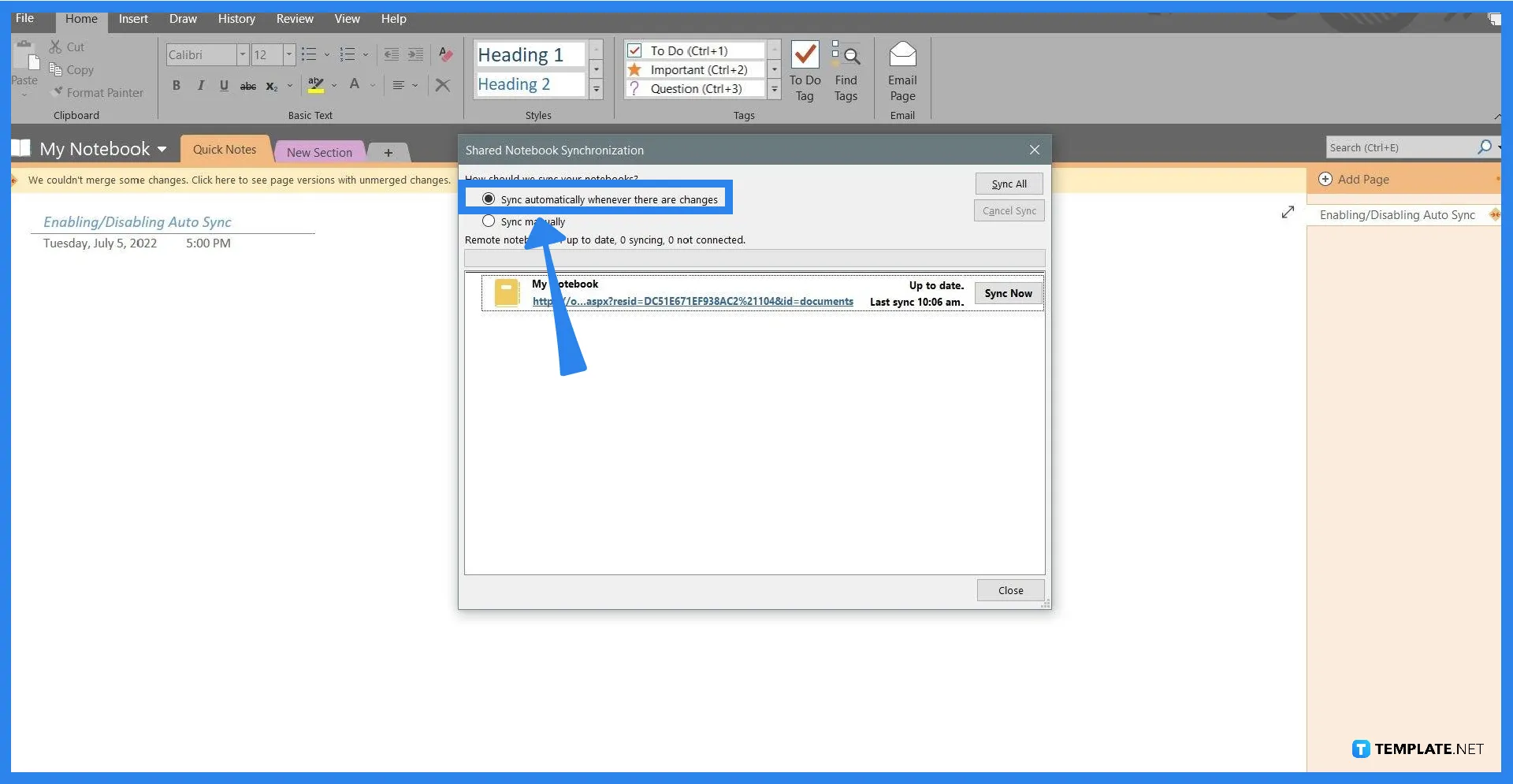
The user can disable the auto sync feature through this window which can be accomplished by ticking the “Sync manually” option and pressing close. Do note that whenever there is a change on the notebook, the user will have to sync through this window manually.
Manually sync your OneNote notes by first opening the desktop version of OneNote, opening the File back view, accessing the Share Notebook Synchronization window by clicking the view sync status option, ticking the notebook you want to sync, and finally clicking the “Sync now Manually” option.
OneNote automatically stores all your notes in Microsoft OneDrive when you are online; if you are offline, then the files are stored locally in the documents folder of your PC.
When you clear OneNote’s cache, any pending notes, and changes will be deleted from the database.
By default, Microsoft OneNote will automatically sync the notebook locally and online; but if you need to manually sync, you can open the Notebook Synchronization window, select the notebook to sync, and press the “Sync now Manually” button.
You can make the notebook available online by uploading and opening the notebook on the desktop version of Microsoft OneNote, once you have done this, the notebook will be available offline.

Signatures found in documents establish who you are as an individual or as an organization. Aside from the fact that…
![How To Make/Create a Newsletter in Microsoft Outlook [Templates + Examples] 2026](https://images.template.net/wp-content/uploads/2022/07/How-to-Start-a-Newsletter-with-Microsoft-Outlook-788x443.jpg)
Newsletters enable companies and organizations to communicate relevant and helpful information to their client, prospects, and subscribers. By giving you…
![How To Make/Create a Booklet in Microsoft Publisher [Templates + Examples] 2026](https://images.template.net/wp-content/uploads/2022/08/How-To-Make_Create-a-Booklet-in-Microsoft-Publisher-788x443.png)
Booklet templates are pre-designed layouts that make it easy to create a professional-looking booklet. They typically include placeholders for text…
![How To Make/Create a Booklet in Microsoft PowerPoint [Templates + Examples] 2026](https://images.template.net/wp-content/uploads/2022/07/How-To-Make-Create-a-Booklet-in-Microsoft-PowerPoint-788x443.jpg)
Booklets can be created in Microsoft PowerPoint, which offers a design feature that allows users to display them in PPT…
![How to Automatically Fill PDF Forms Using Microsoft Excel [Templates + Examples] 2026](https://images.template.net/wp-content/uploads/2022/07/How-to-Automatically-Fill-PDF-Forms-Using-Microsoft-Excel-788x444.png)
Automatically fill PDF forms using Microsoft Excel so you won’t have to save multiple PDF forms in an Excel spreadsheet…
![How to Make/Create a Floor Plan on Microsoft Excel [Templates + Examples] 2026](https://images.template.net/wp-content/uploads/2022/07/How-to-Make-a-Floor-Plan-on-Microsoft-Excel-788x443.jpg)
Floor plans either make or break projects related to engineering and architecture. That being said, every apartment room, bedroom, living…
![How to Make/Create a Grid in Microsoft Word [Templates + Examples] 2026](https://images.template.net/wp-content/uploads/2022/07/How-to-Make_Create-a-Grid-in-Microsoft-Word-788x444.jpg)
Grids consist of a network of lines that work as graphic cues while formatting your document in Microsoft Office. If…
![How to Add More Highlight Colors to Microsoft Word [Templates + Examples] 2026](https://images.template.net/wp-content/uploads/2022/07/How-to-Add-More-Highlight-Colors-to-Microsoft-Word-Templates-Examples-2023-788x443.jpg)
Add more highlight colors to Microsoft Word so you won’t have to settle with the default shading color in marking…
![How to Make/Create a Border in Microsoft Publisher [Templates + Examples] 2026](https://images.template.net/wp-content/uploads/2022/08/How-to-MakeCreate-a-Border-in-Microsoft-Publisher-788x444.png)
Borders are graphic design elements that make a document more pleasing and stylish to look at. This can be used…