


![How to Add a Signature in Microsoft Forms [Templates + Examples] 2026](https://images.template.net/wp-content/uploads/2022/07/How-to-Add-a-Signature-in-Microsoft-Forms-Templates-Examples-2023-788x443.jpg)
How to Add a Signature in Microsoft Forms [Templates + Examples] 2026
Signatures found in documents establish who you are as an individual or as an organization. Aside from the fact that…
Dec 22, 2025


Sep 02, 2025
Sending a message using Microsoft Outlook is not limited to Outlook users only. In fact, you can exchange or auto-forward multiple emails from Microsoft Outlook to Gmail in just a few simple steps.
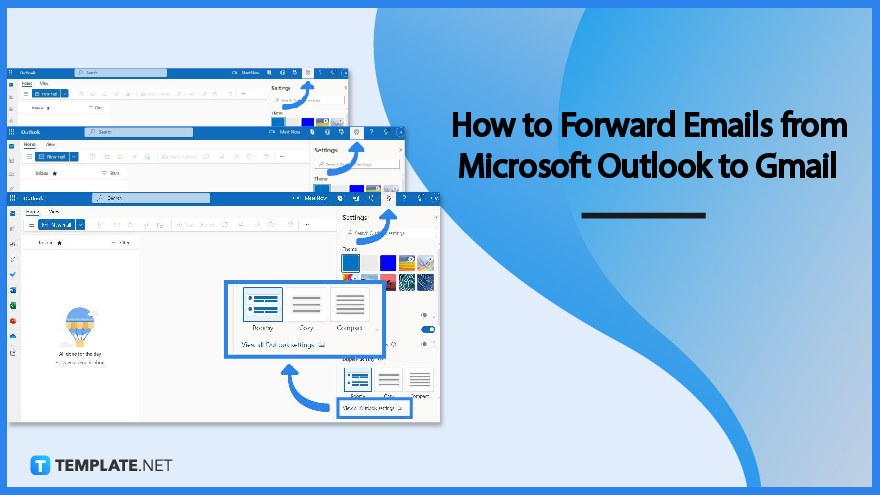
If you both have MS Outlook and Google Mail accounts, set up your message inbox to automatic forwarding wherein your messages would redirect to your other email account. You surely won’t miss any important mail from either Outlook or Gmail account after you do these steps:
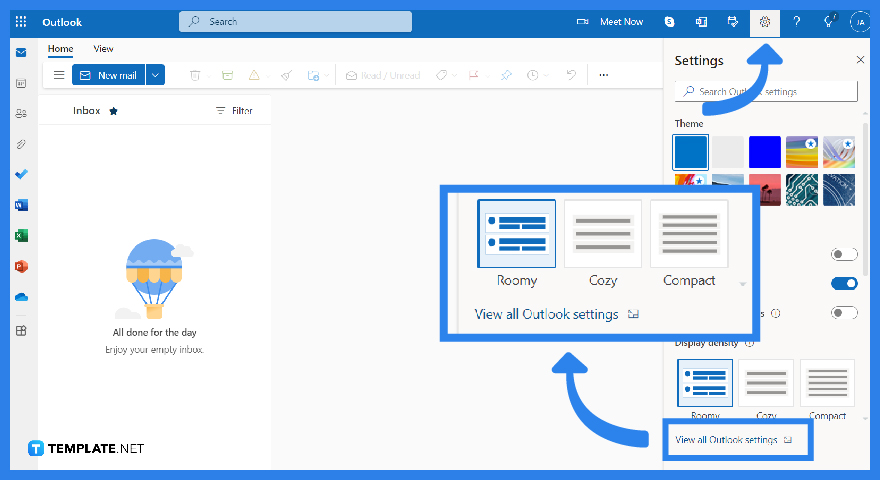 Head to the official Outlook website and sign in to Microsoft Outlook. Expect to provide your Microsoft Office account details to log in and access Outlook. Once you are signed in, select “Settings” or the gear icon on the home page. Then, click “View all Outlook settings.”
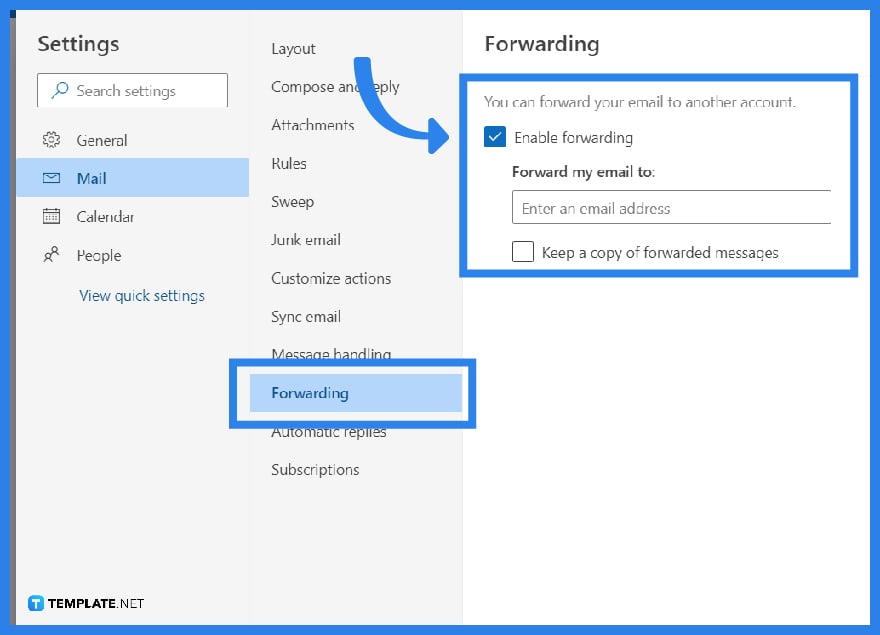 Under Outlook’s settings, go to “Mail” and select “Forwarding.” So that you can auto-forward emails to another account, mark the checkbox beside “Enable forwarding.” And the next time you might change your mind about forwarding emails to another account, simply uncheck that box.
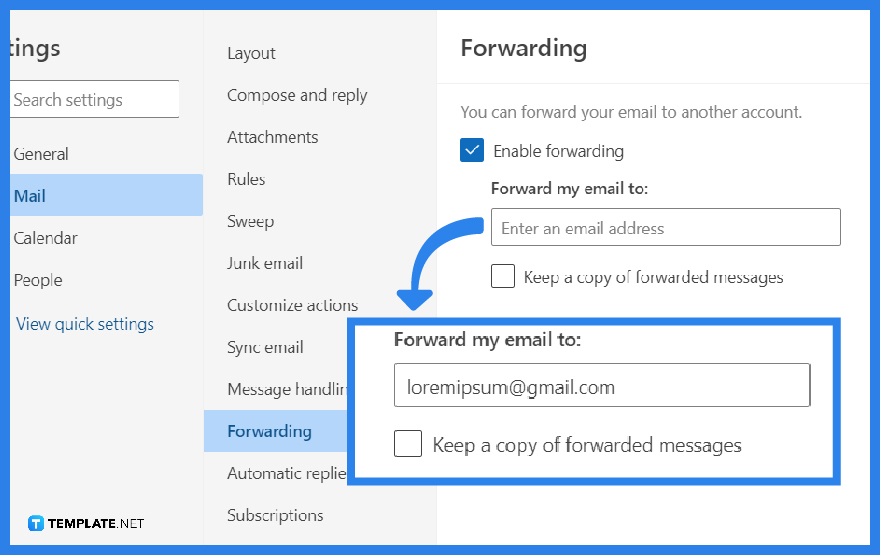 There is a text box below “Enable forwarding” and that is the space where you type your Gmail address. So once forwarding is enabled, it is through that email address that you get such messages. Be sure the Gmail address you inputted is legally yours to prevent getting wrong. You can also check the box beside “Keep a copy of forwarded messages” to store your own copies of emails in your Outlook account. Finally, click “Save” to apply the changes.
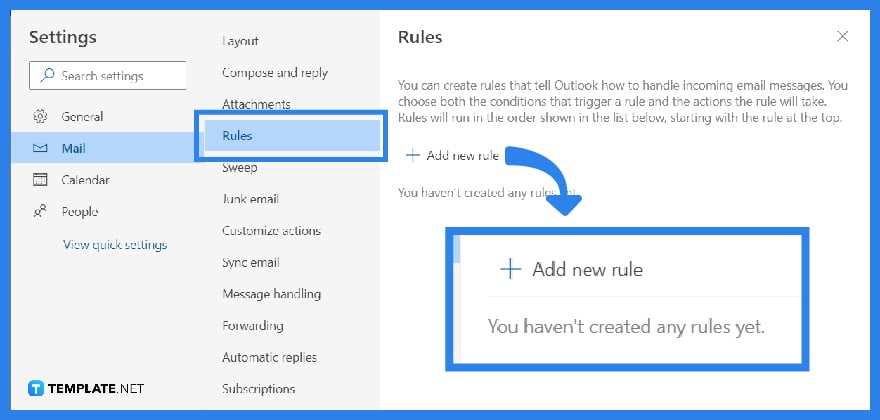 Another option is to set message rules for emails from Outlook to Gmail. Go back to Outlook’s “Settings,” “View all Outlook settings,” and “Mail.” But this time, click “Rules” followed by “Add a new rule.”
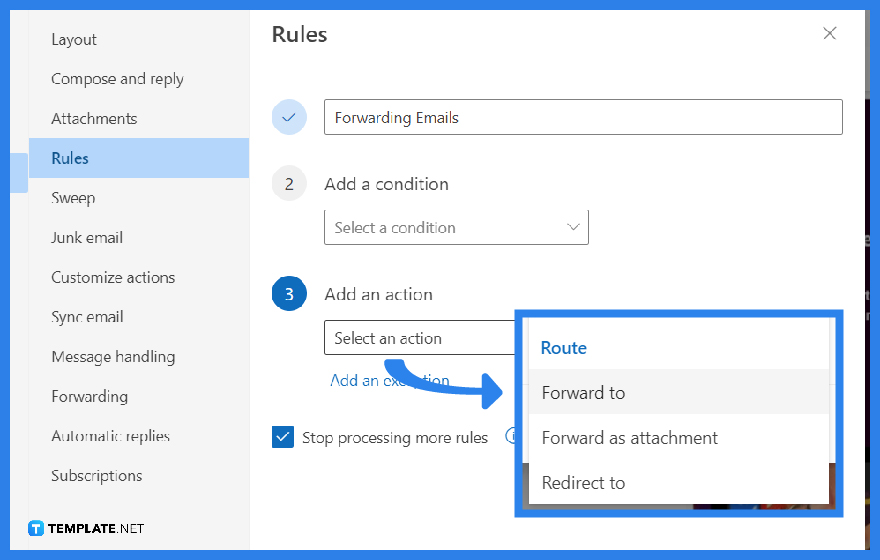 Go to “Add an action” and choose “Forward to” from the dropdown arrow. From there, input your Gmail address and click “Save.” For more options, you may also add an exception or make an condition. From now on, your Outlook emails will be redirected to Google Mail in no time.
Yes, you can; you can forward emails to any other email address besides Outlook and Gmail addresses.
Yes, you can export emails from MS 365 such as exporting an Office 365 mail to .pst file.
Sign in to your Outlook account, click “File,” “Account Settings,” “New,” “Email Account,” “Next,” “POP or IMAP,” “Next,” fill out the “Add Account text box with what’s asked, select “More Settings,” “Outgoing Server,” “My Outgoing Server (SMTP) requires authentication,” “Use the same settings as my inbound mail server,” “Advanced,” input the Incoming and Outgoing Server field, go to “Next,” close the window, and tap “Finish.”

Signatures found in documents establish who you are as an individual or as an organization. Aside from the fact that…
![How To Make/Create a Newsletter in Microsoft Outlook [Templates + Examples] 2026](https://images.template.net/wp-content/uploads/2022/07/How-to-Start-a-Newsletter-with-Microsoft-Outlook-788x443.jpg)
Newsletters enable companies and organizations to communicate relevant and helpful information to their client, prospects, and subscribers. By giving you…
![How To Make/Create a Booklet in Microsoft Publisher [Templates + Examples] 2026](https://images.template.net/wp-content/uploads/2022/08/How-To-Make_Create-a-Booklet-in-Microsoft-Publisher-788x443.png)
Booklet templates are pre-designed layouts that make it easy to create a professional-looking booklet. They typically include placeholders for text…
![How To Make/Create a Booklet in Microsoft PowerPoint [Templates + Examples] 2026](https://images.template.net/wp-content/uploads/2022/07/How-To-Make-Create-a-Booklet-in-Microsoft-PowerPoint-788x443.jpg)
Booklets can be created in Microsoft PowerPoint, which offers a design feature that allows users to display them in PPT…
![How to Automatically Fill PDF Forms Using Microsoft Excel [Templates + Examples] 2026](https://images.template.net/wp-content/uploads/2022/07/How-to-Automatically-Fill-PDF-Forms-Using-Microsoft-Excel-788x444.png)
Automatically fill PDF forms using Microsoft Excel so you won’t have to save multiple PDF forms in an Excel spreadsheet…
![How to Make/Create a Floor Plan on Microsoft Excel [Templates + Examples] 2026](https://images.template.net/wp-content/uploads/2022/07/How-to-Make-a-Floor-Plan-on-Microsoft-Excel-788x443.jpg)
Floor plans either make or break projects related to engineering and architecture. That being said, every apartment room, bedroom, living…
![How to Make/Create a Grid in Microsoft Word [Templates + Examples] 2026](https://images.template.net/wp-content/uploads/2022/07/How-to-Make_Create-a-Grid-in-Microsoft-Word-788x444.jpg)
Grids consist of a network of lines that work as graphic cues while formatting your document in Microsoft Office. If…
![How to Add More Highlight Colors to Microsoft Word [Templates + Examples] 2026](https://images.template.net/wp-content/uploads/2022/07/How-to-Add-More-Highlight-Colors-to-Microsoft-Word-Templates-Examples-2023-788x443.jpg)
Add more highlight colors to Microsoft Word so you won’t have to settle with the default shading color in marking…
![How to Make/Create a Border in Microsoft Publisher [Templates + Examples] 2026](https://images.template.net/wp-content/uploads/2022/08/How-to-MakeCreate-a-Border-in-Microsoft-Publisher-788x444.png)
Borders are graphic design elements that make a document more pleasing and stylish to look at. This can be used…