


![How to Add a Signature in Microsoft Forms [Templates + Examples] 2026](https://images.template.net/wp-content/uploads/2022/07/How-to-Add-a-Signature-in-Microsoft-Forms-Templates-Examples-2023-788x443.jpg)
How to Add a Signature in Microsoft Forms [Templates + Examples] 2026
Signatures found in documents establish who you are as an individual or as an organization. Aside from the fact that…
Dec 22, 2025


Sep 02, 2025
Microsoft Word and the rest of the Microsoft 365 products, like any other application or program, have a sign in and out feature. If you’re not sure how to use it yet, let us help you through our short and simple guide below.
Signing in and signing out is as easy as finding the word count on Microsoft Word. It takes less than a minute to do and you can start your work on Word in no time. Follow the steps below on how to sign in and sign out.
First, open Microsoft Word on your computer. If your computer runs on Windows, Microsoft Word is already installed in its system along with other Microsoft 365 applications. If you can’t find MS Word, you can search for it in the search bar of the desktop taskbar. For a wider selection of Sign in/Sign Out Templates, check out more options here.
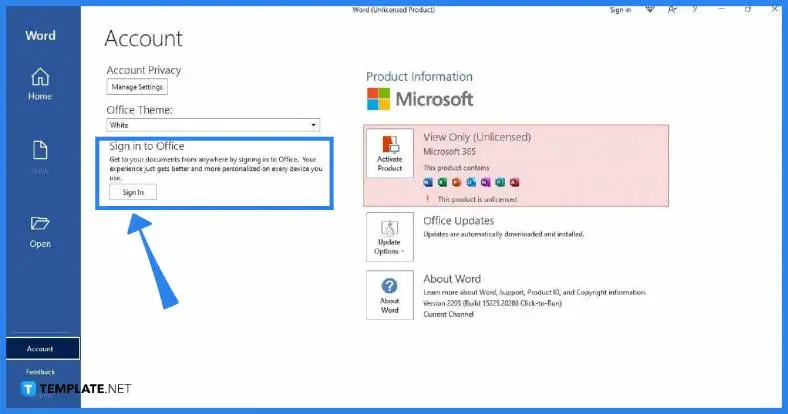
The MS Word Home window will then appear on your screen once you launch Microsoft Word. In order to sign in, go to Account and click the Sign In button. You can find the Account prompt on the bottom-left section of the screen above Feedback.
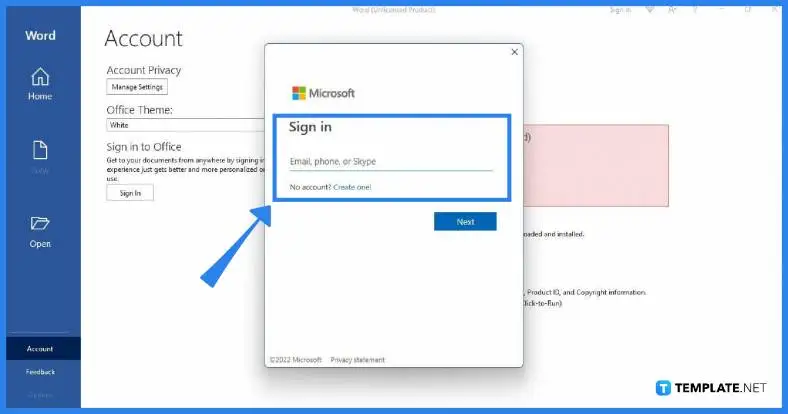
Once you click the Sign In button in the Account tab, the Sign In box will appear on your screen. You can sign in using your email, phone, or Skype user account, depending on which of the three you’re using for your Microsoft login. Find more Signing Poster Templates by visiting this link.
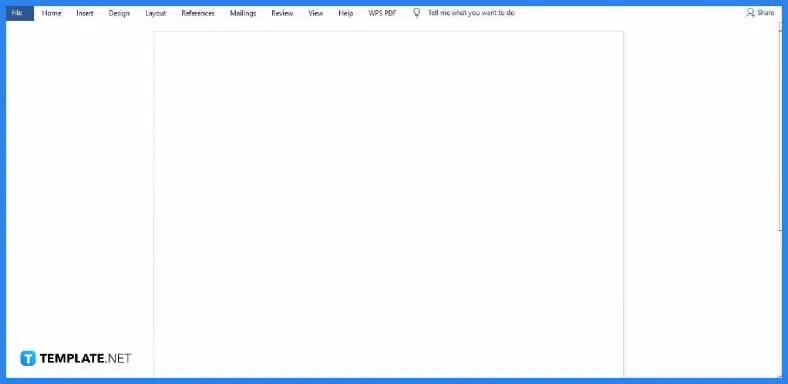
Once you’re signed in to MS Word, you can start working on your document. You can create tables, add fonts, add footnotes, and other MS Word commands.
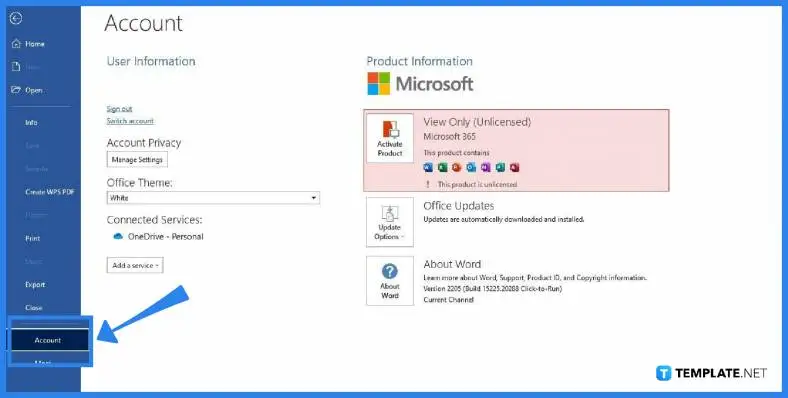
Once you’re done working and want to sign out, click File and go to the Account tab again. In the Account tab, go to the User Information section and select Sign Out. Doing so will immediately sign you out of Microsoft Word. View a wider selection of Sign Templates right here.
Yes, you’ll remain signed in to MS Word for as long as you won’t sign out, and you no longer need to go over the sign-in process so you can start working immediately.
Yes, all MS Office apps belong to the Microsoft 365 umbrella, which means you can sign in to PowerPoint, Excel, and other Office apps with the logins you use to sign in to MS Word.
Microsoft Word starts at $6.99 per month with a Microsoft 365 subscription which, also gives you full access to other MS Office products such as MS Excel, MS PowerPoint, MS Publisher, MS Teams, and MS Outlook. Explore additional sign in/sign out templates on our website, template.net, to find a variety of options that suit your needs.

Signatures found in documents establish who you are as an individual or as an organization. Aside from the fact that…
![How To Make/Create a Newsletter in Microsoft Outlook [Templates + Examples] 2026](https://images.template.net/wp-content/uploads/2022/07/How-to-Start-a-Newsletter-with-Microsoft-Outlook-788x443.jpg)
Newsletters enable companies and organizations to communicate relevant and helpful information to their client, prospects, and subscribers. By giving you…
![How To Make/Create a Booklet in Microsoft Publisher [Templates + Examples] 2026](https://images.template.net/wp-content/uploads/2022/08/How-To-Make_Create-a-Booklet-in-Microsoft-Publisher-788x443.png)
Booklet templates are pre-designed layouts that make it easy to create a professional-looking booklet. They typically include placeholders for text…
![How To Make/Create a Booklet in Microsoft PowerPoint [Templates + Examples] 2026](https://images.template.net/wp-content/uploads/2022/07/How-To-Make-Create-a-Booklet-in-Microsoft-PowerPoint-788x443.jpg)
Booklets can be created in Microsoft PowerPoint, which offers a design feature that allows users to display them in PPT…
![How to Automatically Fill PDF Forms Using Microsoft Excel [Templates + Examples] 2026](https://images.template.net/wp-content/uploads/2022/07/How-to-Automatically-Fill-PDF-Forms-Using-Microsoft-Excel-788x444.png)
Automatically fill PDF forms using Microsoft Excel so you won’t have to save multiple PDF forms in an Excel spreadsheet…
![How to Make/Create a Floor Plan on Microsoft Excel [Templates + Examples] 2026](https://images.template.net/wp-content/uploads/2022/07/How-to-Make-a-Floor-Plan-on-Microsoft-Excel-788x443.jpg)
Floor plans either make or break projects related to engineering and architecture. That being said, every apartment room, bedroom, living…
![How to Make/Create a Grid in Microsoft Word [Templates + Examples] 2026](https://images.template.net/wp-content/uploads/2022/07/How-to-Make_Create-a-Grid-in-Microsoft-Word-788x444.jpg)
Grids consist of a network of lines that work as graphic cues while formatting your document in Microsoft Office. If…
![How to Add More Highlight Colors to Microsoft Word [Templates + Examples] 2026](https://images.template.net/wp-content/uploads/2022/07/How-to-Add-More-Highlight-Colors-to-Microsoft-Word-Templates-Examples-2023-788x443.jpg)
Add more highlight colors to Microsoft Word so you won’t have to settle with the default shading color in marking…
![How to Make/Create a Border in Microsoft Publisher [Templates + Examples] 2026](https://images.template.net/wp-content/uploads/2022/08/How-to-MakeCreate-a-Border-in-Microsoft-Publisher-788x444.png)
Borders are graphic design elements that make a document more pleasing and stylish to look at. This can be used…