


![How to Add a Signature in Microsoft Forms [Templates + Examples] 2026](https://images.template.net/wp-content/uploads/2022/07/How-to-Add-a-Signature-in-Microsoft-Forms-Templates-Examples-2023-788x443.jpg)
How to Add a Signature in Microsoft Forms [Templates + Examples] 2026
Signatures found in documents establish who you are as an individual or as an organization. Aside from the fact that…
Dec 22, 2025


Sep 02, 2025
Adding images in your Microsoft Sway presentation is actually quite easy as long as you have the right tools and a draft ready on your computer. The “Insert” pane in Microsoft Sway is one of the features that makes it even worthwhile to use and navigate through when it comes to designing a presentation.
The background image in your Sway is just one of the many elements that are needed to be placed into your presentation to make it more visually appealing. With this, you might need to follow some steps in order to do this.
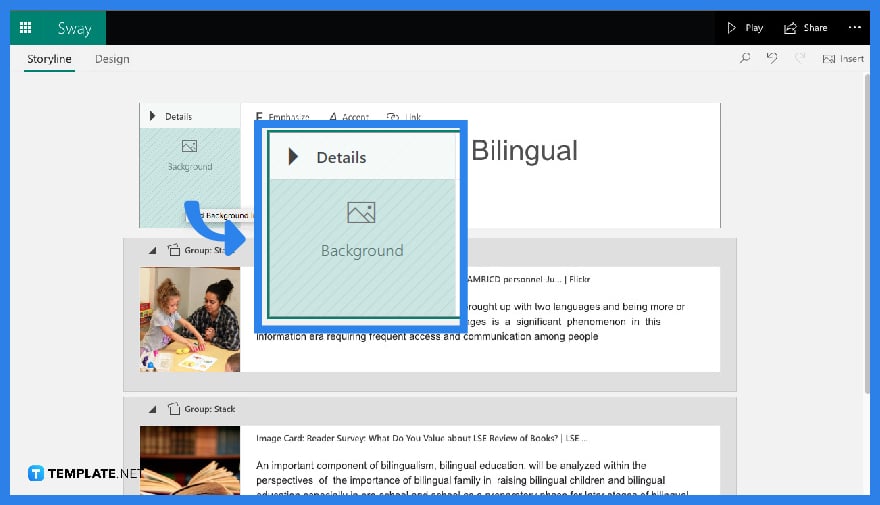
On your homepage, the first thing you can see is the “Title” card which you will be placing in your background image. Quickly tap the lined square image that says “Background” which will then automatically lead you to the “Insert” pane.
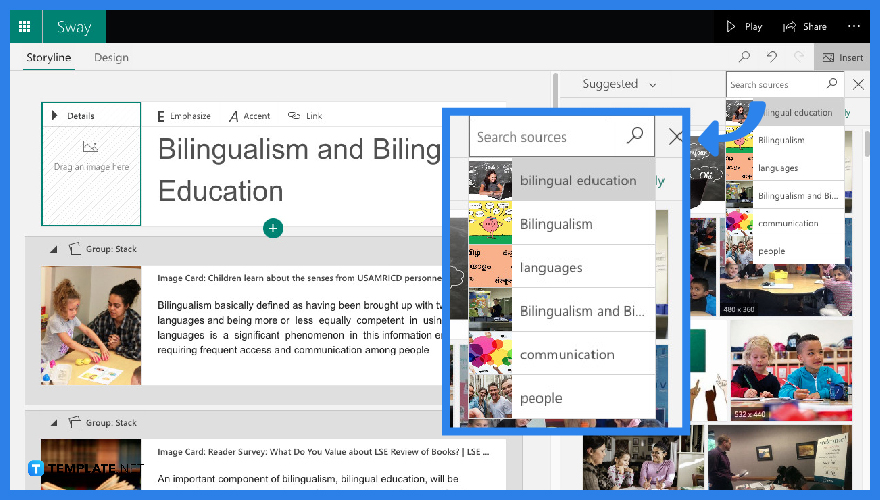
Since clicking the “Background” will automatically lead you to the “Insert” page, Microsoft Sway will also automatically give you related images that you will be needing in your presentation. You can either pick any of these photos or if it’s specific, type in the search bar a keyword for you to find what image you want.
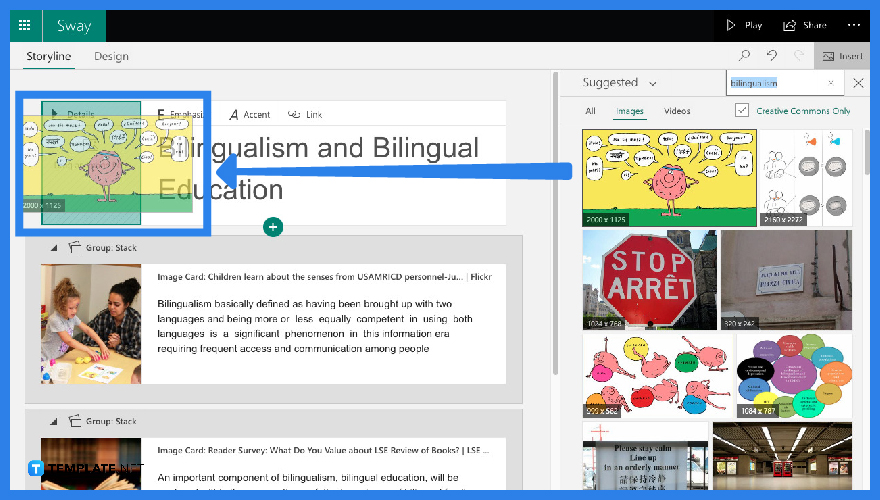
If you have found the image you want to place in your presentation, drag the image into your title card. Once you have done this, the image will then show up on the left side of your “Title” card.
The background image in Microsoft Sway is the photo that you can see in the background of your text or slide in a Sway presentation.
You can animate images in Microsoft Sway if you click onto “Design” mode and open up the “Styles” pane. From there, you can see sliders that can help you control how much animation you want to incorporate into your presentation.
Yes. You can edit another user’s Microsoft Sway presentation as long as you have its copied link as well as have the access to edit.
Yes. You can upload images straight out from your computer simply by clicking the “Background” of your “Title” card and tapping the “Suggested” icon where you can see the “My Device” icon from the drop-down menu. A pop-up window will show up for you to carefully select which image from your files you want to place into your work.
The images can get blurry in Sway sometimes, especially when you have chosen images that have a lower resolution. Remember to check the resolution, which is shown in the image as well, before dragging it to your card.

Signatures found in documents establish who you are as an individual or as an organization. Aside from the fact that…
![How To Make/Create a Newsletter in Microsoft Outlook [Templates + Examples] 2026](https://images.template.net/wp-content/uploads/2022/07/How-to-Start-a-Newsletter-with-Microsoft-Outlook-788x443.jpg)
Newsletters enable companies and organizations to communicate relevant and helpful information to their client, prospects, and subscribers. By giving you…
![How To Make/Create a Booklet in Microsoft Publisher [Templates + Examples] 2026](https://images.template.net/wp-content/uploads/2022/08/How-To-Make_Create-a-Booklet-in-Microsoft-Publisher-788x443.png)
Booklet templates are pre-designed layouts that make it easy to create a professional-looking booklet. They typically include placeholders for text…
![How To Make/Create a Booklet in Microsoft PowerPoint [Templates + Examples] 2026](https://images.template.net/wp-content/uploads/2022/07/How-To-Make-Create-a-Booklet-in-Microsoft-PowerPoint-788x443.jpg)
Booklets can be created in Microsoft PowerPoint, which offers a design feature that allows users to display them in PPT…
![How to Automatically Fill PDF Forms Using Microsoft Excel [Templates + Examples] 2026](https://images.template.net/wp-content/uploads/2022/07/How-to-Automatically-Fill-PDF-Forms-Using-Microsoft-Excel-788x444.png)
Automatically fill PDF forms using Microsoft Excel so you won’t have to save multiple PDF forms in an Excel spreadsheet…
![How to Make/Create a Floor Plan on Microsoft Excel [Templates + Examples] 2026](https://images.template.net/wp-content/uploads/2022/07/How-to-Make-a-Floor-Plan-on-Microsoft-Excel-788x443.jpg)
Floor plans either make or break projects related to engineering and architecture. That being said, every apartment room, bedroom, living…
![How to Make/Create a Grid in Microsoft Word [Templates + Examples] 2026](https://images.template.net/wp-content/uploads/2022/07/How-to-Make_Create-a-Grid-in-Microsoft-Word-788x444.jpg)
Grids consist of a network of lines that work as graphic cues while formatting your document in Microsoft Office. If…
![How to Add More Highlight Colors to Microsoft Word [Templates + Examples] 2026](https://images.template.net/wp-content/uploads/2022/07/How-to-Add-More-Highlight-Colors-to-Microsoft-Word-Templates-Examples-2023-788x443.jpg)
Add more highlight colors to Microsoft Word so you won’t have to settle with the default shading color in marking…
![How to Make/Create a Border in Microsoft Publisher [Templates + Examples] 2026](https://images.template.net/wp-content/uploads/2022/08/How-to-MakeCreate-a-Border-in-Microsoft-Publisher-788x444.png)
Borders are graphic design elements that make a document more pleasing and stylish to look at. This can be used…