


![How to Add a Signature in Microsoft Forms [Templates + Examples] 2026](https://images.template.net/wp-content/uploads/2022/07/How-to-Add-a-Signature-in-Microsoft-Forms-Templates-Examples-2023-788x443.jpg)
How to Add a Signature in Microsoft Forms [Templates + Examples] 2026
Signatures found in documents establish who you are as an individual or as an organization. Aside from the fact that…
Dec 22, 2025


Sep 02, 2025
Microsoft OneNote boasts a large amount of customizability and freeform in the user’s creation of a digital notebook, allowing them to change many aspects of their notes on the fly. They are given many options to customize the overall look of the pages of their notebook, one of which is creating rule lines on the page.
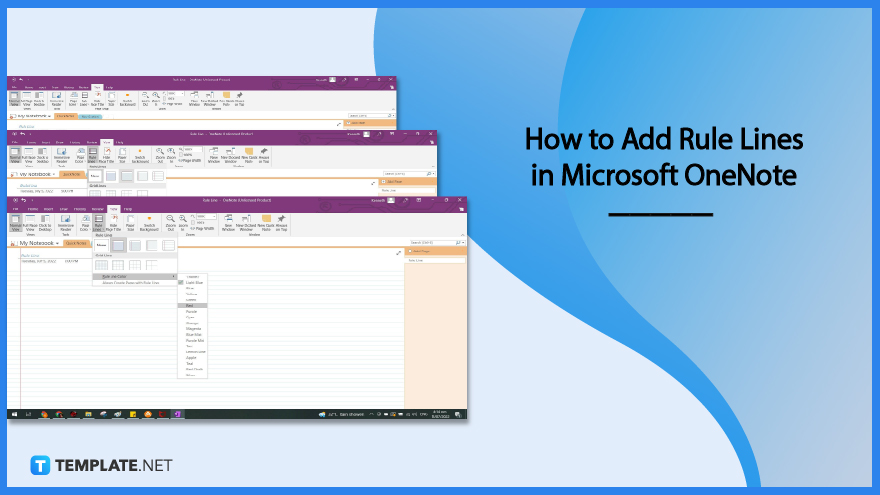
Rule lines are the horizontal lines a person can see on lined notebooks in a local supply store, which allows them to write neatly. Microsoft OneNote allows the user to modify the pages of their digital notebooks to have rule lines interposed within them.
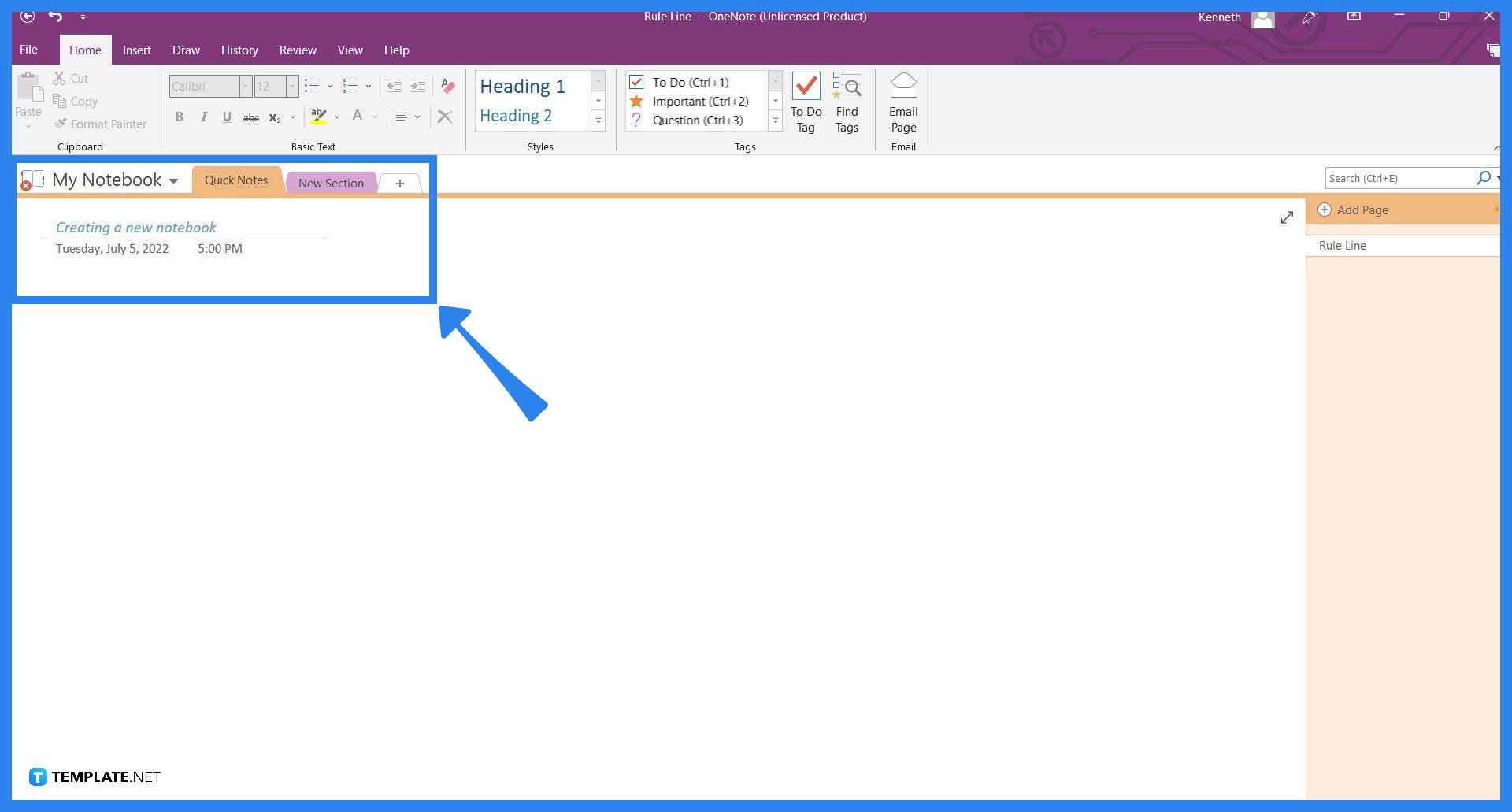
The feature to create rule lines on the page is available in all the different versions of Microsoft OneNote. To start, the user must first boot up any version of Microsoft OneNote on their PC, then select the page they want the rule lines to appear in.
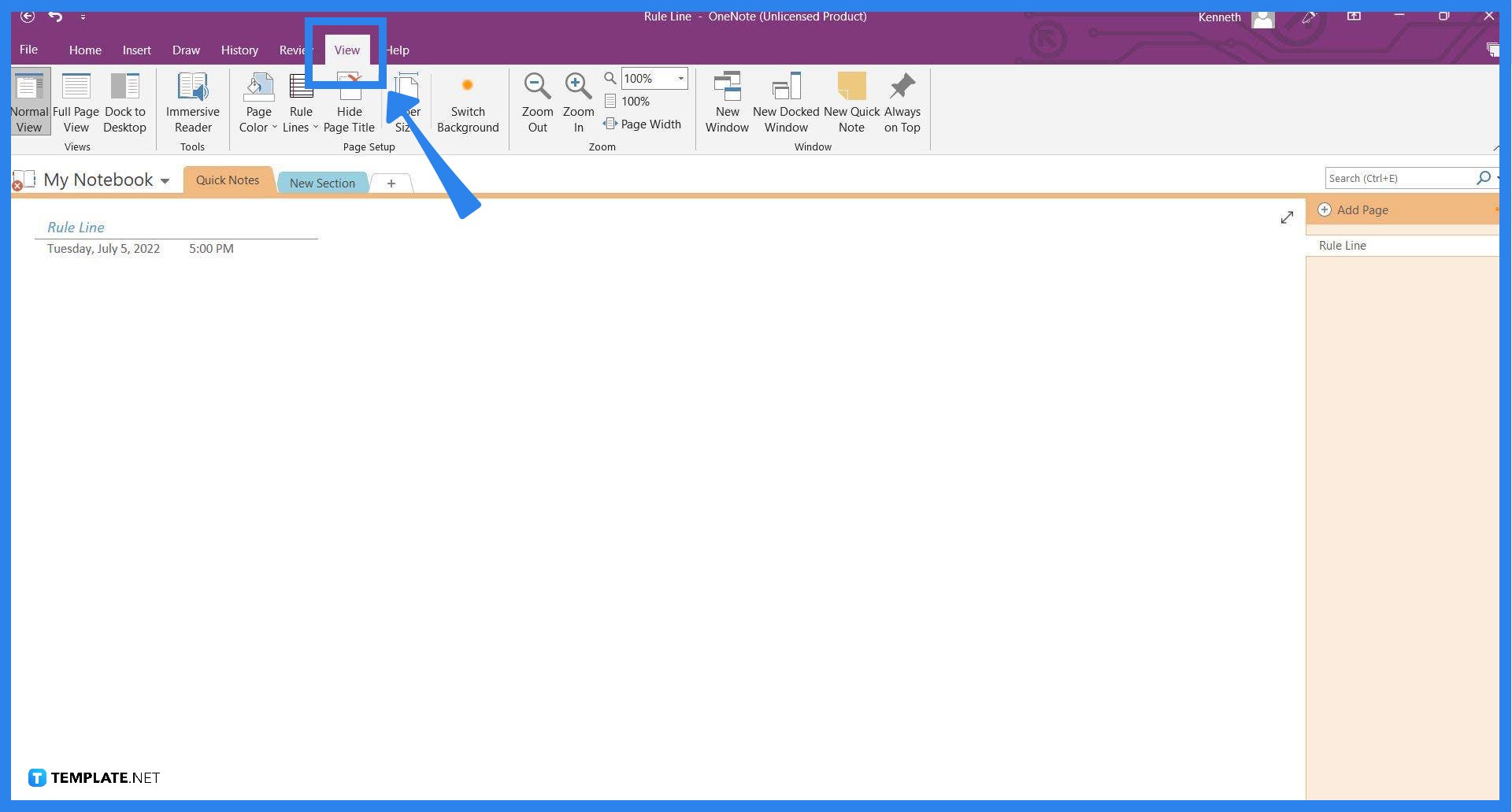
Before the user can create line notes on their selected page, they must access the View tab as it holds the option to create rule lines. To access this tab, the user will have to click the “View” button located on the ribbon.
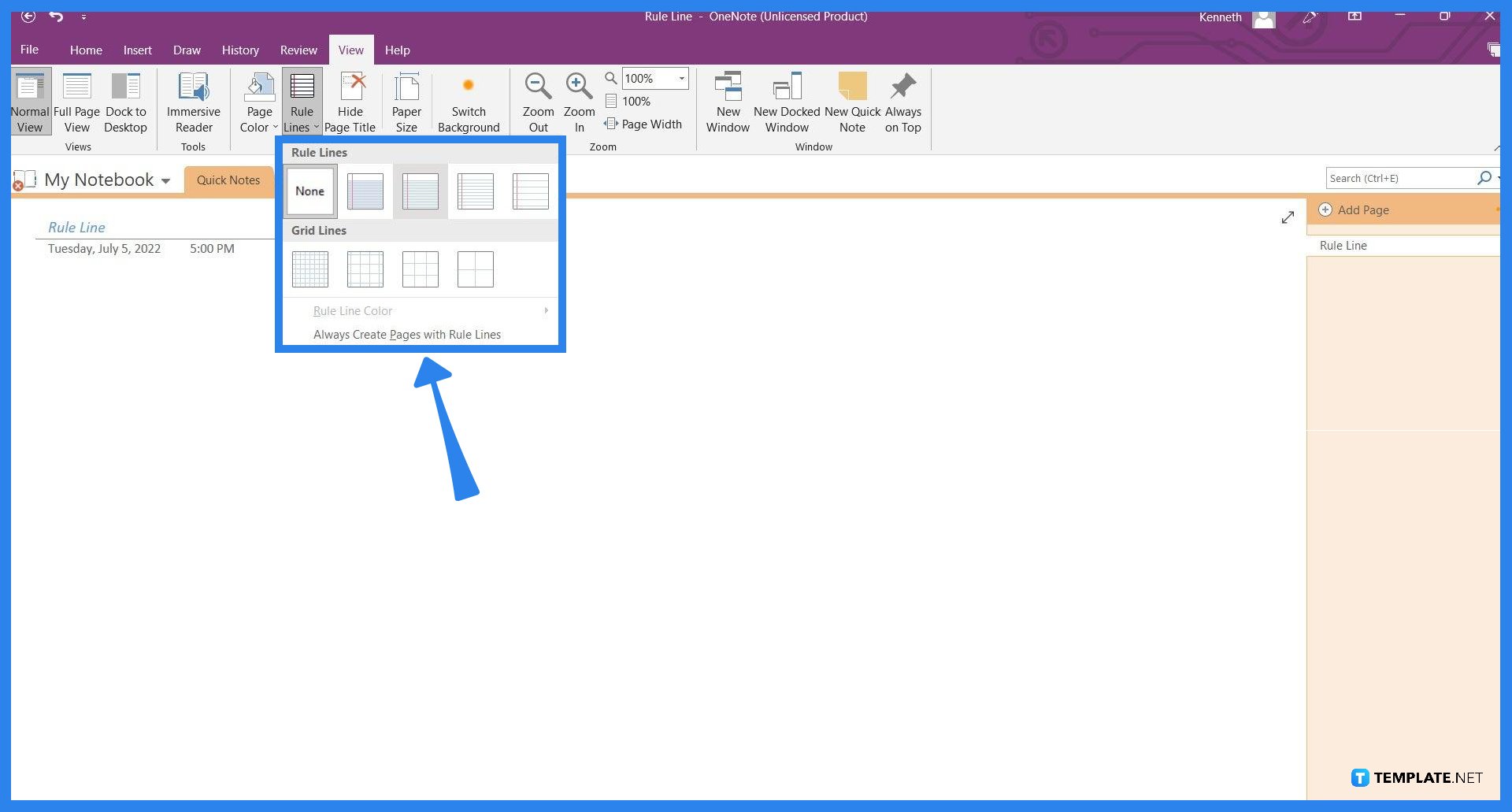
To create rule lines in the selected page, the user will have to select the rule lines option they wish to have, which can be accessed on the Rule Lines dropdown on the toolbar of the Line view. They can freely change their rule line preference by selecting another rule line format of their choice.
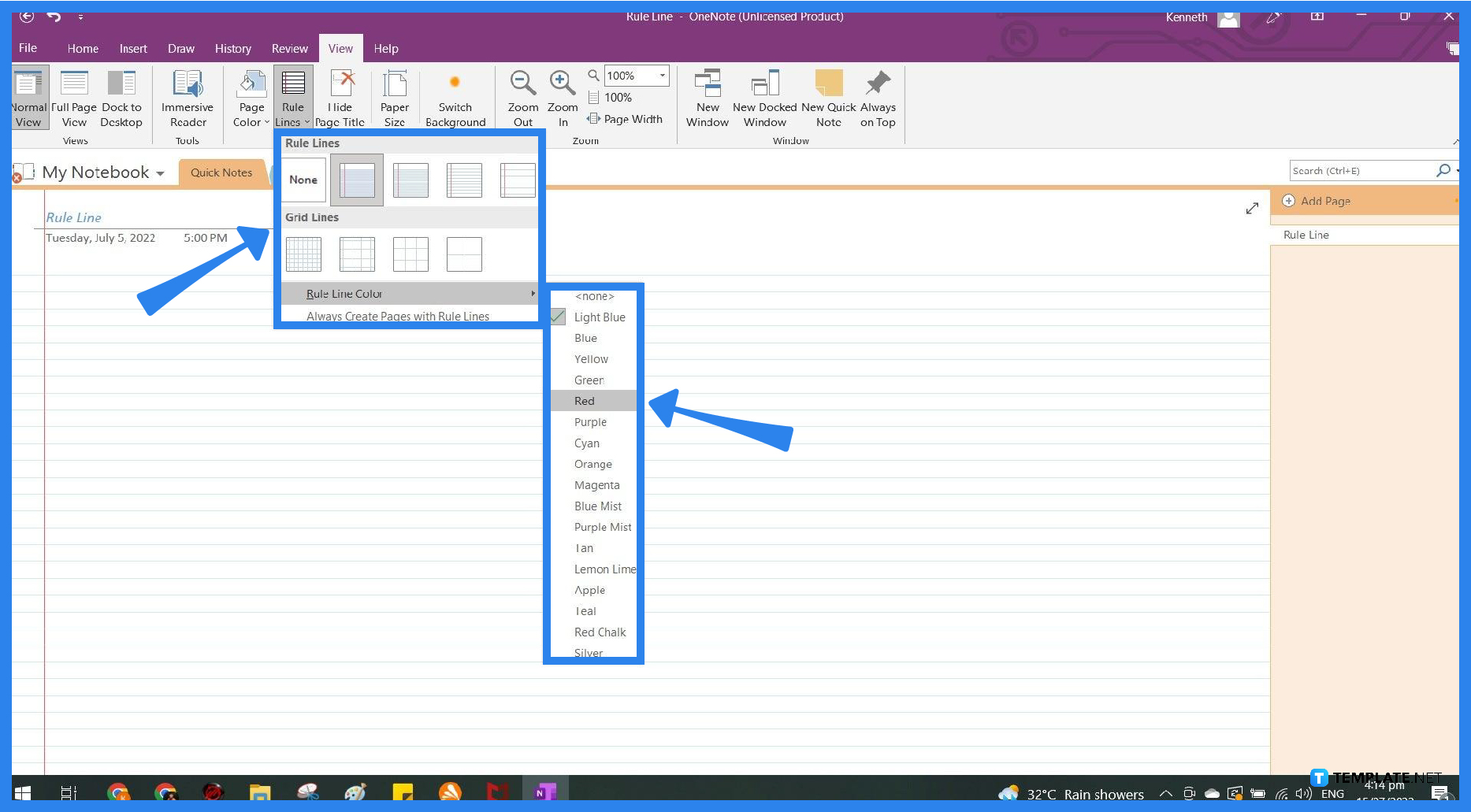
Another step the user can take with the rule lines is to change the color of the horizontal lines that span across the whole page. The user has to open the Rule Lines dropdown again and hover over the Rule Line Color option. This will open up the different color choices the user can select their lines to appear as.
You can easily insert a horizontal line in your digital notes by either tapping the hyphen (-) key on your keyboard, or by opening the Draw tab and using their line tool to create a horizontal line.
There is a ruler in Microsoft OneNote, but it is only available in the mobile version of Microsoft OneNote; you can find the ruler located in the Draw view of the app, which you can access by pressing the “Draw” button on the ribbon.
A strikethrough will insert a horizontal line through the text in a note container, to use the strikethrough you must first select or highlight the text and then click the “Strikethrough button” in the basic text subgroup on the Home view.
You can highlight straight lines in Microsoft OneNote by going to Draw view and selecting the “Highlight” tool with a line shape in the shapes category, after doing all that you can now draw a highlighted straight line on the note.
Due to OneNote’s highly customizable nature, the user can insert note containers and move them around freely, rule lines can act as a way to organize all your writing.

Signatures found in documents establish who you are as an individual or as an organization. Aside from the fact that…
![How To Make/Create a Newsletter in Microsoft Outlook [Templates + Examples] 2026](https://images.template.net/wp-content/uploads/2022/07/How-to-Start-a-Newsletter-with-Microsoft-Outlook-788x443.jpg)
Newsletters enable companies and organizations to communicate relevant and helpful information to their client, prospects, and subscribers. By giving you…
![How To Make/Create a Booklet in Microsoft Publisher [Templates + Examples] 2026](https://images.template.net/wp-content/uploads/2022/08/How-To-Make_Create-a-Booklet-in-Microsoft-Publisher-788x443.png)
Booklet templates are pre-designed layouts that make it easy to create a professional-looking booklet. They typically include placeholders for text…
![How To Make/Create a Booklet in Microsoft PowerPoint [Templates + Examples] 2026](https://images.template.net/wp-content/uploads/2022/07/How-To-Make-Create-a-Booklet-in-Microsoft-PowerPoint-788x443.jpg)
Booklets can be created in Microsoft PowerPoint, which offers a design feature that allows users to display them in PPT…
![How to Automatically Fill PDF Forms Using Microsoft Excel [Templates + Examples] 2026](https://images.template.net/wp-content/uploads/2022/07/How-to-Automatically-Fill-PDF-Forms-Using-Microsoft-Excel-788x444.png)
Automatically fill PDF forms using Microsoft Excel so you won’t have to save multiple PDF forms in an Excel spreadsheet…
![How to Make/Create a Floor Plan on Microsoft Excel [Templates + Examples] 2026](https://images.template.net/wp-content/uploads/2022/07/How-to-Make-a-Floor-Plan-on-Microsoft-Excel-788x443.jpg)
Floor plans either make or break projects related to engineering and architecture. That being said, every apartment room, bedroom, living…
![How to Make/Create a Grid in Microsoft Word [Templates + Examples] 2026](https://images.template.net/wp-content/uploads/2022/07/How-to-Make_Create-a-Grid-in-Microsoft-Word-788x444.jpg)
Grids consist of a network of lines that work as graphic cues while formatting your document in Microsoft Office. If…
![How to Add More Highlight Colors to Microsoft Word [Templates + Examples] 2026](https://images.template.net/wp-content/uploads/2022/07/How-to-Add-More-Highlight-Colors-to-Microsoft-Word-Templates-Examples-2023-788x443.jpg)
Add more highlight colors to Microsoft Word so you won’t have to settle with the default shading color in marking…
![How to Make/Create a Border in Microsoft Publisher [Templates + Examples] 2026](https://images.template.net/wp-content/uploads/2022/08/How-to-MakeCreate-a-Border-in-Microsoft-Publisher-788x444.png)
Borders are graphic design elements that make a document more pleasing and stylish to look at. This can be used…