


![How to Add a Signature in Microsoft Forms [Templates + Examples] 2026](https://images.template.net/wp-content/uploads/2022/07/How-to-Add-a-Signature-in-Microsoft-Forms-Templates-Examples-2023-788x443.jpg)
How to Add a Signature in Microsoft Forms [Templates + Examples] 2026
Signatures found in documents establish who you are as an individual or as an organization. Aside from the fact that…
Dec 22, 2025


Sep 02, 2025
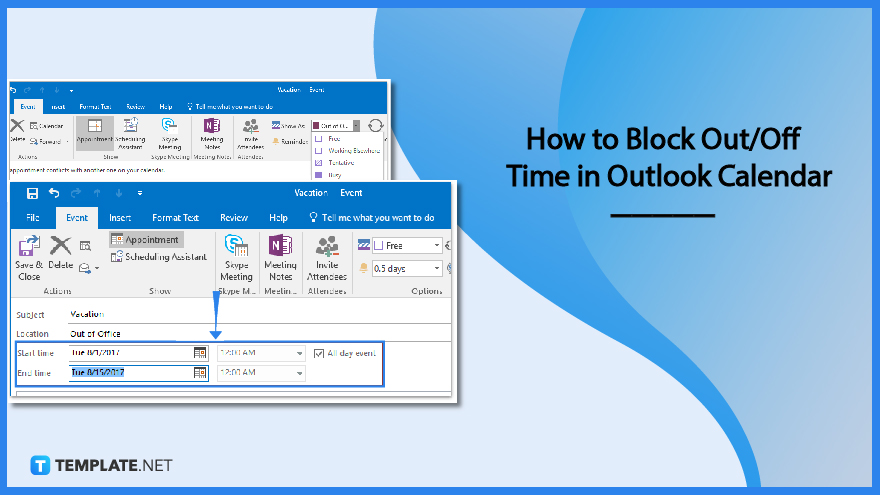
Block out/off time in Outlook calendar using Microsoft Outlook’s life organizing features, offering a range of tools to keep you organized and on time. With the Microsoft Outlook calendar feature, you can set your time away from the office while not affecting the free time available on other users’ calendars; learn how to block out/off time in Outlook calendar shortly.
In case you get busy or go for a vacation while calendaring sharing isn’t enabled and other coworkers don’t use Microsoft Office 365, you can still mark a time away with the Outlook calendar. The key is to insert custom meeting requests to other users’ calendars but not in a way where you affect the free time of their calendars; achieve it with these steps:
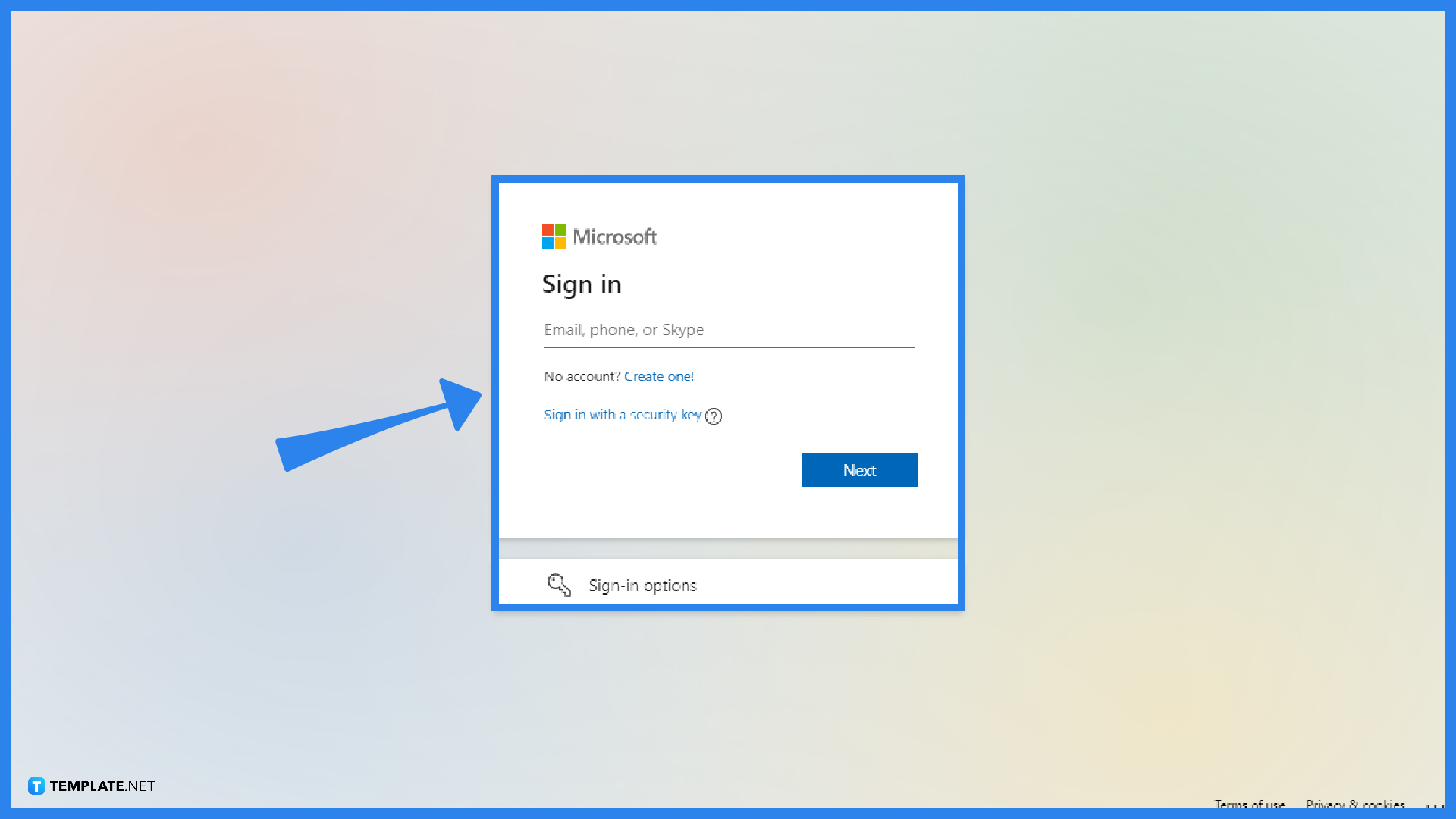
Visit Outlook.com or download the Outlook app from the Microsoft Office 365 subscription. Next, sign in to Microsoft Outlook by providing your user ID/ email address and password and clicking “Sign in.” Once inside, your next goal will either be to block out your vacation using your own calendar or ensure that your coworkers know you will be gone for the holidays or for whatever reason you will be absent and insert a vacation time to their Outlook calendars, which will be discussed in the next steps.
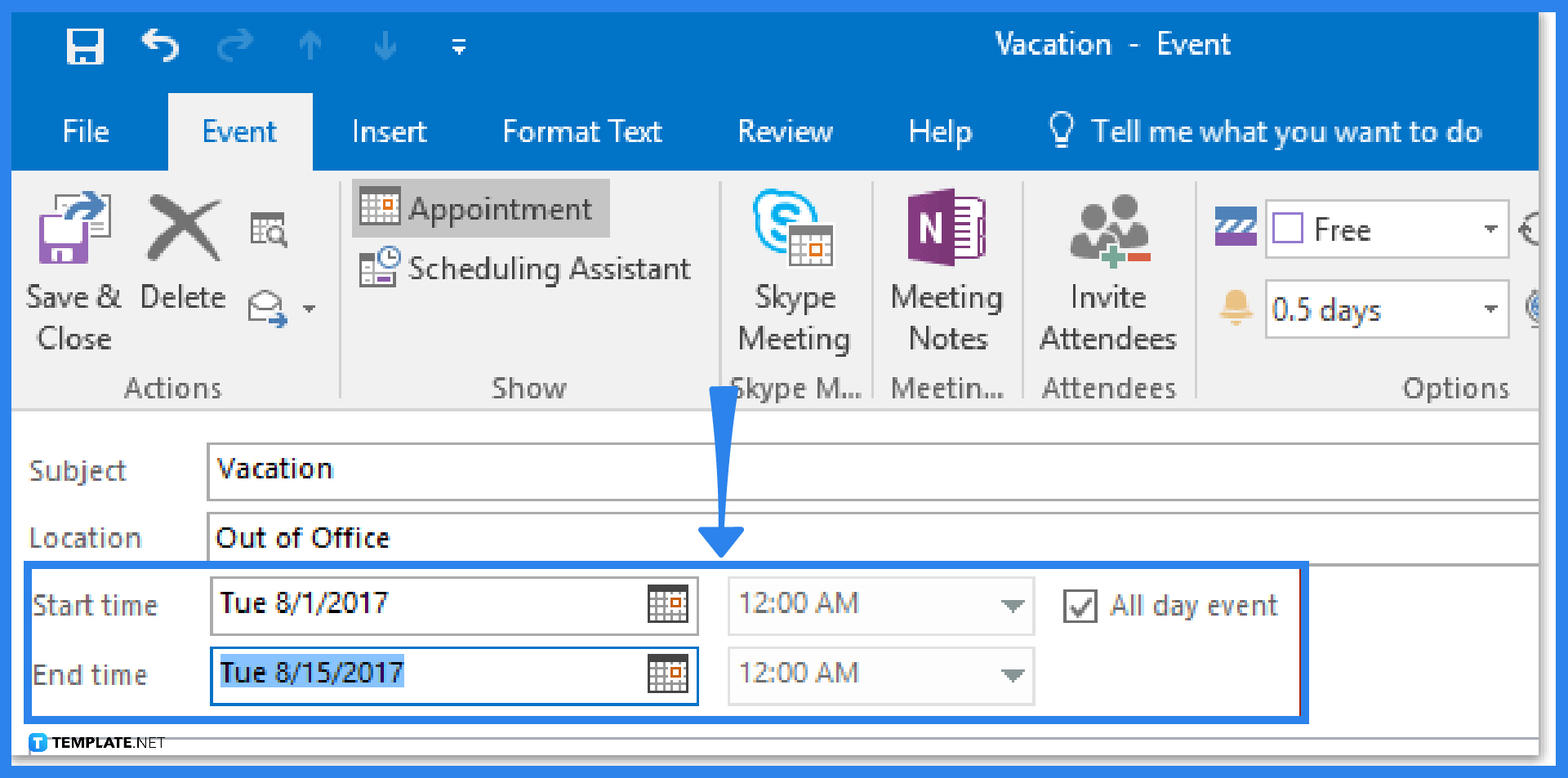
Head to the calendar in Outlook, select “Home,” and click “New Appointment.” Write the subject and location detailing the insights or explanation about your time off. Denote the block scheduling of your vacation from the Start time box down to the End time box. Check the box beside All day event as well.
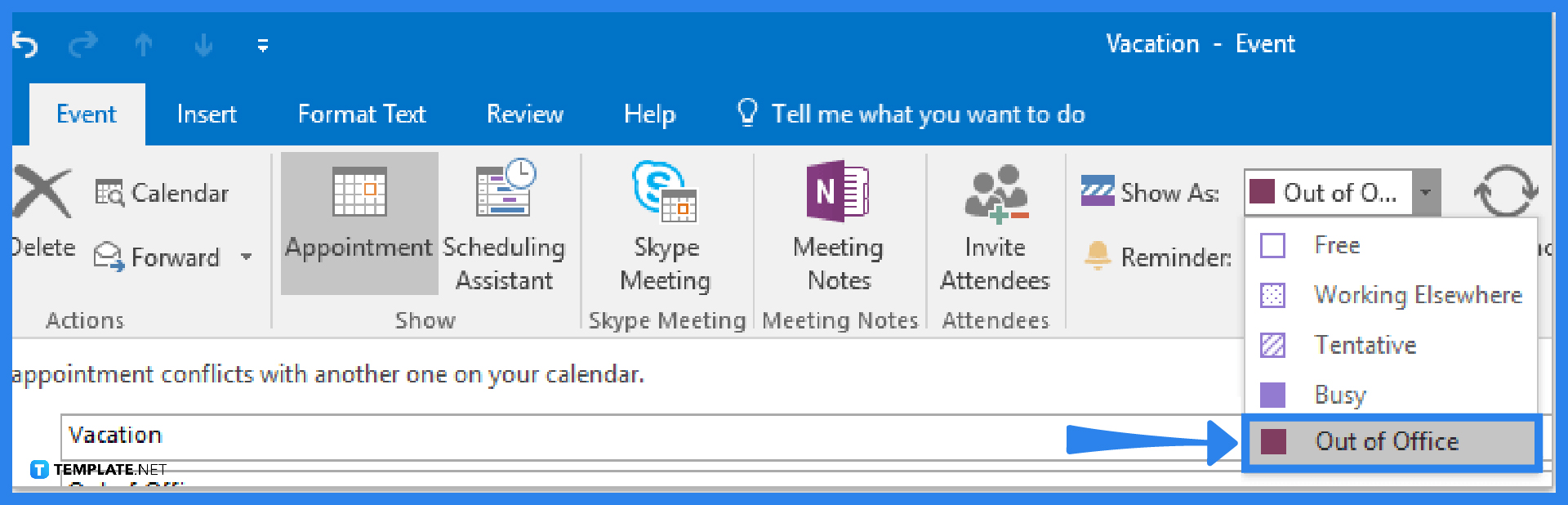
Click “Show As” from the Event tab to access a drop-down menu. From there, choose “Out of Office.” Do the finishing touches for scheduling until you click “Event” followed by “Save & Close.”
The other alternative is to select “Home” and “New Meeting” in your calendar. Type in the focus subject and location on the text boxes provided. The same goes for writing the start time and end time and marking the All day event check box. The different step is that you will now click “Attendees,” “Response Options,” and clear “Request Responses.”
Under Options, click “Show As” and “Free.” Insert the focus details to share with other users and note who to send the information under the To line. Finally, hit “Send.” They would now be aware of your scheduled time-off.
The keyboard shortcut to make a new meeting request in Outlook is Ctrl + Shift + Q.
Click “Calendar” from the Outlook options and the Work Time Outlook calendar shading shades the nonworking hours according to the Calendar work time options; just uncheck the FRI checkbox if you don’t work on Fridays, perhaps, and set the rest of the schedule.
Select “Calendar Options” on the Preference group of Outlook calendar, pick your preferred color from the Default Color dropdown menu, and tap “OK.”

Signatures found in documents establish who you are as an individual or as an organization. Aside from the fact that…
![How To Make/Create a Newsletter in Microsoft Outlook [Templates + Examples] 2026](https://images.template.net/wp-content/uploads/2022/07/How-to-Start-a-Newsletter-with-Microsoft-Outlook-788x443.jpg)
Newsletters enable companies and organizations to communicate relevant and helpful information to their client, prospects, and subscribers. By giving you…
![How To Make/Create a Booklet in Microsoft Publisher [Templates + Examples] 2026](https://images.template.net/wp-content/uploads/2022/08/How-To-Make_Create-a-Booklet-in-Microsoft-Publisher-788x443.png)
Booklet templates are pre-designed layouts that make it easy to create a professional-looking booklet. They typically include placeholders for text…
![How To Make/Create a Booklet in Microsoft PowerPoint [Templates + Examples] 2026](https://images.template.net/wp-content/uploads/2022/07/How-To-Make-Create-a-Booklet-in-Microsoft-PowerPoint-788x443.jpg)
Booklets can be created in Microsoft PowerPoint, which offers a design feature that allows users to display them in PPT…
![How to Automatically Fill PDF Forms Using Microsoft Excel [Templates + Examples] 2026](https://images.template.net/wp-content/uploads/2022/07/How-to-Automatically-Fill-PDF-Forms-Using-Microsoft-Excel-788x444.png)
Automatically fill PDF forms using Microsoft Excel so you won’t have to save multiple PDF forms in an Excel spreadsheet…
![How to Make/Create a Floor Plan on Microsoft Excel [Templates + Examples] 2026](https://images.template.net/wp-content/uploads/2022/07/How-to-Make-a-Floor-Plan-on-Microsoft-Excel-788x443.jpg)
Floor plans either make or break projects related to engineering and architecture. That being said, every apartment room, bedroom, living…
![How to Make/Create a Grid in Microsoft Word [Templates + Examples] 2026](https://images.template.net/wp-content/uploads/2022/07/How-to-Make_Create-a-Grid-in-Microsoft-Word-788x444.jpg)
Grids consist of a network of lines that work as graphic cues while formatting your document in Microsoft Office. If…
![How to Add More Highlight Colors to Microsoft Word [Templates + Examples] 2026](https://images.template.net/wp-content/uploads/2022/07/How-to-Add-More-Highlight-Colors-to-Microsoft-Word-Templates-Examples-2023-788x443.jpg)
Add more highlight colors to Microsoft Word so you won’t have to settle with the default shading color in marking…
![How to Make/Create a Border in Microsoft Publisher [Templates + Examples] 2026](https://images.template.net/wp-content/uploads/2022/08/How-to-MakeCreate-a-Border-in-Microsoft-Publisher-788x444.png)
Borders are graphic design elements that make a document more pleasing and stylish to look at. This can be used…