


![How to Add a Signature in Microsoft Forms [Templates + Examples] 2026](https://images.template.net/wp-content/uploads/2022/07/How-to-Add-a-Signature-in-Microsoft-Forms-Templates-Examples-2023-788x443.jpg)
How to Add a Signature in Microsoft Forms [Templates + Examples] 2026
Signatures found in documents establish who you are as an individual or as an organization. Aside from the fact that…
Dec 22, 2025


Feb 26, 2026
Microsoft PowerPoint can change the spacing between your presentation’s bullet points from double spacing, indent spacing, paragraph spacing, to letter spacing. If you want professionally formatted slides with properly spaced bullet points from the start, using a Microsoft PowerPoint template can help you maintain consistent alignment, indentation, and paragraph spacing across your entire presentation. Learn how to do all of them in just a few steps.
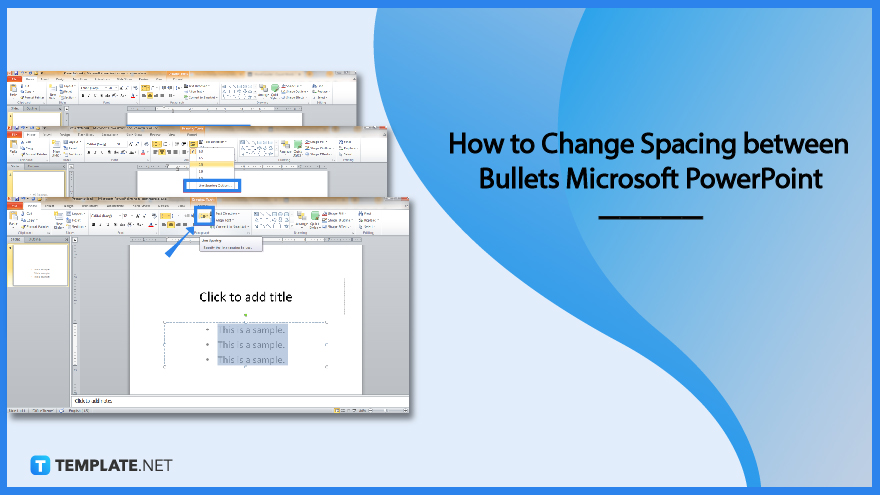
Changing the dimensions of extra spaces between bullets in Microsoft Office PowerPoint would help you achieve your preferred formatting style that the default format didn’t satisfy you with. So take this opportunity to learn the process to optimize your experience in making Microsoft PowerPoint presentations flawlessly.
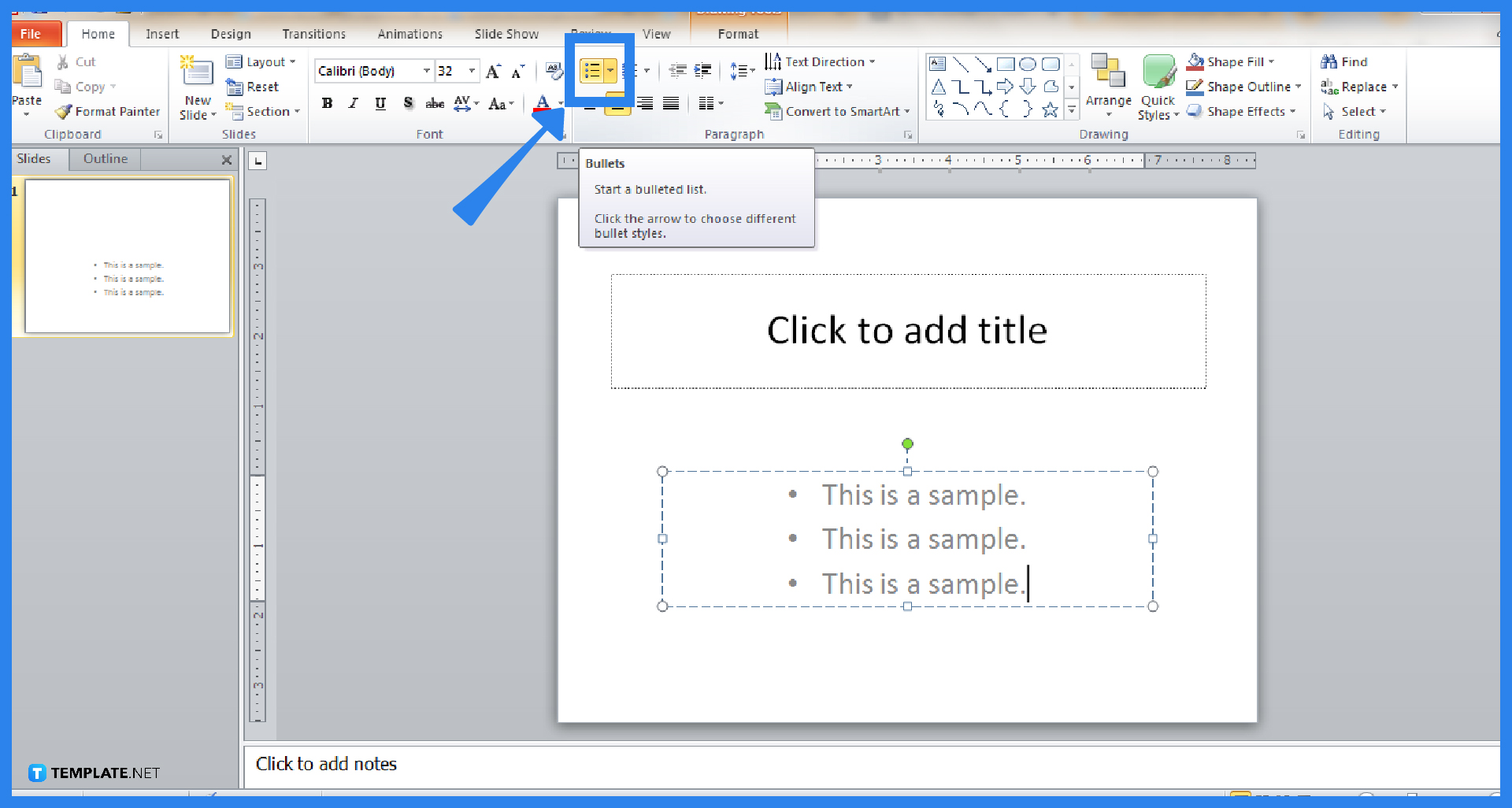
First things first, open Microsoft PowerPoint. You can’t access it if you aren’t subscribed to MS Office 365. Then, make a blank presentation where you can insert a bulleted list. To do that, insert a text box in Microsoft PowerPoint or use the default text box given in a slide. And click the “Bullets” icon from the upper menu so every line you type has a bullet.
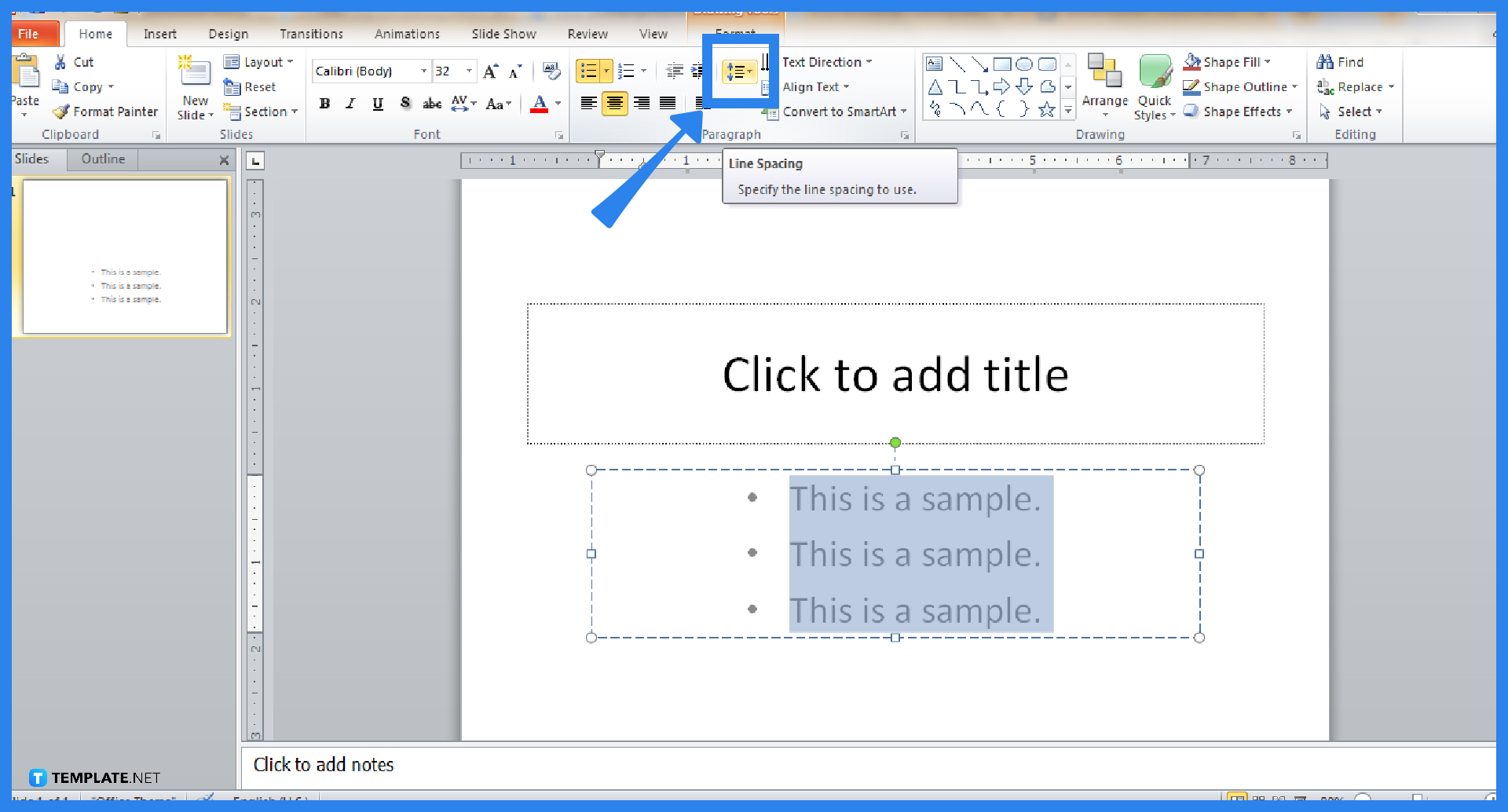
Highlight the text with the bulleted list by clicking and dragging. Next, select the “Line Spacing” icon under the “Paragraph” category of the “Home” menu. Expect a dialog box to appear when you click it.
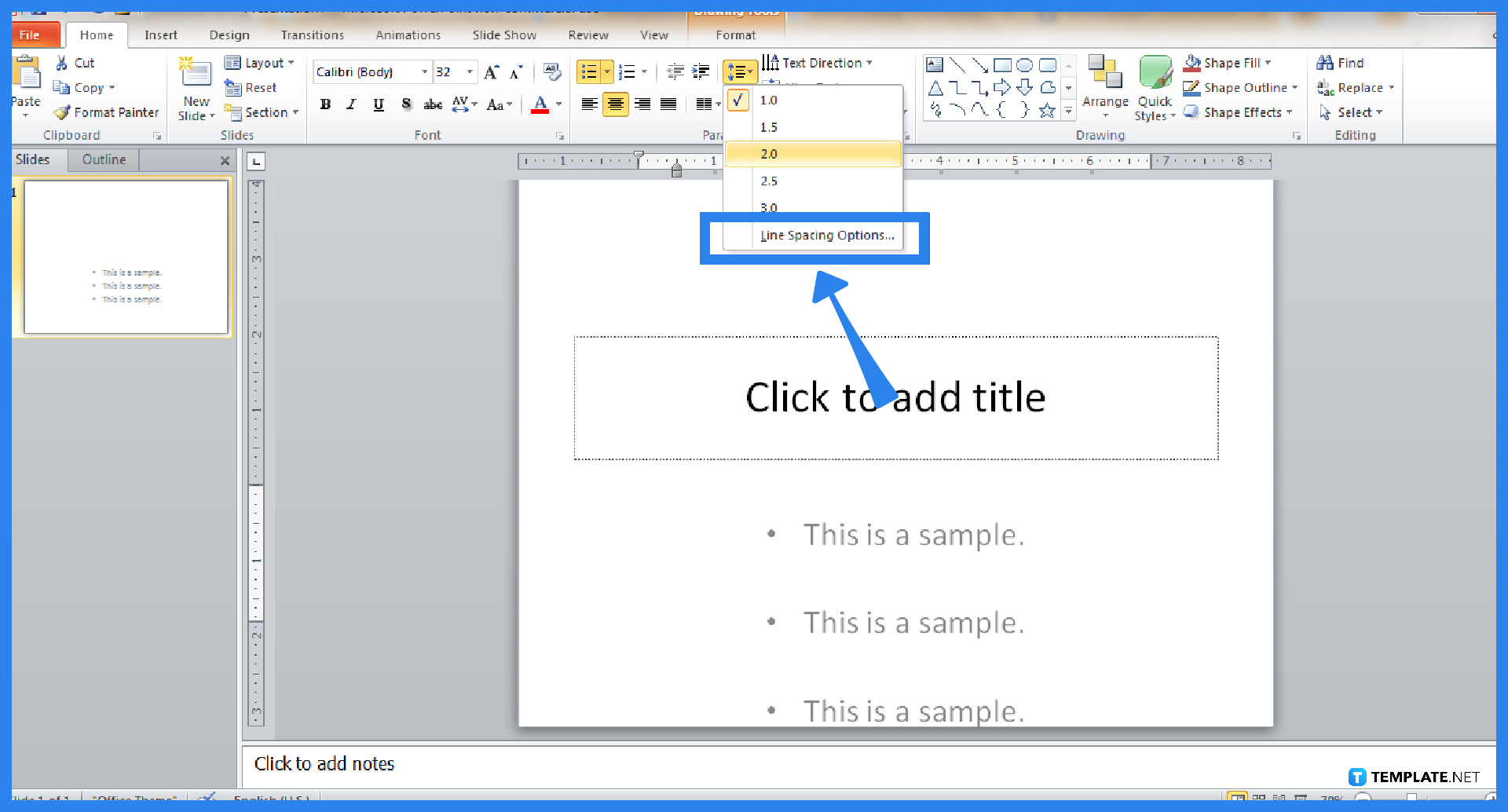
When you click “Line Spacing,” you can choose from 1.5, 2.0, 2.5, or 3.0 for the spacing between bullets. If you want more spacing examples when you use Microsoft PowerPoint, press “Line Spacing Options” and there are actually more spacing customization tools from there.
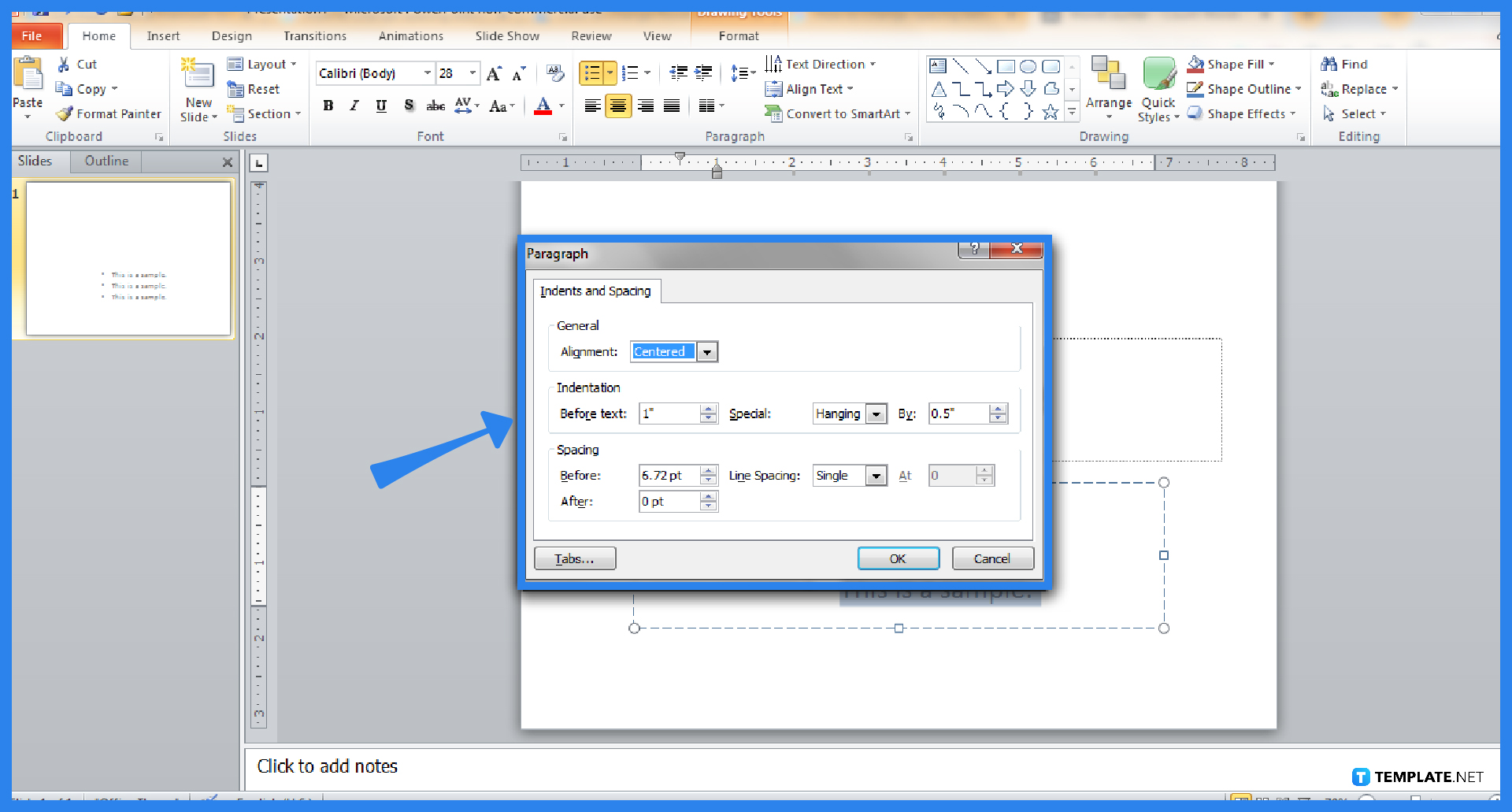
A pop-up window appears and you receive a range of options for indents and spacing. Take this chance to set the general alignment, insert an indentation, or set the dimensions of the spacing before or after it. Then, click “OK” to apply the changes to the results.
Modern AI tools can also assist in automatically formatting slide layouts, adjusting spacing, and optimizing text hierarchy to improve readability and presentation flow.
Head to the “Home” menu and move to the “Paragraph” tab, click the drop-down arrow beside the “Bullets” icon, and choose your preferred bullet style from various examples including numbering.
A hanging indent refers to an indentation style where all the lines of a paragraph are indented except for the very first line.
In the “Paragraph” category of the ribbon, click for different alignment options and choose “Center Alignment” to keep bullets aligned in the center.
A bullet point makes a summary of every significant point you make without having to write each key point in a complete sentence.
You can certainly make use of bullet points in Microsoft PowerPoint presentations if your texts are too long and if you need to balance the text and graphic elements of your PPT slides.

Signatures found in documents establish who you are as an individual or as an organization. Aside from the fact that…
![How To Make/Create a Newsletter in Microsoft Outlook [Templates + Examples] 2026](https://images.template.net/wp-content/uploads/2022/07/How-to-Start-a-Newsletter-with-Microsoft-Outlook-788x443.jpg)
Newsletters enable companies and organizations to communicate relevant and helpful information to their client, prospects, and subscribers. By giving you…
![How To Make/Create a Booklet in Microsoft Publisher [Templates + Examples] 2026](https://images.template.net/wp-content/uploads/2022/08/How-To-Make_Create-a-Booklet-in-Microsoft-Publisher-788x443.png)
Booklet templates are pre-designed layouts that make it easy to create a professional-looking booklet. They typically include placeholders for text…
![How To Make/Create a Booklet in Microsoft PowerPoint [Templates + Examples] 2026](https://images.template.net/wp-content/uploads/2022/07/How-To-Make-Create-a-Booklet-in-Microsoft-PowerPoint-788x443.jpg)
Booklets can be created in Microsoft PowerPoint, which offers a design feature that allows users to display them in PPT…
![How to Automatically Fill PDF Forms Using Microsoft Excel [Templates + Examples] 2026](https://images.template.net/wp-content/uploads/2022/07/How-to-Automatically-Fill-PDF-Forms-Using-Microsoft-Excel-788x444.png)
Automatically fill PDF forms using Microsoft Excel so you won’t have to save multiple PDF forms in an Excel spreadsheet…
![How to Make/Create a Floor Plan on Microsoft Excel [Templates + Examples] 2026](https://images.template.net/wp-content/uploads/2022/07/How-to-Make-a-Floor-Plan-on-Microsoft-Excel-788x443.jpg)
Floor plans either make or break projects related to engineering and architecture. That being said, every apartment room, bedroom, living…
![How to Make/Create a Grid in Microsoft Word [Templates + Examples] 2026](https://images.template.net/wp-content/uploads/2022/07/How-to-Make_Create-a-Grid-in-Microsoft-Word-788x444.jpg)
Grids consist of a network of lines that work as graphic cues while formatting your document in Microsoft Office. If…
![How to Add More Highlight Colors to Microsoft Word [Templates + Examples] 2026](https://images.template.net/wp-content/uploads/2022/07/How-to-Add-More-Highlight-Colors-to-Microsoft-Word-Templates-Examples-2023-788x443.jpg)
Add more highlight colors to Microsoft Word so you won’t have to settle with the default shading color in marking…
![How to Make/Create a Border in Microsoft Publisher [Templates + Examples] 2026](https://images.template.net/wp-content/uploads/2022/08/How-to-MakeCreate-a-Border-in-Microsoft-Publisher-788x444.png)
Borders are graphic design elements that make a document more pleasing and stylish to look at. This can be used…