


![How to Add a Signature in Microsoft Forms [Templates + Examples] 2026](https://images.template.net/wp-content/uploads/2022/07/How-to-Add-a-Signature-in-Microsoft-Forms-Templates-Examples-2023-788x443.jpg)
How to Add a Signature in Microsoft Forms [Templates + Examples] 2026
Signatures found in documents establish who you are as an individual or as an organization. Aside from the fact that…
Dec 22, 2025


Sep 02, 2025
Microsoft PowerPoint‘s color match feature can help you create a stellar PPT presentation because its matching color scheme helps achieve visual unity, making any presentations easy for your viewers’ eyes. But with so many color palettes and color combinations to choose from, you can save more time with the eyedropper tool to match colors.
You can change the colors of fonts, pictures, and objects when you use Microsoft Office PowerPoint. And to make sure you get an exact match of color from your object that you want to add to your “Shape Fill” color palette, these steps got you covered:
Install Microsoft Office 365 and access MS PowerPoint afterward. Subscribing to the product page is needed or you won’t be able to access PowerPoint and other MS Office tools. Once you already have the program, open PowerPoint and create a new presentation.
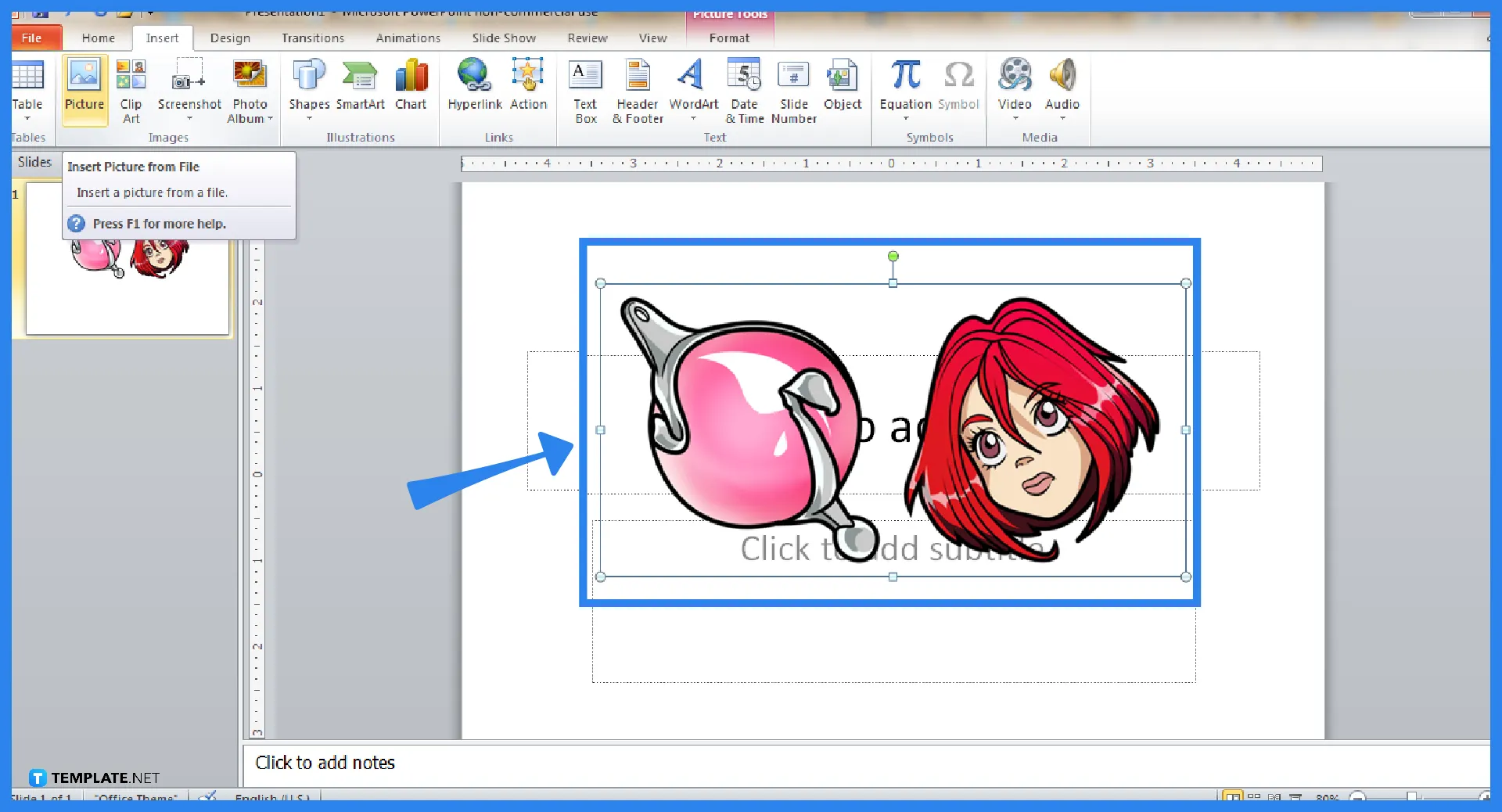
To get started, insert an image into any slide of your presentation. The key is to use a picture that has the color you want to match and add to your “Shape Fill” colors. Just click “Insert” on the upper menu and click “Picture.” Then, open the image file or object you want to insert into the slide.
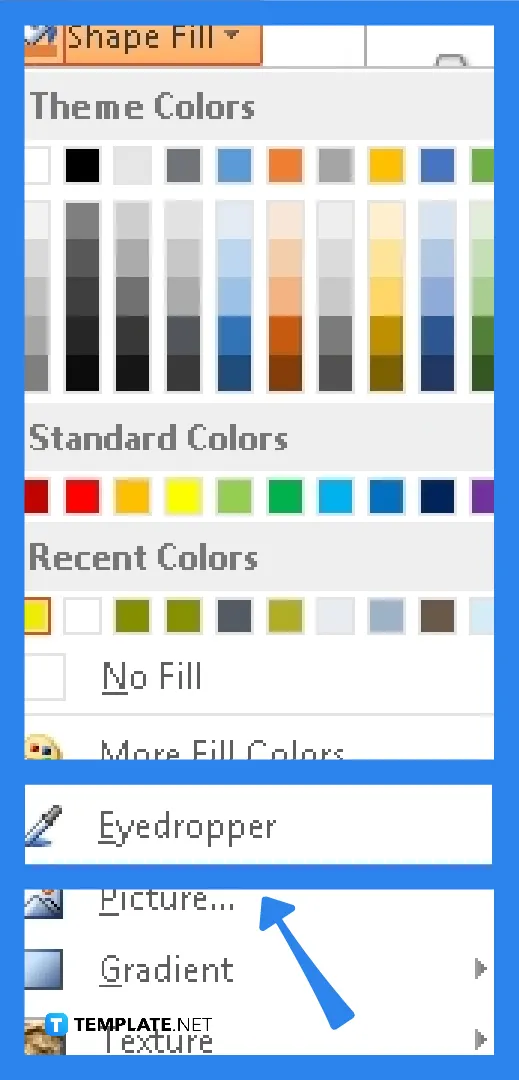
On the ribbon above your screen, head to the “Drawing Tools.” Then, click “Format” followed by “Shape Fill.” Next, select “Eyedropper.” This is the main tool you need to color match in PowerPoint.
After clicking “Eyedropper,” move your cursor to the image or object you inserted. Watch as the color is shown on the preview beside your cursor. Once you have found the specific shade you like, click on it so that you can apply that color to the “Shape Fill” palette.
To make colors match and apply them to your slide background in PowerPoint, follow these steps: pick the slide with the background you need to recolor, click “Slide Background” on the “Format” tab, tap “Color” and proceed to “More Colors,” choose the “Eyedropper” tool, point to the specific color you want, and click it right after.
In MS PowerPoint, the eyedropper tool works as a color picker wherein you can match colors inside your PPT slides.
The symbols you notice beside each color while using the eyedropper tool are called color codes, and each shade has a specific color code to make it easier to identify a color from a whole spectrum of colors.
Complementary colors are paired with contrasting shades but when you view them all together, they somehow look cohesive and appear much brighter than they used to be as individual colors.

Signatures found in documents establish who you are as an individual or as an organization. Aside from the fact that…
![How To Make/Create a Newsletter in Microsoft Outlook [Templates + Examples] 2026](https://images.template.net/wp-content/uploads/2022/07/How-to-Start-a-Newsletter-with-Microsoft-Outlook-788x443.jpg)
Newsletters enable companies and organizations to communicate relevant and helpful information to their client, prospects, and subscribers. By giving you…
![How To Make/Create a Booklet in Microsoft Publisher [Templates + Examples] 2026](https://images.template.net/wp-content/uploads/2022/08/How-To-Make_Create-a-Booklet-in-Microsoft-Publisher-788x443.png)
Booklet templates are pre-designed layouts that make it easy to create a professional-looking booklet. They typically include placeholders for text…
![How To Make/Create a Booklet in Microsoft PowerPoint [Templates + Examples] 2026](https://images.template.net/wp-content/uploads/2022/07/How-To-Make-Create-a-Booklet-in-Microsoft-PowerPoint-788x443.jpg)
Booklets can be created in Microsoft PowerPoint, which offers a design feature that allows users to display them in PPT…
![How to Automatically Fill PDF Forms Using Microsoft Excel [Templates + Examples] 2026](https://images.template.net/wp-content/uploads/2022/07/How-to-Automatically-Fill-PDF-Forms-Using-Microsoft-Excel-788x444.png)
Automatically fill PDF forms using Microsoft Excel so you won’t have to save multiple PDF forms in an Excel spreadsheet…
![How to Make/Create a Floor Plan on Microsoft Excel [Templates + Examples] 2026](https://images.template.net/wp-content/uploads/2022/07/How-to-Make-a-Floor-Plan-on-Microsoft-Excel-788x443.jpg)
Floor plans either make or break projects related to engineering and architecture. That being said, every apartment room, bedroom, living…
![How to Make/Create a Grid in Microsoft Word [Templates + Examples] 2026](https://images.template.net/wp-content/uploads/2022/07/How-to-Make_Create-a-Grid-in-Microsoft-Word-788x444.jpg)
Grids consist of a network of lines that work as graphic cues while formatting your document in Microsoft Office. If…
![How to Add More Highlight Colors to Microsoft Word [Templates + Examples] 2026](https://images.template.net/wp-content/uploads/2022/07/How-to-Add-More-Highlight-Colors-to-Microsoft-Word-Templates-Examples-2023-788x443.jpg)
Add more highlight colors to Microsoft Word so you won’t have to settle with the default shading color in marking…
![How to Make/Create a Border in Microsoft Publisher [Templates + Examples] 2026](https://images.template.net/wp-content/uploads/2022/08/How-to-MakeCreate-a-Border-in-Microsoft-Publisher-788x444.png)
Borders are graphic design elements that make a document more pleasing and stylish to look at. This can be used…