


![How to Add a Signature in Microsoft Forms [Templates + Examples] 2026](https://images.template.net/wp-content/uploads/2022/07/How-to-Add-a-Signature-in-Microsoft-Forms-Templates-Examples-2023-788x443.jpg)
How to Add a Signature in Microsoft Forms [Templates + Examples] 2026
Signatures found in documents establish who you are as an individual or as an organization. Aside from the fact that…
Dec 22, 2025


Sep 02, 2025
Microsoft OneNote allows the user to edit and customize how their notes are organized in their notebooks. The user’s notes are split into three categories, notebooks, sections, and pages, and each has its specific uses.
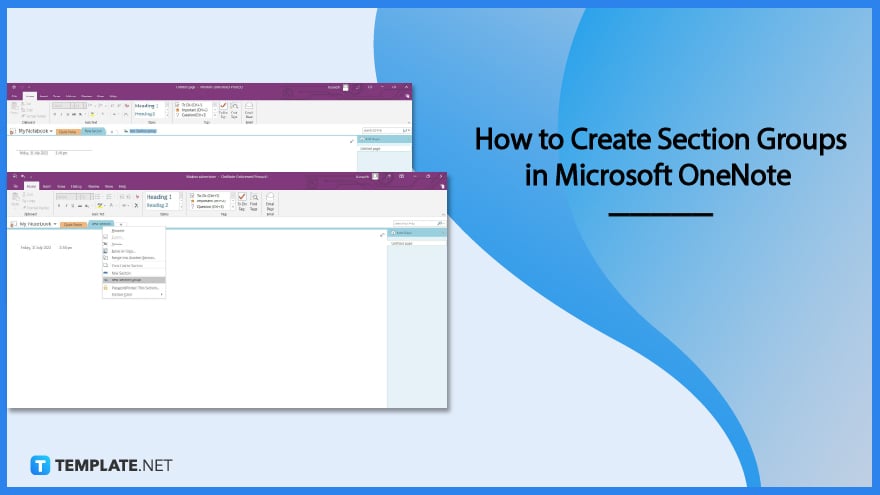
Sections act as the middle category between notebooks and pages, which acts as the container of the notes. These sections can be modified to hold groups of subsections as a means of organization and categorization.
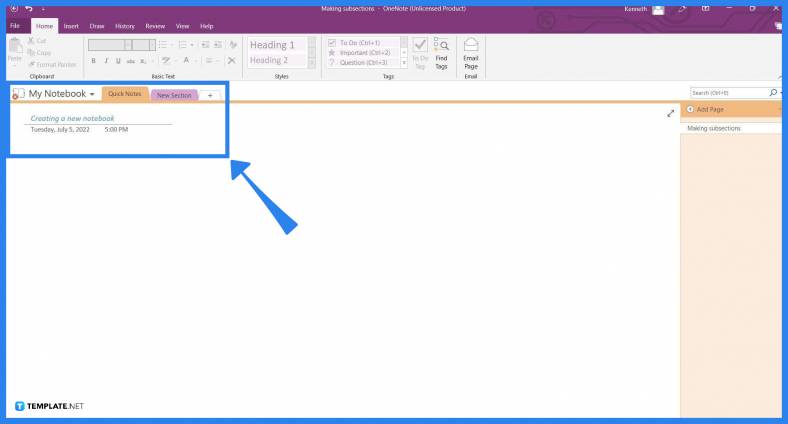
Start by opening the desktop version of Microsoft OneNote on your PC, the subsection feature is not available in the web version of Microsoft OneNote. If you want to create a subsection in your notebooks, you will have to download the desktop version of Microsoft OneNote and sync your account there.
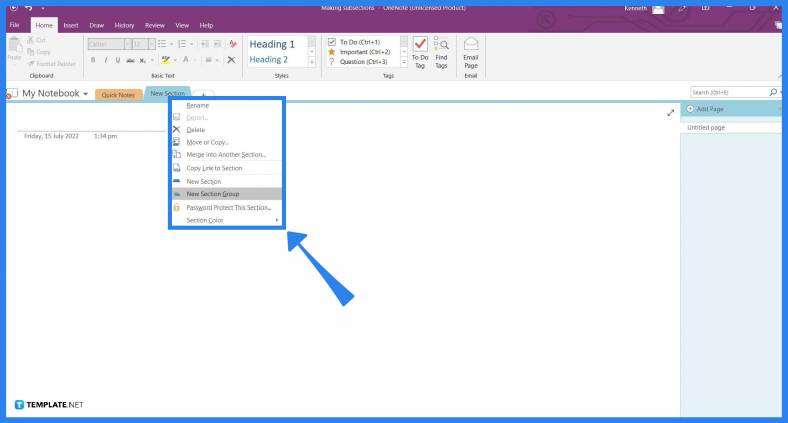
The option to create a subsection group is on a section option that can’t be found in the Home view of Microsoft OneNote. To find the section options that allow the user to make a subsection, right-click any existing section on the section list.
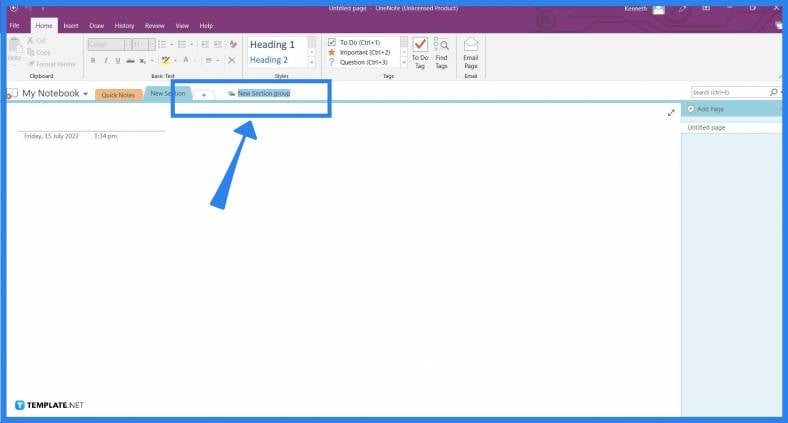
You will be able to make a subsection by pressing the “Create a New Subsection” option in the dropdown. After clicking the button, a new section group will appear in the section list for you to peruse and use.
You can create a section by opening any version of Microsoft OneNote and pressing the “Add Section” button located beside the most recent section of the notebook; if you are using the web version of Microsoft OneNote, you may click the “Add Section” button located on the bottom part of the section window.
You can have as many sections as you want in your Microsoft OneNote notebook; just note that the file size of the digital notebook will proportionally increase with every section you will add to it.
There might be an issue with your Microsoft OneNote, and there is no fix for this yet; it is best to create a new notebook and move all your sections and pages to the new notebook, which can be achieved by right-clicking the sections and pressing the “Move or Copy” option, then selecting the newly made notebook, and clicking the “Move” button.
You can rename sections as the subject for the class you are taking; this will ensure that you will know which section is holding your notes for a specific class.
Yes, you can make a subsection; you can create these subsections by first creating a section group and then adding sections into the group by pressing the “Add Section” button inside the grouped section.

Signatures found in documents establish who you are as an individual or as an organization. Aside from the fact that…
![How To Make/Create a Newsletter in Microsoft Outlook [Templates + Examples] 2026](https://images.template.net/wp-content/uploads/2022/07/How-to-Start-a-Newsletter-with-Microsoft-Outlook-788x443.jpg)
Newsletters enable companies and organizations to communicate relevant and helpful information to their client, prospects, and subscribers. By giving you…
![How To Make/Create a Booklet in Microsoft Publisher [Templates + Examples] 2026](https://images.template.net/wp-content/uploads/2022/08/How-To-Make_Create-a-Booklet-in-Microsoft-Publisher-788x443.png)
Booklet templates are pre-designed layouts that make it easy to create a professional-looking booklet. They typically include placeholders for text…
![How To Make/Create a Booklet in Microsoft PowerPoint [Templates + Examples] 2026](https://images.template.net/wp-content/uploads/2022/07/How-To-Make-Create-a-Booklet-in-Microsoft-PowerPoint-788x443.jpg)
Booklets can be created in Microsoft PowerPoint, which offers a design feature that allows users to display them in PPT…
![How to Automatically Fill PDF Forms Using Microsoft Excel [Templates + Examples] 2026](https://images.template.net/wp-content/uploads/2022/07/How-to-Automatically-Fill-PDF-Forms-Using-Microsoft-Excel-788x444.png)
Automatically fill PDF forms using Microsoft Excel so you won’t have to save multiple PDF forms in an Excel spreadsheet…
![How to Make/Create a Floor Plan on Microsoft Excel [Templates + Examples] 2026](https://images.template.net/wp-content/uploads/2022/07/How-to-Make-a-Floor-Plan-on-Microsoft-Excel-788x443.jpg)
Floor plans either make or break projects related to engineering and architecture. That being said, every apartment room, bedroom, living…
![How to Make/Create a Grid in Microsoft Word [Templates + Examples] 2026](https://images.template.net/wp-content/uploads/2022/07/How-to-Make_Create-a-Grid-in-Microsoft-Word-788x444.jpg)
Grids consist of a network of lines that work as graphic cues while formatting your document in Microsoft Office. If…
![How to Add More Highlight Colors to Microsoft Word [Templates + Examples] 2026](https://images.template.net/wp-content/uploads/2022/07/How-to-Add-More-Highlight-Colors-to-Microsoft-Word-Templates-Examples-2023-788x443.jpg)
Add more highlight colors to Microsoft Word so you won’t have to settle with the default shading color in marking…
![How to Make/Create a Border in Microsoft Publisher [Templates + Examples] 2026](https://images.template.net/wp-content/uploads/2022/08/How-to-MakeCreate-a-Border-in-Microsoft-Publisher-788x444.png)
Borders are graphic design elements that make a document more pleasing and stylish to look at. This can be used…