


![How to Add a Signature in Microsoft Forms [Templates + Examples] 2026](https://images.template.net/wp-content/uploads/2022/07/How-to-Add-a-Signature-in-Microsoft-Forms-Templates-Examples-2023-788x443.jpg)
How to Add a Signature in Microsoft Forms [Templates + Examples] 2026
Signatures found in documents establish who you are as an individual or as an organization. Aside from the fact that…
Dec 22, 2025


Sep 02, 2025
Microsoft PowerPoint does more than just slide shows and animations because it also lets you do fun games such as word search, jigsaw puzzle, and crossword. And if you are specifically interested to do a crossword puzzle in a Microsoft PowerPoint presentation, expect to utilize two slides: one blank puzzle and one puzzle answers sheet.
Before doing a crossword puzzle in Microsoft Office PowerPoint, create a draft of the topics and words you want to incorporate into your crossword puzzle. The same goes for every crossword clue needed so that making the crossword puzzle itself would run seamlessly once you follow these steps:
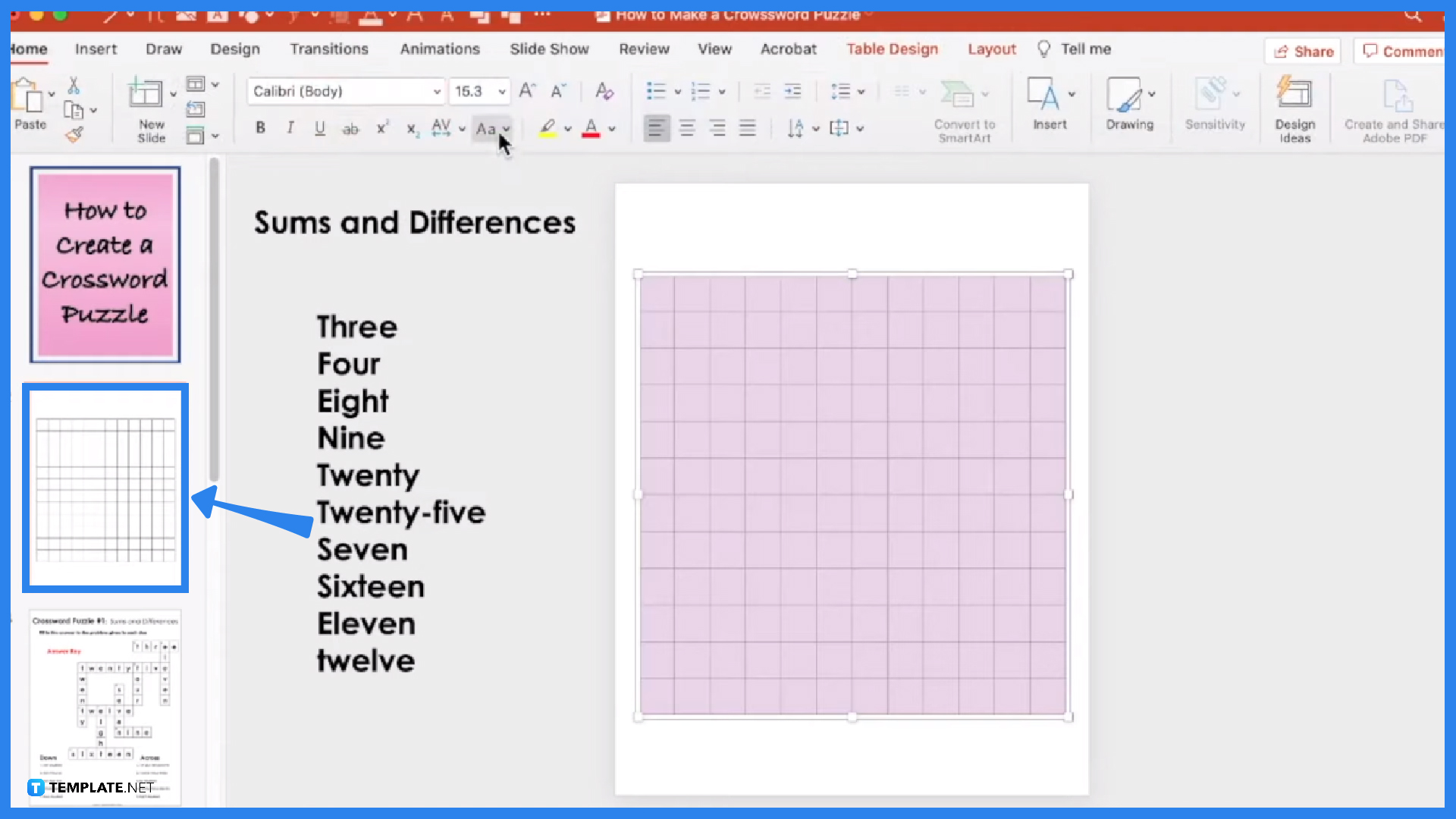
Access Microsoft PowerPoint and create a new presentation. Then, add a table to a blank slide by clicking “Insert” and “Table” found on the top menu. For the number of rows and columns, consider the number of letters on the word that has the most letters in your puzzle. The key is to use a table with no style and adjust its dimensions afterward. Also, format the cells on your table. Highlight the whole table you inserted and set the font style, font size, and text alignment for uniform letters.
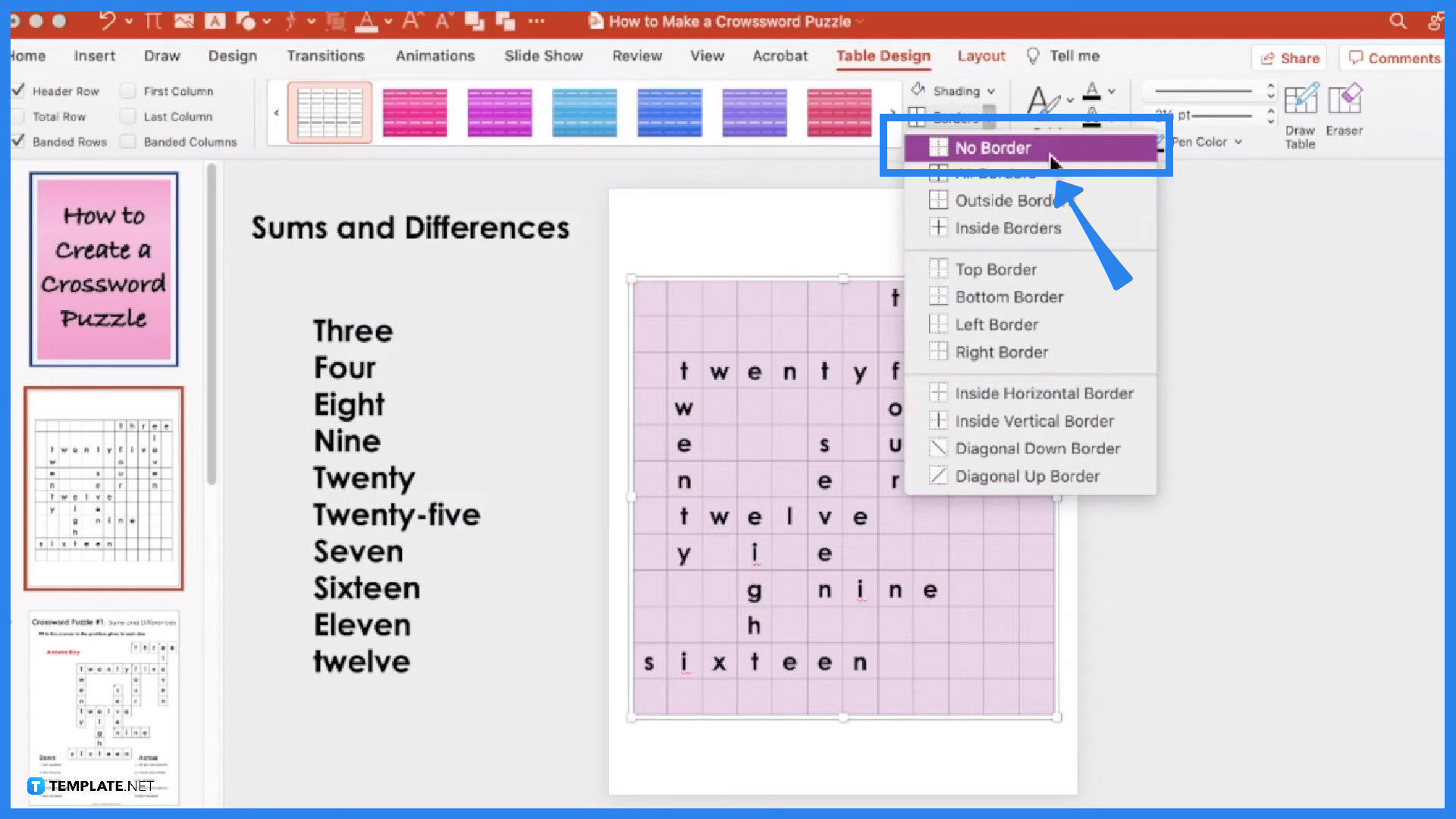
You should know which cell to insert every letter of the topic words you have if you already made a draft rather than starting from scratch. You can start by inserting the longest word and following the rest of the topic words. Next, highlight the entire table, head to “Table Design” on the upper menu, and click “Borders.” Choose “No Border.” This will remove the gridlines.
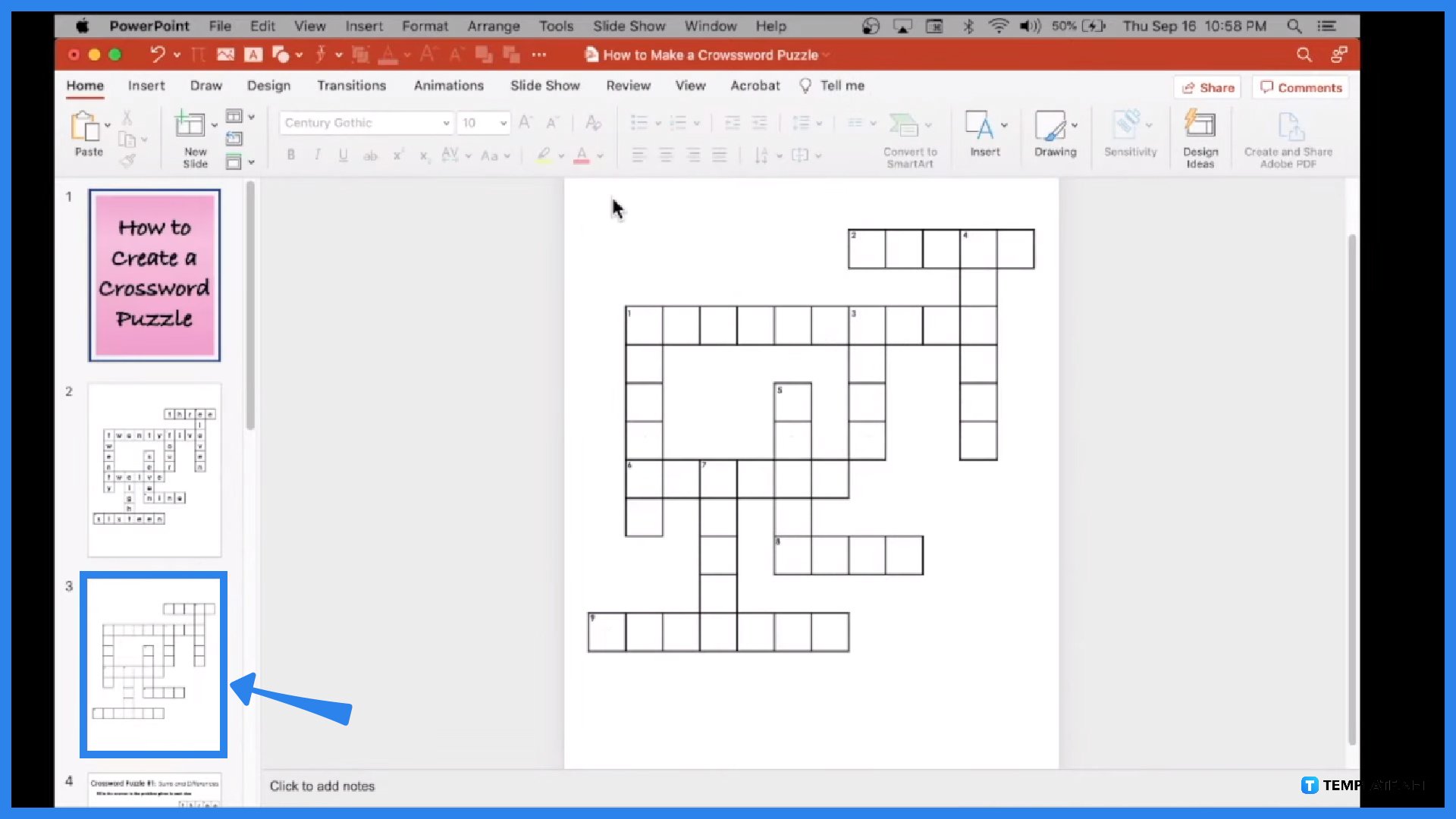
Highlight a topic word from your table and select “Border” followed by “All Borders.” Then, do that for all topic words so that borders are visible only on the topic words. Next, insert a text box and set it at a small size. Insert a number in that text box and it should be small enough to fit on the upper left side of the first letter of a topic word. Complete the numbers for the rest of the topic words.
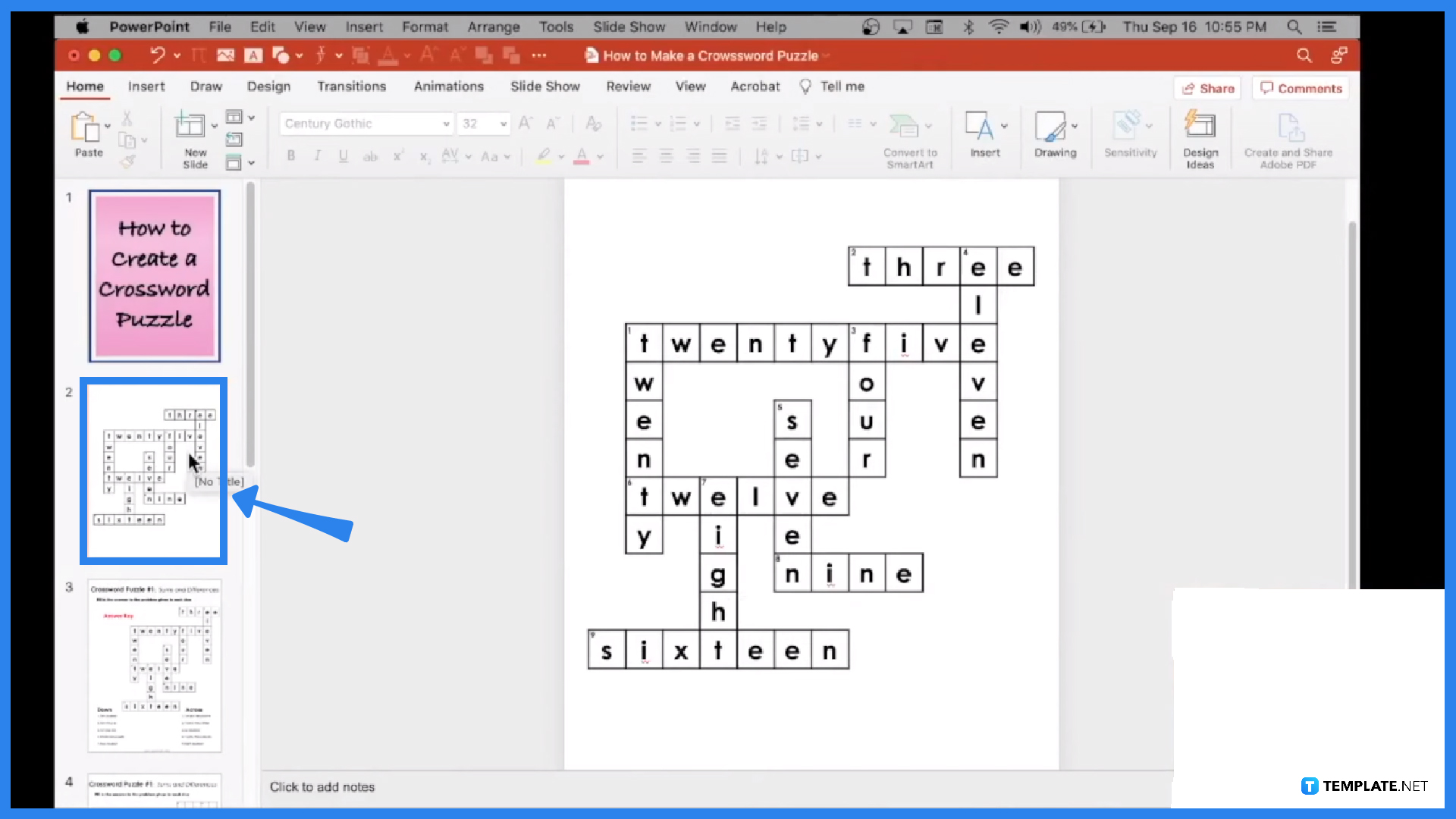
Duplicate the slide with the table to set a blank puzzle by copying and pasting (Ctrl + C and Ctrl + V). Since the duplicated slide still has the topic words inside, highlight all the cells inside the table and delete them. Ensure that only cells inside the table are highlighted and not outside or you might end up deleting the table as well. That way, all the letters would be gone on the slide meant as your blank puzzle.
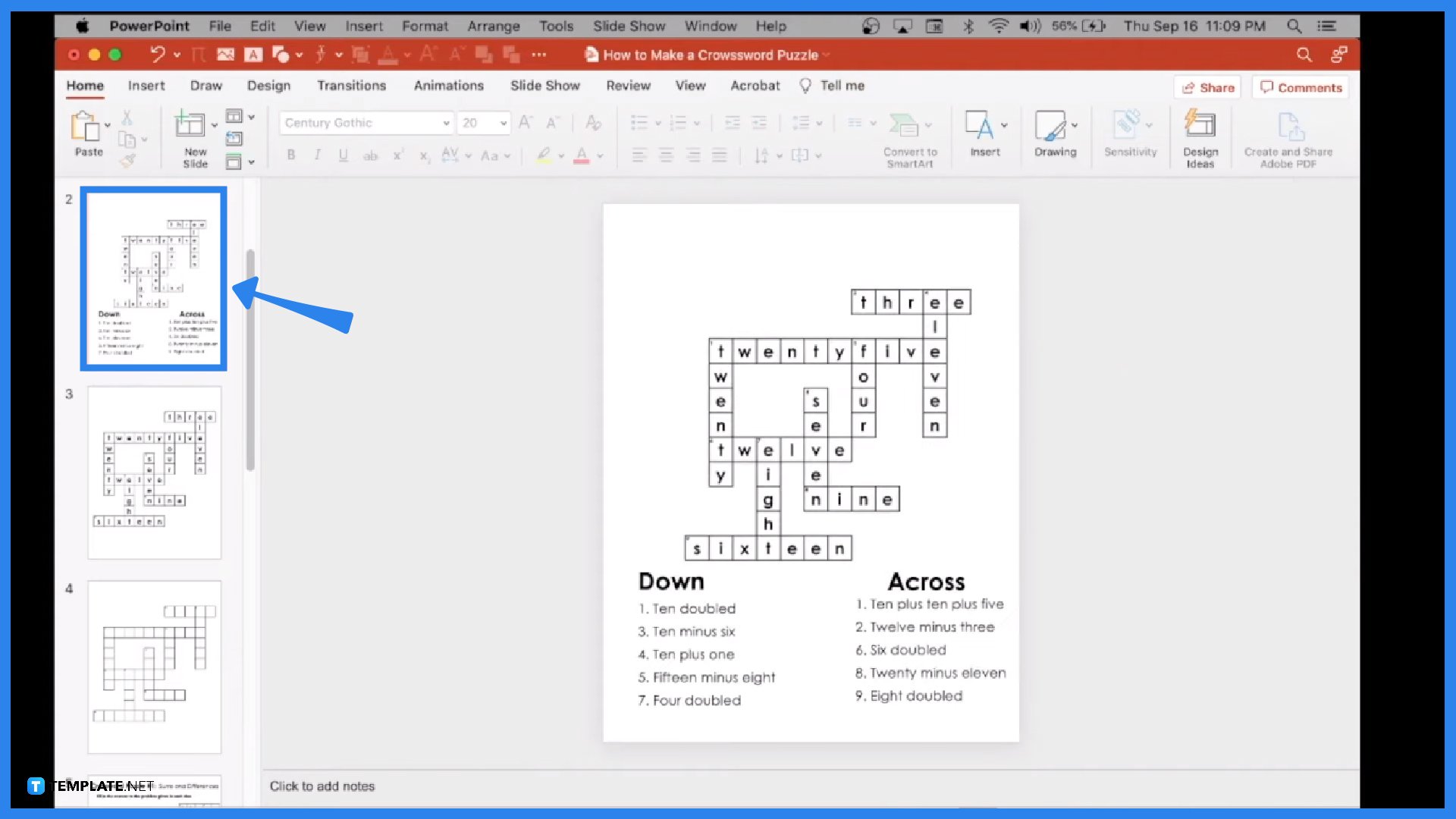
Right-click on every table and save them as images. Then, create two new slides and insert every image for each slide. Change the dimensions of each image after. Then, write the puzzle clues by noting what should be written “Down” and “Across.” Then, add page features to complete your work. And that’s how you build a crossword puzzle when you use Microsoft Office PowerPoint.
Yes, one example is EclipseCrossword which you can download in Microsoft Apps.
Some of the popular crossword puzzle apps include New York Times Crossword, Crossword Unlimited, CodyCross, Crossword Puzzle Free (Redstone), Shortyz Crosswords, Zelnut Crossword Puzzles, and 5-Minute Crossword Puzzles.
You can take crosswords of any duration but for most top crossword solvers and enthusiasts, it can be completed in just about 8–12 minutes.

Signatures found in documents establish who you are as an individual or as an organization. Aside from the fact that…
![How To Make/Create a Newsletter in Microsoft Outlook [Templates + Examples] 2026](https://images.template.net/wp-content/uploads/2022/07/How-to-Start-a-Newsletter-with-Microsoft-Outlook-788x443.jpg)
Newsletters enable companies and organizations to communicate relevant and helpful information to their client, prospects, and subscribers. By giving you…
![How To Make/Create a Booklet in Microsoft Publisher [Templates + Examples] 2026](https://images.template.net/wp-content/uploads/2022/08/How-To-Make_Create-a-Booklet-in-Microsoft-Publisher-788x443.png)
Booklet templates are pre-designed layouts that make it easy to create a professional-looking booklet. They typically include placeholders for text…
![How To Make/Create a Booklet in Microsoft PowerPoint [Templates + Examples] 2026](https://images.template.net/wp-content/uploads/2022/07/How-To-Make-Create-a-Booklet-in-Microsoft-PowerPoint-788x443.jpg)
Booklets can be created in Microsoft PowerPoint, which offers a design feature that allows users to display them in PPT…
![How to Automatically Fill PDF Forms Using Microsoft Excel [Templates + Examples] 2026](https://images.template.net/wp-content/uploads/2022/07/How-to-Automatically-Fill-PDF-Forms-Using-Microsoft-Excel-788x444.png)
Automatically fill PDF forms using Microsoft Excel so you won’t have to save multiple PDF forms in an Excel spreadsheet…
![How to Make/Create a Floor Plan on Microsoft Excel [Templates + Examples] 2026](https://images.template.net/wp-content/uploads/2022/07/How-to-Make-a-Floor-Plan-on-Microsoft-Excel-788x443.jpg)
Floor plans either make or break projects related to engineering and architecture. That being said, every apartment room, bedroom, living…
![How to Make/Create a Grid in Microsoft Word [Templates + Examples] 2026](https://images.template.net/wp-content/uploads/2022/07/How-to-Make_Create-a-Grid-in-Microsoft-Word-788x444.jpg)
Grids consist of a network of lines that work as graphic cues while formatting your document in Microsoft Office. If…
![How to Add More Highlight Colors to Microsoft Word [Templates + Examples] 2026](https://images.template.net/wp-content/uploads/2022/07/How-to-Add-More-Highlight-Colors-to-Microsoft-Word-Templates-Examples-2023-788x443.jpg)
Add more highlight colors to Microsoft Word so you won’t have to settle with the default shading color in marking…
![How to Make/Create a Border in Microsoft Publisher [Templates + Examples] 2026](https://images.template.net/wp-content/uploads/2022/08/How-to-MakeCreate-a-Border-in-Microsoft-Publisher-788x444.png)
Borders are graphic design elements that make a document more pleasing and stylish to look at. This can be used…