


![How to Add a Signature in Microsoft Forms [Templates + Examples] 2026](https://images.template.net/wp-content/uploads/2022/07/How-to-Add-a-Signature-in-Microsoft-Forms-Templates-Examples-2023-788x443.jpg)
How to Add a Signature in Microsoft Forms [Templates + Examples] 2026
Signatures found in documents establish who you are as an individual or as an organization. Aside from the fact that…
Dec 22, 2025


Sep 02, 2025
When you use Microsoft Teams to record a meeting, you will have the option to play back that recording at a later time. This will allow you to replay any portion of the meeting for which you require further information or clarification. However, in addition to playing back a recording, you have the option of downloading it for use as a reference in the future.
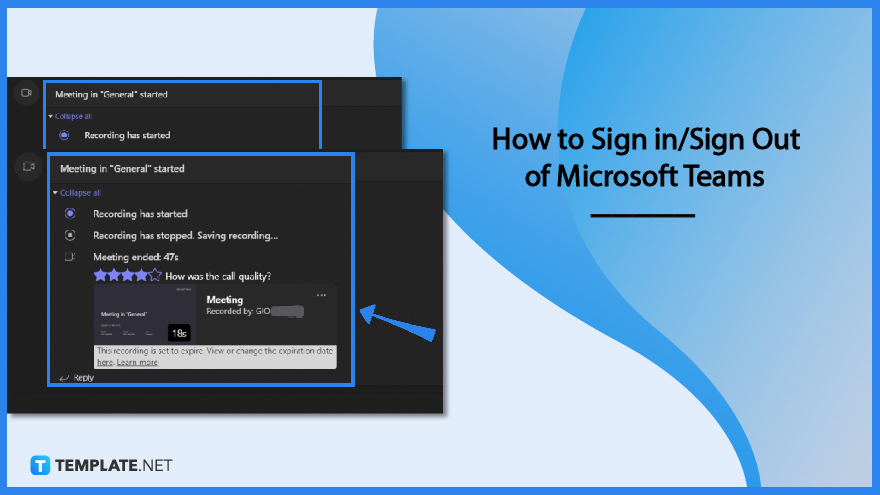
If you have members of your team who were not able to make it to the meeting, you can send them a recording of it so that they are still kept in the loop. You can also manage access to the recording so that it is only seen by the people you choose. This will ensure that no one else sees it. Let’s go over the several options you have for downloading, distributing, and managing access to the recordings you have stored in Microsoft Teams.
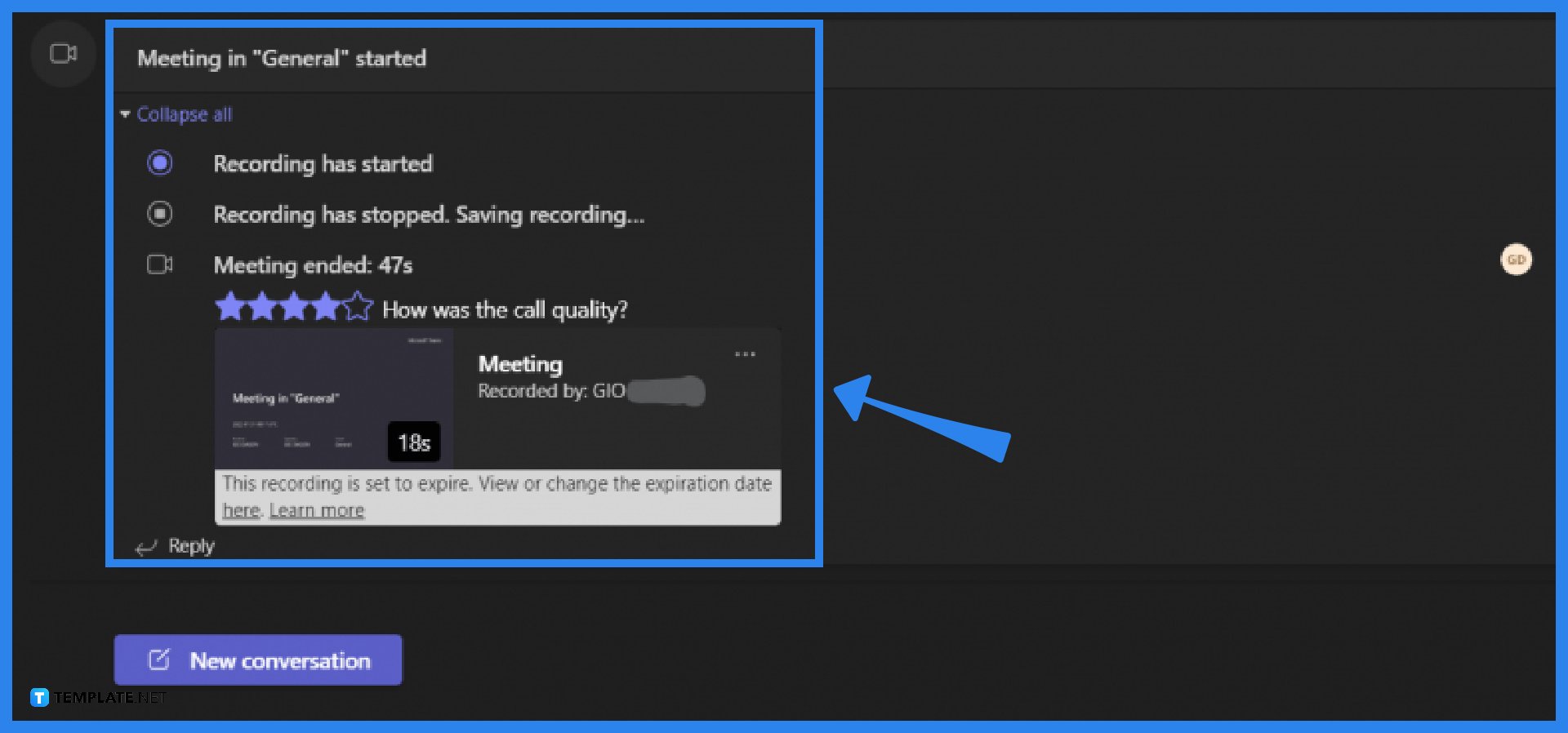
Start by scrolling down through the comments section of the ended meeting. The recording automatically appears on the comment box once it is done saving.
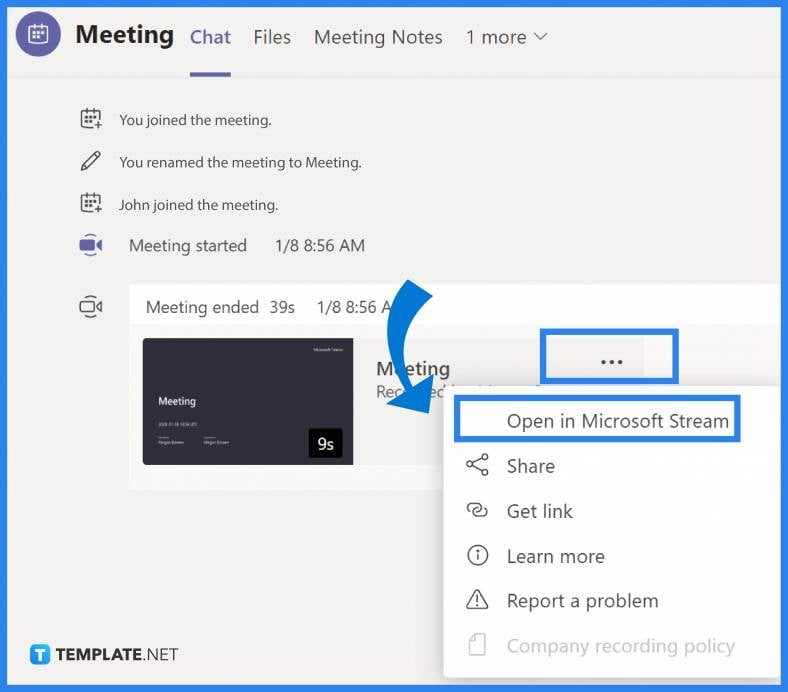
After locating the recording in the comments section, click on the three-dotted line icon. This can be found beside the Meeting Title as shown below. A drop-down menu will pop up. Select the Open option to play the recorded meeting.
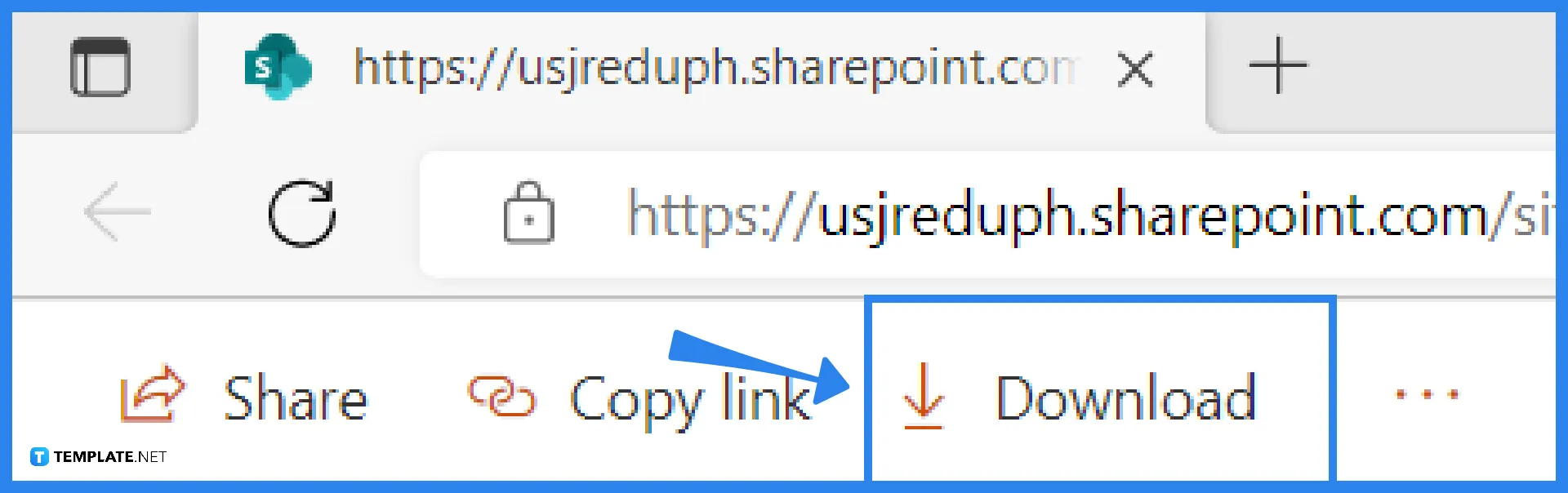
The default browser will pop up after clicking Open. Click on the Download option found on the upper-left-hand side of the screen.
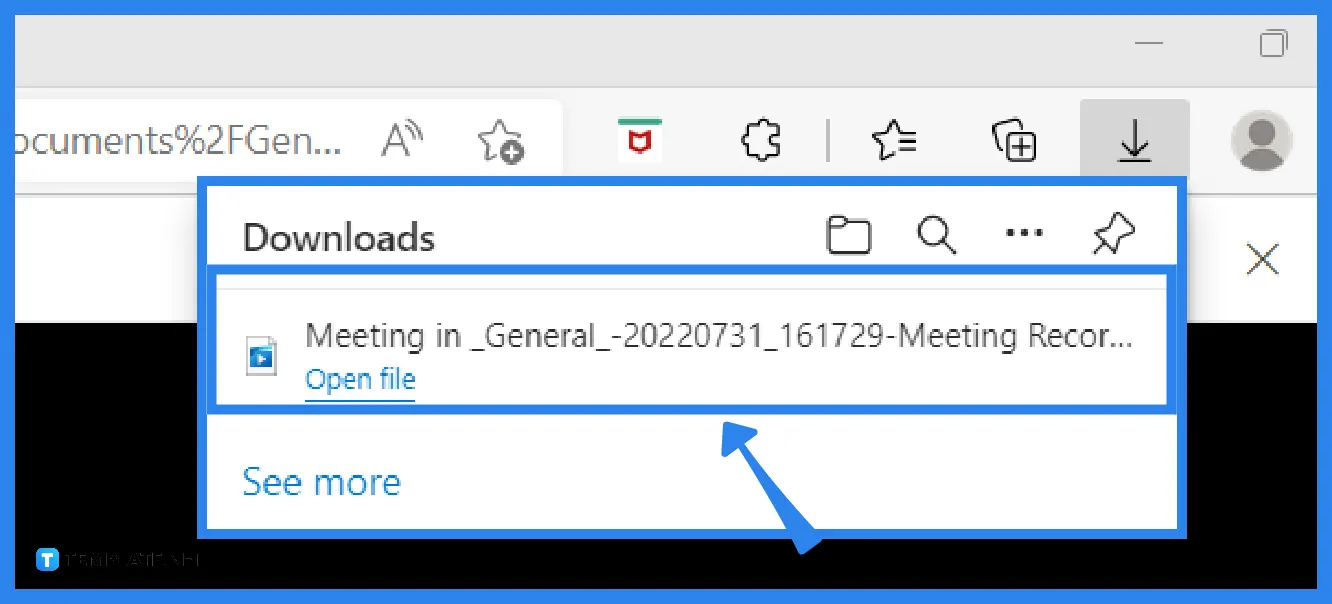
After downloading, go to your downloads file, and you can play the recording to review the meeting. In most devices, recently downloaded files are automatically upper on the screen’s upper-right corner, as shown below.
Recordings made in Teams are uploaded to the cloud (Office 365) and stored there for a period of time automatically. Except in the case of channel meetings, the recording is always uploaded to OneDrive. SharePoint is used to store recordings of channel meetings. In addition, a link to the meeting recording is provided in the meeting chat (or channel conversation).
Any call or meeting with the team can be recorded and saved for later review. You can safely distribute the recording throughout your organization, where it will capture not only audio and video but also screen-sharing activities.
The default setting is for all Microsoft Teams Recordings to be erased one hundred and twenty days from the date they were created. On the other hand, administrators have the ability to prevent meetings from ever ending automatically.
There are no restrictions on the length of time that the recording may be kept going or the size of the file that can be saved.
By default, the meeting’s organizers, managers, or presenters are the ones who have to manually start and stop the recording.

Signatures found in documents establish who you are as an individual or as an organization. Aside from the fact that…
![How To Make/Create a Newsletter in Microsoft Outlook [Templates + Examples] 2026](https://images.template.net/wp-content/uploads/2022/07/How-to-Start-a-Newsletter-with-Microsoft-Outlook-788x443.jpg)
Newsletters enable companies and organizations to communicate relevant and helpful information to their client, prospects, and subscribers. By giving you…
![How To Make/Create a Booklet in Microsoft Publisher [Templates + Examples] 2026](https://images.template.net/wp-content/uploads/2022/08/How-To-Make_Create-a-Booklet-in-Microsoft-Publisher-788x443.png)
Booklet templates are pre-designed layouts that make it easy to create a professional-looking booklet. They typically include placeholders for text…
![How To Make/Create a Booklet in Microsoft PowerPoint [Templates + Examples] 2026](https://images.template.net/wp-content/uploads/2022/07/How-To-Make-Create-a-Booklet-in-Microsoft-PowerPoint-788x443.jpg)
Booklets can be created in Microsoft PowerPoint, which offers a design feature that allows users to display them in PPT…
![How to Automatically Fill PDF Forms Using Microsoft Excel [Templates + Examples] 2026](https://images.template.net/wp-content/uploads/2022/07/How-to-Automatically-Fill-PDF-Forms-Using-Microsoft-Excel-788x444.png)
Automatically fill PDF forms using Microsoft Excel so you won’t have to save multiple PDF forms in an Excel spreadsheet…
![How to Make/Create a Floor Plan on Microsoft Excel [Templates + Examples] 2026](https://images.template.net/wp-content/uploads/2022/07/How-to-Make-a-Floor-Plan-on-Microsoft-Excel-788x443.jpg)
Floor plans either make or break projects related to engineering and architecture. That being said, every apartment room, bedroom, living…
![How to Make/Create a Grid in Microsoft Word [Templates + Examples] 2026](https://images.template.net/wp-content/uploads/2022/07/How-to-Make_Create-a-Grid-in-Microsoft-Word-788x444.jpg)
Grids consist of a network of lines that work as graphic cues while formatting your document in Microsoft Office. If…
![How to Add More Highlight Colors to Microsoft Word [Templates + Examples] 2026](https://images.template.net/wp-content/uploads/2022/07/How-to-Add-More-Highlight-Colors-to-Microsoft-Word-Templates-Examples-2023-788x443.jpg)
Add more highlight colors to Microsoft Word so you won’t have to settle with the default shading color in marking…
![How to Make/Create a Border in Microsoft Publisher [Templates + Examples] 2026](https://images.template.net/wp-content/uploads/2022/08/How-to-MakeCreate-a-Border-in-Microsoft-Publisher-788x444.png)
Borders are graphic design elements that make a document more pleasing and stylish to look at. This can be used…