


![How to Add a Signature in Microsoft Forms [Templates + Examples] 2026](https://images.template.net/wp-content/uploads/2022/07/How-to-Add-a-Signature-in-Microsoft-Forms-Templates-Examples-2023-788x443.jpg)
How to Add a Signature in Microsoft Forms [Templates + Examples] 2026
Signatures found in documents establish who you are as an individual or as an organization. Aside from the fact that…
Dec 22, 2025


Sep 02, 2025
Emailing Microsoft Word documents is a common practice in both personal and professional settings, enabling users to share information efficiently and collaborate on projects. When sending a Word document via email, it’s important to consider the format and size of the file to ensure that the recipient can easily access and view the content without issues. Microsoft Word offers flexible options for saving documents in various formats, including the standard .docx, older .doc, or PDF, which is universally readable on any device without formatting issues.
Before sending a Word document by email, it’s advisable to review the document for accuracy, ensure that it is free from sensitive or confidential information unless intended for the recipient, and check that the document layout appears as expected. Additionally, including a brief message in the email body to introduce the context of the document or provide instructions can enhance communication and efficiency. This approach ensures that documents are not only sent securely but are also presented professionally, making email an effective tool for document distribution and collaborative work.
Microsoft Word makes it easy for its users to share documents through emaill. So if you need to share your document files with peers, classmates, or colleagues, just follow the steps below.
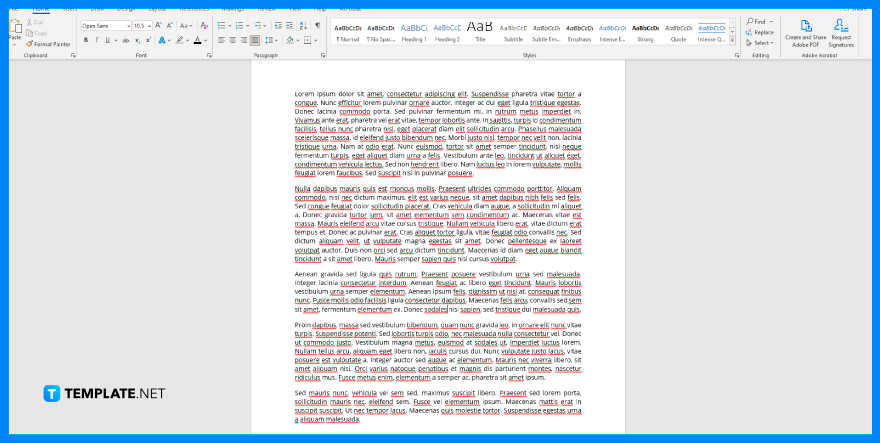
First, browse through your file folders and look for your MS Word document. Select and open it in the Microsoft Word app installed on your Windows or Mac computer.
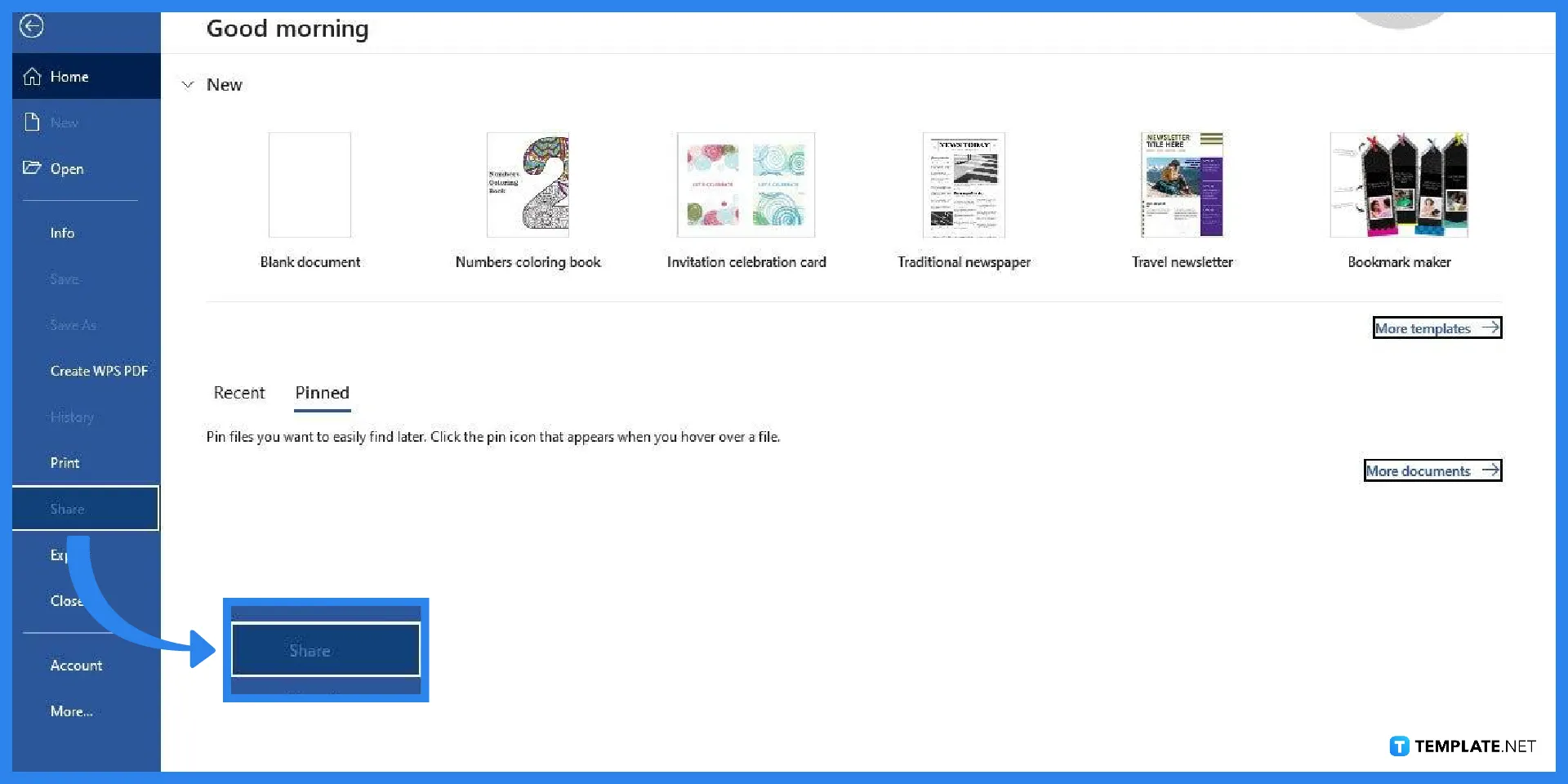
Once your document is open, you can start the process of sharing it through email. To begin, open the File tab by clicking ‘File’ on the menu bar and selecting the Share option. You can find it next to the Print option, which is used to print in Microsoft Word. In addition, if the Share option is unavailable, it could mean you aren’t signed in. So make sure to sign in to Microsoft Word.
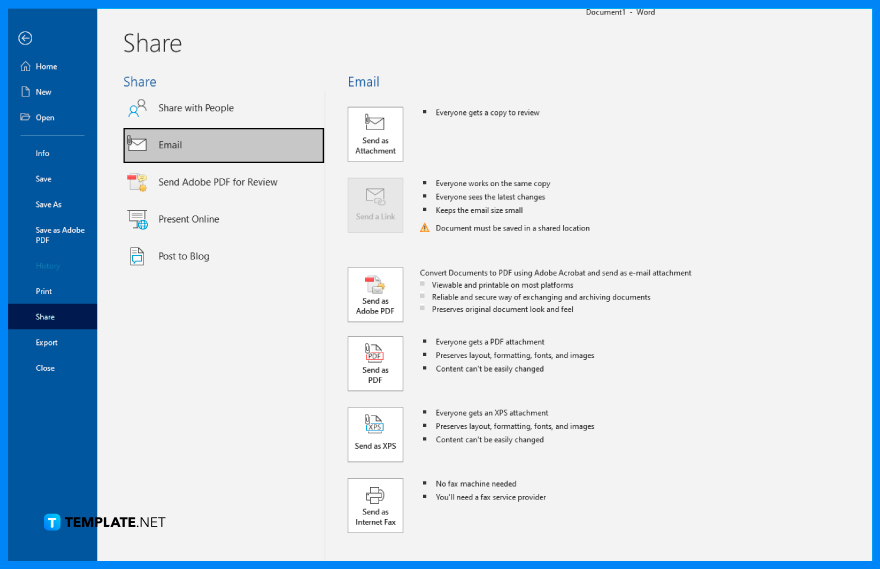
After clicking the Share option in the File tab, the options for sharing the document via email will appear. Those options comprise of the “Upload to OneDrive” and the “Attach a Copy Instead.” If you select the first option, your document will be saved in OneDrive, which you may share directly through an email message or by providing a direct link. If you select the second option, the document will be shared as a file attachment to an email.

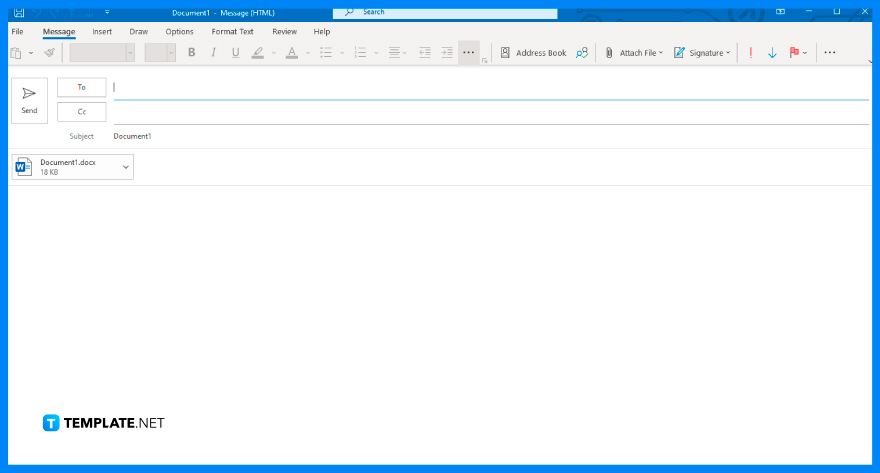
Enter the username or email address of the person with whom you want to share the document with. You can even add multiple recipients if you want to share the document with more than one individual.

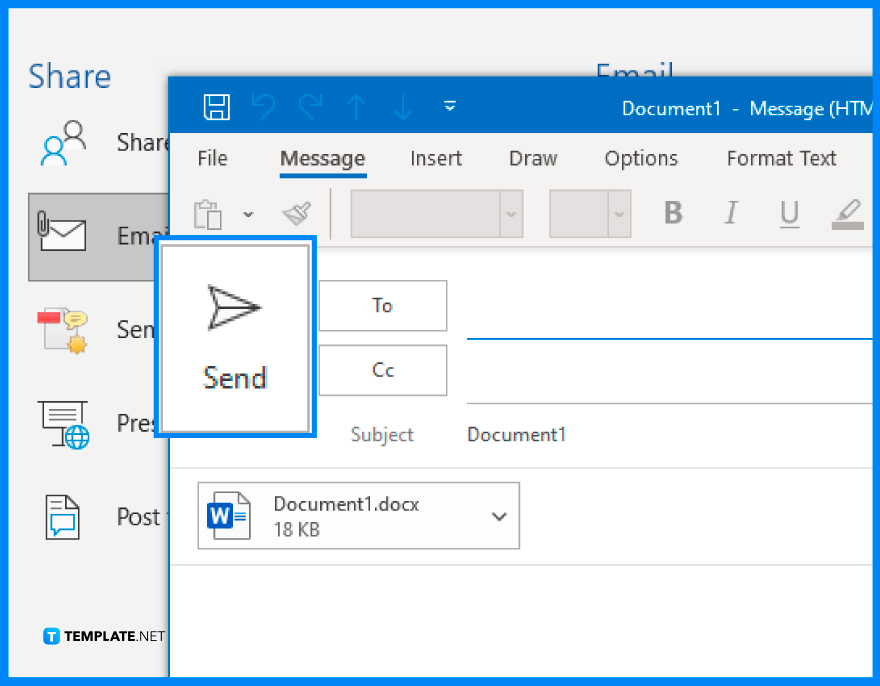
Once the usernames/emails of your recipients are set, click Send to forward your messages and attachments. Each of your recipients will shortly get an email notification indicating that you shared access to your MS Word document.
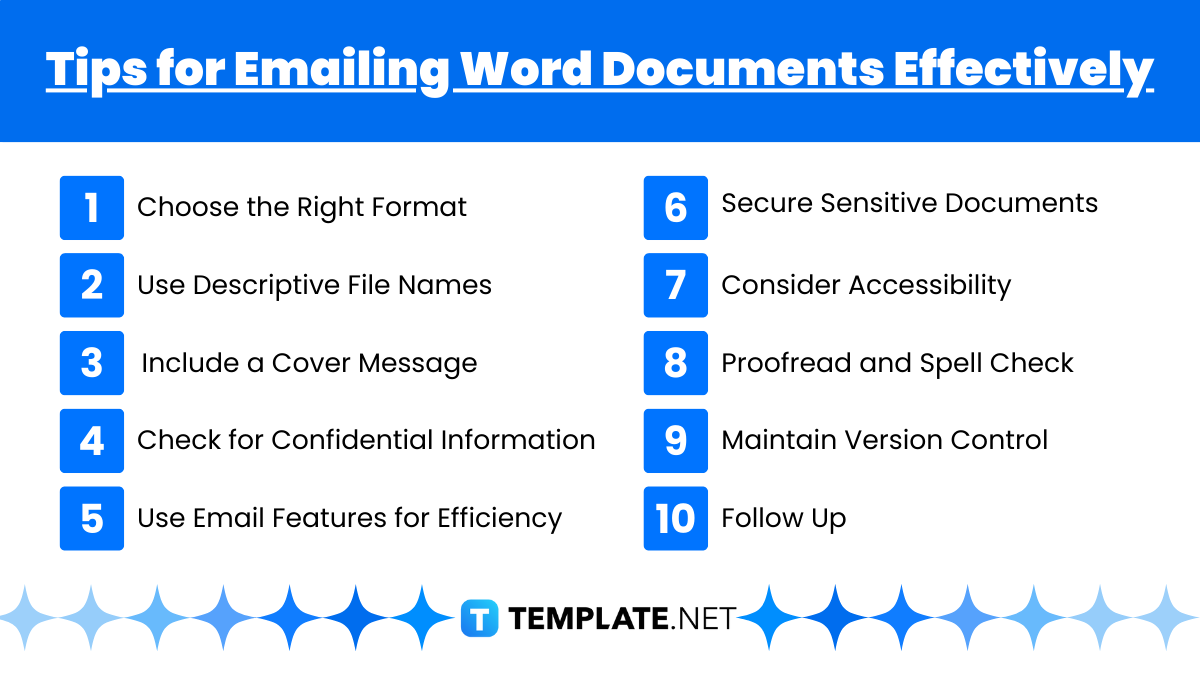
Emailing Microsoft Word documents can be straightforward, but ensuring your documents are sent effectively, securely, and professionally requires some attention to detail. Here are some essential tips to help you email Word documents more effectively:
.docx is standard for Word, consider saving the document as a .doc for recipients using older versions of Word, or a PDF for universal compatibility and to preserve formatting.To email a Microsoft Word document as an attachment, open your email client, compose a new email, click the “Attach” or “Paperclip” icon, select your Word file, and attach it to the email. Then, fill in the recipient’s email address, subject line, and message before sending.
Yes, you can email a Word document directly from Microsoft Word. Go to File > Share > Email and choose Send as Attachment to open your email client with the document automatically attached.
To convert a Word document to PDF, open the file in Microsoft Word, click File > Save As, choose PDF as the file format, and save it. Attach the PDF file to your email to ensure compatibility and prevent editing.
Before emailing a Word document, ensure the file is saved in a commonly used format (.docx or .pdf), has been reviewed for errors, and is named appropriately. Verify that the file size does not exceed email attachment limits.
If the Word document exceeds the email attachment size limit, compress the file into a ZIP folder, or upload it to a cloud storage service like Google Drive or OneDrive. Share the document link in the email instead of attaching the file directly.

Signatures found in documents establish who you are as an individual or as an organization. Aside from the fact that…
![How To Make/Create a Newsletter in Microsoft Outlook [Templates + Examples] 2026](https://images.template.net/wp-content/uploads/2022/07/How-to-Start-a-Newsletter-with-Microsoft-Outlook-788x443.jpg)
Newsletters enable companies and organizations to communicate relevant and helpful information to their client, prospects, and subscribers. By giving you…
![How To Make/Create a Booklet in Microsoft Publisher [Templates + Examples] 2026](https://images.template.net/wp-content/uploads/2022/08/How-To-Make_Create-a-Booklet-in-Microsoft-Publisher-788x443.png)
Booklet templates are pre-designed layouts that make it easy to create a professional-looking booklet. They typically include placeholders for text…
![How To Make/Create a Booklet in Microsoft PowerPoint [Templates + Examples] 2026](https://images.template.net/wp-content/uploads/2022/07/How-To-Make-Create-a-Booklet-in-Microsoft-PowerPoint-788x443.jpg)
Booklets can be created in Microsoft PowerPoint, which offers a design feature that allows users to display them in PPT…
![How to Automatically Fill PDF Forms Using Microsoft Excel [Templates + Examples] 2026](https://images.template.net/wp-content/uploads/2022/07/How-to-Automatically-Fill-PDF-Forms-Using-Microsoft-Excel-788x444.png)
Automatically fill PDF forms using Microsoft Excel so you won’t have to save multiple PDF forms in an Excel spreadsheet…
![How to Make/Create a Floor Plan on Microsoft Excel [Templates + Examples] 2026](https://images.template.net/wp-content/uploads/2022/07/How-to-Make-a-Floor-Plan-on-Microsoft-Excel-788x443.jpg)
Floor plans either make or break projects related to engineering and architecture. That being said, every apartment room, bedroom, living…
![How to Make/Create a Grid in Microsoft Word [Templates + Examples] 2026](https://images.template.net/wp-content/uploads/2022/07/How-to-Make_Create-a-Grid-in-Microsoft-Word-788x444.jpg)
Grids consist of a network of lines that work as graphic cues while formatting your document in Microsoft Office. If…
![How to Add More Highlight Colors to Microsoft Word [Templates + Examples] 2026](https://images.template.net/wp-content/uploads/2022/07/How-to-Add-More-Highlight-Colors-to-Microsoft-Word-Templates-Examples-2023-788x443.jpg)
Add more highlight colors to Microsoft Word so you won’t have to settle with the default shading color in marking…
![How to Make/Create a Border in Microsoft Publisher [Templates + Examples] 2026](https://images.template.net/wp-content/uploads/2022/08/How-to-MakeCreate-a-Border-in-Microsoft-Publisher-788x444.png)
Borders are graphic design elements that make a document more pleasing and stylish to look at. This can be used…