


![How to Add a Signature in Microsoft Forms [Templates + Examples] 2026](https://images.template.net/wp-content/uploads/2022/07/How-to-Add-a-Signature-in-Microsoft-Forms-Templates-Examples-2023-788x443.jpg)
How to Add a Signature in Microsoft Forms [Templates + Examples] 2026
Signatures found in documents establish who you are as an individual or as an organization. Aside from the fact that…
Dec 22, 2025


Sep 02, 2025
Creating folders is standard in Microsoft Outlook to sort unread messages, set an archive folder, group deleted emails, move sent items to a sent folder, and so much more. And with so many possible folders made and grouped in Microsoft Outlook, it helps to navigate per folder easily by learning the steps on how to find a folder in Outlook.
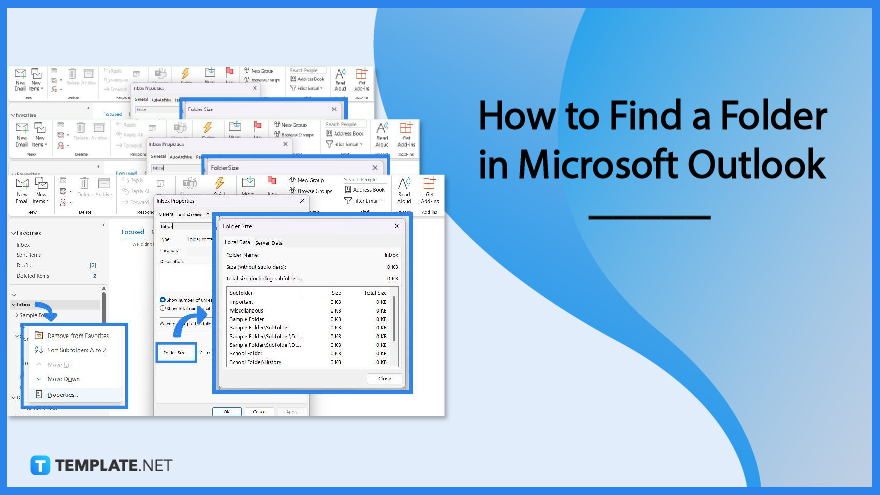
It helps to know how to instantly search folders in Microsoft Office Outlook so you won’t have to take time in viewing certain files from over a hundred or thousand folders you may have there. All you need to do is to try out these techniques:
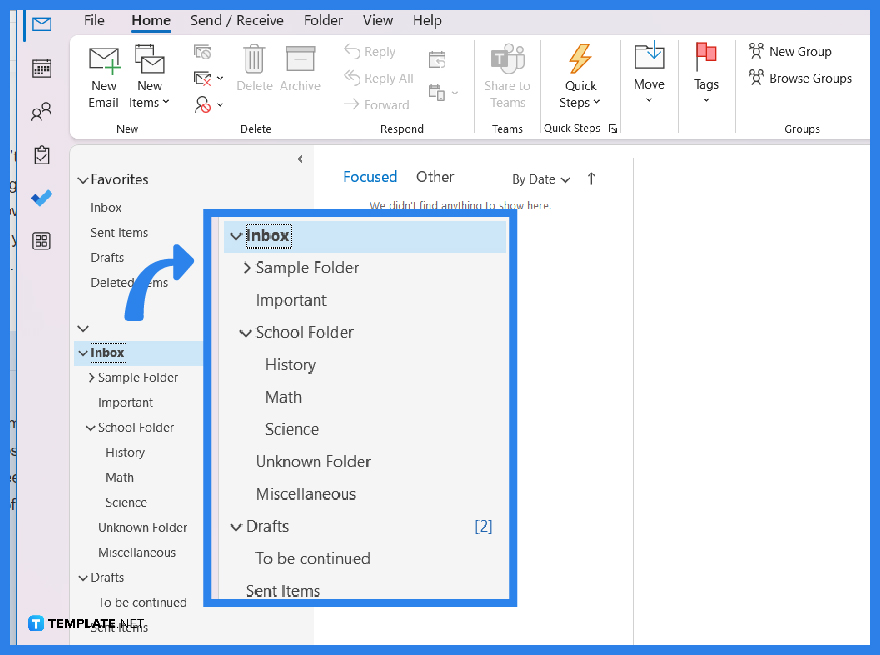 If you just recently misplaced a folder and couldn’t find it back, take advantage of the folders nearby. An example is when you dragged and dropped a folder into another folder. So on the folder where you are now, check out the folders above and below it. It shouldn’t have gone far back and you can always click “+” next to every folder to check if the moved folder is inside.
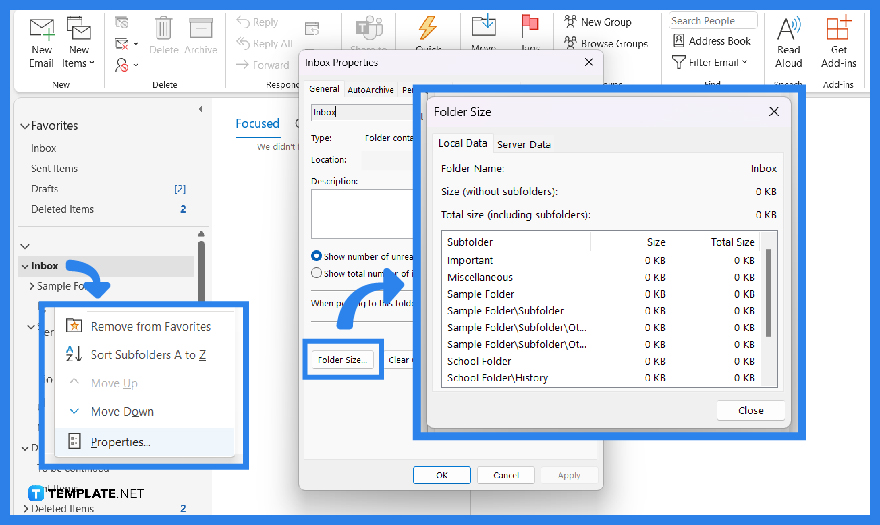 If you still cannot find the folder you are looking for, another option is to leverage the “Folder Size” button. On your Outlook mailbox, right-click on the root and select “Properties.” Then, click “Folder Size.” Can’t find the “Folder Size” button? For other Outlook versions, the process is to click “File,” “Info,” “Tools,” “Mailbox Cleanup,” and “View Mailbox Size.” A pop-up window appears where you can view every folder in an easy-to-navigate interface. Just check the folder names from the list to see which folder you need.
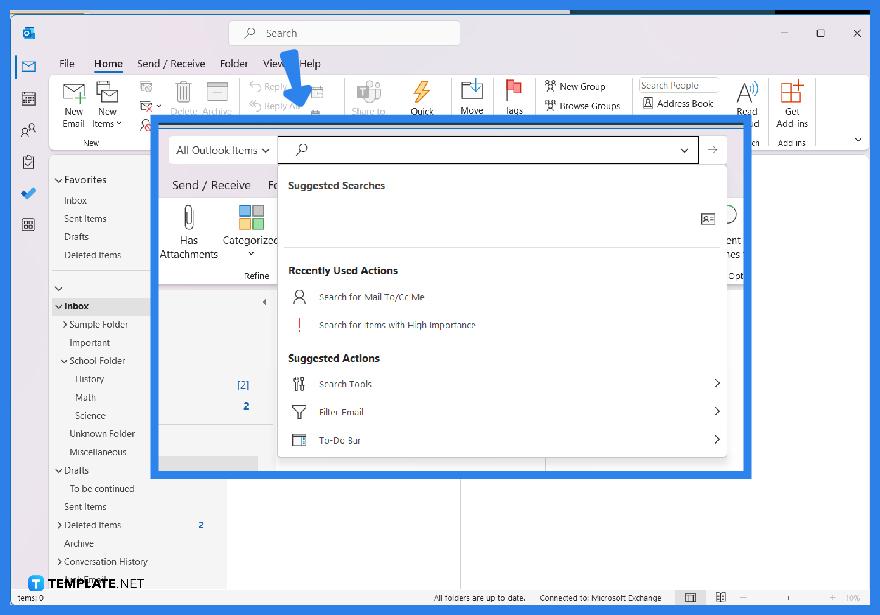 Another easy option for finding folders is to view all Outlook items with a shortcut. This alternative works best if you still know what other items are inside the folder to conduct a whole mailbox search. Just select the “Search’ tab on your screen or press Ctrl + E on your keyboard. Then, press Ctrl + Alt + A on your keyboard so the search bar switches to “All Outlook Items.” Double-click on the item you already found.
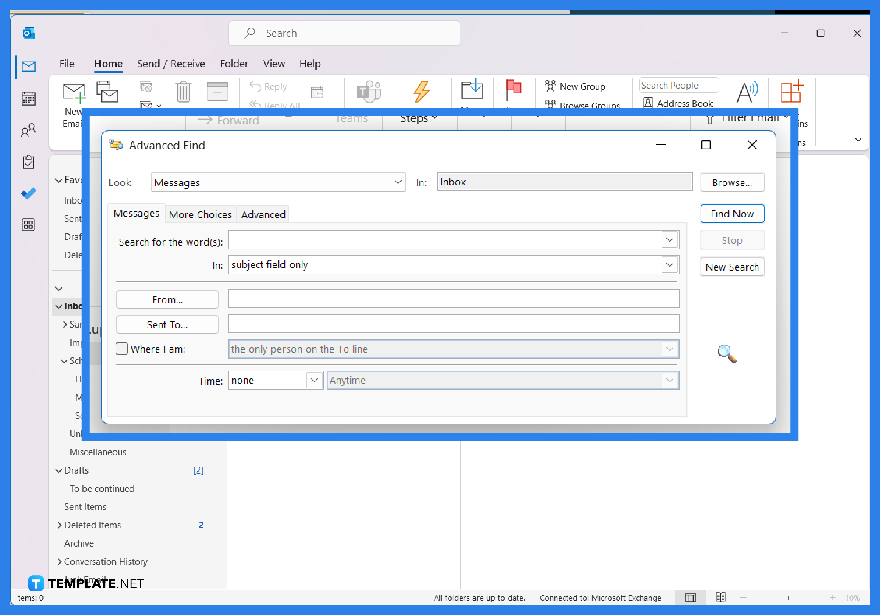 After step three, press Ctrl + Shift + F on your keyboard to view the “Advanced Find” window. Then, click “Browse” until you can find the specific folder you need. And that’s how you search folders like a pro in MS Outlook.
Create folders in MS Outlook anytime by clicking “Mail,” “Calendars,” “Contacts,” or “Tasks,” right-click on your desired destination, click “New Folder,” and name your folder.
A subfolder is another folder located inside a folder.
Some of the common causes for missing folders in Outlook are hidden folders, misplaced or deleted folders by accident, damaged folder files, and having Outlook and the server to be out of sync.

Signatures found in documents establish who you are as an individual or as an organization. Aside from the fact that…
![How To Make/Create a Newsletter in Microsoft Outlook [Templates + Examples] 2026](https://images.template.net/wp-content/uploads/2022/07/How-to-Start-a-Newsletter-with-Microsoft-Outlook-788x443.jpg)
Newsletters enable companies and organizations to communicate relevant and helpful information to their client, prospects, and subscribers. By giving you…
![How To Make/Create a Booklet in Microsoft Publisher [Templates + Examples] 2026](https://images.template.net/wp-content/uploads/2022/08/How-To-Make_Create-a-Booklet-in-Microsoft-Publisher-788x443.png)
Booklet templates are pre-designed layouts that make it easy to create a professional-looking booklet. They typically include placeholders for text…
![How To Make/Create a Booklet in Microsoft PowerPoint [Templates + Examples] 2026](https://images.template.net/wp-content/uploads/2022/07/How-To-Make-Create-a-Booklet-in-Microsoft-PowerPoint-788x443.jpg)
Booklets can be created in Microsoft PowerPoint, which offers a design feature that allows users to display them in PPT…
![How to Automatically Fill PDF Forms Using Microsoft Excel [Templates + Examples] 2026](https://images.template.net/wp-content/uploads/2022/07/How-to-Automatically-Fill-PDF-Forms-Using-Microsoft-Excel-788x444.png)
Automatically fill PDF forms using Microsoft Excel so you won’t have to save multiple PDF forms in an Excel spreadsheet…
![How to Make/Create a Floor Plan on Microsoft Excel [Templates + Examples] 2026](https://images.template.net/wp-content/uploads/2022/07/How-to-Make-a-Floor-Plan-on-Microsoft-Excel-788x443.jpg)
Floor plans either make or break projects related to engineering and architecture. That being said, every apartment room, bedroom, living…
![How to Make/Create a Grid in Microsoft Word [Templates + Examples] 2026](https://images.template.net/wp-content/uploads/2022/07/How-to-Make_Create-a-Grid-in-Microsoft-Word-788x444.jpg)
Grids consist of a network of lines that work as graphic cues while formatting your document in Microsoft Office. If…
![How to Add More Highlight Colors to Microsoft Word [Templates + Examples] 2026](https://images.template.net/wp-content/uploads/2022/07/How-to-Add-More-Highlight-Colors-to-Microsoft-Word-Templates-Examples-2023-788x443.jpg)
Add more highlight colors to Microsoft Word so you won’t have to settle with the default shading color in marking…
![How to Make/Create a Border in Microsoft Publisher [Templates + Examples] 2026](https://images.template.net/wp-content/uploads/2022/08/How-to-MakeCreate-a-Border-in-Microsoft-Publisher-788x444.png)
Borders are graphic design elements that make a document more pleasing and stylish to look at. This can be used…