


![How to Add a Signature in Microsoft Forms [Templates + Examples] 2026](https://images.template.net/wp-content/uploads/2022/07/How-to-Add-a-Signature-in-Microsoft-Forms-Templates-Examples-2023-788x443.jpg)
How to Add a Signature in Microsoft Forms [Templates + Examples] 2026
Signatures found in documents establish who you are as an individual or as an organization. Aside from the fact that…
Dec 22, 2025


Sep 02, 2025
Microsoft OneNote offers plenty of different ways the user can customize and approach their User Interface or UI. However, some of its quality of life and accessibility options have been phased out throughout the history of Microsoft OneNote.
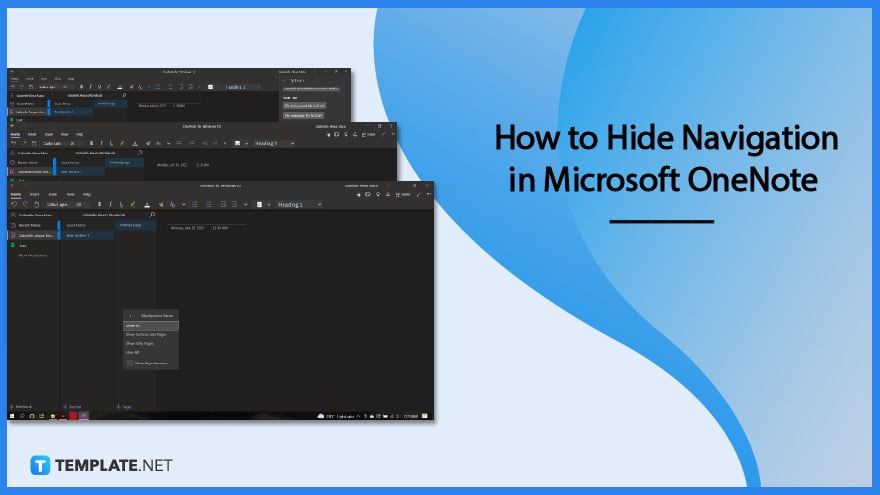
These older options can be accessible to most users by enabling the Legacy Navigation in Microsoft OneNote. The hide and view navigation option are one of the options available when Legacy Navigation is activated.
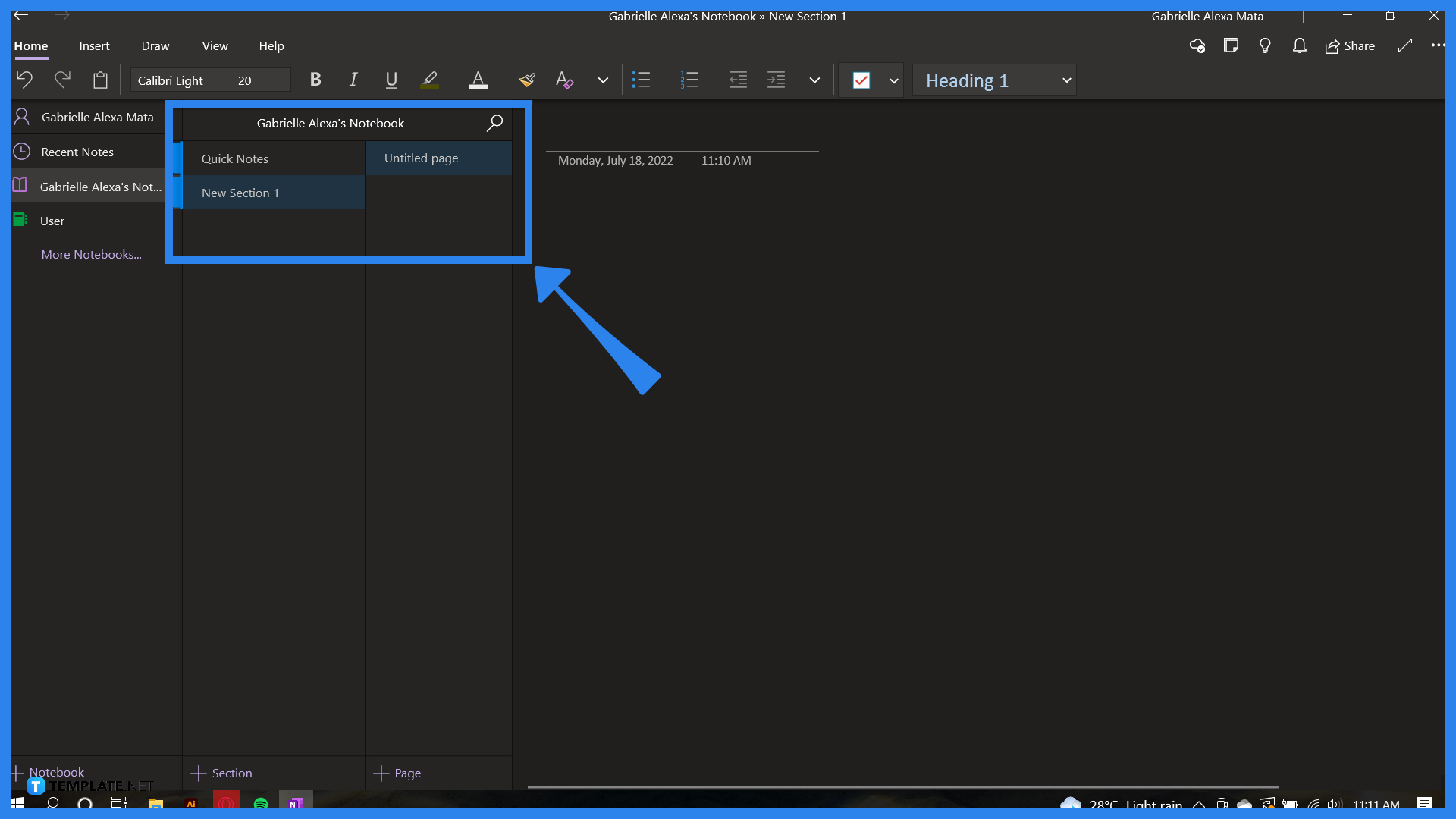
Start by launching the Desktop version of Microsoft OneNote. The feature to hide the navigation pane is not available in the web version of Microsoft OneNote; if the user wants to write down their notes without the navigation pane, the user must download the other versions of Microsoft OneNote.
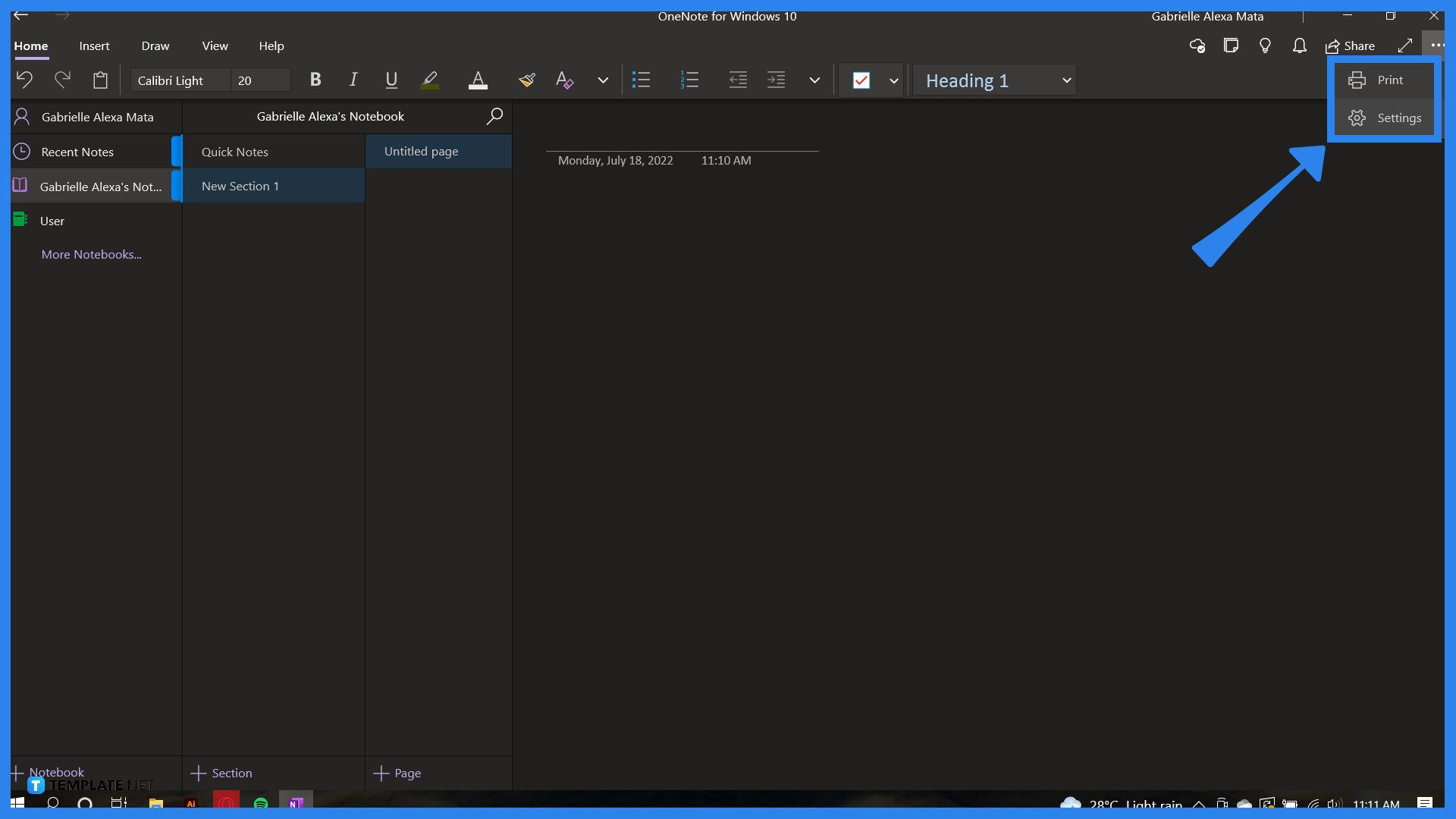
The Settings dropdown allows the user to view different settings that let them edit various things that affect the performance of Microsoft OneNote. To access this dropdown, the user must press the “···” button in the top right corner and the settings option.
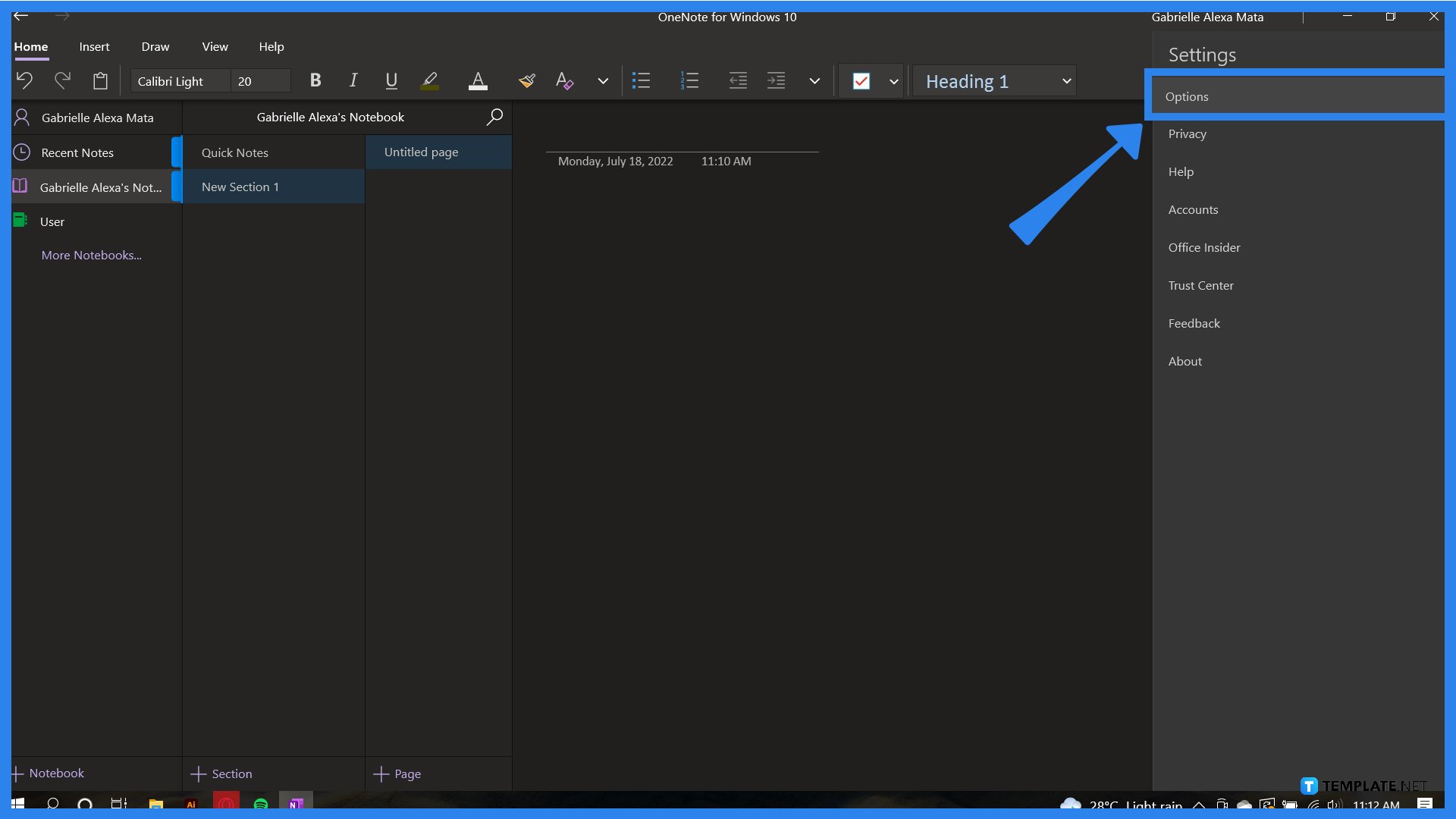
The Legacy Navigations button is located deep within the Options pane, alongside the other accessibility options. To open this pane, the user must click the Options option at the top corner of the Settings dropdown.
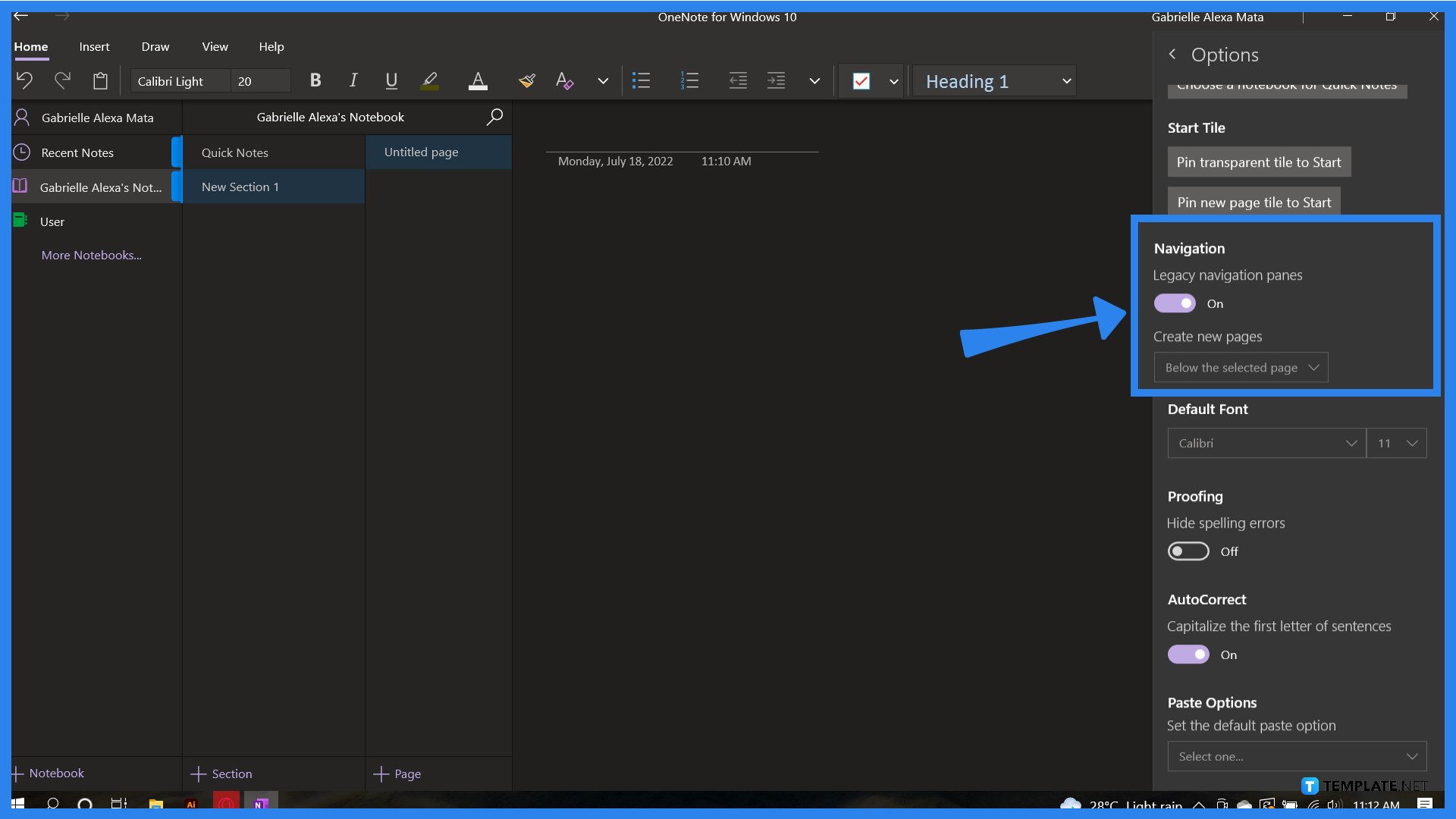
When viewing the Options, the user should scroll down until they locate the Legacy Navigations pane and toggle it on. The user should be careful when toggling any options in this pane on or off, as these will affect the program’s performance.
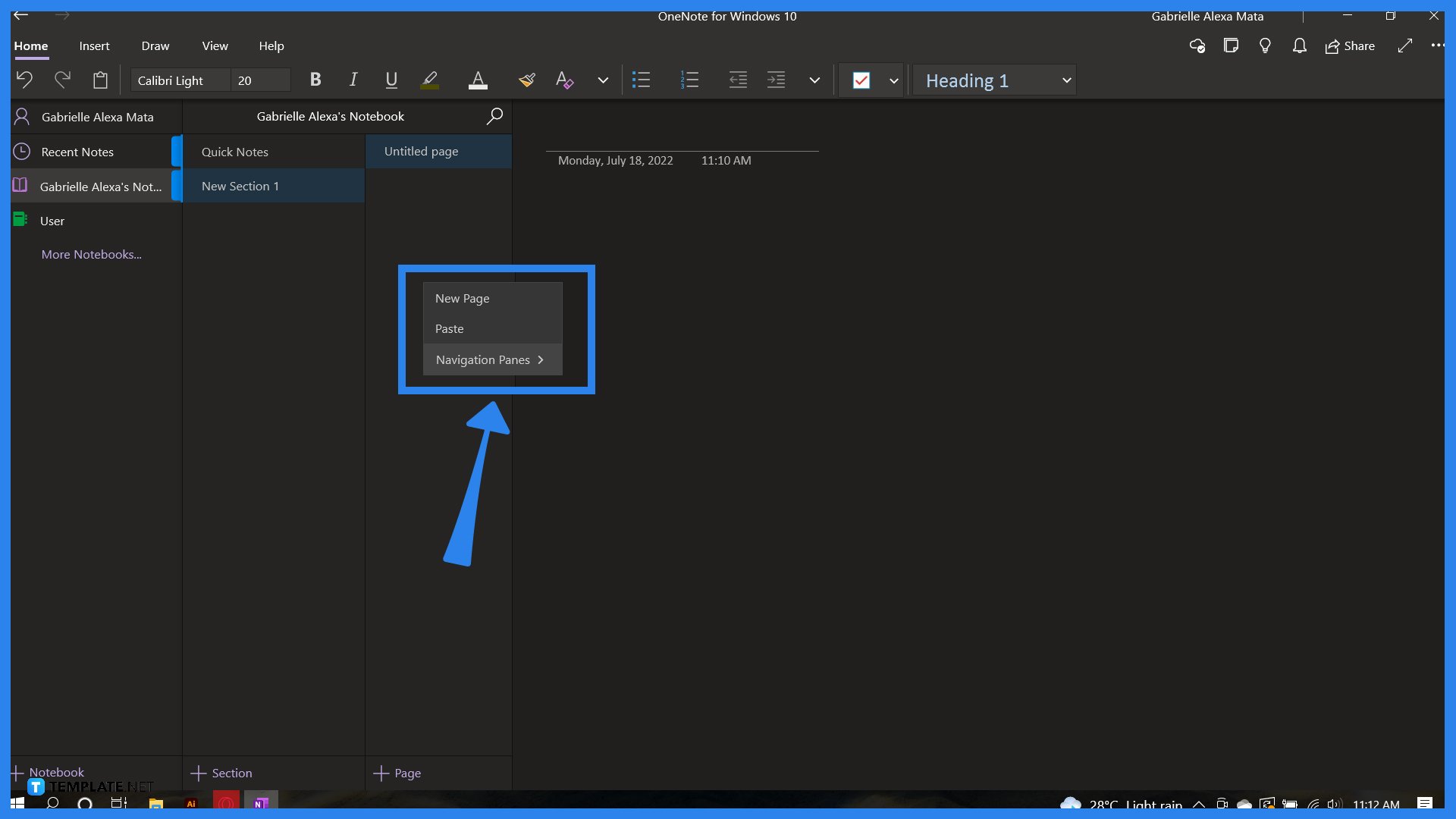
After the user has turned on the Legacy Navigation panes, the user will be notified to restart Microsoft OneNote to reflect the changes. When the user has restarted the program, they can access any Navigation Pane options by right-clicking the navigation pane.
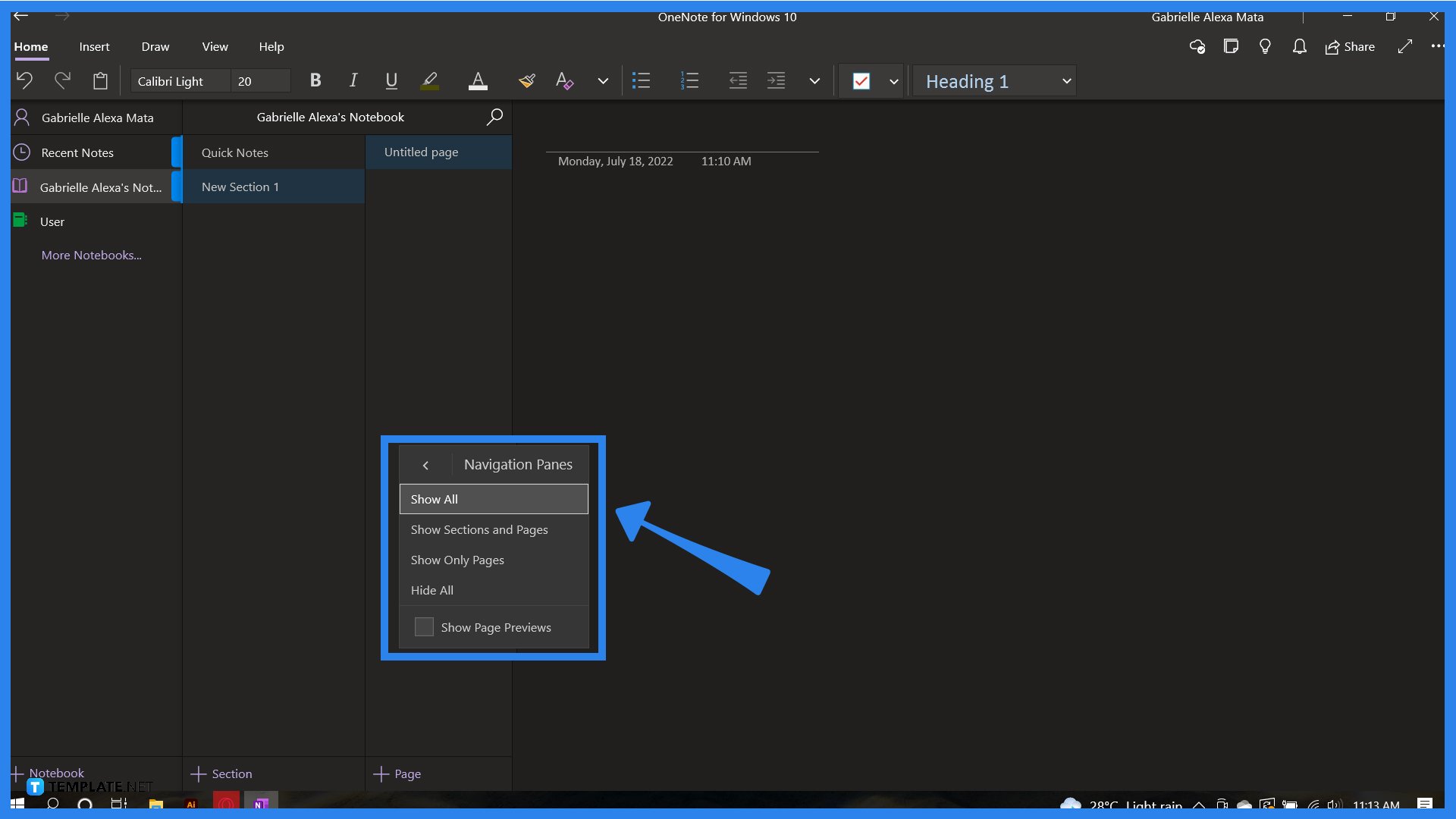
By pressing the navigation pane button, the user will access the view options of the navigation pane available to them. Microsoft OneNote will set it to “Show all” by default. Any of the chosen changes will immediately reflect on the navigation pane. On the other hand, the “Hide All” options will take the navigation pane away from the page. The user can return to the navigation page by pressing the “<” button on the left top corner of the program.
You can get rid of the navigation pane by tapping anywhere in the note, as this will automatically remove the pane.
Legacy Navigation allows you to view the older options made unavailable in, the newer version of Microsoft OneNote.
The newest version of Microsoft OneNote does not allow the user to hide the navigation bar, so you need to enable the legacy navigation of Microsoft OneNote to access this option.
Yes, Microsoft OneNote saves your Navigation Pane settings on the next start to ensure that you don’t have to go through the whole process again.
The web version of Microsoft OneNote is very limited in its capabilities; it does not offer the feature to hide the navigation panes.

Signatures found in documents establish who you are as an individual or as an organization. Aside from the fact that…
![How To Make/Create a Newsletter in Microsoft Outlook [Templates + Examples] 2026](https://images.template.net/wp-content/uploads/2022/07/How-to-Start-a-Newsletter-with-Microsoft-Outlook-788x443.jpg)
Newsletters enable companies and organizations to communicate relevant and helpful information to their client, prospects, and subscribers. By giving you…
![How To Make/Create a Booklet in Microsoft Publisher [Templates + Examples] 2026](https://images.template.net/wp-content/uploads/2022/08/How-To-Make_Create-a-Booklet-in-Microsoft-Publisher-788x443.png)
Booklet templates are pre-designed layouts that make it easy to create a professional-looking booklet. They typically include placeholders for text…
![How To Make/Create a Booklet in Microsoft PowerPoint [Templates + Examples] 2026](https://images.template.net/wp-content/uploads/2022/07/How-To-Make-Create-a-Booklet-in-Microsoft-PowerPoint-788x443.jpg)
Booklets can be created in Microsoft PowerPoint, which offers a design feature that allows users to display them in PPT…
![How to Automatically Fill PDF Forms Using Microsoft Excel [Templates + Examples] 2026](https://images.template.net/wp-content/uploads/2022/07/How-to-Automatically-Fill-PDF-Forms-Using-Microsoft-Excel-788x444.png)
Automatically fill PDF forms using Microsoft Excel so you won’t have to save multiple PDF forms in an Excel spreadsheet…
![How to Make/Create a Floor Plan on Microsoft Excel [Templates + Examples] 2026](https://images.template.net/wp-content/uploads/2022/07/How-to-Make-a-Floor-Plan-on-Microsoft-Excel-788x443.jpg)
Floor plans either make or break projects related to engineering and architecture. That being said, every apartment room, bedroom, living…
![How to Make/Create a Grid in Microsoft Word [Templates + Examples] 2026](https://images.template.net/wp-content/uploads/2022/07/How-to-Make_Create-a-Grid-in-Microsoft-Word-788x444.jpg)
Grids consist of a network of lines that work as graphic cues while formatting your document in Microsoft Office. If…
![How to Add More Highlight Colors to Microsoft Word [Templates + Examples] 2026](https://images.template.net/wp-content/uploads/2022/07/How-to-Add-More-Highlight-Colors-to-Microsoft-Word-Templates-Examples-2023-788x443.jpg)
Add more highlight colors to Microsoft Word so you won’t have to settle with the default shading color in marking…
![How to Make/Create a Border in Microsoft Publisher [Templates + Examples] 2026](https://images.template.net/wp-content/uploads/2022/08/How-to-MakeCreate-a-Border-in-Microsoft-Publisher-788x444.png)
Borders are graphic design elements that make a document more pleasing and stylish to look at. This can be used…