


![How to Add a Signature in Microsoft Forms [Templates + Examples] 2026](https://images.template.net/wp-content/uploads/2022/07/How-to-Add-a-Signature-in-Microsoft-Forms-Templates-Examples-2023-788x443.jpg)
How to Add a Signature in Microsoft Forms [Templates + Examples] 2026
Signatures found in documents establish who you are as an individual or as an organization. Aside from the fact that…
Dec 22, 2025


Sep 02, 2025
Microsoft PowerPoint has a feature, DataPoint, which allows you to link your PowerPoint presentation to a Microsoft Access database.
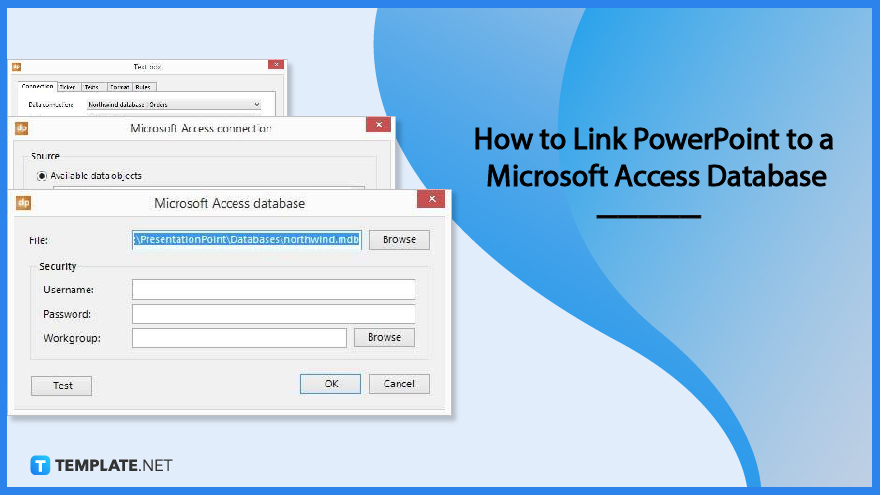
When Microsoft PowerPoint and DataPoint are used together, the user can create a message board or information screen where they can post messages, updates, and other content. Put the Access database on a file server so that the user may use DataPoint to connect to it and read the presentation’s data from it.

First, install PowerPoint and DataPoint on your computer, launch PowerPoint, and create a new presentation using your default company template or an empty template. After that, go to the PowerPoint menu and select the DataPoint tab. Select the List option in the Connections group. Then, choose Microsoft Access as the particular data source and click on Add Connection.
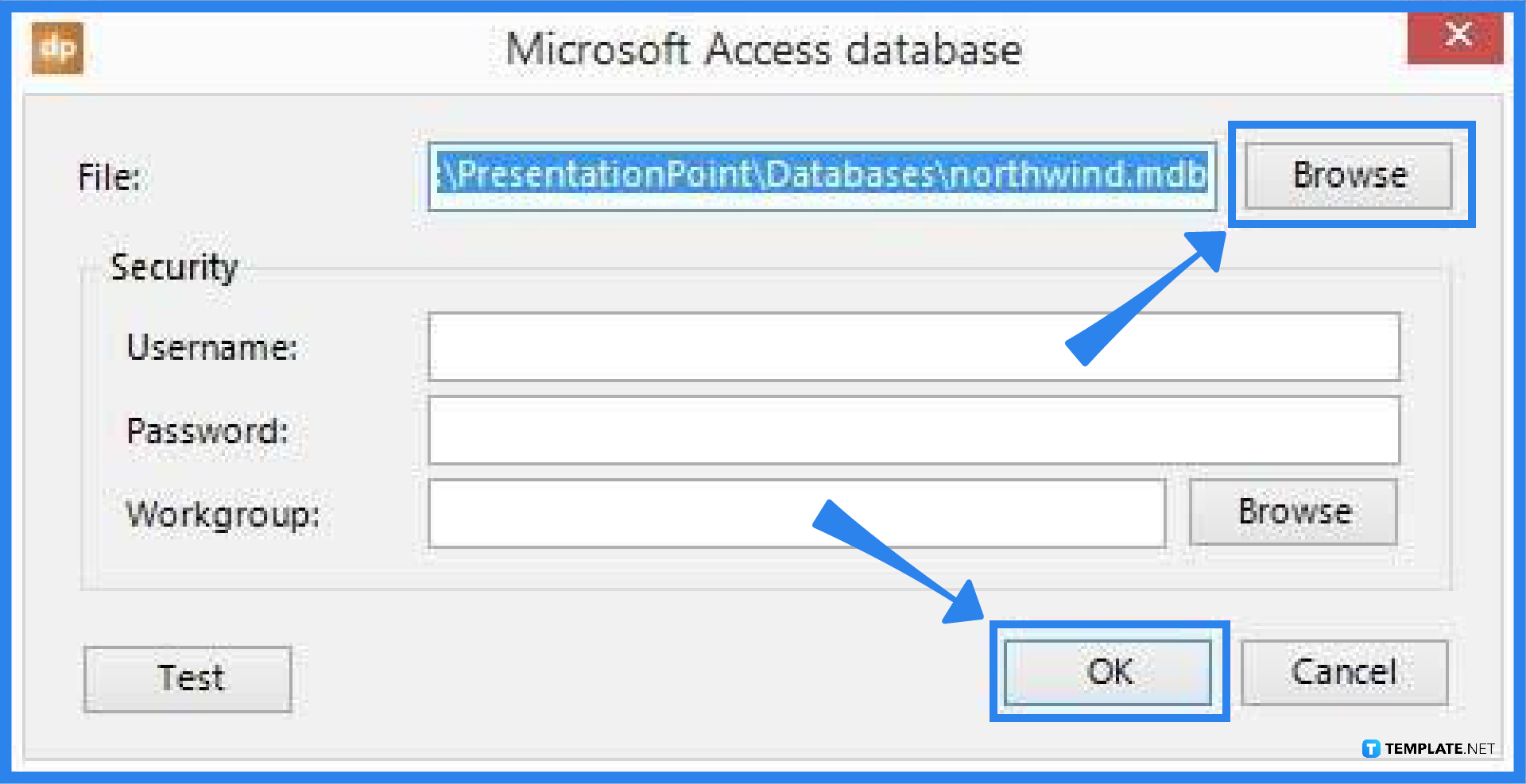
Select the Microsoft Access database you want to utilize by clicking the Browse button. To create a connection with the database, click OK. By clicking the label, you can rename the link to something more relevant. The user can then type another name after the text has been selected. Press the Enter key to confirm.
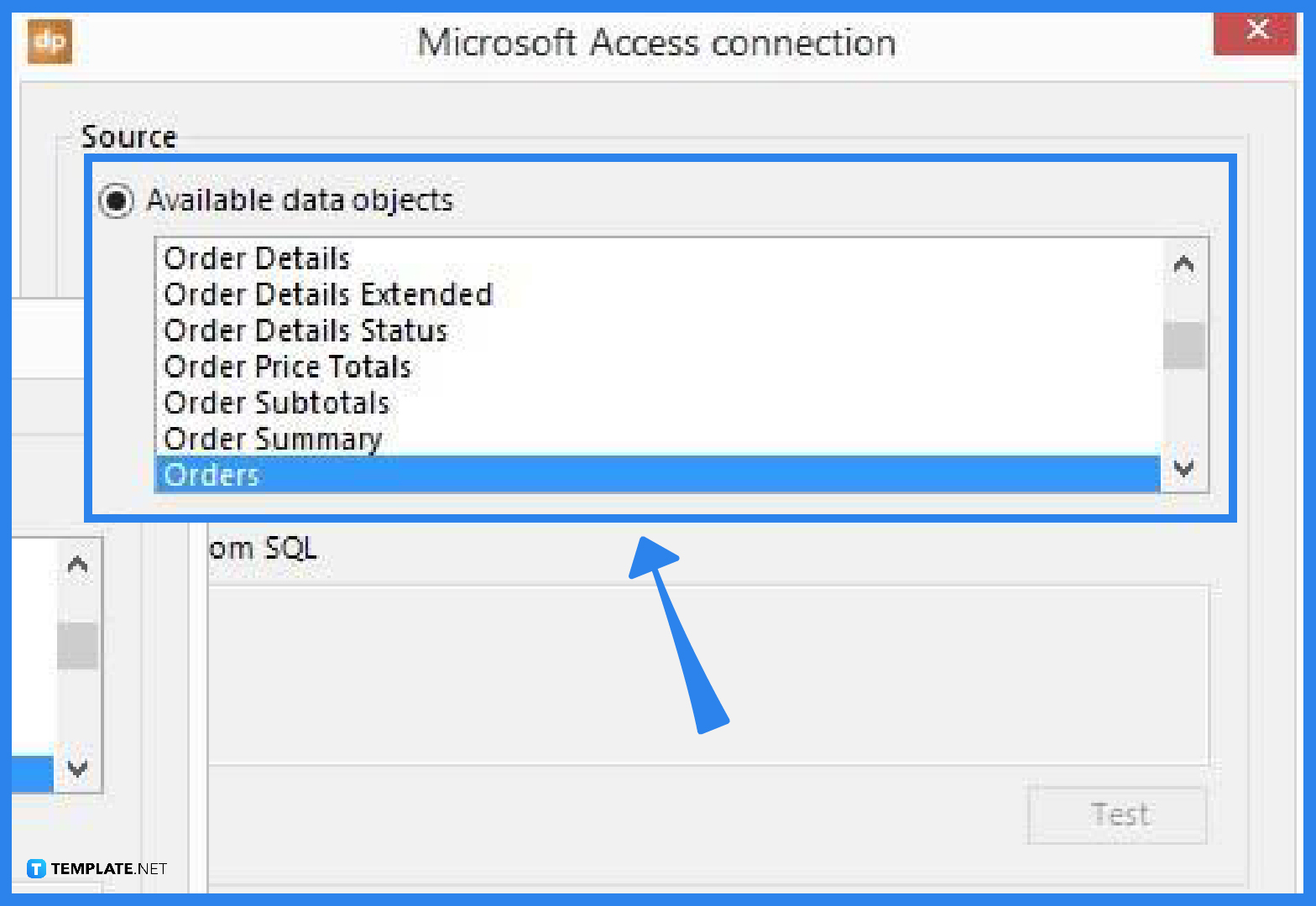
With that data connection selected, click Add query. Each table and query (data objects) that are generated in the database will be listed for the user. Set the Data refresh rate to Continuous updating, change the interval to a desired value, and click OK. You will now see a preview of the data that is currently available for the presentation in the connections overview. Close by clicking OK.
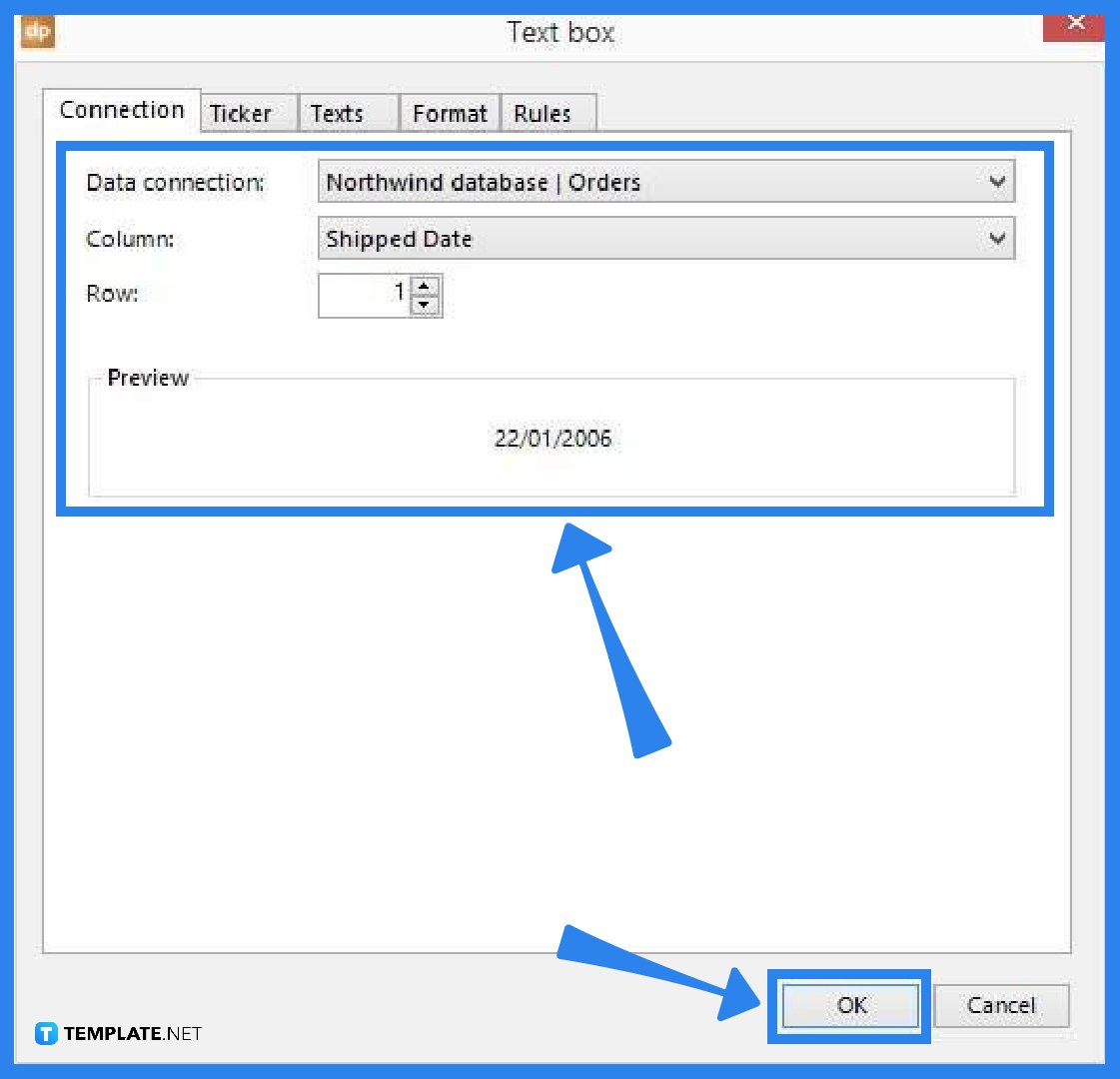
On the slide, add a new text box by clicking DataPoint, followed by Text Box in the Shapes group. This will display a dynamic text box’s properties. The user can first choose a data connection from the list. The columns combo box now displays a list of all columns for the selected connection. The user should choose the column they want to see in the text box, and if necessary, adjust the row number. To link the data connection details to that text box, click OK. The user is no longer required to manually enter text into the text box. The linked data cell of the Microsoft Access database will update the text box’s content with its data.
Using the DataPoint function, users may enhance Microsoft PowerPoint with additional features for data-driven presentations and update their content both before and during the slide show.
You first need to install the DataPoint add-in, and you can locate it directly on the PowerPoint ribbon at the upper-right side of the screen.
The main reason for connecting a PowerPoint presentation to a Microsoft Access database is for your data to be automatically updated.

Signatures found in documents establish who you are as an individual or as an organization. Aside from the fact that…
![How To Make/Create a Newsletter in Microsoft Outlook [Templates + Examples] 2026](https://images.template.net/wp-content/uploads/2022/07/How-to-Start-a-Newsletter-with-Microsoft-Outlook-788x443.jpg)
Newsletters enable companies and organizations to communicate relevant and helpful information to their client, prospects, and subscribers. By giving you…
![How To Make/Create a Booklet in Microsoft Publisher [Templates + Examples] 2026](https://images.template.net/wp-content/uploads/2022/08/How-To-Make_Create-a-Booklet-in-Microsoft-Publisher-788x443.png)
Booklet templates are pre-designed layouts that make it easy to create a professional-looking booklet. They typically include placeholders for text…
![How To Make/Create a Booklet in Microsoft PowerPoint [Templates + Examples] 2026](https://images.template.net/wp-content/uploads/2022/07/How-To-Make-Create-a-Booklet-in-Microsoft-PowerPoint-788x443.jpg)
Booklets can be created in Microsoft PowerPoint, which offers a design feature that allows users to display them in PPT…
![How to Automatically Fill PDF Forms Using Microsoft Excel [Templates + Examples] 2026](https://images.template.net/wp-content/uploads/2022/07/How-to-Automatically-Fill-PDF-Forms-Using-Microsoft-Excel-788x444.png)
Automatically fill PDF forms using Microsoft Excel so you won’t have to save multiple PDF forms in an Excel spreadsheet…
![How to Make/Create a Floor Plan on Microsoft Excel [Templates + Examples] 2026](https://images.template.net/wp-content/uploads/2022/07/How-to-Make-a-Floor-Plan-on-Microsoft-Excel-788x443.jpg)
Floor plans either make or break projects related to engineering and architecture. That being said, every apartment room, bedroom, living…
![How to Make/Create a Grid in Microsoft Word [Templates + Examples] 2026](https://images.template.net/wp-content/uploads/2022/07/How-to-Make_Create-a-Grid-in-Microsoft-Word-788x444.jpg)
Grids consist of a network of lines that work as graphic cues while formatting your document in Microsoft Office. If…
![How to Add More Highlight Colors to Microsoft Word [Templates + Examples] 2026](https://images.template.net/wp-content/uploads/2022/07/How-to-Add-More-Highlight-Colors-to-Microsoft-Word-Templates-Examples-2023-788x443.jpg)
Add more highlight colors to Microsoft Word so you won’t have to settle with the default shading color in marking…
![How to Make/Create a Border in Microsoft Publisher [Templates + Examples] 2026](https://images.template.net/wp-content/uploads/2022/08/How-to-MakeCreate-a-Border-in-Microsoft-Publisher-788x444.png)
Borders are graphic design elements that make a document more pleasing and stylish to look at. This can be used…