


![How to Add a Signature in Microsoft Forms [Templates + Examples] 2026](https://images.template.net/wp-content/uploads/2022/07/How-to-Add-a-Signature-in-Microsoft-Forms-Templates-Examples-2023-788x443.jpg)
How to Add a Signature in Microsoft Forms [Templates + Examples] 2026
Signatures found in documents establish who you are as an individual or as an organization. Aside from the fact that…
Dec 22, 2025


Sep 02, 2025
Deleting Microsoft Access database files can cause you problems in addition to the corruption of files. However, you can recover deleted Access files in a simple way compared to recovering corrupted files.
If you permanently remove your Microsoft Access files from your computer, the only way to get them back is by using data recovery software. However, it is important to avoid using the computer from which you deleted or lost Access files.
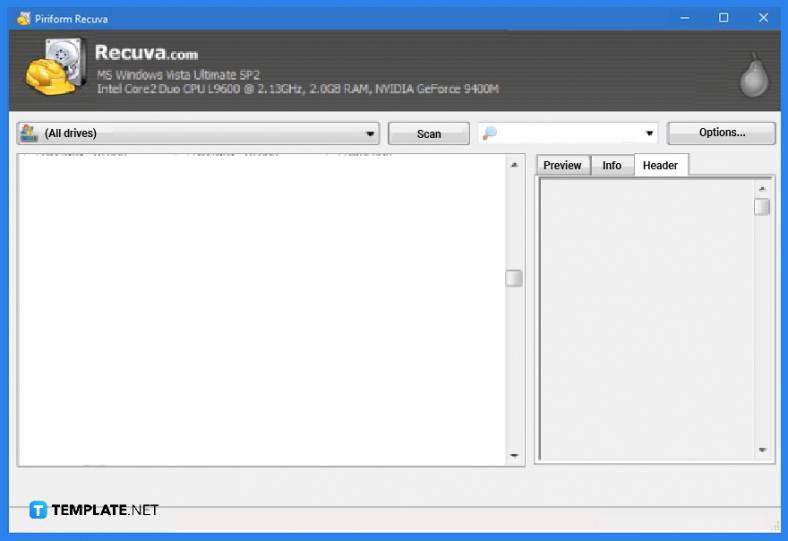
To begin with, run the data recovery software of your choice to recover deleted Microsoft Access files. From there, choose the drive from which you want to recover Access database files and start scanning.
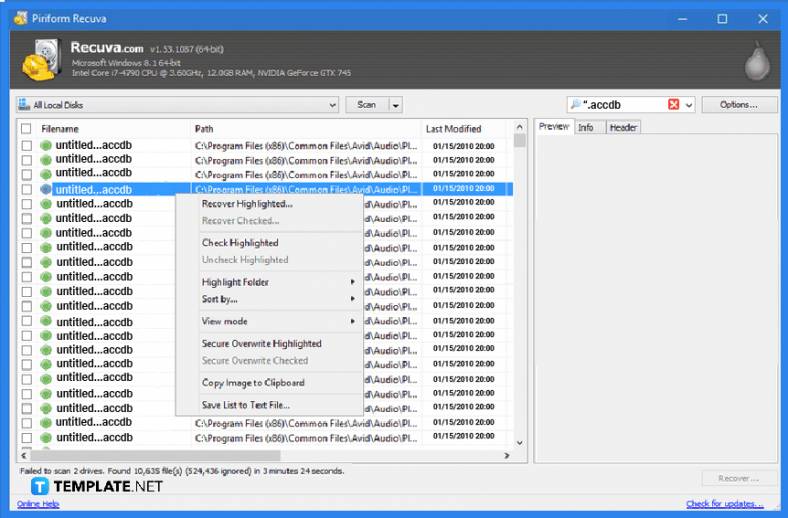
After the scanning procedure is finished by the data recovery program, there will be a list of the recoverable files from your drive that includes the deleted Microsoft Access database file. You can preview the list of files that your computer can recover from here.
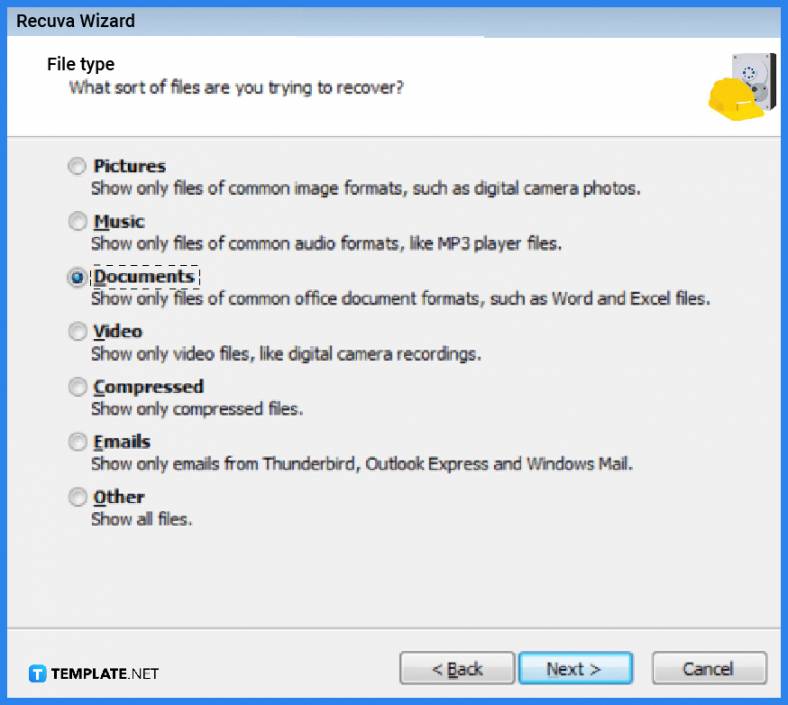
If you are satisfied with the preview files that you want to recover, you can activate the software and save the Microsoft Access database file to recover at the preferred location on your computer.
When an Access database begins to hang or sluggish when attempting to open a specific database, when an Access database is severely damaged or corrupted, when an Access database prompts error messages indicating file corruption, or when an Access database cannot be opened properly, you must recover the database.
Data deletion from Microsoft Access databases can occur for a variety of reasons, including hardware and software failures like a hard drive crash or network outage, multiple user access, an improper shutdown of the local computer while MS Access is running, and attacks from bugs, viruses, and malware.
There are four manual methods for recovering deleted Microsoft Access database files: exporting an Access database to Access 2013 and earlier versions; disabling the AutoCorrect feature; the compact and repair method; and recovering from a recent backup.
Open the Microsoft Access program to begin, select the Database Tool tab and choose the Compact and Repair Database option, choose the Microsoft Access database file from the dialog box, then click Compact to continue, then create a new database in the “Compact Database Into” dialog box, enter a file name, and click Save to complete the process.
In order to restore deleted or corrupted Microsoft Access database files, you must generate a backup file for your database, and you can do this by copying the backup file from File Explorer and replacing the corrupt database file with the backup file.

Signatures found in documents establish who you are as an individual or as an organization. Aside from the fact that…
![How To Make/Create a Newsletter in Microsoft Outlook [Templates + Examples] 2026](https://images.template.net/wp-content/uploads/2022/07/How-to-Start-a-Newsletter-with-Microsoft-Outlook-788x443.jpg)
Newsletters enable companies and organizations to communicate relevant and helpful information to their client, prospects, and subscribers. By giving you…
![How To Make/Create a Booklet in Microsoft Publisher [Templates + Examples] 2026](https://images.template.net/wp-content/uploads/2022/08/How-To-Make_Create-a-Booklet-in-Microsoft-Publisher-788x443.png)
Booklet templates are pre-designed layouts that make it easy to create a professional-looking booklet. They typically include placeholders for text…
![How To Make/Create a Booklet in Microsoft PowerPoint [Templates + Examples] 2026](https://images.template.net/wp-content/uploads/2022/07/How-To-Make-Create-a-Booklet-in-Microsoft-PowerPoint-788x443.jpg)
Booklets can be created in Microsoft PowerPoint, which offers a design feature that allows users to display them in PPT…
![How to Automatically Fill PDF Forms Using Microsoft Excel [Templates + Examples] 2026](https://images.template.net/wp-content/uploads/2022/07/How-to-Automatically-Fill-PDF-Forms-Using-Microsoft-Excel-788x444.png)
Automatically fill PDF forms using Microsoft Excel so you won’t have to save multiple PDF forms in an Excel spreadsheet…
![How to Make/Create a Floor Plan on Microsoft Excel [Templates + Examples] 2026](https://images.template.net/wp-content/uploads/2022/07/How-to-Make-a-Floor-Plan-on-Microsoft-Excel-788x443.jpg)
Floor plans either make or break projects related to engineering and architecture. That being said, every apartment room, bedroom, living…
![How to Make/Create a Grid in Microsoft Word [Templates + Examples] 2026](https://images.template.net/wp-content/uploads/2022/07/How-to-Make_Create-a-Grid-in-Microsoft-Word-788x444.jpg)
Grids consist of a network of lines that work as graphic cues while formatting your document in Microsoft Office. If…
![How to Add More Highlight Colors to Microsoft Word [Templates + Examples] 2026](https://images.template.net/wp-content/uploads/2022/07/How-to-Add-More-Highlight-Colors-to-Microsoft-Word-Templates-Examples-2023-788x443.jpg)
Add more highlight colors to Microsoft Word so you won’t have to settle with the default shading color in marking…
![How to Make/Create a Border in Microsoft Publisher [Templates + Examples] 2026](https://images.template.net/wp-content/uploads/2022/08/How-to-MakeCreate-a-Border-in-Microsoft-Publisher-788x444.png)
Borders are graphic design elements that make a document more pleasing and stylish to look at. This can be used…