


![How to Add a Signature in Microsoft Forms [Templates + Examples] 2026](https://images.template.net/wp-content/uploads/2022/07/How-to-Add-a-Signature-in-Microsoft-Forms-Templates-Examples-2023-788x443.jpg)
How to Add a Signature in Microsoft Forms [Templates + Examples] 2026
Signatures found in documents establish who you are as an individual or as an organization. Aside from the fact that…
Dec 22, 2025


Sep 02, 2025
Express oneself in Microsoft OneNote by fully customizing the contents of one’s notebook. Microsoft OneNote has a lot of features and quality of life options that can make the software be catered to one’s taste and preference.
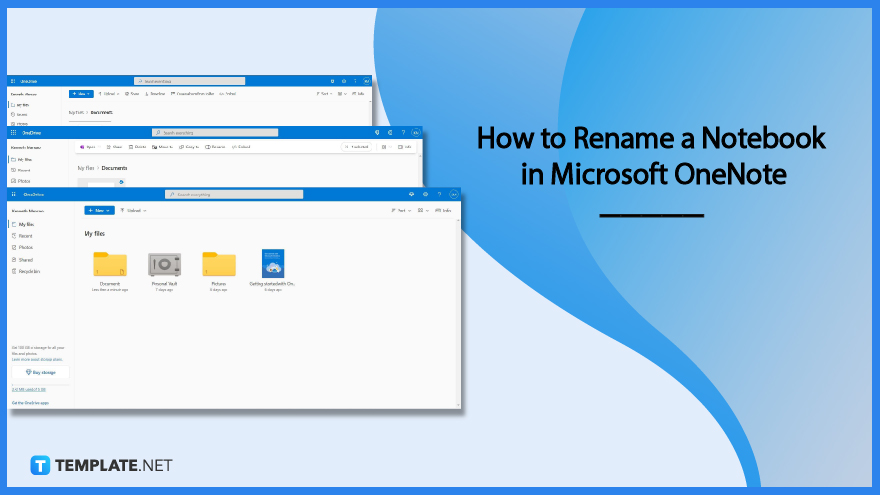
Microsoft OneNote allows the user to have full agency in the usage and customization of the data presented in Microsoft OneNote. But Microsoft OneNote’s web and desktop versions have a roundabout way of letting the user rename their notebook as it requires the user to go through Microsoft OneDrive and rename it there.
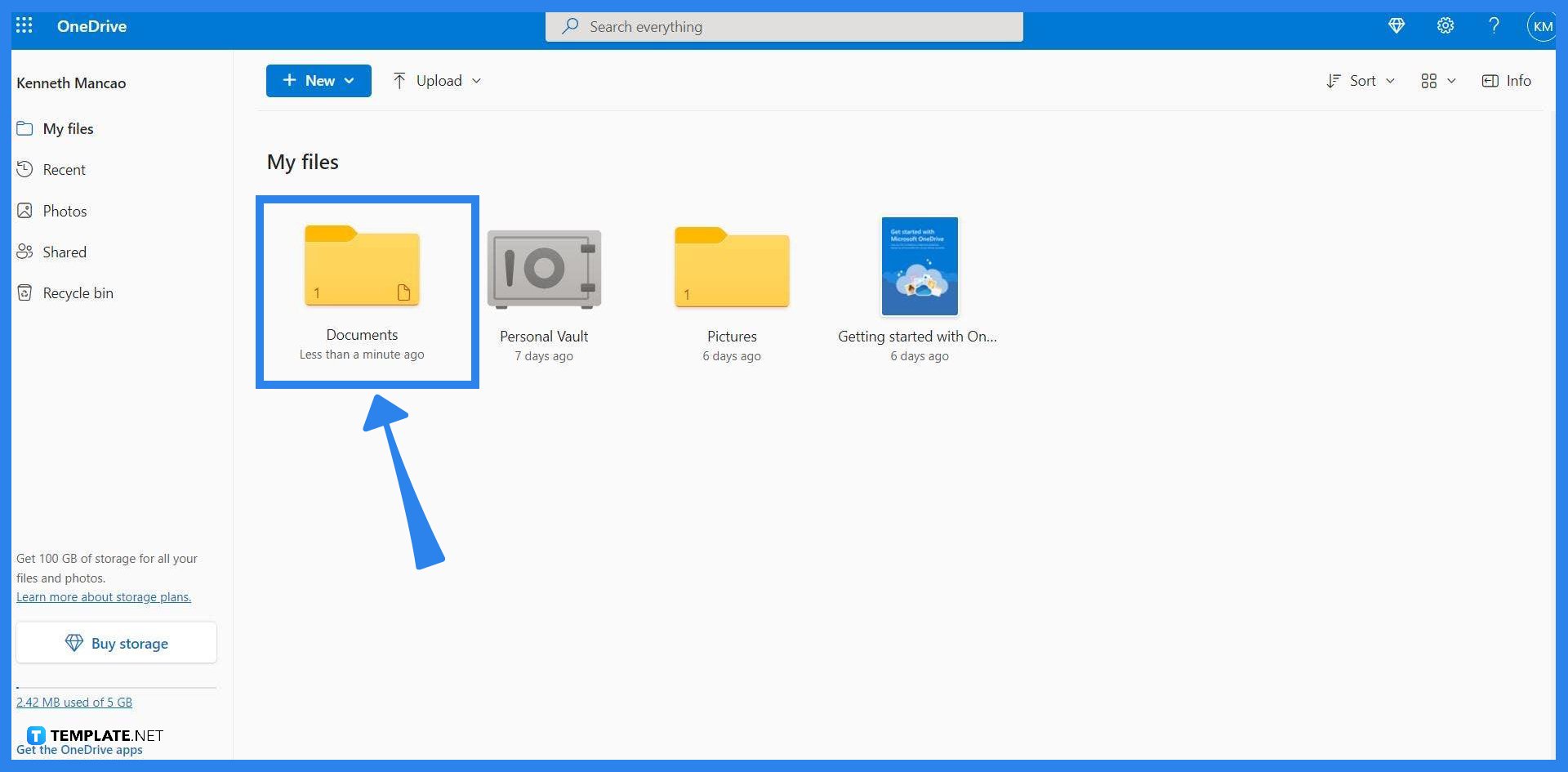
The user must first open their web browser and open Microsoft OneDrive with the email containing the notebook. Ensure that the notebook synced in the user’s OneDrive is up to date as this can cause future problems.
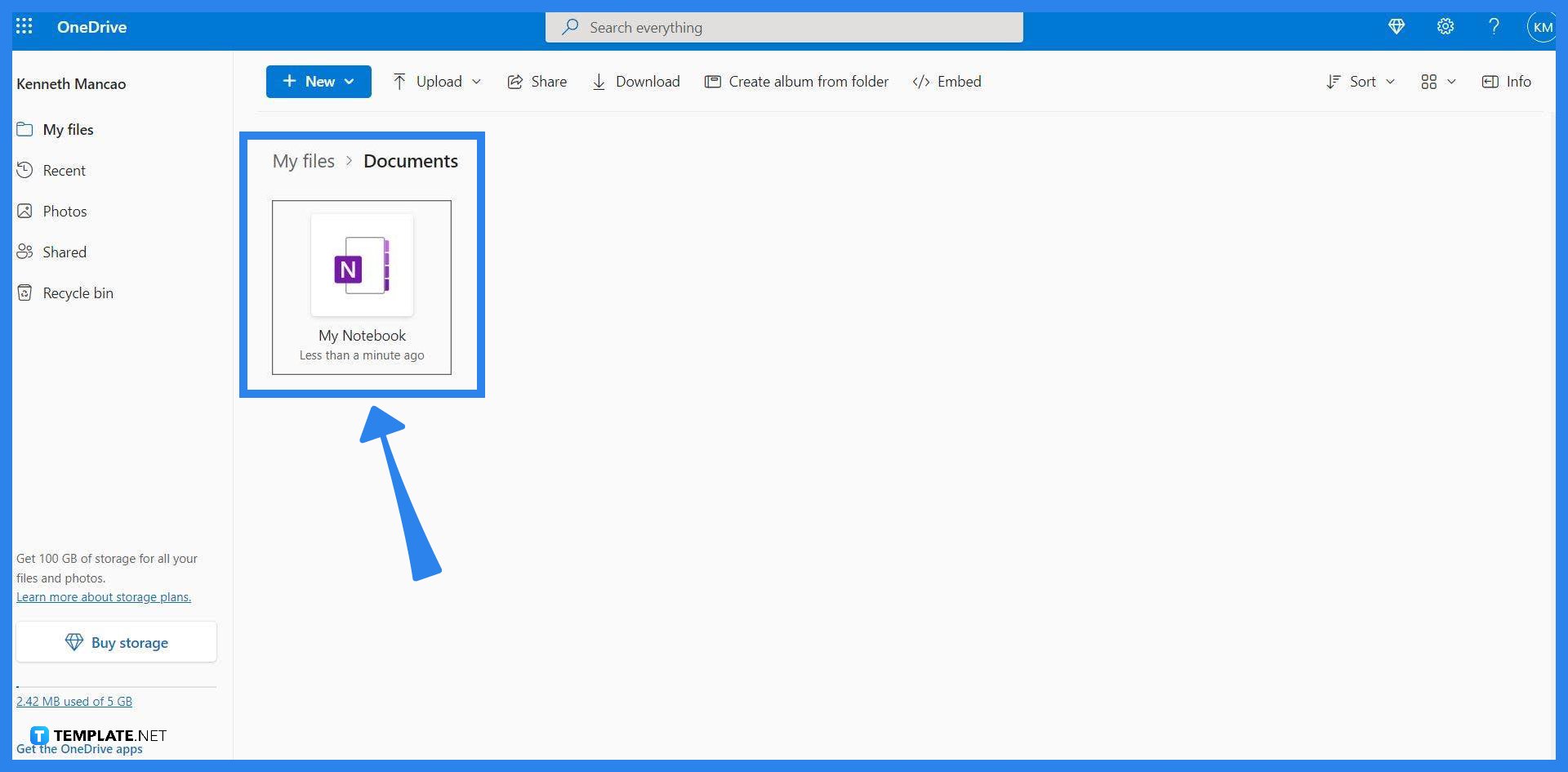
After the user has ensured that their notebook is up to date and has opened their Microsoft OneDrive, they must locate the folder where the notebook is stored at. By default, Microsoft OneNote stores the notebook in the user’s documents folder. If it has been changed, check your OneNote preferences to locate the folder.
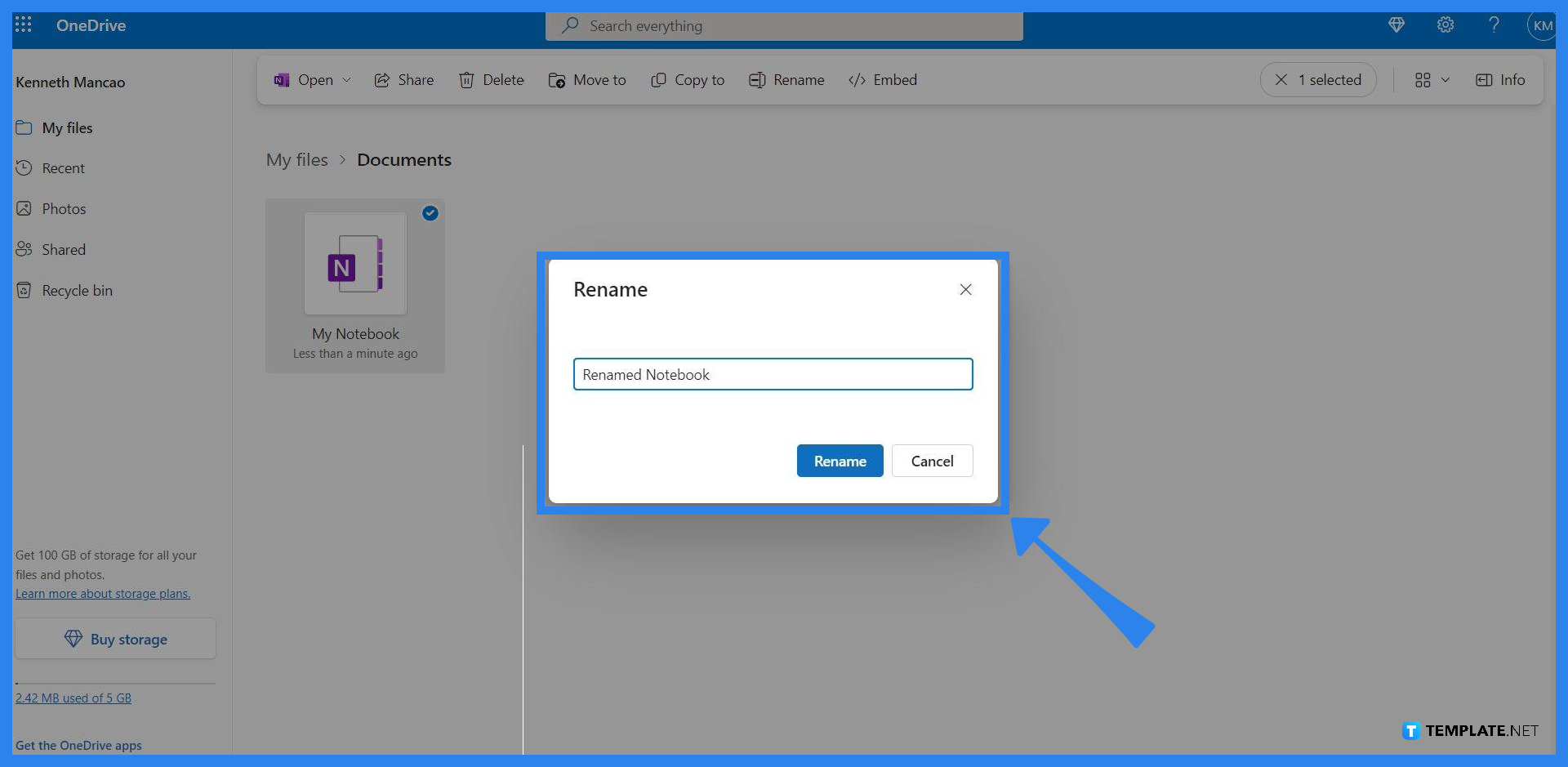
You can access the rename window by right-clicking the notebook that you want to rename. Please be careful when right-clicking the notebook as one of the prompts can delete the notebook and send it to the user’s recycling bin.
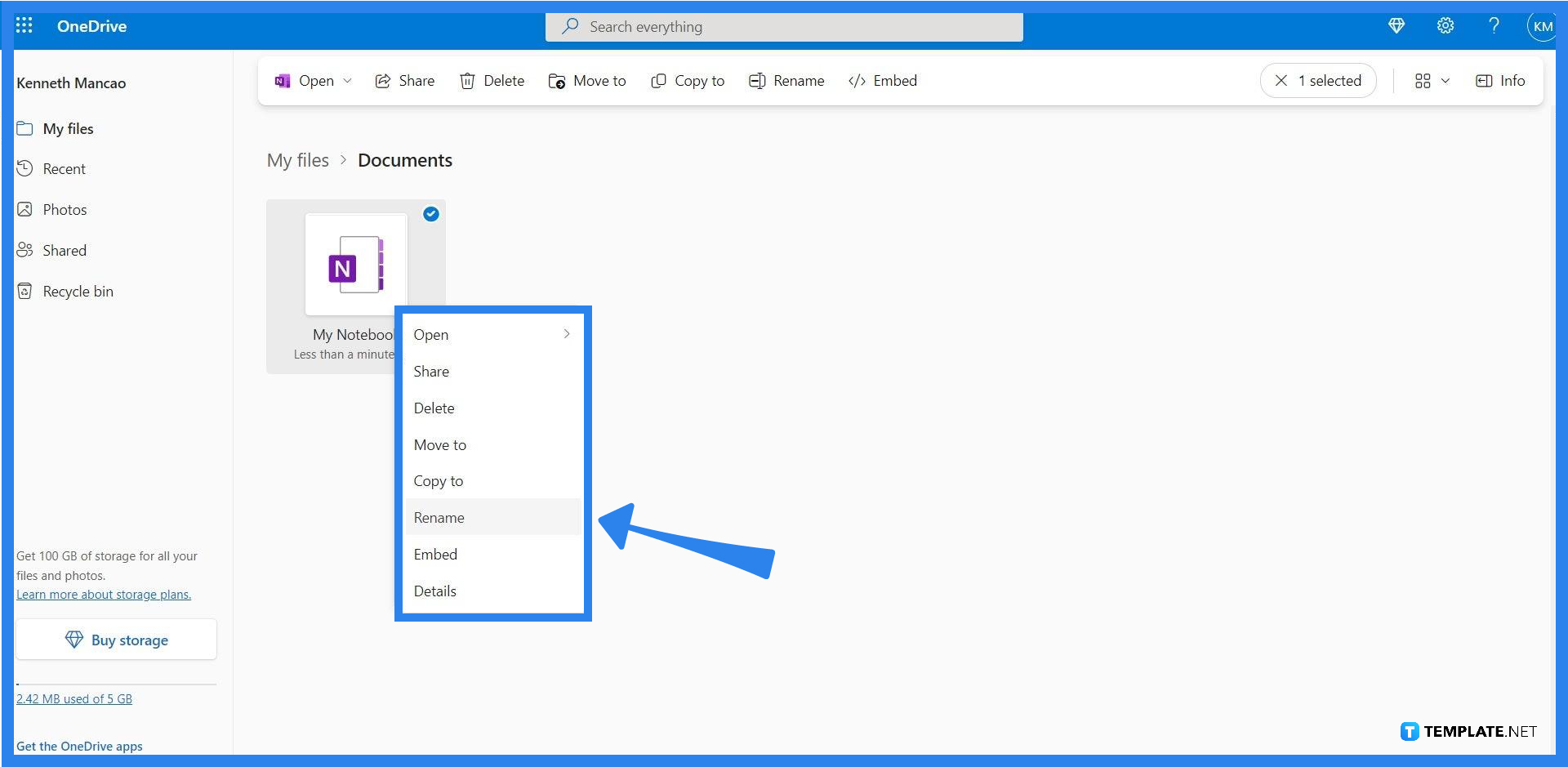
When the user clicks the rename option, a window will appear with the name of the notebook. Here the user can add, edit, and delete any part of the name or title of the notebook. After inputting the user’s desired changes, click the “Rename” button on the window to lock in the changes.
You can rename a notebook on the mobile version of Microsoft OneNote by long-pressing the notebook until it has been selected (this is indicated by a little check mark beside the notebook), pressing the “?” button to open a dropdown, tapping the Rename This File option, and inputting a new name for your notebook.
Hover your mouse pointer over the notebook as this will make a small circular prompt appear next to the notebook. Select that circular prompt to pick the notebook and head over to the “?” button on the top right corner of the window. A menu will appear and press the rename button in the menu to rename the selected notebook.
Select the note you want to rename, which will open the note and present its contents. Tap the title of the note, which will allow you to rename said title.
You can not change the color of a notebook in OneNote, instead, you may opt to change the color of a section by Ctrl + left-clicking the section and selecting the Section Color option. This will allow you to pick a specific color for the section.
First, you must click the “View” tab on the toolbar, as this allows you access to resize tool in OneNote. Then you must click the “Paper Size” button on the toolbar to open a window where you can input specific sizes to reshape your paper.

Signatures found in documents establish who you are as an individual or as an organization. Aside from the fact that…
![How To Make/Create a Newsletter in Microsoft Outlook [Templates + Examples] 2026](https://images.template.net/wp-content/uploads/2022/07/How-to-Start-a-Newsletter-with-Microsoft-Outlook-788x443.jpg)
Newsletters enable companies and organizations to communicate relevant and helpful information to their client, prospects, and subscribers. By giving you…
![How To Make/Create a Booklet in Microsoft Publisher [Templates + Examples] 2026](https://images.template.net/wp-content/uploads/2022/08/How-To-Make_Create-a-Booklet-in-Microsoft-Publisher-788x443.png)
Booklet templates are pre-designed layouts that make it easy to create a professional-looking booklet. They typically include placeholders for text…
![How To Make/Create a Booklet in Microsoft PowerPoint [Templates + Examples] 2026](https://images.template.net/wp-content/uploads/2022/07/How-To-Make-Create-a-Booklet-in-Microsoft-PowerPoint-788x443.jpg)
Booklets can be created in Microsoft PowerPoint, which offers a design feature that allows users to display them in PPT…
![How to Automatically Fill PDF Forms Using Microsoft Excel [Templates + Examples] 2026](https://images.template.net/wp-content/uploads/2022/07/How-to-Automatically-Fill-PDF-Forms-Using-Microsoft-Excel-788x444.png)
Automatically fill PDF forms using Microsoft Excel so you won’t have to save multiple PDF forms in an Excel spreadsheet…
![How to Make/Create a Floor Plan on Microsoft Excel [Templates + Examples] 2026](https://images.template.net/wp-content/uploads/2022/07/How-to-Make-a-Floor-Plan-on-Microsoft-Excel-788x443.jpg)
Floor plans either make or break projects related to engineering and architecture. That being said, every apartment room, bedroom, living…
![How to Make/Create a Grid in Microsoft Word [Templates + Examples] 2026](https://images.template.net/wp-content/uploads/2022/07/How-to-Make_Create-a-Grid-in-Microsoft-Word-788x444.jpg)
Grids consist of a network of lines that work as graphic cues while formatting your document in Microsoft Office. If…
![How to Add More Highlight Colors to Microsoft Word [Templates + Examples] 2026](https://images.template.net/wp-content/uploads/2022/07/How-to-Add-More-Highlight-Colors-to-Microsoft-Word-Templates-Examples-2023-788x443.jpg)
Add more highlight colors to Microsoft Word so you won’t have to settle with the default shading color in marking…
![How to Make/Create a Border in Microsoft Publisher [Templates + Examples] 2026](https://images.template.net/wp-content/uploads/2022/08/How-to-MakeCreate-a-Border-in-Microsoft-Publisher-788x444.png)
Borders are graphic design elements that make a document more pleasing and stylish to look at. This can be used…