


![How to Add a Signature in Microsoft Forms [Templates + Examples] 2026](https://images.template.net/wp-content/uploads/2022/07/How-to-Add-a-Signature-in-Microsoft-Forms-Templates-Examples-2023-788x443.jpg)
How to Add a Signature in Microsoft Forms [Templates + Examples] 2026
Signatures found in documents establish who you are as an individual or as an organization. Aside from the fact that…
Dec 22, 2025


Sep 02, 2025
Microsoft Whiteboard has many tools that can be utilized by their users to ensure that they will have a good experience when using the program. The ruler is one of the drawing tools offered by developers of Microsoft Whiteboard on their base program.
The ruler tool of Microsoft Whiteboard allows the user to draw straight and angled lines anywhere on the whiteboard without causing any frustrations. This tool allows the user to have a neat and clean finish on their whiteboard as this tool prevents any distracting and weird lines from being made.
Start by opening Microsoft Whiteboard on your PC or laptop’s desktop. This feature is available on both the web and app versions of Microsoft Whiteboard. If the user is using the whiteboard app integrated into Microsoft Teams, the ruler tool is not available on that version of Microsoft Whiteboard.
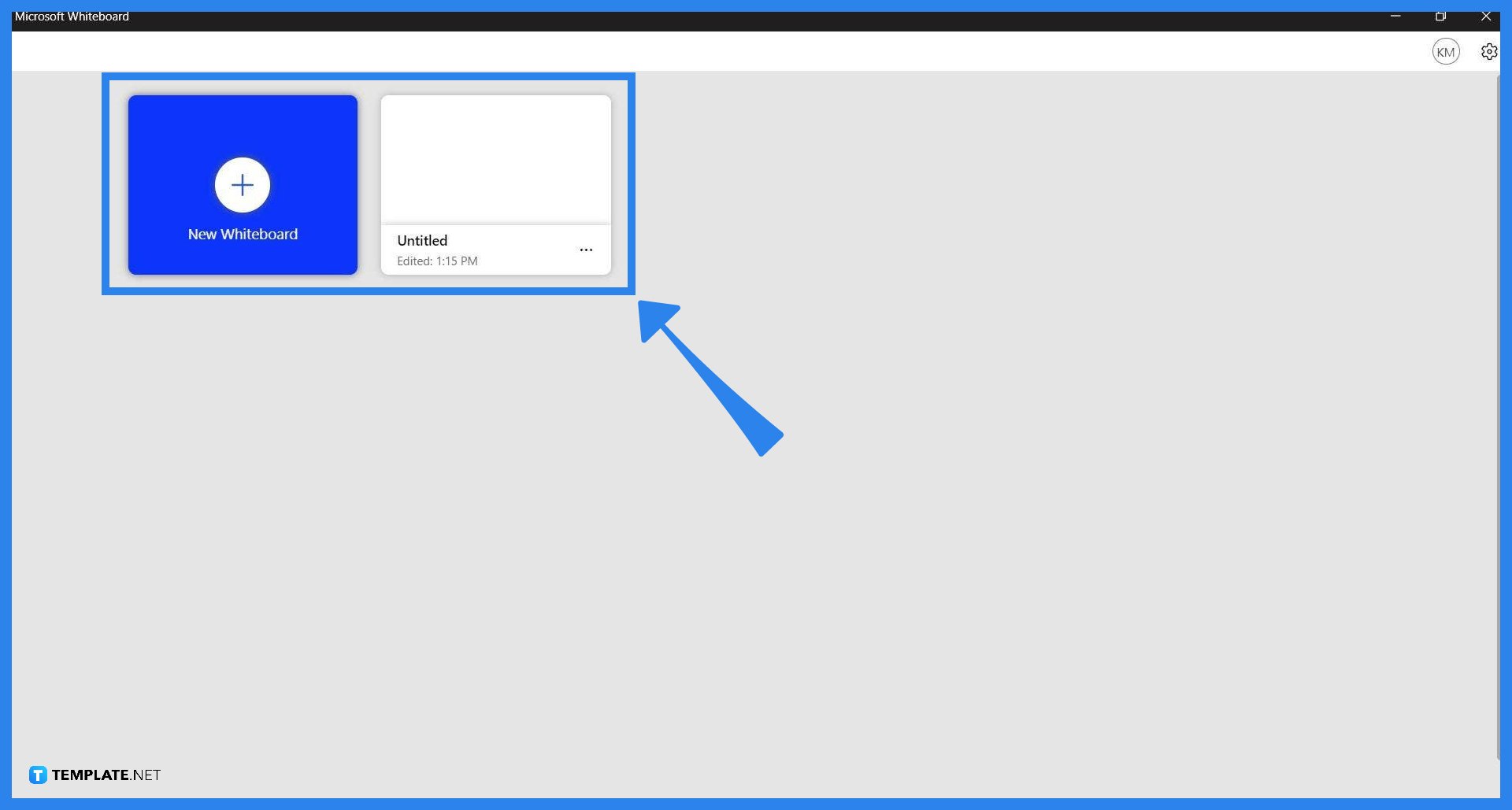
The user must then open or create a whiteboard on which the user would want to use the ruler tool. This can be done by left-clicking an existing whiteboard or by pressing the “New Whiteboard” button on the landing page.
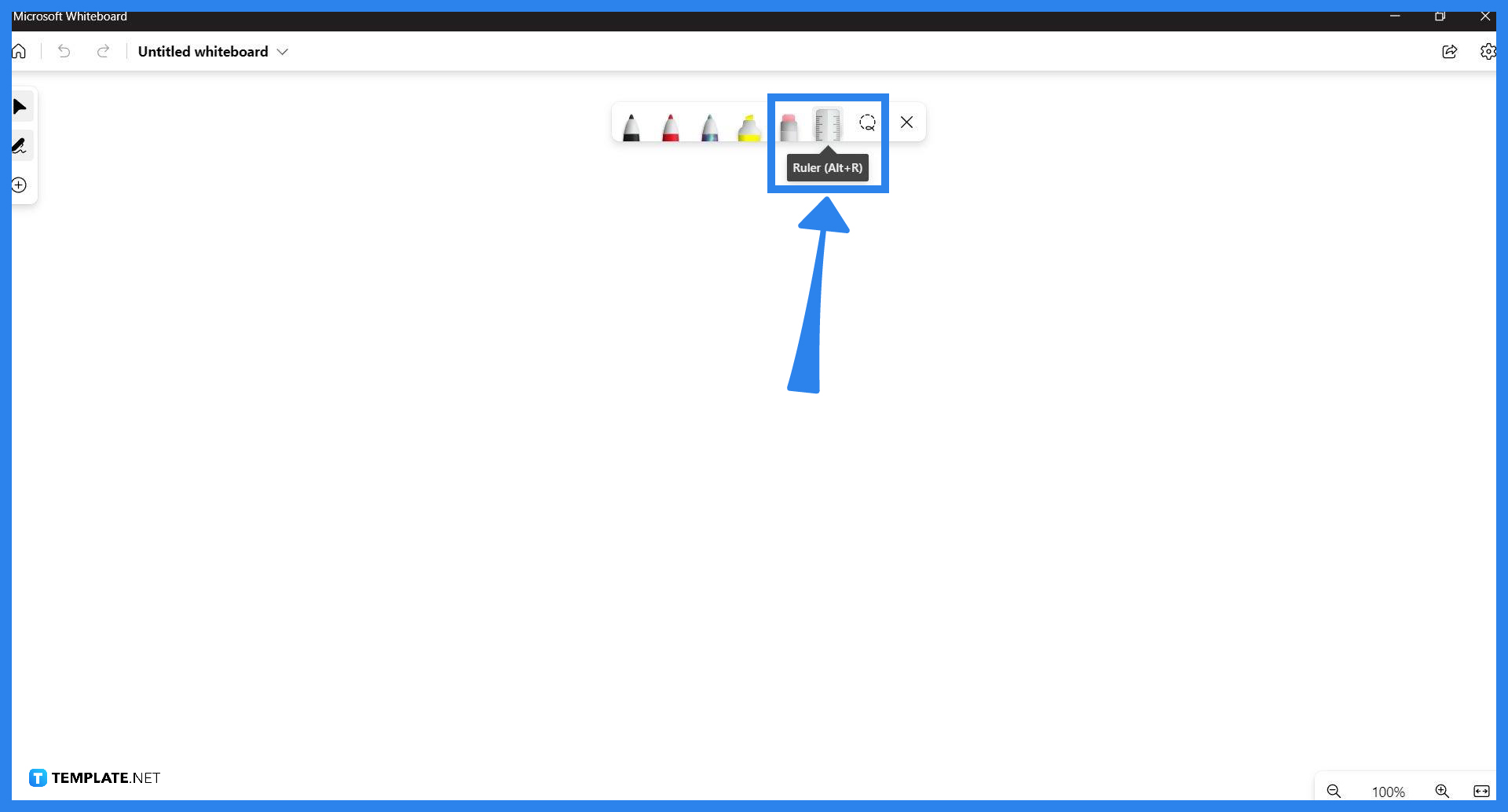
After the user has opened or created the whiteboard, they must toggle the ruler tool on. To toggle the ruler tool on, the user must press the “Ruler” button on the toolbar or turn it on by pressing Alt + R.
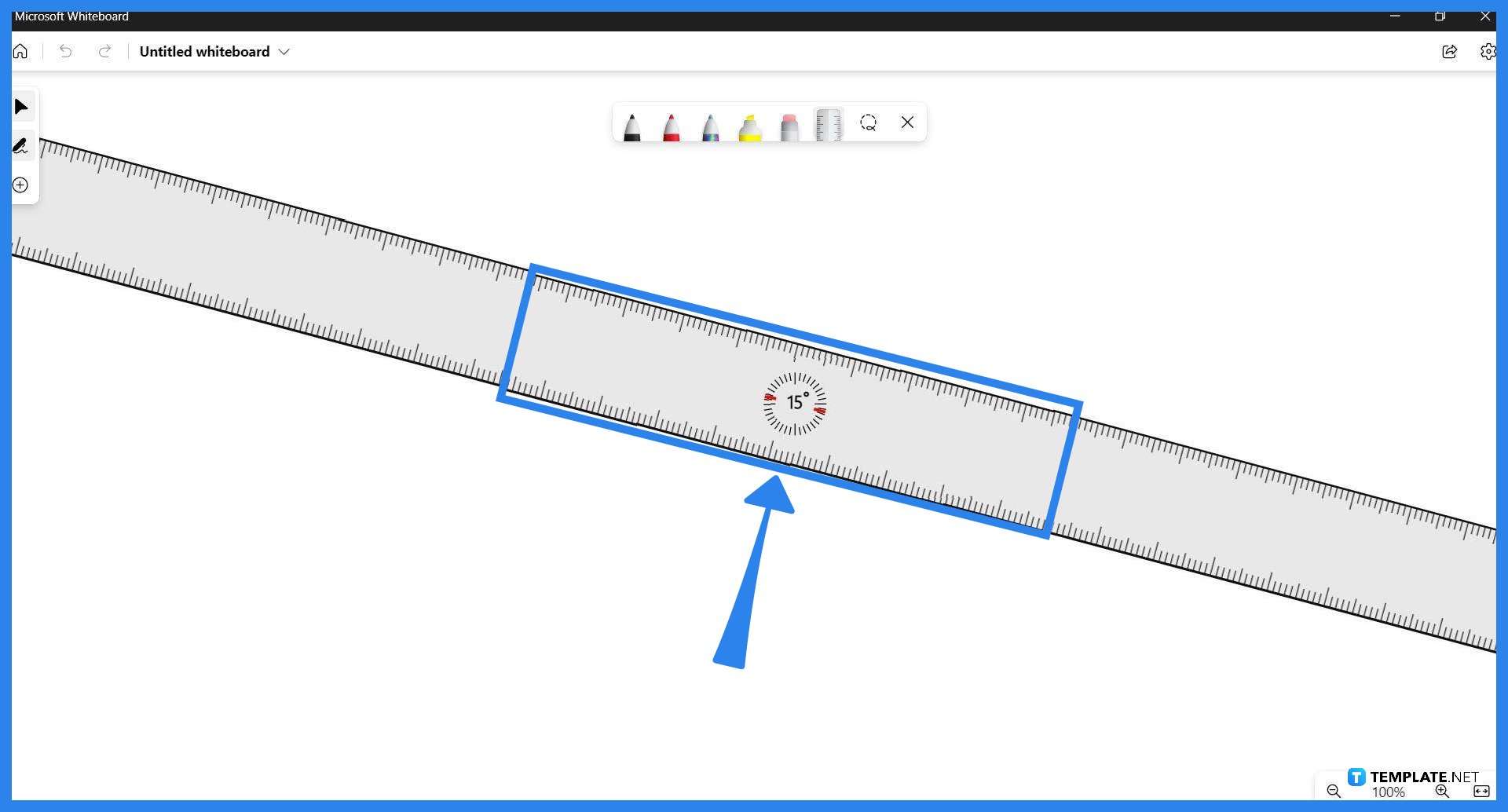
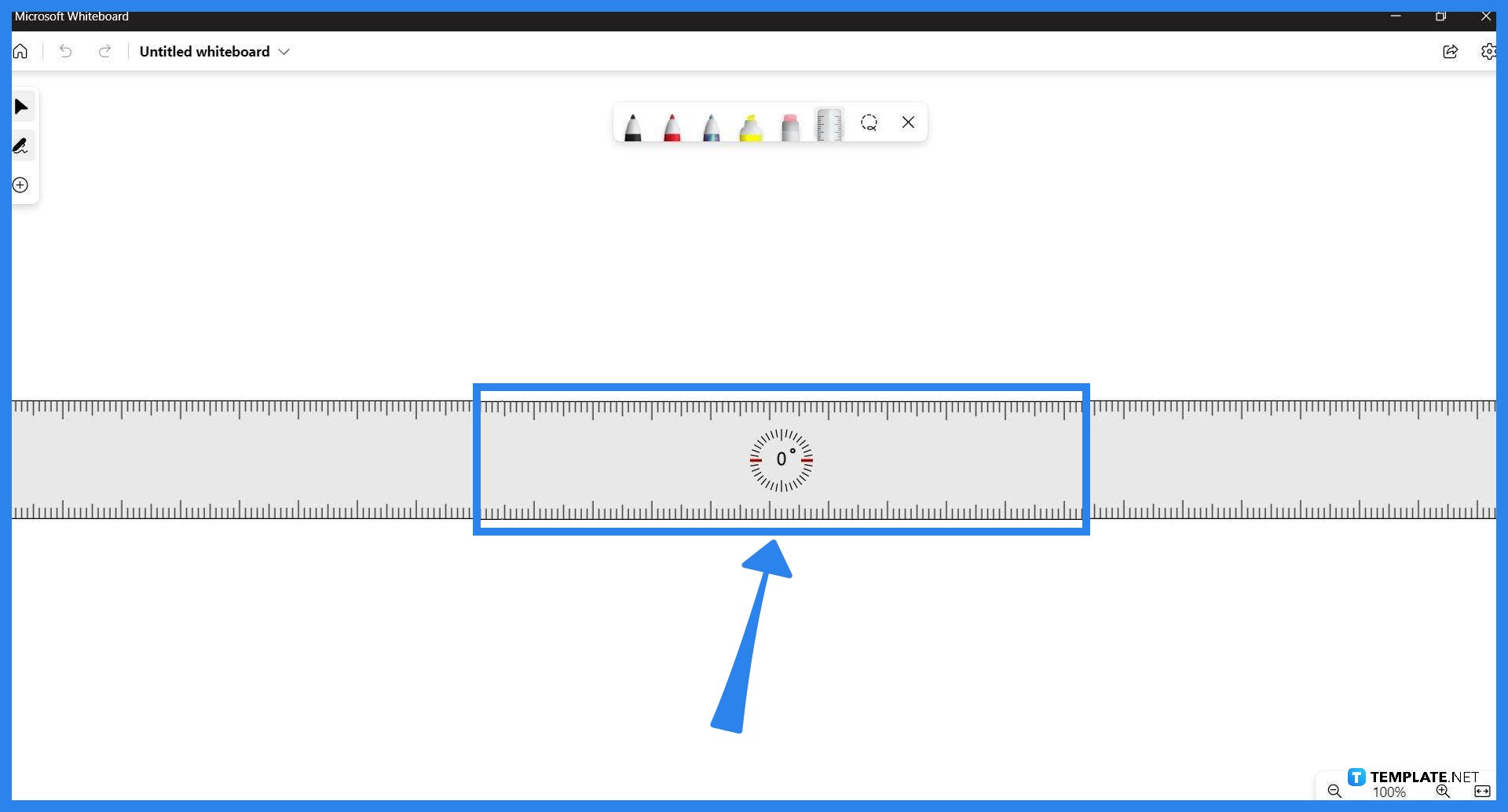
The ruler can then be adjusted and moved to different portions of the whiteboard. To move the ruler, the user must click the ruler to select it and drag it to the place they want to use the ruler. Rotating the ruler can be achieved by pressing the ruler and using the mouse wheel to shift the angle of the ruler.
The ruler tool can be used to measure specific things in Microsoft Whiteboard and allows the user to create or draw precise and accurate lines.
To rotate the ruler the user must first select the ruler by pressing Tab on the keyboard until it highlights the edges of the ruler with dark lines, then the user must hold alt and press the left and right arrow keys to shift the angle by 15 degrees.
You can move the ruler by selecting the ruler via the Tab button on your keyboard; you will know that the ruler is selected as it will be encased with black lines, then you must hold the Alt button on your keyboard, and use the up and down arrow keys to adjust the position of the keyboard by a couple of frames.
The ruler tool will memorize its last position and angle when it is toggled off as one of its quality-of-life features; the position and angle will even persist when the app or program is turned off.

Signatures found in documents establish who you are as an individual or as an organization. Aside from the fact that…
![How To Make/Create a Newsletter in Microsoft Outlook [Templates + Examples] 2026](https://images.template.net/wp-content/uploads/2022/07/How-to-Start-a-Newsletter-with-Microsoft-Outlook-788x443.jpg)
Newsletters enable companies and organizations to communicate relevant and helpful information to their client, prospects, and subscribers. By giving you…
![How To Make/Create a Booklet in Microsoft Publisher [Templates + Examples] 2026](https://images.template.net/wp-content/uploads/2022/08/How-To-Make_Create-a-Booklet-in-Microsoft-Publisher-788x443.png)
Booklet templates are pre-designed layouts that make it easy to create a professional-looking booklet. They typically include placeholders for text…
![How To Make/Create a Booklet in Microsoft PowerPoint [Templates + Examples] 2026](https://images.template.net/wp-content/uploads/2022/07/How-To-Make-Create-a-Booklet-in-Microsoft-PowerPoint-788x443.jpg)
Booklets can be created in Microsoft PowerPoint, which offers a design feature that allows users to display them in PPT…
![How to Automatically Fill PDF Forms Using Microsoft Excel [Templates + Examples] 2026](https://images.template.net/wp-content/uploads/2022/07/How-to-Automatically-Fill-PDF-Forms-Using-Microsoft-Excel-788x444.png)
Automatically fill PDF forms using Microsoft Excel so you won’t have to save multiple PDF forms in an Excel spreadsheet…
![How to Make/Create a Floor Plan on Microsoft Excel [Templates + Examples] 2026](https://images.template.net/wp-content/uploads/2022/07/How-to-Make-a-Floor-Plan-on-Microsoft-Excel-788x443.jpg)
Floor plans either make or break projects related to engineering and architecture. That being said, every apartment room, bedroom, living…
![How to Make/Create a Grid in Microsoft Word [Templates + Examples] 2026](https://images.template.net/wp-content/uploads/2022/07/How-to-Make_Create-a-Grid-in-Microsoft-Word-788x444.jpg)
Grids consist of a network of lines that work as graphic cues while formatting your document in Microsoft Office. If…
![How to Add More Highlight Colors to Microsoft Word [Templates + Examples] 2026](https://images.template.net/wp-content/uploads/2022/07/How-to-Add-More-Highlight-Colors-to-Microsoft-Word-Templates-Examples-2023-788x443.jpg)
Add more highlight colors to Microsoft Word so you won’t have to settle with the default shading color in marking…
![How to Make/Create a Border in Microsoft Publisher [Templates + Examples] 2026](https://images.template.net/wp-content/uploads/2022/08/How-to-MakeCreate-a-Border-in-Microsoft-Publisher-788x444.png)
Borders are graphic design elements that make a document more pleasing and stylish to look at. This can be used…