


![How to Add a Signature in Microsoft Forms [Templates + Examples] 2026](https://images.template.net/wp-content/uploads/2022/07/How-to-Add-a-Signature-in-Microsoft-Forms-Templates-Examples-2023-788x443.jpg)
How to Add a Signature in Microsoft Forms [Templates + Examples] 2026
Signatures found in documents establish who you are as an individual or as an organization. Aside from the fact that…
Dec 22, 2025


Sep 02, 2025
The background is a feature that you can add to change the view of your publication in colors or images. Microsoft Publisher provides a “Background” tool that you can use to enhance the layout and design of your publication.
Adding a background to your publication in Microsoft Publisher is very easy. You can use the “Background” option that Microsoft Publisher offers to improve the layout and look of your publication.
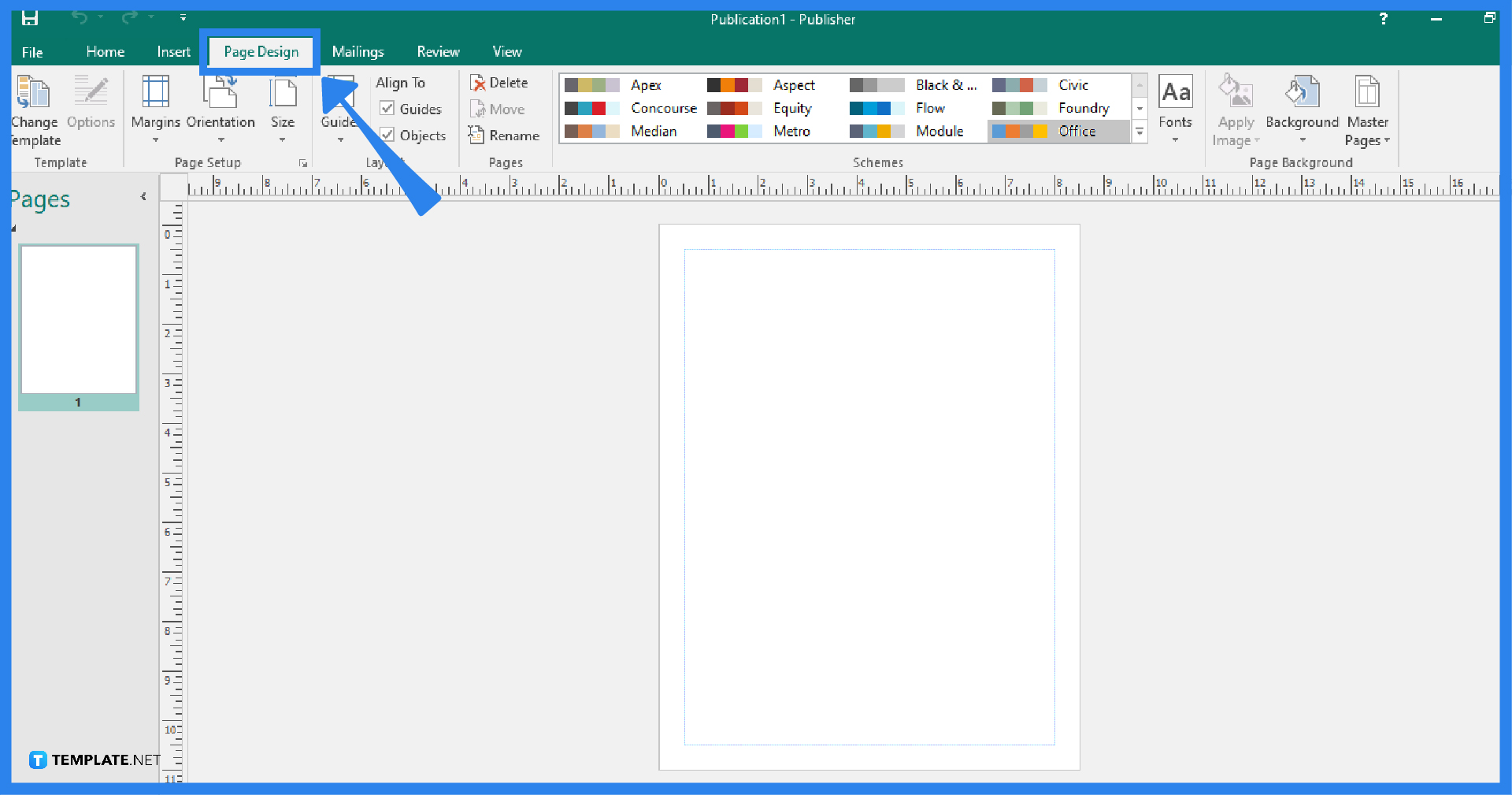
Start your Microsoft Publisher program and open a new blank publication. After that, go to the Page Design tab of the Publisher ribbon. Under the Page Background group, click on the Background option.
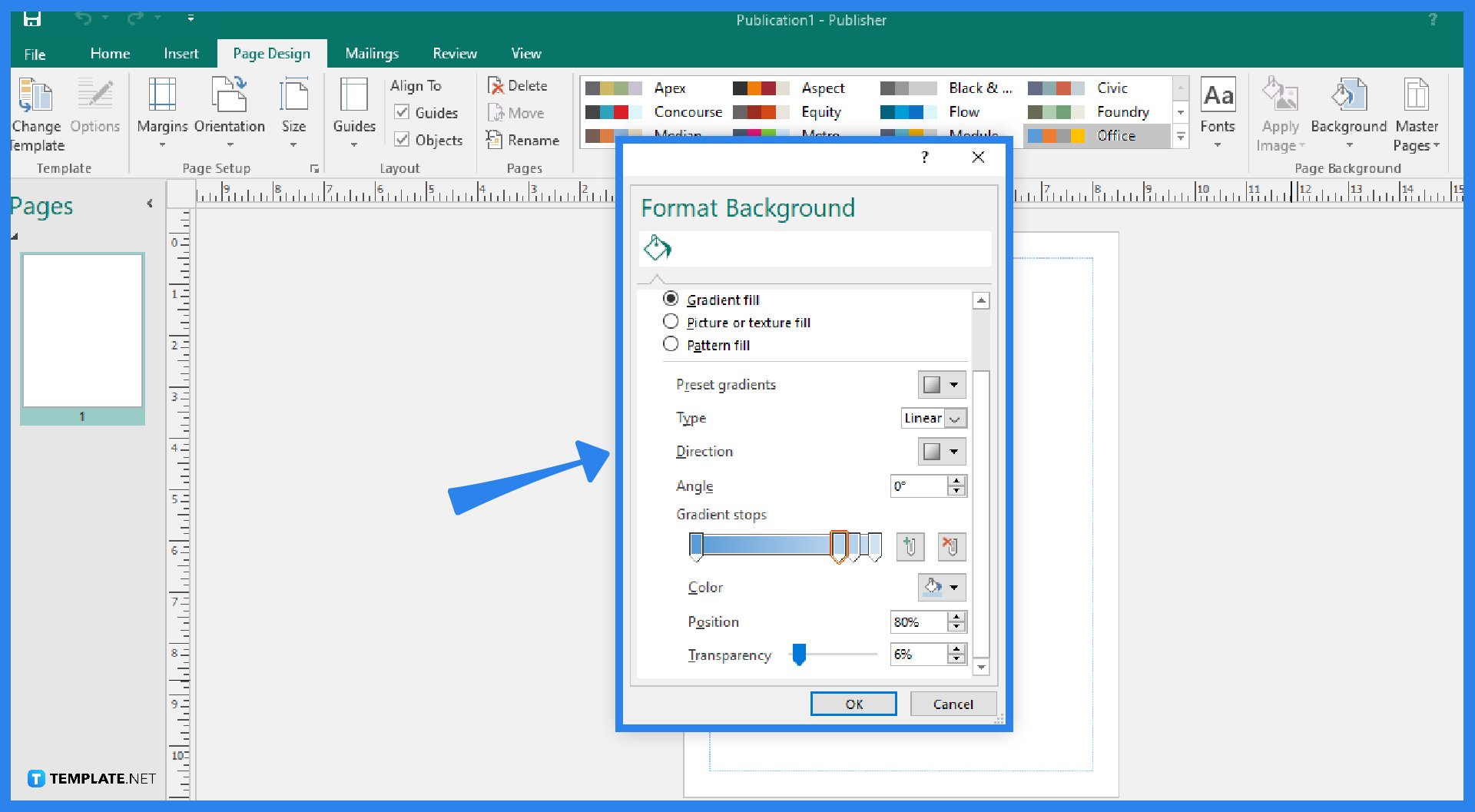
After clicking the Background option, you can now choose the background color that you want. You can customize your background by selecting the “More Backgrounds” option. From there, you can choose how you want to fill your background, such as solid fill or gradient fill. You can change the background color, transparency, position, and other options. After making the necessary adjustments, click OK, and you will now see the added background for your publication.
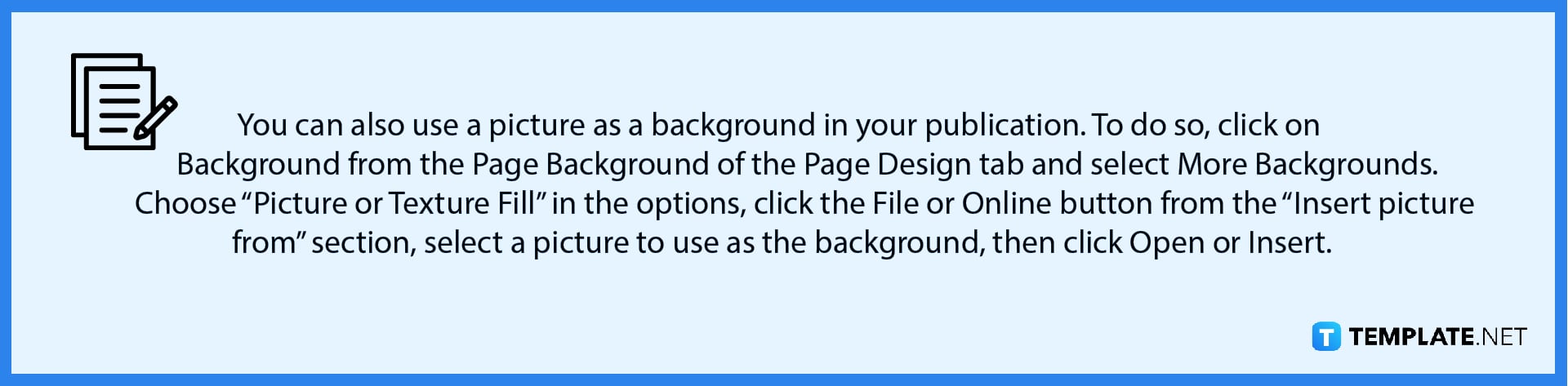
To remove the added background in Microsoft Publisher, you can simply do a right-click on your page, and choose the “Undo Create Background” option in the pop-up menu that appears; you also have the option of going to the Page Design tab, then clicking on More Backgrounds from the Background option, and hitting the OK button after selecting No Fill from the Format Background dialog box.
Definitely, you can utilize the “Pattern Fill” option for your publication in Microsoft Publisher, which can be found in the Format Background dialog menu under the Background option of the Page Design tab.
If you’re using a template, you can change and use a coordinated color set to match the font, background, and other template colors; to do so, click Page Design after launching the template, and browse the publication schemes from the Schemes group to choose a color scheme that works for your publication.
Yes, you can use a two-color background for your publications in Microsoft Publisher using the Gradient Fill option and the Pattern Fill option.
The fill options include a solid fill, gradient fill, picture or texture fill, and pattern fill, which you can use as a background for your publication.

Signatures found in documents establish who you are as an individual or as an organization. Aside from the fact that…
![How To Make/Create a Newsletter in Microsoft Outlook [Templates + Examples] 2026](https://images.template.net/wp-content/uploads/2022/07/How-to-Start-a-Newsletter-with-Microsoft-Outlook-788x443.jpg)
Newsletters enable companies and organizations to communicate relevant and helpful information to their client, prospects, and subscribers. By giving you…
![How To Make/Create a Booklet in Microsoft Publisher [Templates + Examples] 2026](https://images.template.net/wp-content/uploads/2022/08/How-To-Make_Create-a-Booklet-in-Microsoft-Publisher-788x443.png)
Booklet templates are pre-designed layouts that make it easy to create a professional-looking booklet. They typically include placeholders for text…
![How To Make/Create a Booklet in Microsoft PowerPoint [Templates + Examples] 2026](https://images.template.net/wp-content/uploads/2022/07/How-To-Make-Create-a-Booklet-in-Microsoft-PowerPoint-788x443.jpg)
Booklets can be created in Microsoft PowerPoint, which offers a design feature that allows users to display them in PPT…
![How to Automatically Fill PDF Forms Using Microsoft Excel [Templates + Examples] 2026](https://images.template.net/wp-content/uploads/2022/07/How-to-Automatically-Fill-PDF-Forms-Using-Microsoft-Excel-788x444.png)
Automatically fill PDF forms using Microsoft Excel so you won’t have to save multiple PDF forms in an Excel spreadsheet…
![How to Make/Create a Floor Plan on Microsoft Excel [Templates + Examples] 2026](https://images.template.net/wp-content/uploads/2022/07/How-to-Make-a-Floor-Plan-on-Microsoft-Excel-788x443.jpg)
Floor plans either make or break projects related to engineering and architecture. That being said, every apartment room, bedroom, living…
![How to Make/Create a Grid in Microsoft Word [Templates + Examples] 2026](https://images.template.net/wp-content/uploads/2022/07/How-to-Make_Create-a-Grid-in-Microsoft-Word-788x444.jpg)
Grids consist of a network of lines that work as graphic cues while formatting your document in Microsoft Office. If…
![How to Add More Highlight Colors to Microsoft Word [Templates + Examples] 2026](https://images.template.net/wp-content/uploads/2022/07/How-to-Add-More-Highlight-Colors-to-Microsoft-Word-Templates-Examples-2023-788x443.jpg)
Add more highlight colors to Microsoft Word so you won’t have to settle with the default shading color in marking…
![How to Make/Create a Border in Microsoft Publisher [Templates + Examples] 2026](https://images.template.net/wp-content/uploads/2022/08/How-to-MakeCreate-a-Border-in-Microsoft-Publisher-788x444.png)
Borders are graphic design elements that make a document more pleasing and stylish to look at. This can be used…