


![How to Add a Signature in Microsoft Forms [Templates + Examples] 2026](https://images.template.net/wp-content/uploads/2022/07/How-to-Add-a-Signature-in-Microsoft-Forms-Templates-Examples-2023-788x443.jpg)
How to Add a Signature in Microsoft Forms [Templates + Examples] 2026
Signatures found in documents establish who you are as an individual or as an organization. Aside from the fact that…
Dec 22, 2025


Sep 02, 2025
Microsoft Visio is a cutting-edge solution for visualizing data-driven business process flows, with a slew of high-quality components that bring the power from Microsoft 365. Another feature that Visio offers for users to enjoy is both automated and manual connection line drawing options.
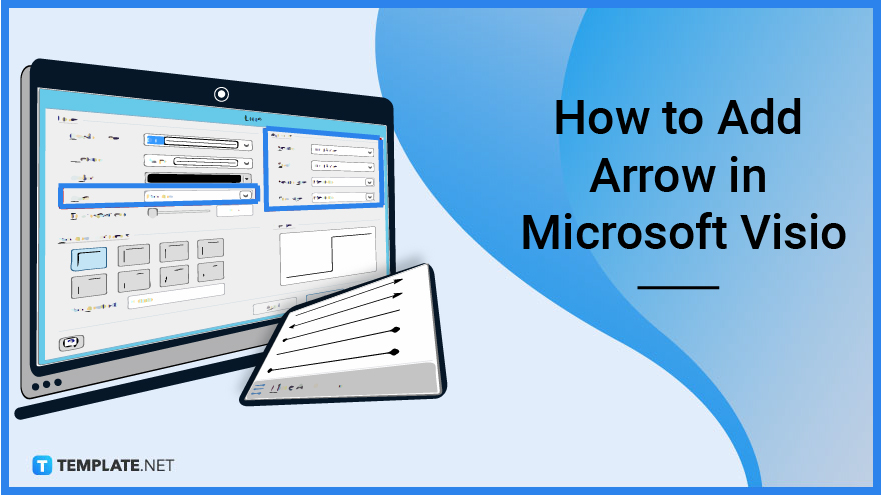
Users may demonstrate movement between subjects in diagrams and flow charts by connecting shapes with connector lines. Flowcharts, organizational charts, and hierarchy diagrams all require connectors which you can add with Visio.
The first step you will be doing is to open Microsoft Visio for the web, though depending on your subscription, you can also download it as desktop software.
If you have a pre-existing file in mind, locate the source of that file and proceed to open it. Otherwise, if you prefer to start from scratch, click on the category you want to use. Double-click on the specific type to proceed with the process of adding drawings, shapes, and its designated text or content. Continue until you are satisfied.
Blue boxes emerge on the shape’s sides and corners, with navigational arrows heading away from each. To manually add a connector, go to the “Home” tab section then click “Connector” in the Tools section. Click on the desired first shape or where you want to start from then the second shape or where you want the arrow to end.
Change the connection by clicking it. To expose the tools under the “Home” tab, click the tab at the top of the screen. Click “Line” in the Shape section, then “Line Options.” Under “Arrows,” choose an arrow size and shape, and then click “OK” to alter the connection.
Select the “Insert” tab of the ribbon, then “Draw Form” then on the canvas, click and drag to draw the shape, and continue to edit it as needed or until it suits your desire.
The arrow is utilized to direct the reader along their flowcharting path, keeping your diagram neat while also emphasizing certain phases in your process.
A connector in Visio is a piece of hardware that connects to a connection point on a form or to the shape itself, in short, it links two objects together.
Highlight the connecting line using the “Pointer Tool” from the toolbar then hold “Shift” and move the connection line’s mid-point handle up or down to add corners at 90-degree angles to the line, along with control handles for further manipulation.
Select “Insert” then “Symbol” and scroll up or down to locate the symbol you wish to put.

Signatures found in documents establish who you are as an individual or as an organization. Aside from the fact that…
![How To Make/Create a Newsletter in Microsoft Outlook [Templates + Examples] 2026](https://images.template.net/wp-content/uploads/2022/07/How-to-Start-a-Newsletter-with-Microsoft-Outlook-788x443.jpg)
Newsletters enable companies and organizations to communicate relevant and helpful information to their client, prospects, and subscribers. By giving you…
![How To Make/Create a Booklet in Microsoft Publisher [Templates + Examples] 2026](https://images.template.net/wp-content/uploads/2022/08/How-To-Make_Create-a-Booklet-in-Microsoft-Publisher-788x443.png)
Booklet templates are pre-designed layouts that make it easy to create a professional-looking booklet. They typically include placeholders for text…
![How To Make/Create a Booklet in Microsoft PowerPoint [Templates + Examples] 2026](https://images.template.net/wp-content/uploads/2022/07/How-To-Make-Create-a-Booklet-in-Microsoft-PowerPoint-788x443.jpg)
Booklets can be created in Microsoft PowerPoint, which offers a design feature that allows users to display them in PPT…
![How to Automatically Fill PDF Forms Using Microsoft Excel [Templates + Examples] 2026](https://images.template.net/wp-content/uploads/2022/07/How-to-Automatically-Fill-PDF-Forms-Using-Microsoft-Excel-788x444.png)
Automatically fill PDF forms using Microsoft Excel so you won’t have to save multiple PDF forms in an Excel spreadsheet…
![How to Make/Create a Floor Plan on Microsoft Excel [Templates + Examples] 2026](https://images.template.net/wp-content/uploads/2022/07/How-to-Make-a-Floor-Plan-on-Microsoft-Excel-788x443.jpg)
Floor plans either make or break projects related to engineering and architecture. That being said, every apartment room, bedroom, living…
![How to Make/Create a Grid in Microsoft Word [Templates + Examples] 2026](https://images.template.net/wp-content/uploads/2022/07/How-to-Make_Create-a-Grid-in-Microsoft-Word-788x444.jpg)
Grids consist of a network of lines that work as graphic cues while formatting your document in Microsoft Office. If…
![How to Add More Highlight Colors to Microsoft Word [Templates + Examples] 2026](https://images.template.net/wp-content/uploads/2022/07/How-to-Add-More-Highlight-Colors-to-Microsoft-Word-Templates-Examples-2023-788x443.jpg)
Add more highlight colors to Microsoft Word so you won’t have to settle with the default shading color in marking…
![How to Make/Create a Border in Microsoft Publisher [Templates + Examples] 2026](https://images.template.net/wp-content/uploads/2022/08/How-to-MakeCreate-a-Border-in-Microsoft-Publisher-788x444.png)
Borders are graphic design elements that make a document more pleasing and stylish to look at. This can be used…