














Free Diagram Templates: Customizable Visual Structure Guide and Editing Options
What is a Diagram?
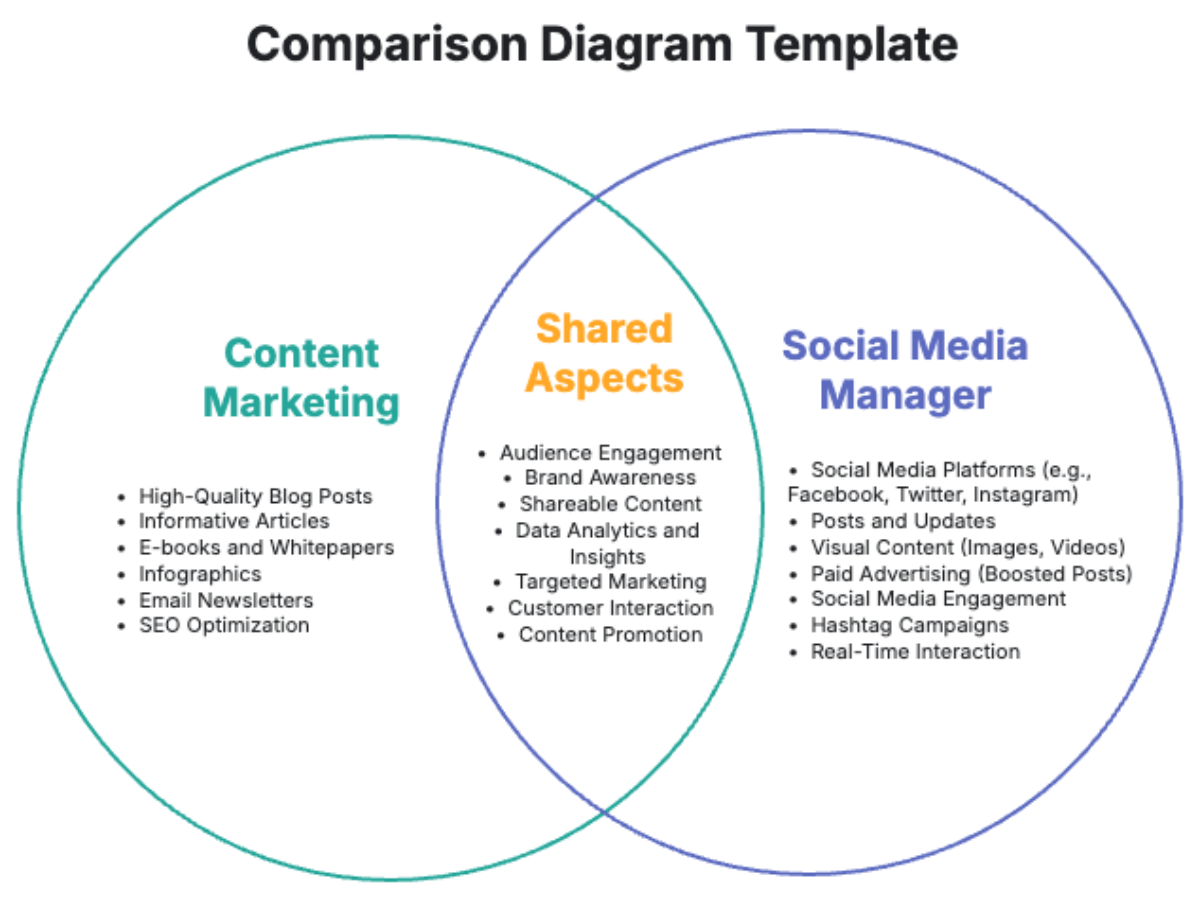
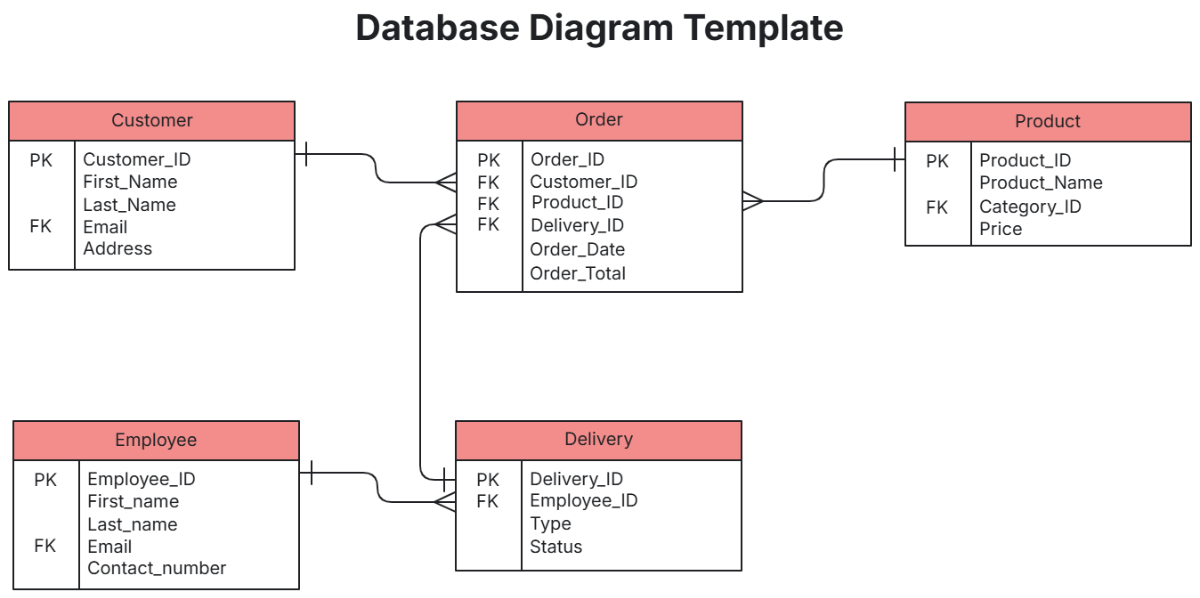
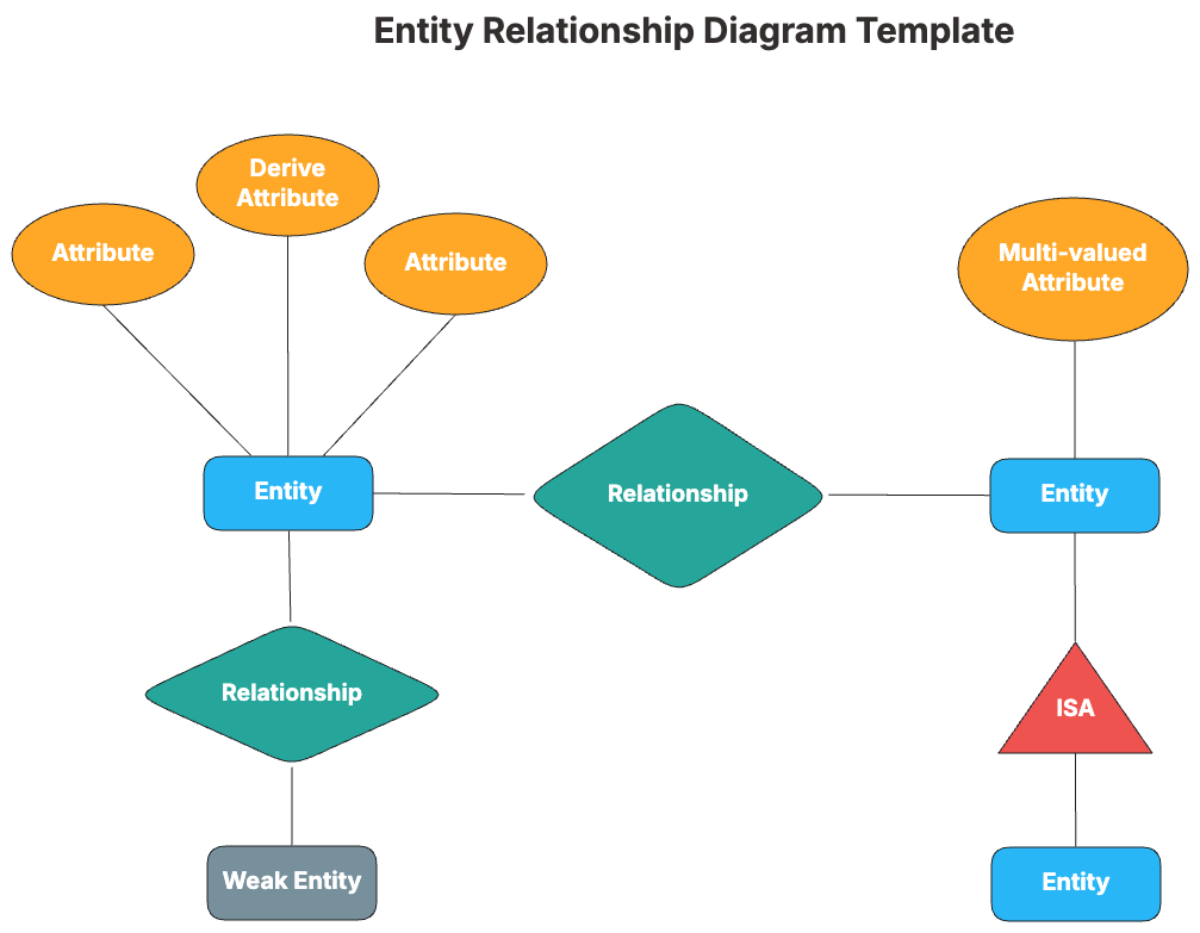
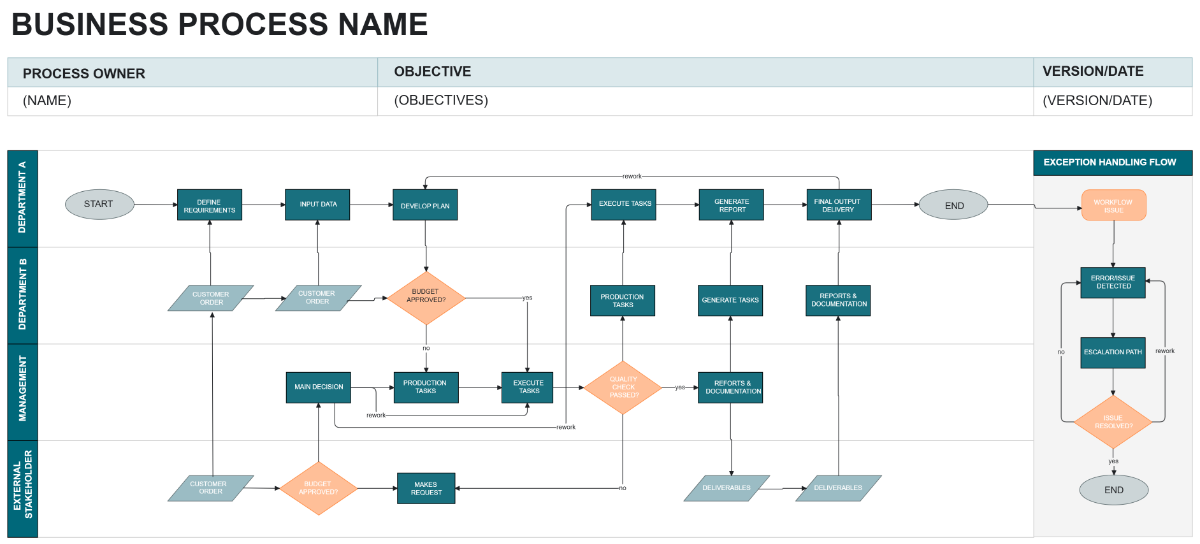
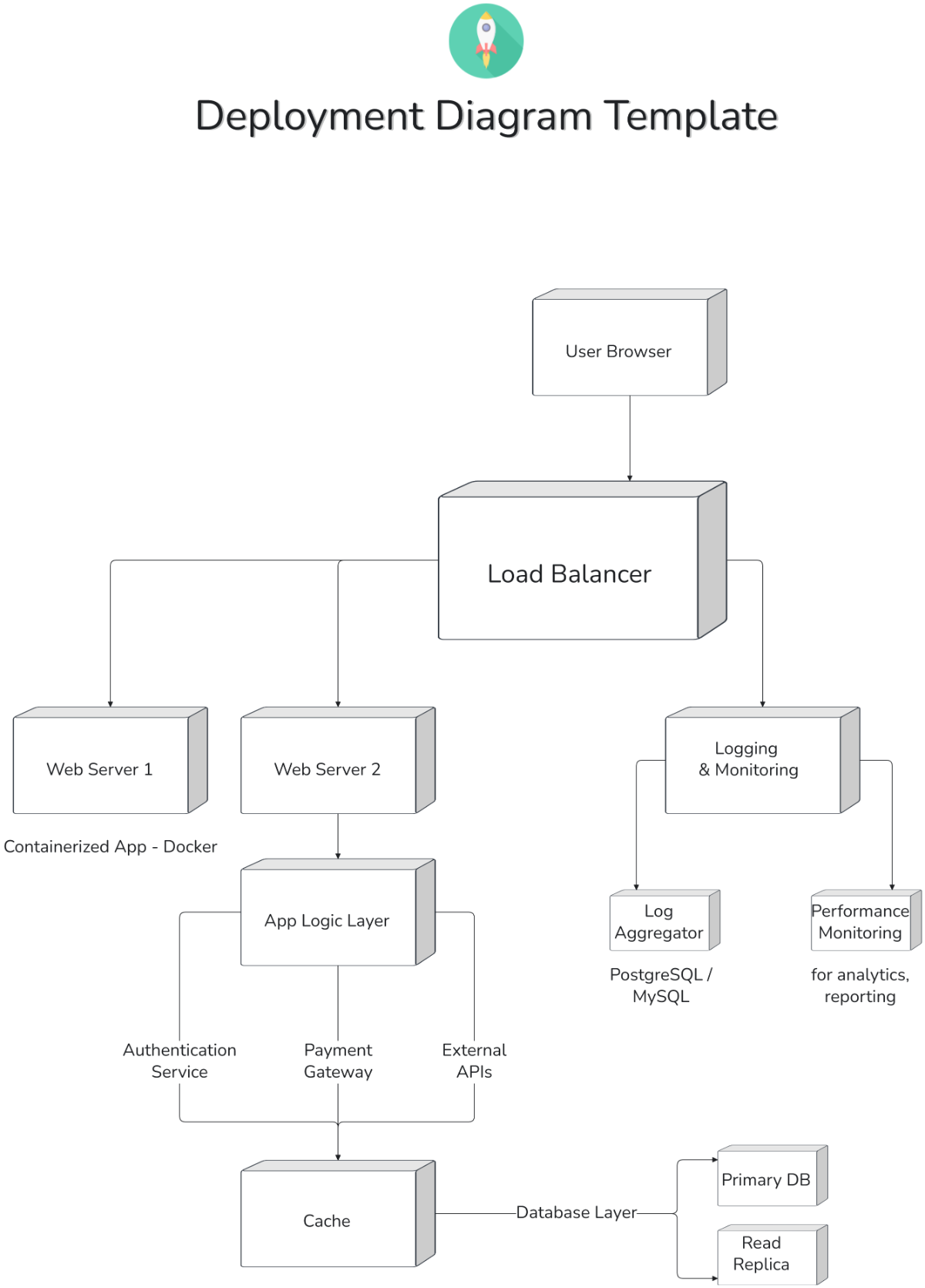
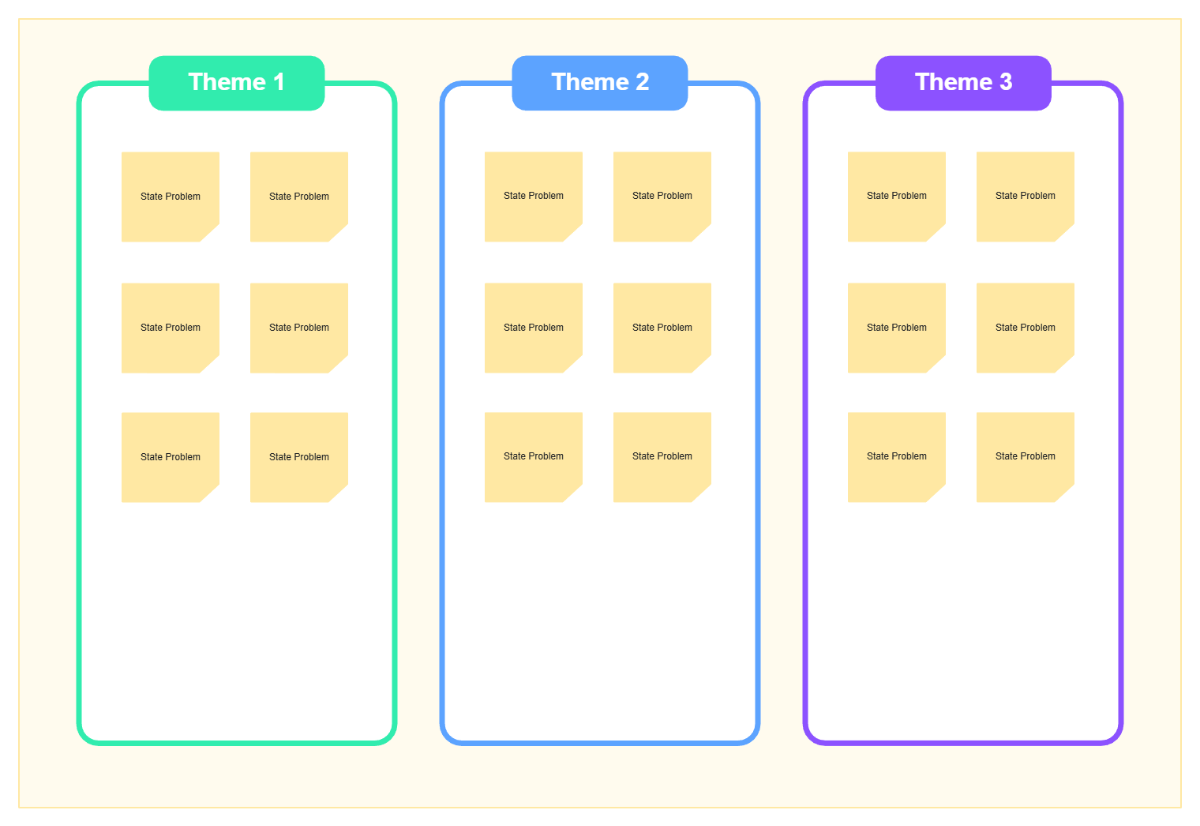
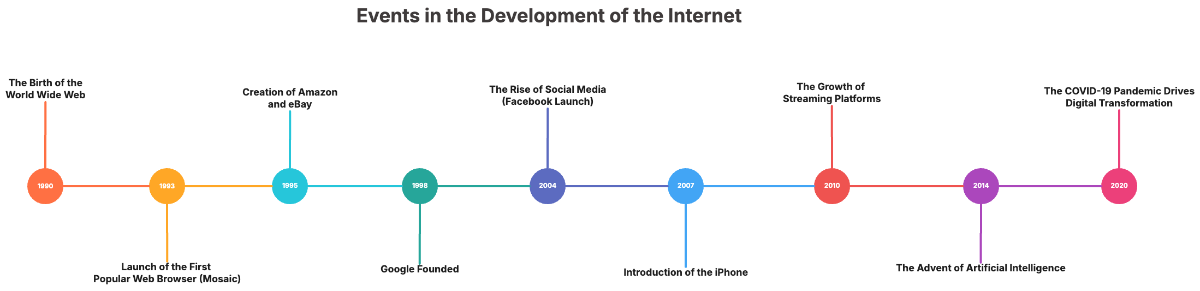
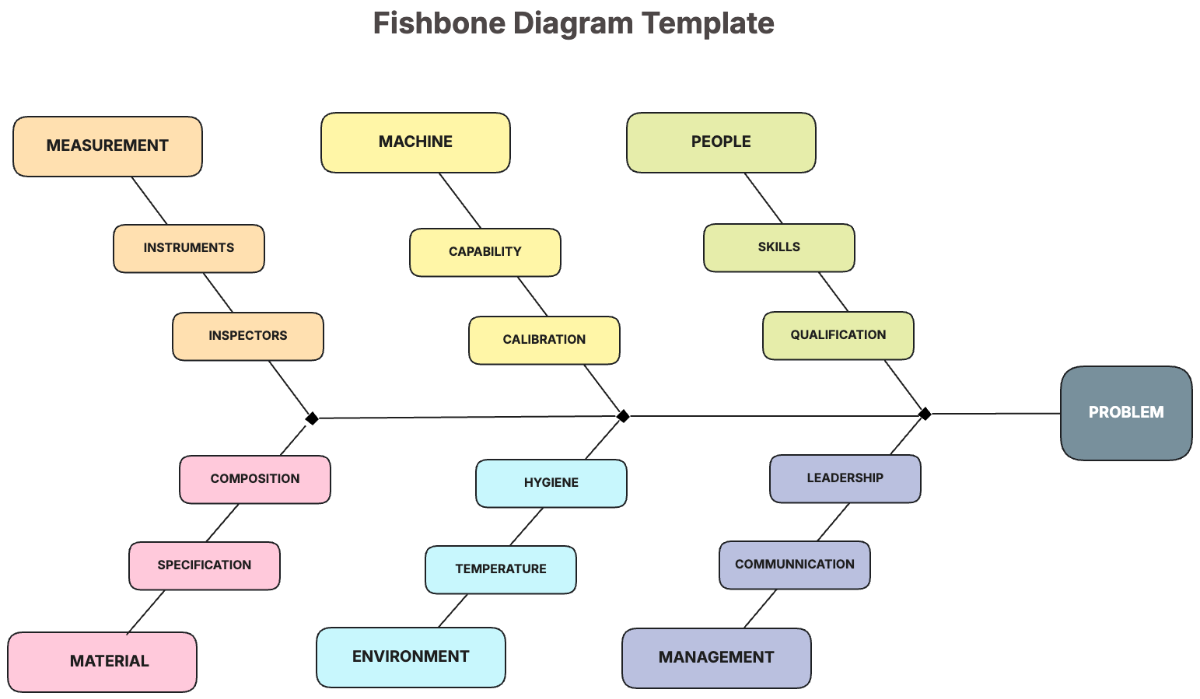
A Diagram is a structured visual representation that organizes information, data, or processes to illustrate relationships and workflows clearly. Diagrams use visual hierarchy, shapes, and connectors to depict complex ideas in an understandable format, supporting better communication and analysis.
Why should I use a Diagram?
You should use a Diagram to enhance structural clarity and simplify complex information through visual means. Diagrams improve understanding by highlighting workflow connections, facilitating decision-making, problem-solving, and collaborative discussions in teams or projects.
Who uses Diagrams?
Diagrams are used by professionals across many fields including business analysts, project managers, educators, engineers, and designers. These users rely on Diagrams to communicate ideas, map processes, and organize data for collaboration features and efficient workflow management.
What are the best tips for completing my Diagram?
To complete your Diagram effectively, consider these tips:
- Define your purpose – clarify the goal of your Diagram before starting
- Use consistent shapes – maintain uniform symbols for clarity
- Keep it simple – avoid clutter for better readability
- Label elements clearly – add descriptive text for understanding
- Use color strategically – highlight important areas without overwhelming
- Ensure logical flow – arrange elements to show clear relationships
- Test readability – review your Diagram to confirm ease of interpretation
- Collaborate if possible – get feedback to improve accuracy
What file formats can I download for my Diagram?
Template.net whiteboard Diagram templates support multiple export formats for collaboration and sharing, including Word, PDF, and Illustrator.
Can I create a Diagram using AI?
Template.net provides an AI-powered tool that generates new Diagram structures from prompts. You can explore this feature using the Diagram Maker to quickly create customizable Diagrams.
What essential elements should be included in my Diagram?
Your Diagram should include these essential elements for effective communication:
- Title – clearly identifies the Diagram’s subject
- Nodes or shapes – represent concepts, entities, or steps
- Connectors or arrows – show relationships or flow between elements
- Labels – explain elements or connections
- Legend or key – describes symbols or colors used
- Boundaries or groups – organize related components
What are the benefits of using Diagram in my project workflow?
Using Diagram in your project workflow offers several benefits:
- Improved clarity – visually simplifies complex processes
- Better communication – aligns team understanding through shared visuals
- Efficient problem-solving – identifies bottlenecks and solutions
- Enhanced collaboration – supports real-time editing and feedback
- Documentation – serves as a reference for project steps and structures
What structural standards should my Diagram follow?
Your Diagram should follow structural standards to ensure clarity and usability including:
- Consistent alignment – keep elements evenly spaced and aligned
- Uniform shape usage – use specific shapes for specific types of information
- Readable text size – ensure labels are legible at typical viewing sizes
- Clear flow direction – arrange connectors to indicate sequence or hierarchy
- Minimal crossing lines – reduce connector overlaps to avoid confusion
- Color contrast – maintain distinguishable colors for accessibility
