


![How to Add a Signature in Microsoft Forms [Templates + Examples] 2026](https://images.template.net/wp-content/uploads/2022/07/How-to-Add-a-Signature-in-Microsoft-Forms-Templates-Examples-2023-788x443.jpg)
How to Add a Signature in Microsoft Forms [Templates + Examples] 2026
Signatures found in documents establish who you are as an individual or as an organization. Aside from the fact that…
Dec 22, 2025


Sep 02, 2025
It’s important to know how to add signatures in MS Word documents because most documents require signatures to be considered official and credible. See our user-friendly guide below to learn the steps.
Microsoft Word makes it easy for its users to insert signatures. All the tools are there and accessible anytime. Follow the steps below and you’ll be a master at adding signatures in MS Word docs in no time.
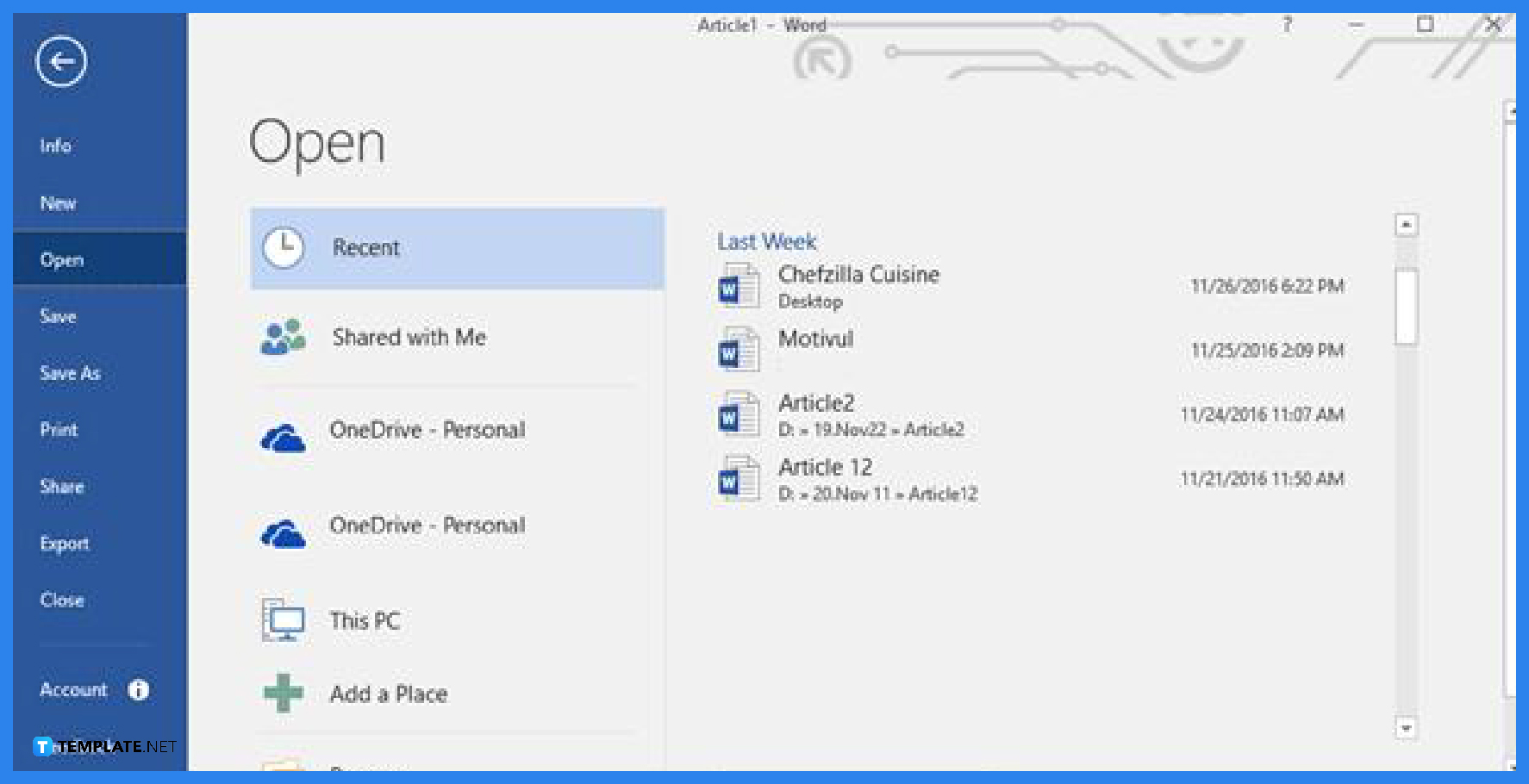
Launch MS Word on your computer and open a document file that needs a signature. If none, you can just use any document file so that you can execute the steps as we go along.
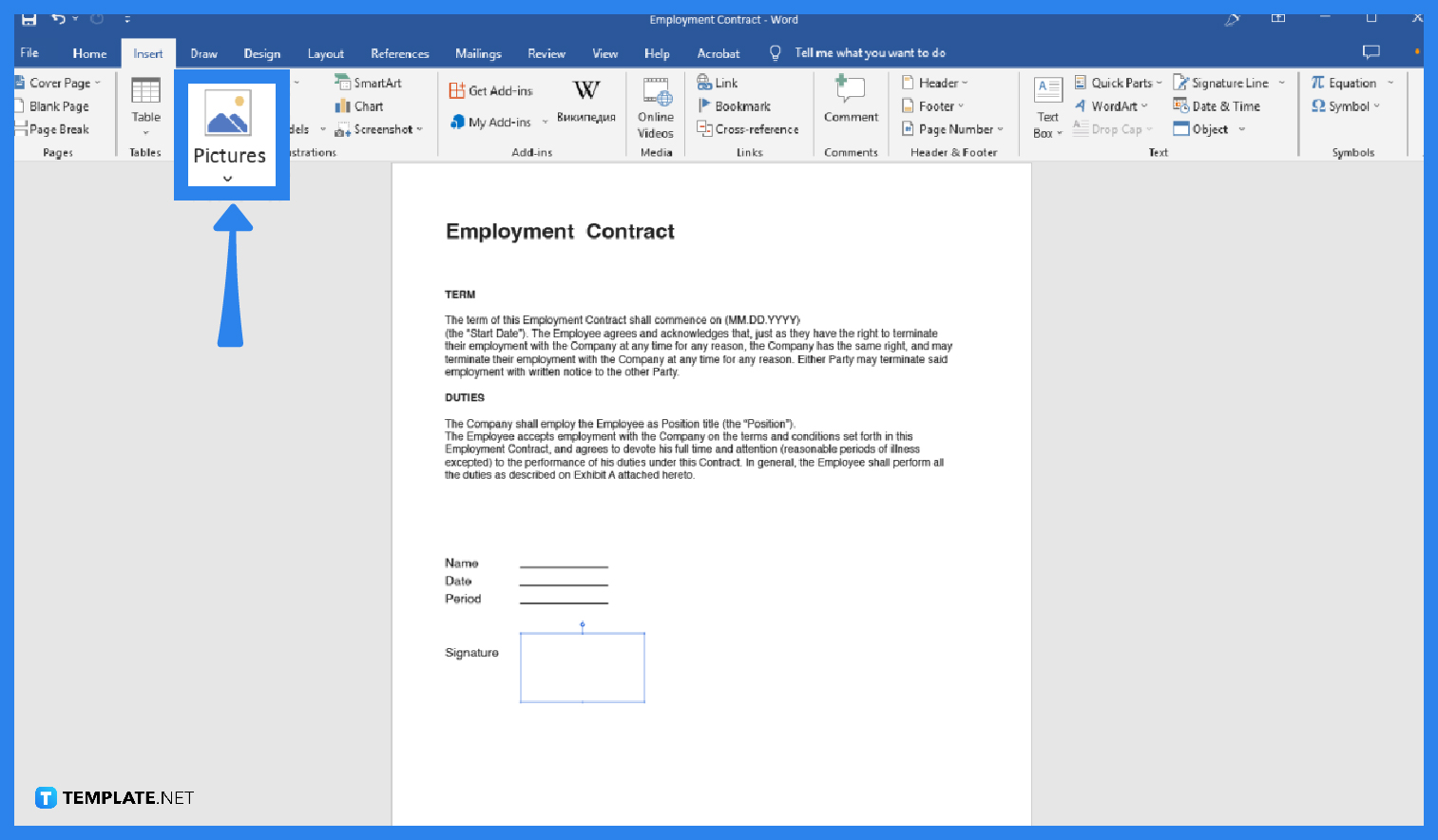
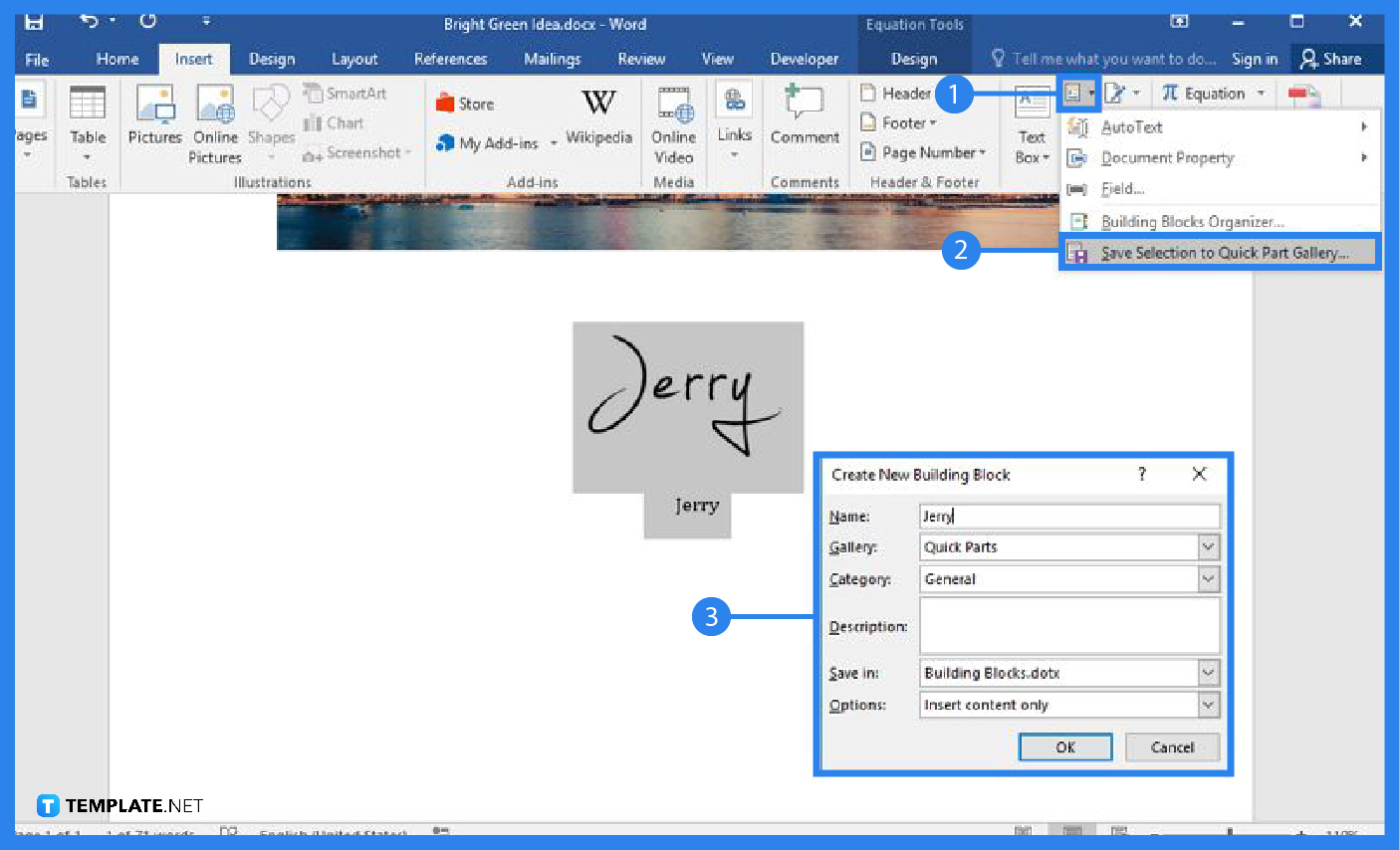
When you have opened an MS Word document, place the cursor on the line where you want the signature. After that, open the Insert tab and select Signature Line found in the Text section. This will open up the Signature Setup panel.
Enter every needed detail in the Signature Setup panel. That includes the signer’s name, title, and email address/contact info. For the part of indicating the title, make sure that it’s accurate. For example, if the signer is a doctor, the title should indicate that.
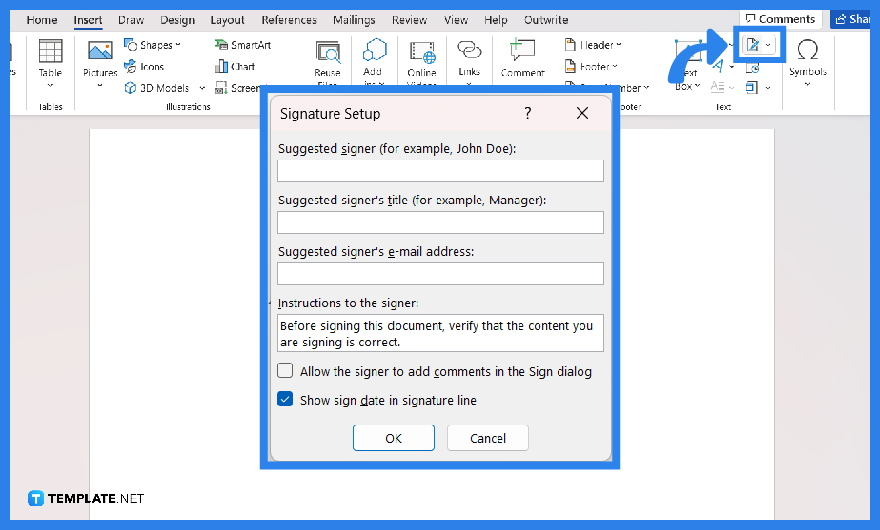
You can leave instructions for the signer in the Instructions to the Signer box. The instruction could be about the effects, ramifications, or new implementations upon signing the document. Keep it short and concise.
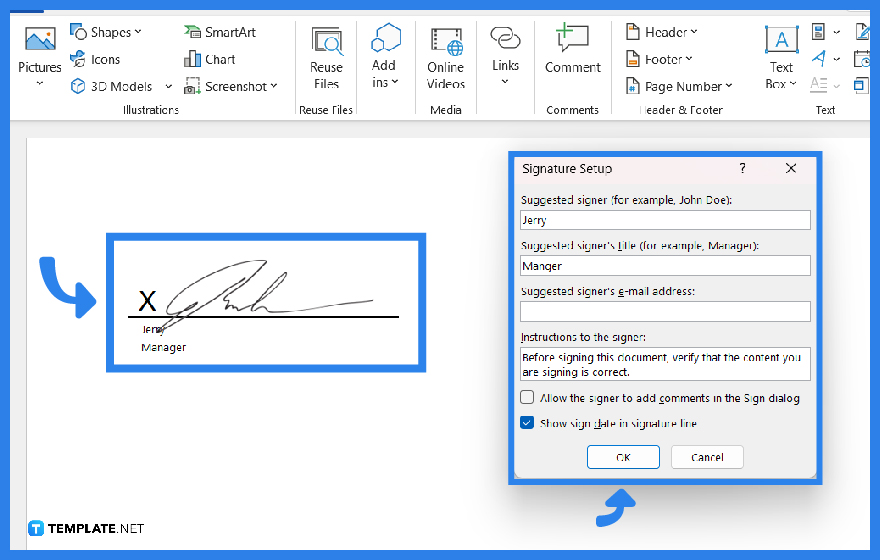
Once everything is set in the Signature Setup Panel, click OK to finally set the signature box in the doc. And once it’s set, the signer can insert his/her signature digitally by typing his/her name or inserting an image file of credible handwritten signatures.
Yes, you can insert your signature in MS Word using its built-in drawing tool.
Unfortunately, the feature to insert signatures isn’t available in the free version of MS Word and you can only insert signatures in the premium version of MS Word.
You can add signatures in MS Word mobile using single-cell tables and activating the underline key.
The process is easy and straightforward and that means it’ll only take less than a minute to insert signatures in an MS Word document.
Yes, you can remove and delete signatures in MS Word by right-clicking the signature line, selecting the Remove Signature option in the pop-up menu, and clicking the Yes button.
Yes, you’ll need a Microsoft 365 subscription or free trial to use the feature.

Signatures found in documents establish who you are as an individual or as an organization. Aside from the fact that…
![How To Make/Create a Newsletter in Microsoft Outlook [Templates + Examples] 2026](https://images.template.net/wp-content/uploads/2022/07/How-to-Start-a-Newsletter-with-Microsoft-Outlook-788x443.jpg)
Newsletters enable companies and organizations to communicate relevant and helpful information to their client, prospects, and subscribers. By giving you…
![How To Make/Create a Booklet in Microsoft Publisher [Templates + Examples] 2026](https://images.template.net/wp-content/uploads/2022/08/How-To-Make_Create-a-Booklet-in-Microsoft-Publisher-788x443.png)
Booklet templates are pre-designed layouts that make it easy to create a professional-looking booklet. They typically include placeholders for text…
![How To Make/Create a Booklet in Microsoft PowerPoint [Templates + Examples] 2026](https://images.template.net/wp-content/uploads/2022/07/How-To-Make-Create-a-Booklet-in-Microsoft-PowerPoint-788x443.jpg)
Booklets can be created in Microsoft PowerPoint, which offers a design feature that allows users to display them in PPT…
![How to Automatically Fill PDF Forms Using Microsoft Excel [Templates + Examples] 2026](https://images.template.net/wp-content/uploads/2022/07/How-to-Automatically-Fill-PDF-Forms-Using-Microsoft-Excel-788x444.png)
Automatically fill PDF forms using Microsoft Excel so you won’t have to save multiple PDF forms in an Excel spreadsheet…
![How to Make/Create a Floor Plan on Microsoft Excel [Templates + Examples] 2026](https://images.template.net/wp-content/uploads/2022/07/How-to-Make-a-Floor-Plan-on-Microsoft-Excel-788x443.jpg)
Floor plans either make or break projects related to engineering and architecture. That being said, every apartment room, bedroom, living…
![How to Make/Create a Grid in Microsoft Word [Templates + Examples] 2026](https://images.template.net/wp-content/uploads/2022/07/How-to-Make_Create-a-Grid-in-Microsoft-Word-788x444.jpg)
Grids consist of a network of lines that work as graphic cues while formatting your document in Microsoft Office. If…
![How to Add More Highlight Colors to Microsoft Word [Templates + Examples] 2026](https://images.template.net/wp-content/uploads/2022/07/How-to-Add-More-Highlight-Colors-to-Microsoft-Word-Templates-Examples-2023-788x443.jpg)
Add more highlight colors to Microsoft Word so you won’t have to settle with the default shading color in marking…
![How to Make/Create a Border in Microsoft Publisher [Templates + Examples] 2026](https://images.template.net/wp-content/uploads/2022/08/How-to-MakeCreate-a-Border-in-Microsoft-Publisher-788x444.png)
Borders are graphic design elements that make a document more pleasing and stylish to look at. This can be used…