


![How to Add a Signature in Microsoft Forms [Templates + Examples] 2026](https://images.template.net/wp-content/uploads/2022/07/How-to-Add-a-Signature-in-Microsoft-Forms-Templates-Examples-2023-788x443.jpg)
How to Add a Signature in Microsoft Forms [Templates + Examples] 2026
Signatures found in documents establish who you are as an individual or as an organization. Aside from the fact that…
Dec 22, 2025


Sep 02, 2025
Microsoft Publisher makes it possible for you to build a website page even though it isn’t a major tool for web designers. In addition, the application offers tools that make your website look more appealing and functional.
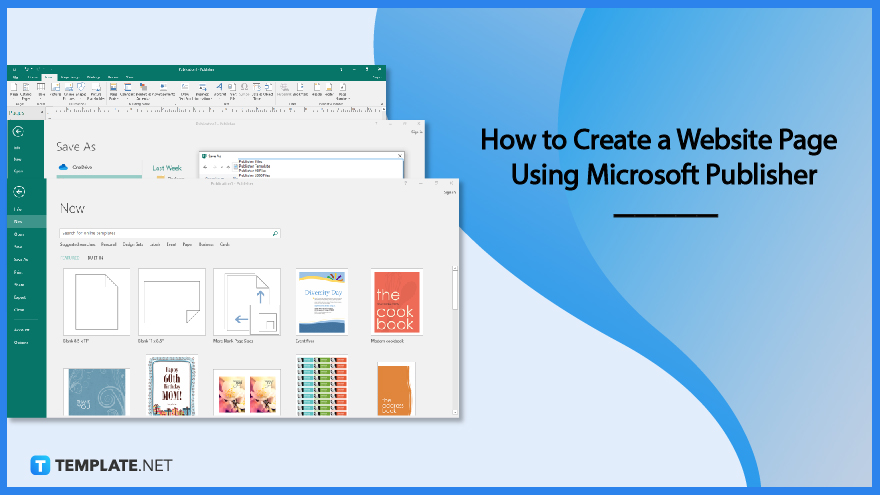
You can create a simple website in just a few easy steps and export it to a format that web browsers can understand.
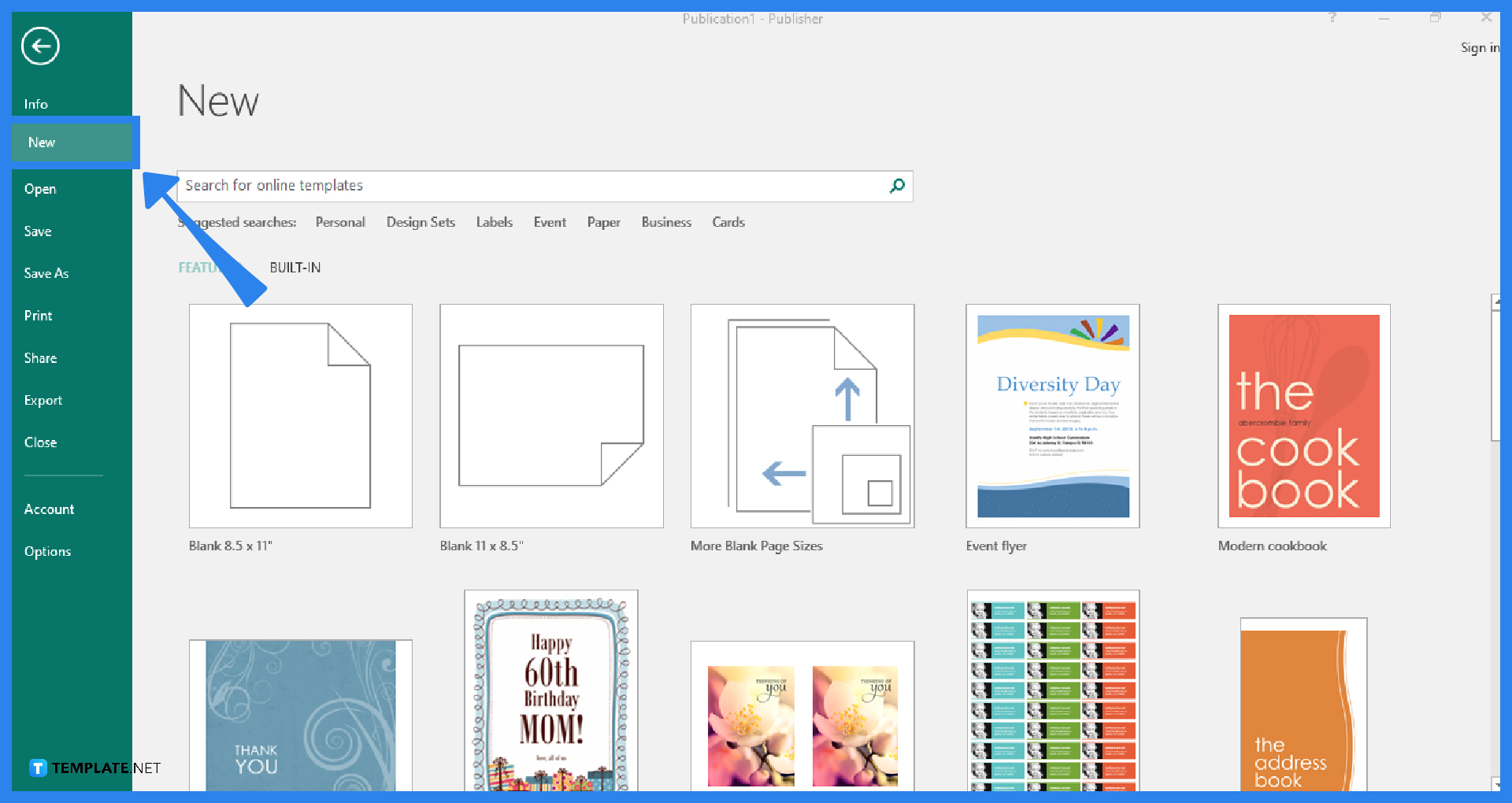
Launch the Microsoft Publisher application and create a new publication by going to the File tab and clicking New. You can either select a template in the template category that closely resembles the kind of website you want to build or use a blank template if you want to start from scratch when creating the website.
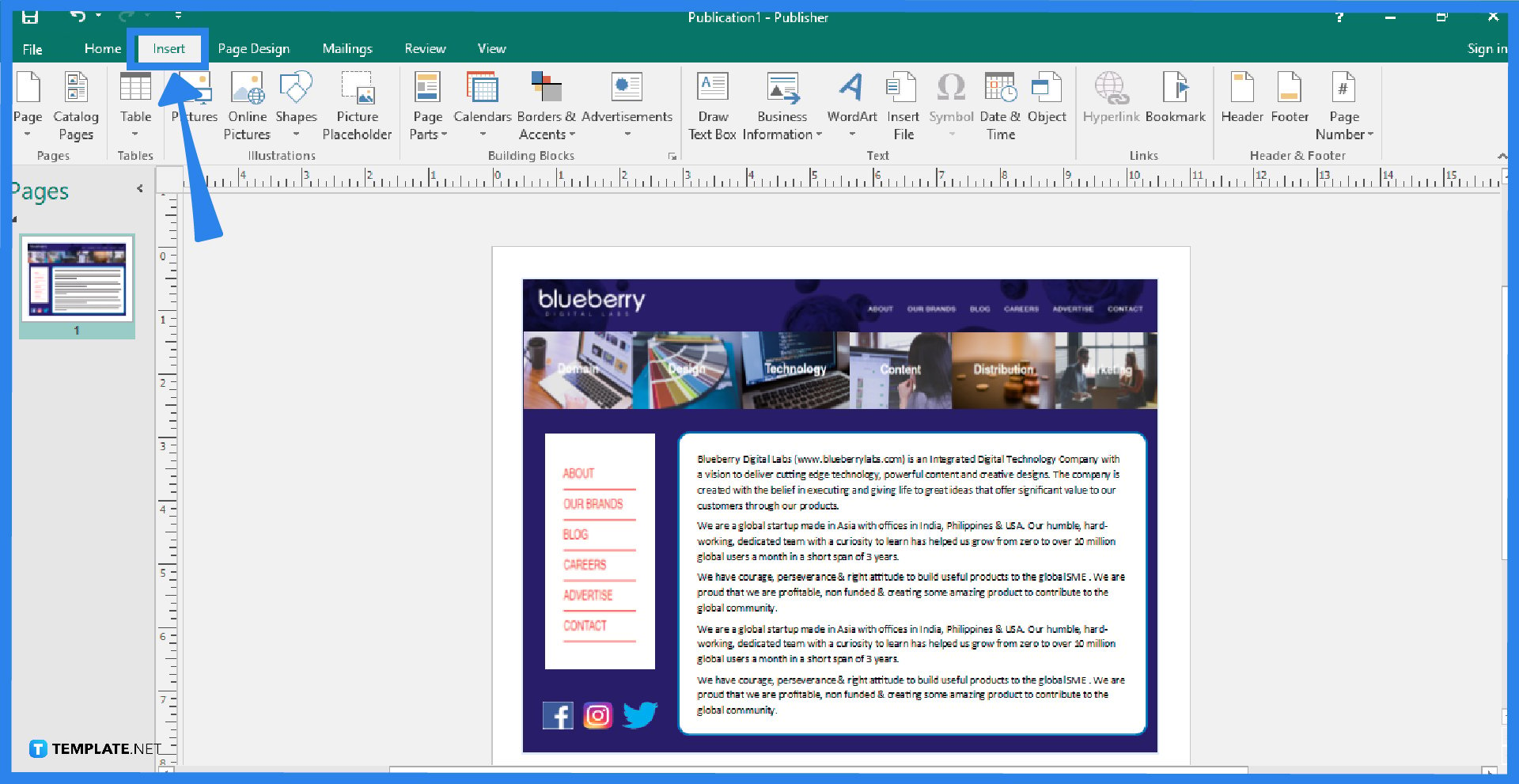
To add elements to your website page, select any of the icons from the “Objects” section by clicking the “Home” tab on the Microsoft Publisher toolbar. For example, if you want to insert a picture, select the “Pictures” button. Click the “Insert” tab to see additional objects you can add to your website, such as WordArt or the Draw Text Box, which is a way to add text, or you can also insert Microsoft Word documents by clicking Insert File. You can also move any of the objects you added by clicking on them and dragging them around to create a layout for your website page.
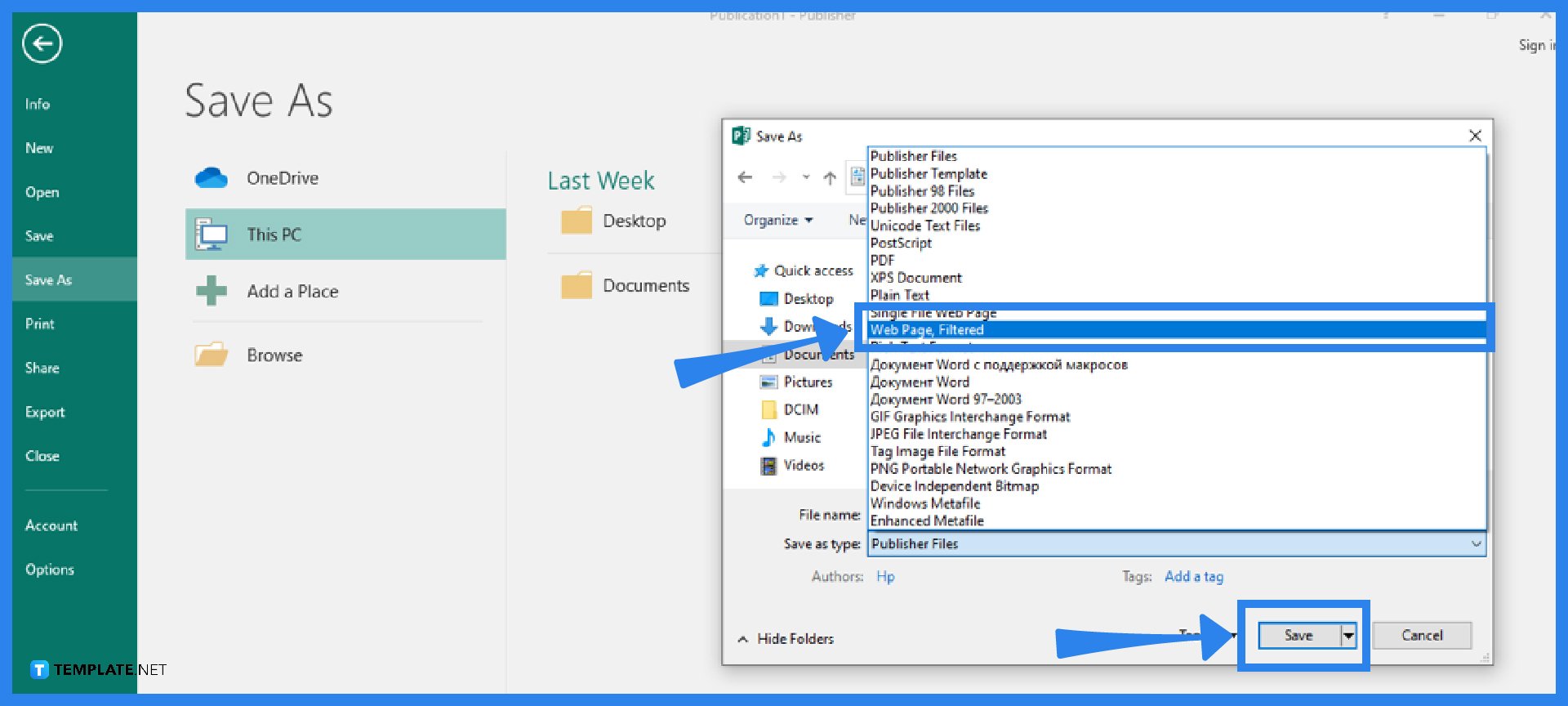
To save your output, go to the File menu of the Publisher ribbon and click on the Save As option. Select a location where you wish to save the website page and give a descriptive name to the file. Move to the “Save as type” section and click the arrow-down button. Then, choose “Web Page, Filtered” and click the Save button.
The fastest way to design in Microsoft Publisher is to use a built-in template, which you can find in the New option from the File tab (the template can be formatted and customized however you want).
To aid small businesses that might not have had websites, Microsoft has introduced Smart Pages, a free website builder platform where you can create, edit, and publish your website for free with no payment information required.
Existing documents can be converted to HTML format using Microsoft Word, and you can create documents for the web by selecting the “Save as Web Page” option when saving the file, but keep in mind that there can be layout variations once you convert a document.
Microsoft Publisher is a desktop publishing program that can be used to create a variety of publications, where you can easily create business cards, greeting cards, calendars, newsletters, flyers, banners, brochures, and a lot more.
Yes, just open the Publisher file, go to the File menu, choose Save As, select a location for the file, enter a new descriptive name for the file, choose “Web Page, Filtered” from the “Save as type” section, and then click Save.

Signatures found in documents establish who you are as an individual or as an organization. Aside from the fact that…
![How To Make/Create a Newsletter in Microsoft Outlook [Templates + Examples] 2026](https://images.template.net/wp-content/uploads/2022/07/How-to-Start-a-Newsletter-with-Microsoft-Outlook-788x443.jpg)
Newsletters enable companies and organizations to communicate relevant and helpful information to their client, prospects, and subscribers. By giving you…
![How To Make/Create a Booklet in Microsoft Publisher [Templates + Examples] 2026](https://images.template.net/wp-content/uploads/2022/08/How-To-Make_Create-a-Booklet-in-Microsoft-Publisher-788x443.png)
Booklet templates are pre-designed layouts that make it easy to create a professional-looking booklet. They typically include placeholders for text…
![How To Make/Create a Booklet in Microsoft PowerPoint [Templates + Examples] 2026](https://images.template.net/wp-content/uploads/2022/07/How-To-Make-Create-a-Booklet-in-Microsoft-PowerPoint-788x443.jpg)
Booklets can be created in Microsoft PowerPoint, which offers a design feature that allows users to display them in PPT…
![How to Automatically Fill PDF Forms Using Microsoft Excel [Templates + Examples] 2026](https://images.template.net/wp-content/uploads/2022/07/How-to-Automatically-Fill-PDF-Forms-Using-Microsoft-Excel-788x444.png)
Automatically fill PDF forms using Microsoft Excel so you won’t have to save multiple PDF forms in an Excel spreadsheet…
![How to Make/Create a Floor Plan on Microsoft Excel [Templates + Examples] 2026](https://images.template.net/wp-content/uploads/2022/07/How-to-Make-a-Floor-Plan-on-Microsoft-Excel-788x443.jpg)
Floor plans either make or break projects related to engineering and architecture. That being said, every apartment room, bedroom, living…
![How to Make/Create a Grid in Microsoft Word [Templates + Examples] 2026](https://images.template.net/wp-content/uploads/2022/07/How-to-Make_Create-a-Grid-in-Microsoft-Word-788x444.jpg)
Grids consist of a network of lines that work as graphic cues while formatting your document in Microsoft Office. If…
![How to Add More Highlight Colors to Microsoft Word [Templates + Examples] 2026](https://images.template.net/wp-content/uploads/2022/07/How-to-Add-More-Highlight-Colors-to-Microsoft-Word-Templates-Examples-2023-788x443.jpg)
Add more highlight colors to Microsoft Word so you won’t have to settle with the default shading color in marking…
![How to Make/Create a Border in Microsoft Publisher [Templates + Examples] 2026](https://images.template.net/wp-content/uploads/2022/08/How-to-MakeCreate-a-Border-in-Microsoft-Publisher-788x444.png)
Borders are graphic design elements that make a document more pleasing and stylish to look at. This can be used…