


![How to Add a Signature in Microsoft Forms [Templates + Examples] 2026](https://images.template.net/wp-content/uploads/2022/07/How-to-Add-a-Signature-in-Microsoft-Forms-Templates-Examples-2023-788x443.jpg)
How to Add a Signature in Microsoft Forms [Templates + Examples] 2026
Signatures found in documents establish who you are as an individual or as an organization. Aside from the fact that…
Dec 22, 2025


Sep 02, 2025
Microsoft Visio offers tools and features that would make your work more convenient whether you are creating a flowchart or a diagram. Aside from creating, you can also edit and collaborate with other people in real-time.
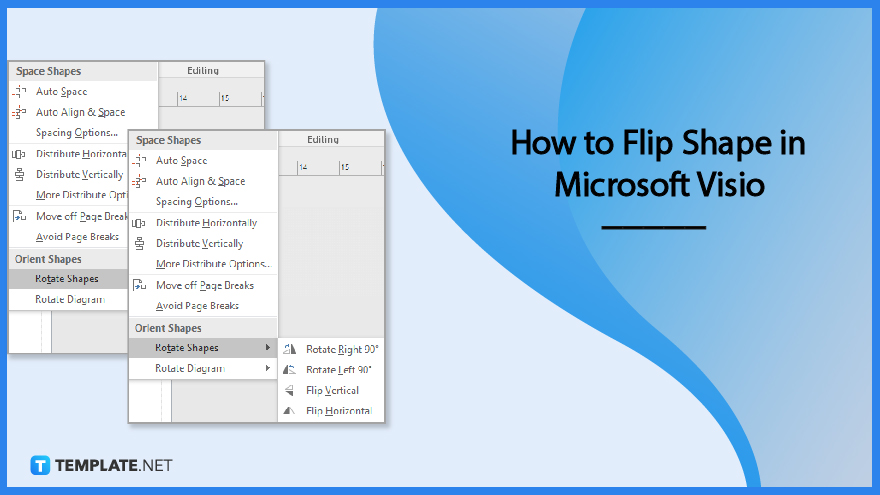
Some shapes don’t just come along with how you want them to look like with other shapes. This article will guide you to navigate the tools in Microsoft Visio and flip a shape according to your preference.
To start, open the document you are currently working on in Microsoft Visio. Identify the shape or groups of shapes that you want to flip. Analyzing the best angle of the shape would be best to help the drawing come together.
Afterward, choose the shapes that you want to flip by clicking them. If you want to flip all the shapes in your drawing, highlight all the shapes or press CTRL+A. However, if you want to flip more than one shape, hold CTRL then click those shapes.
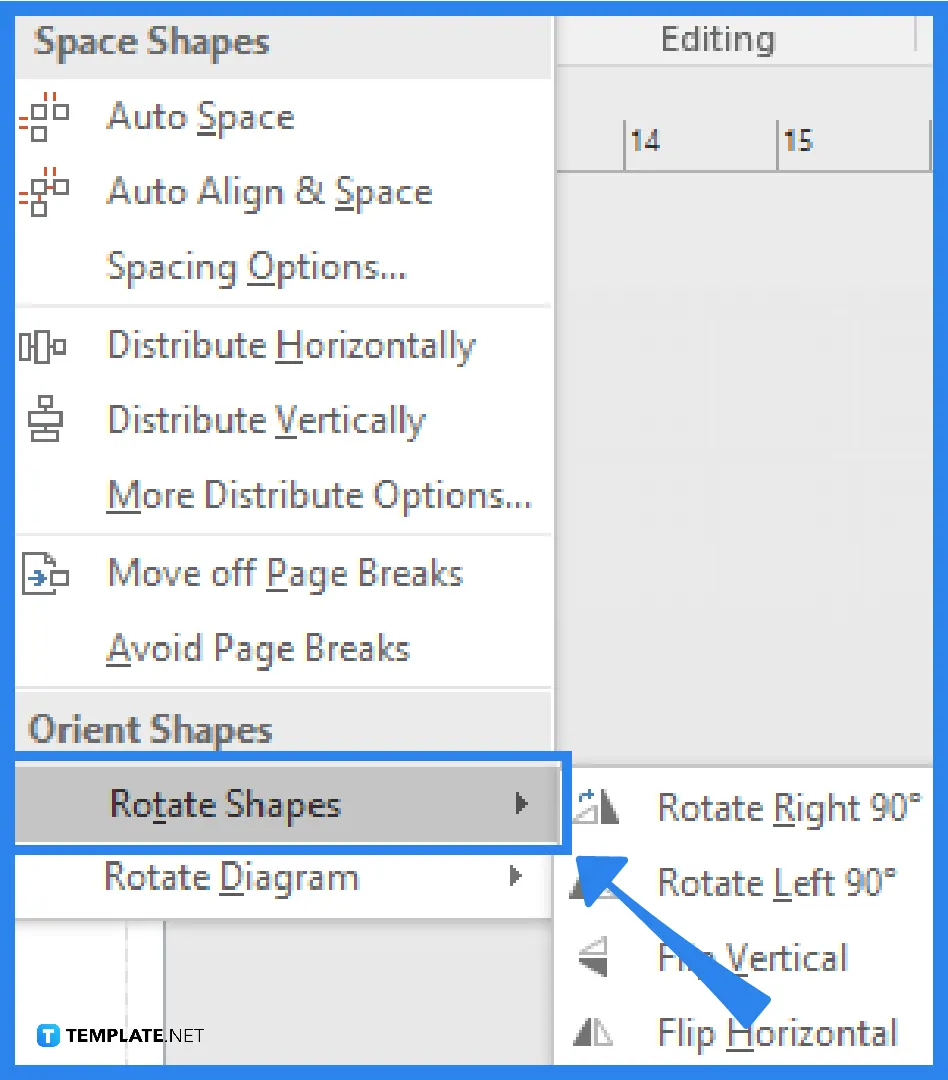
Now that you have selected the shapes, click the Position which can be found in the Arrange group on the Home tab. Next, point to the Rotate Shapes. To flip the shape vertically, choose Flip Vertical, and if you want to flip the share horizontally, select Flip Horizontal.
Before proceeding to create your next drawing, check the shapes that you recently flipped. There are shapes, particularly when you are using a template, that can’t be changed or moved because they are locked and meant to stay that way in that template. This last step doesn’t always apply to all drawings but it’s better to check than going over the shapes when everything else is done or exported.
You don’t really need to flip a shape for the sake of using that specific tool in Microsoft Visio; but you need to flip a shape if it does not go along with how the drawing is supposed to look.
The keyboard shortcut to flip a selected shape horizontally is CTRL+H.
To select more than one shape on the page, just hold the CTRL button on your keyboard and click the shapes that you want to be flipped.
The keyboard shortcut to flip a selected shape vertically is CTRL+J.
Rotating a shape is not the same as flipping a shape; when you flip a shape, it turns either horizontally or vertically, which would make the shape a mirror image.
This depends on how the shape looks on the page – if you think that a particular shape disturbs the drawing with the way it is positioned originally, then you can flip it either horizontally or vertically.

Signatures found in documents establish who you are as an individual or as an organization. Aside from the fact that…
![How To Make/Create a Newsletter in Microsoft Outlook [Templates + Examples] 2026](https://images.template.net/wp-content/uploads/2022/07/How-to-Start-a-Newsletter-with-Microsoft-Outlook-788x443.jpg)
Newsletters enable companies and organizations to communicate relevant and helpful information to their client, prospects, and subscribers. By giving you…
![How To Make/Create a Booklet in Microsoft Publisher [Templates + Examples] 2026](https://images.template.net/wp-content/uploads/2022/08/How-To-Make_Create-a-Booklet-in-Microsoft-Publisher-788x443.png)
Booklet templates are pre-designed layouts that make it easy to create a professional-looking booklet. They typically include placeholders for text…
![How To Make/Create a Booklet in Microsoft PowerPoint [Templates + Examples] 2026](https://images.template.net/wp-content/uploads/2022/07/How-To-Make-Create-a-Booklet-in-Microsoft-PowerPoint-788x443.jpg)
Booklets can be created in Microsoft PowerPoint, which offers a design feature that allows users to display them in PPT…
![How to Automatically Fill PDF Forms Using Microsoft Excel [Templates + Examples] 2026](https://images.template.net/wp-content/uploads/2022/07/How-to-Automatically-Fill-PDF-Forms-Using-Microsoft-Excel-788x444.png)
Automatically fill PDF forms using Microsoft Excel so you won’t have to save multiple PDF forms in an Excel spreadsheet…
![How to Make/Create a Floor Plan on Microsoft Excel [Templates + Examples] 2026](https://images.template.net/wp-content/uploads/2022/07/How-to-Make-a-Floor-Plan-on-Microsoft-Excel-788x443.jpg)
Floor plans either make or break projects related to engineering and architecture. That being said, every apartment room, bedroom, living…
![How to Make/Create a Grid in Microsoft Word [Templates + Examples] 2026](https://images.template.net/wp-content/uploads/2022/07/How-to-Make_Create-a-Grid-in-Microsoft-Word-788x444.jpg)
Grids consist of a network of lines that work as graphic cues while formatting your document in Microsoft Office. If…
![How to Add More Highlight Colors to Microsoft Word [Templates + Examples] 2026](https://images.template.net/wp-content/uploads/2022/07/How-to-Add-More-Highlight-Colors-to-Microsoft-Word-Templates-Examples-2023-788x443.jpg)
Add more highlight colors to Microsoft Word so you won’t have to settle with the default shading color in marking…
![How to Make/Create a Border in Microsoft Publisher [Templates + Examples] 2026](https://images.template.net/wp-content/uploads/2022/08/How-to-MakeCreate-a-Border-in-Microsoft-Publisher-788x444.png)
Borders are graphic design elements that make a document more pleasing and stylish to look at. This can be used…