


![How to Add a Signature in Microsoft Forms [Templates + Examples] 2026](https://images.template.net/wp-content/uploads/2022/07/How-to-Add-a-Signature-in-Microsoft-Forms-Templates-Examples-2023-788x443.jpg)
How to Add a Signature in Microsoft Forms [Templates + Examples] 2026
Signatures found in documents establish who you are as an individual or as an organization. Aside from the fact that…
Dec 22, 2025


Sep 02, 2025
Microsoft Publisher provides calendar designs that are commercially available in a variety of styles and sizes. You can make your own calendar using its selection of built-in templates, and you can add your own pictures and text.
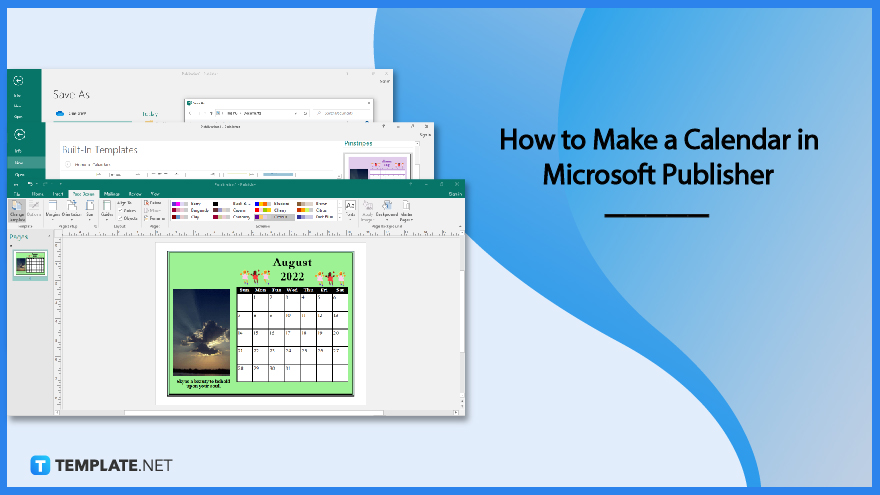
You can create a calendar in Microsoft Publisher to include date ranges from 1900 to 2200. You can also display your calendar for either a month or a whole year on each page.
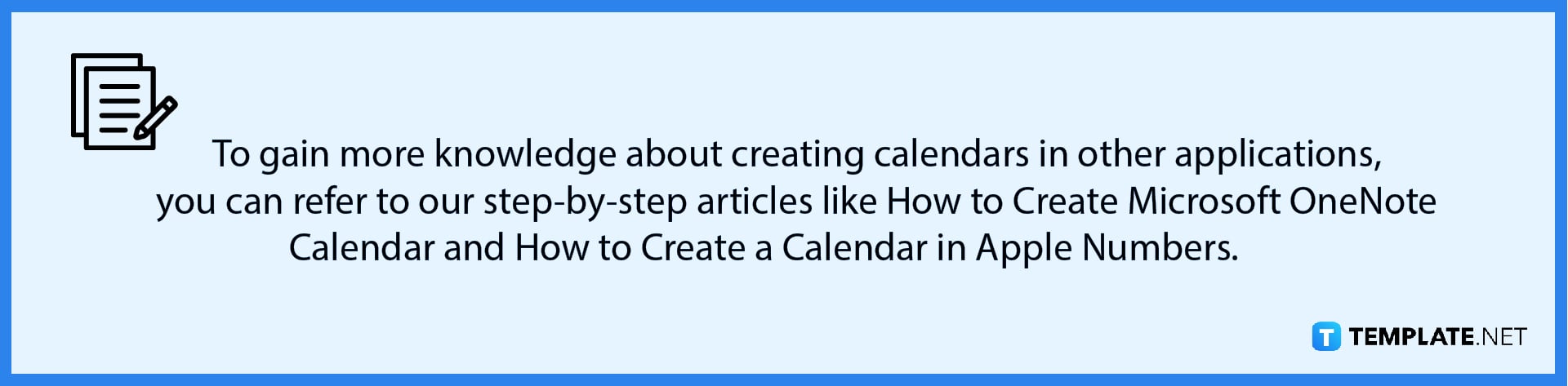
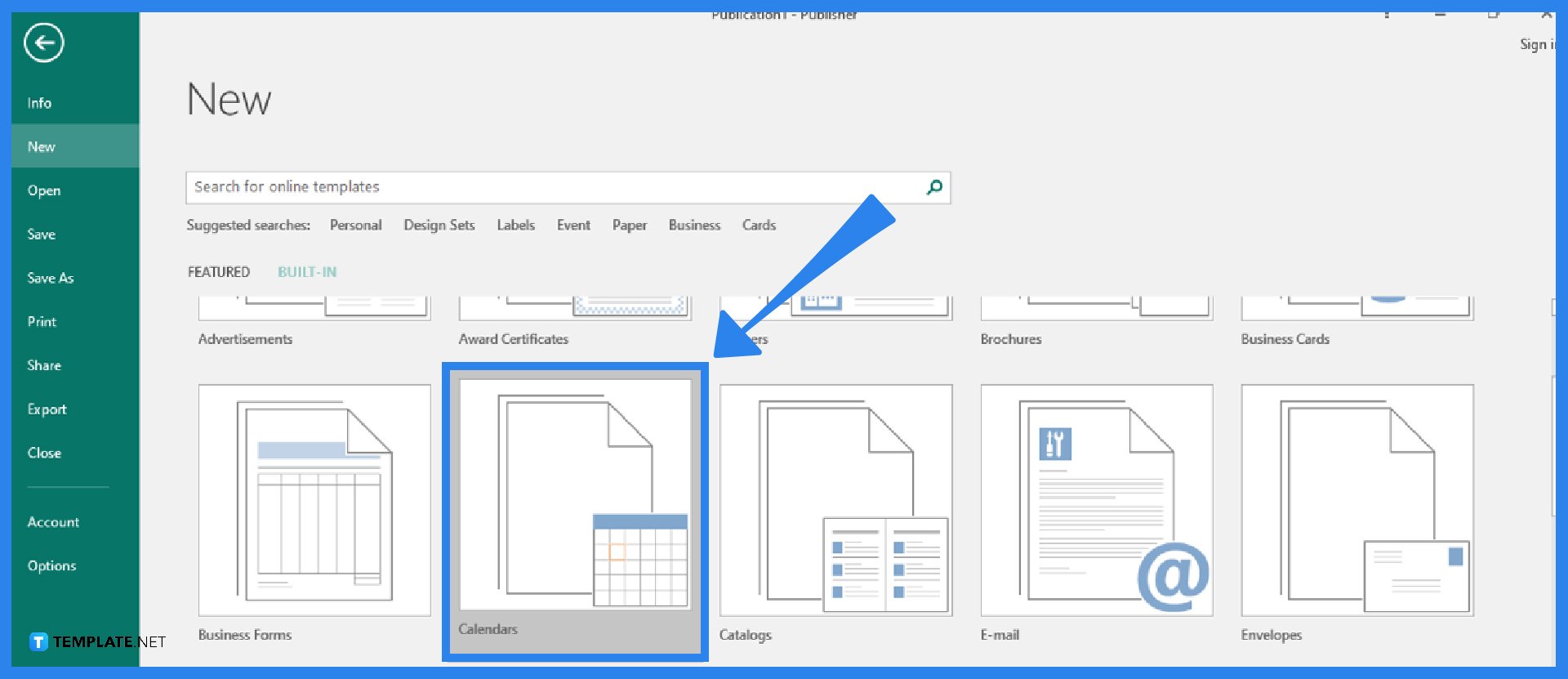
Launch your Microsoft Publisher program. Then, go to the File tab of the Publisher ribbon and click on the New option. From there, click on Built-In. Microsoft Publisher will display a series of categories that you can choose from. Click on the Calendar category. Select the calendar design template that you want to use as a reference (for example, Pinstripes). Calendars are categorized by their type, such as Full Page and Wallet Size.
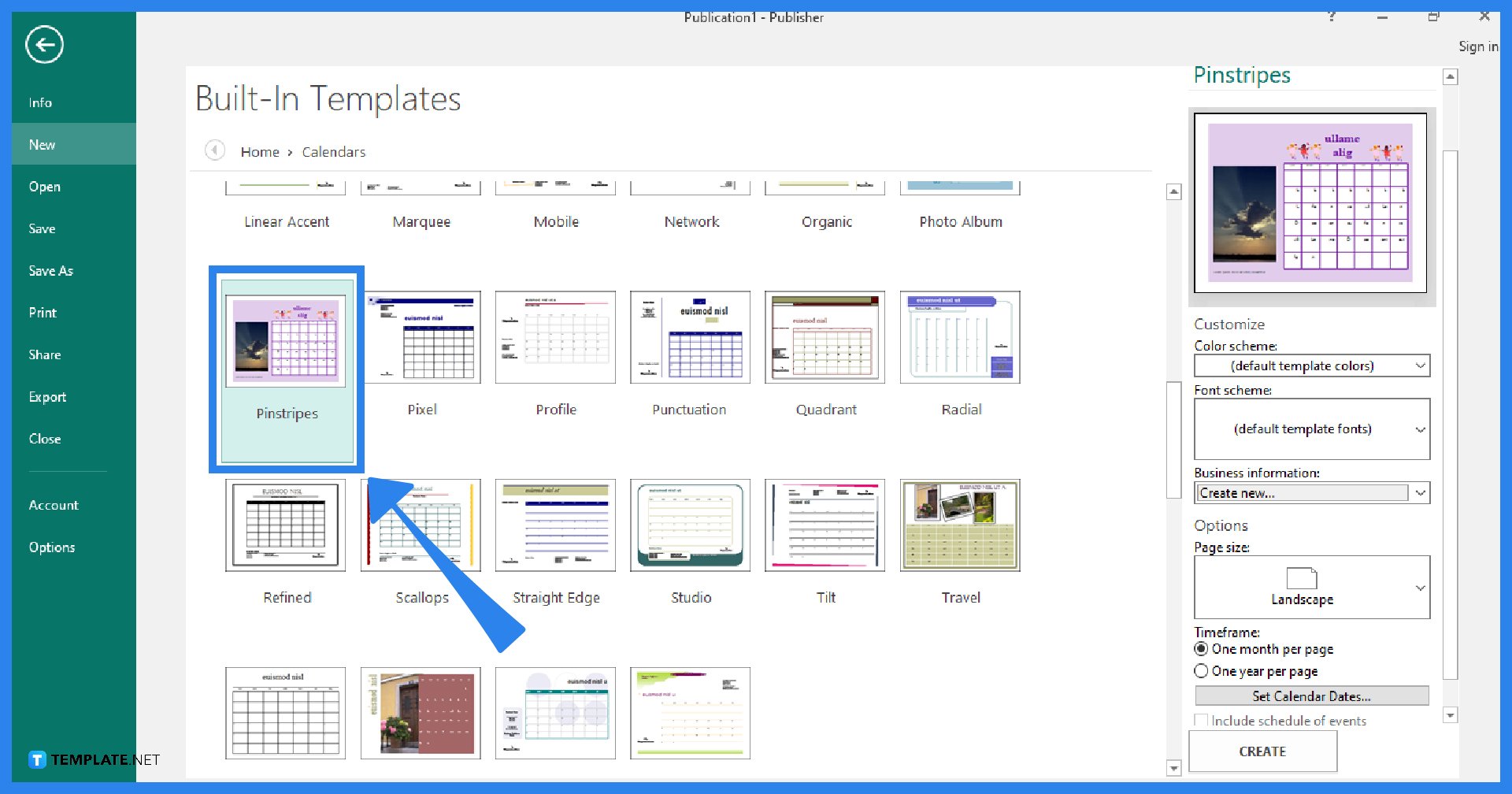
Set up the desired settings in the task pane, such as the desired color or font scheme, page orientation, and whether you want to display one month or one year per calendar page (to change the month that the calendar starts on, click Set Calendar Dates). Put a check mark in the “Include schedule of events” checkbox to add an event schedule to your calendar, but please note that not all calendar templates can support a schedule of events. After all the adjustments, click on the “Create” button.
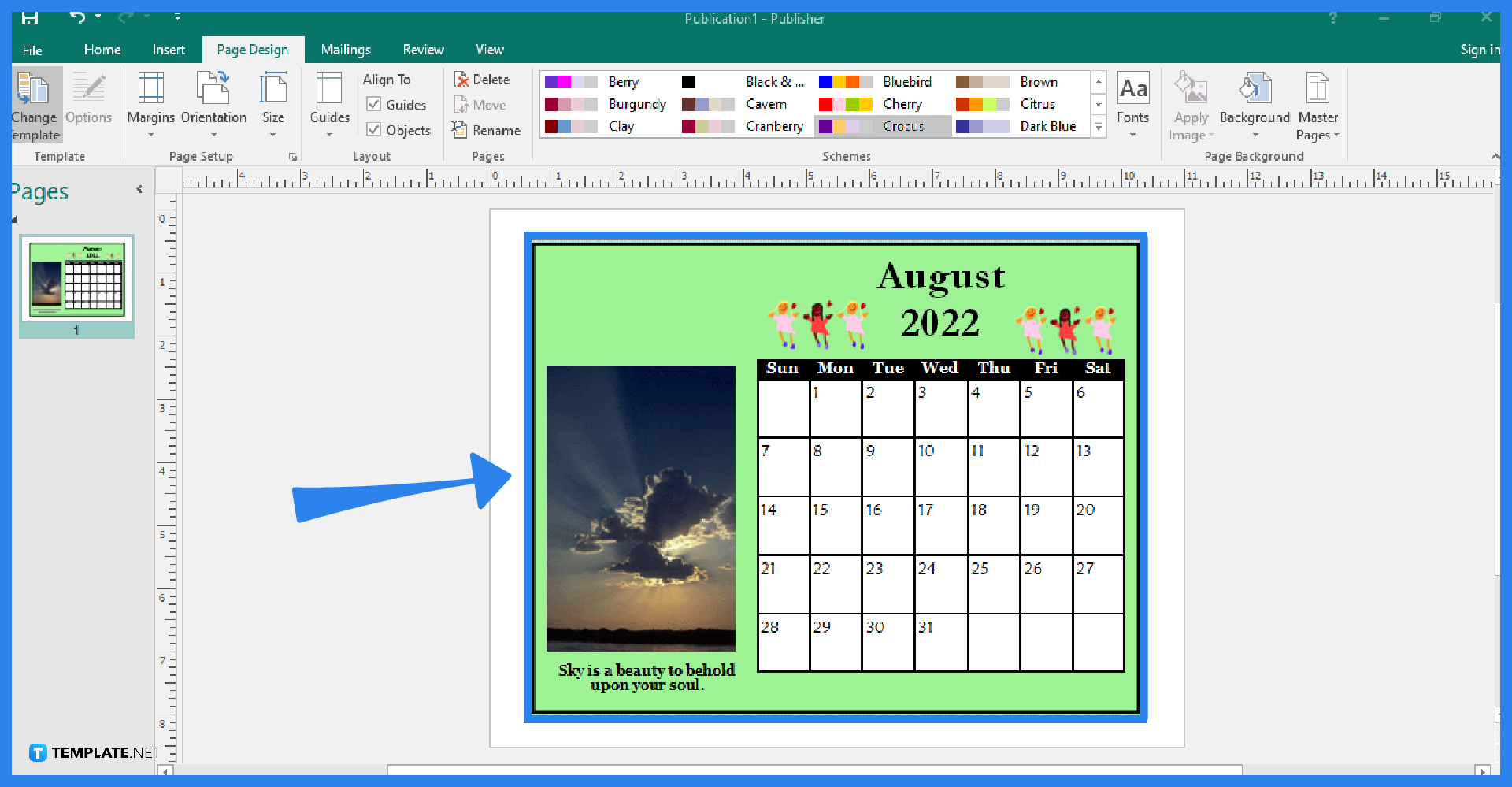
Now is the time to customize your calendar the way that you want it. Select the Page Design tab, and from there, you can change the color, font, size, margin, and page orientation of your template. You can also change the picture or add more pictures or objects to the calendar.
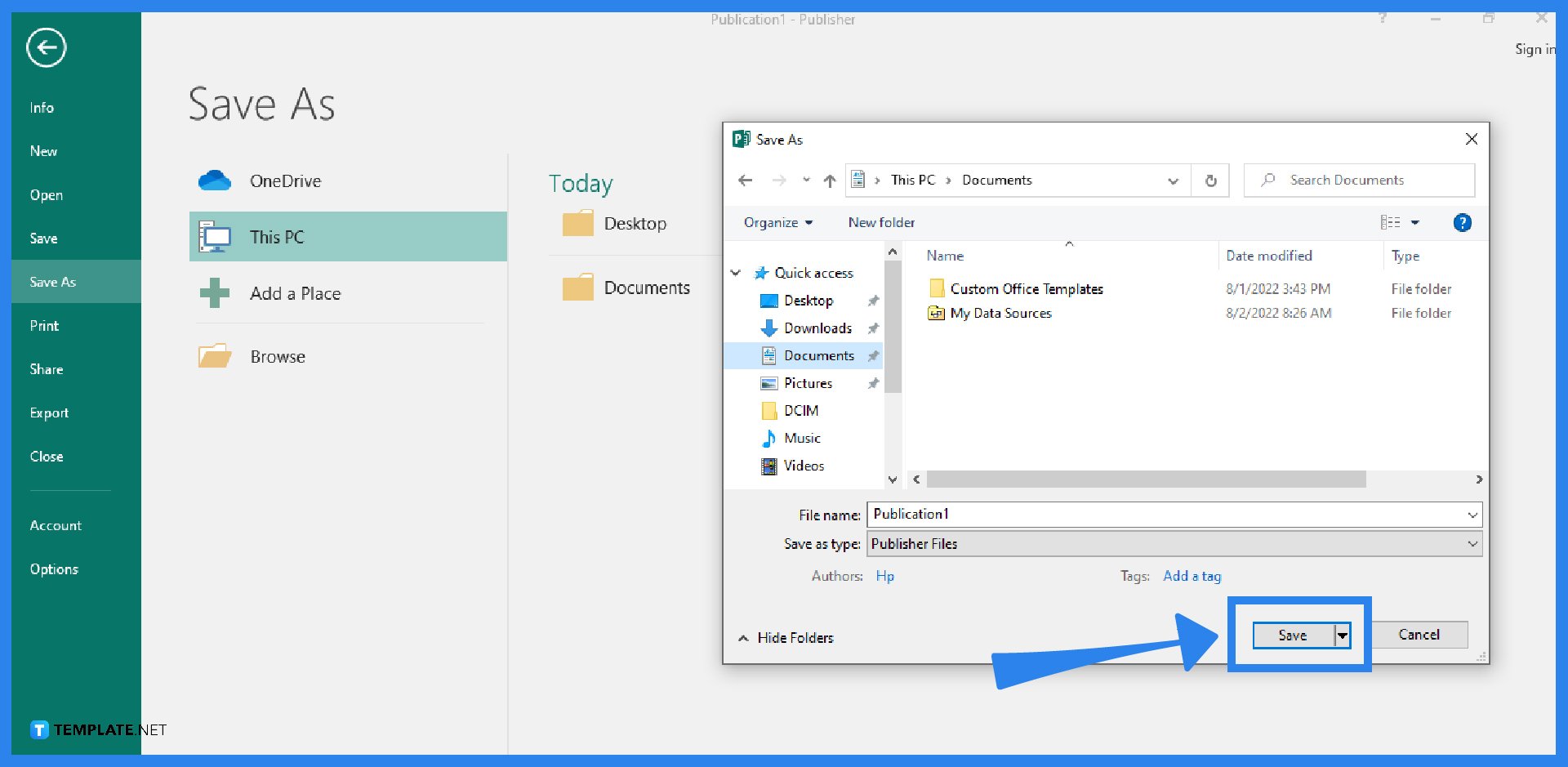
To save your calendar, select the File tab of the Publisher ribbon and click on Save As. Choose the location for your file. After that, type in the file name for your calendar and select the file type in the “Save as type” field. Make sure to have a Publisher Files (.pub) copy of the file for future editing. Finally, click on Save.
You can choose from a wide range of calendar sizes for printing calendars, such as 8.5×11 inches, 5.5×8.5 inches, 11×17 inches, 5.5×5.5 inches, 8.5×8.5 inches, and 11×11 inches.
11×17 inches is the most commonly used size for calendars.
Yes, you can create a calendar from scratch or select one from the library of calendar templates in Microsoft Word.

Signatures found in documents establish who you are as an individual or as an organization. Aside from the fact that…
![How To Make/Create a Newsletter in Microsoft Outlook [Templates + Examples] 2026](https://images.template.net/wp-content/uploads/2022/07/How-to-Start-a-Newsletter-with-Microsoft-Outlook-788x443.jpg)
Newsletters enable companies and organizations to communicate relevant and helpful information to their client, prospects, and subscribers. By giving you…
![How To Make/Create a Booklet in Microsoft Publisher [Templates + Examples] 2026](https://images.template.net/wp-content/uploads/2022/08/How-To-Make_Create-a-Booklet-in-Microsoft-Publisher-788x443.png)
Booklet templates are pre-designed layouts that make it easy to create a professional-looking booklet. They typically include placeholders for text…
![How To Make/Create a Booklet in Microsoft PowerPoint [Templates + Examples] 2026](https://images.template.net/wp-content/uploads/2022/07/How-To-Make-Create-a-Booklet-in-Microsoft-PowerPoint-788x443.jpg)
Booklets can be created in Microsoft PowerPoint, which offers a design feature that allows users to display them in PPT…
![How to Automatically Fill PDF Forms Using Microsoft Excel [Templates + Examples] 2026](https://images.template.net/wp-content/uploads/2022/07/How-to-Automatically-Fill-PDF-Forms-Using-Microsoft-Excel-788x444.png)
Automatically fill PDF forms using Microsoft Excel so you won’t have to save multiple PDF forms in an Excel spreadsheet…
![How to Make/Create a Floor Plan on Microsoft Excel [Templates + Examples] 2026](https://images.template.net/wp-content/uploads/2022/07/How-to-Make-a-Floor-Plan-on-Microsoft-Excel-788x443.jpg)
Floor plans either make or break projects related to engineering and architecture. That being said, every apartment room, bedroom, living…
![How to Make/Create a Grid in Microsoft Word [Templates + Examples] 2026](https://images.template.net/wp-content/uploads/2022/07/How-to-Make_Create-a-Grid-in-Microsoft-Word-788x444.jpg)
Grids consist of a network of lines that work as graphic cues while formatting your document in Microsoft Office. If…
![How to Add More Highlight Colors to Microsoft Word [Templates + Examples] 2026](https://images.template.net/wp-content/uploads/2022/07/How-to-Add-More-Highlight-Colors-to-Microsoft-Word-Templates-Examples-2023-788x443.jpg)
Add more highlight colors to Microsoft Word so you won’t have to settle with the default shading color in marking…
![How to Make/Create a Border in Microsoft Publisher [Templates + Examples] 2026](https://images.template.net/wp-content/uploads/2022/08/How-to-MakeCreate-a-Border-in-Microsoft-Publisher-788x444.png)
Borders are graphic design elements that make a document more pleasing and stylish to look at. This can be used…