


![How to Add a Signature in Microsoft Forms [Templates + Examples] 2026](https://images.template.net/wp-content/uploads/2022/07/How-to-Add-a-Signature-in-Microsoft-Forms-Templates-Examples-2023-788x443.jpg)
How to Add a Signature in Microsoft Forms [Templates + Examples] 2026
Signatures found in documents establish who you are as an individual or as an organization. Aside from the fact that…
Dec 22, 2025


Sep 02, 2025
Microsoft Word’s save feature can help you avoid losing an important document, especially for work or school. For that reason, you should never forget to save your documents when working on MS Word files.
As a Microsoft Word user, avoid time and progress loss by learning to save your output with these easy steps.
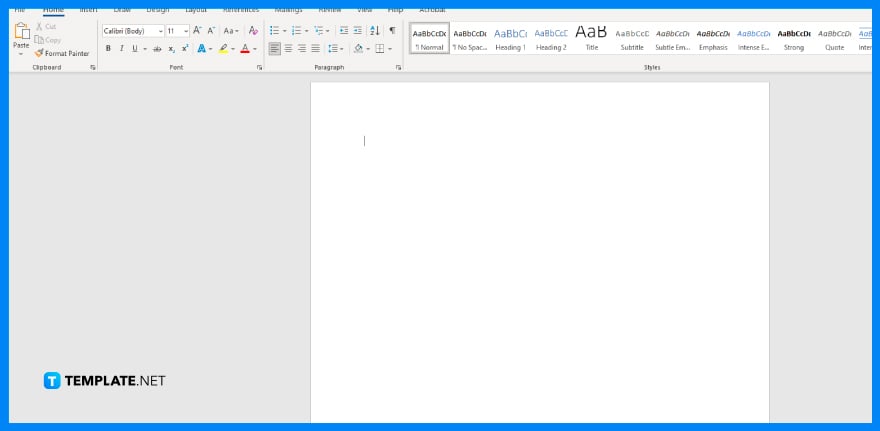
Open Microsoft Word on your computer or device and start a document. Just click the Blank Document option or choose any Microsoft Word template to do so. Then, write the needed content of your document and create tables, shapes, and other necessary objects.
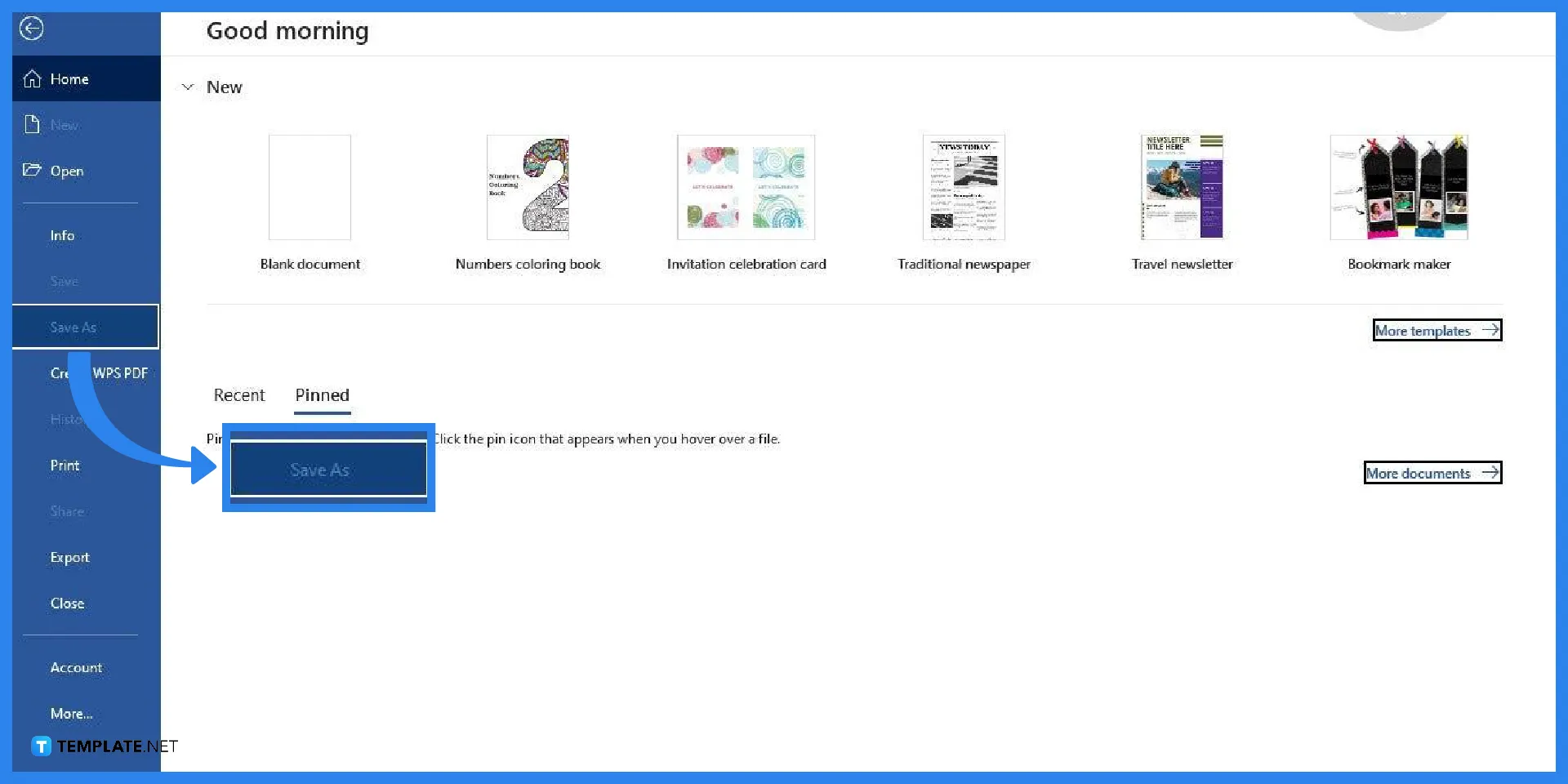
Once you are done writing your content and inserting objects in your document, you can proceed to save it. Click the File option, which is found in the first entry on the menu bar. Then, in the File tab, there is a list of options available; what you must select is the Save As button.
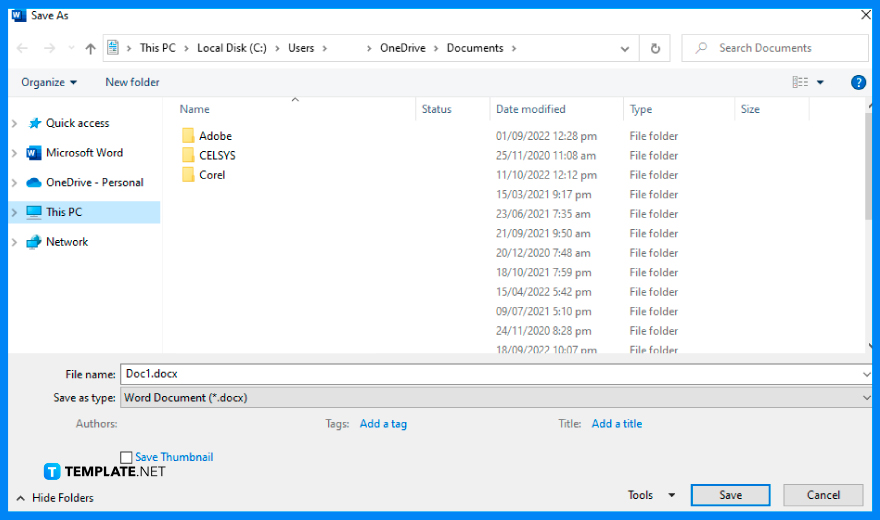
Choose a folder where you want to store your MS Word document file. Make sure to save it in a folder that is convenient for you to access. Save it in a folder where your other documents are located or in a separate one. You can even save it on your desktop.

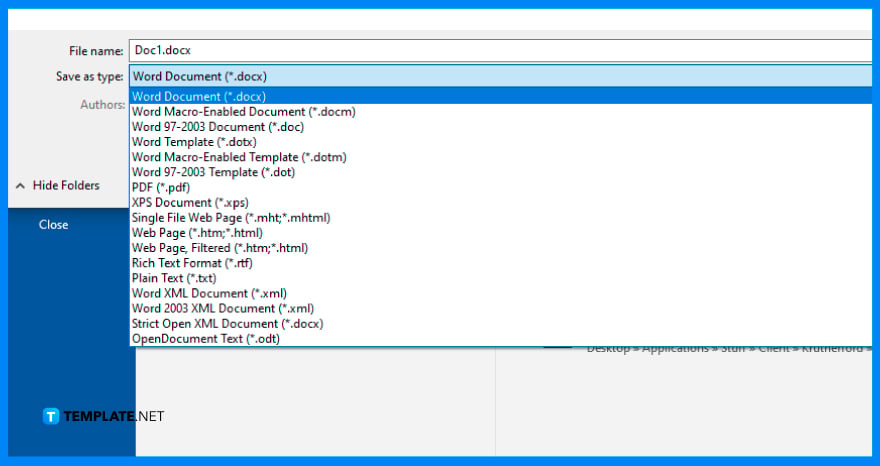
Before clicking Save, you can select a format that you want your document saved and converted to. For instance, you can convert/save your Microsoft Word document to PDF or in ODT format. Just select any that suits your preferences.

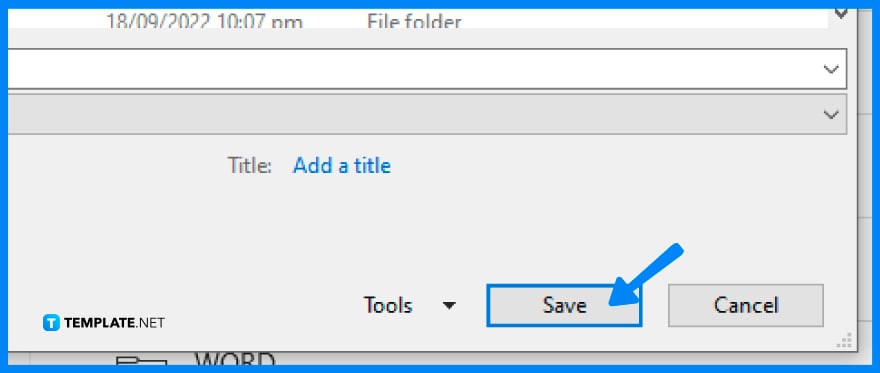
After setting up a location and choosing a format, you can proceed to click Save. In doing so, your document will be saved in the selected location. Once you are done, you may close your Microsoft Word. But if you ever forget to save, know that there’s a way to recover your Microsoft Word document.
The Save option in MS Word is used to save the changes of an already existing document, whereas the Save As option is used to save a new document for the first time or to create a new copy of an existing document while allowing the user to select their chosen file location.
Yes, there’s a shortcut to save your MS Word document, and this is the “Ctrl+S” command on your keyboard.
Yes, MS Word has an autosave function that helps in recovering unsaved files.
Yes, saving your MS Word document to OneDrive is recommended because your file will be more secure online and you’ll have a backup copy of your document.

Signatures found in documents establish who you are as an individual or as an organization. Aside from the fact that…
![How To Make/Create a Newsletter in Microsoft Outlook [Templates + Examples] 2026](https://images.template.net/wp-content/uploads/2022/07/How-to-Start-a-Newsletter-with-Microsoft-Outlook-788x443.jpg)
Newsletters enable companies and organizations to communicate relevant and helpful information to their client, prospects, and subscribers. By giving you…
![How To Make/Create a Booklet in Microsoft Publisher [Templates + Examples] 2026](https://images.template.net/wp-content/uploads/2022/08/How-To-Make_Create-a-Booklet-in-Microsoft-Publisher-788x443.png)
Booklet templates are pre-designed layouts that make it easy to create a professional-looking booklet. They typically include placeholders for text…
![How To Make/Create a Booklet in Microsoft PowerPoint [Templates + Examples] 2026](https://images.template.net/wp-content/uploads/2022/07/How-To-Make-Create-a-Booklet-in-Microsoft-PowerPoint-788x443.jpg)
Booklets can be created in Microsoft PowerPoint, which offers a design feature that allows users to display them in PPT…
![How to Automatically Fill PDF Forms Using Microsoft Excel [Templates + Examples] 2026](https://images.template.net/wp-content/uploads/2022/07/How-to-Automatically-Fill-PDF-Forms-Using-Microsoft-Excel-788x444.png)
Automatically fill PDF forms using Microsoft Excel so you won’t have to save multiple PDF forms in an Excel spreadsheet…
![How to Make/Create a Floor Plan on Microsoft Excel [Templates + Examples] 2026](https://images.template.net/wp-content/uploads/2022/07/How-to-Make-a-Floor-Plan-on-Microsoft-Excel-788x443.jpg)
Floor plans either make or break projects related to engineering and architecture. That being said, every apartment room, bedroom, living…
![How to Make/Create a Grid in Microsoft Word [Templates + Examples] 2026](https://images.template.net/wp-content/uploads/2022/07/How-to-Make_Create-a-Grid-in-Microsoft-Word-788x444.jpg)
Grids consist of a network of lines that work as graphic cues while formatting your document in Microsoft Office. If…
![How to Add More Highlight Colors to Microsoft Word [Templates + Examples] 2026](https://images.template.net/wp-content/uploads/2022/07/How-to-Add-More-Highlight-Colors-to-Microsoft-Word-Templates-Examples-2023-788x443.jpg)
Add more highlight colors to Microsoft Word so you won’t have to settle with the default shading color in marking…
![How to Make/Create a Border in Microsoft Publisher [Templates + Examples] 2026](https://images.template.net/wp-content/uploads/2022/08/How-to-MakeCreate-a-Border-in-Microsoft-Publisher-788x444.png)
Borders are graphic design elements that make a document more pleasing and stylish to look at. This can be used…