
Free Gantt Templates







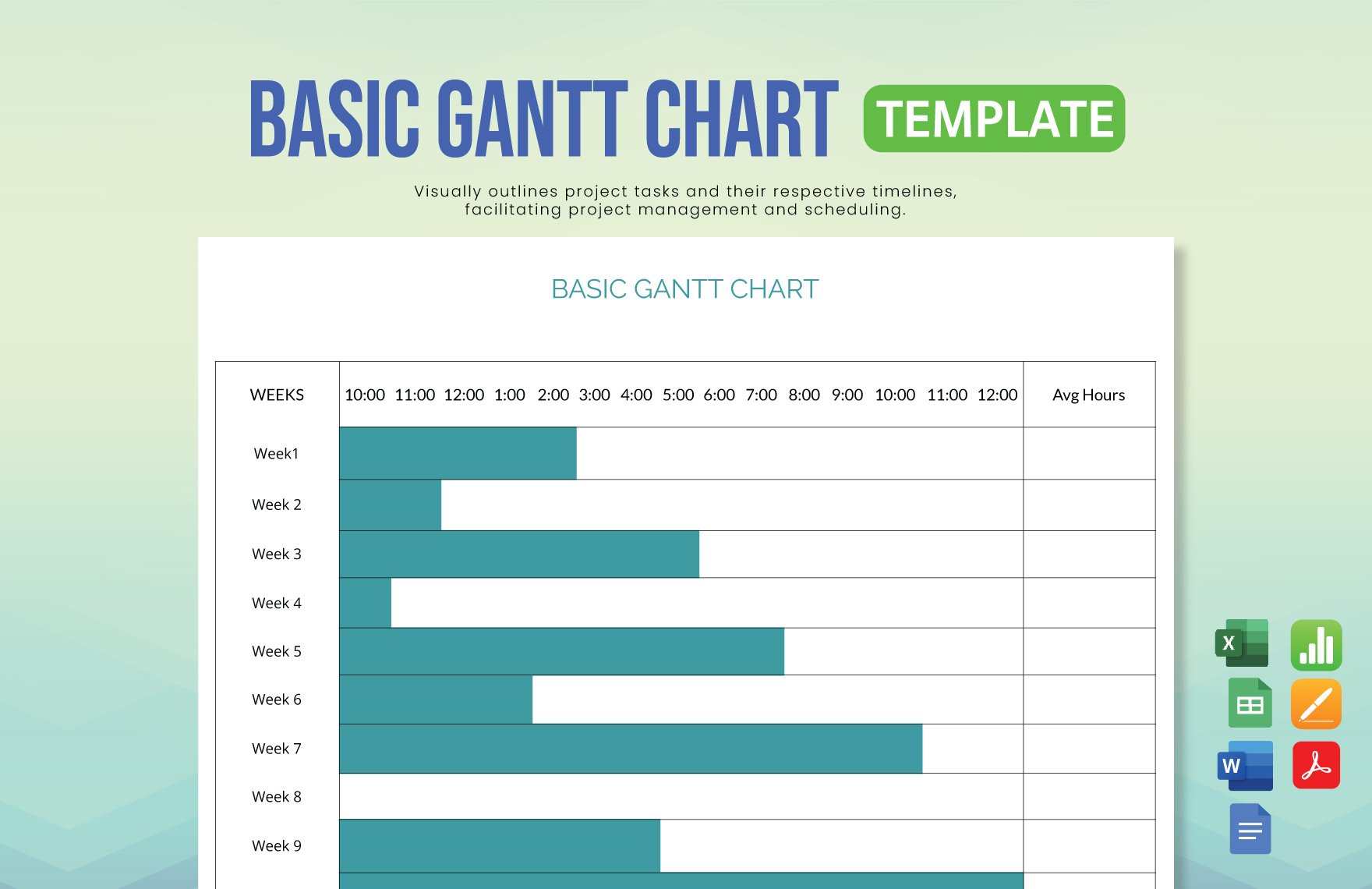

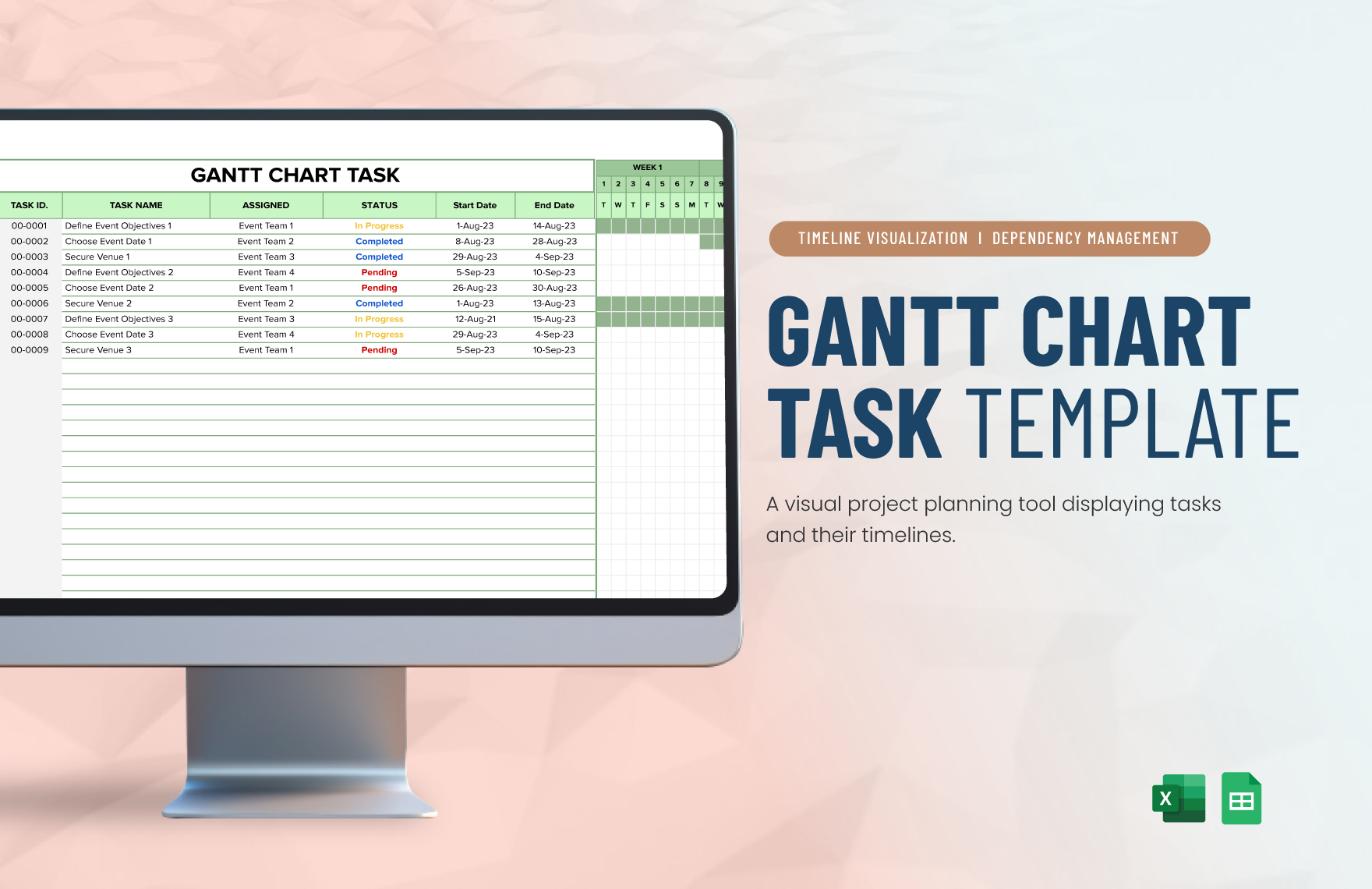
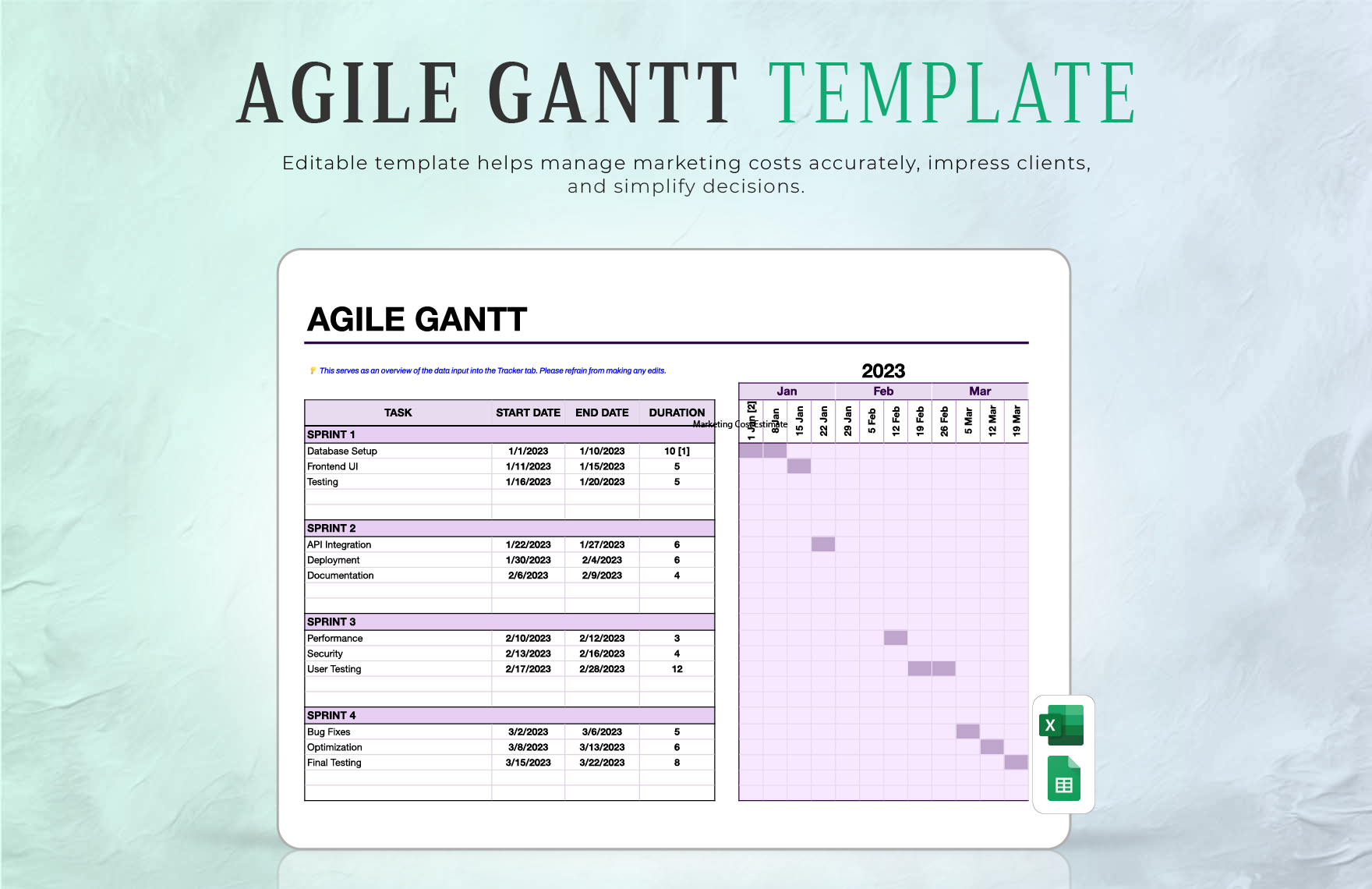
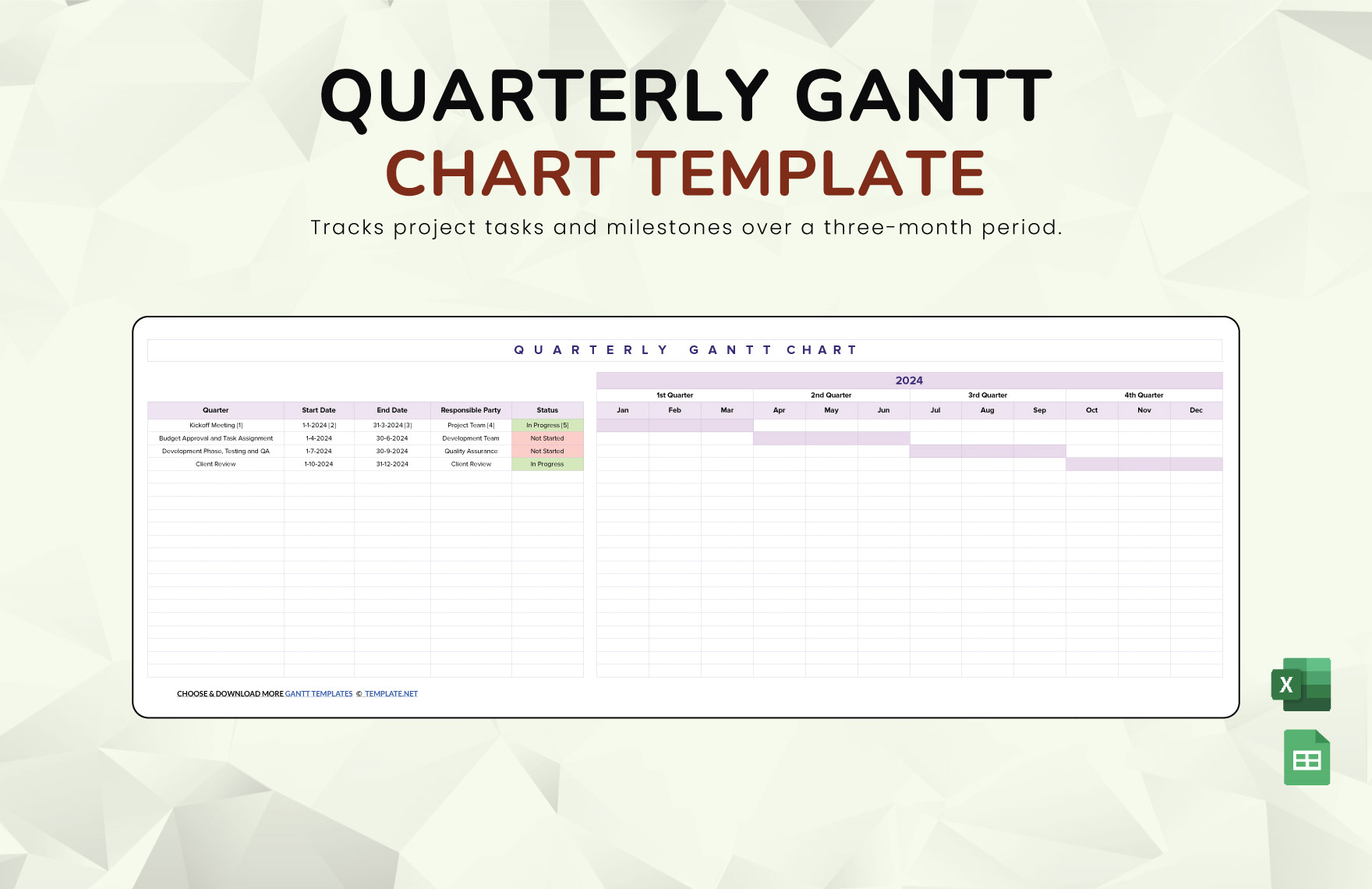
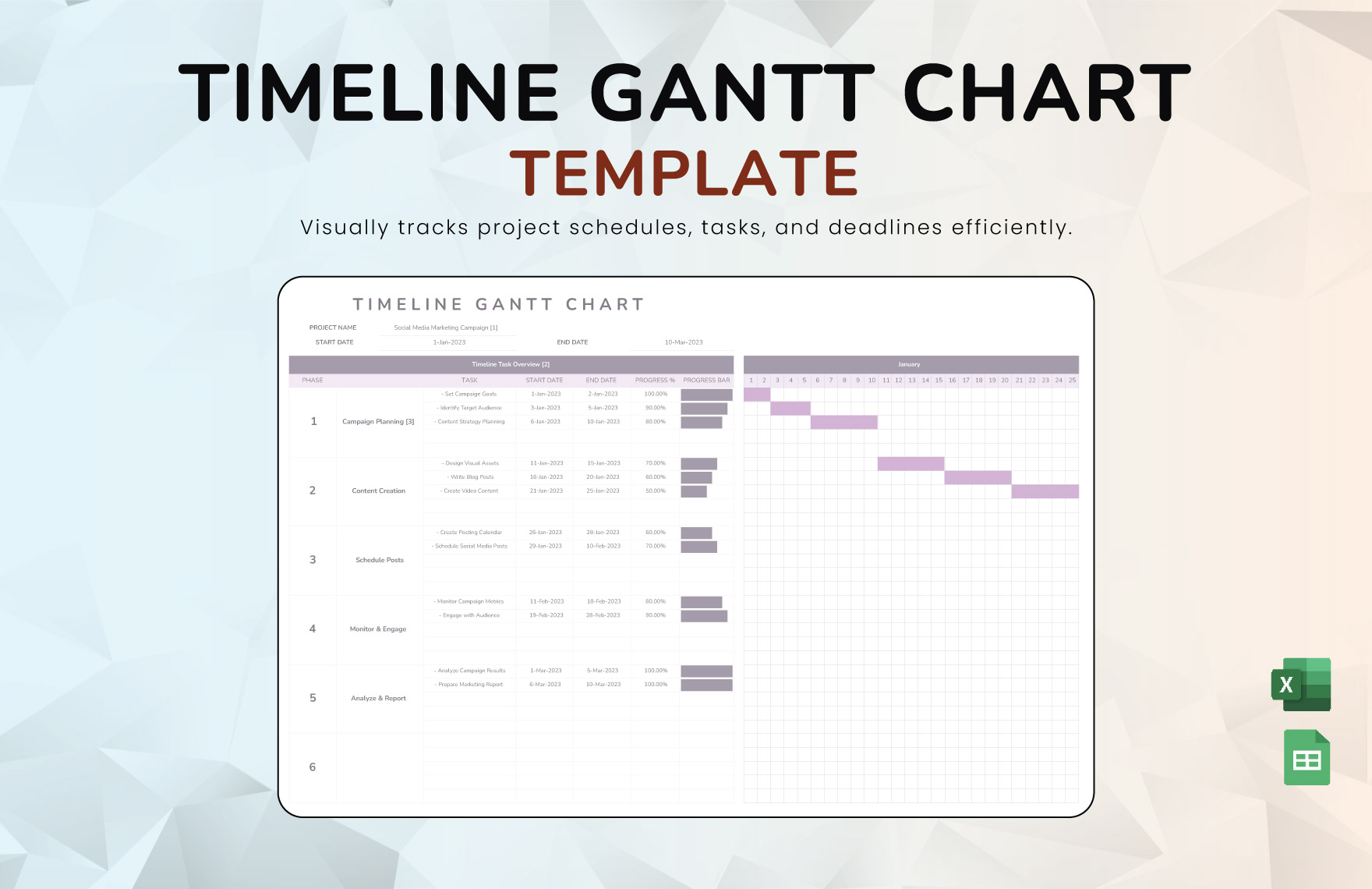

Free Gantt Templates: Customizable Project Planning and Scheduling Guide
What is a Gantt?
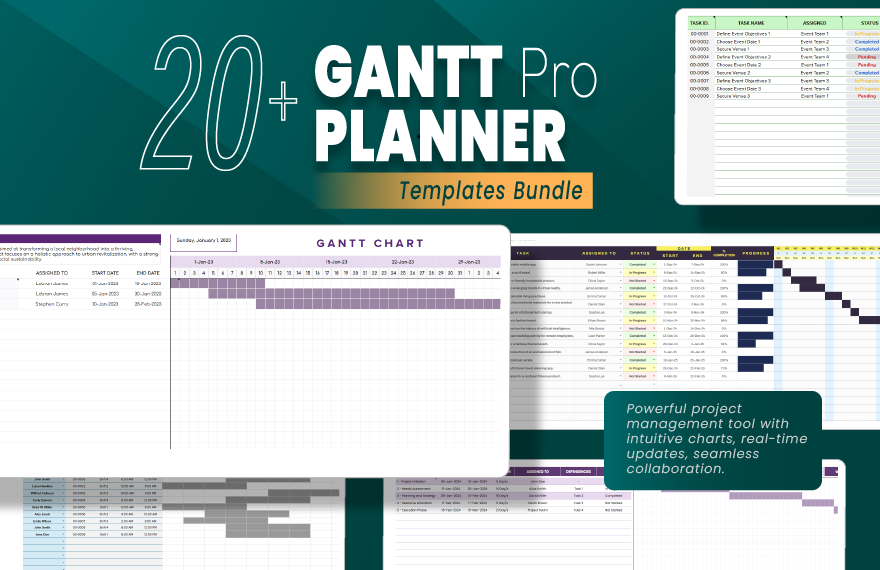
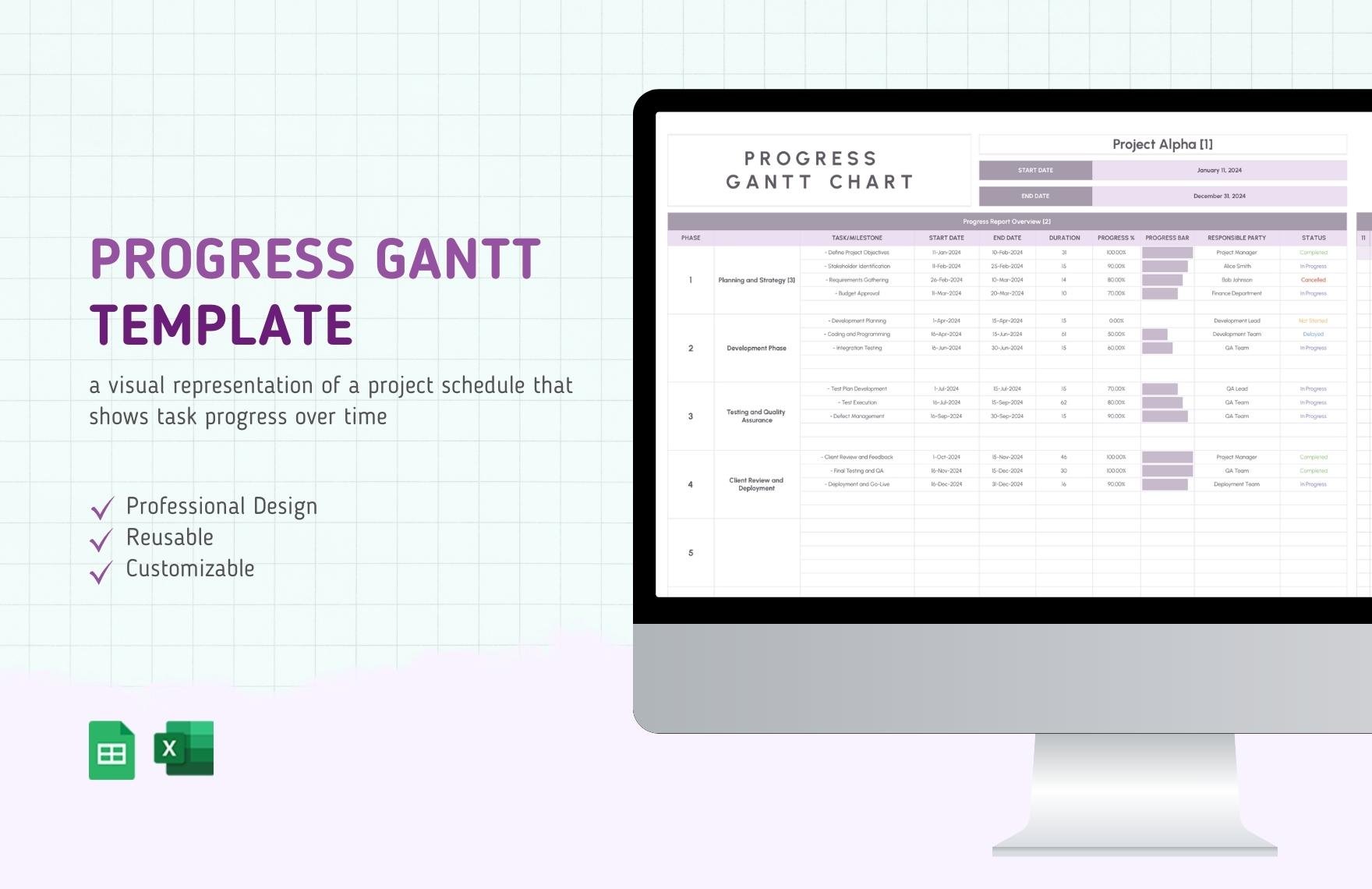
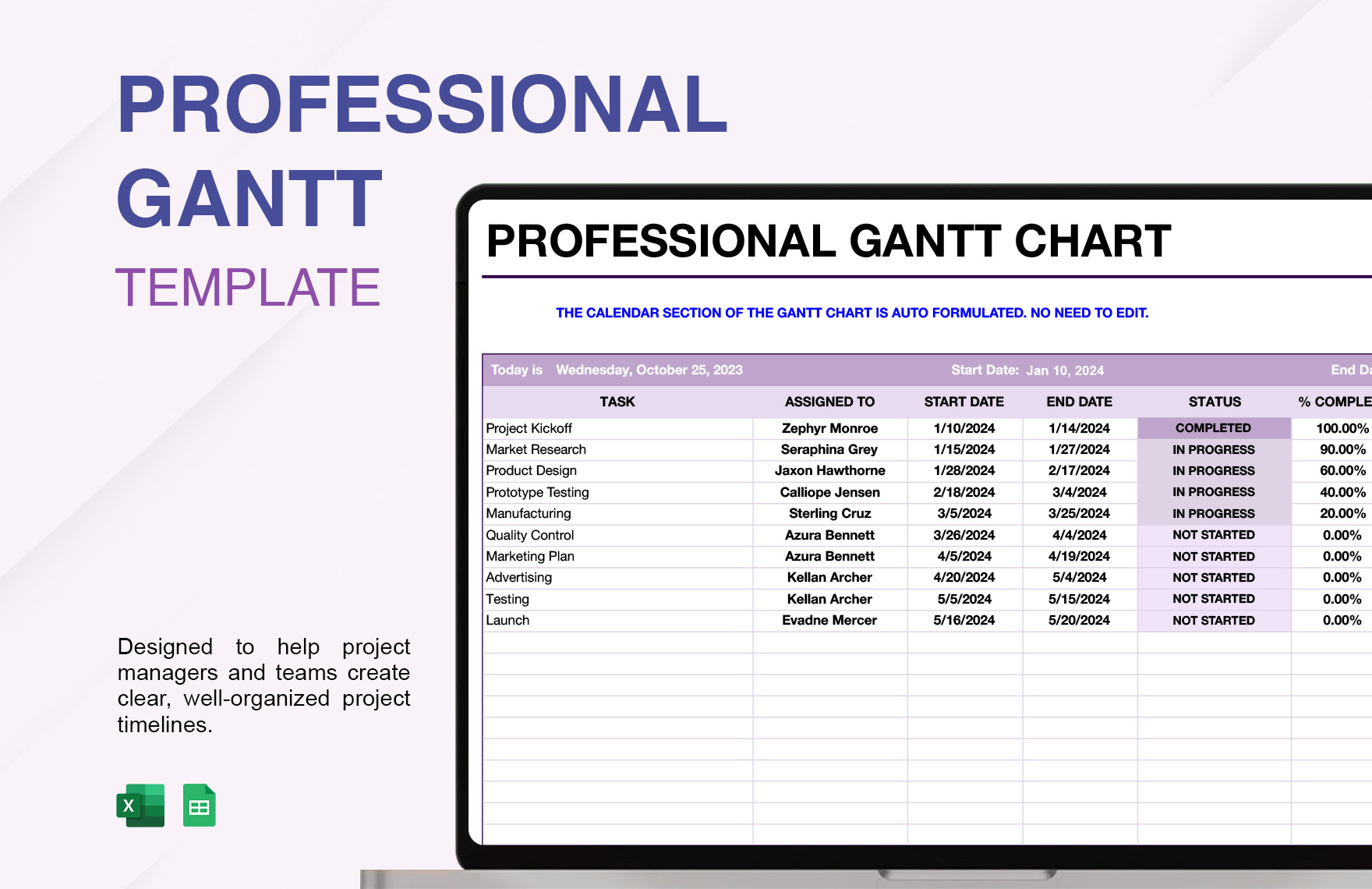
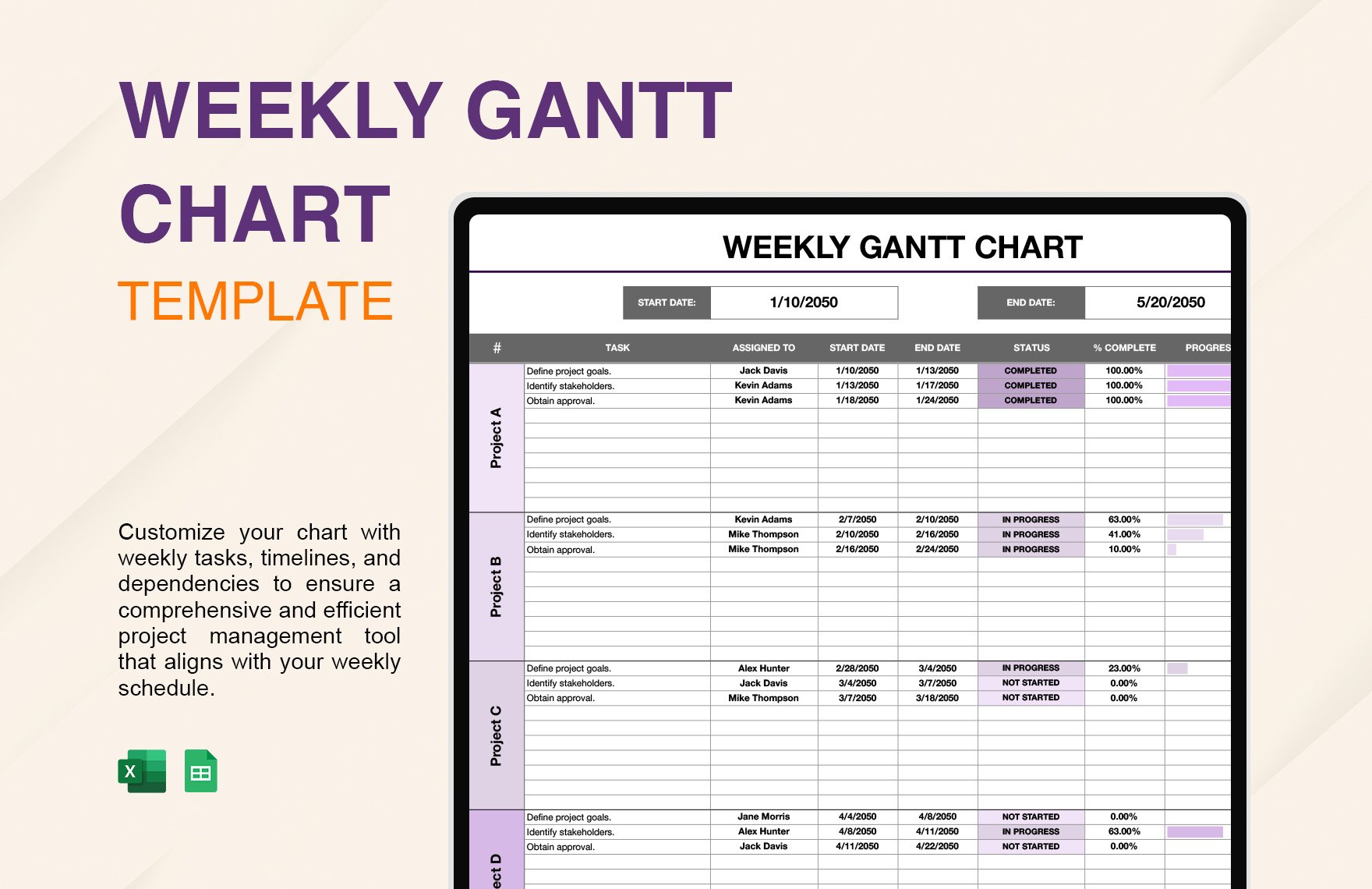
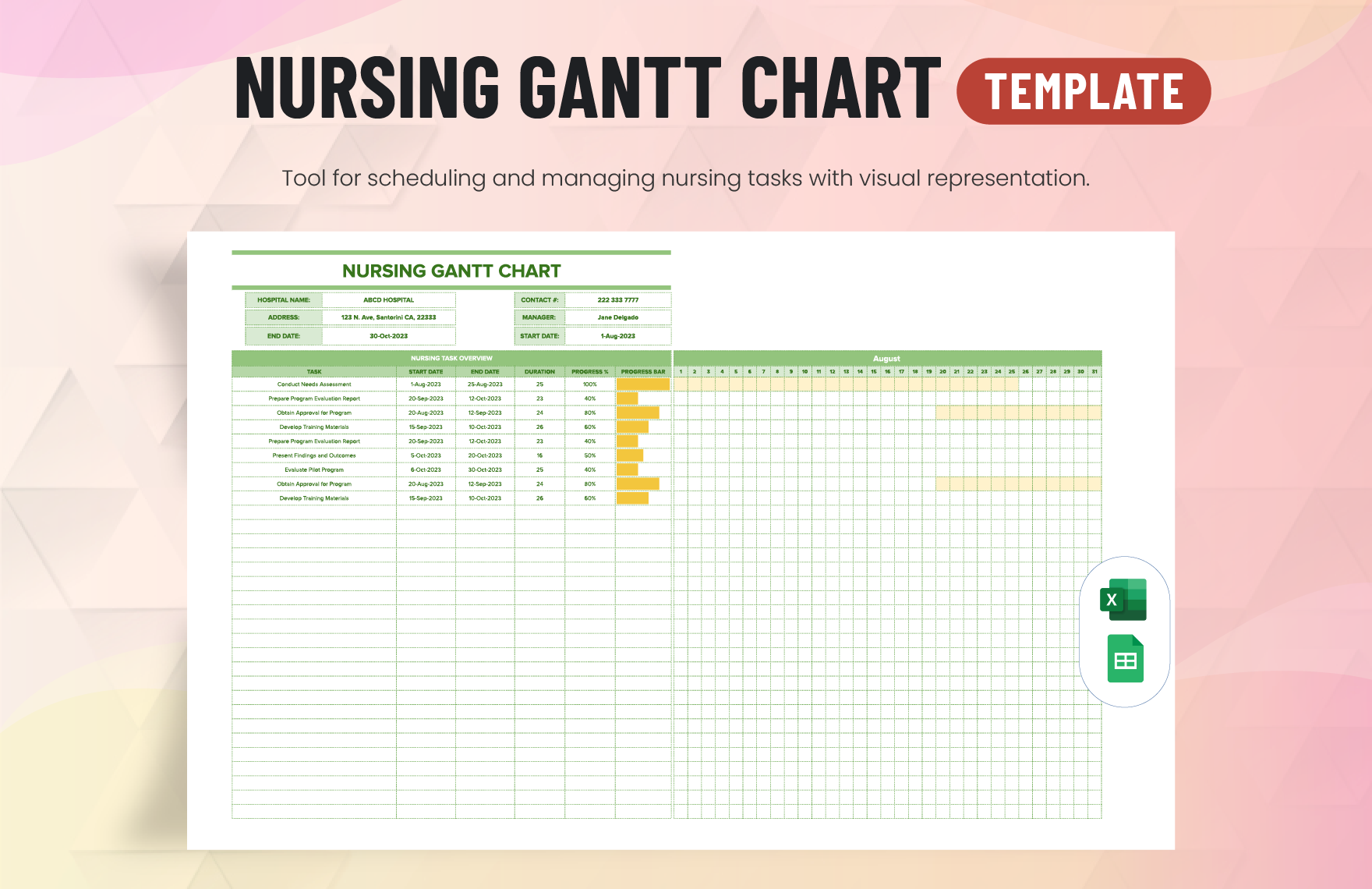
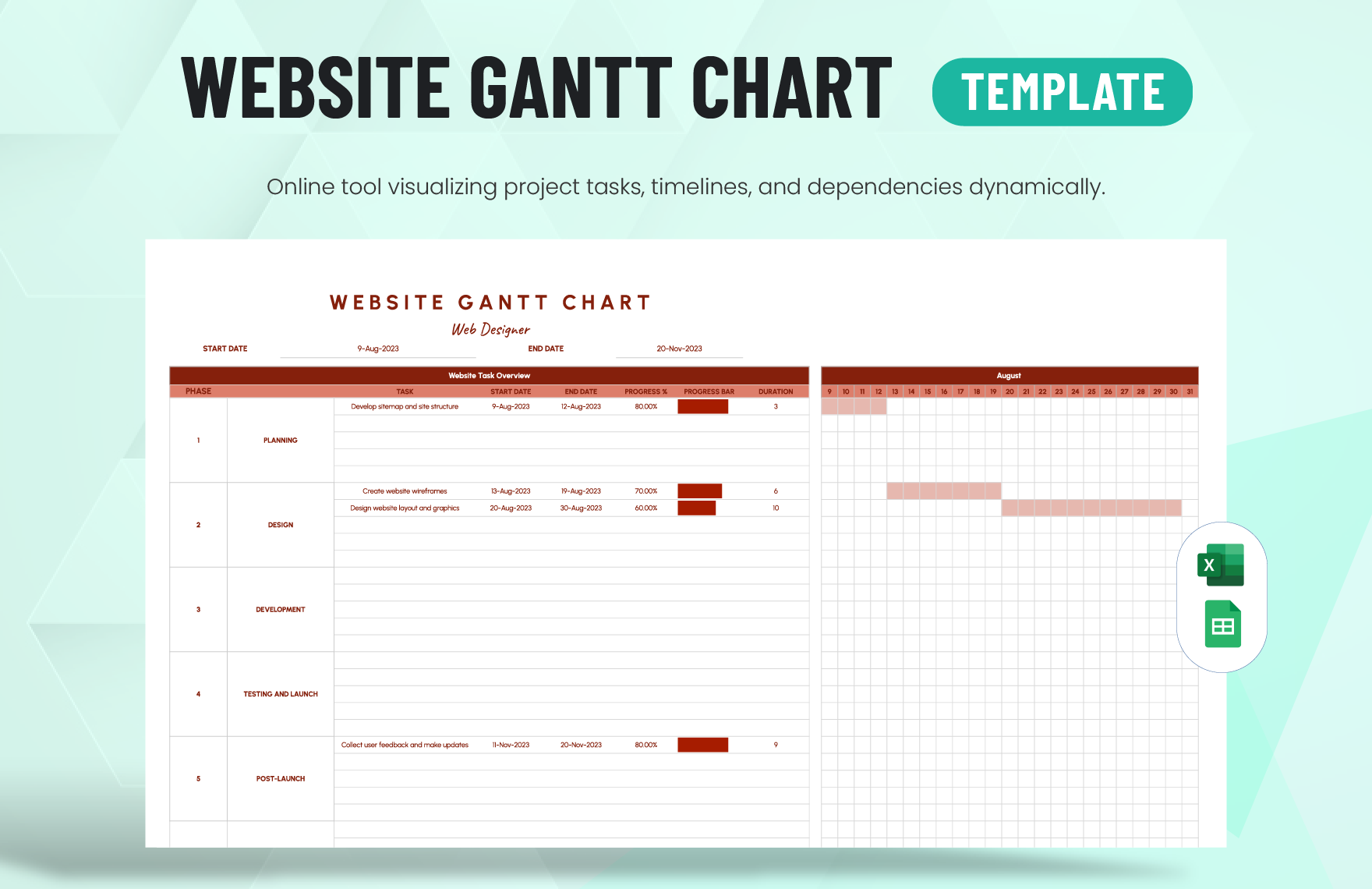
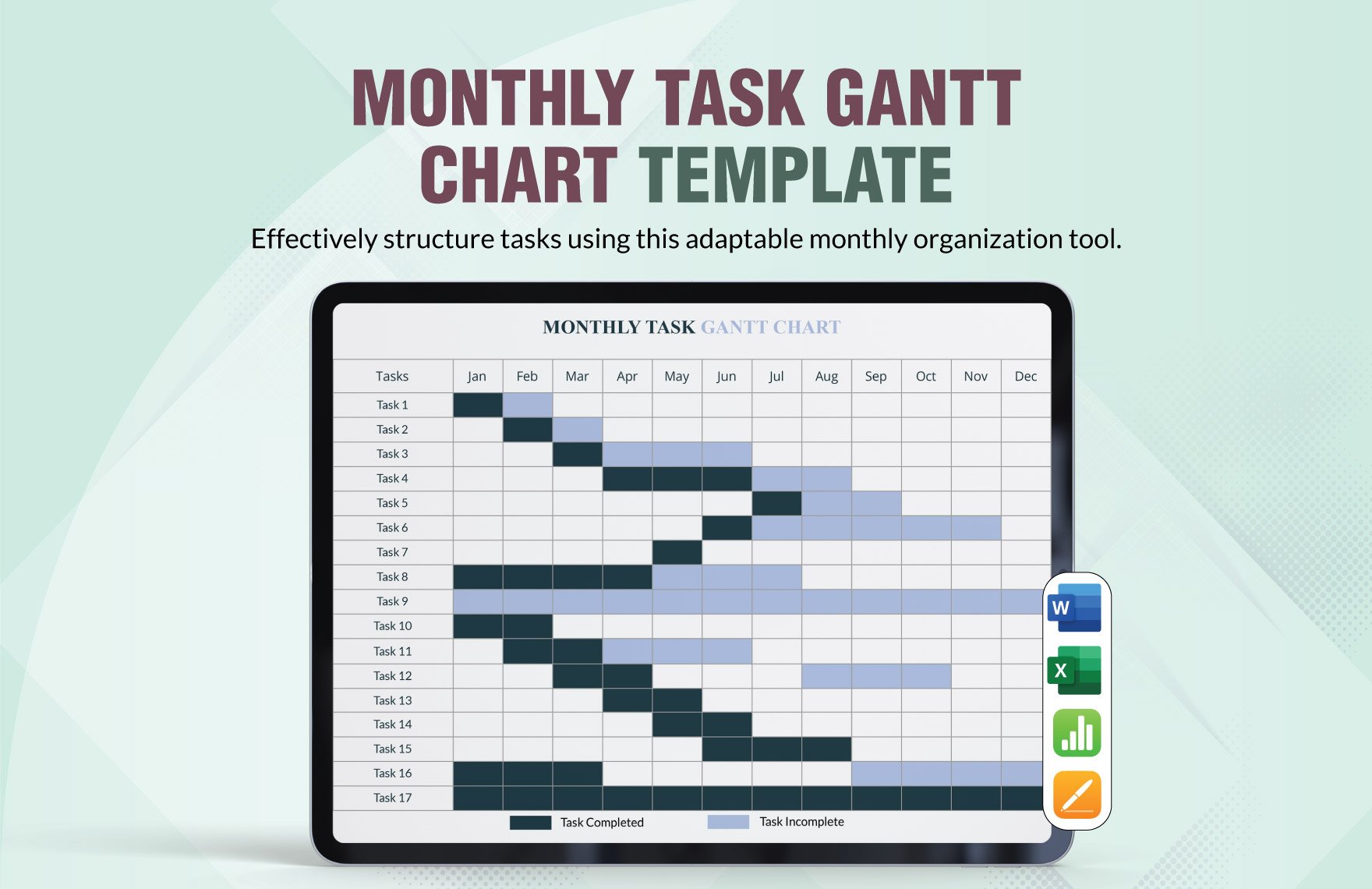
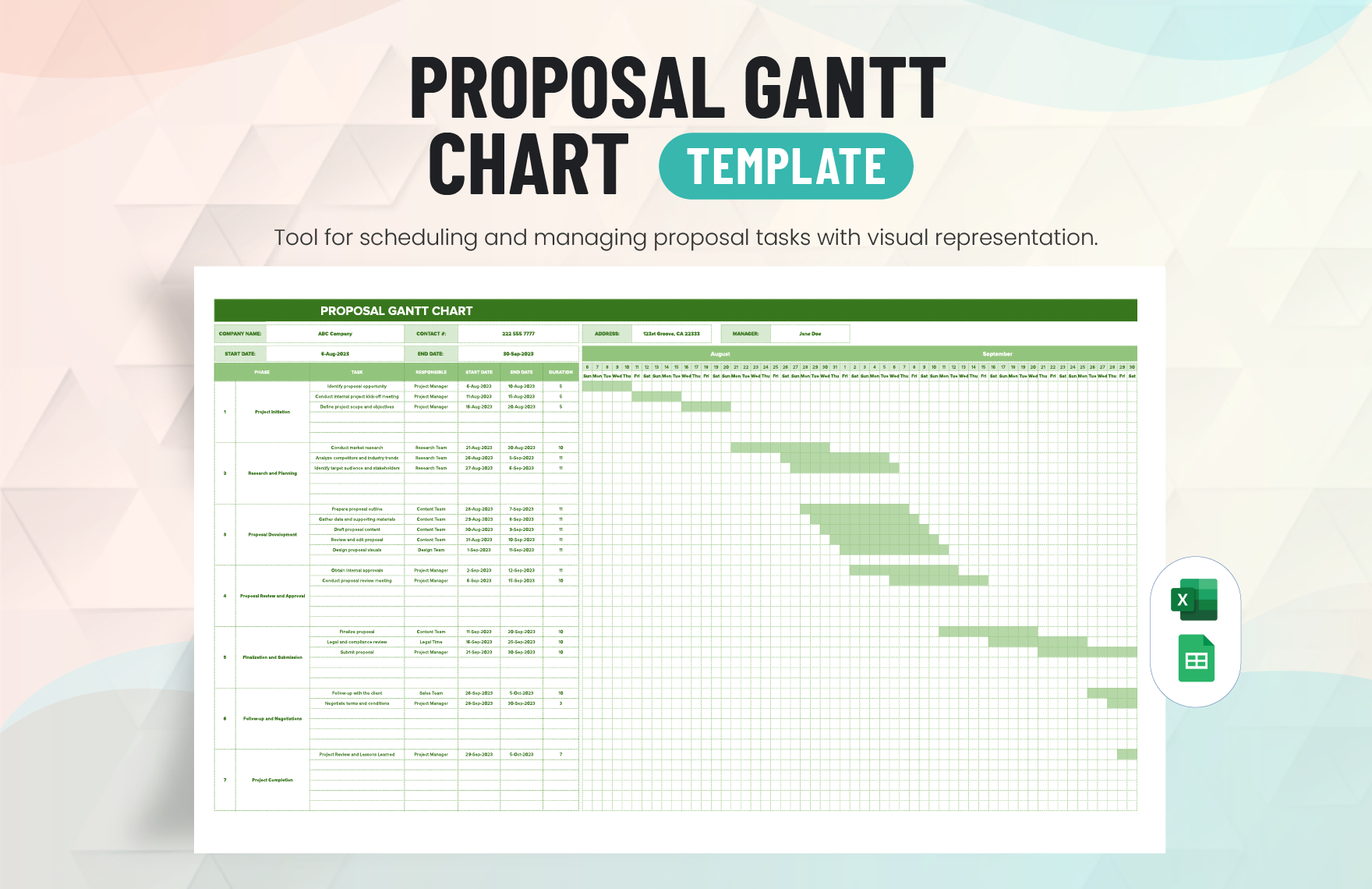
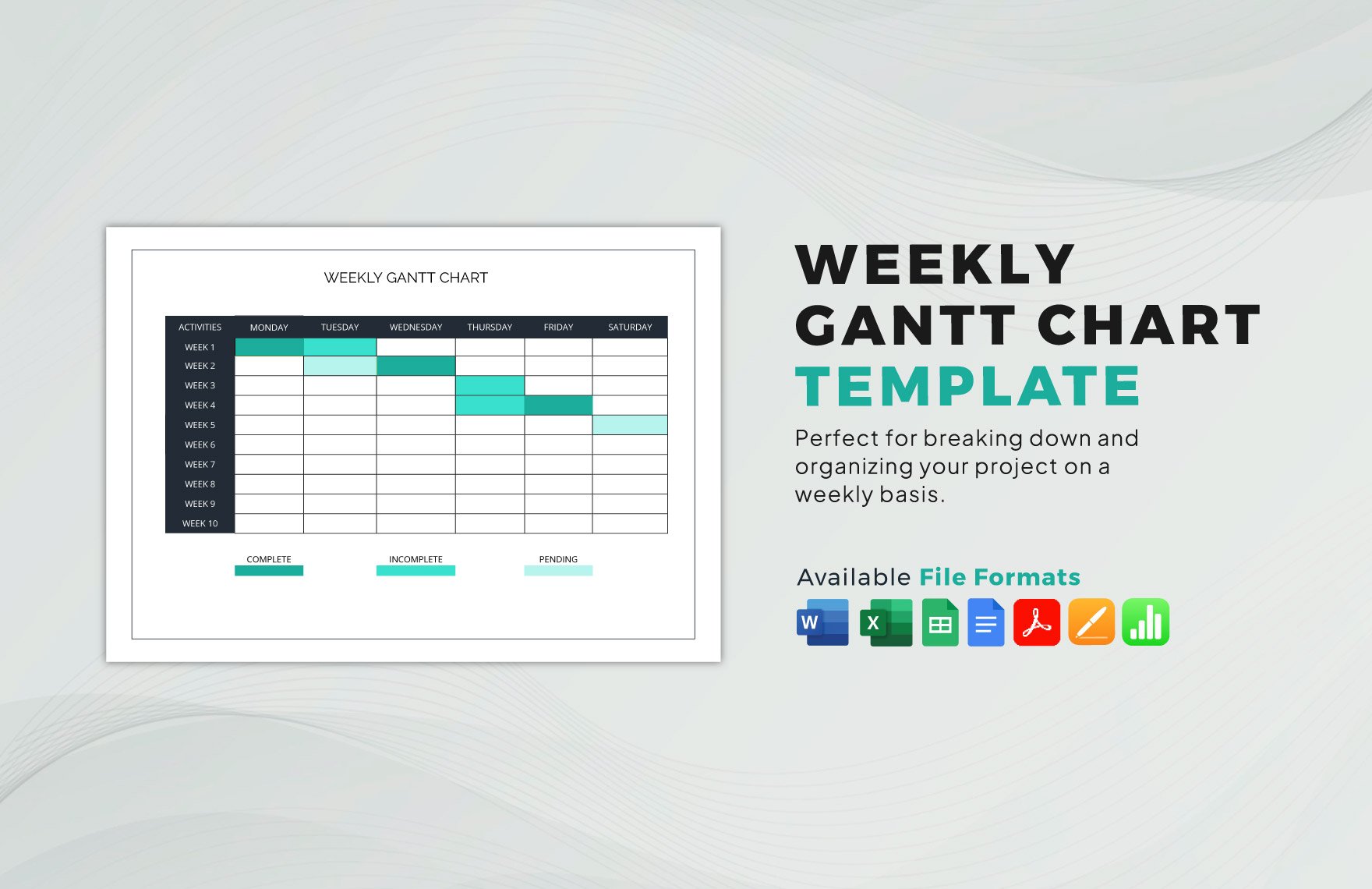
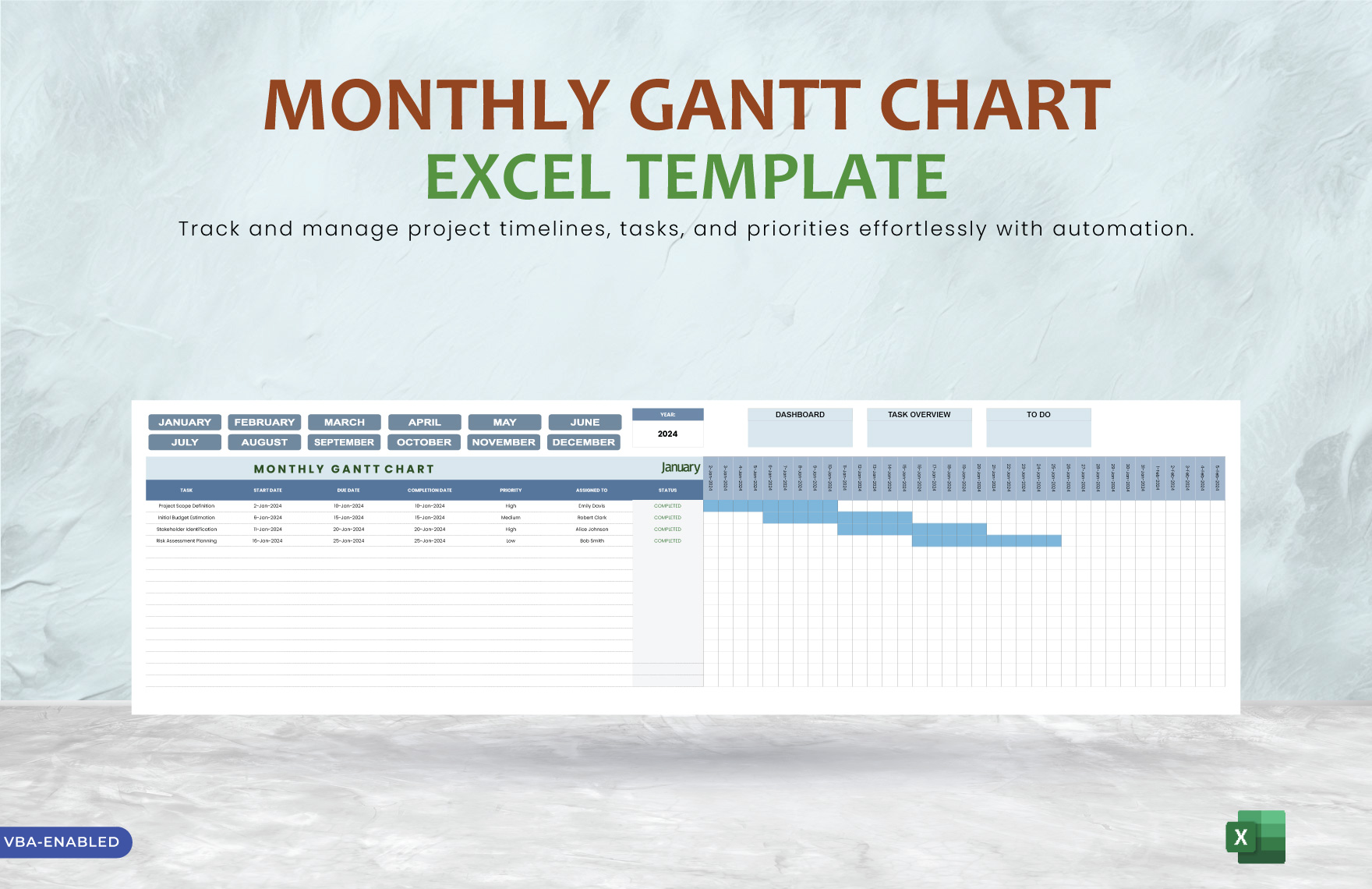
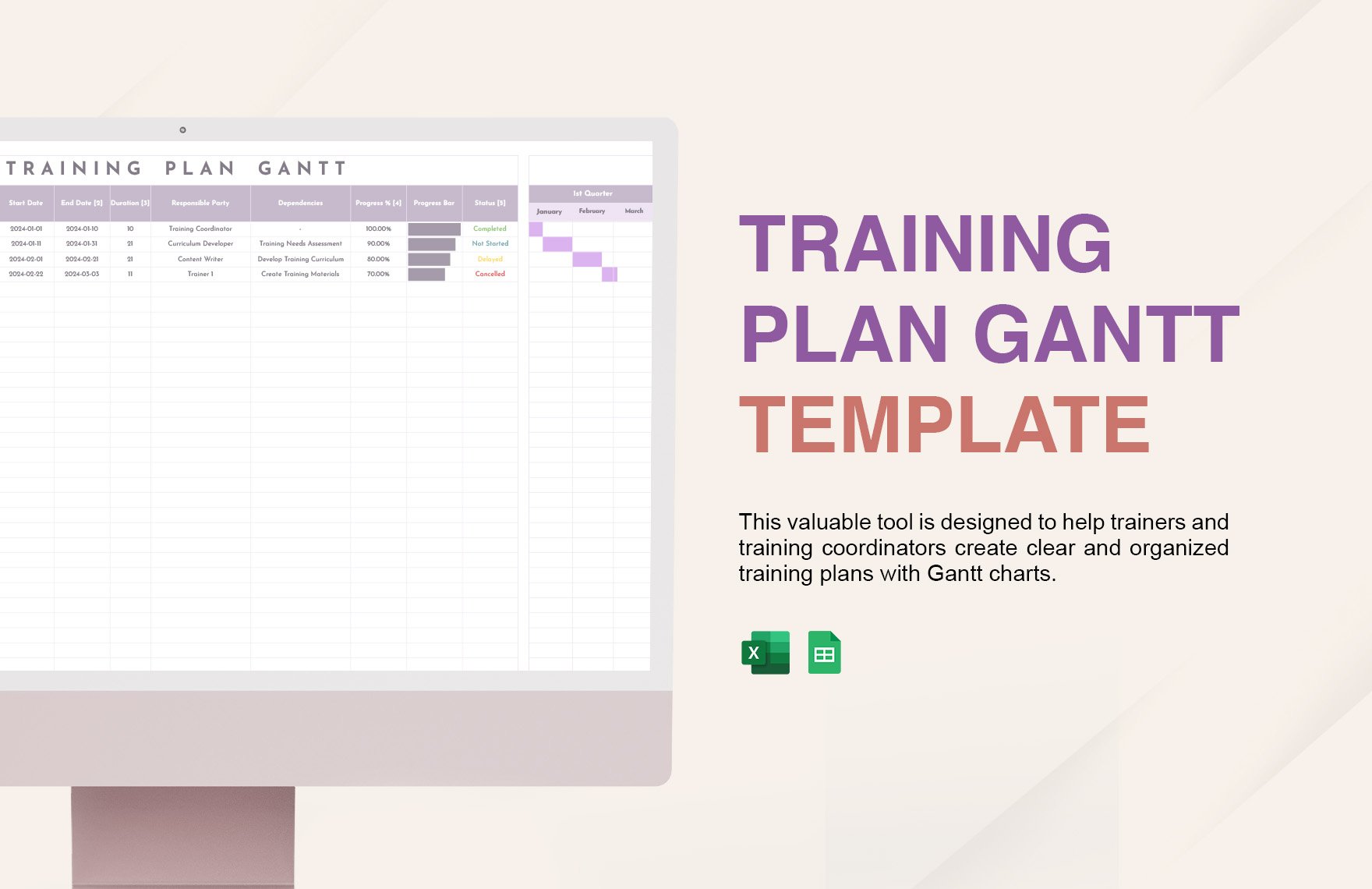
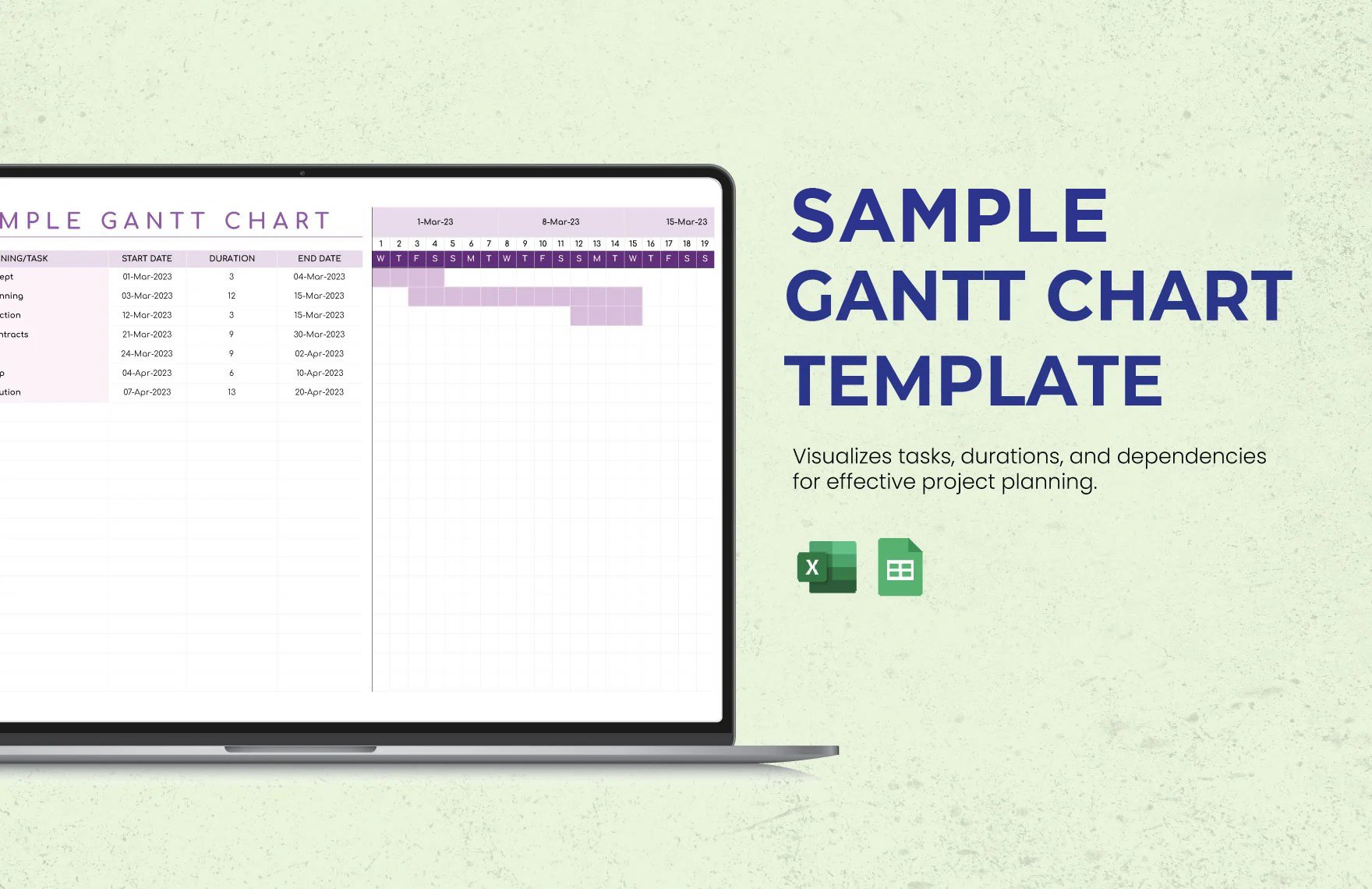
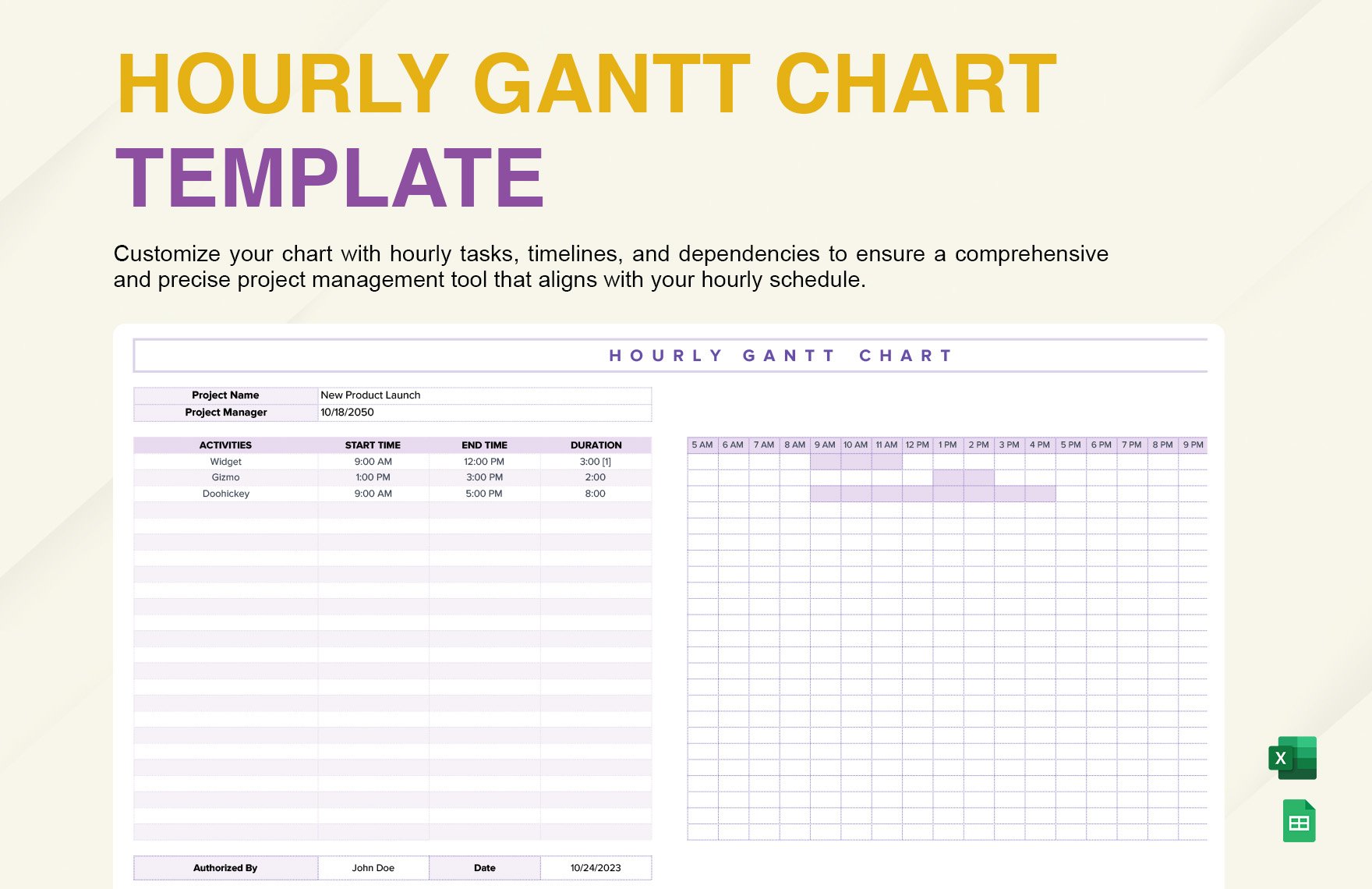
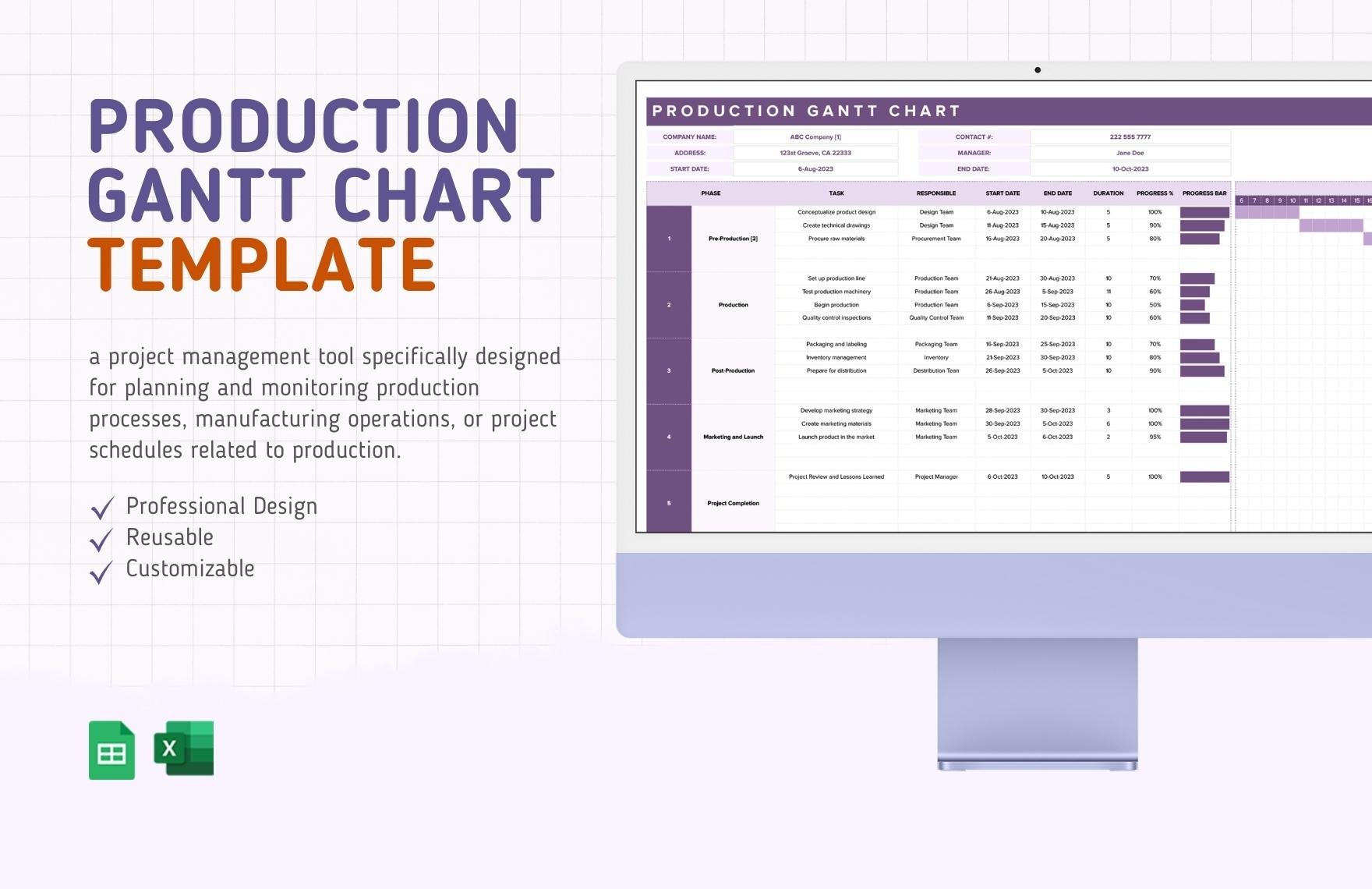
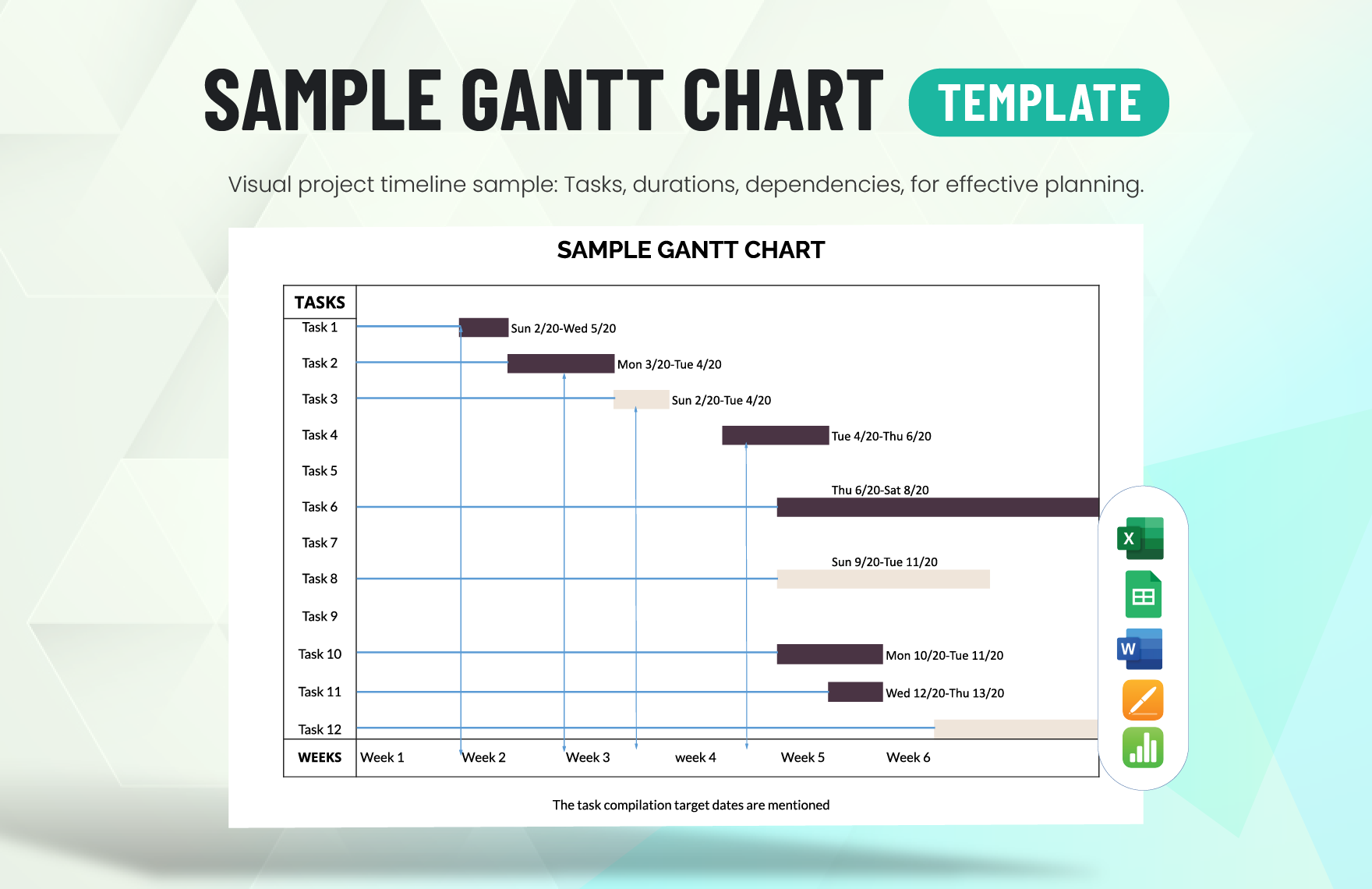
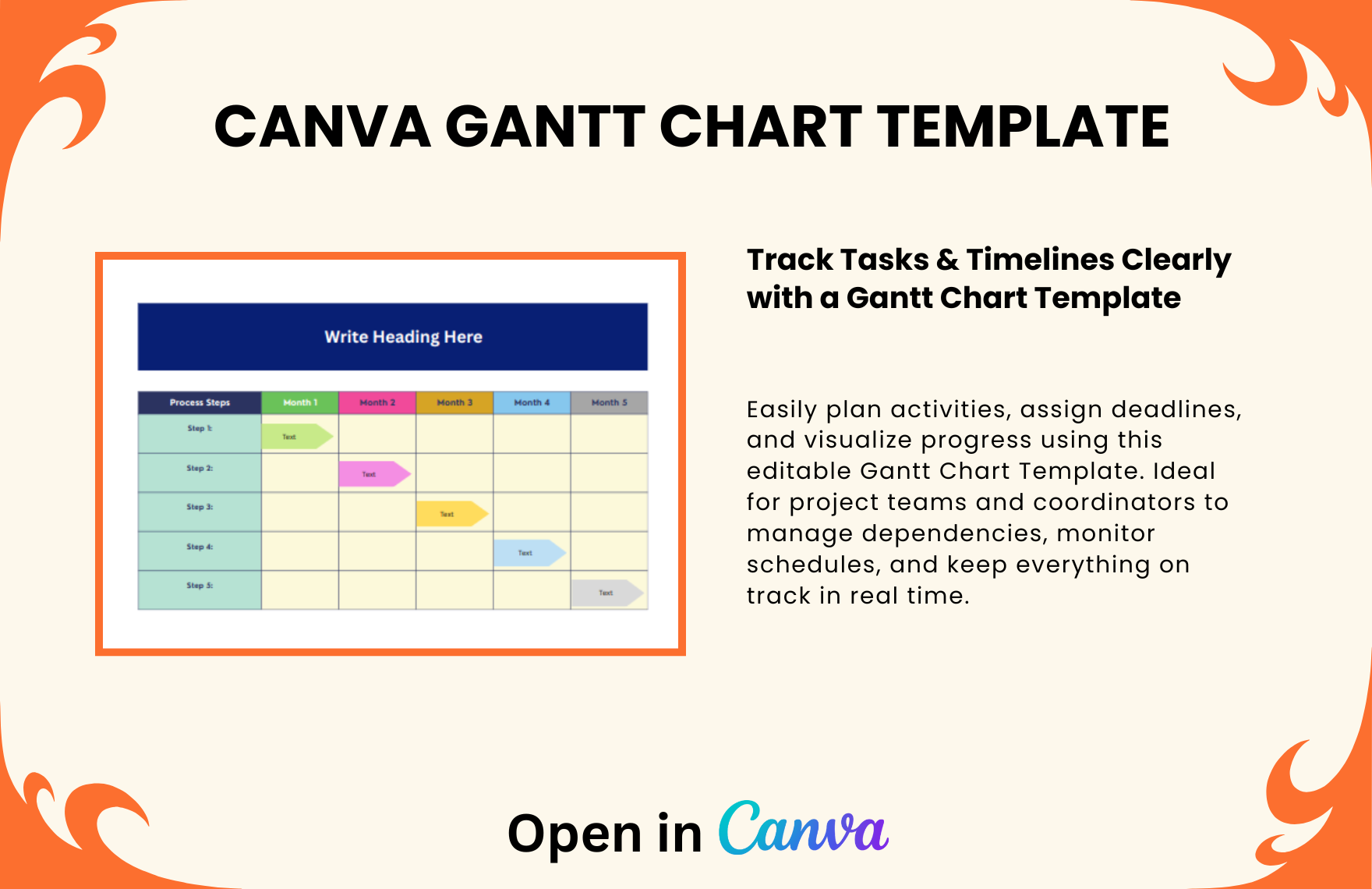
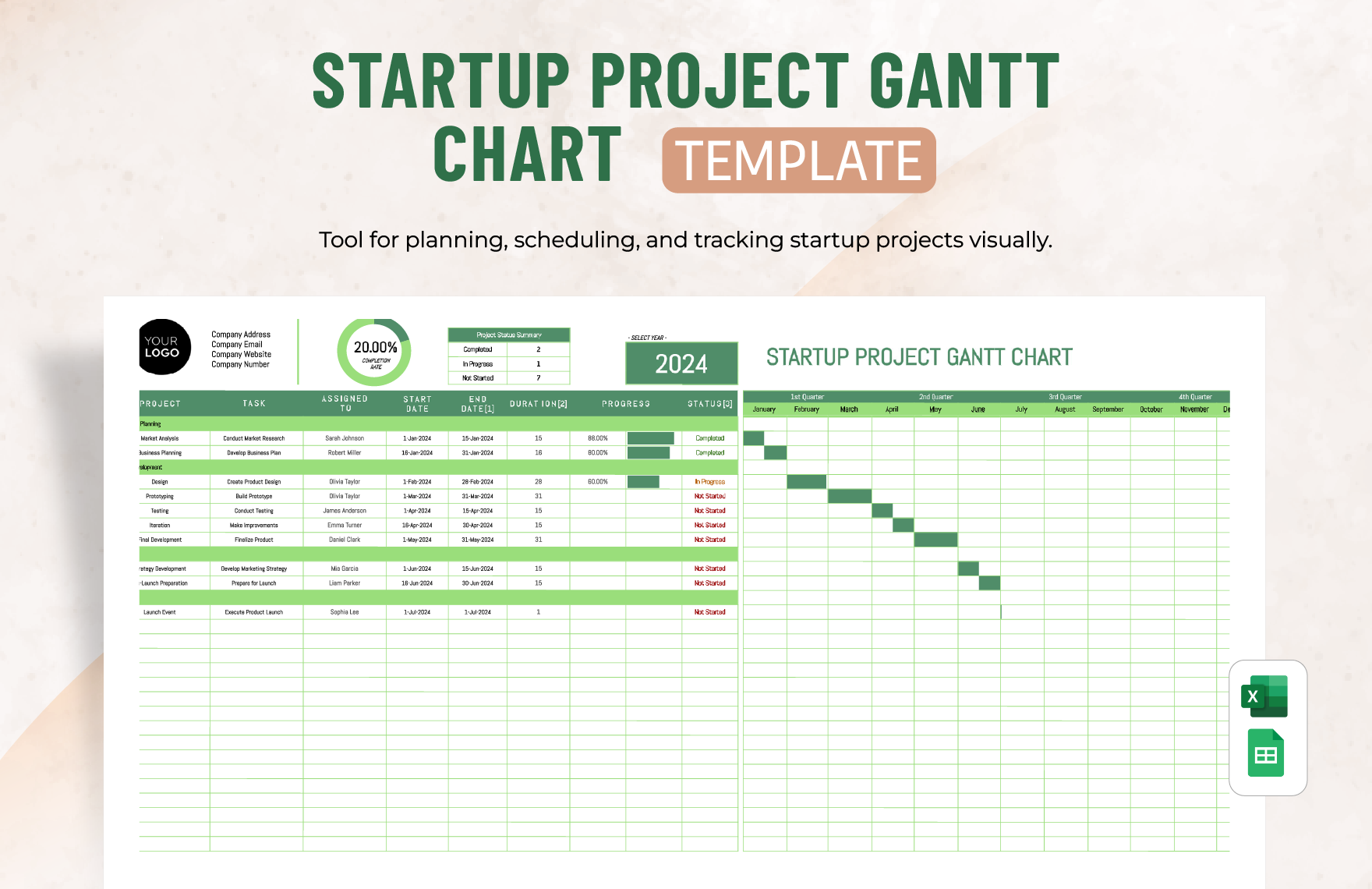
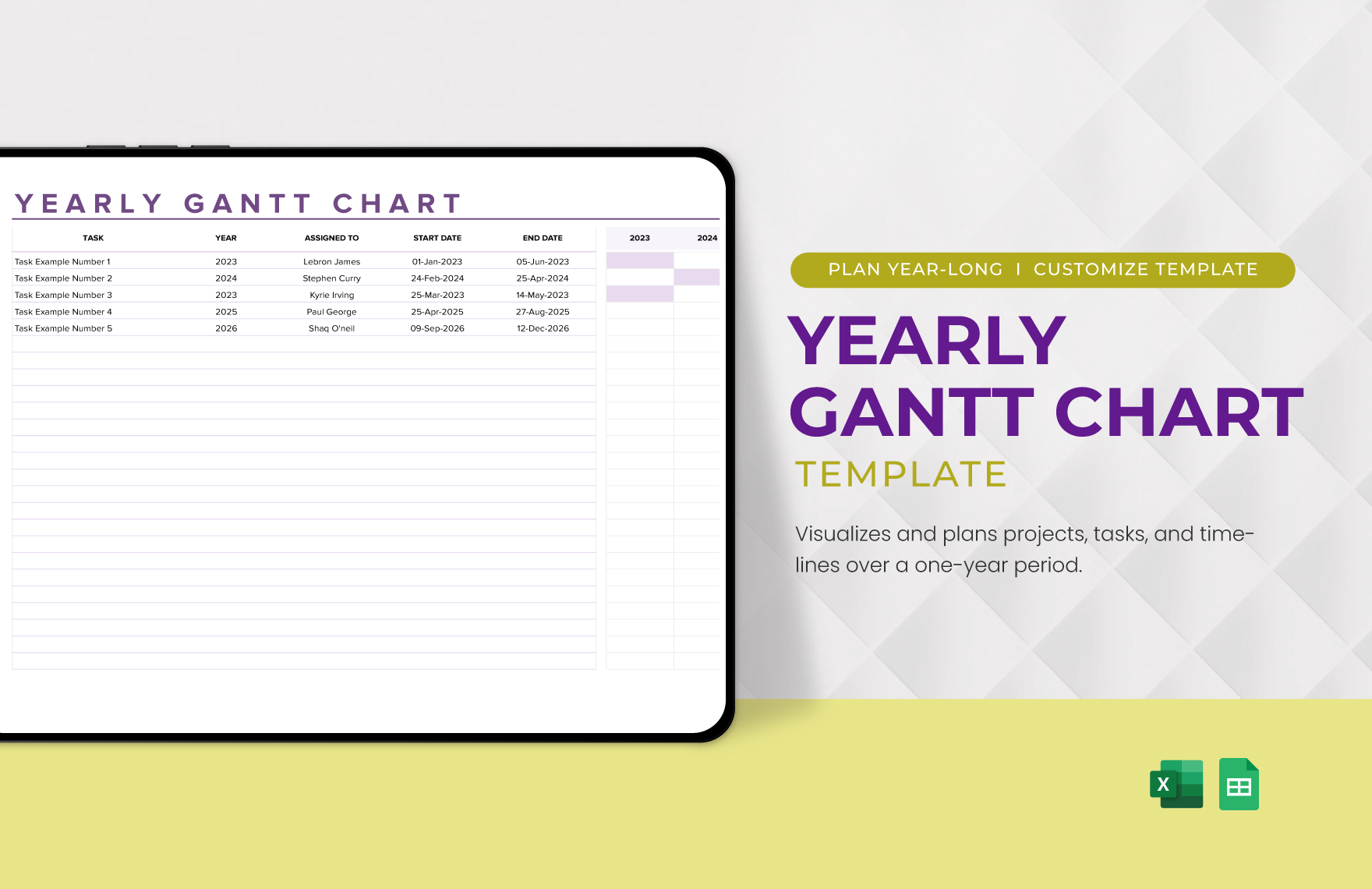
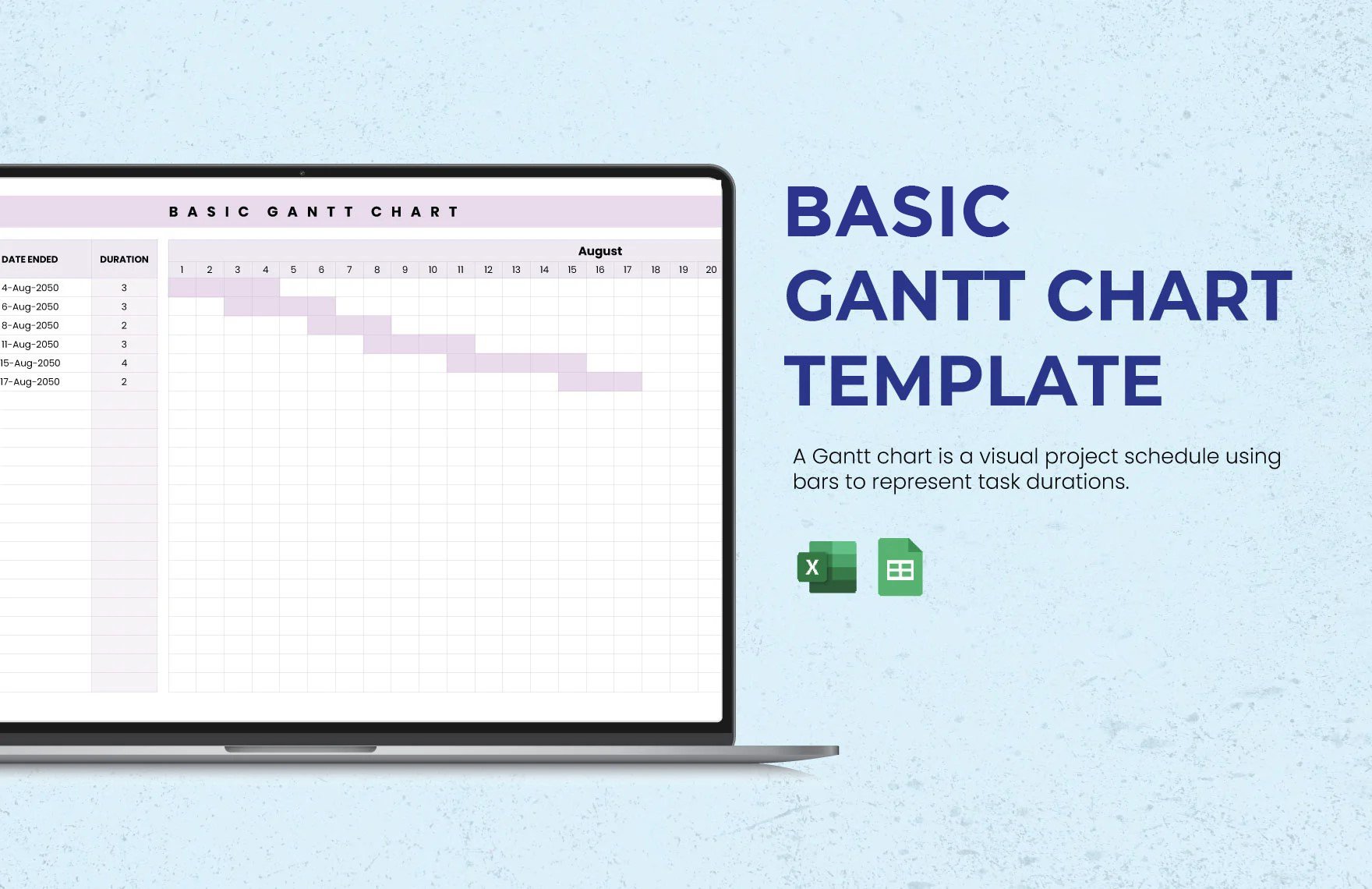
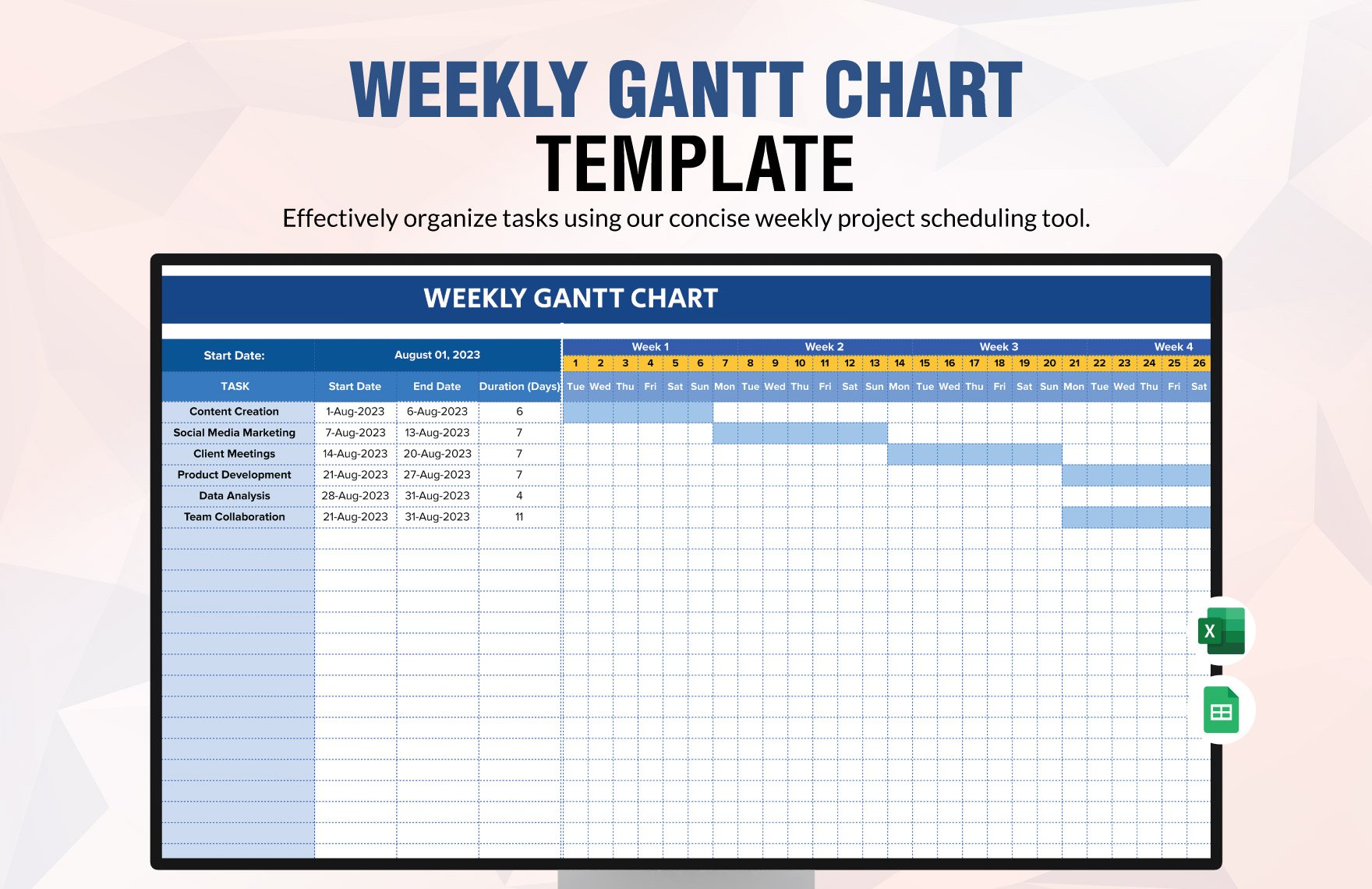
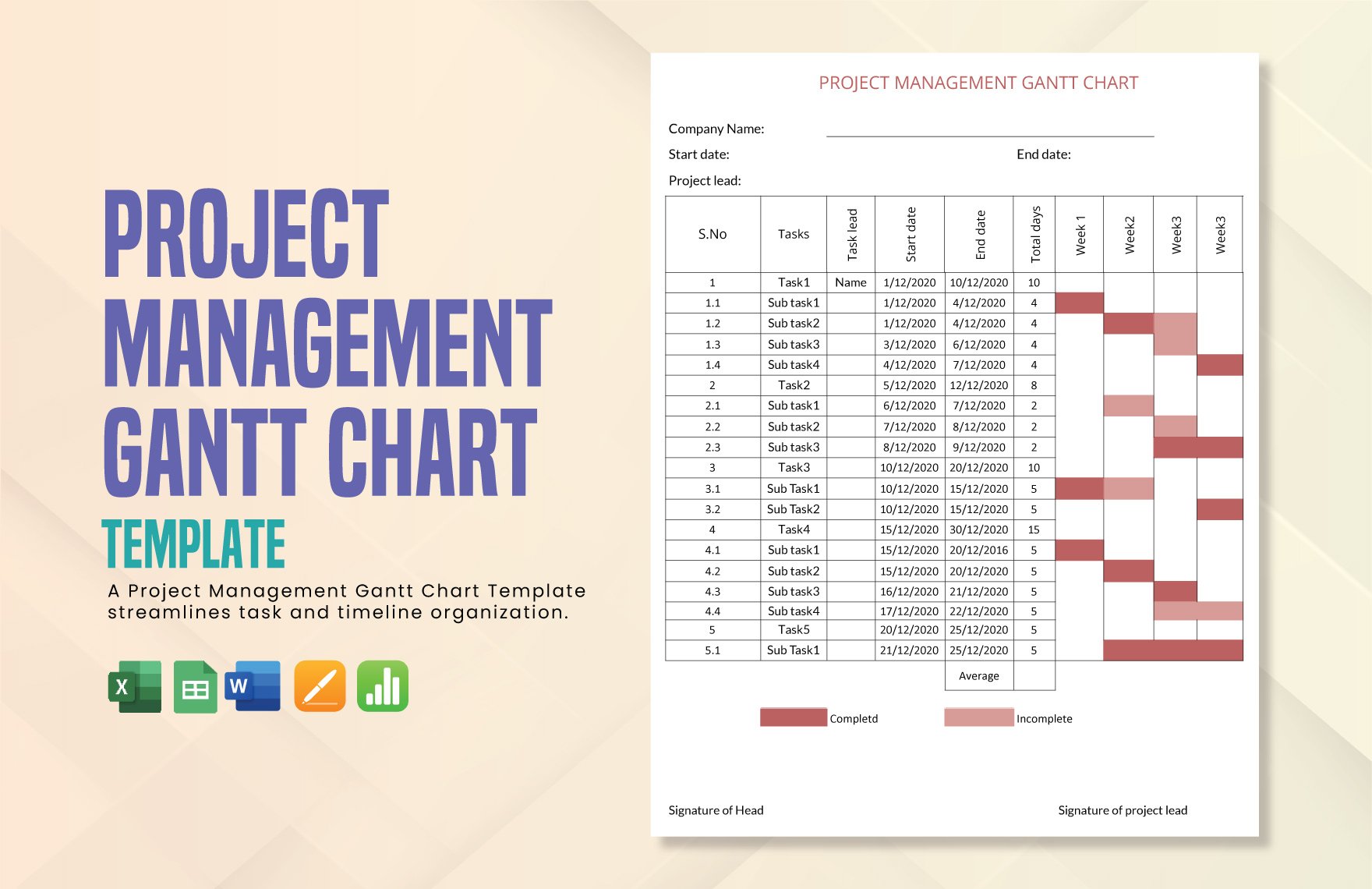
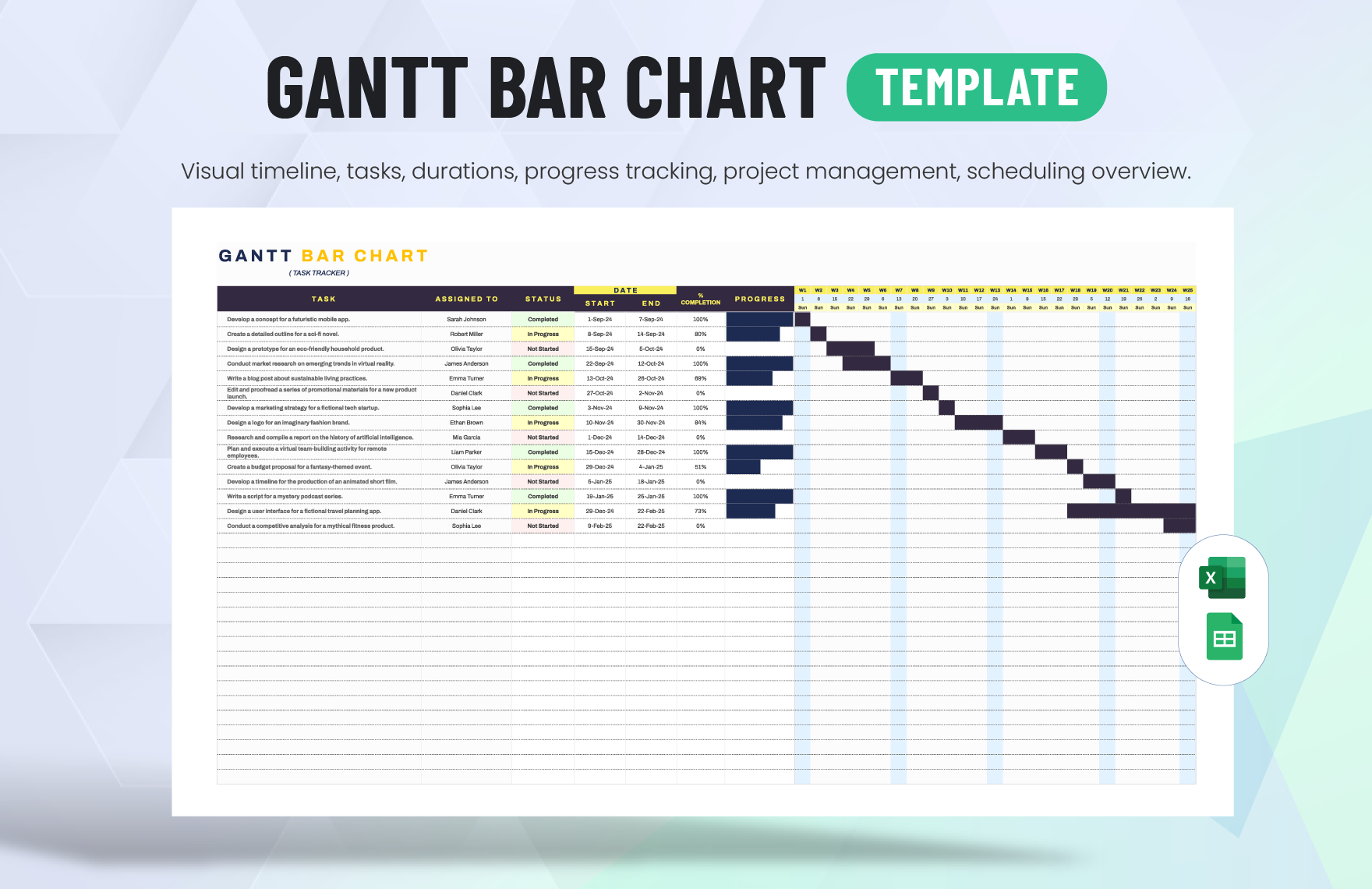
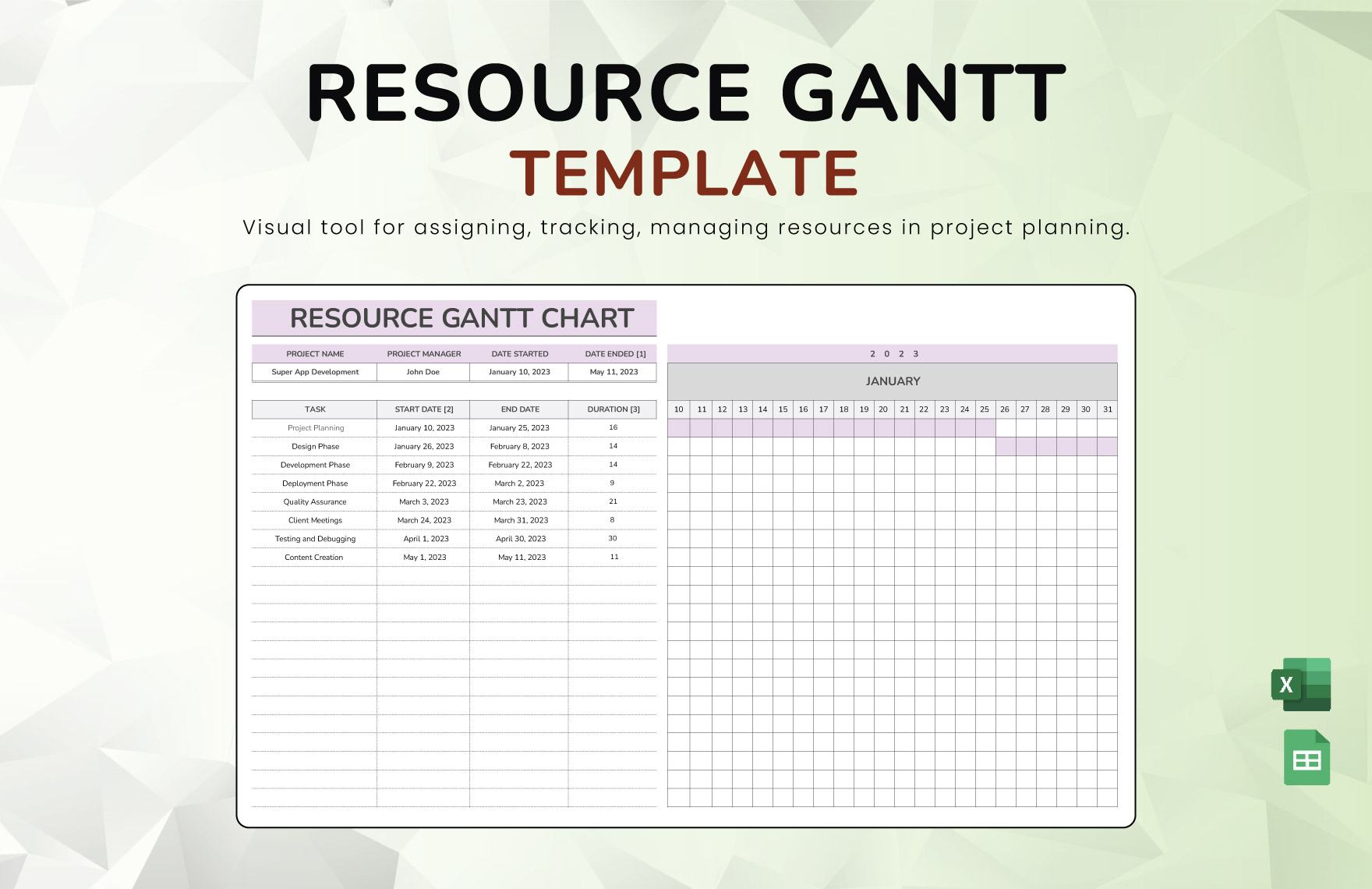
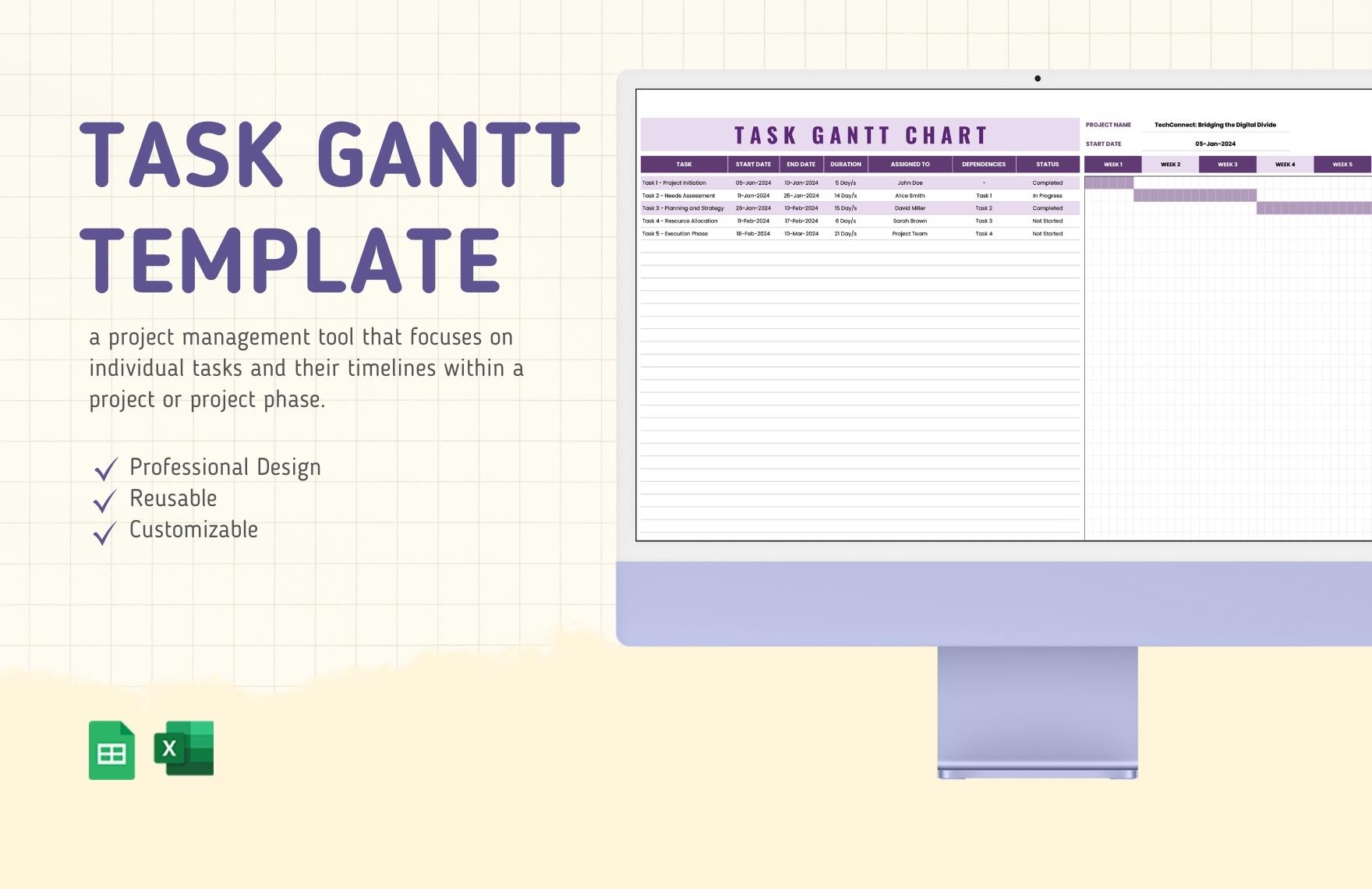
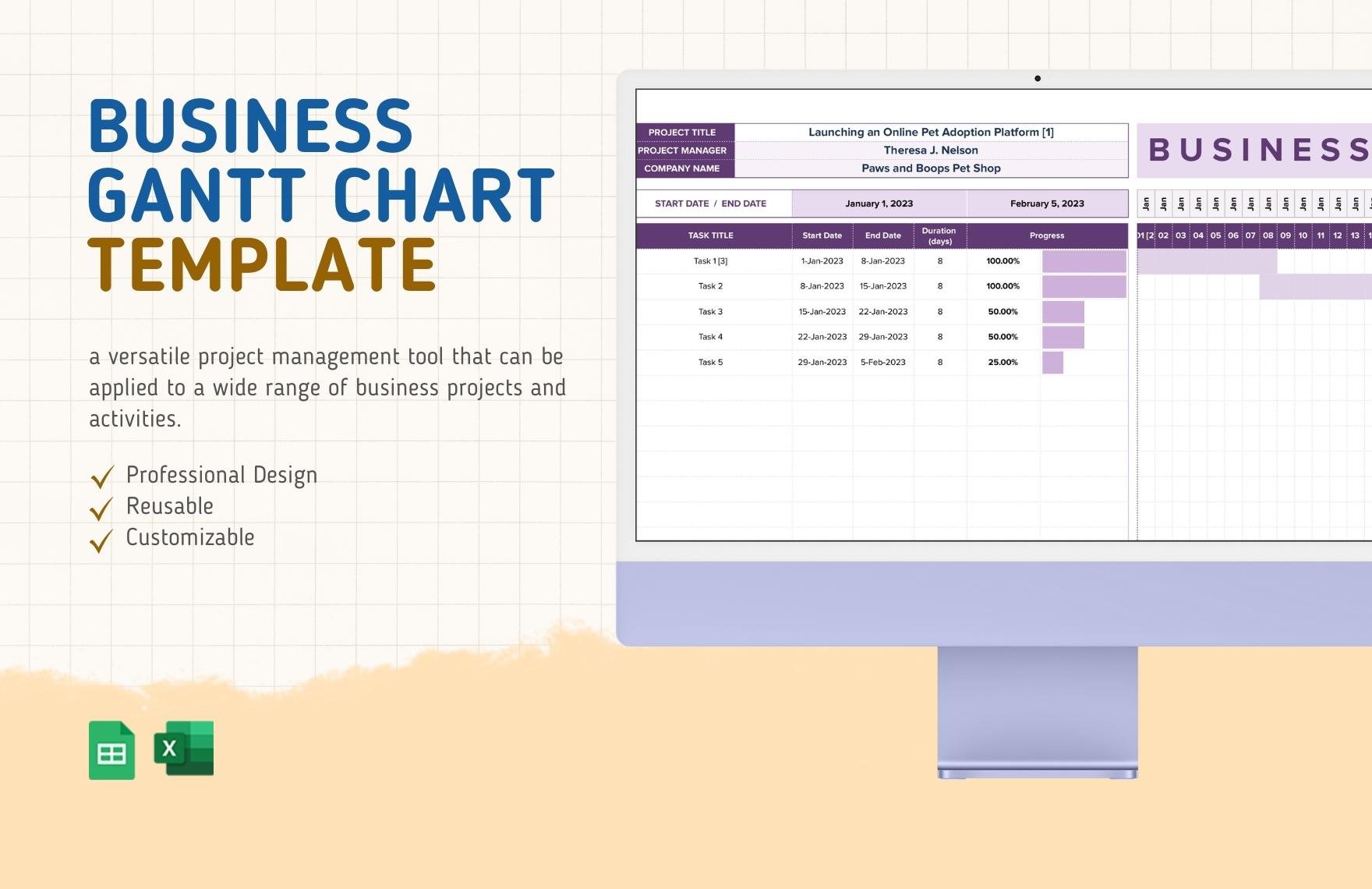
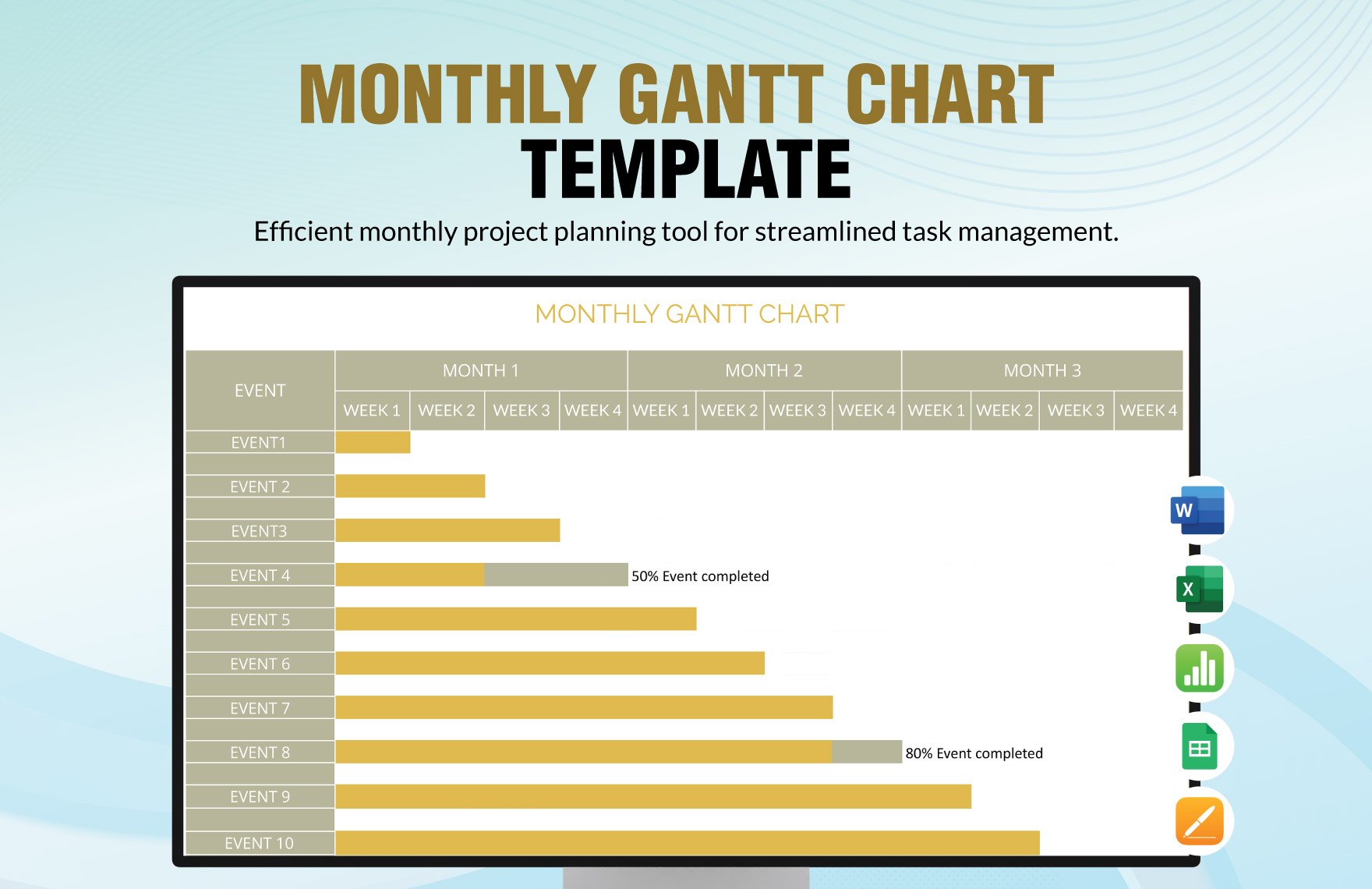
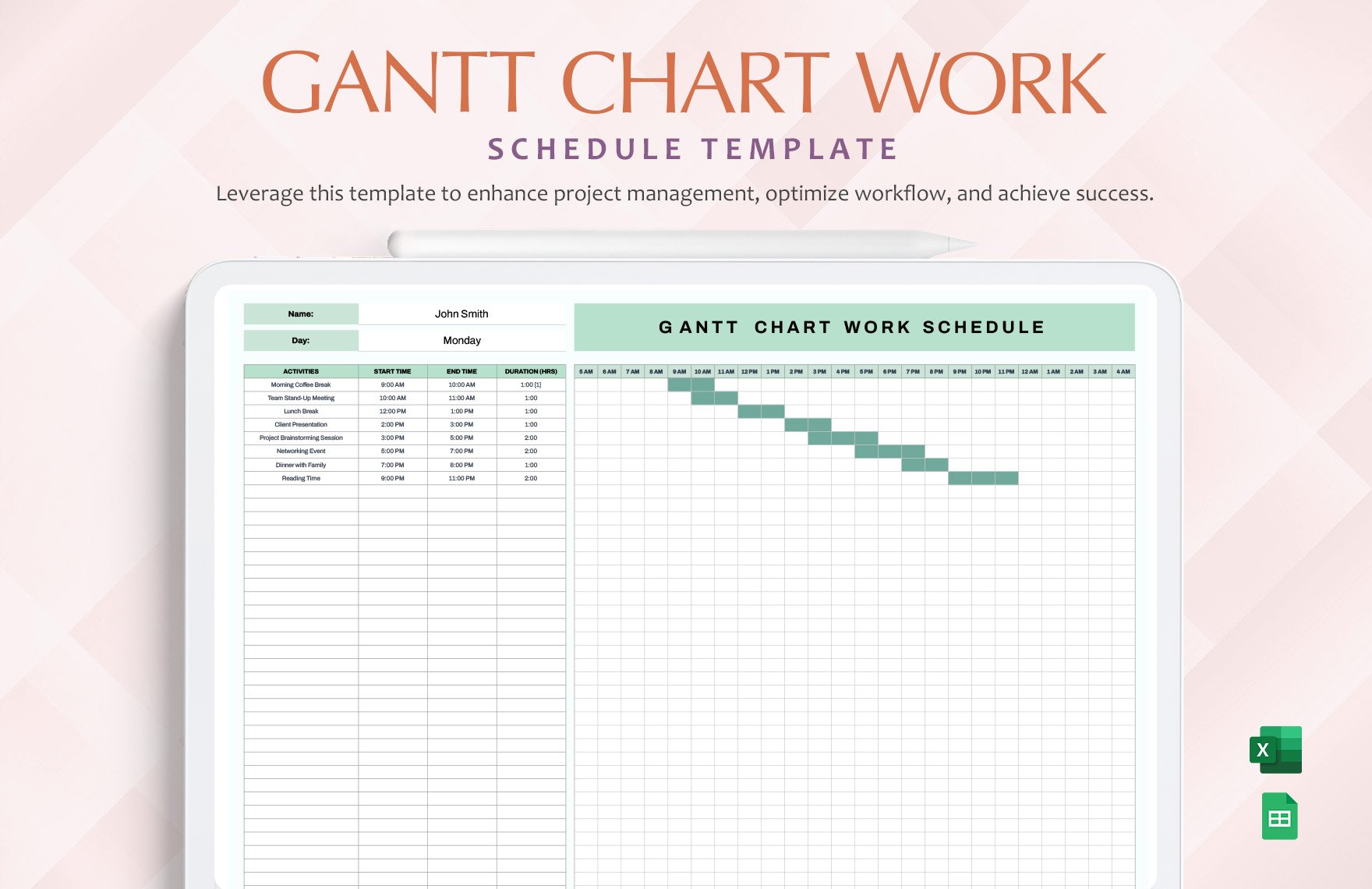
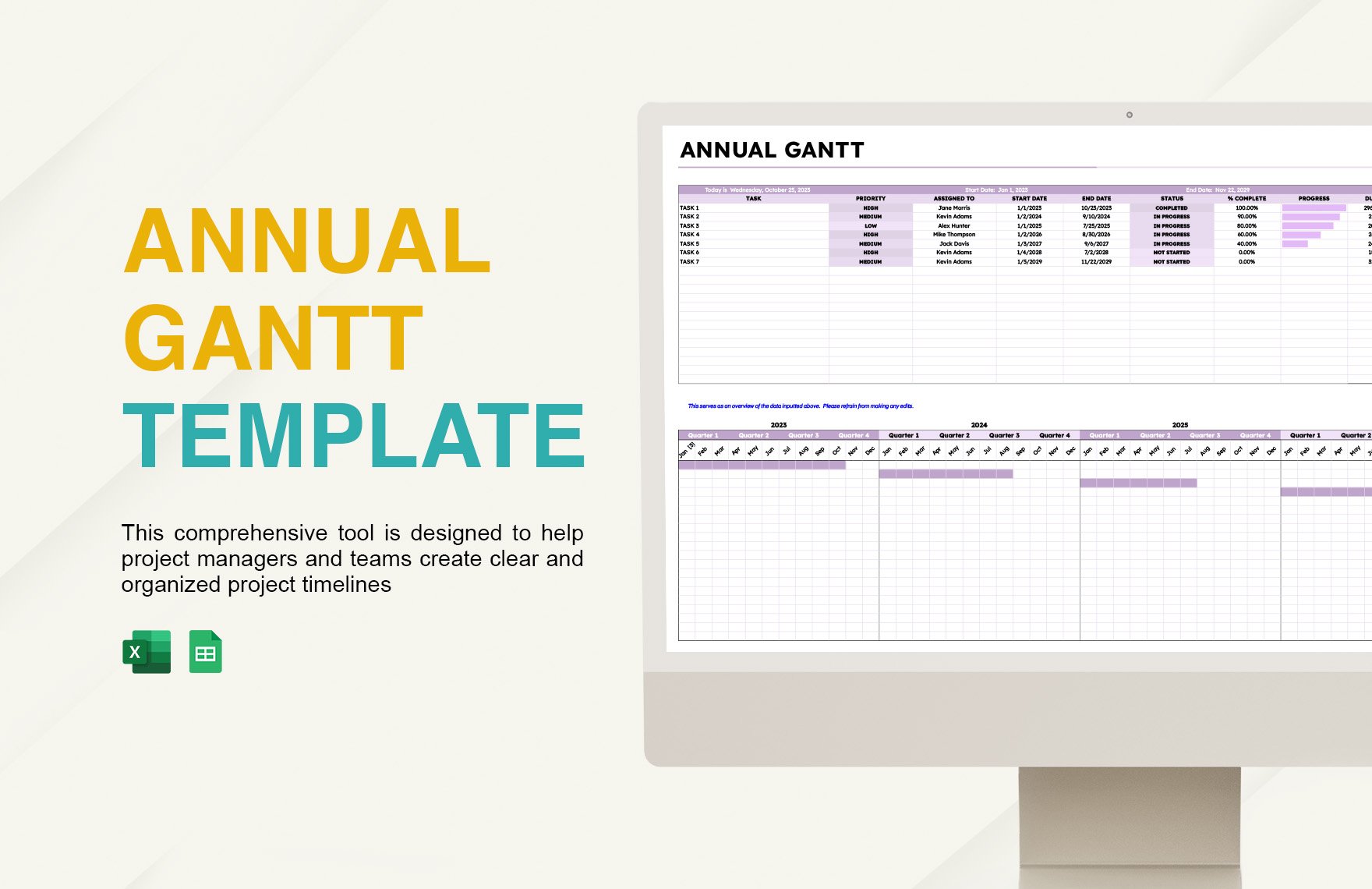
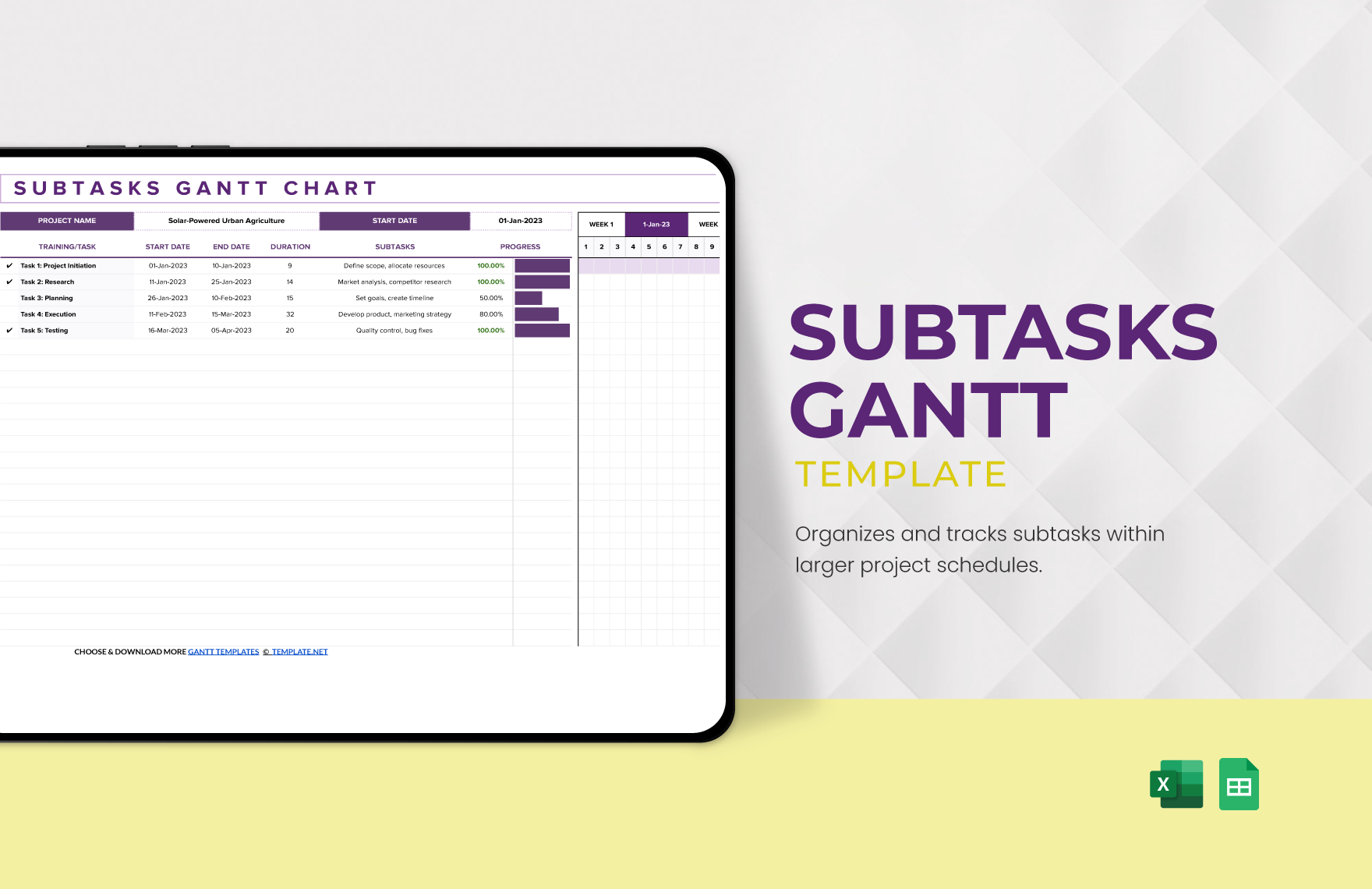
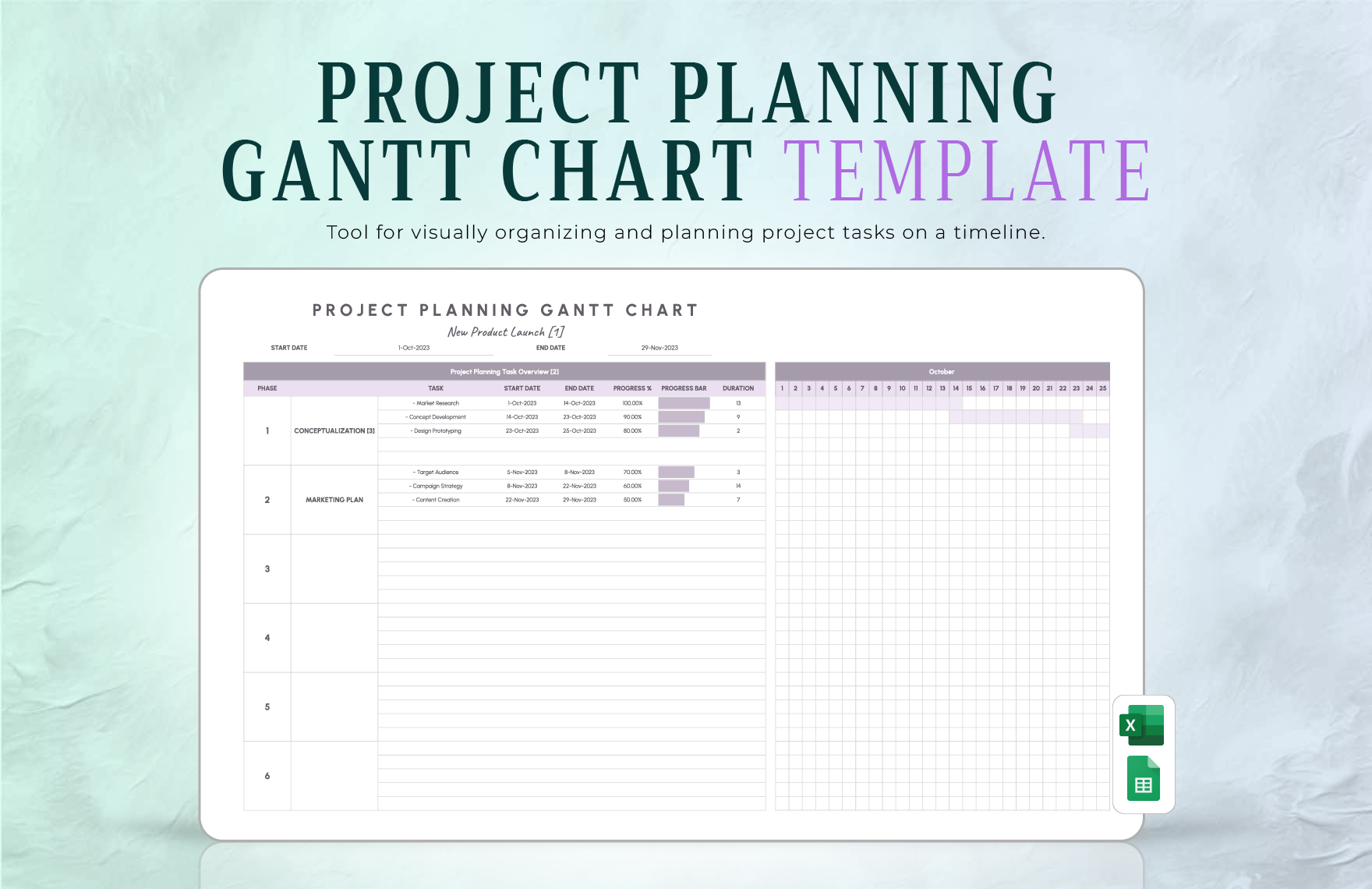
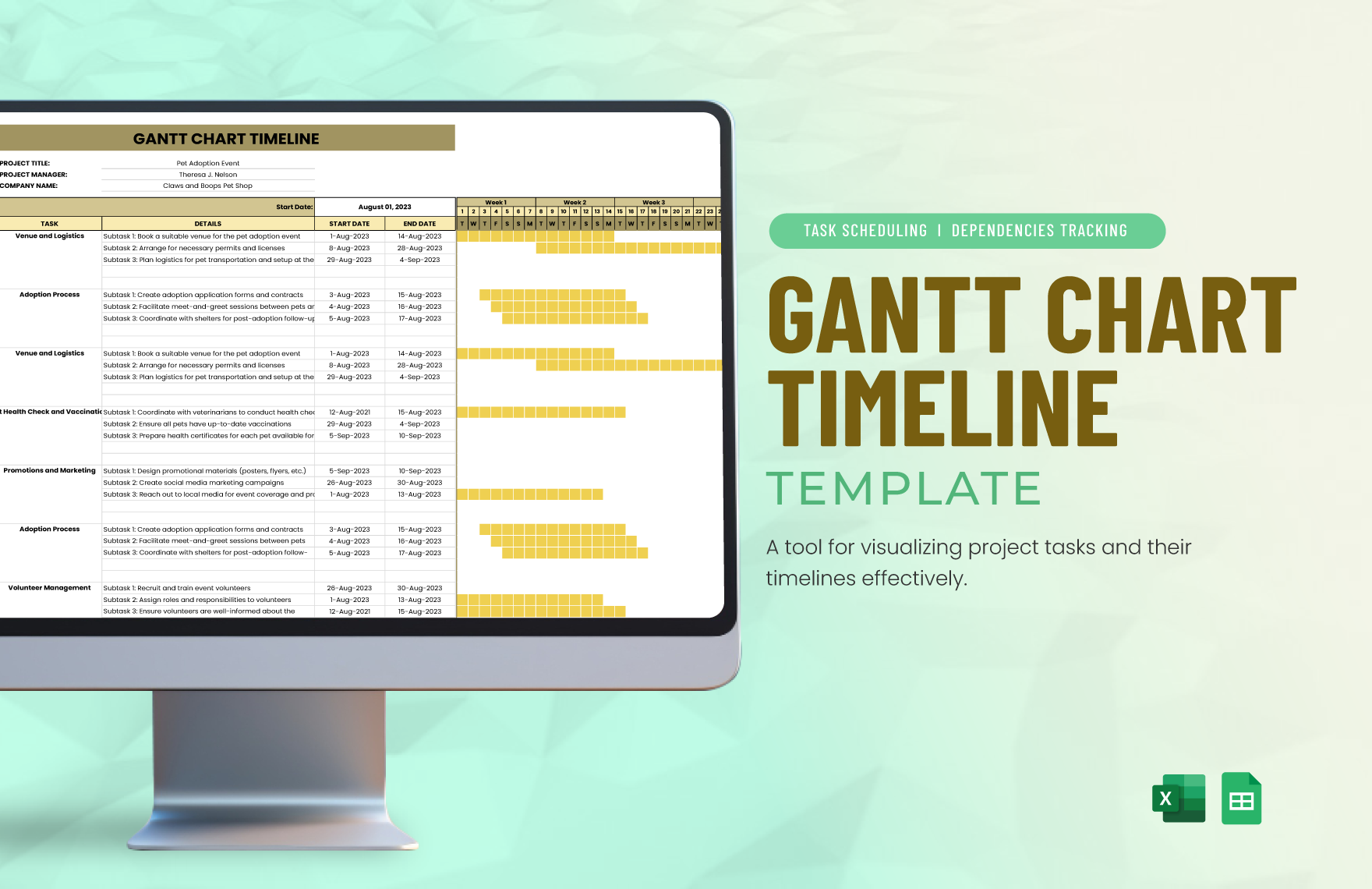
A Gantt is a type of bar chart that visually represents a project schedule by showing tasks, durations, and dependencies over time. Gantt templates are widely used to organize project activities with clear timeline visualization and workflow connections.
Why should I use a Gantt?
You should use a Gantt to gain structural clarity in project planning and track progress efficiently. Gantt templates help visualize task sequences and deadlines, improving collaboration features and reducing scheduling conflicts.
Who uses Gantts?
Gantts are used by project managers, team leaders, and professionals across industries who require visual hierarchy in scheduling. They assist teams in construction, software development, marketing, and more to coordinate tasks and timelines.
What are the best tips for completing my Gantt?
Completing your Gantt effectively involves careful planning and clarity. Consider these tips:
- Define clear tasks – break down work into manageable units
- Set realistic timelines – allocate sufficient time per task
- Identify dependencies – determine which tasks rely on others
- Update regularly – keep the Gantt current to reflect progress
- Use color coding – enhance visual distinction of task statuses
- Include milestones – mark critical project checkpoints
- Collaborate with your team – ensure all members have input
- Review resource allocation – balance workload effectively
- Keep layout clear – avoid clutter for better readability
- Leverage software tools – use digital templates for easy modifications
What file formats can I download for my Gantt?
Template.net whiteboard Gantt templates support multiple export formats for collaboration and sharing, including Apple Pages, Apple Numbers, Word, Excel, and Google Sheets.
Can I create a Gantt using AI?
Template.net provides an AI-powered tool capable of generating Gantt structures automatically based on your project prompts. You can explore this feature at Template.net to create customized Gantt charts rapidly.
What essential elements should be included in my Gantt?
Your Gantt should include key structural components to ensure effectiveness:
- Task list – all project activities clearly identified
- Timeline bars – duration of each task visually represented
- Start and end dates – defining task scheduling
- Dependencies – showing relationships between tasks
- Milestones – marking important deadlines
- Progress indicators – reflecting task completion status
- Resource assignments – identifying responsible persons or teams
- Legend or key – explaining colors or symbols used
- Current date line – indicating today’s date for reference
- Title and labels – providing context and clarity
What are the benefits of using Gantt in my project workflow?
Using Gantt templates in your project workflow offers several benefits:
- Improved scheduling – visualize timelines and deadlines
- Enhanced communication – clarify task responsibilities
- Progress tracking – monitor completion status easily
- Risk management – identify potential delays early
- Resource optimization – allocate workload efficiently
- Better collaboration – align team efforts visually
- Clear priorities – focus on critical path tasks
- Documentation – maintain a historical record of project plans
- Adaptability – quickly update plans as conditions change
- Decision support – facilitate informed project decisions
What structural standards should my Gantt follow?
Your Gantt should follow structural standards that enhance readability and usability:
- Consistent scale – use uniform time units across the timeline
- Clear labeling – include task names and dates visibly
- Logical task order – arrange tasks sequentially or by priority
- Visual distinction – use colors or patterns for different statuses
- Readable fonts – maintain legibility at all zoom levels
- Minimal clutter – avoid overcrowding to improve clarity
- Highlight dependencies – clearly connect related tasks
- Accessible layout – ensure compatibility with various devices
- Update flexibility – allow easy modifications as projects evolve
- Use of legends – explain symbols and color codes used
