

















Free Whiteboard Templates: Customizable Visual Collaboration Guide and Online Editing
What is a Whiteboard?
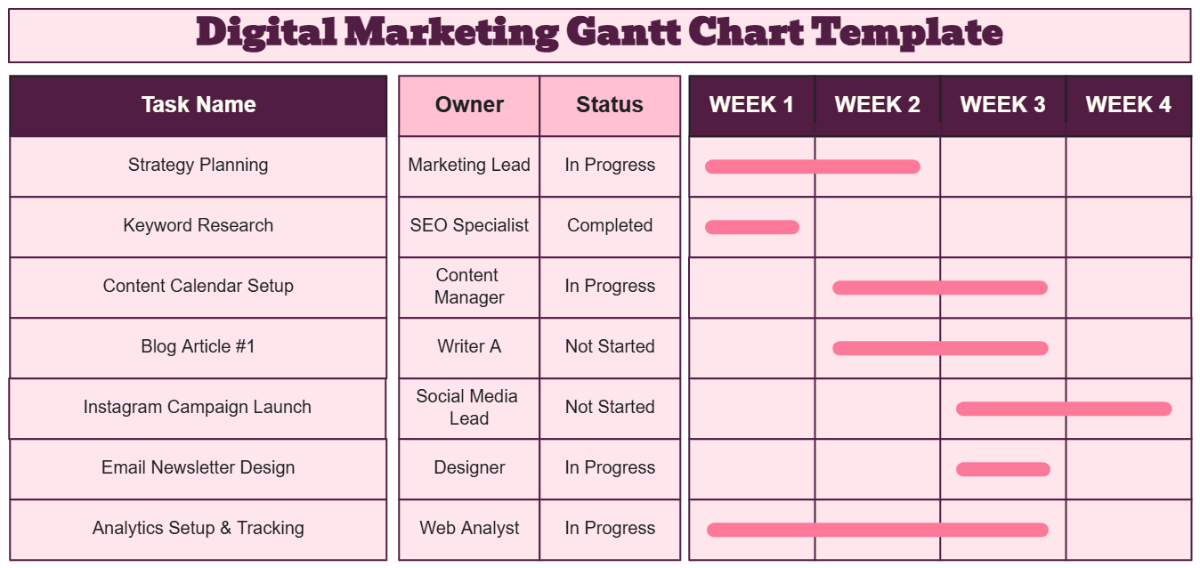
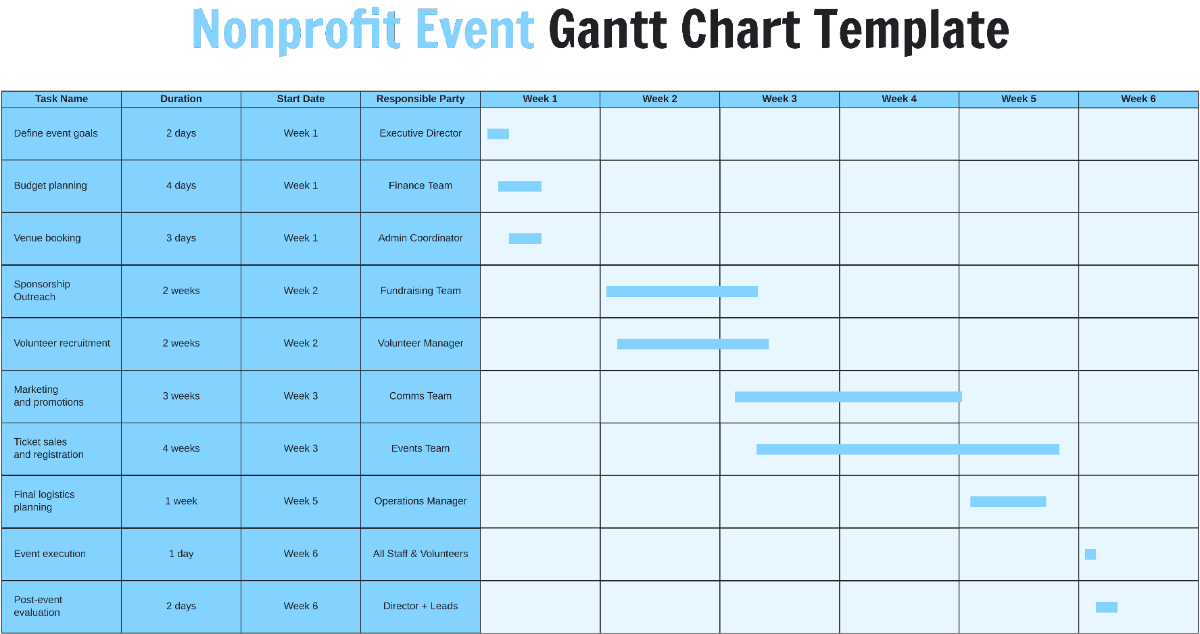
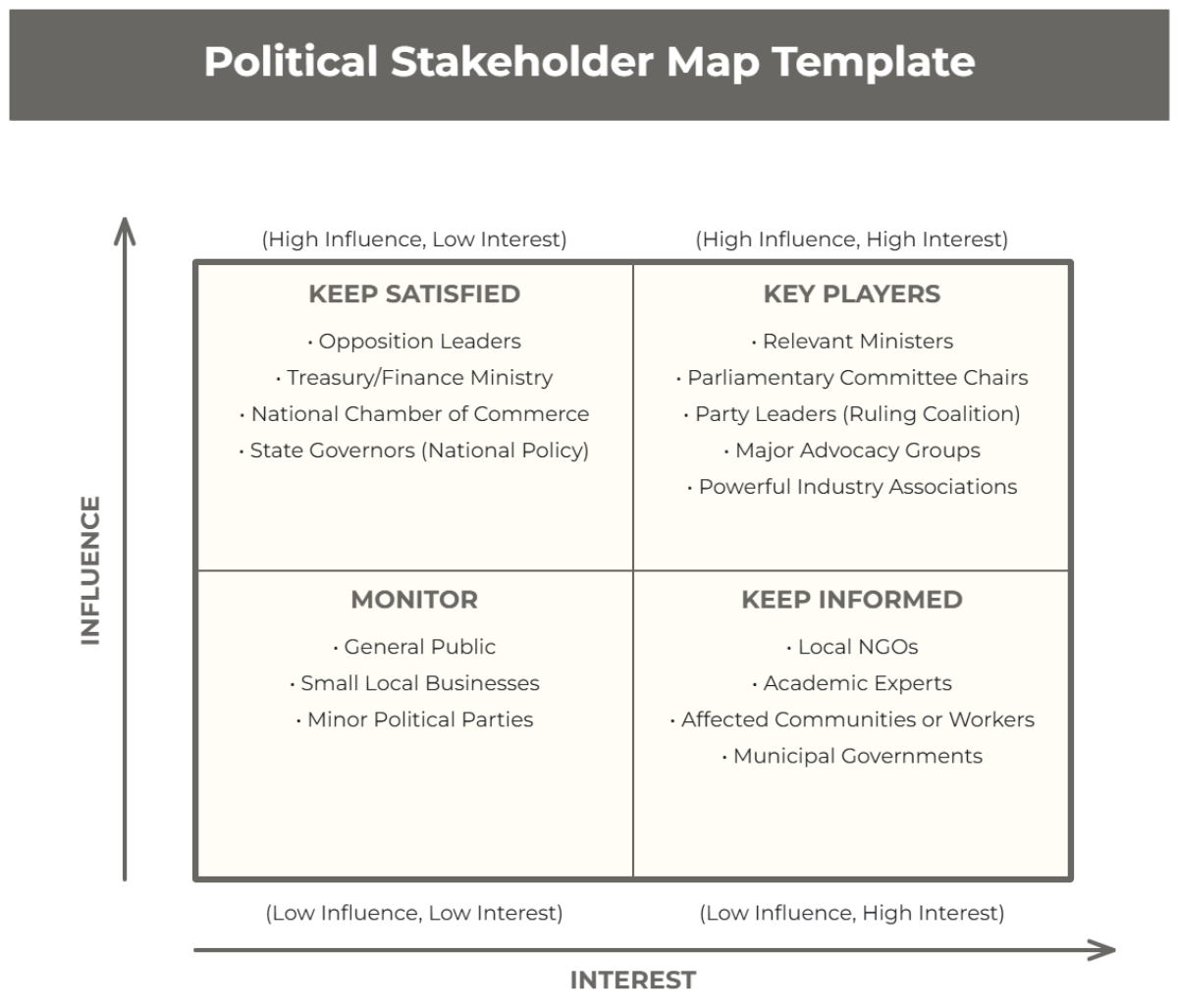
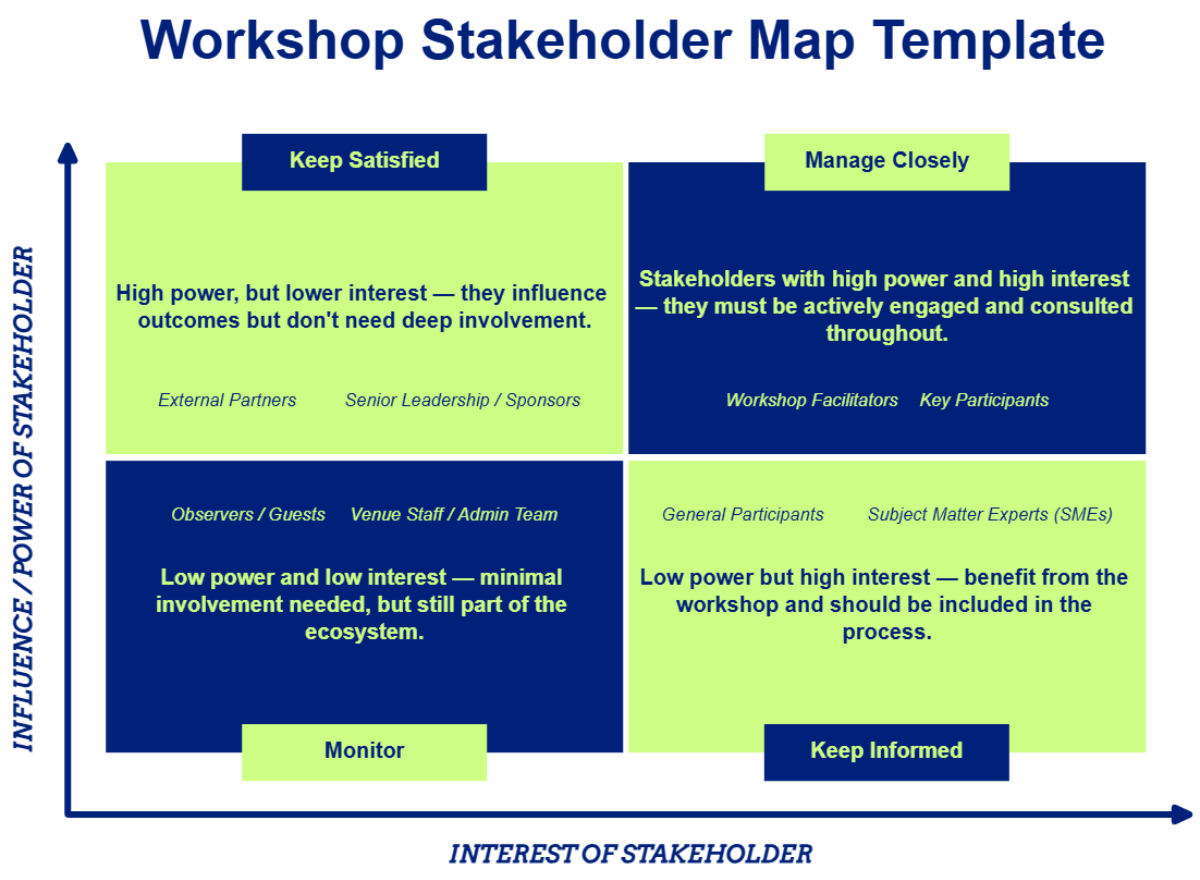
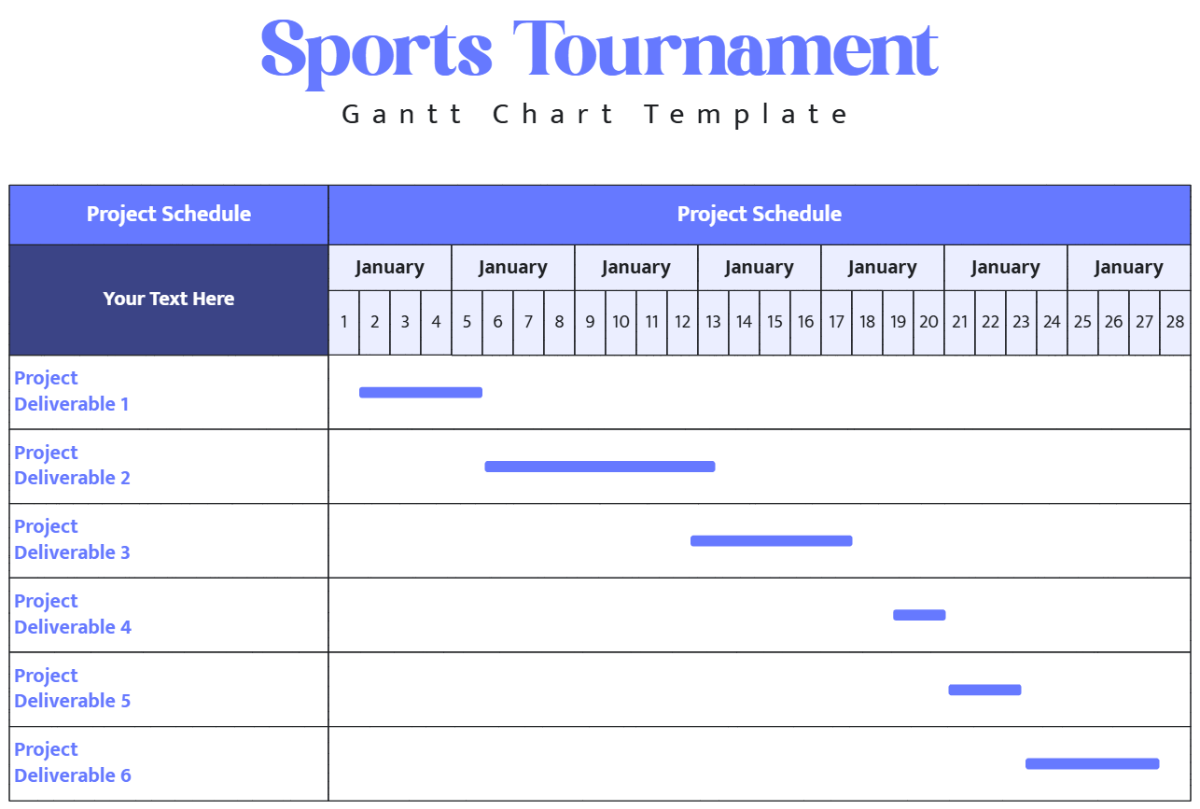
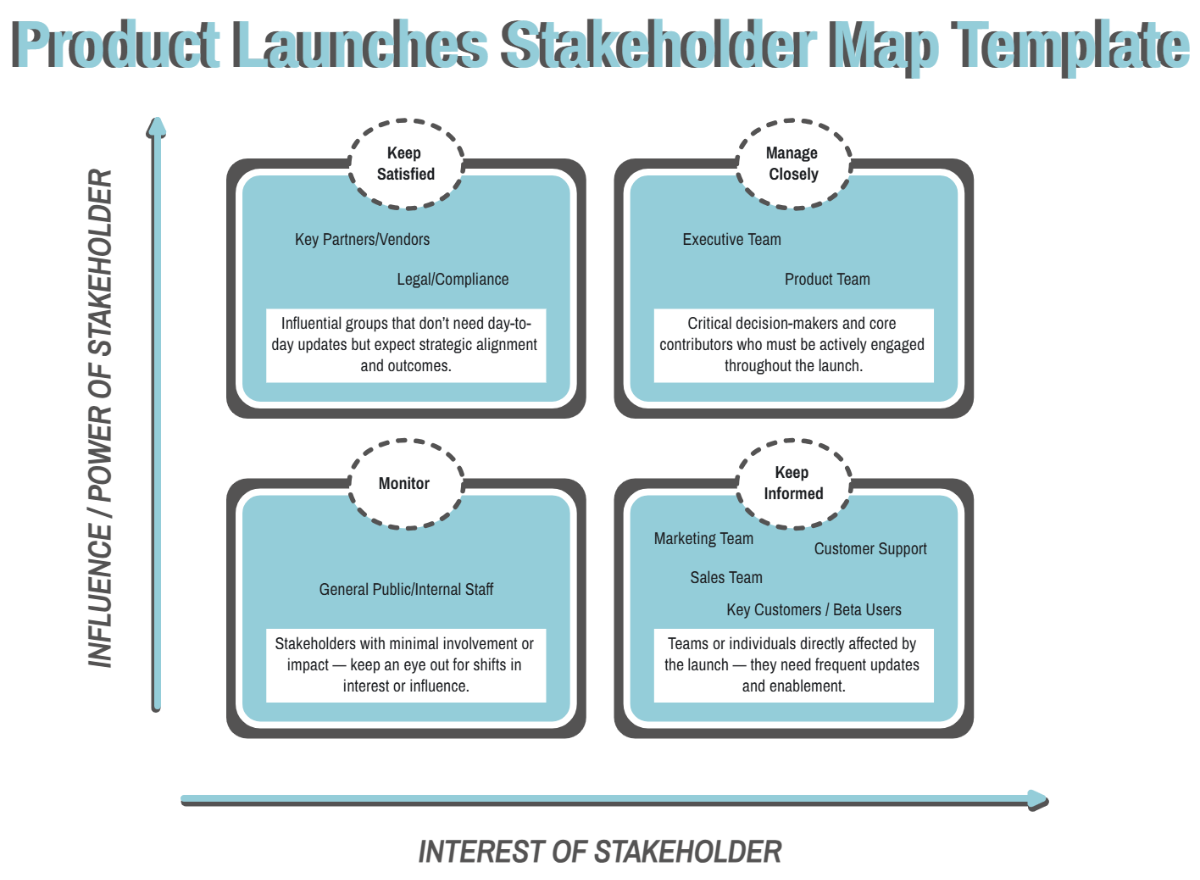
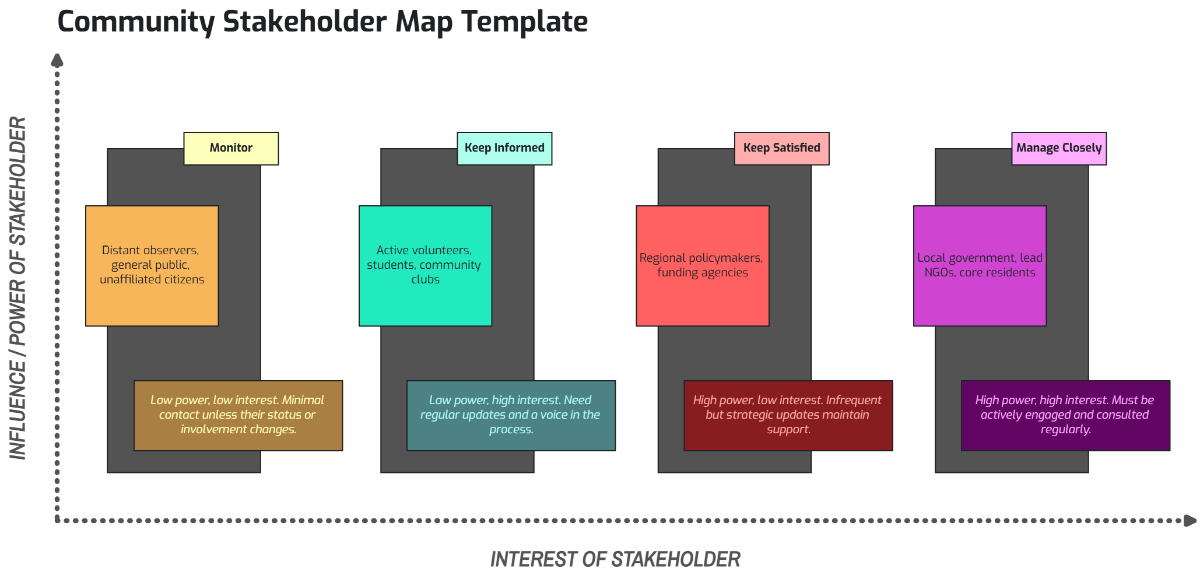
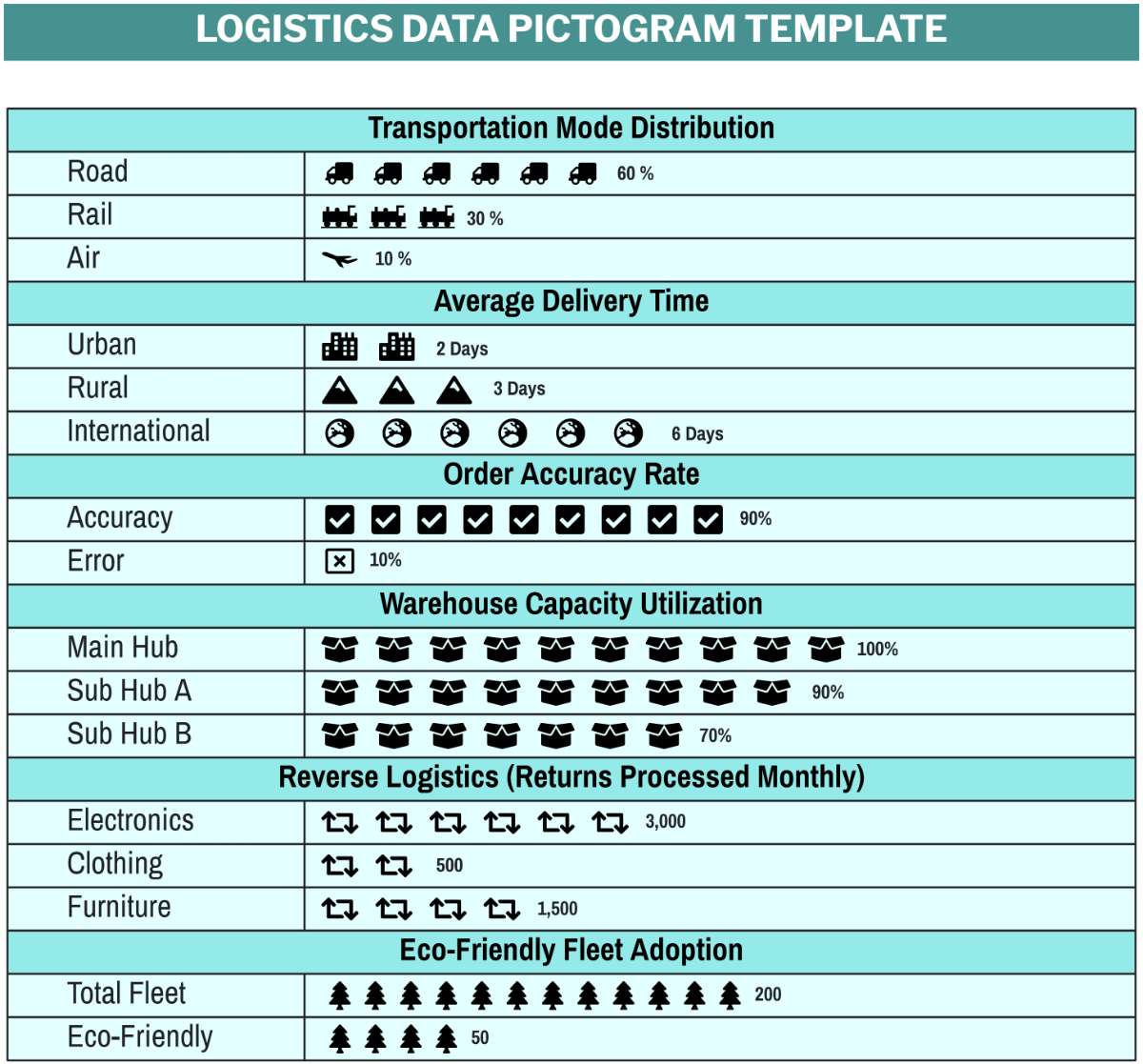
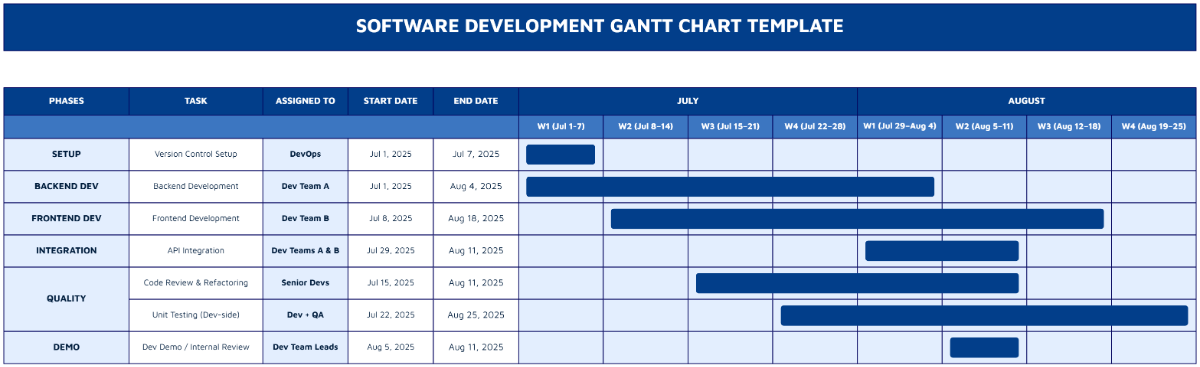
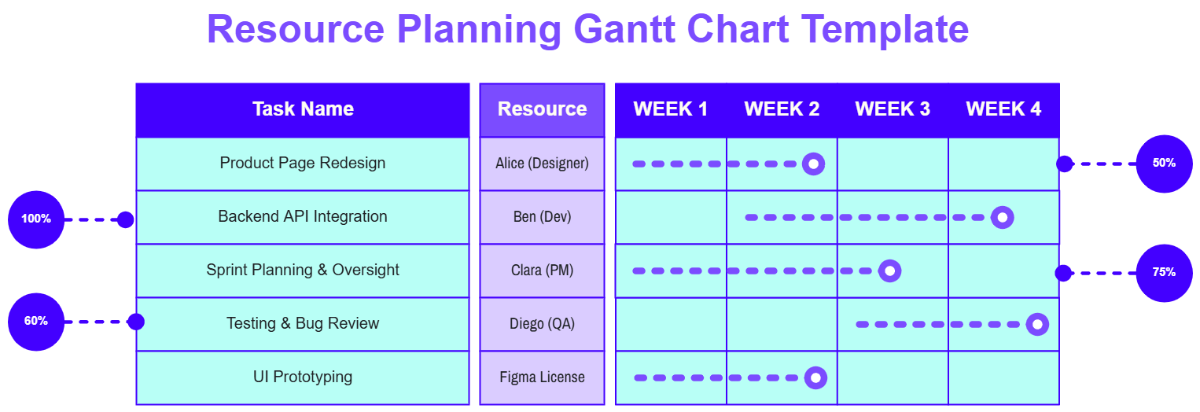
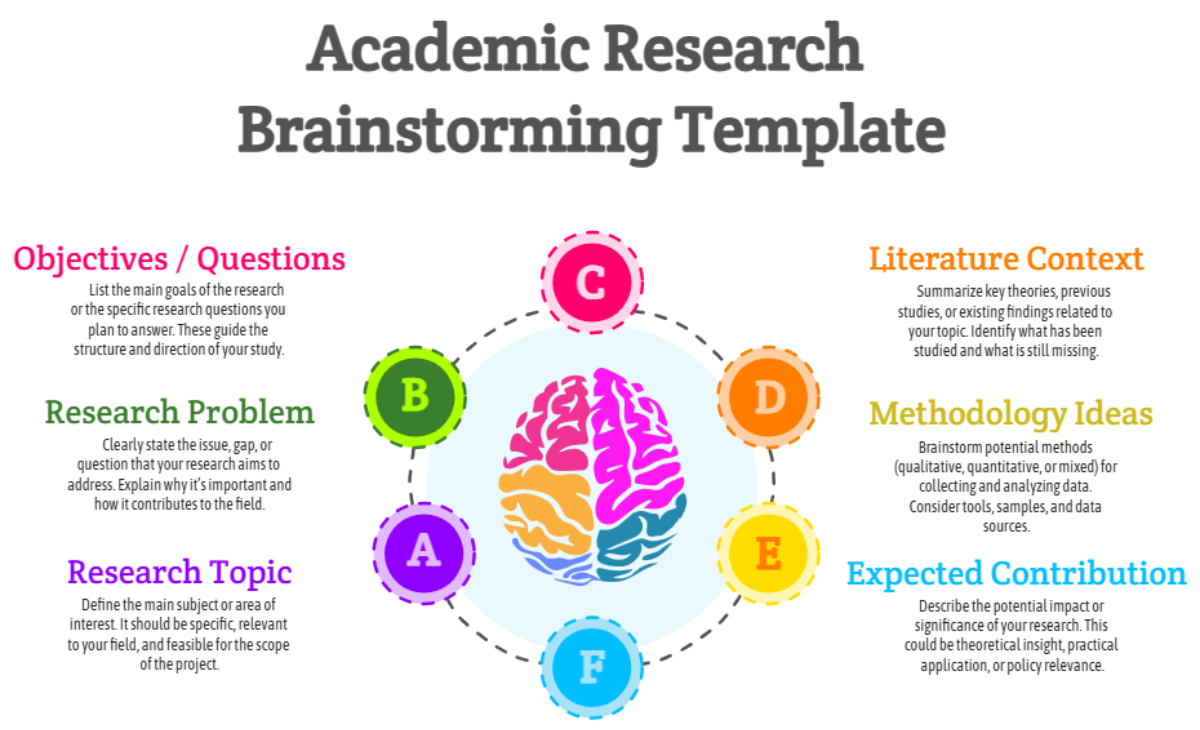
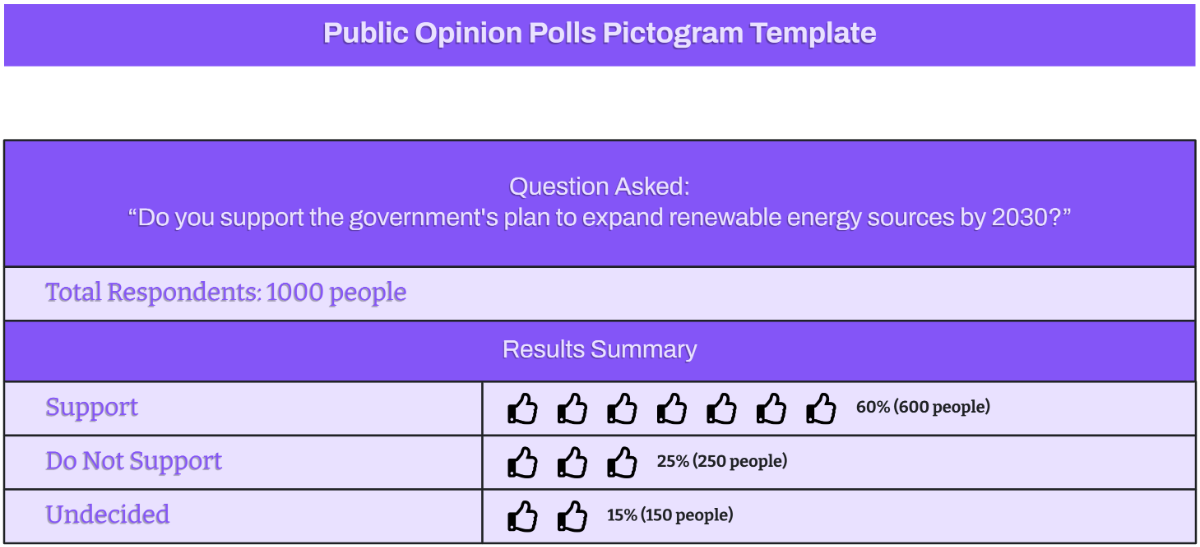
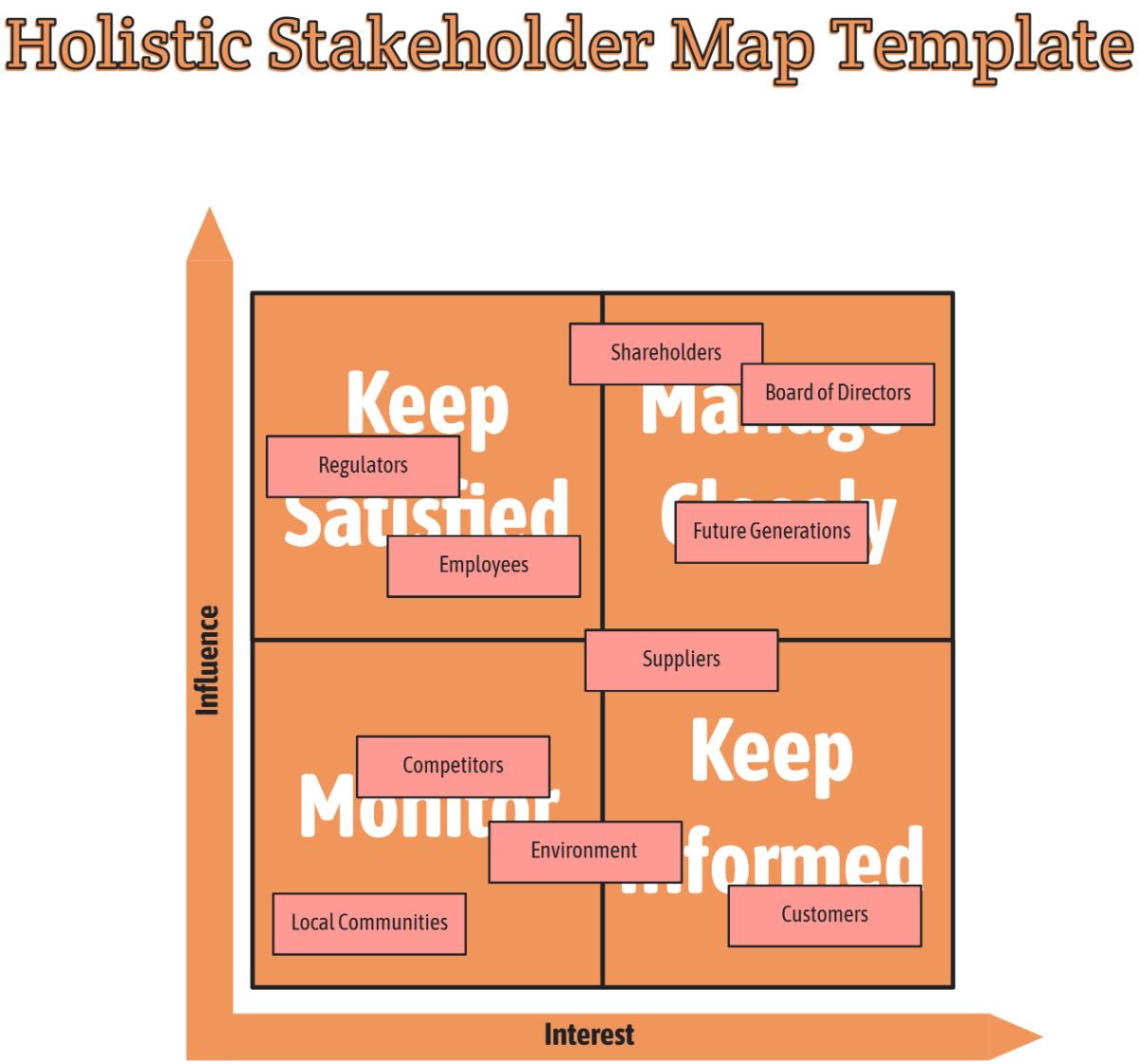
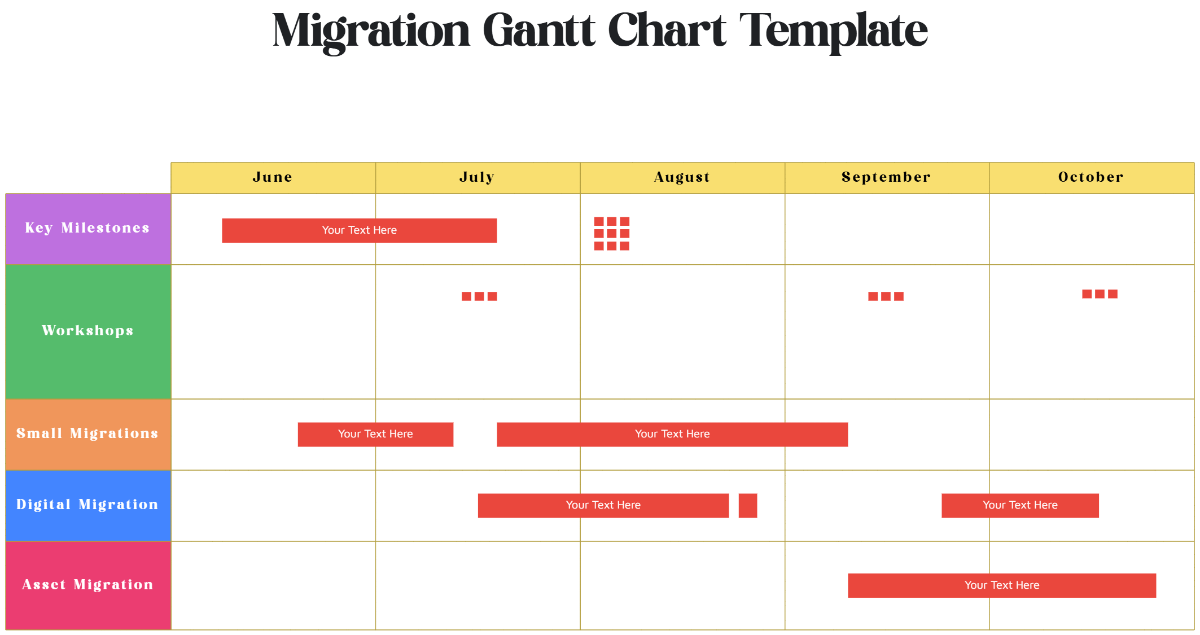
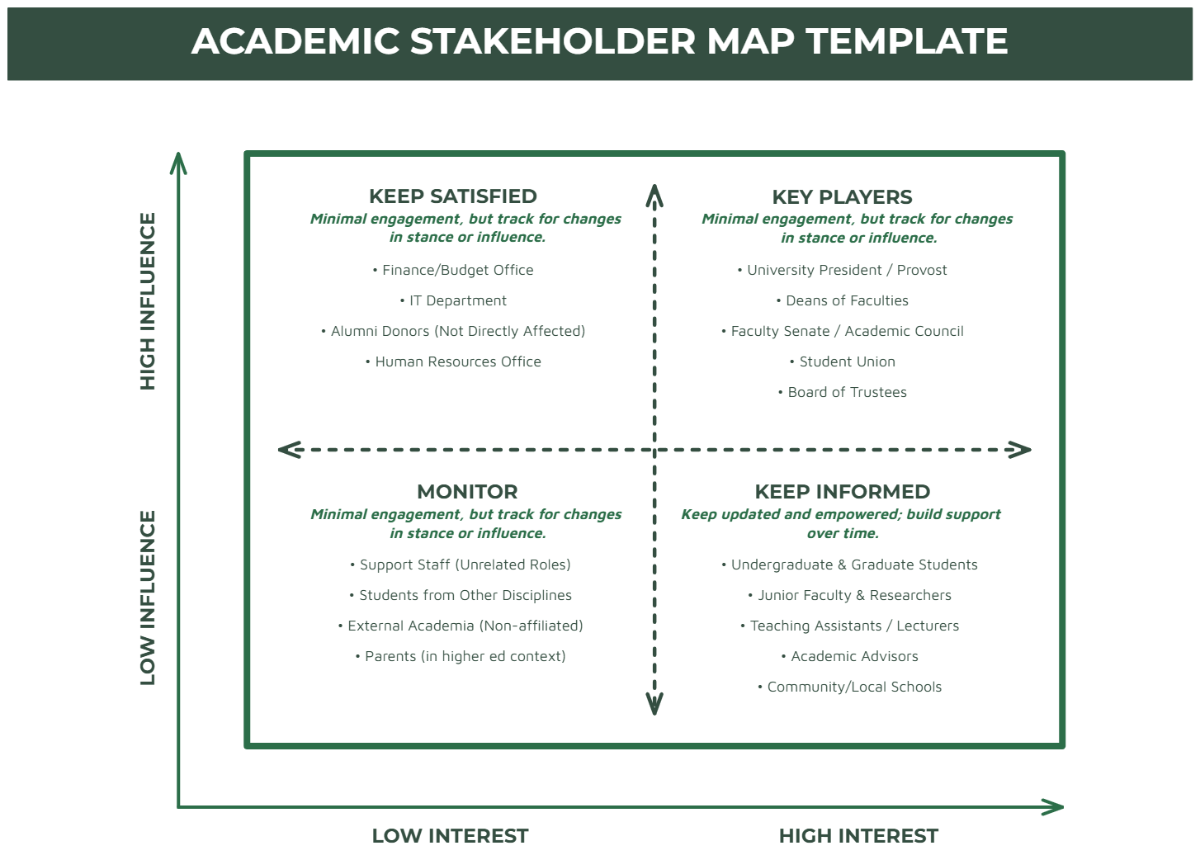
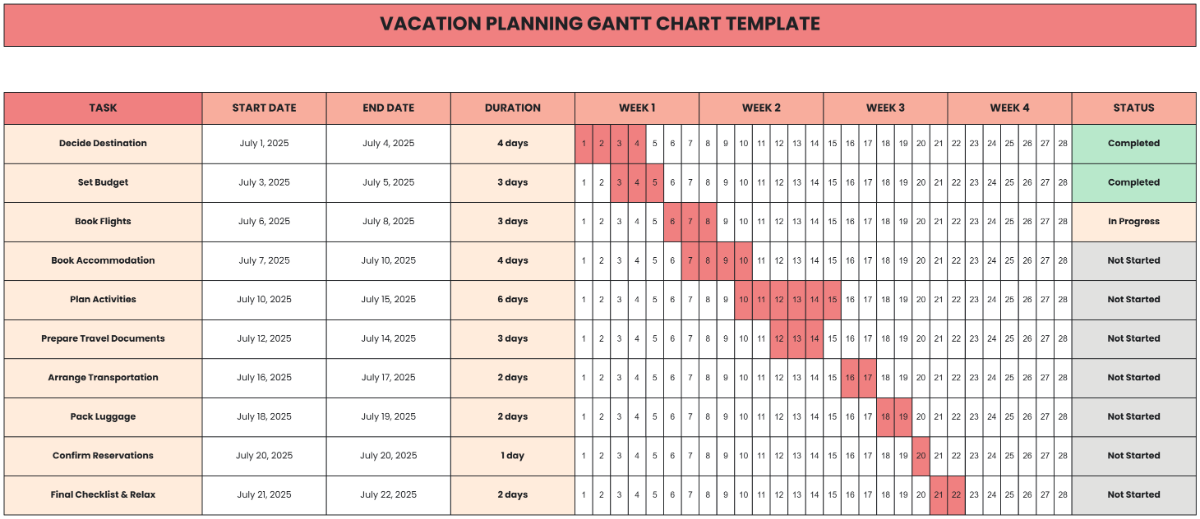
A Whiteboard is a visual collaboration tool that allows you to organize ideas, workflows, and information using diagrams, flowcharts, mind maps, and organizational charts. It serves as a flexible space for brainstorming, planning, and presenting concepts with visual hierarchy and structural clarity.
Why should I use a Whiteboard?
You should use a Whiteboard to enhance collaboration features and improve communication by visually organizing complex information. It supports dynamic idea development, better workflow connections, and easier understanding through diagram structures that aid team alignment and problem-solving.
Who uses Whiteboards?
Whiteboards are used by professionals across various fields including project managers, educators, designers, and business teams. These users rely on whiteboards for clear visualization of processes, brainstorming sessions, strategic planning, and effective knowledge sharing through collaborative visual tools.
What are the best tips for completing my Whiteboard?
To complete your Whiteboard effectively, follow these tips:
- Define clear objectives – identify the purpose of your whiteboard.
- Use consistent visual elements – apply uniform shapes and colors.
- Maintain structural clarity – organize content logically.
- Limit clutter – focus on essential information.
- Incorporate collaboration tools – enable input from team members.
- Use labels and annotations – clarify diagram parts.
- Update regularly – keep your whiteboard current.
- Test readability – ensure all viewers understand the content.
- Leverage templates – start with customizable structures.
- Plan for export formats – consider sharing needs.
What file formats can I download for my Whiteboard?
Template.net whiteboard templates support multiple export formats for collaboration and sharing, including Google Slides, Word, Apple Pages, Apple Keynote, and PowerPoint.
Can I create a Whiteboard using AI?
Template.net provides an AI-powered tool that generates new Whiteboard structures from prompts to streamline your creation process. You can access this feature at Whiteboard Online for automated template generation and customization.
What essential elements should be included in my Whiteboard?
Your Whiteboard should include essential elements for effective communication and structure.
- Title or header – identifies the whiteboard topic.
- Visual hierarchy – organizes information by importance.
- Diagrams and flowcharts – illustrate processes and workflows.
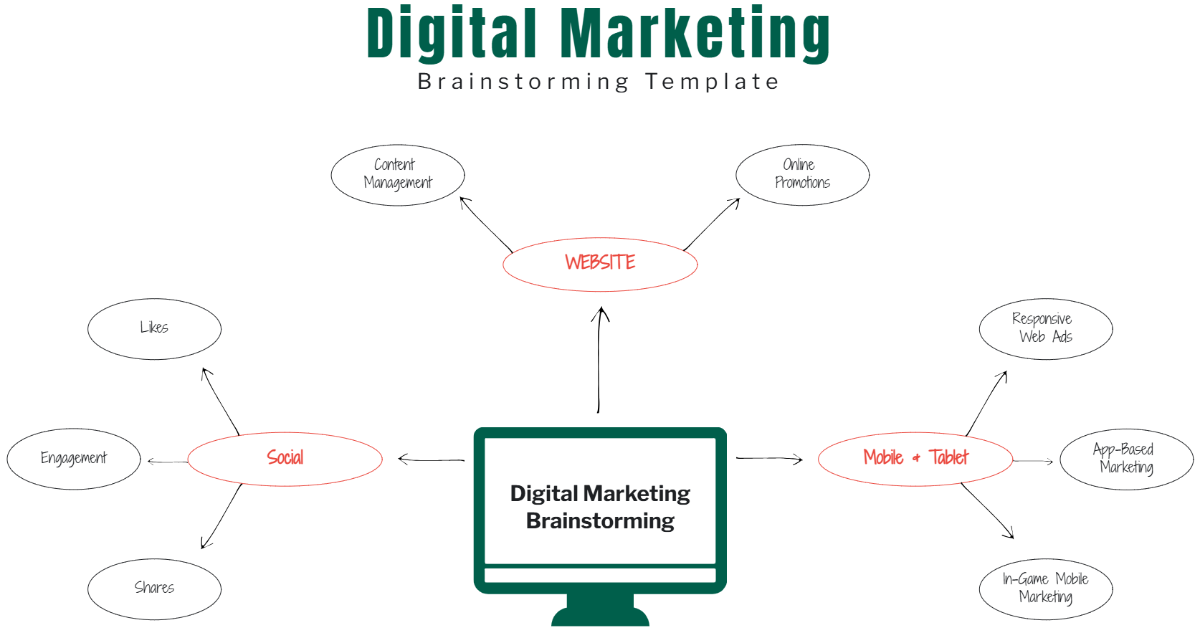
- Mind maps – show relationships between ideas.
- Organizational charts – display team or process structure.
- Annotations and labels – clarify visual elements.
- Color coding – distinguishes different categories or priorities.
- Collaboration notes – track comments or changes.
- Legend or key – explains symbols or colors used.
- Export options – enable sharing and saving.
What are the benefits of using Whiteboard in my team collaboration workflow?
Using a Whiteboard in your team collaboration workflow provides multiple benefits.
- Enhances communication – visually conveys complex ideas.
- Improves engagement – encourages participation from all members.
- Facilitates brainstorming – captures ideas in real time.
- Supports remote collaboration – accessible online anytime.
- Increases productivity – streamlines planning and tracking.
- Enables version control – tracks changes and updates.
- Improves decision-making – clearer understanding of workflows.
- Consolidates resources – integrates various diagrams and notes.
What structural standards should my Whiteboard follow?
Your Whiteboard should follow structural standards to maintain clarity and usability.
- Consistent layout – align elements uniformly.
- Balanced spacing – avoid overcrowding and use white space.
- Clear labeling – use descriptive text for all components.
- Logical flow – arrange information in a sequence that matches the process or idea.
- Readable fonts – choose sizes and styles that ensure legibility.
- Color contrast – use colors that are distinguishable and accessible.
- Modular design – allow easy updates and rearrangements.
- Visual grouping – cluster related items together.
- Accessible navigation – include guides or legends if needed.
