


![How to Add a Signature in Microsoft Forms [Templates + Examples] 2026](https://images.template.net/wp-content/uploads/2022/07/How-to-Add-a-Signature-in-Microsoft-Forms-Templates-Examples-2023-788x443.jpg)
How to Add a Signature in Microsoft Forms [Templates + Examples] 2026
Signatures found in documents establish who you are as an individual or as an organization. Aside from the fact that…
Dec 22, 2025


Sep 02, 2025
You should convert the Microsoft Publisher file to PDF if you want to share it with someone who might not have Publisher or if you don’t want anyone to be able to edit it.
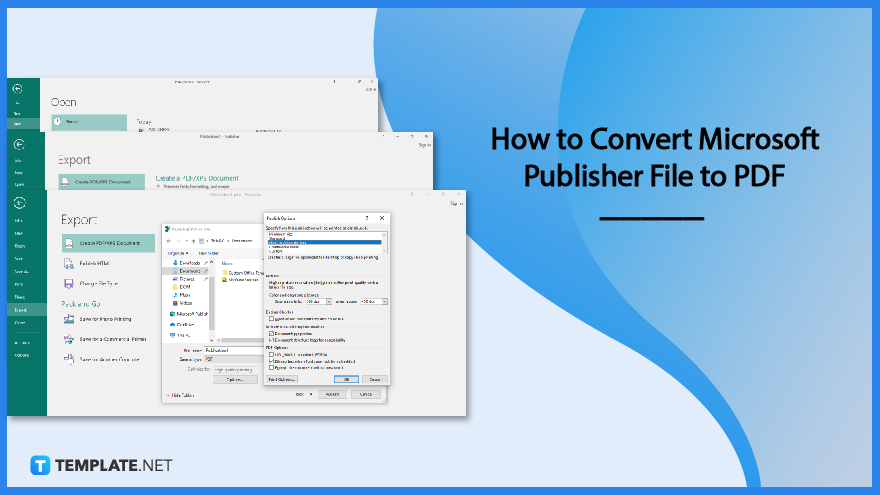
Even though Microsoft Publisher (.pub) files can only be edited in Publisher, you can convert “.pub” files to another format such as PDF if you need to make them more accessible.
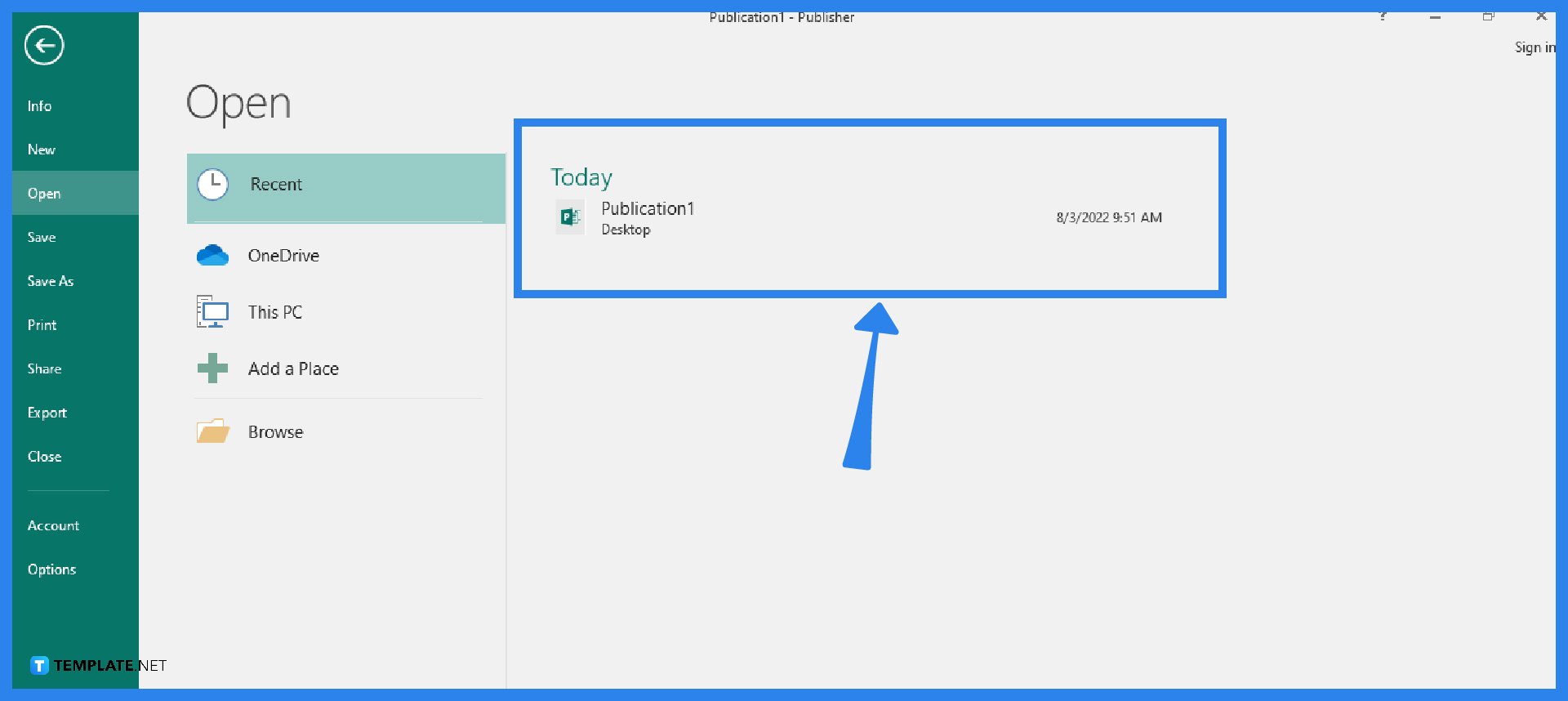
Launch your Microsoft Publisher application. Then, open the Publisher file that you wish to convert into PDF.

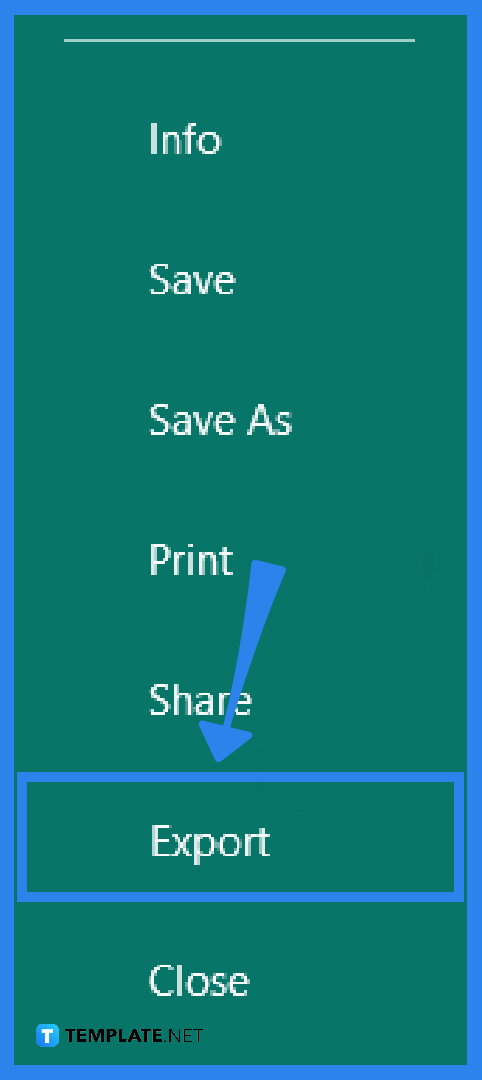
After the file has been opened, click the File tab in Publisher’s ribbon. Then select the Export option from the left-side menu.
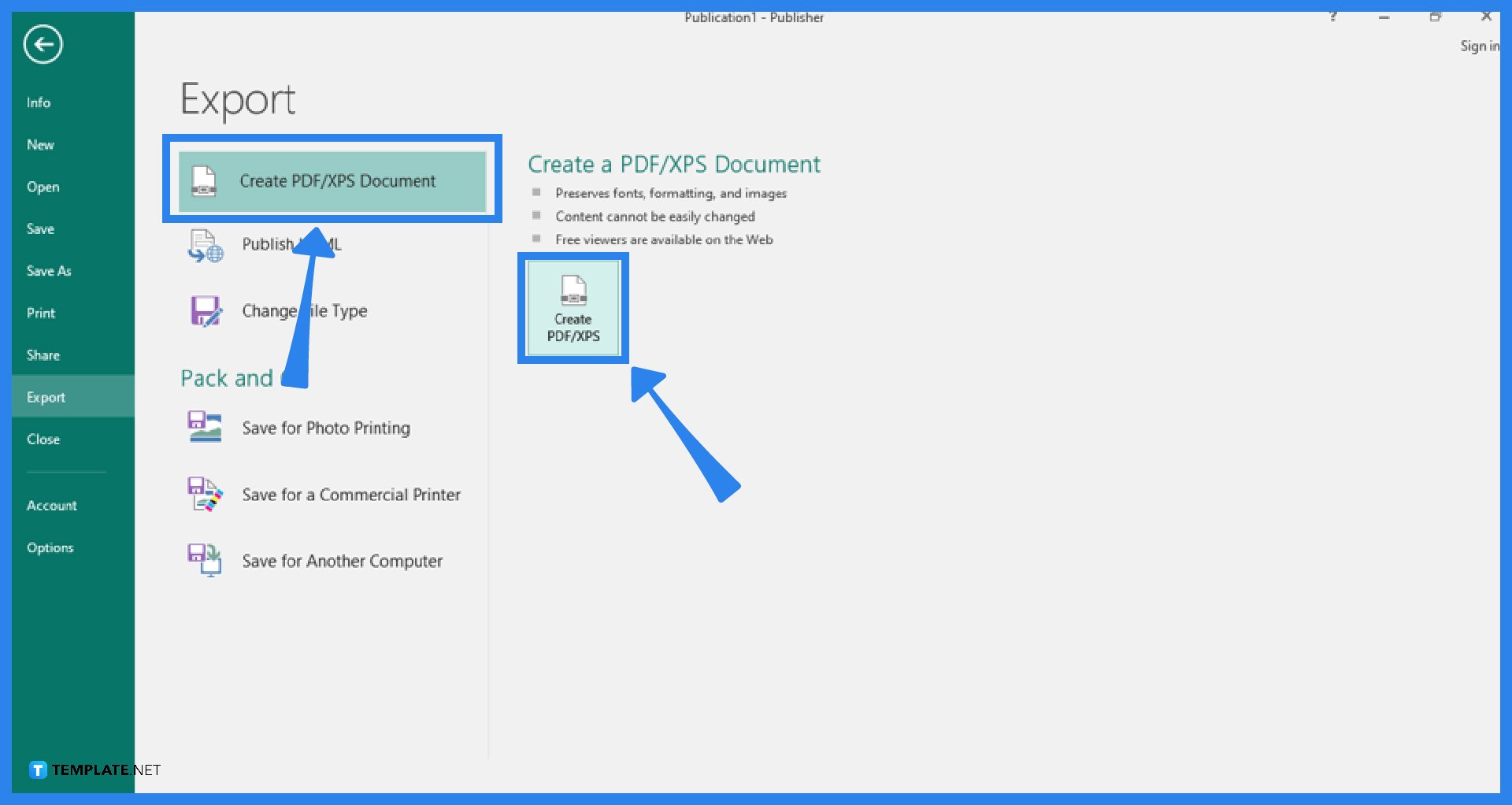
You are now at the Export options’ Create PDF/XPS Document section. Microsoft Publisher provides some justifications for converting your Publisher file to PDF in this section, such as preserving formatting and style, making it more difficult for others to edit the file, and providing free online viewing of the file. Simply select the Create PDF/XPS button.
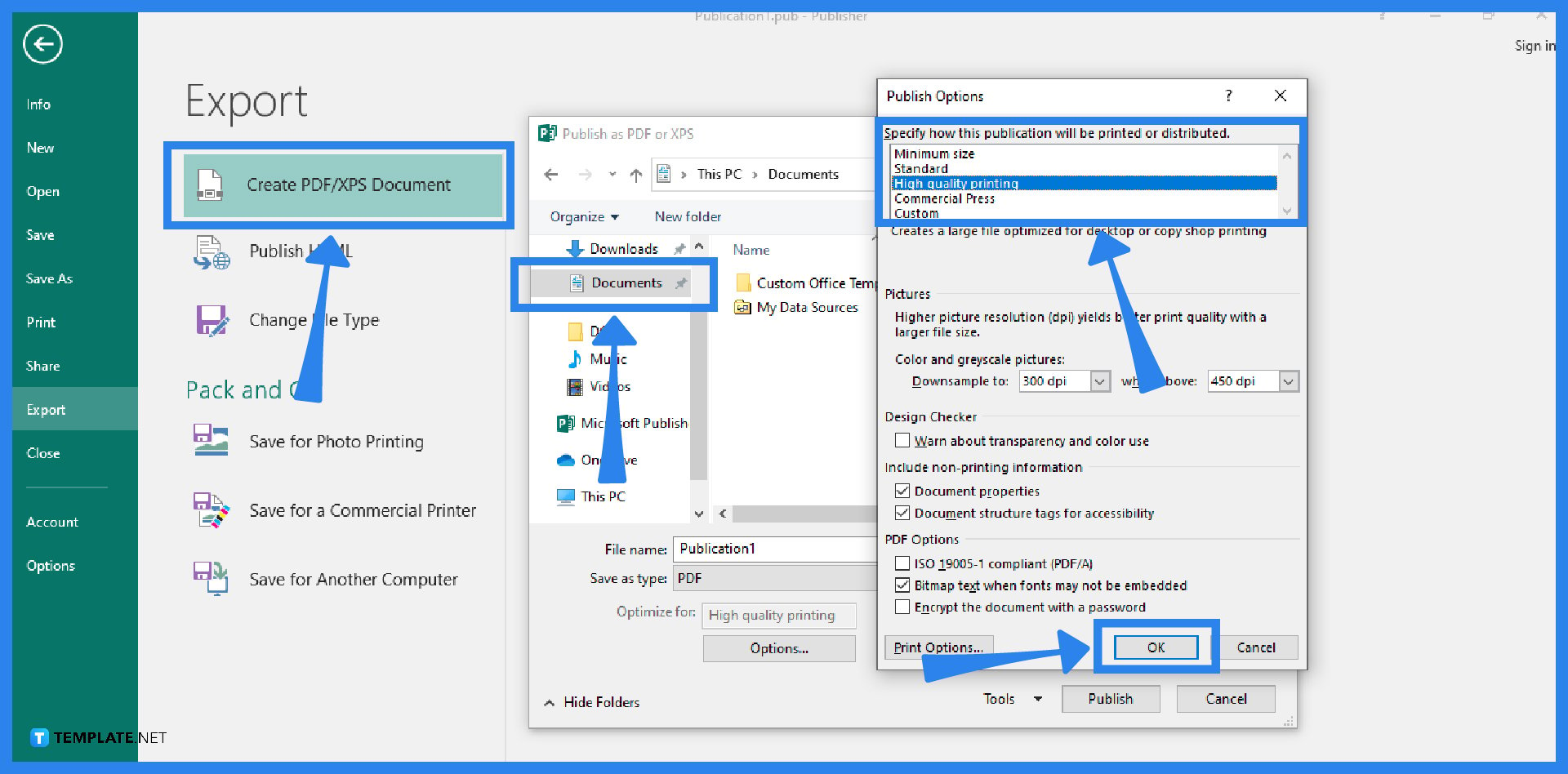
The Publish as PDF or XPS dialog box will appear. In the “Save as Type” box, you’ll see that it is already set as PDF, meaning it will be saved as a PDF. Before you save the file, make some tweaks. Click Options. A Publish Options dialog box appears. Make the desired changes, then click OK. Finally, click the Publish button to finalize the conversion process.
Yes, you can still convert a Microsoft Publisher file into PDF by using a dependable online conversion site.
Portable Document Format (PDF) files have the “.pdf” file extension and are normally read-only documents that preserve page layout; user manuals, eBooks, application forms, and scanned papers are a few examples of the types of materials for which PDF is frequently utilized.
To save a publication in a PDF file format in Microsoft Publisher, simply go to the File tab of the Publisher ribbon, choose the Save As option, choose a location for your file, type the name of the file, select PDF as the “Save as type”, and click the Save button to complete the process.
Definitely, in Microsoft Word, open the document that you want to convert, then click the File tab, select Save As, choose the location where you want to save the file, click the arrow-down button in the “Save as type” field, select PDF from the dropdown menu that displays, and hit the Save button.

Signatures found in documents establish who you are as an individual or as an organization. Aside from the fact that…
![How To Make/Create a Newsletter in Microsoft Outlook [Templates + Examples] 2026](https://images.template.net/wp-content/uploads/2022/07/How-to-Start-a-Newsletter-with-Microsoft-Outlook-788x443.jpg)
Newsletters enable companies and organizations to communicate relevant and helpful information to their client, prospects, and subscribers. By giving you…
![How To Make/Create a Booklet in Microsoft Publisher [Templates + Examples] 2026](https://images.template.net/wp-content/uploads/2022/08/How-To-Make_Create-a-Booklet-in-Microsoft-Publisher-788x443.png)
Booklet templates are pre-designed layouts that make it easy to create a professional-looking booklet. They typically include placeholders for text…
![How To Make/Create a Booklet in Microsoft PowerPoint [Templates + Examples] 2026](https://images.template.net/wp-content/uploads/2022/07/How-To-Make-Create-a-Booklet-in-Microsoft-PowerPoint-788x443.jpg)
Booklets can be created in Microsoft PowerPoint, which offers a design feature that allows users to display them in PPT…
![How to Automatically Fill PDF Forms Using Microsoft Excel [Templates + Examples] 2026](https://images.template.net/wp-content/uploads/2022/07/How-to-Automatically-Fill-PDF-Forms-Using-Microsoft-Excel-788x444.png)
Automatically fill PDF forms using Microsoft Excel so you won’t have to save multiple PDF forms in an Excel spreadsheet…
![How to Make/Create a Floor Plan on Microsoft Excel [Templates + Examples] 2026](https://images.template.net/wp-content/uploads/2022/07/How-to-Make-a-Floor-Plan-on-Microsoft-Excel-788x443.jpg)
Floor plans either make or break projects related to engineering and architecture. That being said, every apartment room, bedroom, living…
![How to Make/Create a Grid in Microsoft Word [Templates + Examples] 2026](https://images.template.net/wp-content/uploads/2022/07/How-to-Make_Create-a-Grid-in-Microsoft-Word-788x444.jpg)
Grids consist of a network of lines that work as graphic cues while formatting your document in Microsoft Office. If…
![How to Add More Highlight Colors to Microsoft Word [Templates + Examples] 2026](https://images.template.net/wp-content/uploads/2022/07/How-to-Add-More-Highlight-Colors-to-Microsoft-Word-Templates-Examples-2023-788x443.jpg)
Add more highlight colors to Microsoft Word so you won’t have to settle with the default shading color in marking…
![How to Make/Create a Border in Microsoft Publisher [Templates + Examples] 2026](https://images.template.net/wp-content/uploads/2022/08/How-to-MakeCreate-a-Border-in-Microsoft-Publisher-788x444.png)
Borders are graphic design elements that make a document more pleasing and stylish to look at. This can be used…