


![How to Add a Signature in Microsoft Forms [Templates + Examples] 2026](https://images.template.net/wp-content/uploads/2022/07/How-to-Add-a-Signature-in-Microsoft-Forms-Templates-Examples-2023-788x443.jpg)
How to Add a Signature in Microsoft Forms [Templates + Examples] 2026
Signatures found in documents establish who you are as an individual or as an organization. Aside from the fact that…
Dec 22, 2025


Sep 02, 2025
Knowing the version of Microsoft Publisher installed on your computer is also helpful when downloading templates and add-ins because some only function with particular versions of the software.
Many individuals routinely use Microsoft Office programs, such as Microsoft Publisher, yet you didn’t know what version of the application you are currently using. You can quickly determine the version of Microsoft Publisher you have and whether it has a 32-bit or 64-bit model by following the steps in this article.
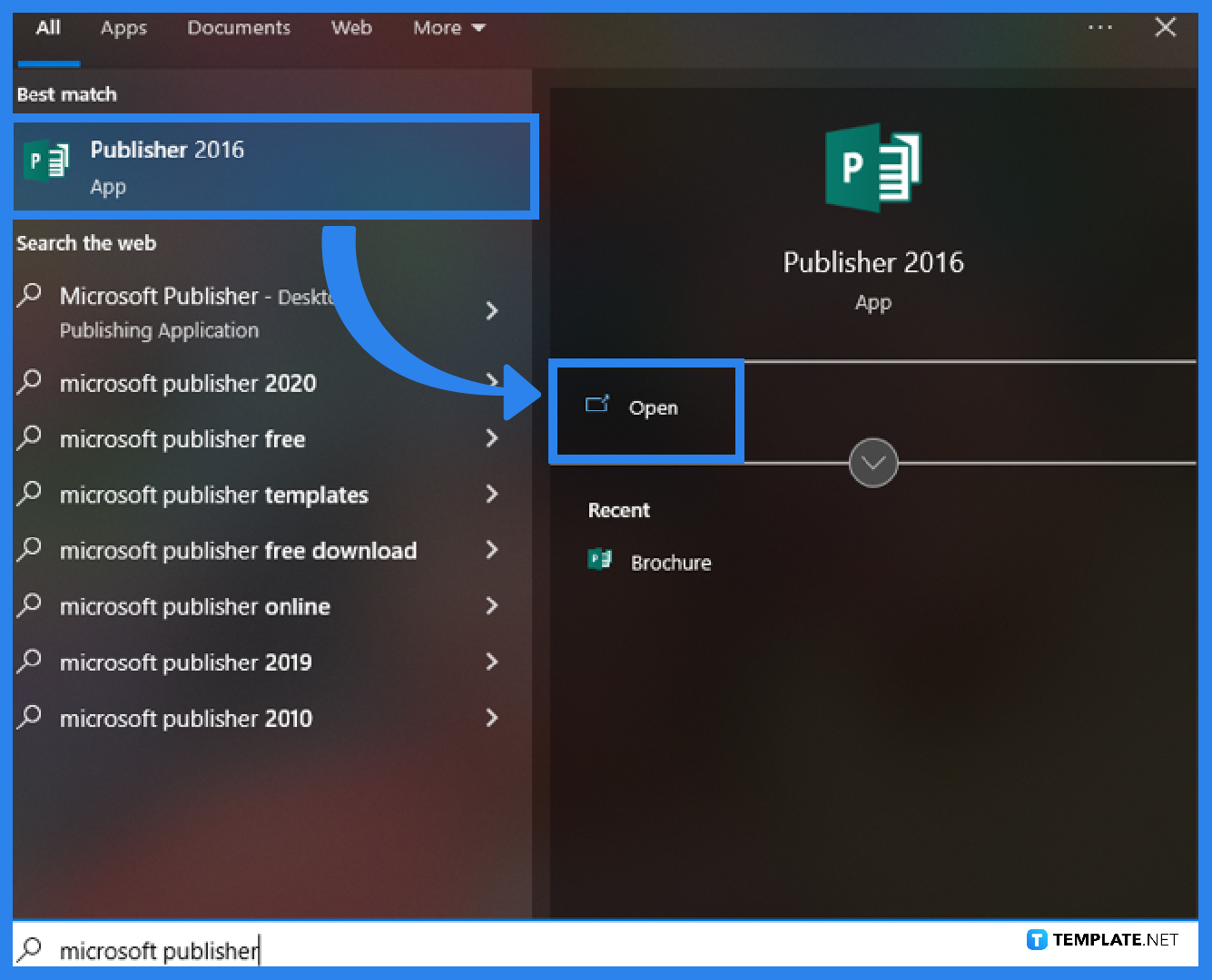
Launching the application is the first step to determining what version of Microsoft Publisher you have. To do this, locate Microsoft Publisher under the Start menu on your computer. You can also quickly find it by typing “Microsoft Publisher” into the search box on your desktop. Once the application is opened, go to the File tab of the Publisher toolbar.
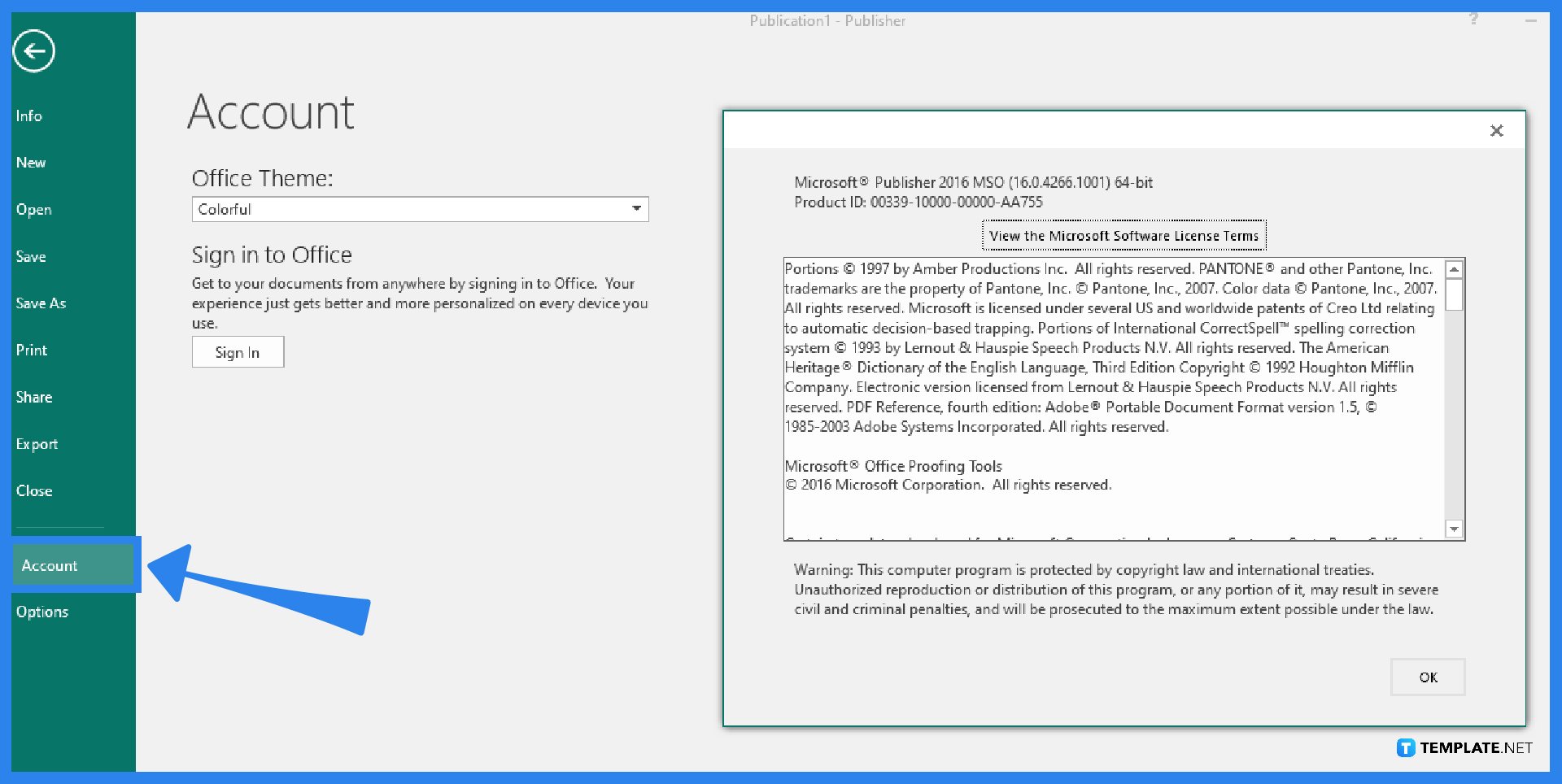
In this step, you can check the version of your Microsoft Publisher. After going to the File tab, click on the Account option, then hit the About Publisher button, and from there, you will know the version of your Microsoft Publisher application. Take note that this is applicable to the newer versions of Microsoft Publisher. As for previous versions of Microsoft Publisher, go to the File tab, choose the Help option, and you’ll find information about the program’s version on the right side of the menu.
Yes, but in order to upgrade from the 32-bit to the 64-bit versions of Windows, you must do a hard disk reformat, install the 64-bit version of Windows, and then reinstall all of the applications you previously had on your computer.
To know if the version of Windows that is operating on my computer is 32- or 64-bit, select the Start button, then select Settings, System, About, then open About Settings, and at the right, under Device specifications, see System type (this is applicable for Windows 10 and Windows 8.1), and as for Windows 7, select the Start button, right-click Computer, then select Properties, and under System, see the system type.
The most recent version of Microsoft Publisher is always accessible with a Microsoft 365 subscription, and Microsoft Publisher 2019 is the most recent classic edition of Microsoft Publisher, which is a one-time purchase that does receive updates.
Yes, Microsoft Publisher is exclusively available on PCs, which implies that you could not have access to this platform if you have an Office 365 subscription on a Mac.
Microsoft Office Publisher is compatible with 32-bit and 64-bit versions of Windows 95/98/2000/XP/Vista/7/8/10 and the installation is frequently identified by the file names MSPUB.EXE, EOS Utility.exe, WINWORD.EXE, pubs.exe, or POWERPNT.EXE.

Signatures found in documents establish who you are as an individual or as an organization. Aside from the fact that…
![How To Make/Create a Newsletter in Microsoft Outlook [Templates + Examples] 2026](https://images.template.net/wp-content/uploads/2022/07/How-to-Start-a-Newsletter-with-Microsoft-Outlook-788x443.jpg)
Newsletters enable companies and organizations to communicate relevant and helpful information to their client, prospects, and subscribers. By giving you…
![How To Make/Create a Booklet in Microsoft Publisher [Templates + Examples] 2026](https://images.template.net/wp-content/uploads/2022/08/How-To-Make_Create-a-Booklet-in-Microsoft-Publisher-788x443.png)
Booklet templates are pre-designed layouts that make it easy to create a professional-looking booklet. They typically include placeholders for text…
![How To Make/Create a Booklet in Microsoft PowerPoint [Templates + Examples] 2026](https://images.template.net/wp-content/uploads/2022/07/How-To-Make-Create-a-Booklet-in-Microsoft-PowerPoint-788x443.jpg)
Booklets can be created in Microsoft PowerPoint, which offers a design feature that allows users to display them in PPT…
![How to Automatically Fill PDF Forms Using Microsoft Excel [Templates + Examples] 2026](https://images.template.net/wp-content/uploads/2022/07/How-to-Automatically-Fill-PDF-Forms-Using-Microsoft-Excel-788x444.png)
Automatically fill PDF forms using Microsoft Excel so you won’t have to save multiple PDF forms in an Excel spreadsheet…
![How to Make/Create a Floor Plan on Microsoft Excel [Templates + Examples] 2026](https://images.template.net/wp-content/uploads/2022/07/How-to-Make-a-Floor-Plan-on-Microsoft-Excel-788x443.jpg)
Floor plans either make or break projects related to engineering and architecture. That being said, every apartment room, bedroom, living…
![How to Make/Create a Grid in Microsoft Word [Templates + Examples] 2026](https://images.template.net/wp-content/uploads/2022/07/How-to-Make_Create-a-Grid-in-Microsoft-Word-788x444.jpg)
Grids consist of a network of lines that work as graphic cues while formatting your document in Microsoft Office. If…
![How to Add More Highlight Colors to Microsoft Word [Templates + Examples] 2026](https://images.template.net/wp-content/uploads/2022/07/How-to-Add-More-Highlight-Colors-to-Microsoft-Word-Templates-Examples-2023-788x443.jpg)
Add more highlight colors to Microsoft Word so you won’t have to settle with the default shading color in marking…
![How to Make/Create a Border in Microsoft Publisher [Templates + Examples] 2026](https://images.template.net/wp-content/uploads/2022/08/How-to-MakeCreate-a-Border-in-Microsoft-Publisher-788x444.png)
Borders are graphic design elements that make a document more pleasing and stylish to look at. This can be used…