

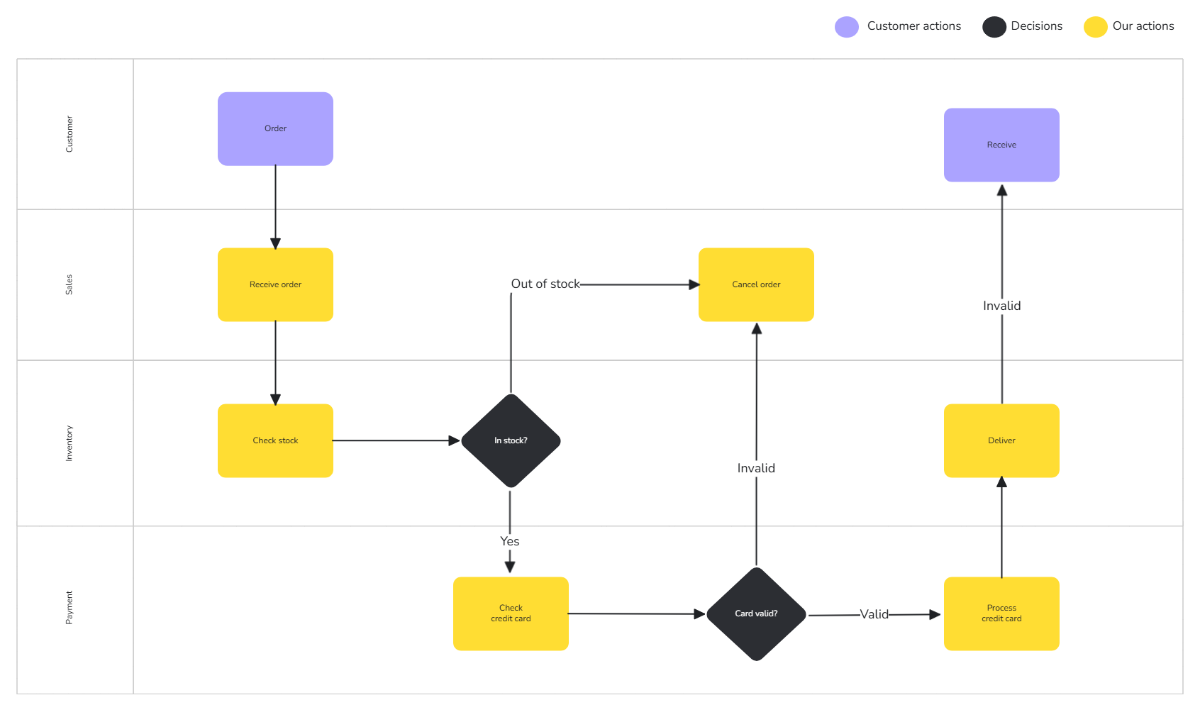
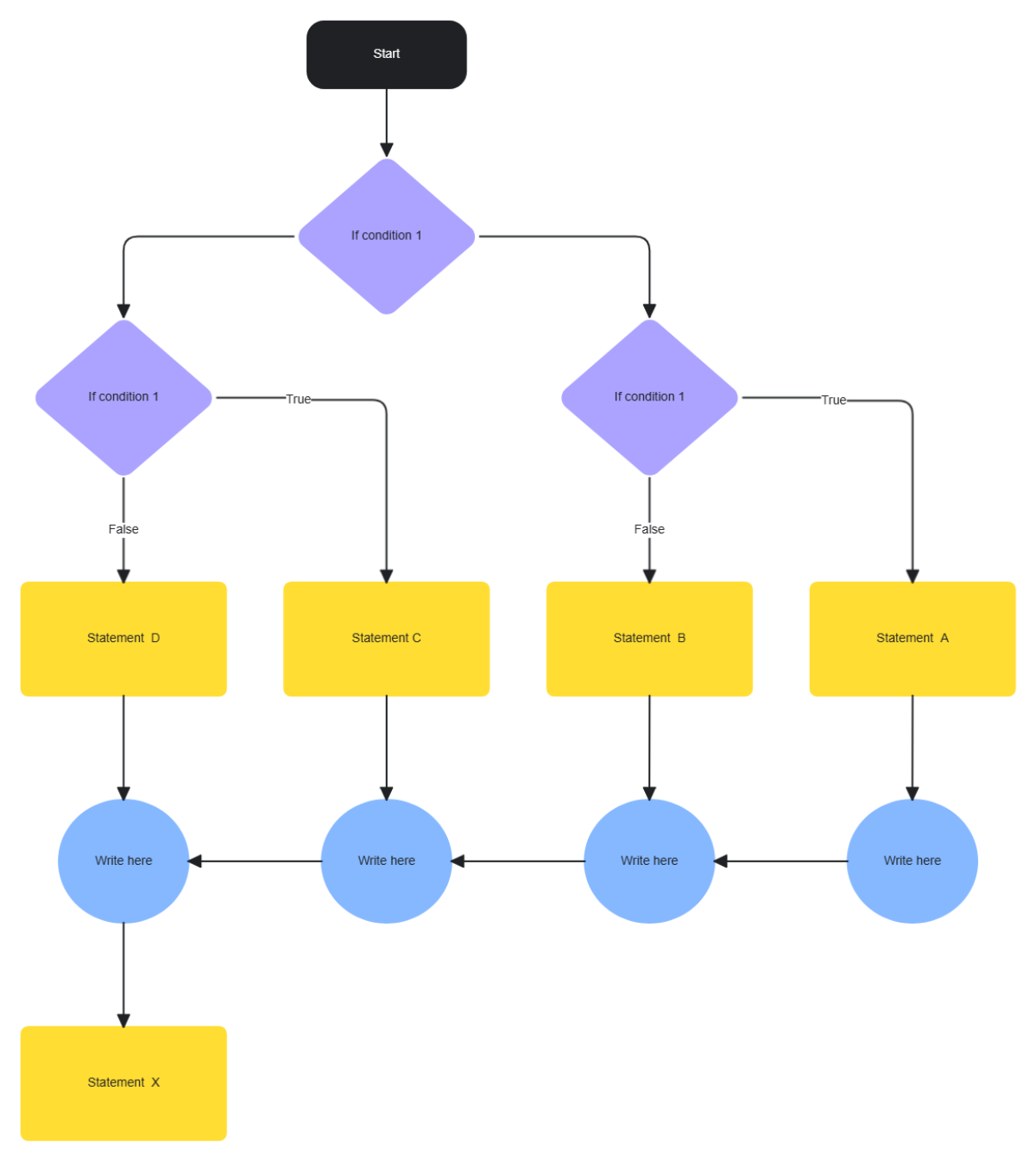
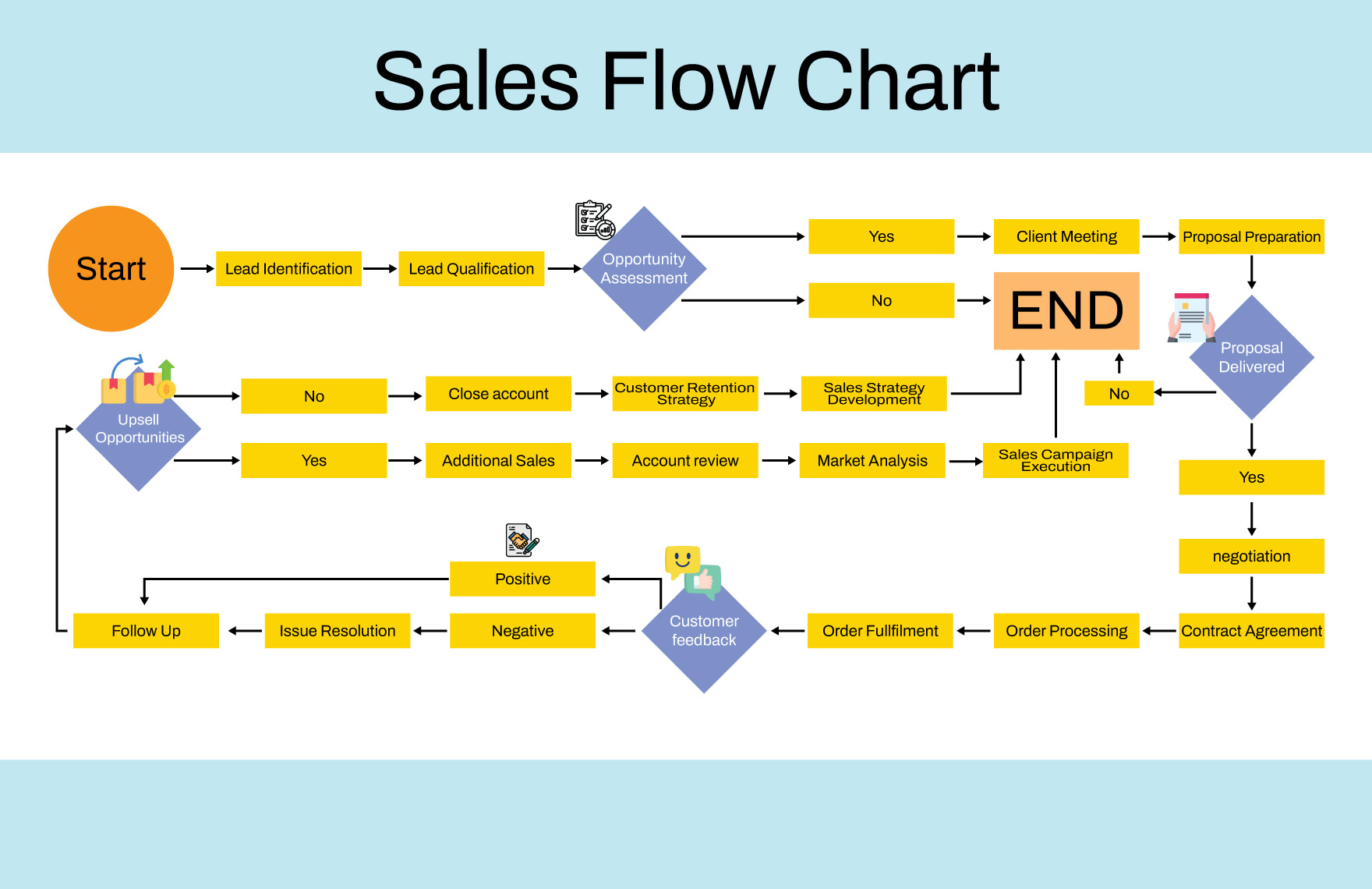
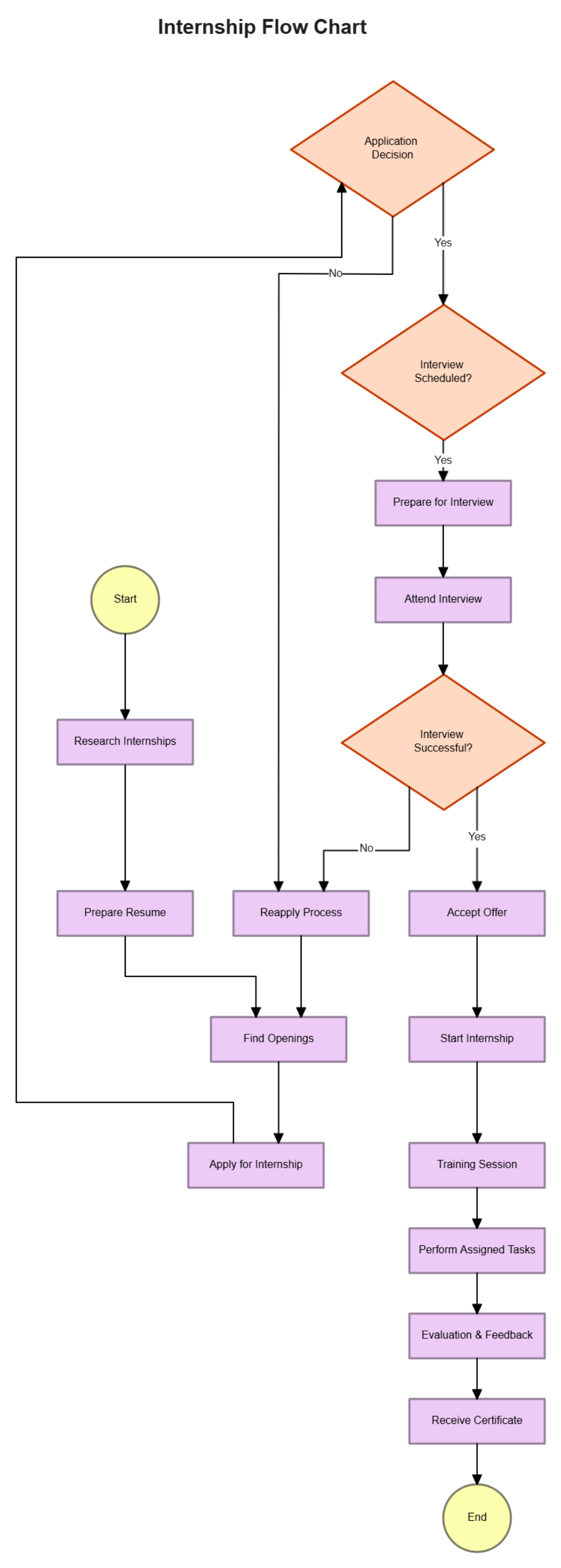


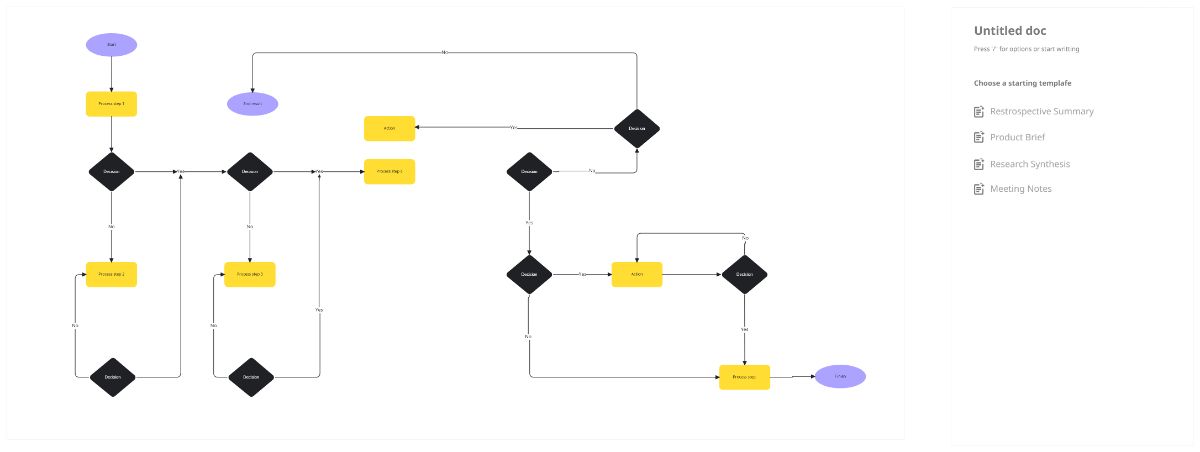
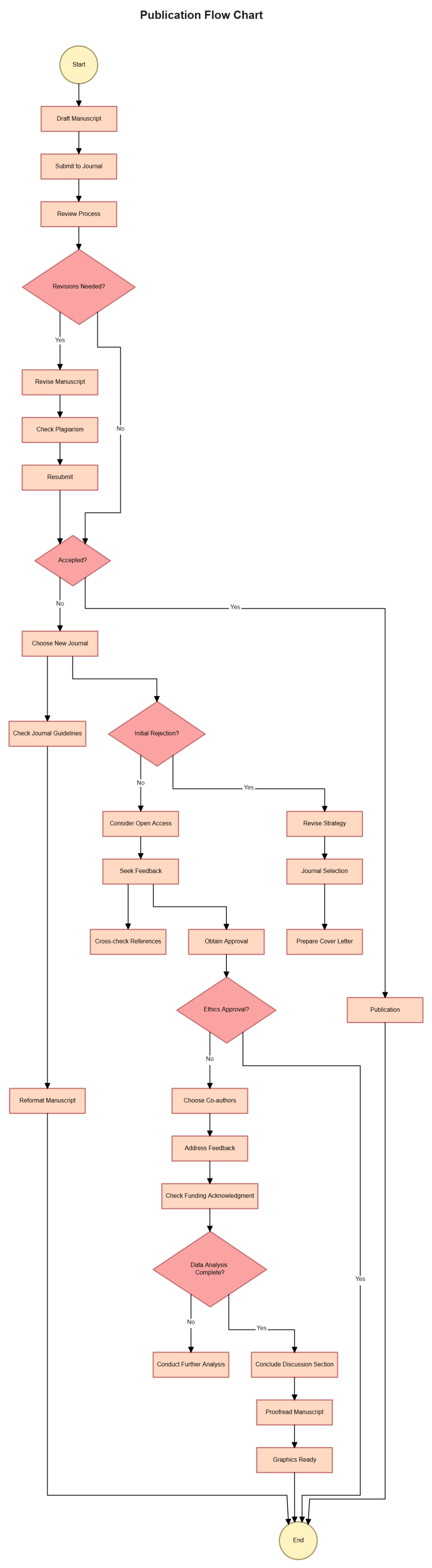
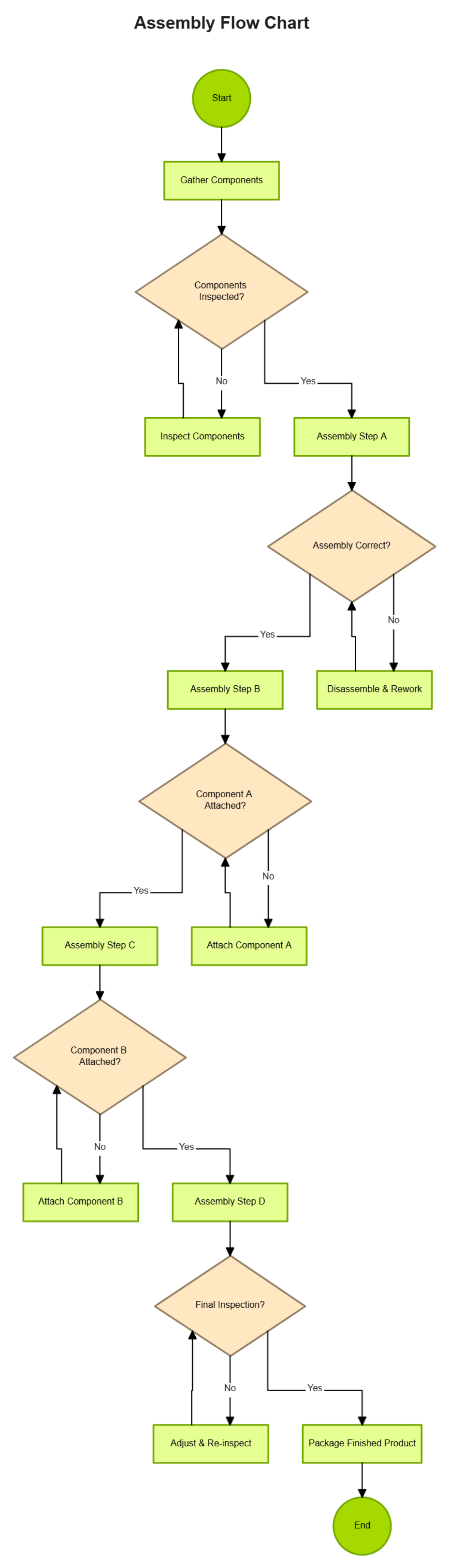
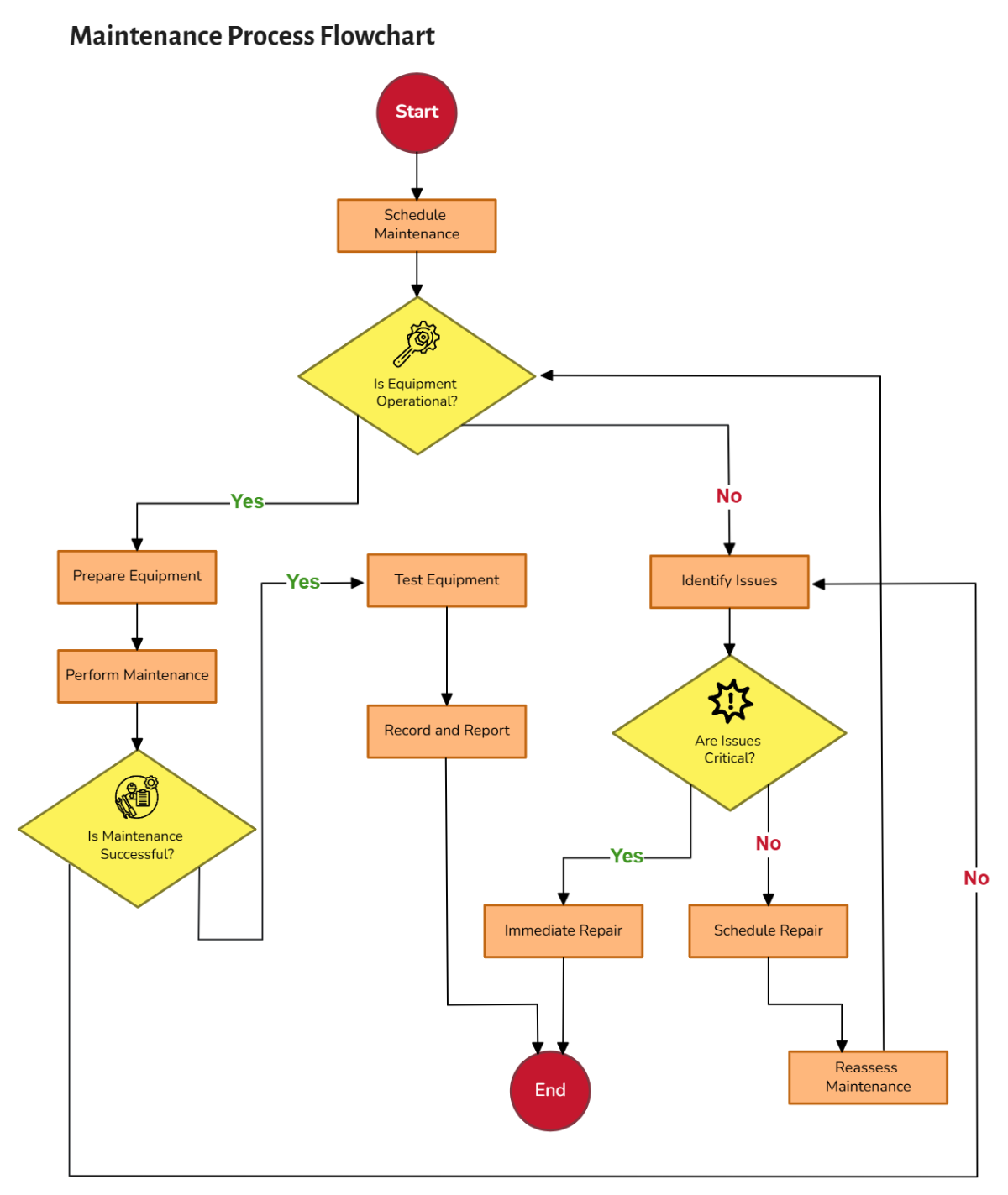


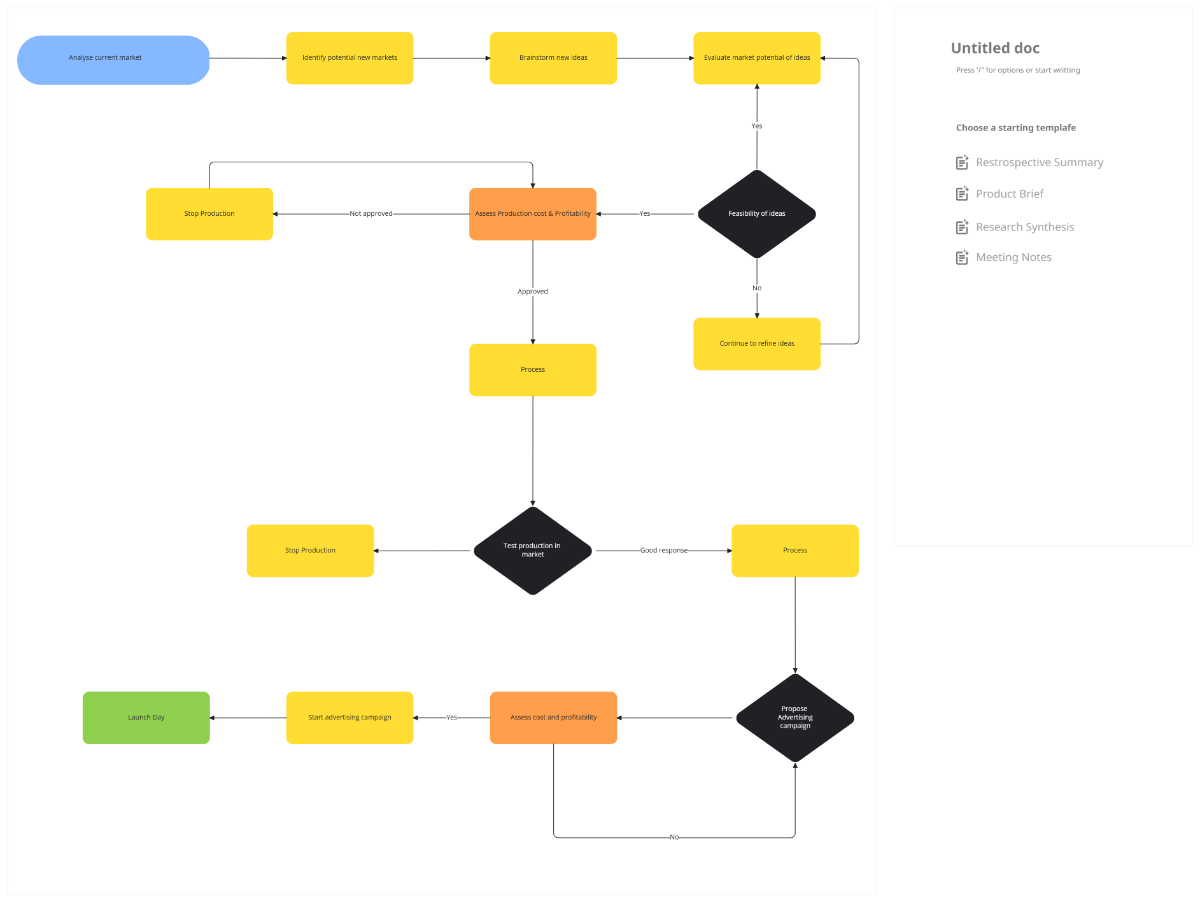
Free Flowchart Templates: Customizable Diagrams and Workflow Structures
What is a Flowchart?
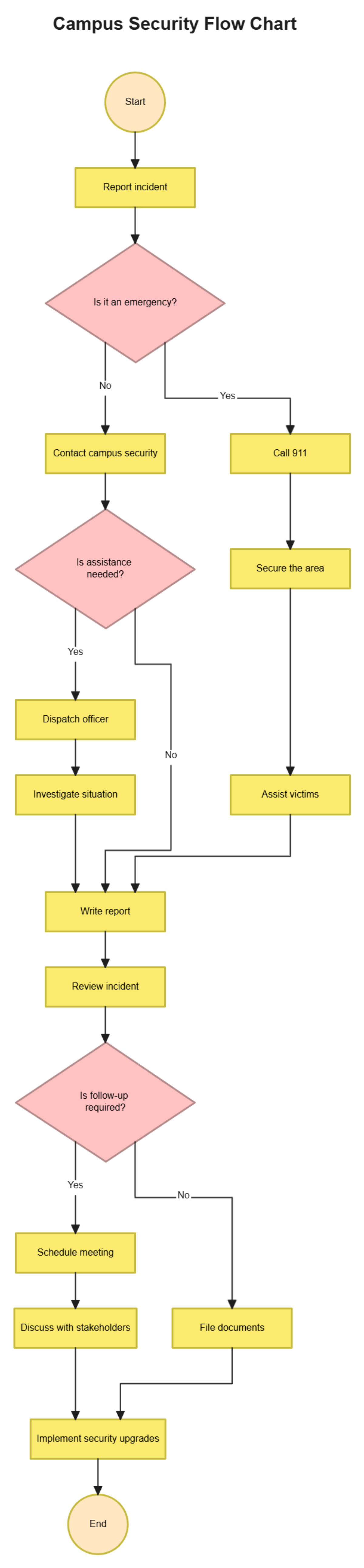
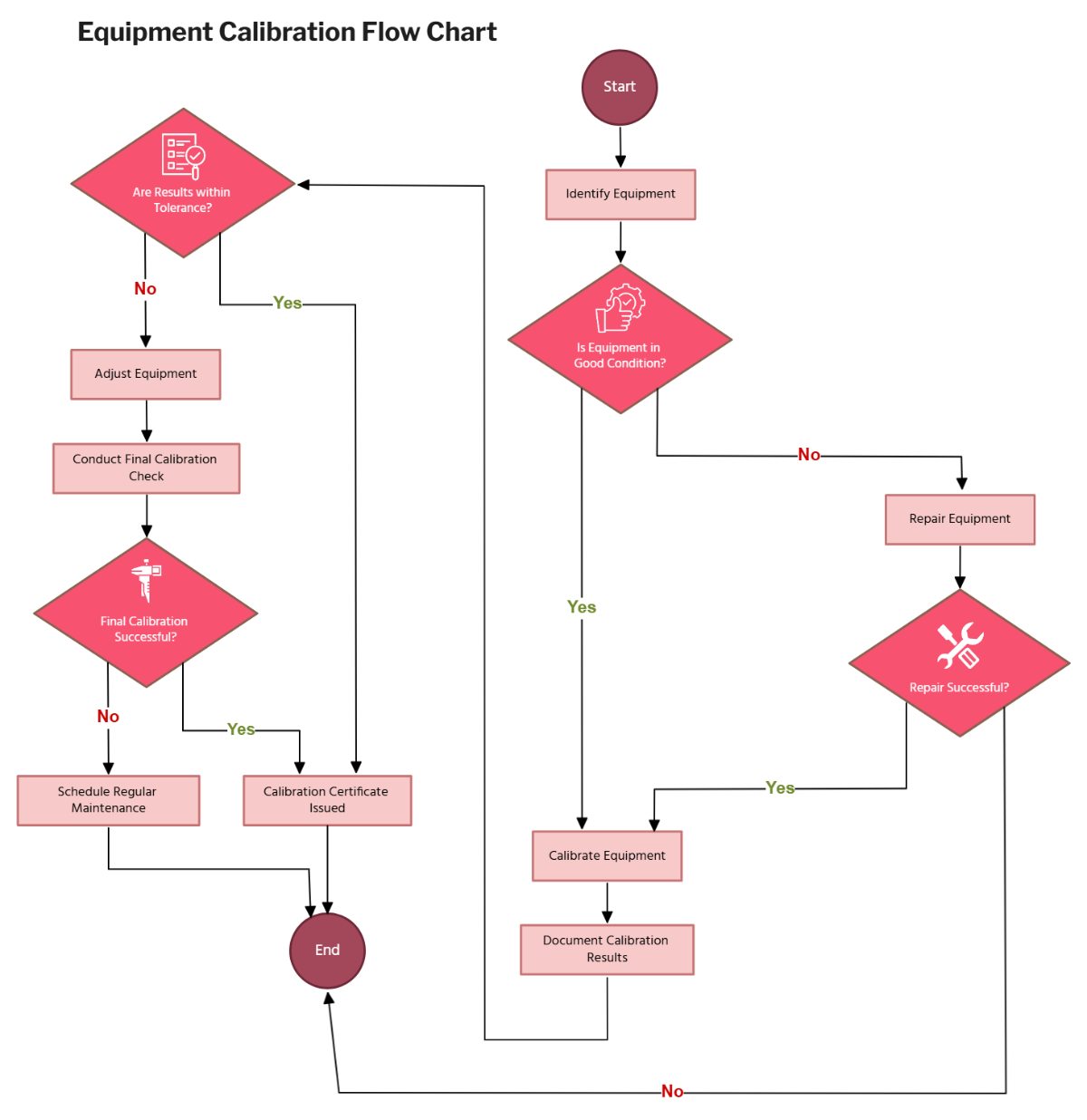
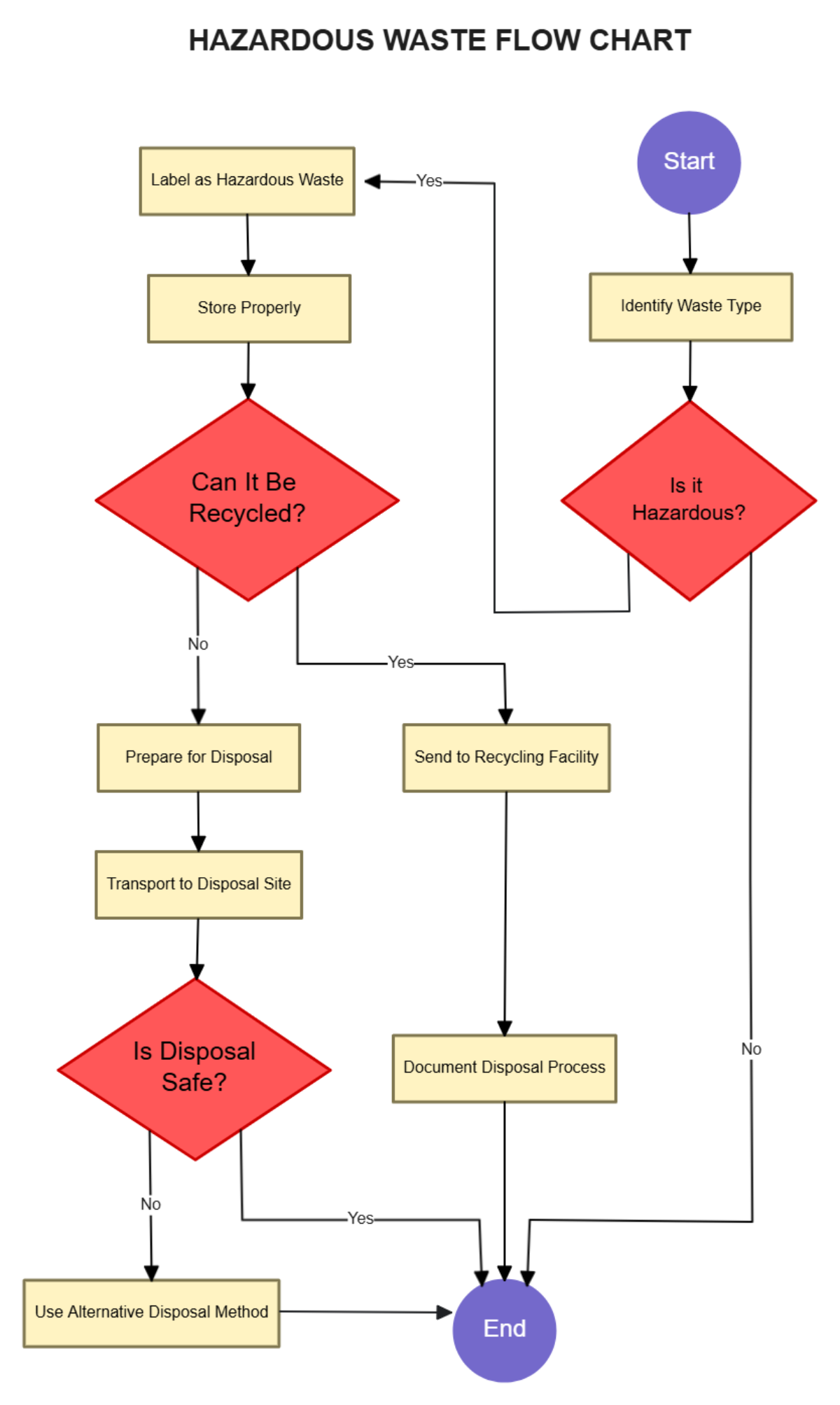
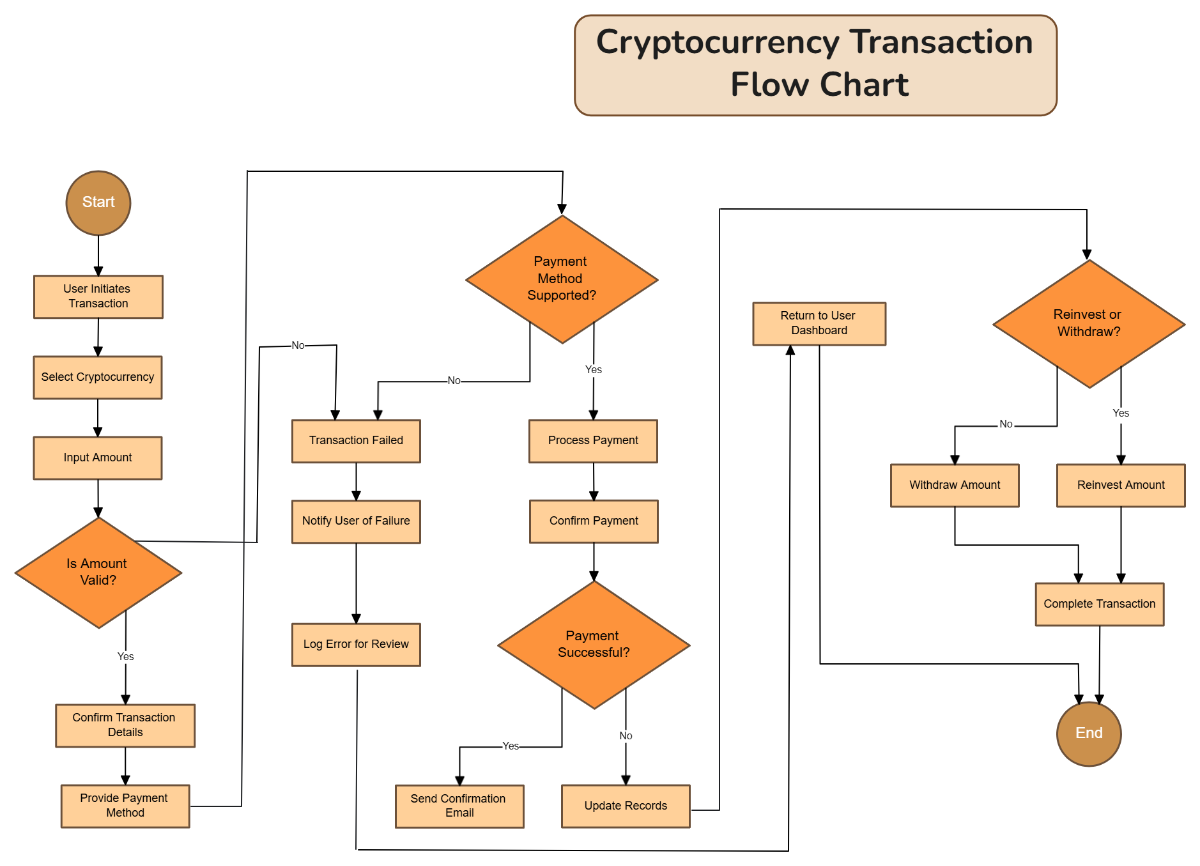
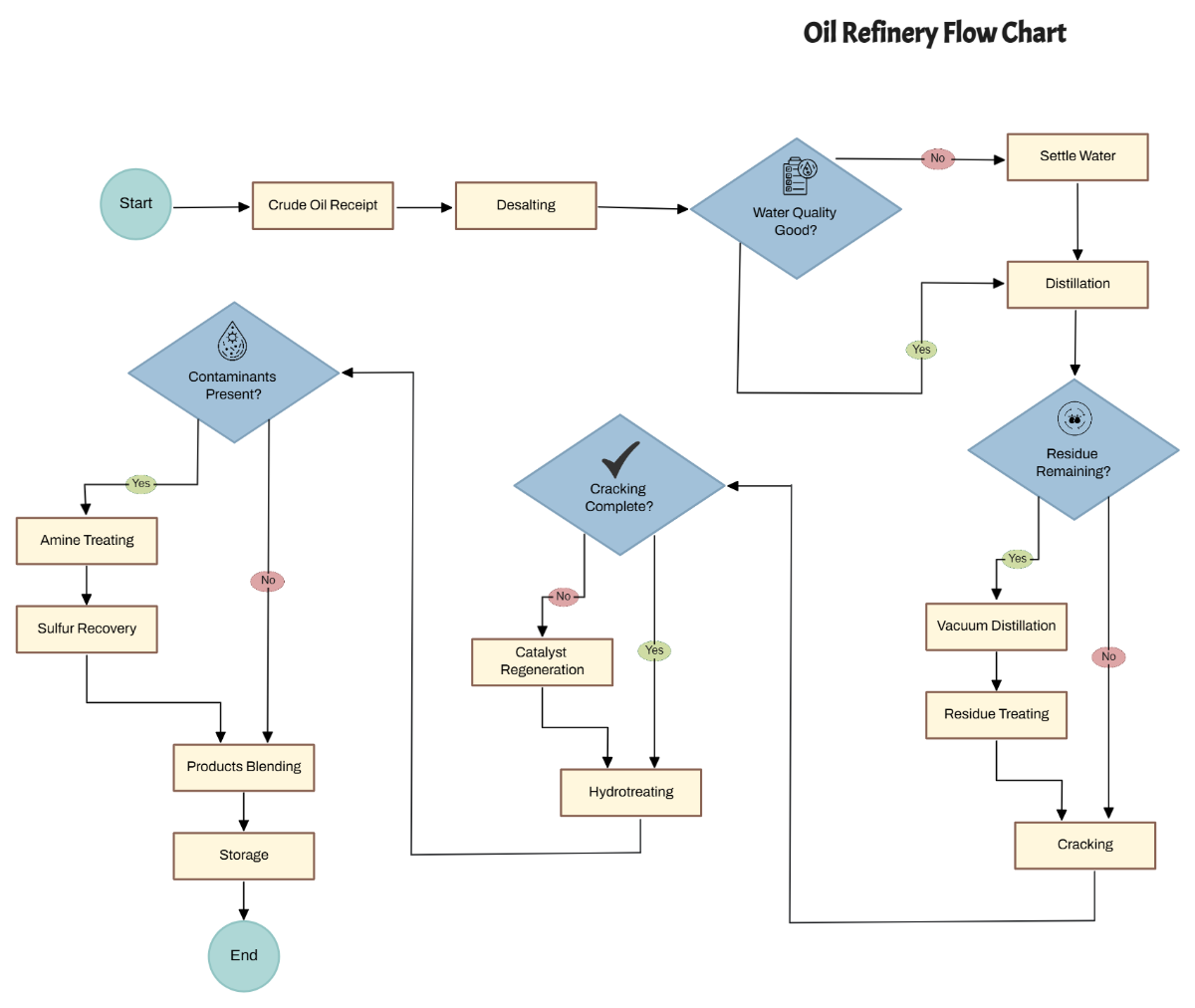
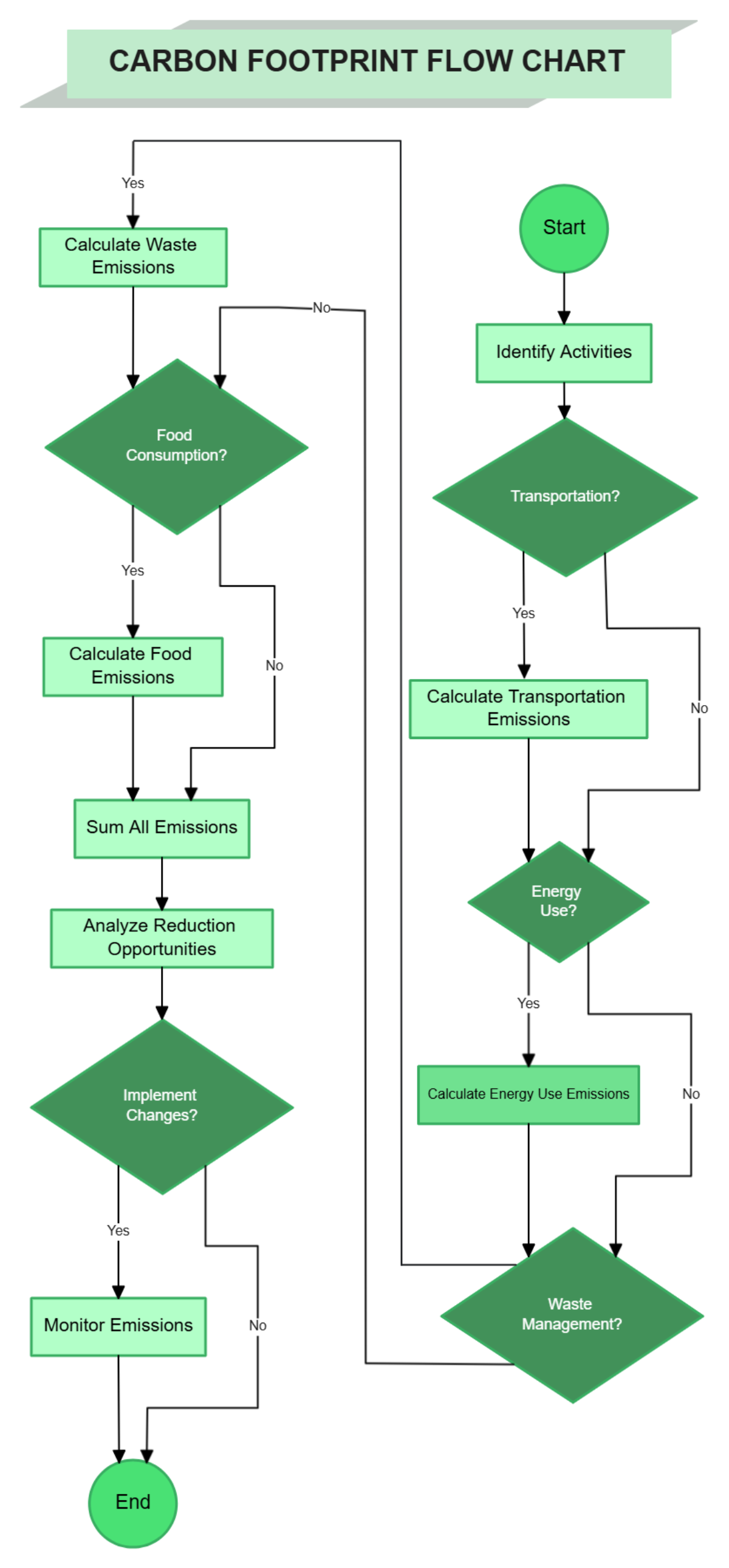
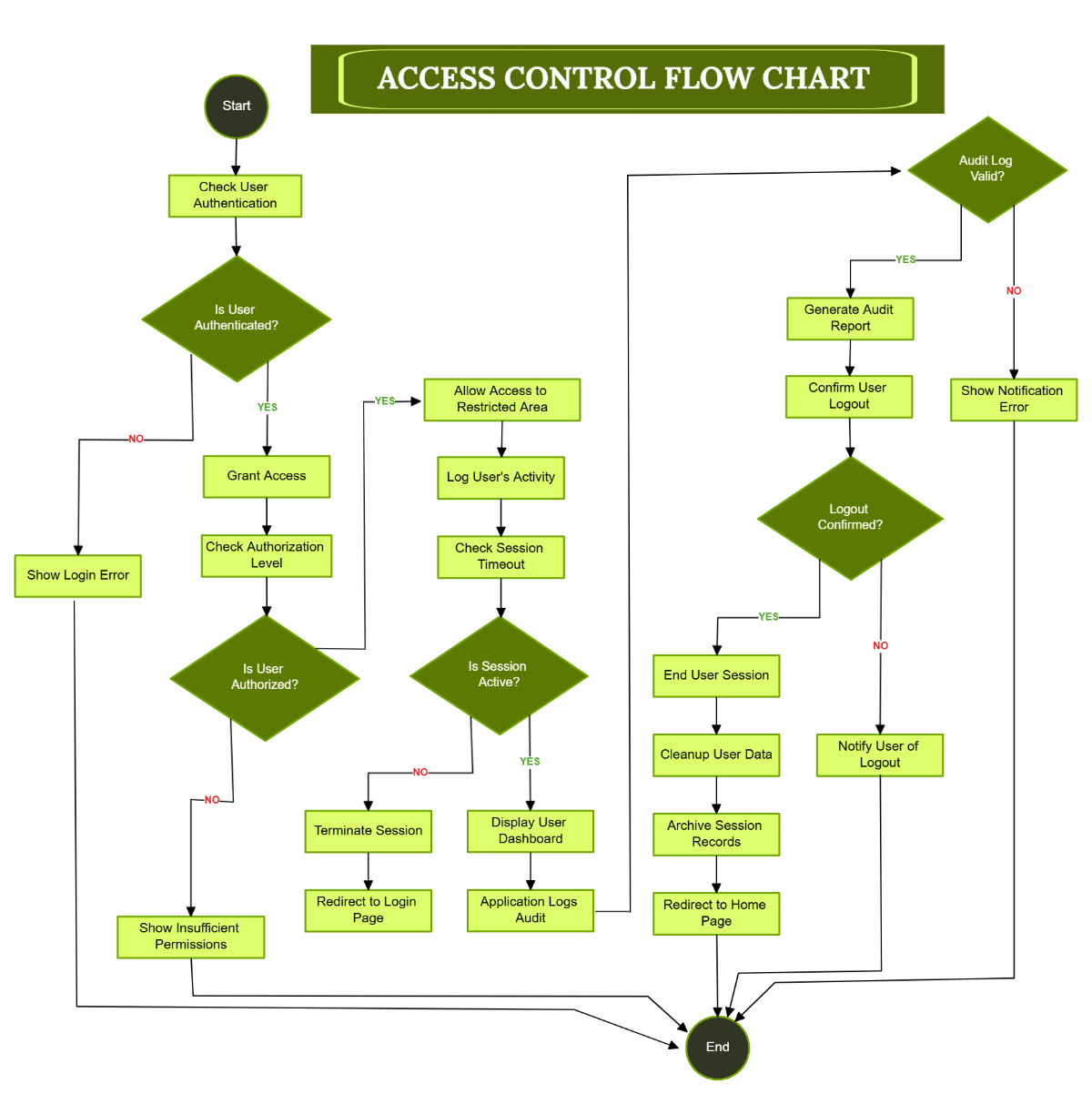
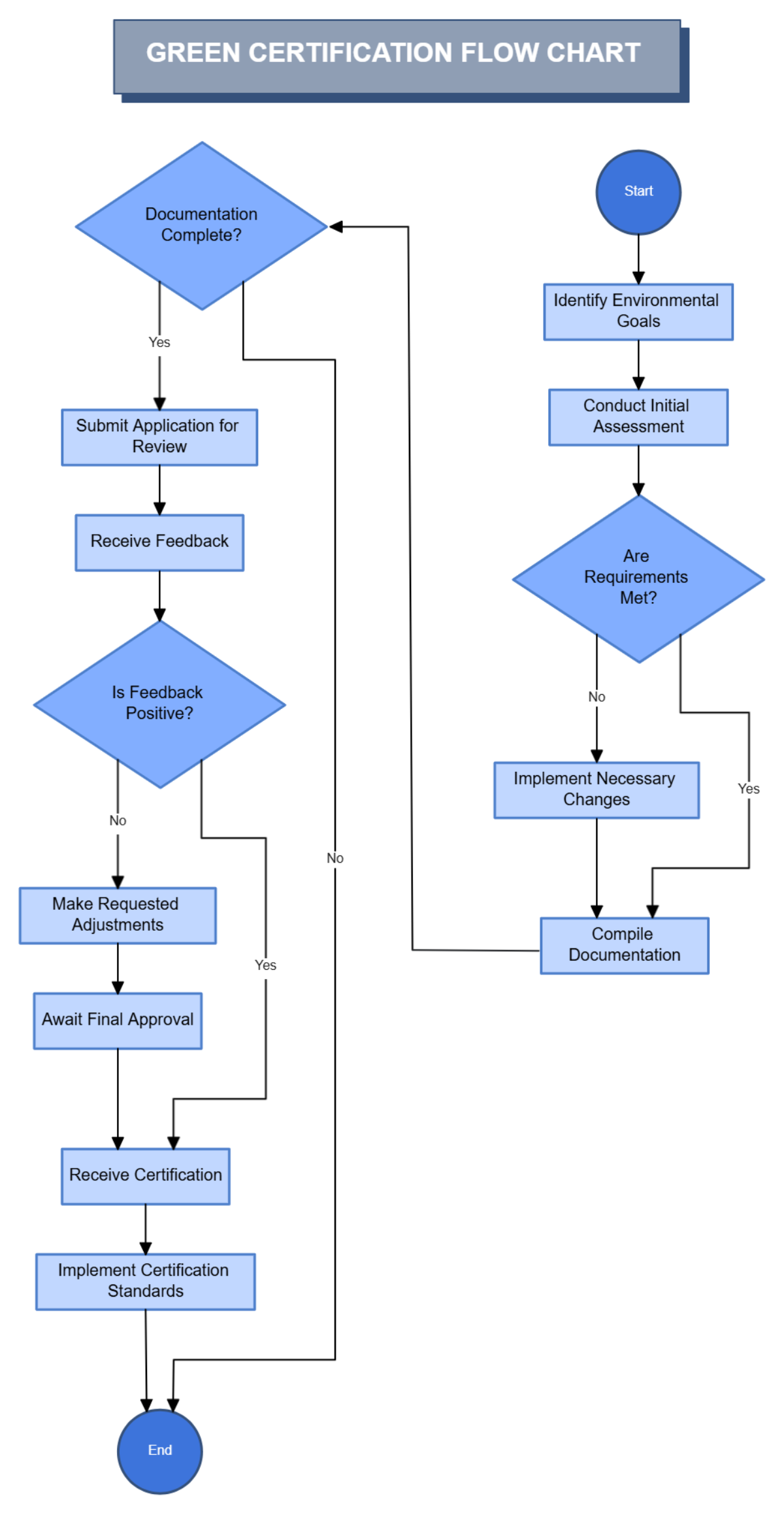
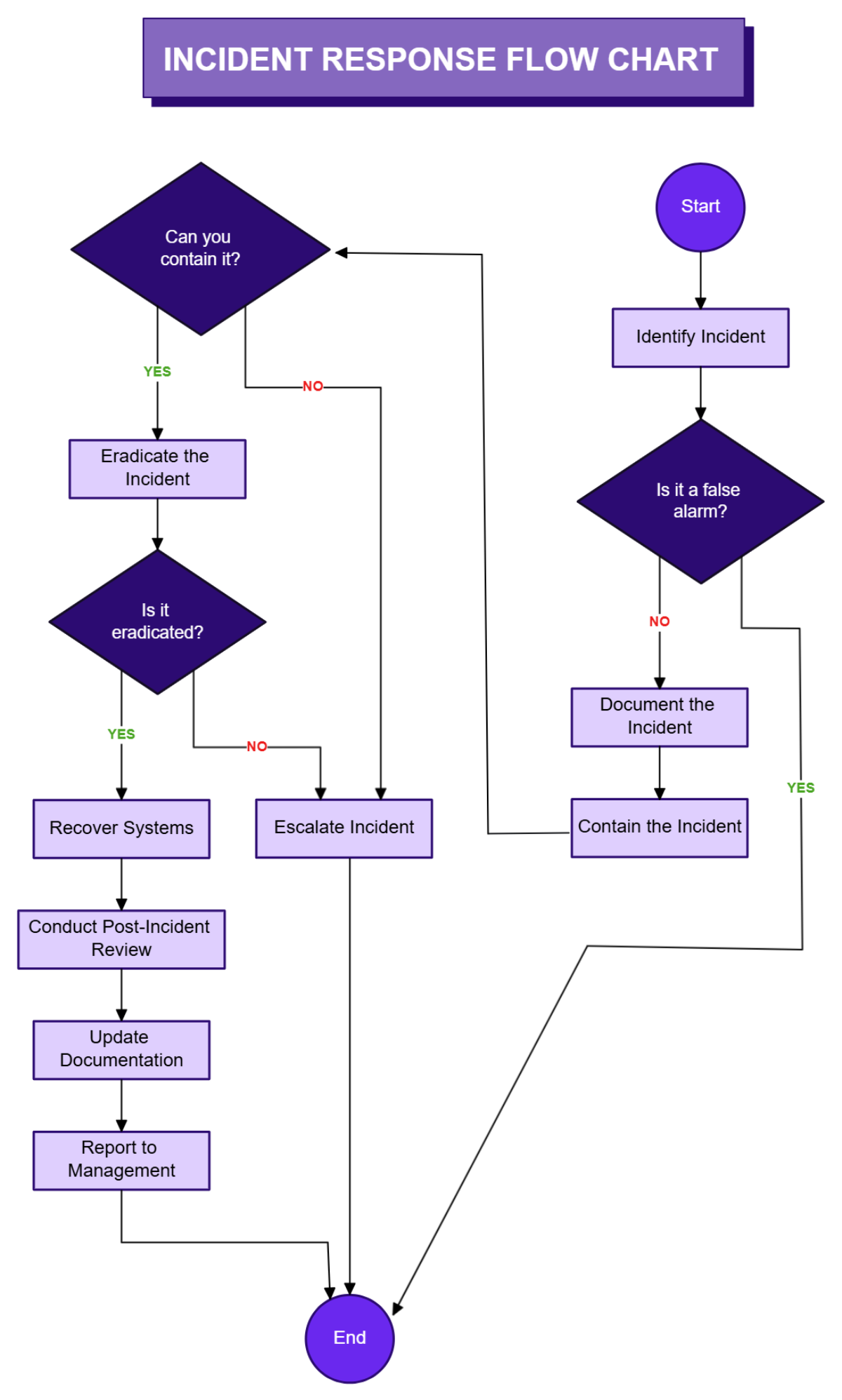
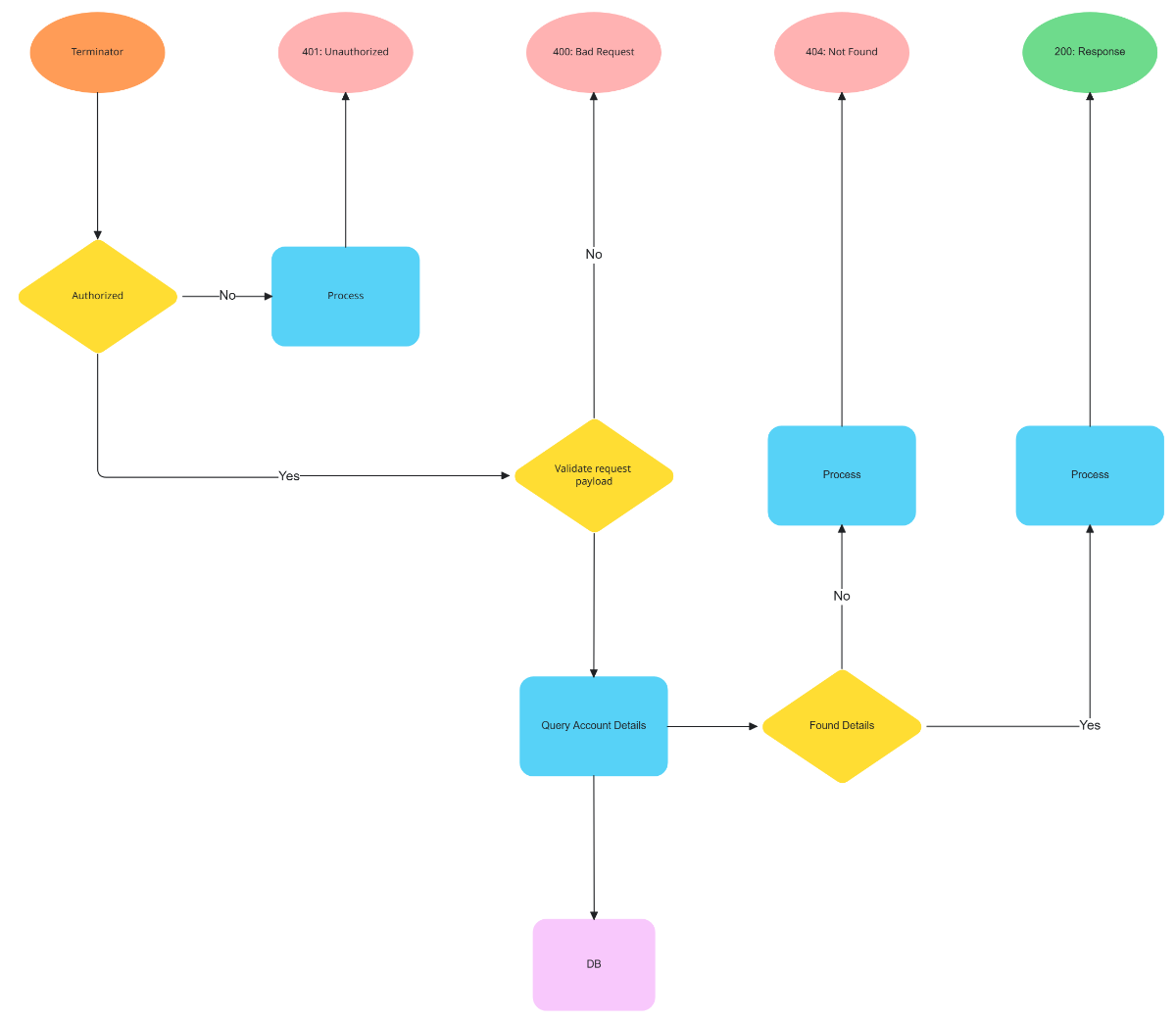
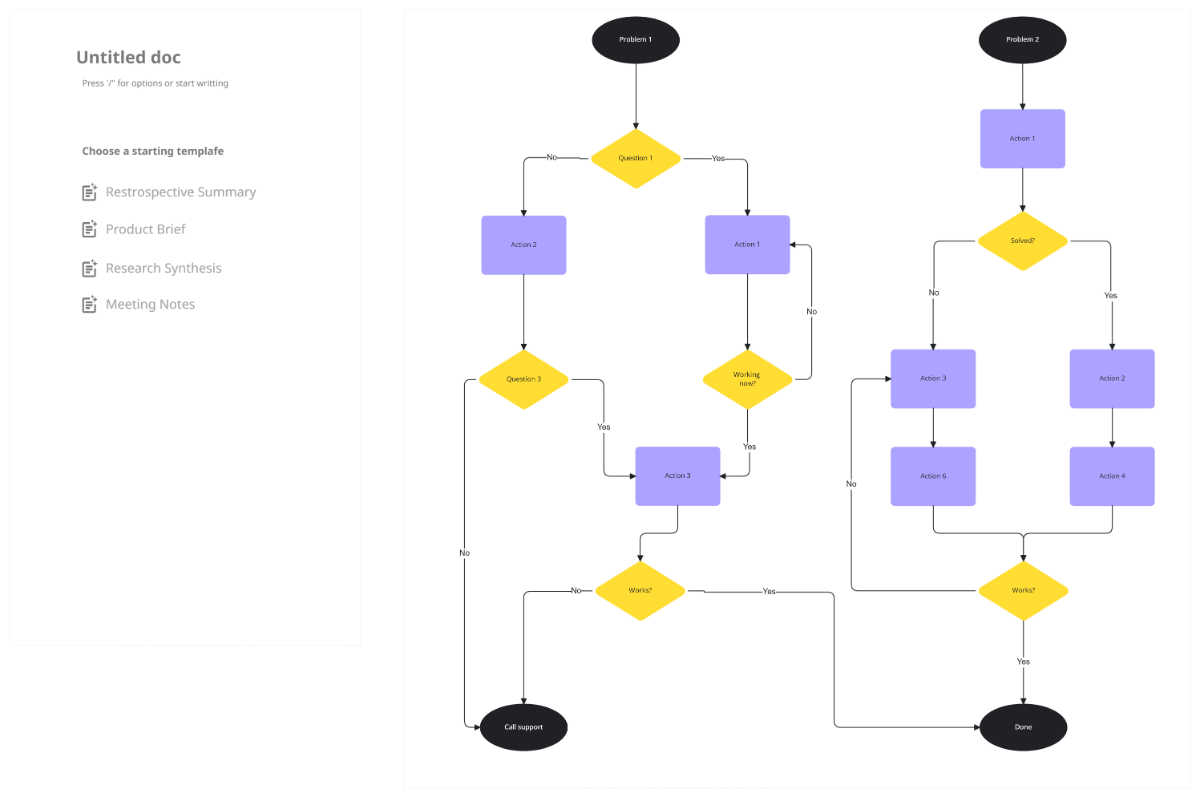
A Flowchart is a visual representation of a process or workflow that uses standardized shapes and arrows to show the sequence of steps and decisions. It helps illustrate complex procedures by breaking them down into clear, connected components for better understanding and communication.
Why should I use a Flowchart?
You should use a Flowchart because it provides structural clarity and helps visualize processes, making it easier to identify inefficiencies or errors. Flowcharts improve communication among teams, support decision-making, and facilitate workflow optimization by clearly mapping steps and conditions.
Who uses Flowcharts?
Flowcharts are commonly used by business analysts, project managers, engineers, educators, and software developers to document processes, design systems, and communicate workflows. They are useful for anyone needing to visualize and analyze process sequences and decision logic.
What are the best tips for completing my Flowchart?
Here are key tips for completing your Flowchart effectively.
- Define the process scope – establish clear start and end points.
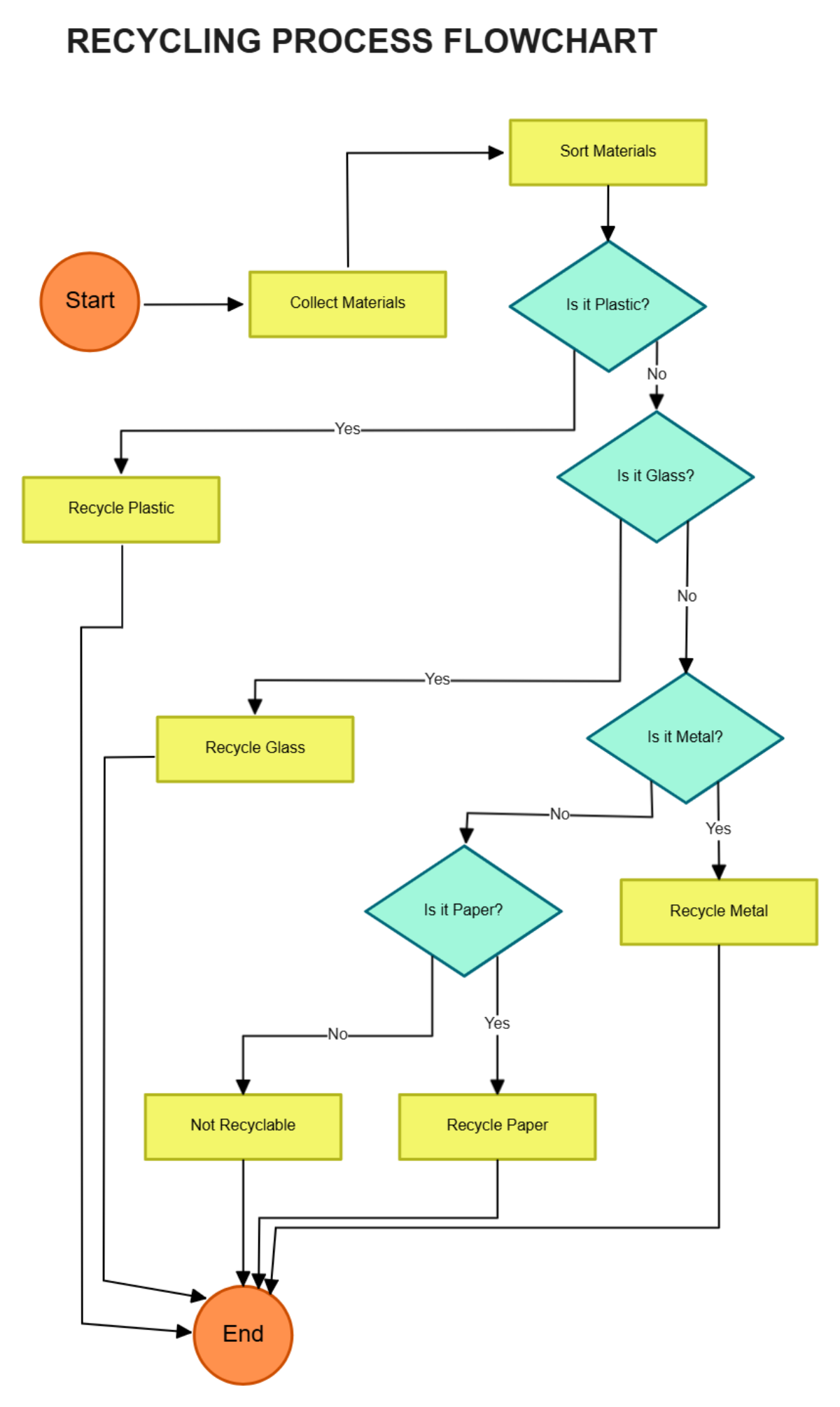
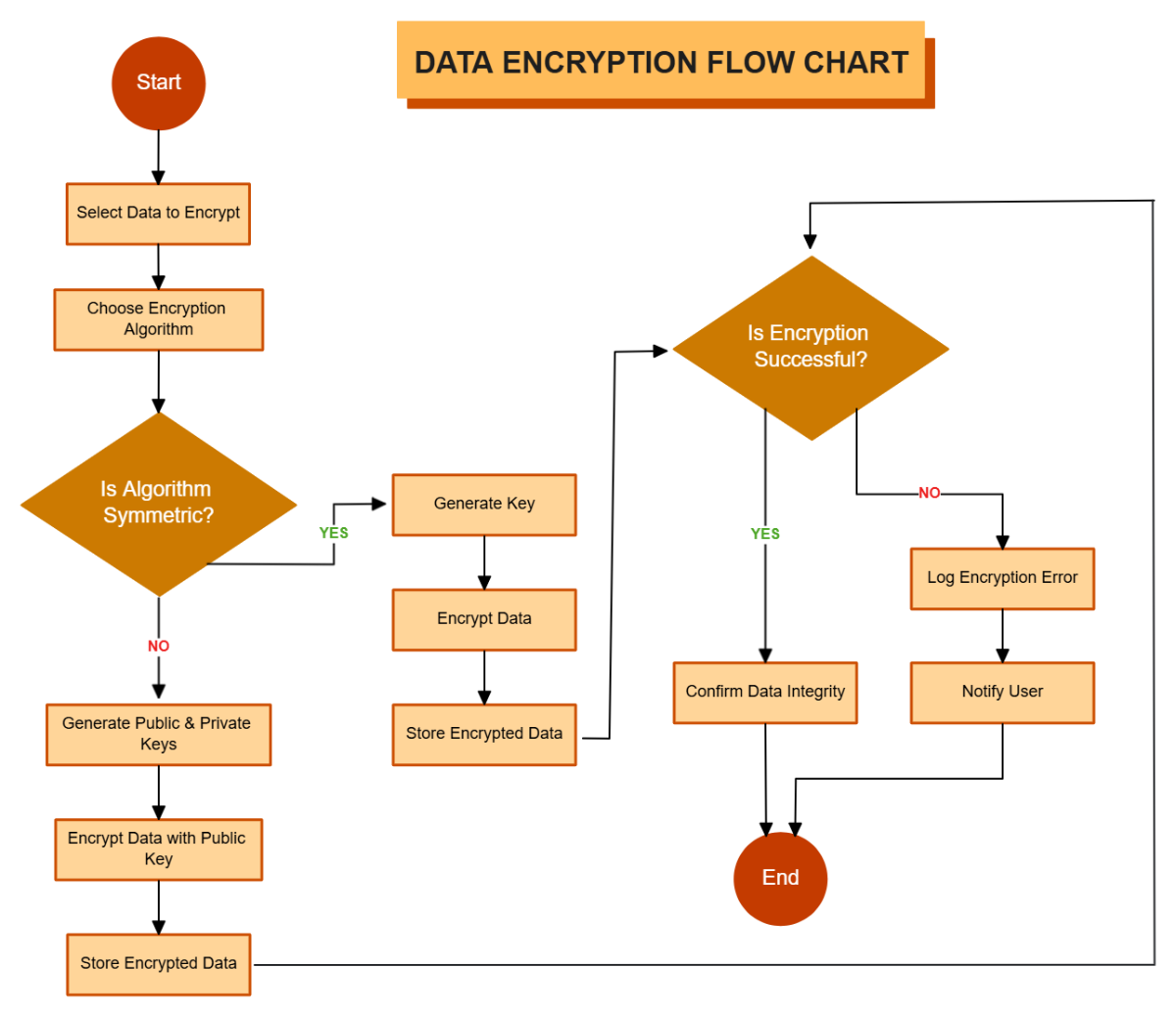
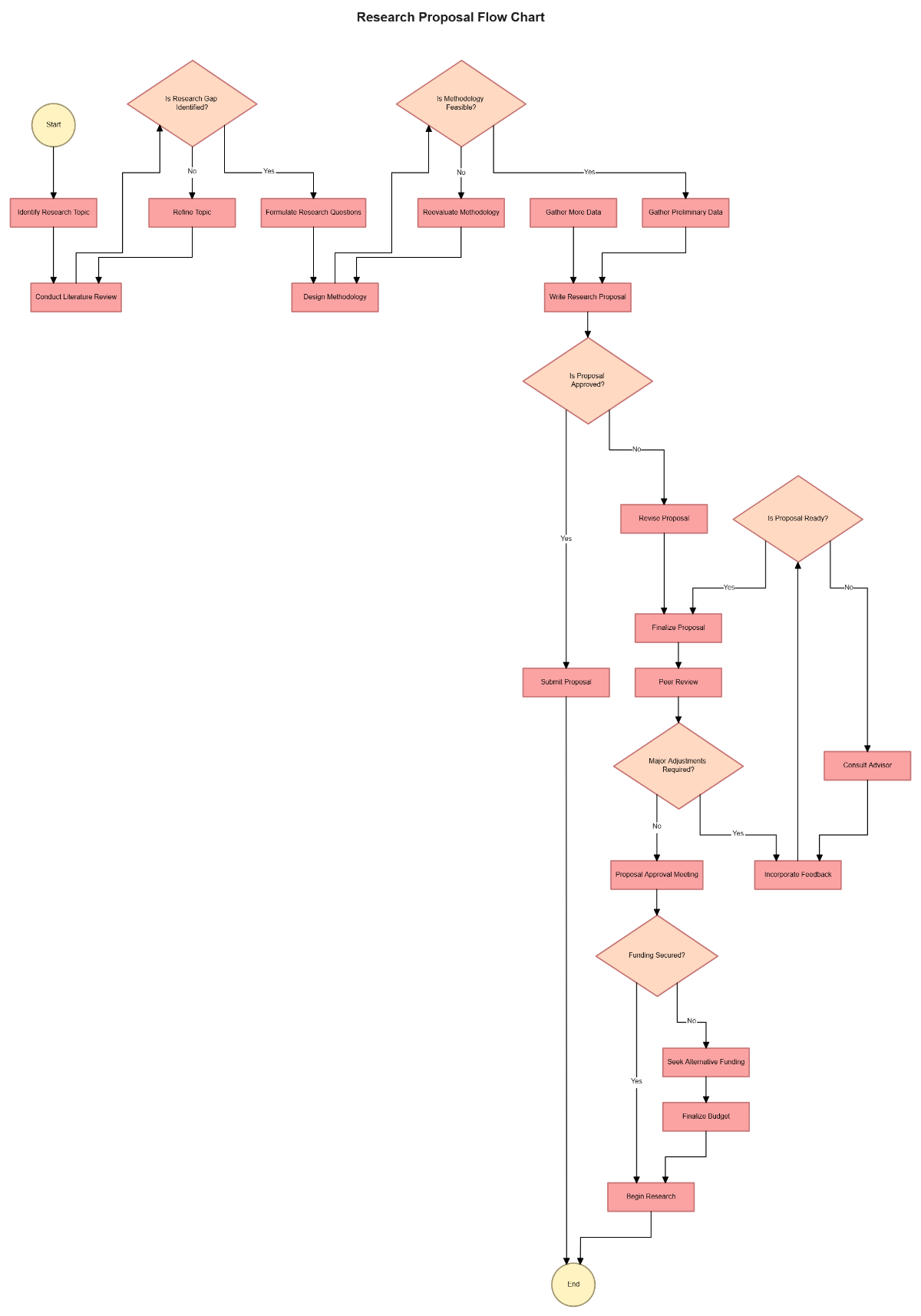
- Use standard symbols – like ovals for start/end, rectangles for steps, diamonds for decisions.
- Maintain consistent flow – arrange steps logically from top to bottom or left to right.
- Label connectors clearly – identify decision outcomes and process paths.
- Simplify complex steps – break down large tasks into smaller sub-processes.
- Check for completeness – ensure all possible paths are represented.
- Use whitespace – improve readability by spacing elements evenly.
- Test with stakeholders – validate accuracy and clarity with users.
What file formats can I download for my Flowchart?
Template.net whiteboard templates support multiple export formats for collaboration and sharing. You can download your Flowchart in PDF, PNG, JPEG, SVG, and Microsoft PowerPoint formats.
Can I create a Flowchart using AI?
Template.net provides an AI-powered tool that generates new Flowchart structures from prompts. You can access it here: Flow Chart Maker.
What essential elements should be included in my Flowchart?
Your Flowchart should include these essential elements for clear communication.
- Start and End Points – denote process boundaries.
- Process Steps – actions or tasks represented by rectangles.
- Decision Points – represented by diamonds indicating branching paths.
- Arrows – show flow direction and sequence.
- Connectors – link flowchart sections when space is limited.
- Annotations – provide additional explanations if necessary.
- Input/Output – parallelograms for data entering or leaving the process.
What are the benefits of using Flowchart in my team collaboration workflow?
Using a Flowchart in team collaboration workflows offers several benefits.
- Improved communication – visual clarity ensures all team members understand the process.
- Enhanced problem solving – identifies bottlenecks and inefficiencies.
- Standardized procedures – creates a shared reference for work steps.
- Facilitated training – new team members learn processes faster.
- Efficient decision making – visualizes options and outcomes clearly.
What structural standards should my Flowchart follow?
Your Flowchart should follow these structural standards for visual clarity and usability.
- Consistent symbol usage – apply standard flowchart shapes uniformly.
- Logical flow direction – typically top to bottom or left to right.
- Clear labeling – all steps and decisions must be named distinctly.
- Minimal crossing lines – avoid overlapping arrows to reduce confusion.
- Balanced spacing – maintain even gaps between elements for readability.
- Use of color or styles – optionally differentiate sections or highlight key points.
