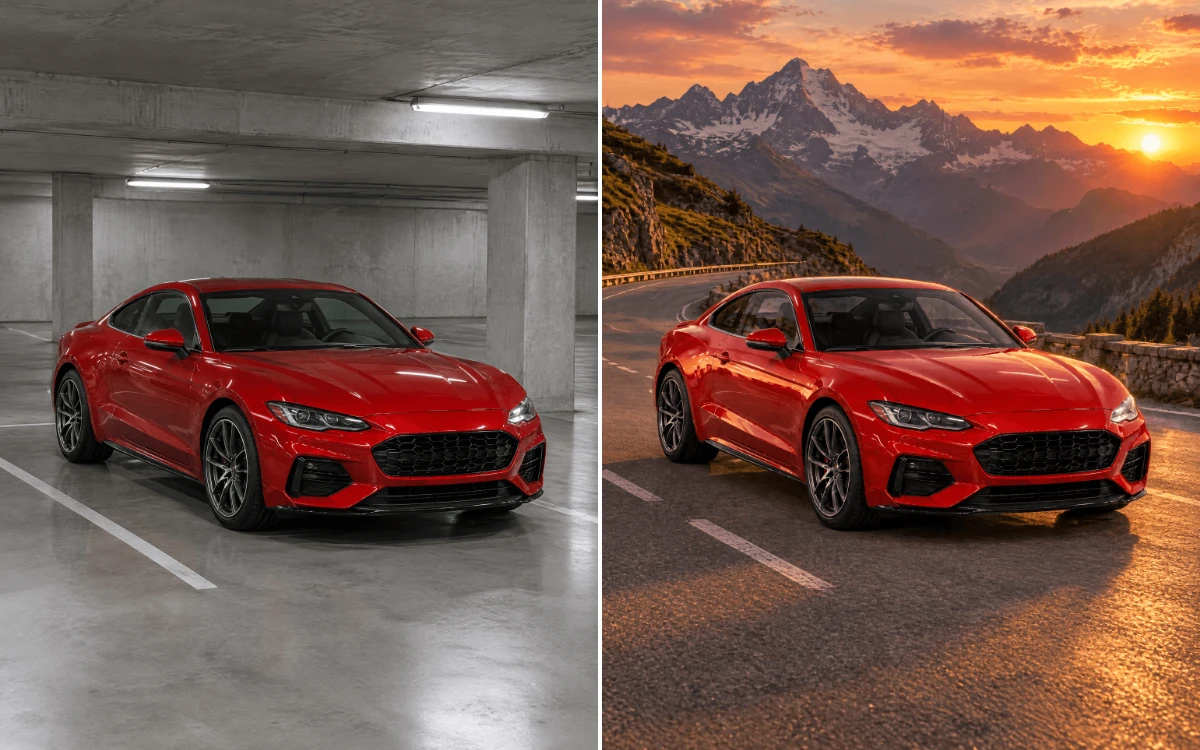
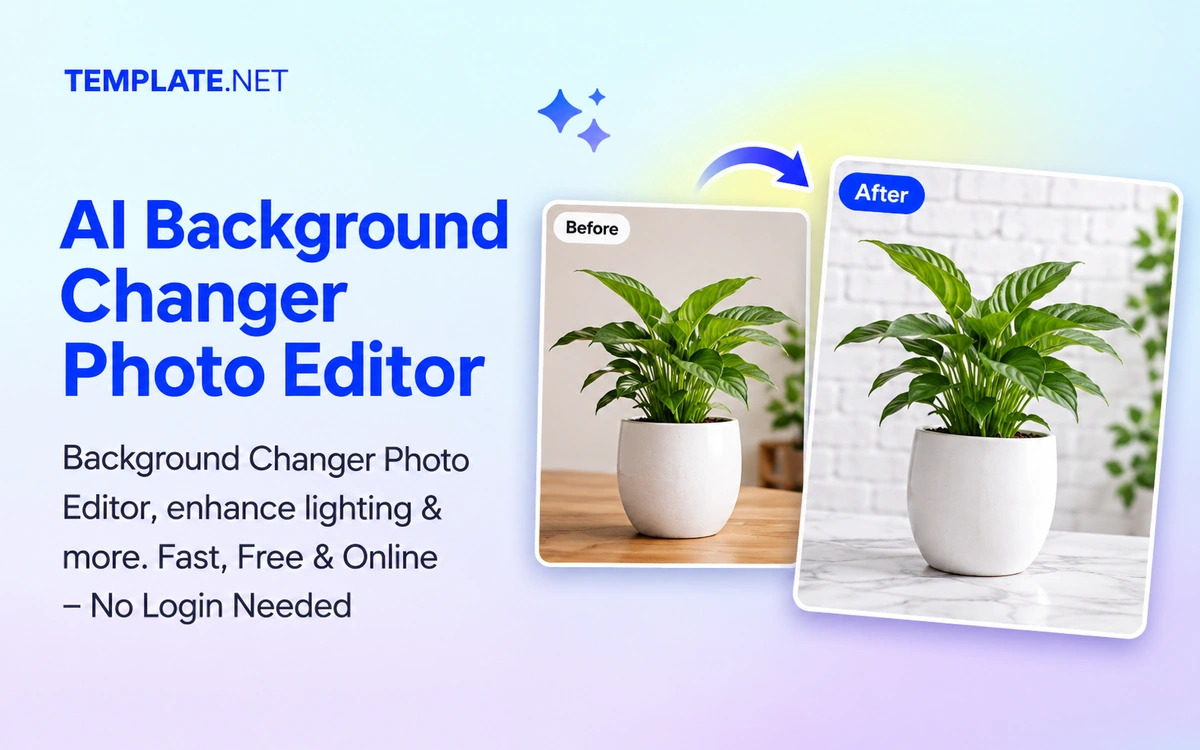
Free AI Photo Editor Background Changer
Upload your photo, and our AI instantly replaces or removes unwanted backgrounds with precision. Create professional-quality images with transparent, custom, or themed backdrops. No design skills required. Free, fast, and secure.
Make Photos Stunning, Customize Online with Background Editor
Template.net’s Free AI Photo Editor Background Changer helps you redesign photo backdrops in seconds. Perfect for personal, e-commerce, or branding use, our AI seamlessly transforms backgrounds. Download, refine, or export with ease.
Your Subject Stays Exactly the Same
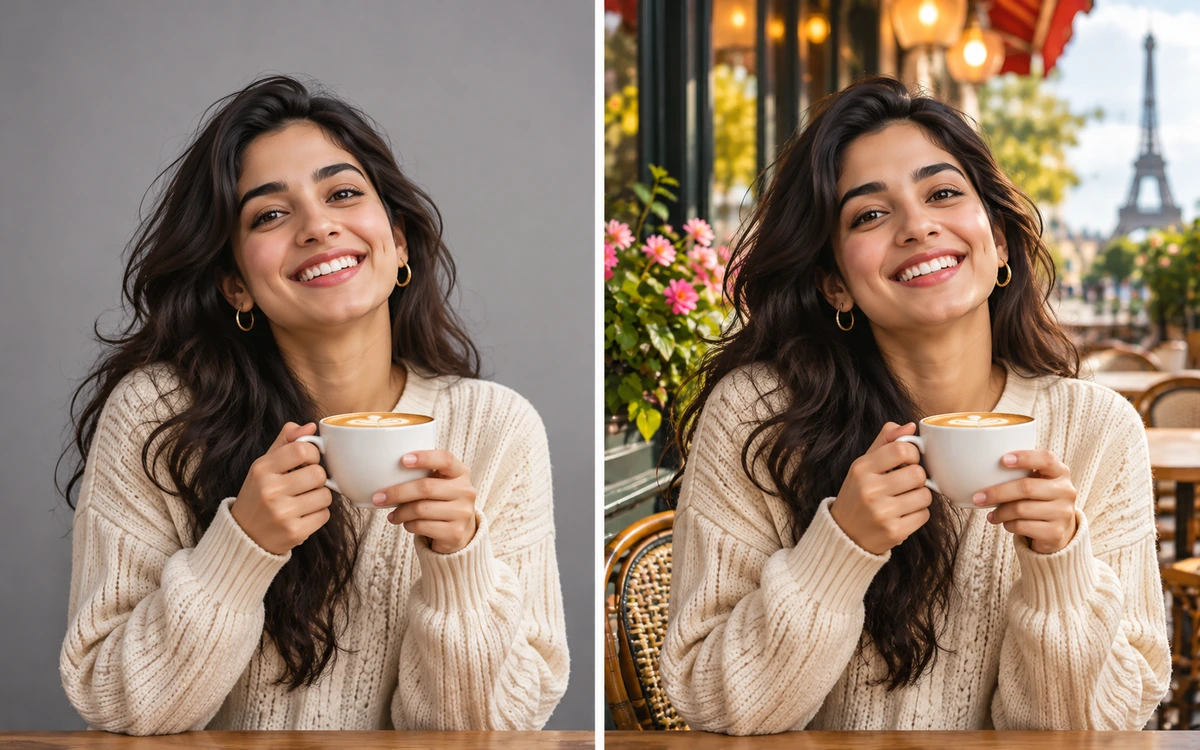
The AI swaps only what is behind your subject. Faces, products, pets and cars keep their shape, colors, details and position, so the result still looks like your original photo, just somewhere new.
Lighting That Matches the New Scene
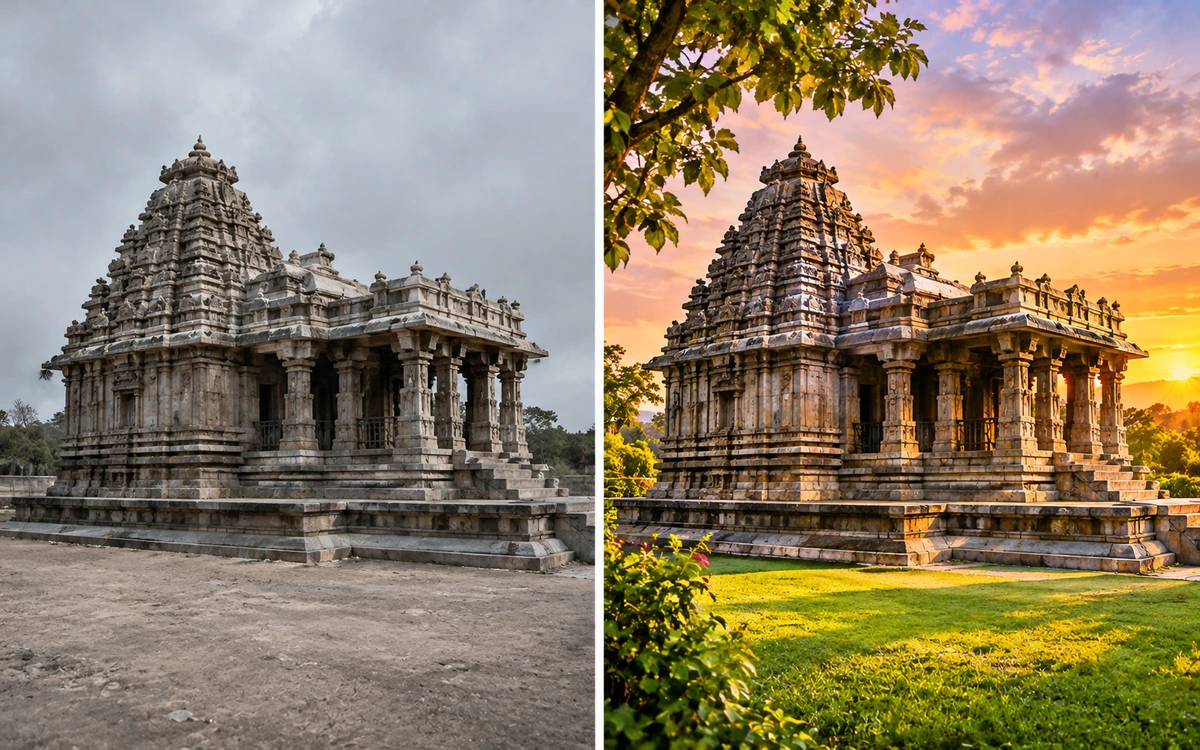
The new background isn't just pasted in. The AI blends light, shadows and reflections so your subject sits naturally in the scene, from golden sunsets to bright studio whites.

One Photo, Endless Scenes for Every Need
Transform product photos, headshots, and pet images into stunning lifestyle scenes with seasonal, holiday, or branded backgrounds for ads and social media.
How to Change a Background with AI Photo Editor
Change photo backgrounds in just three simple steps. No delays. No advanced skills required.
- Step 1
Upload Your Photo
Click Upload your Image, drop a photo onto the upload box, or pick one from My Projects. You can add up to 8 images, 25 MB each.
- Step 2
Describe the New Background
Type the scene you want, like a sunny beach or a modern office, or leave it empty for a clean professional backdrop. Then choose your size and Fast or Pro quality.
- Step 3
Generate and Download
Click Generate. Your Workspace opens, and your new image appears there in seconds, ready to download, share or keep editing.
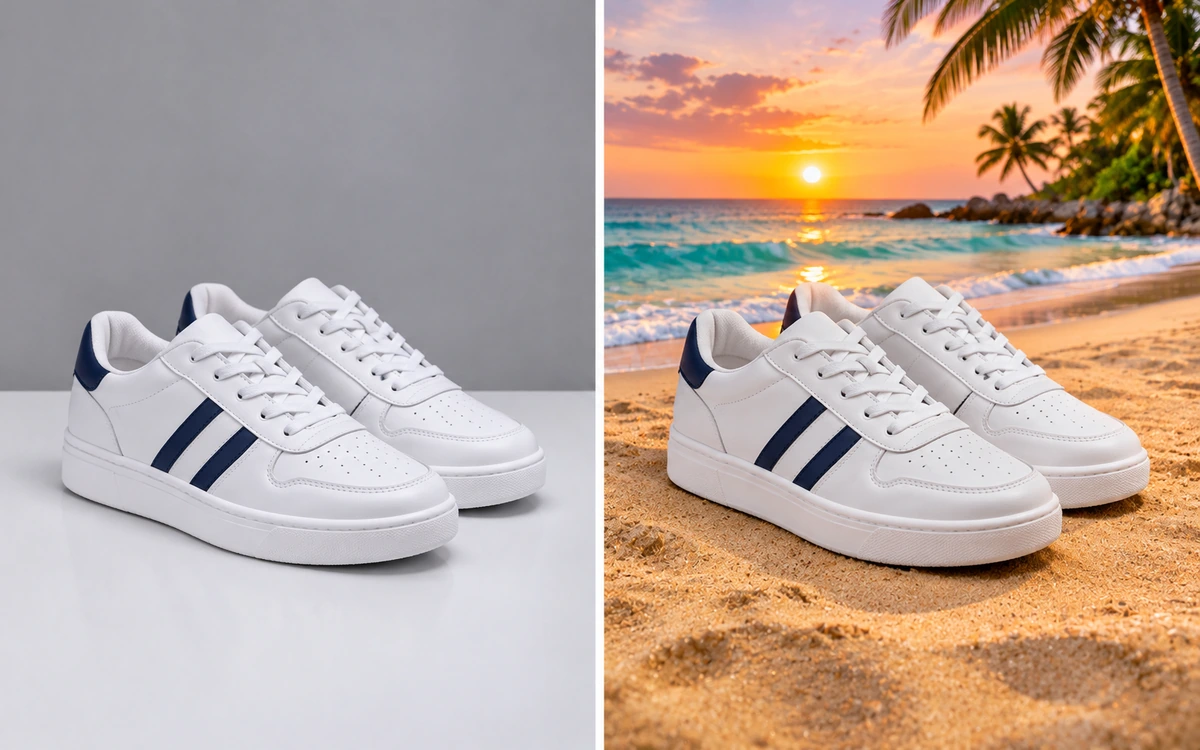
Describe Any Background You Want
Type the scene you have in mind, such as a sunny beach at sunset, a snowy mountain cabin or a minimal white studio, pick a size, and get a polished, share-ready image saved to your Workspace.
AI Image Background Changer Features
Everything you need to put any photo in a new scene, in just a few clicks.

Describe Any Background
Type the scene you want, like a sunny beach, a modern office or a snowy forest, and the AI creates it behind your subject.

Your Subject Stays the Same
Faces, products, pets and cars keep their shape, colors, details, pose and position in the frame. Only the background changes.

Matching Light and Shadows
The AI blends light, shadows and reflections on your subject to match the new scene, so it never looks cut and pasted.

No Masking or Cutting
No need to select edges or erase the old background by hand. The AI finds your subject and handles the rest.

Smart Default Backdrop
Not sure what to type? Leave the description empty and get a clean, professional backdrop that suits your subject.

Simple Three-Step Process
Upload a photo, describe the background and click Generate. Your new image is ready in seconds.

Works on Any Subject
Change backgrounds for portraits, products, pets, cars, food and more, all with the same simple steps.

Studio-Quality Product Photos
Place products on clean white backgrounds for marketplaces, or in styled lifestyle scenes for your online store.
Professional Headshots
Swap a messy room for a clean studio or modern office backdrop, perfect for LinkedIn, resumes and team pages.

Any Style or Season
Create festive, summer, neon or minimal pastel scenes to match holidays, campaigns and your brand colors.

Upload Up to 8 Images
Add up to 8 photos, up to 25 MB each, by browsing, dragging and dropping, or picking from your projects.

Add from My Projects
Pick images you’ve already made or uploaded on Template.net, with no need to download and upload them again.

Flexible Output Sizes
Keep Auto to let the AI choose, or pick 1:1, 3:4, 4:3, 9:16 or 16:9 for posts, stories, banners and prints.

Fast or Pro Quality
Use Fast for quick ideas, or switch to Pro for richer detail and a more polished finish on your final image.

Try Different Ideas
Not happy with a scene? Change the description and generate again until the background looks just right.

Live Progress in Your Workspace
Your Workspace opens with a card that shows the progress and then your finished image, saved automatically.

Easy Download and Sharing
Download share-ready images for websites, ads, thumbnails, social media posts and print.

Keep Editing with AI Tools
Take your image further with Template.net’s other AI tools: enhance it, remove objects or add it to a design template.
Frequently Asked Questions
How do I change the background of a photo?
Upload your photo, describe the new background you want, such as a sunny beach or a modern office, choose the size and quality, and click Generate. Your Workspace opens, and your new image appears there in seconds.
Will my subject change?
No. The AI is told to keep your subject exactly as it is, including the face, product, colors, pose, size and position in the frame, and to change only what's behind it.
What should I type in the description?
Describe the scene clearly, for example "a sunlit Scandinavian kitchen with plants" or "a clean white studio with a soft shadow". Adding details like lighting, time of day or style gives better results
Do I have to write a description?
No. If you leave the description empty, the AI places your subject on a clean, professional backdrop that suits it.
Does the lighting match the new background?
Yes. The AI adjusts the light, shadows and reflections on your subject to match the new scene, so it sits naturally in the picture.
Can I choose the size of the final image?
Yes. Keep Auto to let the AI choose, or pick 1:1, 3:4, 4:3, 9:16 or 16:9 to fit profile pictures, stories, posts, banners and prints.
What is the difference between Fast and Pro quality?
Fast gives you quick results and is great for trying out different backgrounds. Pro takes a little longer and produces richer detail and a more polished finish for your final image.
What kinds of photos work best?
Clear, well-lit photos where the main subject stands out work best, such as portraits, products, pets and cars. Very blurry or cluttered photos may give less accurate results.
Is the AI Image Background Changer free to use?
You can try it free as a guest. After that, sign up to keep creating, and each image uses credits from your plan. The credit cost is shown on the Generate button before you start.
Where can I find my new images?
Every image is saved automatically to your Workspace, where you can download it, share it or keep editing it with Template.net's other AI tools at any time.
Upgrade
Create for free. Only upgrade for pro features
