Free AI Image Eraser
Upload a photo and quickly remove unwanted people, objects, text, watermarks, blemishes, clutter, and other distractions with AI. Once you upload your photo, the AI Inpaint tool opens automatically, allowing you to brush over the area you want to remove. AI then intelligently reconstructs the selected area to create a clean, natural-looking result.

Create and Clean Up Images Online with an AI Powered Generator
Template.net’s Free AI Image Eraser makes it easy to remove unwanted elements without complicated editing software. Upload your photo and the AI Inpaint tool opens automatically, giving you a simple brush-based editing workspace. Brush over the person, object, text, blemish, or distraction you want to erase, and AI analyzes the selected area to intelligently reconstruct the surrounding background. The brush-based workflow gives you direct control over exactly what should be removed while keeping the rest of your photo intact. Select only the area that needs editing, let AI process the selection, and review the result. If another element needs to be removed, simply brush over that area and generate the edit again.
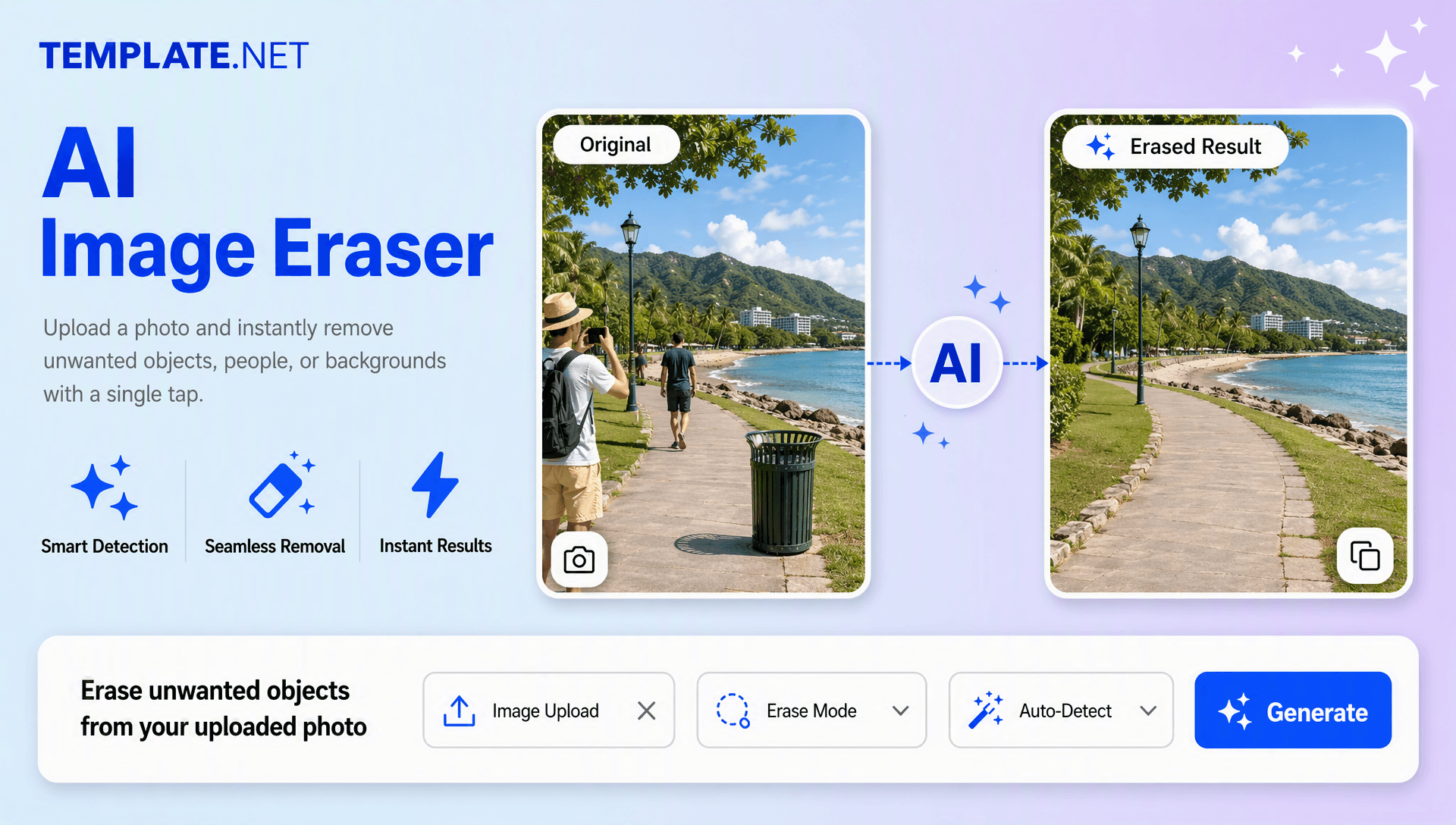
How to Remove Unwanted Objects Using AI
Upload your photo, open the automatic Inpaint workspace, brush over the unwanted area, and let AI reconstruct the selected section.
Upload Your Photo
Open the AI Image Eraser and upload the photo you want to edit. After the upload is complete, the AI Inpaint tool opens automatically so you can select the area that needs to be removed.
Brush Over the Unwanted Area
Use the brush to mark the person, object, text, blemish, scratch, or other distraction you want to erase. Brush carefully over the unwanted element to define the area that AI should process.
Generate, Review, and Download
Let AI process the brushed area and reconstruct the surrounding background. Review the result and, if needed, brush over additional areas for further cleanup. Once the result looks right, download the finished visual for websites, social posts, product listings, marketing campaigns, presentations, or other creative projects.
Create Cleaner Visuals in Seconds and Simplify Your Editing
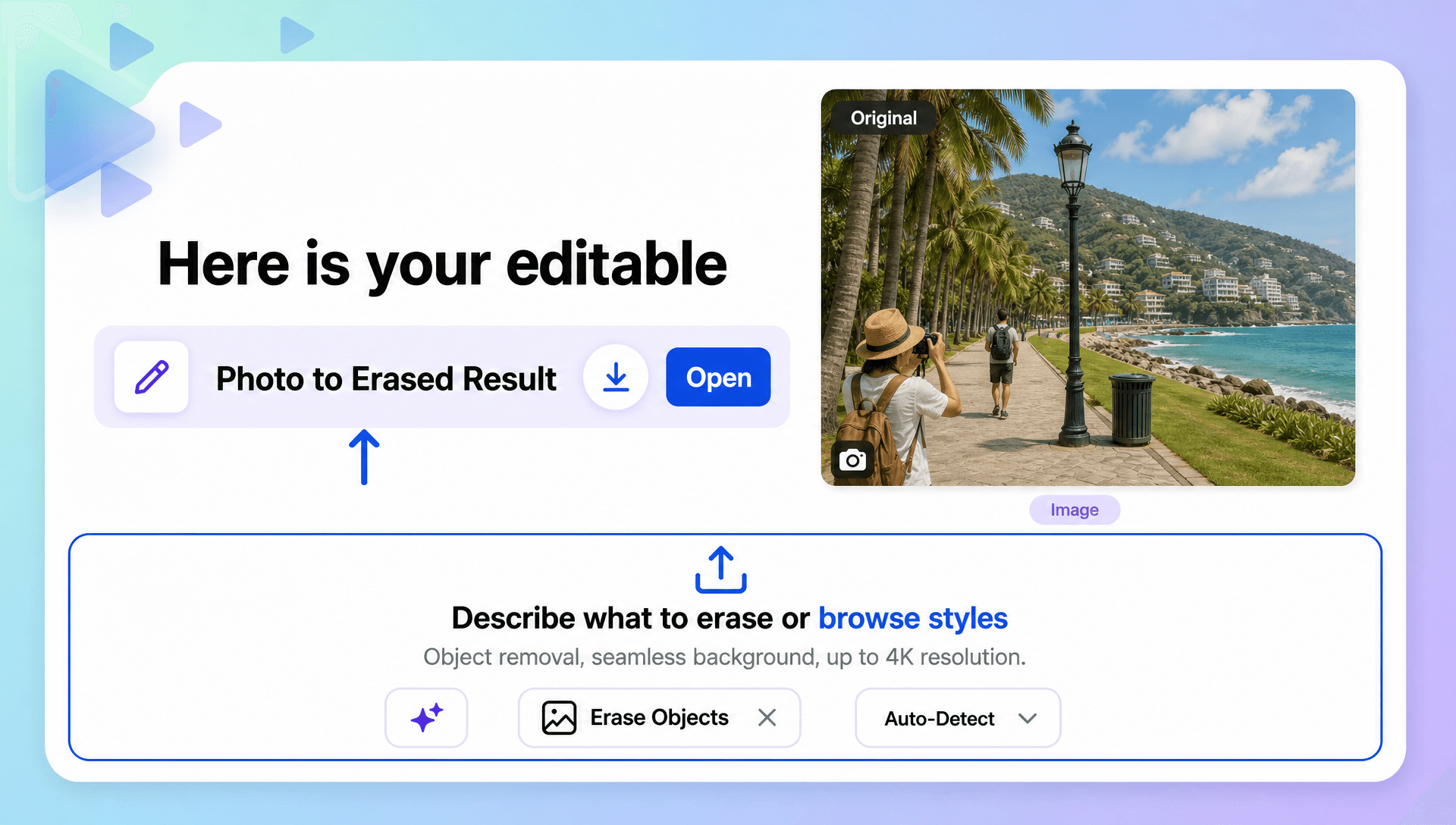
Remove Unwanted Elements from Product Photos
Clean product photography by brushing over distracting props, people, clutter, signs, or other elements that compete with the main subject. This helps create a more focused product presentation for online stores and marketing campaigns. For a related product workflow, explore AI Product Staging Generator.
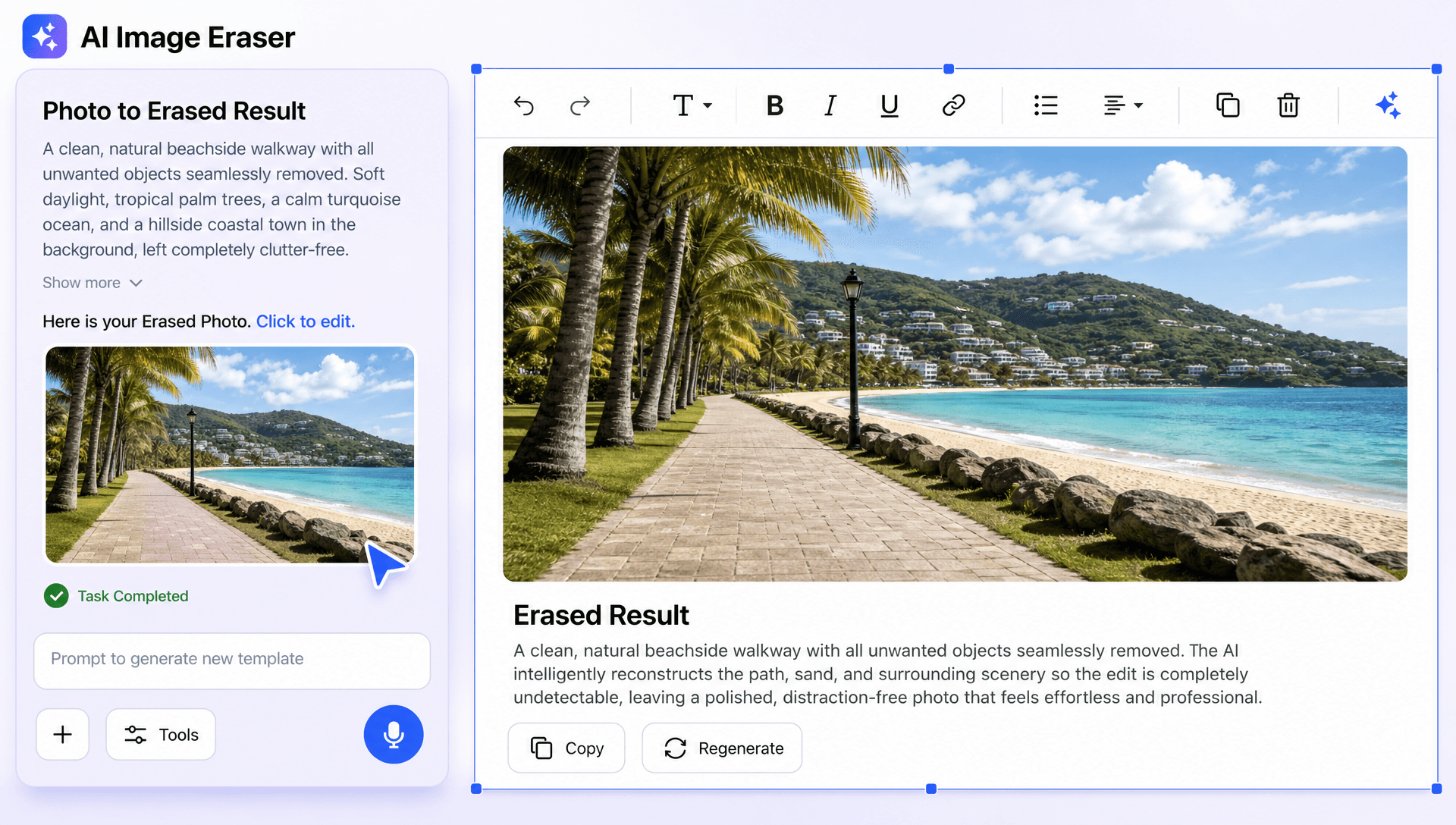
Clean Up Photography and Social Content
Remove unwanted people, text, marks, objects, and background distractions by selecting them directly with the brush. Create cleaner visuals for social posts, campaigns, portfolios, blogs, and other creative content. For broader editing requirements, explore AI Photo Editor.
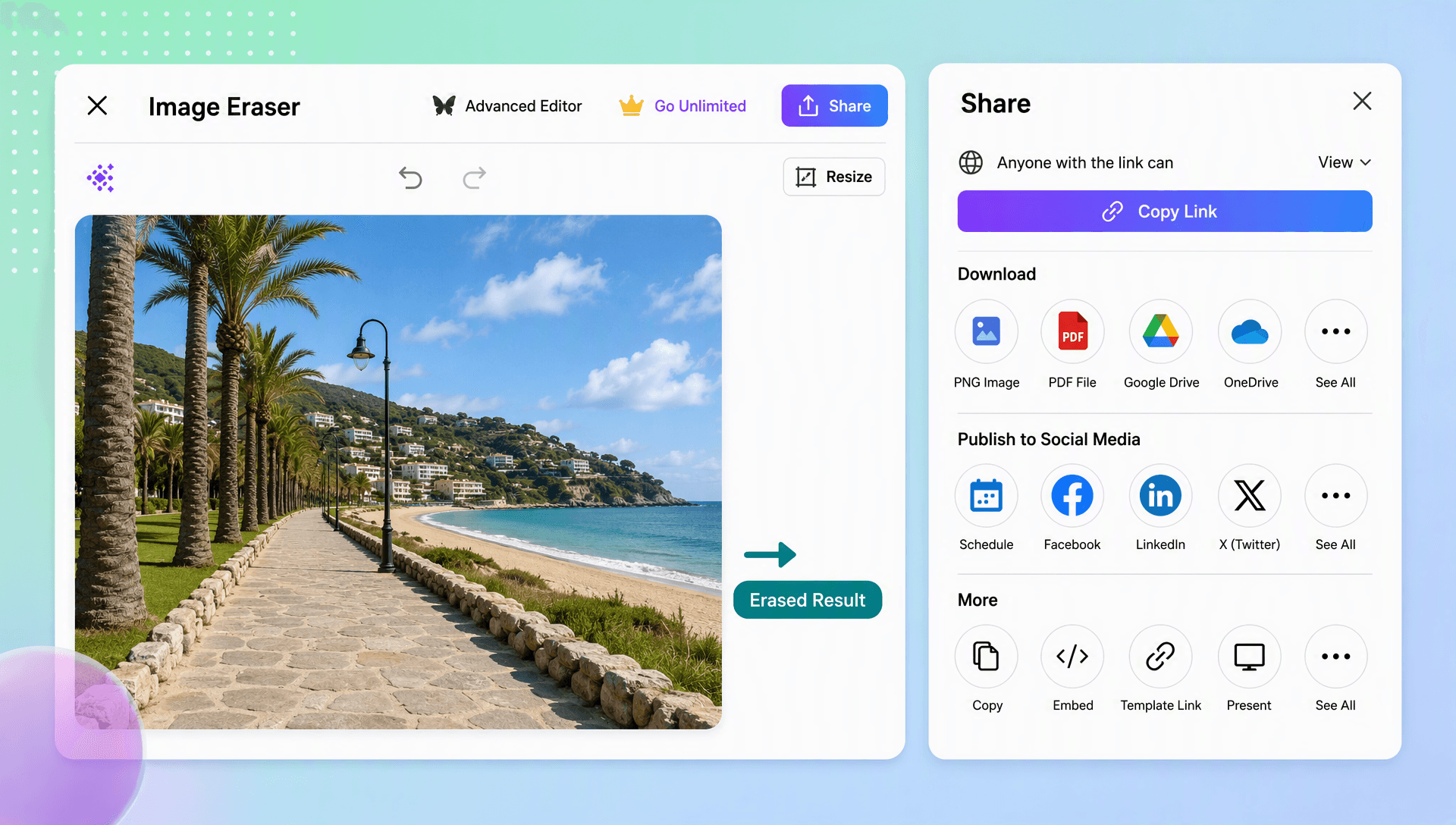
Restore and Refresh Older Photos
Brush over scratches, stains, tears, marks, and other damaged areas in older photographs. AI can reconstruct the selected portions to help create a cleaner and refreshed result while keeping important details intact.
Create More Focused Backgrounds and Compositions
Select distracting elements and remove them without unnecessarily changing the rest of the composition. This makes it easier to focus attention on the main subject and create cleaner visual layouts. For dedicated background editing, explore AI Background Remover.
Create and Edit Images Effortlessly with AI
Everything you need to remove unwanted elements, clean up visual content, and create polished results with speed, accuracy, and control.

AI-Powered Object Removal
Upload your photo and brush over the unwanted area. AI identifies the selected region and removes the object, person, text, or distraction while reconstructing the surrounding area.

Automatic Inpaint Tool Opening
After you upload your photo, the AI Inpaint tool opens automatically, taking you directly to the editing workspace so you can start selecting unwanted areas without extra navigation.

Precise Erasing and Area Control
Brush directly over the unwanted element for targeted editing and greater control. Select only the area that needs attention rather than applying changes across the entire photo.

Smart Background Reconstruction
After you brush over an unwanted element, AI intelligently rebuilds the selected area using surrounding visual information so the edited section blends naturally with the existing background.

Natural Looking Cleanup Results
Remove distracting elements while preserving the surrounding scene. AI reconstructs replacement details based on nearby textures, patterns, colors, and background elements.

Remove Multiple Unwanted Objects
Clean several distracting elements from one photo by brushing over each unwanted area. Remove people, props, clutter, signs, and other objects to create a more focused composition.

Brush Based Area Selection
Use the brush to mark the exact portion you want to erase. Select a person, object, blemish, text, or other unwanted detail while keeping the remaining composition unchanged.

Erase Text and Watermarks
Brush over unwanted text, labels, marks, and distracting written elements to create a cleaner visual composition.

Remove People and Background Distractions
Erase unwanted people, passersby, props, and other background distractions by brushing over them. This helps keep attention on the main subject.

Product Photo Cleanup
Clean product photography by removing unwanted props, objects, people, and background distractions that compete with the main product.

Old Photo Restoration
Use targeted brushing to remove scratches, stains, tears, marks, and other damaged areas from older photographs and create a refreshed appearance.

Blemish and Detail Retouching
Target small imperfections, marks, and distracting details with the brush for focused cleanup without unnecessarily changing the surrounding content.

Detailed Area Editing
Zoom into areas that require more careful selection and brush over specific details for controlled object removal and cleanup.

Refine Selected Areas
Review the AI-generated result and brush over an area again when additional cleanup is needed. Continue refining individual sections until the result matches your requirements.

Flexible Layout Ratios
Create edited visuals using supported layout ratios including 1:1, 3:4, 4:3, 9:16, and 16:9 for social media, presentations, websites, marketing, and other digital requirements.

Simple Upload and Export
Upload your source file, automatically open the Inpaint workspace, brush over unwanted areas, preview the result, and download the finished file.

Fast Online Editing Workflow
Complete common object-removal and cleanup tasks through a straightforward upload and brush workflow without spending time learning complex editing software.

Download or Share Instantly
Download finished visual and share instantly via Email, LinkedIn, WhatsApp, Facebook, X (Twitter), Pinterest, or generate a live link or QR code for marketing, social media, or other digital projects.
Image Eraser FAQ
Still have questions?
The quickest answer is to try it - upload a photo and see the result.
What is an Image Eraser? Definition
An Image Eraser is an AI-powered editing tool that removes unwanted objects, people, text, marks, blemishes, and other distracting elements from an uploaded photo. Users brush over the area they want to erase, after which AI reconstructs the selected area using surrounding visual details.
What is an AI Image Eraser and why is it used?
An AI Image Eraser is used to quickly remove unwanted elements from photos without requiring advanced manual editing skills. After uploading a photo, users can brush over the unwanted area and let AI remove it while reconstructing the surrounding background.
What sizes or formats are supported for Image Eraser outputs?
AI Image Eraser outputs support layout ratios including 1:1, 3:4, 4:3, 9:16, and 16:9. These ratios make edited visuals suitable for social media, websites, presentations, marketing materials, product listings, and other digital applications.
What types of images can be edited with an AI Image Eraser?
You can edit product photos, portraits, travel photography, real estate visuals, social media content, old photographs, marketing visuals, and other photos containing unwanted elements. Common edits include removing people, objects, text, watermarks, clutter, scratches, stains, and blemishes.
Does the AI Image Eraser support multiple languages?
Yes. The AI editing workflow can understand prompts in 20+ multiple languages, including English, Spanish, Hindi, Arabic, Chinese, Japanese, and more, making it easier for users to describe the elements they want to remove.
What are the benefits of using an AI Image Eraser?
An AI Image Eraser simplifies object removal, saves editing time, and provides direct control through brush-based area selection. Users can upload a photo, brush over unwanted areas, generate the result, review the edit, and refine additional areas when necessary.
What are common use cases for an AI Image Eraser?
Common use cases include removing unwanted objects from product photography, cleaning real estate photos, removing people from backgrounds, erasing text and distractions from social content, retouching photography, and restoring old photographs by removing scratches, stains, tears, and other unwanted details.
Explore more AI image tools
- Image Editor
 Image to Image
 Remove Background
 Face Swap
 Inpaint
 Photo Upscaler
 Image Resizer
 Crop Image
 Camera Angle
 Skin Enhancer
 Restyle
 Relight
- Character Generator
- Object Remover
 Text Remover
 Watermark Remover
 Transparent Background Generator
 Mirror Image
 Image Background Changer
 Change Image Color
 Add Text To Photo
 Border Generator
 Watermark Generator
 Photo Blur
 Image Enhancer
- Image Clearer
 Sharpen Image
 HD Photo Converter
 Image To Cartoon
 Photo To Sketch
 SVG Converter
- Image To Text Generator
 Color Analysis
 Image Combiner
- Character Swap
- Photo Collage Generator
- Photo Grid Generator
 Headshot Generator
 Profile Picture Generator
 Portrait Generator
 Hair Style Changer
 Long Hair Extension Generator
 Action Figure Generator
 Old Photo Restoration
 Pet Portrait Generator
 Photo To Emoji Generator
- Product Expander Generator
- Cinematic Shot Generator
- Pixel Art Generator
- Sketch Generator
- Cake Topper Generator
- Emoji Generator
- Cartoon Generator
- Coloring Page Generator
- Anime Generator
- Lego Generator
- Tattoo Generator
- Drawing Generator
- Art Generator
- Stock Photo Generator
- Photo Generator
- PNG Image Generator
- Font Text Generator
- Text Effect Generator
- Random Quote Generator
Try AI Image Eraser now
Drag and drop an image or browse to edit it
or drop an image here
